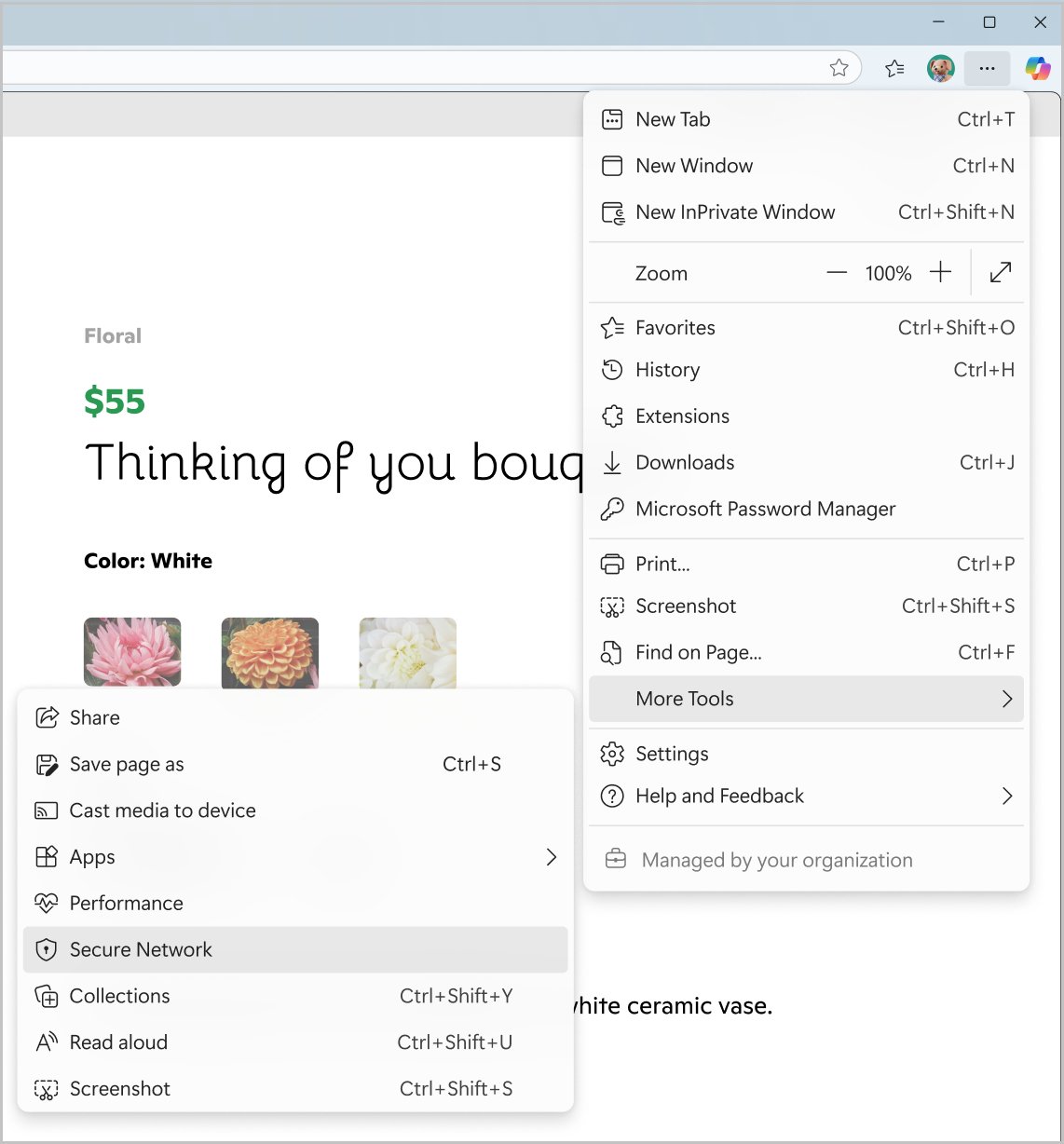
To use a VPN in Microsoft Edge, turn on the built-in Edge Secure Network: select Settings and more > More tools > Secure Network and sign in with a personal Microsoft account.
Secure Network is free for 5 GB of data a month. This guide also covers VPN extensions from the Edge Add-ons store, a Windows VPN connection, how to confirm the VPN is working, and fixes when it stops.
The fastest way to enable and use the Microsoft Edge VPN
Edge Secure Network is the VPN built into Edge, run in partnership with Cloudflare. It needs a personal Microsoft account and is not available on managed work or school devices.
- Open Microsoft Edge and select Settings and more (…) in the top-right corner.
- Select More tools > Secure Network.
- Sign in with your personal Microsoft account, or create one, when Edge prompts you.
- Look for the shield icon in the toolbar at the top right. It means Secure Network is on.
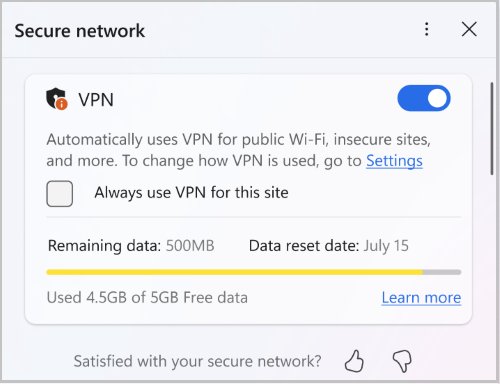
- Select the shield icon to see your remaining monthly data and what has been protected.
Signing in to Edge with a Microsoft account also turns on sync, so your favorites, passwords and history follow you to other signed-in copies of Edge.
Which VPN route should you use in Edge?
| Your situation | Use this | Why |
|---|---|---|
| Personal PC, occasional public Wi-Fi | Edge Secure Network | Free, built in, no extra software; 5 GB of data a month |
| You need more than 5 GB a month or a choice of country | A VPN extension from Edge Add-ons | Your VPN provider sets the data and locations, not Microsoft |
| You want every app on the PC protected, not just Edge | A Windows VPN connection | It works at the network level, so Edge and other apps use it |
| Work laptop managed by your employer | Your company's VPN | Secure Network is unavailable on managed devices; your IT team supplies the connection details |
Understanding VPNs: How They Enhance Online Privacy and Security
A VPN sends your traffic through an encrypted tunnel to a server run by the VPN provider. Sites then see the server's address instead of yours.
| Protection | What it does in Edge Secure Network | What it does not do |
|---|---|---|
| Encryption | Encrypts traffic from Edge through a tunnel, even on plain HTTP sites and open Wi-Fi | It does not cover apps outside Edge |
| IP address and location | Gives you a virtual IP and swaps your location for a similar regional one | It does not let you pick a country |
| ISP tracking | Stops your internet provider seeing which sites you visit on protected traffic | Sites you sign in to still know who you are |
| Tracker masking (Private IP) | Routes known trackers from Tracking Prevention lists through Secure Network to hide your IP from them | Controlled rollout, so not every PC has it yet |
Cloudflare, the service provider, never receives your Microsoft account identity. It deletes its diagnostic and support data within 25 hours.
Why Choose Microsoft Edge for VPN Usage
| Edge feature | What you get |
|---|---|
| Built-in Secure Network | A VPN with no separate app, turned on from the Edge menu |
| Free monthly allowance | 5 GB of data each month with a personal Microsoft account; it resets monthly |
| Optimized mode | Only unsecure traffic goes through the VPN, and streaming sites are left out to save data |
| Per-site control | Always use VPN for this site keeps chosen sites protected every time |
| Edge Add-ons and Chrome Web Store | Any VPN extension made for Edge or Chrome installs in Edge |
The 5 GB allowance first surfaced in 2023, when techdows covered the Edge VPN's free data plan.
Step-by-Step Guide to Setting Up a VPN in Microsoft Edge
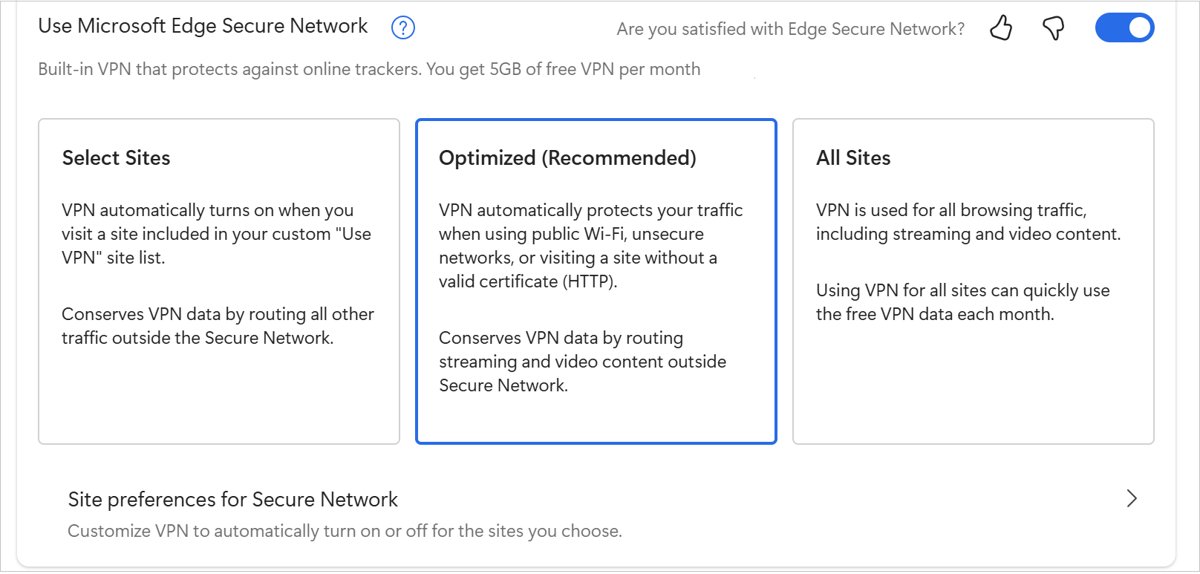
Use the Settings page when you want to choose how much traffic Secure Network protects. The page is also reachable by typing edge://settings/privacy/security in the address bar.
- Select Settings and more (…) > Settings.
- Select Privacy, search, and services, then Security.
- Turn on the Use Microsoft Edge Secure Network toggle.
- Choose Optimized, the recommended option, or one of the other two options if you want more sites routed through the VPN.
- Sign in with your personal Microsoft account if Edge asks.
- Open a site you always want protected, select the shield icon and choose Always use VPN for this site.
Optimized saves data because streaming sites such as Netflix, Hulu and HBO stay outside the VPN unless you choose to run it for all sites.
1. Choose a Reputable VPN Service
If Secure Network's 5 GB is not enough, a VPN extension is the next route. Microsoft does not publish a list of the best or top VPN extensions for Edge, so judge each one on the points below.
| Check this | Where to find it | Walk away if |
|---|---|---|
| Who publishes the extension | The publisher name on the Edge Add-ons listing | It does not match the VPN company's own website |
| Permissions requested | The prompt Edge shows before Add extension | It asks for more than the VPN needs and gives no reason |
| Logging and privacy policy | The VPN company's own website | It has no written no-logs or privacy policy |
| Data limits and price | The provider's plan page | Free plans hide a cap you cannot see before signing up |
| Account requirement | The provider's sign-up page | It needs payment details before you can test it |
Practical tip: install the provider's extension from the Edge Add-ons store or the provider's own site, never from a download portal.
2. Install the VPN Extension for Edge
- Select Extensions to the right of the address bar.
- Select Get Extensions for Microsoft Edge to open the Edge Add-ons store.
- Search for your VPN provider's name and open its listing.
- Select Get.
- Review the permissions, then select Add extension.
- Wait for the confirmation that the extension was added.
For an extension that is only on the Chrome Web Store, open its page, select Get extension, choose Allow for extensions from other stores, then Add extension.
3. Log In and Connect
Each provider lays out its extension differently, so the exact button names vary. The pattern is the same.
- Select Extensions next to the address bar.
- Select the VPN extension in the list to open it.
- Sign in with the account you created on the VPN provider's website.
- Choose a server location if the extension offers one.
- Select the extension's connect button and wait for it to show a connected state.
A VPN extension protects only the traffic inside Edge. Other apps on the PC still use your normal connection.
Use a Windows VPN connection with Edge
A Windows VPN connection covers the whole device, so Edge uses it with no extra setup. You need the server address and sign-in details from your VPN provider or your company.
- Open Settings > Network & internet > VPN and select Add VPN.
- Set VPN provider to Windows (built-in).
- Type a Connection name you will recognize, then the Server name or address.
- Choose the VPN type and the Type of sign-in info your provider gave you, then select Save.
- Select Connect next to the new connection and enter your credentials if asked.
- Open Edge and browse as normal.
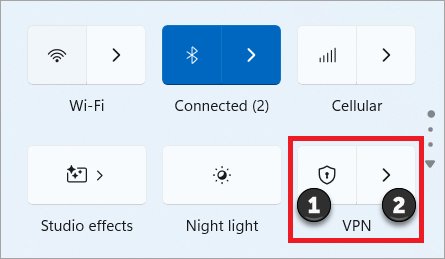
On Windows 10 the path is Start > Settings > Network & Internet > VPN > Add a VPN connection. To connect faster on Windows 11, select the Network, Volume, Battery icon on the taskbar, then VPN.
4. Verify Your Connection
- For Secure Network, check the shield icon at the top right of Edge. A plain shield means protection is on.
- Select the shield and look at Protected Sites and Secured Wi-Fi. Rising counts show traffic going through the VPN.
- For an extension, open its icon and confirm it shows connected with the location you picked.
- For a Windows VPN, open Settings > Network & internet > VPN. The connection name shows Connected underneath.
- On Windows 11, also look for the blue shield on the taskbar network icon.
Using Built-in VPN Features in Microsoft Edge: Pros and Cons
| Pros | Cons |
|---|---|
| Free, with 5 GB of data every month | 5 GB runs out quickly if you route all sites or video |
| Nothing to install; on from the Edge menu | Needs a personal Microsoft account sign-in |
| Optimized mode protects open Wi-Fi and HTTP sites automatically | No choice of server country |
| Microsoft account identity is not shared with Cloudflare | Not available on managed devices or in some regions |
Integrating Third-Party VPN Extensions with Edge: Pros and Cons
| Pros of browser VPN extensions | Cons of browser VPN extensions |
|---|---|
| Data and locations set by your provider, not a Microsoft cap | Most useful plans are paid |
| Installs in seconds from Edge Add-ons | Protects only Edge, not other apps |
| Easy to switch off per session from the toolbar | The extension can read the sites you visit, so trust in the publisher matters |
| Works on managed PCs where your admin allows extensions | Can conflict with other extensions or Secure Network |
Performance Considerations: Speed, Reliability, and Security
| Factor | Edge Secure Network | VPN extension | Windows VPN connection |
|---|---|---|---|
| Speed impact | Limited in Optimized mode, which routes only unsecure traffic | Depends on the provider's server you pick | Depends on your provider's server |
| Streaming | Streaming sites are excluded by default to save data | Depends on the provider | All traffic goes through the VPN |
| Reliability signal | An X over the shield shows it disconnected | The extension's own status | Connected under the VPN name in Settings |
| Scope | Edge only | Edge only | Every app on the PC |
Common Troubleshooting Tips for VPN Issues in Edge
Secure Network is missing or says it is turned off for managed browsers
Secure Network is unavailable on managed devices, in some regions, and without a personal Microsoft account.
- Check that you are signed in to Edge with a personal Microsoft account, not a work or school account.
- If an employer or school manages the PC, use their VPN instead; Secure Network cannot be turned on there.
- Update Edge from Settings and more > Help and feedback > About Microsoft Edge, then restart it.
The shield icon shows an X
Secure Network disconnected unexpectedly.
- Select the shield icon to read why it disconnected.
- Fix the reason shown, such as signing in again.
- Restart Edge, and restart the device if the X returns.
The shield says the data limit has been reached
You used the 5 GB monthly allowance.
- Select the shield icon to see the date your data refreshes.
- Switch back to Optimized so streaming and secure sites stop using data.
- Use a VPN extension or a Windows VPN connection until the allowance resets.
The VPN is on but sites will not load in Edge
Another extension, stale cached data or an outdated Edge or VPN version is interfering.
- Check your VPN connection status first: the shield, the extension icon or Connected in Windows Settings.
- Select Extensions > Manage extensions and turn off every extension except the VPN, or launch Edge without extensions to test.
- Press Ctrl + Shift + Delete, choose a Time range, tick Cookies and other site data and the cached data option, and select Clear now.
- Update Edge at
edge://settings/help, and update the VPN extension or app from its provider. - Restart Edge and your device.
The Windows VPN connection will not connect
Wrong server details, sign-in info, or a firewall rule blocking the VPN.
- Select the connection in Settings > Network & internet > VPN, then Advanced options > Edit and check every field against your provider's details.
- Check your firewall and antivirus settings for a blocked-connection alert, and add an allow rule for the VPN in that app's own settings. Keep protection turned on.
- Contact your company's support or your VPN provider for the correct VPN type and sign-in method.
How to turn the VPN off in Edge
- For Secure Network, open Settings > Privacy, search, and services > Security and turn off Use Microsoft Edge Secure Network.
- For an extension, select Extensions > Manage extensions and turn its toggle off.
- To remove an extension, right-click its icon and select Remove from Microsoft Edge > Remove.
- For a Windows VPN on Windows 11, select the Network, Volume, Battery icon > VPN and turn the connection off.
Legal and Ethical Aspects of Using VPNs
Use a VPN in Edge for privacy on untrusted networks, and follow the law where you are and the terms of the sites you use. A VPN hides your traffic from your network and internet provider, but it does not change what is legal. Secure Network is not offered in certain regions, and Cloudflare has said it would document any government request to block content in its transparency report.
Frequently Asked Questions
How do I use the Microsoft Edge built-in VPN?
Select Settings and more > More tools > Secure Network in Edge and sign in with a personal Microsoft account. A shield icon appears at the top right when it is on. Select the shield to see your data use and protected sites.
Can I use a VPN in Microsoft Edge for free?
Yes. Edge Secure Network gives you 5 GB of free VPN data every month when you sign in to Edge with a personal Microsoft account. The allowance resets each month, and Edge warns you as you approach the limit.
Does Microsoft Edge use a VPN automatically?
Only if you turn on Edge Secure Network. In Optimized mode it then switches on automatically for unsecure HTTP sites and open Wi-Fi, and leaves secure sites and streaming services outside the VPN to save data.
Does Microsoft have a VPN service?
Yes. Edge Secure Network is Microsoft's VPN for the Edge browser, provided with Cloudflare. It protects Edge traffic only and needs a personal Microsoft account. It is not available on managed work or school devices or in some regions.
How does the Microsoft Edge VPN work?
Secure Network routes Edge traffic through an encrypted tunnel to Cloudflare. Sites see a virtual IP address and a similar regional location instead of yours. Your Microsoft account identity is never shared with Cloudflare, and Cloudflare deletes its logs within 25 hours.
How do I turn on a VPN in Windows?
Open Settings > Network & internet > VPN, select Add VPN, choose Windows (built-in) and enter the server details from your provider. Then select Connect. The connection covers every app on the PC, including Edge.
How do I use a VPN on my laptop or PC?
Either add a connection in Settings > Network & internet > VPN with details from your provider, or install your provider's app. For Edge alone, turn on Edge Secure Network or add a VPN extension from the Edge Add-ons store.
Should I use the Microsoft VPN?
Use Edge Secure Network if you mainly need protection on public Wi-Fi and 5 GB a month is enough. Choose a paid VPN if you need more data, a specific country, or protection for apps outside Edge.
Why would you use a VPN on a computer?
A VPN encrypts your traffic on shared networks such as public Wi-Fi, hides your IP address and location from sites and trackers, and stops your internet provider seeing which sites you visit. Companies also use VPNs to give staff access to internal networks.
Why is Edge Secure Network not showing?
Secure Network is unavailable on managed devices, in some regions, and without a personal Microsoft account sign-in. Sign in with a personal account and update Edge from Help and feedback > About Microsoft Edge. On a work PC, use your company's VPN.







Microsoft Edge location: where is it located on your system - Techdows
[…] you use a VPN in Microsoft Edge or on Windows, turn it off and reload; sites estimate your area from the VPN server's […]