To change your Wi-Fi password, sign in to your router's admin page or its mobile app, open the wireless settings, type a new password and save it.
This guide covers finding the router address and login, the exact menus on NETGEAR, Orbi, ASUS, Verizon and Google Nest Wifi, choosing a security type, reconnecting your devices and fixing the problems that follow.
How to change your Wi-Fi password on any router
The Wi-Fi password lives in the router, not in your laptop or phone. Any device connected to that router can change it through a browser.
- Connect a computer or phone to your router's Wi-Fi, or plug a computer in with an Ethernet cable.
- Open a web browser and type the router's login address, such as routerlogin.net (NETGEAR), www.asusrouter.com (ASUS) or mynetworksettings.com (Verizon).
- Sign in with the router's admin password, which is not the same as the Wi-Fi password.
- Open the wireless section, labelled Wireless, Wi-Fi or Network depending on the brand.
- Type a new password into the password field, such as Password (Network Key) on NETGEAR.
- Click Apply (or Apply changes on a Verizon Router) to save it.
- Reconnect each phone, laptop and smart device with the new password.
Every device on the network drops off when you save, including the one you used to make the change.
Change Wi-Fi password by router brand: NETGEAR, Orbi, ASUS, Verizon and Google Nest
| Your router | Where to change it | Password field and save button |
|---|---|---|
| NETGEAR router (Nighthawk and others) | routerlogin.net > Wireless (Nighthawk Pro Gaming: Settings > Wireless Setup) | Password (Network Key), then Apply |
| NETGEAR Orbi | orbilogin.com > Wireless | Password (Network Key), then Apply |
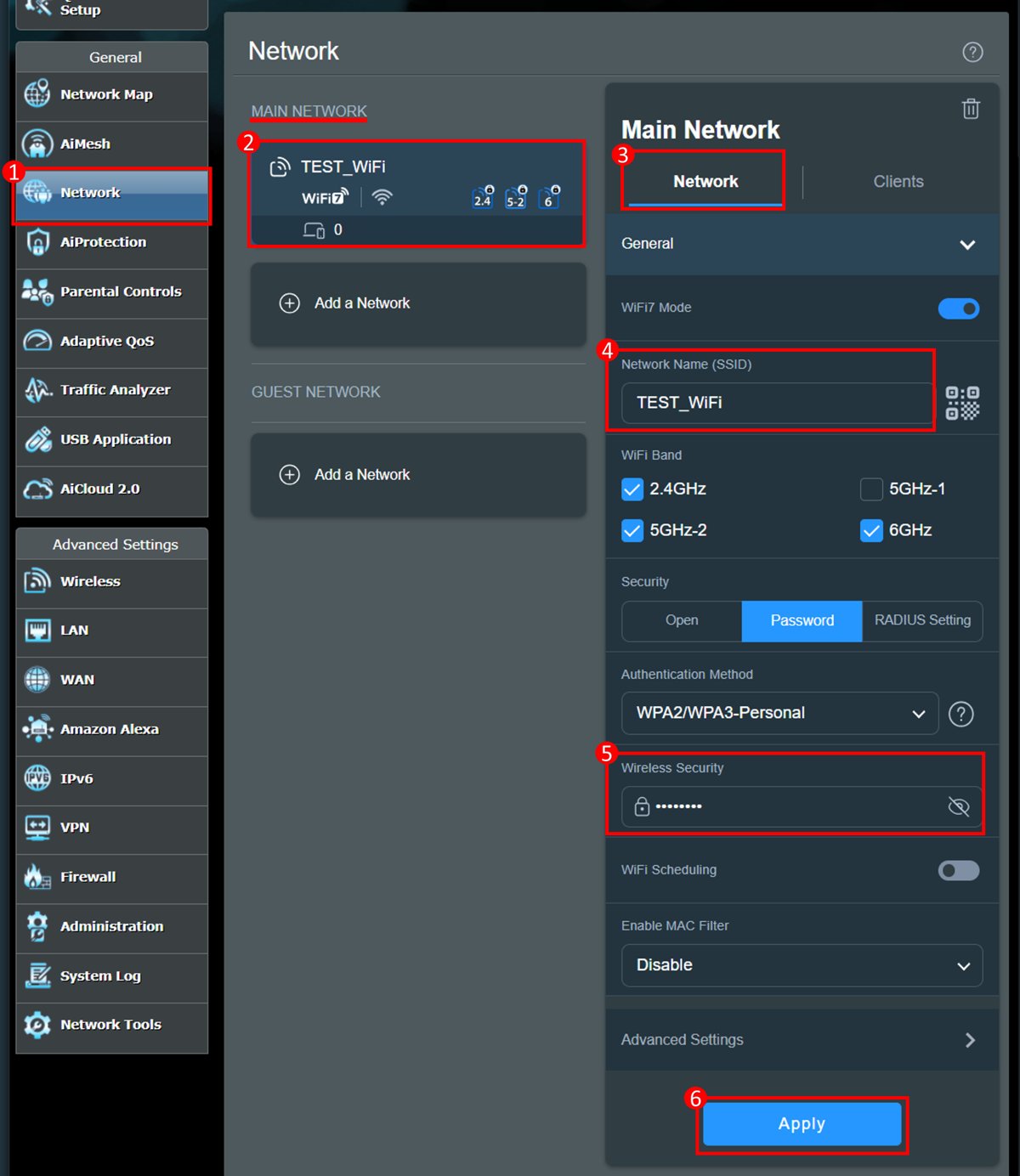
| ASUS router, newer firmware | asusrouter.com > Network > Main network profile | Password under Wireless Security, then Apply |
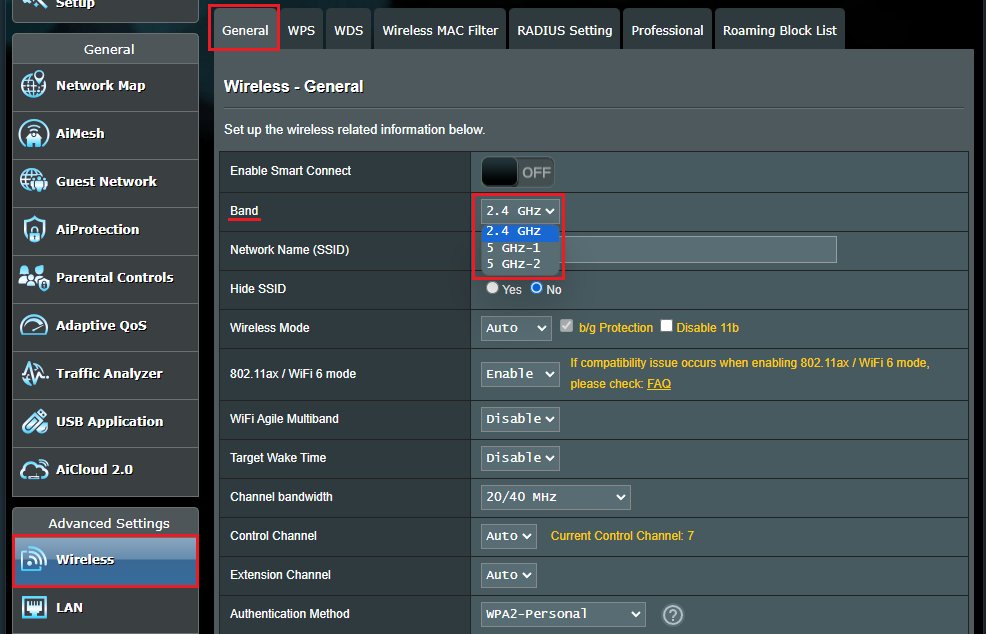
| ASUS router, older firmware | asusrouter.com > Wireless > General | WPA-PSK Key, then Apply |
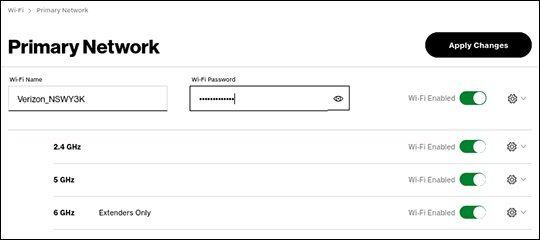
| Verizon Router (CR1000A) | mynetworksettings.com > Wi-Fi > Primary Network | Wi-Fi Password, then Apply changes |
| Google Nest Wifi or Google Wifi | Google Home app > Wifi > Network settings | Tap the current password, enter the new one, then Save |
| Gateway from another internet provider | The login address and password printed on the gateway label, or the provider's own app | Follow the provider's support page for that model |
Step 1: Check your router login information and credentials
Two different passwords are involved. The admin password opens the router's settings; the Wi-Fi password lets devices join the network.
Find your router login credentials before you start, because a forgotten admin password usually means a factory reset.
| Router | Login address | Admin user name and password |
|---|---|---|
| NETGEAR router | www.routerlogin.net | User name admin; the password you set at first setup. Older defaults are password or 1234 |
| NETGEAR Orbi | orbilogin.com | User name admin; the password chosen during setup |
| ASUS router | www.asusrouter.com or the router's LAN IP | The login name and password you created; forgotten details need a factory reset |
| Verizon Router (CR1000A) | mynetworksettings.com or 192.168.1.1 | The Network Settings password on the label on the back of the router |
| Google Nest Wifi or Google Wifi | No web page; use the Google Home app | The Google Account that manages the home |
NETGEAR prints the factory default Wi-Fi settings on a sticker on the router. Both the admin user name and password are case-sensitive.
Step 2: Find your router's IP address with ipconfig
If the brand's login name does not load, use the router's IP address instead. On Windows, the router's IP address is the Default Gateway that ipconfig reports.
ipconfigOpen Command Prompt or Terminal and run ipconfig without any switches. It lists the IPv4 address, subnet mask and default gateway for every network adapter on the PC.
You should see: Under your Wi-Fi or Ethernet adapter, the Default Gateway line shows an address such as 192.168.1.1. Type that address into the browser's address bar to reach the router.
Step 3: Access your router's admin page and settings page
The admin page only opens from a device on the router's own network. Verizon notes its router page cannot be reached from outside the home.
- Join the router's Wi-Fi or connect with an Ethernet cable.
- Type the login address or the default gateway IP into the browser's address bar and press Enter.
- If the browser shows Your connection is not private on a Verizon Router, click Proceed.
- Enter the admin user name and password from the router label or your setup notes.
- Click Log In, or the brand's equivalent button, to open the dashboard.
A Verizon Router opens its Easy Setup Wizard the first time you sign in. NETGEAR routers open on the BASIC Home or Dashboard page.
Step 4: Find the Wi-Fi or wireless settings on your router
Brands file the Wi-Fi password under different menus. Match your router to a row and go straight to that page.
| Router | Menu path to the Wi-Fi settings | Fields on that page |
|---|---|---|
| NETGEAR | BASIC Home or Dashboard > Wireless | Name (SSID), Password (Network Key) |
| NETGEAR Nighthawk Pro Gaming | Settings > Wireless Setup | Name (SSID), Password (Network Key) |
| NETGEAR Orbi | BASIC Home > Wireless | Name (SSID), Password (Network Key) |
| ASUS, firmware newer than 3.0.0.6.102_35404 | Network > Main network profile | Network Name (SSID), password under Wireless Security |
| ASUS, older firmware | Wireless > General, then pick the band | Network Name (SSID), WPA-PSK Key |
| Verizon Router | Wi-Fi > Primary Network | Wi-Fi name (SSID), Wi-Fi Password |
Older ASUS firmware stores a separate key per band, so repeat the change for 2.4GHz, 5GHz and 6GHz if you use them all.
Step 5: Change your Wi-Fi password and security type
Pick a password you can type on a TV remote as well as a keyboard. Routers accept 8 to 63 characters, and ASUS recommends more than 10 that mix capitals, numbers and symbols.
- Open the Wi-Fi page from the table above.
- Clear the old entry in the password field, for example Password (Network Key) or Wi-Fi Password.
- Type the new password, avoiding keyboard runs such as 1234567890 or qwertyuiop.
- Check the security or authentication setting and choose WPA2-Personal (AES) or WPA3-Personal.
- Change the Name (SSID) field too if you want devices to see a fresh network name.
- Click Apply or Apply changes and wait for the router to restart its wireless radio.
Verizon Router passwords take letters and numbers only and are case-sensitive. Google Wifi passwords cannot contain spaces.
WPA3 vs WPA2: which Wi-Fi security type to choose
| Security type | When to use it | Trade-off |
|---|---|---|
| WPA3-Personal | Every device on the network is recent and supports WPA3 | ASUS warns some older devices cannot join a WPA3 network |
| WPA2/WPA3-Personal (mixed) | You want WPA3 for new devices without a separate network | ASUS notes some old devices may still fail to connect in this mode |
| WPA2-Personal with AES | You have older phones, printers or smart plugs | ASUS lists WPA2-AES or WPA3 as the safe default for most homes |
| Open System | Never on a home network | No password at all, so anyone in range can join |
If a legacy device refuses WPA3, ASUS suggests moving it to a separate IoT network rather than weakening the main one.
Other ways to change your Wi-Fi password: Google Home and ASUS Router apps
Mesh systems and many newer routers handle the change in a phone app. Google Nest Wifi and Google Wifi have no browser page at all.
- Google Nest Wifi or Google Wifi: open the Google Home app and tap Home > Wifi > Network settings.
- Tap your existing password, enter the new one and tap Save.
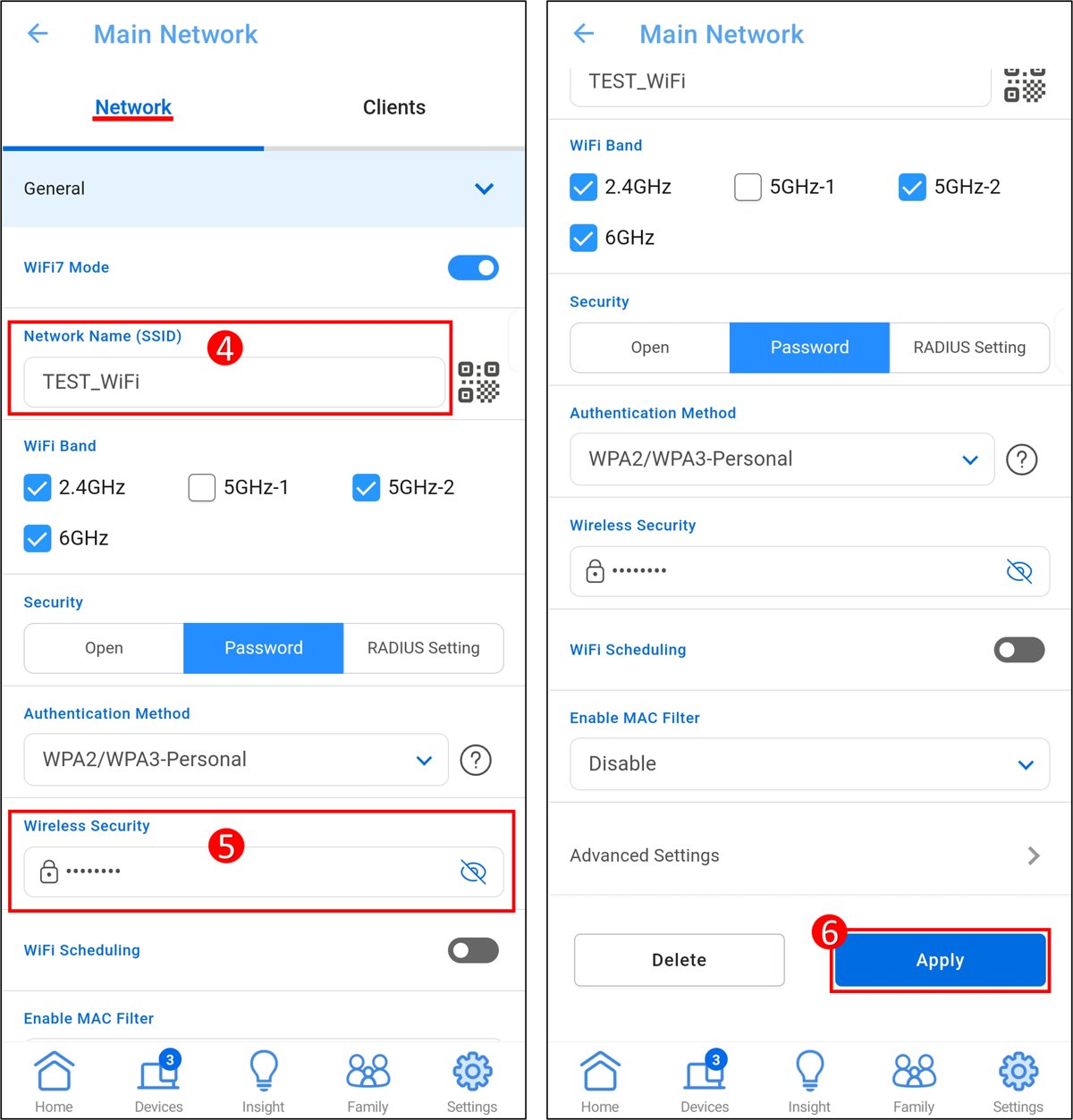
- ASUS Router app, newer firmware: tap Settings > Network > Main network profile.
- ASUS Router app, older firmware: tap Settings > WiFi > Wireless Settings > Network Settings.
- Tap the password field, type the new password and tap Apply.
When you replace a router, reusing the old network name and password in the Google Home app means existing devices reconnect on their own.
Phones can join without typing anything if you connect to Wi-Fi with a QR code generated from the new password.
Step 6: Save changes and reconnect your devices to the new Wi-Fi password
Start with the devices you use most: your main phone, then the laptop you work on. A device that still remembers the old password will keep failing until you remove that saved network.
- Windows 11 or 10: open Settings > Network & internet > Wi-Fi > Manage known networks, select your network and click Forget.
- Select the network icon on the taskbar, choose your network, click Connect, type the new password and select Next.
- iPhone or iPad: open Settings > Wi-Fi, tap Edit, tap the info button next to your network, then Forget This Network > Forget.
- Tap the network again in Settings > Wi-Fi and enter the new password.
- Mac: open System Settings > Wi-Fi > Advanced, click More Options next to the network, then Remove From List > Forget, and rejoin.
- Update smart TVs, printers and speakers from their own Wi-Fi setup menus.
The Windows join steps are the same ones you used to connect a computer to Wi-Fi the first time.
How to check the new Wi-Fi password is working
- Confirm each reconnected device shows your network as Connected.
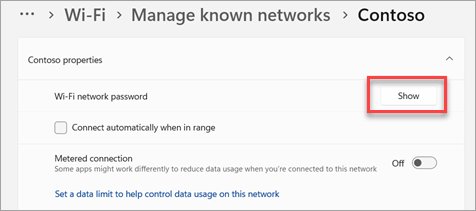
- On Windows 11, open Settings > Network & internet > Properties and select Show next to Wi-Fi network password to confirm the saved password is the new one.
- On Windows 10, open Network and Sharing Center, select your Wi-Fi network, then Wireless Properties > Security and tick Show characters to read the Network security key.
- Try joining from a device that has never used the network; the old password should now fail.
- On Google Nest Wifi, watch the Google Home app: it shows a network insight after 7 days for any device that still cannot connect.
Troubleshoot common Wi-Fi password problems
Devices keep using the old Wi-Fi password
The device saved the previous password with the network profile and retries it.
- Forget the network on that device using the steps in the reconnect section.
- Rejoin the network and type the new password.
- If an old router is still broadcasting the same name, switch it to bridge mode or turn it off.
The device says the Wi-Fi password is wrong even though you typed it correctly
Passwords are case-sensitive, and a stray space or a mismatch with the router's saved key causes an authentication failure.
- Re-enter the password and check capital letters.
- Sign in to the router and confirm the password field holds exactly what you typed, with no leading or trailing space.
- Unplug the router and modem, wait about 30 seconds, plug the modem in first, then the router.
- Update the router firmware from its admin page if the problem continues.
An older device cannot connect after changing the security type
Some older devices do not support WPA3-Personal or the mixed WPA2/WPA3 mode.
- Sign in to the router and open the Wi-Fi settings page.
- Set the security type to WPA2-Personal with AES and click Apply.
- On ASUS routers, move legacy devices to the IoT network instead if you want to keep WPA3.
You forgot the router admin username or password
The admin password is separate from the Wi-Fi password and only resets through recovery or a factory reset.
- On NETGEAR, enter wrong credentials three times to open the Router Password Reset screen.
- Enter the router's serial number, click CONTINUE, answer the two security questions and click CONTINUE.
- Set a new admin password and click NEXT.
- If recovery fails, hold the Reset button for 15 seconds with a straightened paperclip, then set the router up again.
The router admin page will not open
The device is not on the router's network, or the login name does not resolve.
- Join the router's Wi-Fi or plug in an Ethernet cable, and disconnect any other network.
- Run ipconfig and type the Default Gateway address into the browser instead of the login name.
- On a Verizon Router, click Proceed if the browser warns that the connection is not private.
A factory reset also erases the network name, Wi-Fi password and security settings, so every device must reconnect afterwards. If your PC no longer lists any networks, fix Wi-Fi not showing up before blaming the new password.
Change Wi-Fi password: frequently asked questions
How do I change my Wi-Fi password at home?
Sign in to your router's admin page or app from a device on your home network, open the wireless settings, enter a new password and click Apply. Then reconnect every phone, laptop and smart device with the new password.
How do I change my Wi-Fi password on my router?
Open the router's login address, such as routerlogin.net, asusrouter.com or mynetworksettings.com, and sign in with the admin password. Go to the Wireless or Wi-Fi page, type the new password into the password field and save it.
How do I change my Wi-Fi password on a laptop or PC?
Use the laptop's web browser to sign in to the router, because the password is stored in the router. Windows settings only change the password your PC saves, so after the router change, forget the network and rejoin with the new password.
How do I change the Wi-Fi network password in Windows 10?
Windows 10 cannot change the router's password, but it can update the one it saved. Open Settings > Network & internet > Wi-Fi > Manage known networks, select the network, click Forget, then reconnect and type the new password.
Can I change my Wi-Fi password on my iPhone?
Yes, if your router has an app or a browser page. Google Nest Wifi uses the Google Home app, ASUS uses the ASUS Router app, and most routers also open in Safari at their login address while the iPhone is on that Wi-Fi.
How do I change my Verizon Wi-Fi password?
Go to mynetworksettings.com or 192.168.1.1, sign in with the Network Settings password from the router label, and open Wi-Fi > Primary Network. Type 8 to 63 letters and numbers in the Wi-Fi Password field and click Apply changes.
Will changing my Wi-Fi password disconnect all my devices?
Yes. Every device drops off the network when the new password is saved and stays off until you enter the new password on it. Google Home flags missed Nest Wifi devices with a network insight after 7 days.
What security type should I choose when changing my Wi-Fi password?
Choose WPA3-Personal if all your devices support it, otherwise WPA2-Personal with AES. ASUS calls WPA2-AES or WPA3 the safe default, and warns that some older devices cannot join a WPA3 network.
What should I do if I forgot my router admin username or password?
Use the brand's recovery feature if it has one: NETGEAR shows a Router Password Reset screen after three wrong attempts. Without recovery, factory reset the router, which erases the admin password, network name and Wi-Fi password.
How do I find my router's admin page address?
Check the label on the router, or run ipconfig on a Windows PC and read the Default Gateway line. Brand addresses include routerlogin.net for NETGEAR, orbilogin.com for Orbi, asusrouter.com for ASUS and mynetworksettings.com for Verizon.
What if my devices say the Wi-Fi password is wrong even though I typed it correctly?
The device is probably retrying the old saved password, or the new one contains a different capital letter or a stray space. Forget the network on the device, rejoin it, and compare the password with the field on the router's Wi-Fi page.
Bottom line: change your Wi-Fi password in the router or its app
Change the password from the router's admin page or official app, use WPA2-AES or WPA3 with a long password, and forget and rejoin the network on each device straight after. The password only exists in the router, so that is the one place it can change, and devices that keep the old saved password are the most common reason the change seems to fail.
If a Windows 11 laptop still connects poorly after the change, review its Wi-Fi adapter settings next.





Wi-Fi and network settings in Windows 11/10: setup, fixes and tools - Techdows
[…] inside, the wireless page is where you change your Wi-Fi password; every device then has to rejoin with the new […]