To use OpenDNS, replace your current DNS servers with 208.67.222.222 and 208.67.220.220 on your router or device, then open welcome.opendns.com to confirm the change took.
This guide covers the router, Windows, Mac, iPhone, iPad and Android, the FamilyShield addresses that block adult content, how to test the setup, how to undo it, and what to check when the test page says you are not using OpenDNS yet.
Setting Up OpenDNS on Your Router
OpenDNS marks the home router as its recommended setup. One change on the router covers every phone, tablet, PC, console and TV that gets its settings from that router.
- Connect a computer or phone to the router's Wi-Fi or Ethernet network.
- Open a browser and go to the router's admin page. The address and sign-in details are in the router's manual or on the router maker's support site.
- Sign in with the router's administrator account.
- Find the DNS server fields for the internet (WAN) connection. Many routers fill these from your internet provider automatically, so switch the DNS option to manual first.
- Type 208.67.222.222 as the primary DNS server and 208.67.220.220 as the secondary. For FamilyShield, use 208.67.222.123 and 208.67.220.123 instead.
- Save or apply the change.
- Restart your devices, or turn Wi-Fi off and on, so they pick up the new DNS servers from the router.
- Open welcome.opendns.com in a browser to test the setup.
A device with its own DNS servers typed in, or with a private DNS provider set, ignores the router's DNS. Clear those device-level settings if the test fails on one device but passes on another.
Which OpenDNS service and setup should you pick?
OpenDNS offers three free home options. Two need no account, and the router route covers more devices than any single device change.
| Your situation | Use this | Why |
|---|---|---|
| You want OpenDNS with its built-in phishing protection and nothing else | Public service: 208.67.222.222 and 208.67.220.220 | Free, no sign-up, basic DNS-layer protection |
| You want adult content blocked with no settings to manage | FamilyShield: 208.67.222.123 and 208.67.220.123 | Free, no sign-up, preconfigured to block adult content |
| You want to choose what gets filtered | OpenDNS Home (free account) | Sign-up unlocks customizable filtering from the dashboard |
| Every device in the house should use it | Router setup | One change covers every device on your network |
| Only one computer or phone should use it, or you cannot sign in to the router | Device setup (Windows, Mac, iPhone, iPad) | The change stays on that device, on that connection |
| You manage several Windows PCs from a script | PowerShell Set-DnsClientServerAddress |
Sets DNS without touching the PC's IP address |
Setting Up OpenDNS on a Windows PC
These steps come from Microsoft's own TCP/IP settings guide and apply to Windows 11 and Windows 10. Microsoft's route sets the IP assignment to Manual, so note your current IP address, subnet mask and gateway first from the network's Properties page.
- Select Start > Settings > Network & internet.
- For Wi-Fi, select Wi-Fi > Manage known networks and choose your network. For a cable, select Ethernet and then the network you are connected to.
- Next to IP assignment, select Edit.
- Under Edit IP settings, choose Manual, then turn on IPv4.
- Fill in the IP address, Subnet mask and Gateway boxes with the values you noted.
- In Preferred DNS, type 208.67.222.222. In Alternate DNS, type 208.67.220.220 (or the two FamilyShield addresses).
- On Windows 11, leave DNS over HTTPS set to Off unless you have a DoH template from OpenDNS. Windows 10 does not show this option.
- Select Save.
Typing a fixed IP address on a laptop that moves between networks can break it elsewhere. The PowerShell route below changes only the DNS servers and leaves the IP address automatic.
Set OpenDNS on Windows with PowerShell
Set-DnsClientServerAddress adds DNS servers to one network interface and overrides the DNS your router hands out, while the IP address stays on DHCP. Run Get-DnsClientServerAddress first to see the interface names, such as Wi-Fi or Ethernet.
Open Windows PowerShell as an administrator, then run the command with your interface name.
Set-DnsClientServerAddress -InterfaceAlias "Wi-Fi" -ServerAddresses ("208.67.222.222","208.67.220.220")-InterfaceAlias picks the connection by its friendly name. -ServerAddresses lists the DNS servers in order: primary first, then secondary. Swap in 208.67.222.123 and 208.67.220.123 for FamilyShield.
You should see: The command prints nothing when it works. Run Get-DnsClientServerAddress again and the interface now lists 208.67.222.222 and 208.67.220.220.
Then run ipconfig /flushdns to clear the DNS client cache so old answers from your previous DNS server are discarded.
Setting Up OpenDNS on a Mac
macOS keeps DNS servers per network service, so set them on the service you use, such as Wi-Fi or Ethernet.
- Choose Apple menu > System Settings.
- Click Network in the sidebar.
- Click the network service you use, such as Wi-Fi or Ethernet.
- Click Details, then click DNS. You may need to scroll down.
- Under DNS Servers, click the Add (+) button at the bottom of the list and enter 208.67.222.222.
- Click Add (+) again and enter 208.67.220.220.
- Select any old server left in the list and click Remove (−) so OpenDNS is the only resolver, then confirm the change.
Setting Up OpenDNS on Android Devices
Android's own help pages document Private DNS, which takes a provider hostname, but not a field for typing DNS IP addresses on a Wi-Fi network. OpenDNS's setup guide publishes IP addresses, so the documented way to put an Android phone or tablet on OpenDNS is through your router.
Android uses Private DNS by default on every network that supports it. If Private DNS points at another provider's hostname, lookups go to that provider instead of OpenDNS.
- Set OpenDNS on your router using the router steps above.
- On the Android device, open the Settings app.
- Tap Network & internet > Private DNS.
- Pick Automatic or Off, not Private DNS provider hostname with another provider's name.
- Tap Save.
- Connect to your home Wi-Fi and open welcome.opendns.com in the browser to test.
Some steps on Google's page need Android 12 or later, and menu names can differ slightly on phones from other manufacturers. On mobile data the phone uses your carrier's DNS, so OpenDNS applies only while it is on the home Wi-Fi.
Setting Up OpenDNS on iOS Devices
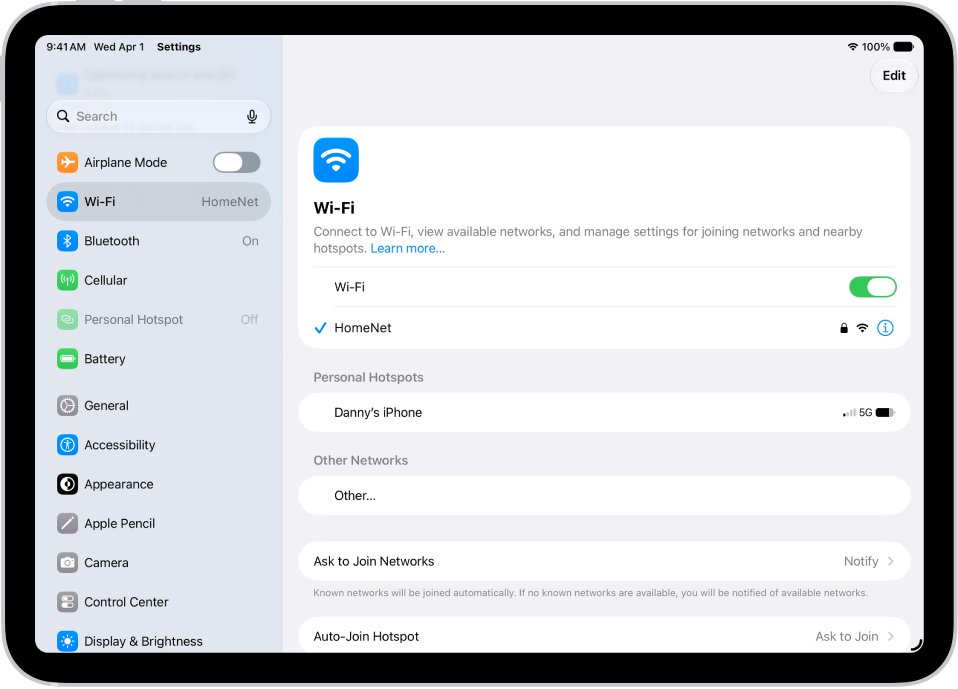
On iPhone and iPad, DNS is set per Wi-Fi network from that network's details screen. The setting does not follow you to other Wi-Fi networks or to cellular data.
- Join the Wi-Fi network you want to use with OpenDNS.
- Open the Settings app on your iPhone or iPad.
- Tap Wi-Fi, then tap the Info (i) button next to the connected network.
- Tap Configure DNS.
- Replace the listed servers with 208.67.222.222 and 208.67.220.220, or the FamilyShield pair.
- Save the change, then open welcome.opendns.com in Safari to test.
How to test that OpenDNS is working
OpenDNS runs its own test page. Check each device you changed, and check one untouched device if you set up the router.
- Open a browser on the device and go to welcome.opendns.com.
- If it shows the OpenDNS welcome page, the device is using OpenDNS.
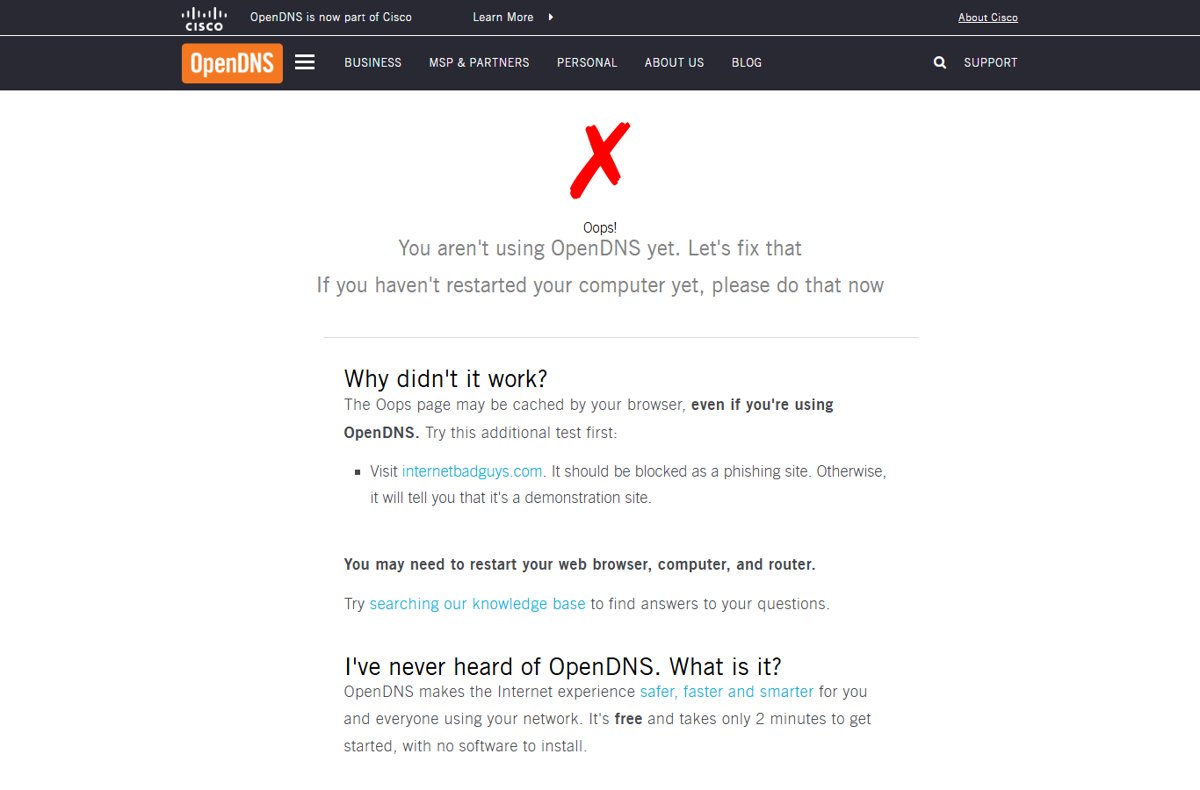
- If it shows Oops! You aren't using OpenDNS yet, the device is still on another DNS server. Go to the troubleshooting section below.
- For a second check, visit internetbadguys.com. With OpenDNS it is blocked as a phishing site; without OpenDNS it says it is a demonstration site.
On Windows, Get-DnsClientServerAddress in PowerShell shows which DNS servers each interface is using. On a Mac, the DNS tab of the network service lists them.
What is OpenDNS?
OpenDNS is a recursive DNS service founded in 2006 and bought by Cisco in 2015. Cisco sells its business security under its own brand, while the home products keep the OpenDNS name. Changing DNS to OpenDNS needs no software on the device.
| OpenDNS option | Primary DNS | Secondary DNS | Account | What it does |
|---|---|---|---|---|
| Public service | 208.67.222.222 | 208.67.220.220 | None | DNS resolution with built-in phishing protection |
| FamilyShield | 208.67.222.123 | 208.67.220.123 | None | Preconfigured to block adult content |
| OpenDNS Home | 208.67.222.222 | 208.67.220.220 | Free sign-up | Customizable filtering and parental controls from the dashboard |
Additional Configuration and Features
The public addresses work with no account. To choose your own filtering, create a free OpenDNS Home account and manage it from the dashboard.
| Feature | What you get | Where to find it |
|---|---|---|
| OpenDNS Home sign-up | Free account for customizable filtering | signup.opendns.com/homefree |
| Dashboard | Filtering and parental control settings for your home network | dashboard.opendns.com |
| FamilyShield | Adult content blocking with nothing to configure | Use 208.67.222.123 and 208.67.220.123 instead of the public pair |
| Phishing protection | Known phishing sites are blocked | Built in; test it at internetbadguys.com |
| Service status | Current state of Cisco's DNS service | system.opendns.com, which now opens Cisco's cloud security status page |
How to go back to your old DNS servers
- Router: sign in to the admin page, switch the WAN DNS option back to automatic, and save.
- Windows Settings route: open the network, select Edit next to IP assignment, choose Automatic (DHCP) and select Save.
- Windows PowerShell route: run
Set-DnsClientServerAddress -InterfaceAlias "Wi-Fi" -ResetServerAddressesas administrator to return to the DNS servers DHCP supplies. - Mac: in Network > your service > Details > DNS, select each OpenDNS address and click Remove (−).
- iPhone or iPad: tap Wi-Fi > Info (i) > Configure DNS and switch it back to automatic.
- Open welcome.opendns.com again. The Oops page confirms the device is off OpenDNS.
Troubleshooting OpenDNS Connectivity Issues
welcome.opendns.com says "You aren't using OpenDNS yet"
The device is still using old DNS settings, or the Oops page is cached in the browser.
- Visit internetbadguys.com. If it is blocked as a phishing site, OpenDNS is working and the Oops page was cached.
- Restart the web browser, then the computer, then the router, as OpenDNS advises.
- On Windows, run
ipconfig /flushdnsto clear the DNS client cache. - Check the device's own DNS settings. Addresses typed on the device, or a Private DNS provider on Android, override the router.
The test passes on the router's devices but fails on one phone or laptop
That device has its own DNS servers or uses another network, such as mobile data.
- Confirm the device is on your home Wi-Fi, not cellular data or another network.
- On Windows, run
Get-DnsClientServerAddressand look for servers other than the OpenDNS pair. - On a Mac, open Network > your service > Details > DNS and remove other servers.
- On Android, set Private DNS to Automatic or Off.
- Test again at welcome.opendns.com.
Websites stop loading after the change
A typing mistake in the DNS addresses, or a manual IP setting on Windows that no longer matches your network.
- Recheck each address digit by digit: 208.67.222.222 and 208.67.220.220.
- On Windows, confirm the IP address, Subnet mask and Gateway you typed match the values from Properties, or use the PowerShell route instead.
- Check the Cisco status page at system.opendns.com for a service problem.
- If pages still fail, undo the change using the steps above and test your connection without OpenDNS.
Conclusion
Set OpenDNS on your router first, using FamilyShield if you want adult content blocked, and change individual devices only when they need to differ from the rest of the house. The router change covers every device on your network in one step, needs no software, and is undone by switching the router's DNS back to automatic.
Frequently Asked Questions
What are the OpenDNS servers?
The OpenDNS public servers are 208.67.222.222 and 208.67.220.220. The FamilyShield servers, which block adult content, are 208.67.222.123 and 208.67.220.123. Put the first address in the primary DNS field and the second in the secondary field.
How do you set up OpenDNS?
Set up OpenDNS by entering 208.67.222.222 and 208.67.220.220 as the DNS servers on your router or device. OpenDNS recommends the router, because one change covers every device on the network. Then open welcome.opendns.com to confirm the setup.
How do you test OpenDNS?
Open welcome.opendns.com on the device. The OpenDNS welcome page means it works; an Oops page means it does not. For a second check, visit internetbadguys.com, which OpenDNS blocks as a phishing site.
What does OpenDNS do?
OpenDNS answers your devices' DNS lookups in place of your internet provider's servers. The public service adds phishing protection, FamilyShield blocks adult content, and a free OpenDNS Home account lets you choose what gets filtered from a dashboard.
How does OpenDNS work?
OpenDNS works as a recursive DNS resolver. When a device looks up a website name, the request goes to OpenDNS instead of your provider. OpenDNS returns the address, or blocks the lookup when the site falls under phishing protection or your chosen filters.
What is Cisco OpenDNS?
Cisco bought OpenDNS in 2015. Cisco's business DNS security is sold under its own Cisco brand, while the free home products, including FamilyShield and OpenDNS Home, still carry the OpenDNS name and use the same 208.67.x.x addresses.
Is OpenDNS free for home use?
Yes. The public service and FamilyShield are free and need no sign-up. OpenDNS Home is also free but needs an account, which adds customizable filtering and parental controls managed from dashboard.opendns.com.
Is there an OpenDNS download for PC?
No download is needed to use OpenDNS. OpenDNS describes the service as having no software to install. You change the DNS server addresses in Windows settings, or on your router, and the PC starts using OpenDNS.
How can you tell if you are using OpenDNS?
Visit welcome.opendns.com. A welcome page means your device uses OpenDNS. The message "Oops! You aren't using OpenDNS yet" means it does not, though the Oops page can be cached, so confirm with internetbadguys.com.
Is there an issue with OpenDNS right now?
Check system.opendns.com, which now opens Cisco's cloud security status page and reports DNS service status by region. If the status is operational, the problem is more likely your router or device settings, so run the welcome.opendns.com test.
Does OpenDNS support DNS over HTTPS?
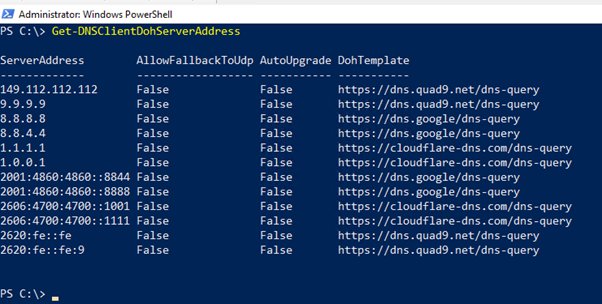
OpenDNS's setup guide lists only its plain DNS addresses, and Microsoft's default list of known DNS over HTTPS servers names Cloudflare, Google and Quad9. Leave Windows 11's DNS over HTTPS option off for OpenDNS unless you have a template from OpenDNS.



![Speakers stuck on mute in Windows 11 [Fix]](https://techdows.com/wp-content/uploads/2026/10/Speakers-stuck-on-mute-in-Windows-11-Fix-3-600x338.jpg)


How to Change DNS Settings on Windows: A Step-By-Step Guide - Techdows
[…] For provider-specific setup and testing, see how to use Cloudflare's 1.1.1.1 for secure DNS or how to use OpenDNS on your router, PC, tablet or smartphone. […]