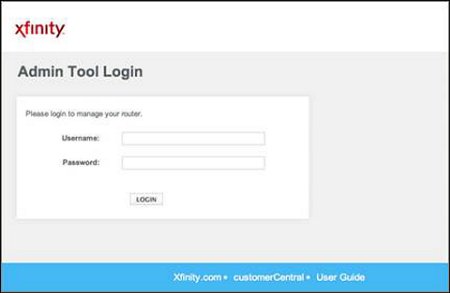
To log in to a Comcast Xfinity router, connect to your home network, open http://10.0.0.1 in a browser and sign in with the username admin and your Admin Tool password.
On the XB6 and newer gateways, you first turn on Admin Tool access in the Xfinity app. This guide covers both routes, the default password, resets, bridge mode and the common login failures.
Comcast Xfinity router login: quick steps
These steps apply to a rented Xfinity gateway. Xfinity calls the browser login page the Admin Tool.
- On an XB6, XB7, XB8, XB9, XB10 or XER10, open the Xfinity app and allow Admin Tool online access first (Method 2 shows the exact taps).
- Connect your laptop, phone or tablet to your home Wi-Fi or plug it into the gateway with an Ethernet cable.
- Open a web browser and type http://10.0.0.1 in the address bar.
- Enter admin as the username.
- Enter your Admin Tool password: the one you created when you allowed access, or the one on the gateway sticker if you enabled access before February 2026.
- Click LOGIN.
The first time you log in, or after a device reset, the Admin Tool asks you to set a new password before anything else.
Xfinity app vs 10.0.0.1 Admin Tool: which should you use?
Xfinity recommends the app for most people and keeps the Admin Tool for direct access to the gateway.
| Your situation | Use this | Why |
|---|---|---|
| You want to see or change the Wi-Fi name or password | Xfinity app | On an XB6 or higher, and on any network with Xfinity WiFi Extenders, the app is the only place to change them |
| You need port forwarding | Xfinity app | Xfinity documents port forwarding under WiFi > View WiFi equipment > Advanced Settings |
| You need bridge mode, the firewall level or remote management | Admin Tool at http://10.0.0.1 | These settings sit in the Admin Tool menus |
| You have an older XB2 or XB3 | Admin Tool at http://10.0.0.1 | These models do not need the app toggle and still manage Wi-Fi in the Admin Tool |
| You use your own modem or router | The manufacturer's login page | Xfinity's login and reset steps cover rented Xfinity equipment only |
What kind of Xfinity equipment do you have?
Before you start, check the model on the gateway's bottom panel, on the Devices page at xfinity.com or in the Xfinity app. The model decides whether the app toggle is needed.
| Friendly name | Model numbers | Admin Tool at 10.0.0.1 | App toggle needed first |
|---|---|---|---|
| XB10 (Advanced Gateway) | SG417DBCT, CGM601TCOM, CGM601TCM | Yes | Yes |
| XB9 (Advanced Gateway) | CWA438TCOM | Yes | Yes |
| XB8 (Advanced Gateway) | CGM4981COM | Yes | Yes |
| MXB1 (wall-mount XB8) | CGM4981COM2 | Yes | Yes |
| XB7 (Advanced Gateway) | CGM4331COM, TG4482A | Yes | Yes |
| XB6 (Advanced Gateway) | TG3482G, CGM4140COM | Yes | Yes |
| XB3 (Wireless Gateway) | DPC3939, DPC3941T, TC8717, TG1682G | Yes | No |
| XB2 (Wireless Gateway 1/2/3) | TC8706C, TG852G, TG862G, TC8305C | Yes | No |
| XER10 (WiFi Router, fiber) | SCER11BEL | Yes | Yes |
| XF3 (Fiber Gateway) | Arris X5001 | Yes | No |
Every Xfinity gateway is a modem and router in one box, so the Comcast modem login and the router login are the same page.
Method 1: Log in using the Xfinity app
The app signs in with your Xfinity ID, not the router password. It runs on iOS 17.2 or later and Android 10 or later, and does not work on Windows or Amazon phones.
Only Primary, Manager and Member users see the WiFi tab. Only Primary and Manager users can manage connected devices.
- Install the free Xfinity app on your phone.
- Open it and sign in with your Xfinity ID and password.
- Approve the sign-in with a push notification, face or fingerprint ID, or a verification code if asked.
- Tap the WiFi tab.
- Tap WiFi details, then Edit WiFi settings to view or change the Wi-Fi name and password, and tap Save.
- Tap View WiFi equipment, then Advanced settings for port forwarding and Admin Tool access.
Method 2: Log in to the Xfinity router admin page at 10.0.0.1
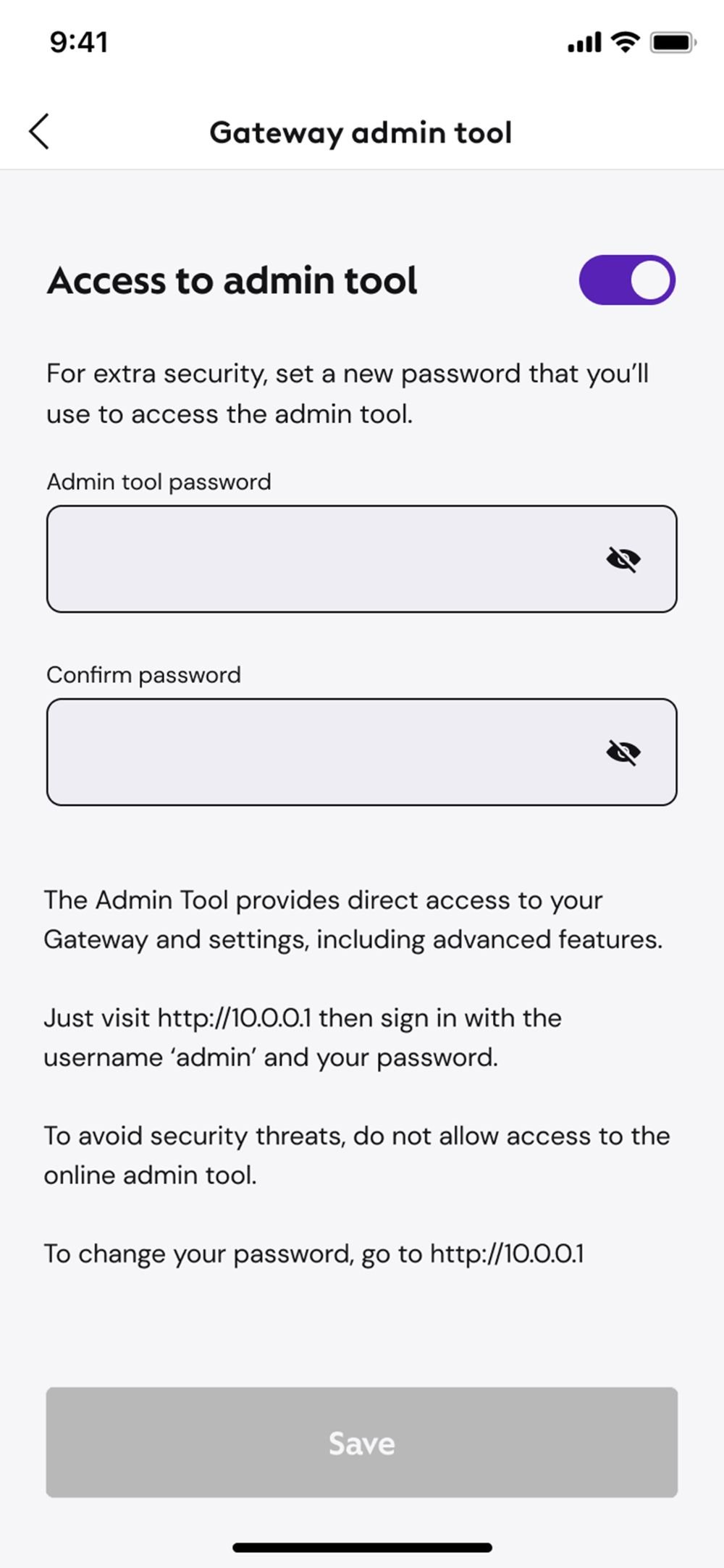
Xfinity keeps the Admin Tool switched off on newer gateways to protect against online threats. Steps 1 to 6 apply to the XB6 and newer; on an XB2, XB3 or XF3, start at step 7.
- Open the WiFi tab in the Xfinity app.
- Tap View WiFi equipment and open Advanced settings.
- Tap Admin Tool online access.
- Slide the toggle to Allow Admin Tool access.
- Tap Save.
- If this is your first time, enter a new Admin Tool password on the next screen and tap Save.
- On a device connected to your home Wi-Fi, open a browser and go to http://10.0.0.1.
- Enter admin as the username and your Admin Tool password, then click LOGIN.
Older gateways such as the Wireless Gateway 1, Wireless Gateway 2 and XB3 do not have this toggle. Xfinity asks owners of those models to contact it about an update.
Default Xfinity router admin username and password
The Admin Tool login is separate from both your Wi-Fi password and your Xfinity ID.
| Credential | Default | Notes |
|---|---|---|
| Username | admin | The same on every rented Xfinity gateway |
| Admin password (access enabled from February 2026) | The password you created in the app | Set the first time you allow Admin Tool online access |
| Admin password (access enabled before February 2026, or XB2/XB3) | Printed on the sticker on the bottom of the gateway | Contact Xfinity if the sticker is missing |
| Your own new admin password | Set at first login | At least 8 characters, upper and lower case letters and one number |
| Wi-Fi name and password | On the label on the side or bottom of the gateway | Most installs change them, so the label may be out of date |
How to find your Xfinity router’s IP address
Xfinity gives one address for the Admin Tool on every model it lists: 10.0.0.1. If you are unsure your device is talking to the Xfinity gateway, check the router address it reports.
| Device | Where to find the router address |
|---|---|
| Windows | Open Command Prompt, run ipconfig and read the Default Gateway line for your Wi-Fi or Ethernet adapter |
| Mac | Apple menu > System Settings > Network, select your connection, click Details, then TCP/IP and read the router address |
| iPhone, iPad or Android | Join your home Wi-Fi and enter http://10.0.0.1 in the browser; the Xfinity address does not change by device |
| Own router in front of the gateway | The router's own address applies; check its label or manual |
Other providers use different addresses. For example, you sign in to a Verizon router at mynetworksettings.com instead of 10.0.0.1.
How to check you are logged in to the Xfinity Admin Tool
- After your first login, confirm the Admin Tool asks you to set a new password.
- On later logins, confirm the left-hand menu shows Gateway and Advanced.
- Click Gateway > At a Glance and confirm a Bridge Mode field is listed.
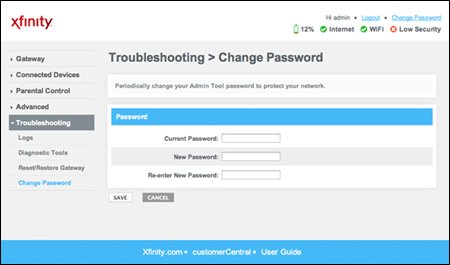
- Look for Change Password and Logout at the top right of the page.
Xfinity notes the screen layout differs by gateway model, but the menu names stay the same.
What you can change in the Xfinity Admin Tool after logging in
Menu paths below are the ones Xfinity publishes. Some jobs moved to the app on newer gateways.
| Task | Where to do it |
|---|---|
| Change the admin password | Admin Tool: Change Password at the top right, enter the new password twice, click SAVE |
| View or change Wi-Fi settings (XB2 and XB3) | Admin Tool: Gateway > Connection > Wi-Fi, click Edit under Private Wi-Fi Network, then SAVE SETTINGS |
| View or change Wi-Fi settings (XB6 and newer) | Xfinity app: WiFi > WiFi details > Edit WiFi settings |
| Check connected devices | Xfinity app WiFi tab, available to Primary and Manager users |
| Configure port forwarding | Xfinity app: WiFi > View WiFi equipment > Advanced Settings > Port forwarding > Add Port Forward; works only for IPv4 devices using DHCP |
| Enable or disable bridge mode | Admin Tool: Gateway > At a Glance, then Enable or Disable next to Bridge Mode |
| Set the firewall level | Admin Tool: Gateway > Firewall > IPv4, pick Maximum, Typical, Minimum (the default) or Custom, then Save Settings |
| Allow remote management | Admin Tool: Advanced > Remote Management, choose HTTP or HTTPS and the allowed IP addresses, then Save |
After changing the Wi-Fi name or password, reconnect every device to the network with the new details.
How to reset your Xfinity router admin password
If you changed the admin password and cannot remember it, a factory reset brings back the default login. Xfinity treats this as a last resort: it erases custom settings such as your Wi-Fi name and password, and Xfinity Voice stops until the gateway restarts.
Xfinity publishes these reset steps for the XB2 and XB3. For a newer gateway, ask Xfinity Assistant before resetting.
- Find the Reset button, a small recessed hole on the back of the gateway.
- Press and hold it with a paperclip or pin for 30 seconds.
- Let go. The lights flash, then turn solid when the gateway is ready.
- Reconnect using the default Wi-Fi name and password on the label at the bottom of the gateway.
- Open http://10.0.0.1, log in with admin and the sticker password, and set a new admin password when prompted.
Troubleshooting: Xfinity 10.0.0.1 will not open
10.0.0.1 times out or refuses to connect
On the XB6 and newer, Admin Tool access is switched off until you allow it in the app.
- Open the Xfinity app and go to WiFi > View WiFi equipment > Advanced settings.
- Tap Admin Tool online access and slide the toggle to Allow Admin Tool access.
- Tap Save, then reload http://10.0.0.1.
The page will not load on your phone or laptop
The Admin Tool only answers devices on your home network, not mobile data or the public xfinitywifi hotspot.
- Make sure you are connected to your own home Wi-Fi network, not xfinitywifi.
- Turn off mobile data on a phone so it stays on Wi-Fi.
- Use Ethernet if possible: plug the device into a gateway port and try again.
- Type http://10.0.0.1 into the browser address bar, not a search box.
- Try another browser or device.
You use bridge mode or your own router
Bridge mode turns off the gateway's routing, so your devices get their addresses from your own router.
- Connect a device directly to the Xfinity gateway with an Ethernet cable.
- Open http://10.0.0.1 and log in to switch bridge mode off if needed.
- To manage your own router, use the address on that router's label instead.
Troubleshooting: Xfinity login page opens, but the password does not work
The sticker password is rejected
Access enabled from February 2026 uses the password created in the app, or someone changed the password at first login.
- Try the password you created when you allowed Admin Tool online access in the app.
- Try any admin password you set yourself at a previous first login.
- Check the username is exactly admin.
- If nothing works, factory reset the gateway as shown above.
Your Wi-Fi or Xfinity ID password is rejected
The Admin Tool password is a separate credential from both.
- Use the Admin Tool password, not the Wi-Fi network key.
- Keep your Xfinity ID password for the Xfinity app and xfinity.com only.
The gateway sticker is missing
Without the sticker there is no way to read the default password.
- Contact Xfinity through Xfinity Assistant for the password.
- On an XB6 or newer, set a new Admin Tool password through the app toggle if you have never enabled access.
Xfinity router security tips after logging in
- Turn Admin Tool access off when you finish: WiFi > View WiFi equipment > Advanced settings > Admin Tool online access, slide the toggle off and tap Save.
- If a technician needs access, turn it on for the appointment and off afterwards.
- Change the admin password at first login to one with 8 or more characters, mixed case and a number.
- Change the default Wi-Fi name and password if they still match the gateway label.
- Leave Remote Management off unless you need it, and limit it to a single IP address when you do.
- Use Advanced Security in the Xfinity app, and avoid port forwards you no longer use.
What if you use your own router with Xfinity?
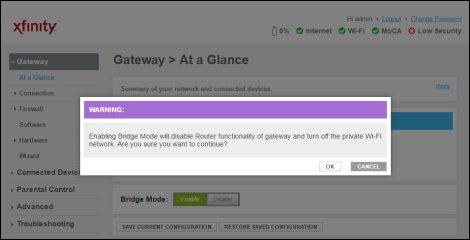
To use your own router with a rented gateway, turn on bridge mode. It switches off the gateway's routing and private Wi-Fi but keeps the modem running. Only one device can connect to the gateway while it is in bridge mode.
Bridge mode cannot be enabled if WiFi Extenders are activated, and it stops Xfinity CyberSecure. The app still manages your account, but not your network.
- Log in to the Admin Tool at http://10.0.0.1.
- Select Gateway > At a Glance.
- Click Enable next to Bridge Mode, then OK on the warning. The gateway may restart.
- Click Logout at the top right.
- Connect your own router to any Ethernet port on the gateway.
- Log in to your own router at the address on its label.
If that router is a Netgear mesh system, you log in to the Orbi router through its own page, not 10.0.0.1. If you bought your own modem as well, the manufacturer handles its login and reset steps.
Comcast Xfinity router login FAQ
How do I log in to my Comcast router?
Connect to your home network, open http://10.0.0.1 in a browser and sign in with the username admin and your Admin Tool password. On an XB6 or newer gateway, allow Admin Tool online access in the Xfinity app first.
How do I log in to my Comcast modem?
A rented Xfinity gateway is a modem and router in one, so the modem login is the same Admin Tool at http://10.0.0.1. If you bought your own modem, use the login address and steps from its manufacturer.
What is the default Comcast router password?
The username is admin. If you enabled Admin Tool access from February 2026, the password is the one you created in the Xfinity app. Earlier setups and XB2 or XB3 gateways use the password on the sticker under the gateway.
How do I sign in to Comcast?
Your Comcast account uses an Xfinity ID and password, entered in the Xfinity app or at xfinity.com. That sign-in is separate from the router, which uses the username admin and its own Admin Tool password at 10.0.0.1.
How do I log in to my Comcast email?
Go to connect.xfinity.com, enter your Xfinity ID, click Let's go, enter your password and click Sign In. In the Xfinity app, sign in and select Check email. Accounts moved to Yahoo Mail sign in at mail.yahoo.com instead.
Why can't I log into my Comcast email account?
Check you are using your Xfinity ID and password, not the router password. You can look up your Xfinity ID or reset the password from xfinity.com. Xfinity closes comcast.net accounts that have not signed in for more than two years.
How do I log in to comcast.net?
comcast.net email now opens through connect.xfinity.com or the Xfinity app with your Xfinity ID. If you accepted the switch to Yahoo Mail, the same address signs in at mail.yahoo.com or in the Yahoo Mail app.
Can I change my Xfinity Wi-Fi password at 10.0.0.1?
Only on an XB2 or XB3 gateway. On an XB6 or newer, or with Xfinity WiFi Extenders, change it in the Xfinity app under WiFi, WiFi details, Edit WiFi settings, then tap Save.
Can I log in to my Xfinity router away from home?
Not by default. The Admin Tool at 10.0.0.1 needs a device on your home network. You can turn on Remote Management under Advanced in the Admin Tool, over HTTP or HTTPS, and limit it to chosen internet IP addresses.

![Here’s list of all apps and games from Google’s Play Pass subscription [constantly updated]](https://techdows.com/wp-content/uploads/2026/10/Google-Play-Pass-sign-up-page-with-game-and-app-icons-above-600x338.jpg)