Open Network & Internet settings in Windows 11 by selecting Start > Settings > Network & internet, or by right-clicking the network icon on the taskbar and choosing Network and internet settings.
This guide maps every page in that section and shows how to connect to Wi-Fi, change IP and DNS, share a hotspot, add a VPN or proxy, limit data and fix a broken connection.
How to open Network & internet settings in Windows 11
- Select Start on the taskbar.
- Select Settings.
- Select Network & internet in the left pane.
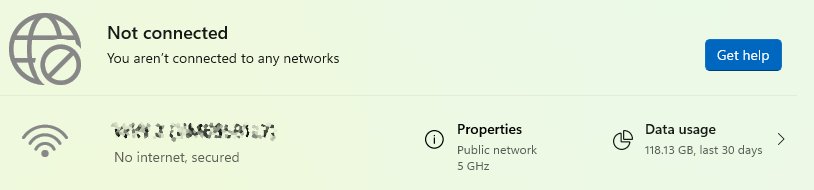
- Check the connection status at the top of the page, then pick the page you need from the list below it.
From the desktop, right-click the Network or Wi-Fi icon on the taskbar and select Network and internet settings to land on the same page.
Ways to access network settings in Windows 11
| Your situation | Use this | Why |
|---|---|---|
| You are already at the desktop | Right-click the network icon on the taskbar > Network and internet settings | Two clicks, no menus |
| You only need to join a Wi-Fi network | Quick settings > Manage Wi-Fi connections on the Wi-Fi tile | Lists networks without opening Settings |
| You want one specific page | Press Win + R and type an ms-settings: address such as ms-settings:network-status |
Jumps straight to that page |
| You are browsing Settings anyway | Start > Settings > Network & internet | Shows every network page in one list |
Network & Internet settings in Windows 11
Each row is one page under Network & internet. The ms-settings: address opens that page directly from Run or a shortcut.
| Page | What it controls | Direct address |
|---|---|---|
| Network & internet (home) | Connection status, Properties of the active network, data usage | ms-settings:network-status |
| Wi-Fi | Wi-Fi on or off, available networks, Manage known networks, random hardware addresses | ms-settings:network-wifi |
| Ethernet | Wired network profile, IP assignment, DNS, metered connection | ms-settings:network-ethernet |
| VPN | Add, connect and edit VPN connections | ms-settings:network-vpn |
| Mobile hotspot | Share your connection over Wi-Fi or Bluetooth | ms-settings:network-mobilehotspot |
| Airplane mode | Turn off Wi-Fi, cellular, Bluetooth and NFC at once | ms-settings:network-airplanemode |
| Proxy | Automatic, script or manual proxy setup | ms-settings:network-proxy |
| Dial-up | Legacy dial-up connections | ms-settings:network-dialup |
| Cellular | Mobile data on devices with a SIM or eSIM | ms-settings:network-cellular |
| Advanced network settings | Adapters, Data usage, hardware and connection properties, Network reset | ms-settings:network-advancedsettings |
The Wi-Fi page only appears on a PC that has a Wi-Fi adapter, and Cellular only on devices with mobile data hardware. To rename, disable or inspect an adapter, open the network adapter settings under Advanced network settings.
How to connect to Wi-Fi on Windows 11
- Select the Network, Sound or Battery icon on the taskbar to open quick settings.
- On the Wi-Fi tile, select Manage Wi-Fi connections.
- Choose the network you want, then select Connect.
- Select Refresh network list if the network you expect is missing.
- Type the network password, then select Next.
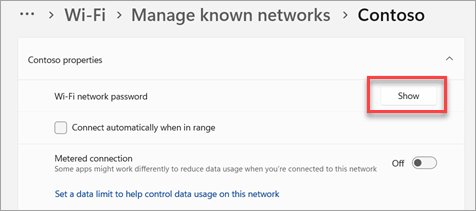
To see a saved password, go to Network & internet > Properties and select Show next to Wi-Fi network password.
How to change network settings in Windows 11: IP address and DNS
Microsoft recommends Automatic (DHCP) so your router assigns the address and DNS. Switch to Manual only for a static IP or to change DNS settings to a custom server.
- For Wi-Fi, go to Network & internet > Wi-Fi > Manage known networks and choose the network. For a cable, select Ethernet and the connected network.
- Next to IP assignment, select Edit.
- Under Edit IP settings, choose Manual, then turn on IPv4.
- Type the IP address, Subnet mask and Gateway.
- Type the server addresses in Preferred DNS and Alternate DNS.
- Select Save.
Switch back to Automatic (DHCP) on the same screen to undo a manual address.
How to add and use Private DNS in Windows 11
Windows 11 can encrypt DNS lookups with DNS over HTTPS. The setting sits under each DNS server you type, and it does not exist in Windows 10.
- Open the IP or DNS edit screen for your Wi-Fi or Ethernet network, as in the section above.
- Choose Manual and enter the Preferred DNS address of a server that supports encryption.
- Under DNS over HTTPS, choose On (automatic template), or On (manual template) and type the provider's template address.
- Turn Fallback to plaintext off to block lookups that cannot be encrypted, or on to allow them unencrypted.
- Repeat for Alternate DNS, then select Save.
With Off selected, every DNS query is sent unencrypted.
How to make a network public or private in Windows 11
| Profile | What it does | Pick it when |
|---|---|---|
| Public network (Recommended) | Hides your PC from other devices; no file or printer sharing | Almost always, including at home; it is the default for new networks |
| Private network | Makes your PC discoverable and allows file and printer sharing | You know and trust every person and device on the network |
To switch, open Network & internet > Wi-Fi (select your network) or Ethernet, then choose an option under Network profile type.
Mobile hotspot settings in Windows 11
Your PC can share a Wi-Fi, Ethernet or cellular connection with other devices. Sharing cellular data counts against your data plan.
- Go to Settings > Network & internet > Mobile hotspot.
- Under Share my internet connection from, choose the connection to share.
- Under Share over, choose Wi-Fi or Bluetooth.
- Optional: expand Properties, select Edit, set the network name, password and band, then select Save.
- Turn on the Mobile hotspot toggle at the top of the page.
- On the other device, pick your network name and enter the password or scan the QR code.
The Mobile hotspot tile in quick settings toggles the hotspot with the last settings used and shows how many devices are connected. If other devices cannot join, work through the mobile hotspot fixes for Windows 11.
How to set up a VPN in Windows 11 network settings
- Go to Settings > Network & internet > VPN > Add VPN.
- For VPN provider, choose Windows (built-in).
- Enter a Connection name and the Server name or address.
- Choose the VPN type and Type of sign-in info your provider or company uses.
- Select Save.
- Select Connect next to the new connection and sign in if asked.
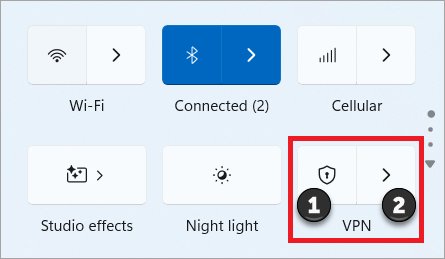
The connection shows Connected on the VPN page, and a shield appears on the taskbar network icon. VPN settings are not available in Windows 11 SE.
Proxy settings in Windows 11
- Go to Settings > Network & internet > Proxy.
- To let Windows find the proxy, turn on Automatically detect settings.
- To use a script, select Set up next to Use setup script, turn it on, enter the script address and select Save.
- To enter a server by hand, select Set up next to Use a proxy server and turn on Use a proxy server.
- Type the Proxy IP address and Port, add any exceptions separated by semicolons, and select Save.
A VPN that needs a proxy has its own setting under VPN > the connection > Advanced options > Proxy settings for this VPN connection.
Metered connection and data limit settings in Windows 11
| Setting | Where | Effect |
|---|---|---|
| Metered connection (Wi-Fi) | Network & internet > Wi-Fi > your network | Windows Update downloads only priority updates; Store downloads might pause |
| Metered connection (Ethernet) | Network & internet > Ethernet > your network | Same limits on a wired connection |
| Metered connection (Cellular) | Network & internet > Cellular | On by default for mobile data |
| Data limit | Wi-Fi > your network > Set a data limit to help control data usage on this network | Warns you near and over the limit you enter |
| Airplane mode | Network & internet > Airplane mode | Turns off all wireless radios; remembers whether Wi-Fi or Bluetooth was on last time |
How to check network status and IP address in Windows 11
- Open Settings > Network & internet and read the status at the top of the page.
- Select Properties next to the connected network.
- Find the address listed next to IPv4 address.
- Confirm the Network profile type and the DNS servers match what you set.
A connected network name with an IPv4 address and no No internet label means the changes took effect.
Fix Windows 11 network and internet settings problems
Wi-Fi will not connect or keeps dropping
A stale saved profile or airplane mode blocks the connection.
- Go to Network & internet > Airplane mode and make sure it is off.
- Go to Wi-Fi > Manage known networks, select your network and select Forget.
- Reconnect by selecting the network and entering the password.
- Try the other band if the router shows separate 2.4 GHz and 5 GHz networks.
Connected but no internet
The TCP/IP stack, IP lease or DNS cache is broken.
- Search for command prompt and select Run as administrator > Yes.
- Run
netsh winsock reset, thennetsh int ip reset. - Run
ipconfig /release, thenipconfig /renew. - Run
ipconfig /flushdnsand restart the PC.
Metered connection setting is greyed out
A data limit is set, the account is not an administrator, or your organization manages it.
- Go to Network & internet > Advanced network settings > Data usage.
- Select the connection, then select Remove limit > Remove.
- Check under Accounts that your account says Administrator.
- Ask your IT department if the PC is managed.
How do I reset my Wi-Fi in Windows 11 when nothing else works?
Adapter settings are corrupted, often after an upgrade from Windows 10.
- Go to Network & internet > Advanced network settings > Network reset.
- Select Reset now > Yes.
- Let the PC restart.
- Reinstall any VPN client, then set trusted networks back to Private network if needed.
Network reset removes every adapter and its settings, so try it last; you can reset network settings on Windows 10 the same way from Status. If the connection broke right after a feature update, try the 26H2 no internet fixes for update-specific causes.
Windows 11 network settings FAQ
How do I access network settings in Windows 11?
Select Start, then Settings, then Network & internet. You can also right-click the Network or Wi-Fi icon on the taskbar and select Network and internet settings, which opens the same page.
How do I find network settings in Windows 11 quickly?
Press Win + R, type ms-settings:network-status and press Enter. Other addresses open single pages, such as ms-settings:network-wifi for Wi-Fi or ms-settings:network-proxy for proxy settings.
How do I open Network and internet settings in Windows 11 from the taskbar?
Right-click the Network or Wi-Fi icon at the right end of the taskbar and select Network and internet settings. Selecting the icon with a left click opens quick settings instead.
How do I change network settings in Windows 11?
Open Network & internet, choose Wi-Fi or Ethernet and select your network. From there you can change the network profile type, edit the IP assignment and DNS servers, and turn the metered connection on or off.
How do I reset my Wi-Fi in Windows 11?
Forget the network under Wi-Fi > Manage known networks and reconnect first. If that fails, go to Network & internet > Advanced network settings > Network reset and select Reset now, which reinstalls every network adapter.
How do I connect to Wi-Fi on Windows 11?
Open quick settings from the taskbar, select Manage Wi-Fi connections on the Wi-Fi tile, choose the network and select Connect. Enter the password and select Next.
How do I see my Wi-Fi password in Windows 11?
Go to Settings > Network & internet > Properties and select Show next to Wi-Fi network password. For other saved networks, open Wi-Fi > Manage known networks, select the network and select Show.
Is DNS over HTTPS available in Windows 10 network settings?
No. The DNS over HTTPS option in the IP and DNS edit screen is a Windows 11 feature. Windows 10 network settings let you type DNS servers but cannot encrypt the lookups.
Wrapping things up: Windows 11 network settings
Leave IP assignment on Automatic (DHCP) and new networks on Public, and change only the page that matches your task. Every network option in Windows 11 lives under Network & internet, so a manual IP, custom DNS, hotspot, VPN or proxy is one page away, and Network reset puts everything back if a change goes wrong.