To maximize battery life on a Windows 11 laptop, turn on Energy saver, choose Best power efficiency as the power mode, shorten screen and sleep timeouts, and stop power-hungry apps from running in the background.
The nine methods below start with the quickest win, then use the built-in battery report and Settings pages to find what is actually draining your battery.
1. Enable battery saver (Energy Saver) for instant gains
In Windows 11 version 24H2 and later, battery saver is called Energy saver. It manages system processes and power use to balance performance with longer battery life, and can dim the screen while it is on.
- Select Start > Settings > System > Power & battery.
- Select Energy saver to expand its options.
- Next to Turn energy saver on when battery level is at, choose the battery level you want, such as 30%.
- Turn on Lower screen brightness when using energy saver.
- To switch it on right now, set Always use energy saver to On, or select the battery icon on the taskbar and select the Energy saver quick setting.
When you turn it on manually, Energy saver stays on until the next time you plug in the laptop.

Windows 11 battery saving methods compared
| Your goal | Method | Where it lives |
|---|---|---|
| Longer runtime right now | Energy saver | Settings > System > Power & battery |
| See the full battery history | Battery report | powercfg /batteryreport in Command Prompt |
| Find out whether the battery has worn | Capacity versus design capacity | Installed battery section of the report |
| See how you really use the laptop | Observed usage | Recent usage and Battery usage sections of the report |
| Know how long a charge should last | Battery life estimates | Settings battery graph plus the report |
| Find apps that drain power | Battery usage per app | Settings > System > Power & battery > Battery usage |
| Apply Microsoft's suggested settings | Energy recommendations | Settings > System > Power & battery > Energy recommendations |
| Cut idle drain | Screen and sleep timeouts | Settings > System > Power & battery > Screen, sleep & hibernate timeouts |
| Stop drain when you walk away | Fast shutdown and restart | Power button, Alt + F4, or the shutdown command |
The foundation: understand what's draining your battery
Battery drain on a laptop comes from a short list of sources. Knowing which one dominates tells you which of the methods matters most for your laptop.
| Drain source | Why it costs battery | Setting that controls it |
|---|---|---|
| Screen brightness and refresh rate | A brighter screen and a higher refresh rate both use more power | Settings > System > Display |
| Apps running in the background | Some apps keep working when you are not using them | Battery usage per app |
| Idle time with the screen on | Longer screen and sleep timeouts keep the laptop awake | Screen, sleep & hibernate timeouts |
| Power mode | Best performance favours speed over battery | Power mode in Power & battery |
| Wi-Fi, Bluetooth and USB devices | Radios and attached devices draw power even when idle | Quick Settings and Energy recommendations |
| Battery wear | Lithium-ion capacity falls after many charge cycles | Nothing in software; check it in the battery report |
2. Create and save a detailed battery report
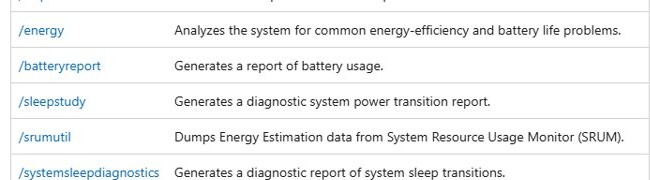
Windows 11 has a built-in battery report that records usage and capacity over the life of the laptop. Save a copy now so you can compare it after you change settings.
- Select Start, type Command prompt, then right-click Command Prompt and select Run as administrator.
- Select Yes at the User Account Control prompt.
- Type
powercfg /batteryreport /output "%USERPROFILE%\Documents\battery-report.html"and press Enter. - Note the file location that Command Prompt prints.
- Open File Explorer, go to your Documents folder and double-click battery-report.html to open it in your browser.
Running powercfg /batteryreport without /output saves the HTML file in the current folder. Add /duration 7 to limit the report to the last seven days.
3. Check your battery's actual capacity versus its design specs
The design capacity is the watt-hours the battery held when it was new. The full charge capacity is what it holds on a full charge today. Divide the second by the first to get the battery's maximum capacity.
- Open the battery report and find the Installed battery section.
- Note the Design capacity figure in mWh.
- Note the Full charge capacity figure in mWh.
- Divide full charge capacity by design capacity and multiply by 100 to get the percentage.
- Compare the result with the thresholds in the table below.
Microsoft's Intune battery health report treats a battery below 60% of its design capacity as most impacted and 60–80% as moderately impacted. At 50% capacity, a 70 Wh battery holds only 35 Wh on a full charge.
4. Analyze observed usage: beyond synthetic benchmarks
Review-site runtime tests use fixed workloads. The battery report shows how your laptop actually drains with your apps and habits.
- Open the battery report and scroll to Recent usage.
- Check when the laptop ran on battery over the last few days and how far the charge fell each time.
- Scroll to Battery usage and look for periods where the charge fell steeply.
- Match those periods to what you were doing, such as a video call, a game or a long browser session.
- Treat the heaviest periods as the ones to fix with the settings in methods 6 to 9.
5. Use battery life estimates to set realistic expectations
A worn battery cannot match its original runtime. Scale your expectation by the capacity percentage from method 3: a battery at 70% of design capacity gives roughly 70% of the runtime it had when new under the same workload.
- Select Start > Settings > System > Power & battery.
- Check the battery level graph at the top to see how the level changes through the day.
- Note how many hours a typical day takes the battery from full to your Energy saver threshold.
- Multiply the original runtime you got when the laptop was new by your capacity percentage.
- If your real runtime is far below that figure, the drain is coming from apps or settings rather than wear.
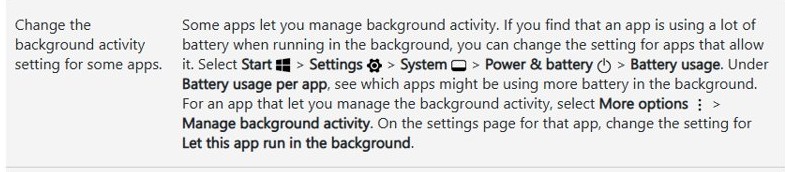
6. Identify power-hungry apps in Settings
- Select Start > Settings > System > Power & battery > Battery usage.
- Under Battery usage per app, check which apps use the most battery, including in the background.
- For an app you rarely need running, select More options > Manage background activity.
- Change Let this app run in the background to Never, or to Power optimized, the recommended setting.
- Close the app when you finish with it.
Microsoft notes that at least one app must stay on Always to keep the device connected and receiving app updates.
7. Use the Windows energy recommendations
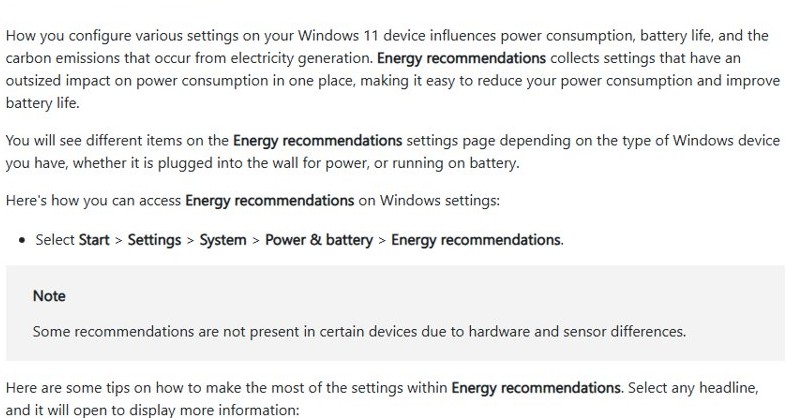
Energy recommendations gathers the settings with the biggest effect on power use in one page. The items you see depend on the laptop's hardware and whether it is plugged in.
- Select Start > Settings > System > Power & battery > Energy recommendations.
- Select Apply all to accept every suggestion, or apply them one at a time.
- Apply Set the power mode for best energy efficiency and Set the screen brightness for best energy efficiency.
- Apply Turn off my screen saver and Stop USB devices when my screen is off to help save battery.
- On laptops with a presence sensor, apply Automatically put my device to sleep when I leave and Automatically dim my screen when I look away.
8. Adjust sleep and display settings for real-world needs
- Select Start > Settings > System > Power & battery > Screen, sleep & hibernate timeouts.
- Set Turn my screen off after on battery to 3 minutes, the Windows 11 default for modern standby laptops.
- Set Make my device sleep after on battery to 3 to 10 minutes.
- Go to Settings > System > Display and lower the Brightness slider.
- Select Advanced display and turn on Dynamic refresh rate, or choose a lower rate under Choose a refresh rate.
- Go to Settings > Personalization > Colors and set Choose your mode to Dark, which saves most on OLED screens.
To make closing the lid put the laptop to sleep, search for Control Panel, open Power Options and select Choose what closing the lid does.
9. Master fast shutdown and restart shortcuts
Shutting down or sleeping the laptop as soon as you stop working removes idle drain completely. A restart also clears problems that can shorten battery life.
- Press the laptop's power button to sleep, hibernate or shut down, depending on what it is set to do.
- To choose that action, open Control Panel > Power Options > Choose what the power buttons do.
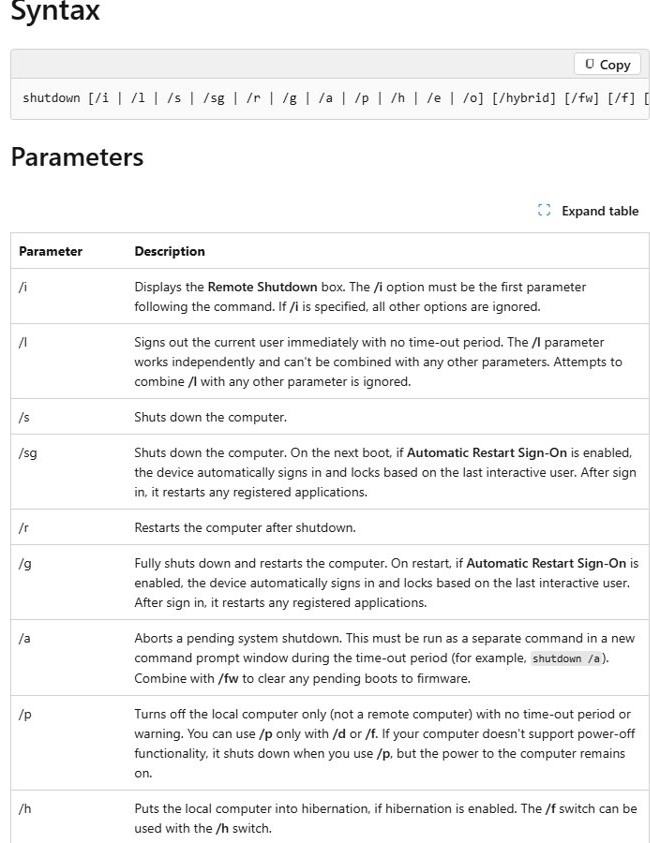
- On the desktop with no windows open, press Alt + F4 to bring up the shutdown prompt, then press Enter.
- Press Windows + R, type
shutdown /s /t 0and press Enter to shut down immediately. - Use
shutdown /r /t 0to restart immediately, orshutdown /hto hibernate if hibernation is enabled. - Or select Start > Power > Restart or Shut down.
Supplementary tips and emerging trends
These settings sit outside the main nine methods but still trim power use on most Windows 11 laptops.
| Tip | Where to set it | Effect |
|---|---|---|
| Best power efficiency power mode | Settings > System > Power & battery > Power mode | Limits background activity on battery and when plugged in |
| Power saving graphics per app | Settings > System > Display > Graphics > app > Options | Runs the app on the power-saving GPU |
| Optimize video for battery life | Settings > Apps > Video playback | Lower-power playback, optionally at lower resolution |
| Power troubleshooter | Settings > System > Troubleshoot > Other troubleshooters > Power | Lets Windows correct power settings automatically |
| Smart charging | Supported laptops only | Holds the charge at the recommended level while plugged in |
If Power mode cannot be changed, a custom power plan is selected. Open Control Panel > System and Security > Power Options and select Balanced.
Keep Windows and your drivers up-to-date
- Select Start > Settings > Windows Update.
- Select Check for updates and install what is offered.
- Select Advanced options > Optional updates to see driver updates from your laptop maker.
- Select the drivers you want and select Download & install.
- Restart the laptop when prompted.
Consider hardware upgrades and maintenance
Lithium-ion batteries age with every charge cycle, but how you charge and where you use the laptop changes how fast they wear.
- Keep the charge between roughly 20% and 80% where you can, and avoid frequent deep discharges.
- Turn on Smart charging if your laptop supports it.
- Avoid using or charging the laptop in high temperatures.
- Before long storage, leave the battery at around 40–60% and store the laptop somewhere cool and dry.
- If the capacity in method 3 is below 60%, ask the laptop maker about a battery replacement, especially while it is under warranty.
Limit peripheral usage
- Unplug USB drives, webcams and other devices you are not using.
- Select Start > Settings > System > Power & battery > Energy recommendations.
- Apply Stop USB devices when my screen is off to help save battery.
Manage network and peripheral radios
- Select the network, volume or battery icon on the taskbar to open Quick Settings.
- Turn off Bluetooth when no wireless devices are connected.
- Turn off Wi-Fi when you are working offline.
- When you need no wireless connection at all, select Start > Settings > Network & internet and turn on Airplane mode.
Try third-party utilities—with caution
Use the power tools built into Windows 11 and your laptop maker's own battery app before anything else, and skip third-party battery boosters and PC cleaners. Energy saver, Energy recommendations, Battery usage and the battery report already cover what most battery utilities offer. Unknown utilities can run their own background processes, which adds the drain they promise to remove.
Risk factors and what can't be fixed by software alone
| Problem | Can settings fix it? | What to do |
|---|---|---|
| Full charge capacity well below design capacity | No | Plan a battery replacement through the laptop maker |
| Battery visibly swollen or case lifting | No | Stop using the laptop, avoid pressing or puncturing the battery, and contact the maker |
| Battery designed for low capacity | No | Runtime stays short by design; only a higher-capacity battery helps |
| Damage from heat | No | Keep the laptop out of hot places to slow further wear |
| Apps or settings draining a healthy battery | Yes | Use methods 1 and 6 to 9 |
Check that Windows 11 battery life has improved
- Use the laptop normally on battery for a few days after the changes.
- Run
powercfg /batteryreport /output "%USERPROFILE%\Documents\battery-report-after.html"in Command Prompt. - Compare the Battery usage section with your first report and look for shallower drops over the same activities.
- Open Settings > System > Power & battery > Battery usage and confirm the apps you restricted now use less battery.
Windows 11 laptop battery life FAQ
How do I use battery saver in Windows 11?
Battery saver is called Energy saver in Windows 11 24H2 and later. Open Settings > System > Power & battery, expand Energy saver and set the battery level where it turns on, or turn it on from the battery quick setting.
Can I get a detailed battery report in Windows 11?
Yes. Open Command Prompt as administrator, type powercfg /batteryreport and press Enter. Windows saves an HTML report and shows its location; open it in a browser to see capacity and usage history.
How do I check my laptop battery health in Windows 11?
Create a battery report with powercfg /batteryreport, then divide the full charge capacity by the design capacity. Microsoft treats a battery below 60% of design capacity as most impacted and 60–80% as moderately impacted.
Which power mode gives the best battery life?
Best power efficiency. Select it under Power mode in Settings > System > Power & battery. It limits background activity both on battery and when plugged in, at some cost to performance.
What's the difference between sleep, hibernate, and shutdown?
Sleep keeps your session in memory for a fast resume but still uses a little power. Hibernate saves the session to disk and turns the laptop off. Shut down closes everything and starts fresh next time.
Does dark mode save battery on a laptop?
Dark mode reduces screen power use, especially on OLED displays. Turn it on in Settings > Personalization > Colors by choosing Dark under Choose your mode.
Should I keep my laptop plugged in all the time?
Microsoft advises keeping the charge between about 20% and 80% several times a week and turning on Smart charging where supported, so the battery is not held at full charge while plugged in.
Why is my Windows 11 laptop battery draining so fast?
The usual causes are high screen brightness, apps running in the background, long screen and sleep timeouts, a performance power mode, or a worn battery. Check Battery usage per app and the battery report to find which one applies.
Maximize Windows 11 laptop battery life: data, action and the new normal
Run the battery report first, then turn on Energy saver, apply Energy recommendations and restrict the apps that top Battery usage per app. The report tells you whether short runtime comes from battery wear, which no setting can reverse, or from apps and settings, which the other methods fix in minutes.