Fix ERR_CONNECTION_TIMED_OUT on Windows by restarting your modem and router, then running netsh winsock reset, netsh int ip reset and ipconfig /flushdns in an elevated Command Prompt.
This guide covers thirteen Windows-side checks in order, from the connection and browser to DNS, proxy, the hosts file, adapter drivers and your ISP, plus how to confirm the fix held.
Quick fix for ERR_CONNECTION_TIMED_OUT on Windows 11 and 10
These steps match the order Microsoft gives for Windows connection problems. Stop as soon as the page loads.
- Unplug the router and the modem, wait at least 30 seconds, plug the modem back in, then the router.
- Select Search on the taskbar, type
command prompt, and select Run as administrator > Yes. - Run
netsh winsock reset, thennetsh int ip reset. - Run
ipconfig /release, thenipconfig /renew. - Run
ipconfig /flushdns. - Restart the PC from Start > Power > Restart and reload the page.
If the error stays, work through the numbered steps below. The table that follows tells you which ones to skip.
Understanding the error
ERR_CONNECTION_TIMED_OUT means the browser asked a server for a page and gave up waiting for an answer. No reply arrived, so there is no status code to read and the cause sits somewhere on the path between your PC and the site.
Analyzing the causes by where they sit tells you which fixes matter. Google groups the causes of Chrome connection errors into the same five areas.
| Where the fault sits | Typical cause on Windows | Steps that address it |
|---|---|---|
| Device settings | Airplane mode is on, Wi-Fi is off, or the PC has no valid IP address | Step 1 |
| Windows network stack | Damaged Winsock or TCP/IP settings, a stale DNS cache, a dead proxy, or a hosts file entry | Steps 5 to 8 |
| Device software | A firewall or antivirus rule blocking the browser or the site | Step 4 |
| Browser | Corrupt cookies or cache, or an extension that handles the connection | Steps 2, 3 and 10 |
| Network hardware and adapter | An outdated adapter driver, Wi-Fi power saving, or a hung modem or router | Steps 11 and 12 |
| Website or ISP | Server downtime or maintenance, or an outage at your provider | Steps 9 and 13 |
Step-by-step solutions: which fix to try first on Windows
Match what you see to a row before you change any setting. The step numbers refer to the sections below.
| What you see | Start with | Why |
|---|---|---|
| One site times out; other sites load | Steps 8 and 9 | A hosts entry or the server itself is the likely cause |
| Every site times out on this PC; a phone on the same Wi-Fi works | Steps 5, 6, 7 and 11 | The fault is in this PC's network stack, proxy, DNS or adapter |
| Every device on the network times out | Steps 12 and 13 | The router, modem or the ISP line is down |
| Chrome fails but Microsoft Edge loads the page | Steps 2, 3 and 10 | The fault sits in that browser's profile |
| It started after installing a VPN or security app | Steps 4 and 7 | That software now routes or filters browser traffic |
| The network icon shows No Internet | Step 1 | Windows itself has no working connection |
Step 1: Check your internet connection
On Windows 11, Microsoft recommends starting with the automated Network and Internet troubleshooter in the Get Help app. The manual checks below work on Windows 11 and Windows 10.
- Select the network icon on the right side of the taskbar and confirm Wi-Fi is on and your network shows Connected.
- Open Settings > Network & internet > Airplane mode and make sure it is off.
- Select Search, type
command prompt, select Run as administrator, then runipconfig. - Find your adapter and check its IPv4 address. An address that starts with
169.254means Windows did not get an address from the router. - Note the Default Gateway address, then run
pingfollowed by that address, for exampleping 192.168.1.1. - If the router replies, the problem is past the router, so go to Step 12. If it does not reply, connect the PC to the modem by Ethernet to test whether the Wi-Fi router is at fault.
Switching between the 2.4 GHz and 5 GHz networks your router broadcasts is also worth a try when the signal is weak.
Step 2: Clear browser cache and cookies
- In Chrome, select More > Delete browsing data.
- Set the time range to All time.
- Tick Cookies and other site data and Cached images and files.
- Select Delete data and reload the page.
- In Microsoft Edge, open Settings and more > Settings > Privacy, search, and services, select Choose what to clear, tick the same two items and select Clear now.
Deleting cookies signs you out of most websites. Saved passwords stay unless you tick them as well.
Step 3: Disable browser extensions
- In Chrome, press Ctrl + Shift + N to open an Incognito window and load the page there.
- If it loads, go back to a normal window and select More > Extensions > Manage extensions.
- Turn every extension off with its toggle and reload the page.
- Turn the extensions back on one at a time, reloading after each.
- Select Remove on the extension that brings the error back.
- In Microsoft Edge, open Extensions > Manage extensions and repeat the same test.
Test VPN, proxy and ad-blocking extensions first, because they handle the connection itself.
Step 4: Check firewall and antivirus settings
Keep your firewall and antivirus switched on while you test. Google lists firewall and antivirus software among the causes of Chrome connection errors, but the fix is to correct the rule, not to remove the protection.
| Software | What to check | What the result means |
|---|---|---|
| Microsoft Defender Firewall | Whether a rule blocks your browser; restore the firewall defaults if you changed rules yourself | A blocked browser times out on every site |
| Third-party firewall or security suite | Its blocked or quarantined list, and its web-protection history for the site | A listed block explains the timeout; contact the vendor if the block looks wrong |
| Recently installed or expired security app | Whether the error started after the install, an update or a licence expiry | Update or repair the app from the vendor's own site |
| Work or school PC | Whether the site is blocked by the organisation's policy | Ask your IT administrator; do not change managed security settings |
Step 5: Reset TCP/IP settings with netsh
Microsoft gives these commands to reset the TCP/IP stack, release and renew the IP address, and flush the DNS client resolver cache. Run them in this order in one elevated window.
- Select Search on the taskbar, type
command prompt, and select Run as administrator > Yes. - Run
netsh winsock reset. - Run
netsh int ip reset. - Run
ipconfig /release. - Run
ipconfig /renew. - Run
ipconfig /flushdns. Windows confirms that it flushed the DNS Resolver Cache. - Restart the PC and reload the page.
If the commands do not help, use Network reset as the last resort: open Settings > Network & internet > Advanced network settings > Network reset on Windows 11, or Network & internet > Status > Network reset on Windows 10, then select Reset now > Yes.
A full network reset in Windows removes and reinstalls every network adapter. Reinstall VPN software afterwards, and expect known networks to switch to the public profile.
Step 6: Change DNS settings in Windows
A slow or failing DNS server can send the browser to an address that never answers. Write down your current DNS settings before you switch to new DNS servers.
- Open Start > Settings > Network & internet.
- For Wi-Fi, select Wi-Fi > Manage known networks and choose your network. For Ethernet, select Ethernet and your connection.
- Next to IP assignment, select Edit.
- Choose Manual and turn on IPv4.
- Enter
8.8.8.8in Preferred DNS and8.8.4.4in Alternate DNS. These are Google Public DNS addresses. - Select Save, run
ipconfig /flushdns, and reload the page. - To undo the change, return to the same Edit screen and choose Automatic (DHCP).
Chrome can also use its own DNS provider. Check Settings > Privacy and security > Security > Use secure DNS if the error appears only in Chrome.
Step 7: Disable proxy settings in Windows
Chrome and Edge use the Windows proxy settings. A proxy that no longer answers makes every site time out.
- Open Settings > Network & internet > Proxy.
- Under Manual proxy setup, select Set up next to Use a proxy server.
- Turn Use a proxy server off if you did not configure it, then select Save.
- Under Automatic proxy setup, turn off Use setup script if you do not recognise the script address.
- Disconnect any VPN app, confirm Settings > Network & internet > VPN shows no active connection, and reload the page.
On a work or school PC, proxy and VPN settings are usually set by the organisation. Ask the administrator before changing them.
Step 8: Check the Windows hosts file
Windows checks its hosts file before DNS every time you visit a site. A line that maps the failing site to an old or wrong IP address sends the browser to a server that never answers. The file lives in %SystemRoot%\System32\drivers\etc.
- Select Search, type
notepad, and select Run as administrator > Yes. - Select File > Open.
- Paste
%SystemRoot%\System32\drivers\etc\hostsinto the File name box and select Open. - Search the file for the domain of the site that times out.
- Delete any line that contains that domain, then save the file.
- Run
ipconfig /flushdnsand reload the page.
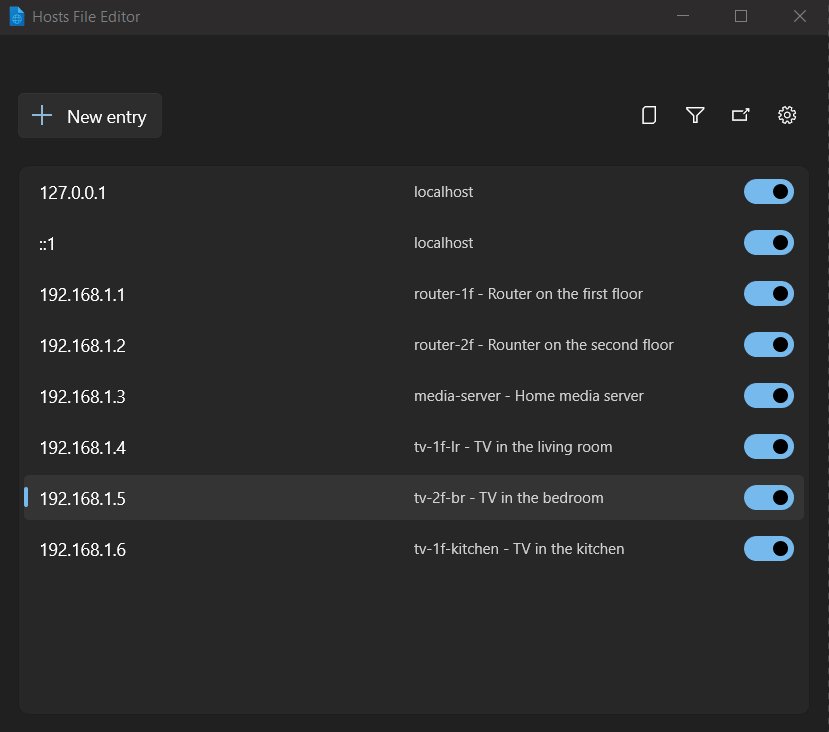
Save a copy of the file before you edit it. If PowerToys is installed, its Hosts File Editor shows each entry with an Active toggle and backs up the file before an editing session.
Step 9: Check website status
- Read the URL in the address bar for typos, a wrong domain ending or an extra port number.
- Delete everything after the domain name and load the site's home page.
- Open the same page on a phone with Wi-Fi turned off, so it uses mobile data.
- If it fails on mobile data too, check the site's official status page or social account for an outage.
- If it is your own website, check the hosting control panel and contact the host.
Google lists server downtime and maintenance among the causes of Chrome loading errors. Nothing on your PC fixes a server that is down.
If the site now answers but shows a certificate warning instead, fix the NET::ERR_CERT_COMMON_NAME_INVALID error before you continue.
Step 10: Try another browser
- Copy the failing URL from the address bar.
- Open Microsoft Edge if the error appeared in Chrome, or Chrome if it appeared in Edge.
- Paste the URL and load it.
- If the second browser loads the page, update the first one; in Chrome select More > Help > About Google Chrome > Relaunch.
- If it still fails, reset Chrome from Settings > Reset settings > Restore settings to their original defaults > Reset settings.
A Chrome reset keeps bookmarks and saved passwords. If both browsers fail, the fault is in Windows or the network, so return to Steps 5 to 8.
Step 11: Update network drivers
Before you uninstall a driver, download the current network adapter driver from the PC maker's website, on another PC if needed. Never use a third-party driver updater.
- Open Settings > Windows Update and select Check for updates. Install everything offered and restart if asked.
- Select Search, type
device manager, and open Device Manager. - Expand Network adapters, right-click your Wi-Fi adapter and select Properties.
- On the Power Management tab, clear Allow the computer to turn off this device to save power and select OK.
- If timeouts continue, right-click the adapter, select Uninstall device, tick Attempt to remove the driver for this device, and select Uninstall.
- Select Start > Power > Restart. Windows reinstalls the adapter driver automatically.
- If Windows does not install a driver, install the one you saved from the PC maker.
Step 12: Restart or reset your router
Restart the router before you think about a reset. A factory reset erases the Wi-Fi name, password and every setting, so keep it for when the router's own manual tells you to.
- Unplug the router's power cable, then the modem's.
- If the modem's lights stay on, remove its backup battery.
- Wait at least 30 seconds.
- Plug the modem back in and wait until its lights stop blinking.
- Plug the router back in and wait a few minutes for both devices to finish starting.
- Reconnect the PC and reload the page.
Restarting disconnects every device on your network for a few minutes. If you have a modem and router combo box, restart only that one device. Update the router firmware using its manual if timeouts keep returning.
Step 13: Contact your ISP
- Confirm the error appears on more than one device on your network.
- Run
pingagainst your Default Gateway. A reply means your router works and the fault is the modem or the provider. - Check your provider's outage page or app over mobile data.
- Note the times the timeouts happened and the sites affected.
- Contact your ISP's support line with those notes and ask them to test the line.
How to confirm ERR_CONNECTION_TIMED_OUT is fixed on Windows
- Reload the page that failed. It should render instead of the error page.
- Open three or four unrelated sites in new tabs and confirm each one loads.
- Run
ipconfig /alland confirm your adapter lists an IPv4 address that does not start with169.254, and a Default Gateway. - If you changed DNS, confirm DNS Servers in the same output shows the addresses you entered.
- Check the network icon on the taskbar shows connected rather than No Internet.
- Reload the page again after ten minutes to confirm the fix holds.
ERR_CONNECTION_TIMED_OUT still showing on Windows
Wi-Fi shows No Internet and the PC has a 169.254 address
Windows could not get an IP address from the router.
- Turn Wi-Fi off and on again, and reconnect to the network.
- Run
ipconfig /releaseandipconfig /renewin an elevated Command Prompt. - Check in the router's documentation that DHCP is enabled on the router.
- Restart the modem and router as in Step 12.
Only one website times out on every browser
A hosts file entry, a stale DNS record or a server outage.
- Remove any hosts file line for that domain (Step 8).
- Run
ipconfig /flushdns. - Open the site over mobile data. If it fails there too, the site is down.
Every site times out after installing a VPN
The VPN adapter or a leftover proxy routes traffic to a server that does not answer.
- Disconnect the VPN and turn off any proxy under Settings > Network & internet > Proxy.
- Run the netsh and ipconfig commands from Step 5 and restart.
- If it continues, run Network reset, then reinstall the VPN client.
The connection drops and the error returns every few minutes
Wi-Fi power saving, an outdated driver or interference near the router.
- Clear Allow the computer to turn off this device to save power on the adapter's Power Management tab.
- In Control Panel > Hardware and Sound > Power Options, select Change plan settings > Change advanced power settings, expand Wireless Adapter Settings and set Power Saving Mode to Maximum Performance.
- Connect to the other frequency band, 2.4 GHz or 5 GHz, if your router broadcasts both.
- Install all updates from Windows Update and restart.
ERR_CONNECTION_TIMED_OUT on Windows FAQ
What does ERR_CONNECTION_TIMED_OUT mean on Windows?
It means the browser sent a request and got no reply before its time limit ran out. The cause can be the PC's connection or network settings, the browser, security software, the router, the ISP or the website's server.
How do I reset TCP/IP in Windows to fix ERR_CONNECTION_TIMED_OUT?
Open Command Prompt as administrator and run netsh winsock reset, netsh int ip reset, ipconfig /release, ipconfig /renew and ipconfig /flushdns in that order. Restart the PC afterwards, then reload the page.
Can DNS cause ERR_CONNECTION_TIMED_OUT?
Yes. A slow or failing DNS server, or a stale DNS cache, can point the browser at an address that does not answer. Flush the cache with ipconfig /flushdns and try Google Public DNS at 8.8.8.8 and 8.8.4.4.
Can the hosts file cause a connection timeout?
Yes. Windows reads the hosts file before asking DNS, so a line mapping a site to an old IP address sends every request there. Open the file in Notepad as administrator and delete the line for that site.
Should I turn off Windows Firewall or my antivirus to fix it?
No. Keep both on. Check the blocked list and web-protection history for the browser or the site, restore default rules if you changed them, and contact the vendor if a block looks wrong.
Will Network reset in Windows delete my files?
No. Network reset removes and reinstalls network adapters and returns their settings to defaults. Files and apps stay, but you may need to reinstall VPN software and reconnect to your Wi-Fi network.
Why does only Chrome show ERR_CONNECTION_TIMED_OUT?
The fault sits in Chrome's profile: an extension, damaged cookies or cache, or a secure DNS setting. Test in Incognito, turn extensions off, delete browsing data, then reset Chrome settings if the error stays.
How is ERR_CONNECTION_TIMED_OUT different from ERR_CONNECTION_CLOSED?
A timeout means no reply arrived at all, while a closed error means the connection opened and then ended unexpectedly. The network fixes overlap, but you can fix ERR_CONNECTION_CLOSED in Chrome with its own checks.
When should I contact my ISP about connection timeouts?
Contact your ISP when several unrelated sites time out on every device, your router answers a ping, and restarting the modem and router has not helped. Give them the times and sites that failed.
Conclusion: fixing ERR_CONNECTION_TIMED_OUT on Windows
Restart the modem and router, then run the netsh and ipconfig resets from Step 5. If the error stays, check the proxy, DNS and hosts file, and contact your ISP only when every device on the network fails. The error only says that no reply arrived, so the fix depends on where the request stopped. The router restart and the TCP/IP reset clear the most common Windows-side causes in under ten minutes without changing any settings you would need to restore.

![Outlook: not all emails are showing in inbox [resolved]](https://techdows.com/wp-content/uploads/2026/10/Outlook-on-the-web-inbox-with-Focused-and-Other-tabs-and-the-Filter-menu.jpg)