Clear ERR_NETWORK_CHANGED in Chrome by reloading the page, then running ipconfig /flushdns, ipconfig /release and ipconfig /renew in an elevated Command Prompt.
This guide covers the quick checks, the Chrome and Windows network resets, the same fix in Microsoft Edge, VPN, proxy and extension conflicts, driver settings, and what to do when the error returns.
The fastest fix for ERR_NETWORK_CHANGED in Chrome
These steps reset the two pieces of network state that a network change leaves stale: the DNS resolver cache and the DHCP address.
- Reload the page once with the reload arrow to the left of the address bar.
- If it fails again, select Search on the taskbar, type
cmd, then choose Run as administrator. - Type
ipconfig /flushdnsand press Enter. - Type
ipconfig /releaseand press Enter, thenipconfig /renewand press Enter. - Switch back to Chrome and reload the page.
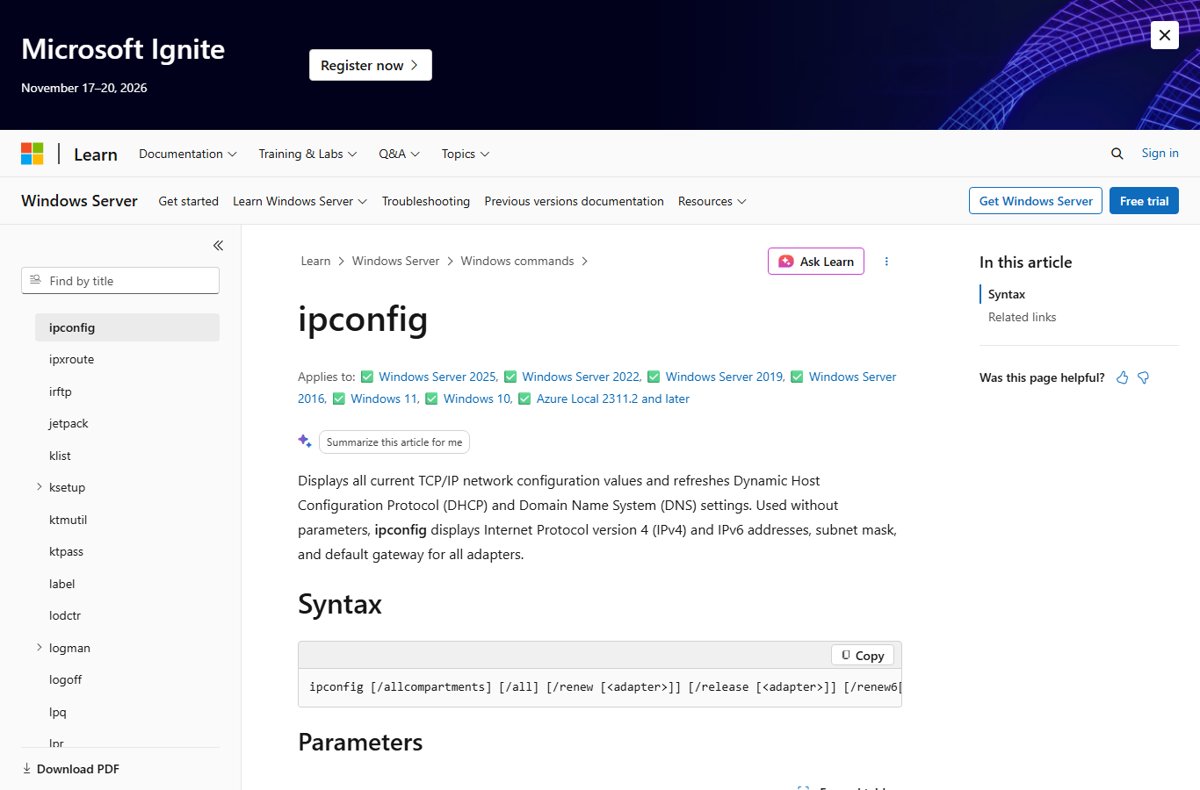
Microsoft documents /flushdns as flushing and resetting the DNS client resolver cache, including the negative entries a failed lookup leaves behind.
What Does ERR_NETWORK_CHANGED Mean in Chrome?
| Question | Answer |
|---|---|
| What the error usually looks like | Chrome stops loading and replaces the page with an interruption screen carrying the code ERR_NETWORK_CHANGED. |
| When Chrome raises it | While a page or one of its resources is still loading and the device's network connection changes underneath it. |
| Does it mean the website is down? | No. The page normally loads on a reload once the connection settles, and other sites keep working. |
| Is it only a Chrome fault? | No. Google lists the modem and router, firewall or antivirus software, extensions and cookies among the causes of Chrome loading errors. |
| How it differs from similar Chrome errors | Codes such as ERR_CONNECTION_CLOSED and ERR_CONNECTION_RESET point at the connection ending rather than the network changing. The DNS, IP and network resets below apply to all of them. |
| Does it affect Microsoft Edge too | Yes. Edge shows the same code, and the Windows-side fixes in this guide clear it in either browser. |
Common Causes of the ERR_NETWORK_CHANGED Error
Match your case to a row, then jump to the section named in the last column.
| Cause | Where it comes from | Section that fixes it |
|---|---|---|
| The device switched networks mid-load | Wi-Fi moving between access points, or an Ethernet cable taking over from Wi-Fi | Quick checks |
| A stale DNS cache or an expired DHCP lease | The Windows DNS client resolver cache and the address the router handed out | Flush DNS and renew your IP address |
| A VPN client connecting or dropping | The VPN adds and removes a virtual adapter, which counts as a network change | Disable VPNs, proxies and extensions |
| A proxy server or setup script | Settings > Network & internet > Proxy on Windows 11 and Windows 10 | Disable VPNs, proxies and extensions |
| An extension that handles traffic | Google lists extensions among the causes of Chrome connection and loading errors | Disable VPNs, proxies and extensions |
| Firewall or security software blocking Chrome | Google lists firewall and antivirus software among the causes | Quick checks |
| A router or modem fault | Google lists the modem and router among the causes | Quick checks |
| Adapter power saving or an outdated driver | Windows can turn a network adapter off to save power | Update network drivers and system settings |
Which fix matches your situation?
| Your situation | Do this | Why |
|---|---|---|
| The error appeared once and the page now loads | Nothing further | A single network change interrupted one page load |
| The error returns every few minutes on Wi-Fi | Clear the adapter power-saving checkbox and install driver updates | Windows is allowed to turn the adapter off to save power |
| It started after installing a VPN or proxy | Disconnect the VPN, then check Settings > Network & internet > Proxy | Both change the route while a session is open |
| Only Chrome fails; Edge and other browsers load | Delete browsing data, then reset Chrome settings | The fault sits inside the Chrome profile |
| Chrome and Edge both fail on the same PC | Run the Windows network reset and the netsh commands |
The Windows network stack is the shared part |
| Every device on the network fails | Restart the router and check for router firmware updates | The fault is upstream of any single PC |
| It happens on a work or school device | Ask the administrator before changing proxy or DNS settings | Managed devices enforce these settings by policy |
Quick Checks Before Advanced Troubleshooting
Each check takes under a minute and rules out a whole branch of causes.
- Select the network icon on the taskbar and confirm the Wi-Fi or Ethernet connection is active.
- Turn Airplane mode off if it is on.
- Load a different website in Chrome to rule out one server being down.
- Open the same page in Microsoft Edge. If Edge fails too, the fault is the connection or Windows, not Chrome.
- Close every Chrome window, reopen Chrome, and load the page again.
- Power the router off, wait until its lights are out, power it back on and let the status lights settle.
- Restart the PC, then reload the page.
- Confirm your firewall or security software still allows Chrome through, since Google lists it among the causes of loading errors.
If the page now loads, stop here. If it still fails, work down the sections below in order.
Reset Chrome, DNS, and Network Settings
Start inside Chrome, then move out to Windows. Resetting Chrome keeps saved bookmarks and passwords.
- Select More (three dots) > Help > About Google Chrome, and select Relaunch if an update is waiting.
- Select More > Delete browsing data.
- Set the time range to All time, tick Cookies and other site data and Cached images and files, then select Delete data.
- Reload the page. If the error survives, select More > Settings > Reset settings.
- Select Restore settings to their original defaults, then Reset settings to confirm.
- Open Settings > Network & internet > Advanced network settings > Network reset on Windows 11, or Settings > Network & internet > Status > Network reset on Windows 10.
- Select Reset now, then Yes, and let the PC restart.
- Reconnect to your network and reload the page.
The Chrome reset clears cookies and site data and turns off extensions and themes; bookmarks and saved passwords stay. If the Relaunch button fails to install the update, see Fix Chrome's 'Update failed (error: 7)' error.
Flush DNS and Renew Your IP Address
Run all six commands in one elevated Command Prompt session, in this order.
- Select Search on the taskbar, type
cmd, then choose Run as administrator. - Run
ipconfig /releaseto send a DHCPRELEASE and discard the current IP configuration. - Run
ipconfig /renewto request a fresh DHCP configuration for every adapter. - Run
ipconfig /flushdnsto flush and reset the DNS client resolver cache. - Run
netsh winsock reset. - Run
netsh int ip reset. - Restart the PC, then reload the failing page.
The two netsh commands are Microsoft's documented repair for a Windows connection that keeps dropping, and they need the restart to take effect.
Disable VPNs, Proxies, and Conflicting Extensions
A VPN adds and removes a virtual adapter every time it connects, and that is a network change as far as the browser is concerned.
- Disconnect any VPN client, then open Settings > Network & internet > VPN and confirm no connection is active.
- Open Settings > Network & internet > Proxy.
- Under Manual proxy setup, select Set up next to Use a proxy server and turn it off if you did not configure it yourself.
- Leave Automatically detect settings on unless a network administrator tells you otherwise.
- Open an Incognito window with Ctrl + Shift + N and load the page. Extensions are the likely cause if it loads there.
- In a normal window, select More > Extensions > Manage extensions.
- Turn off every extension with its toggle, then reload the page.
- Turn the extensions back on one at a time until the error returns, then select Remove on that extension.
Ad blockers, download managers and security add-ons are the ones worth testing first, because they sit on the connection. Chrome itself can also route lookups elsewhere: check Settings > Privacy and security > Security > Use secure DNS.
Update Network Drivers and System Settings
Microsoft treats Windows Update as the preferred source for drivers, so run it before touching Device Manager.
- Open Settings > Windows Update on Windows 11, or Settings > Update & Security > Windows Update on Windows 10.
- Select Check for Windows updates, then Download & install, and restart if prompted.
- Right-click Start and select Device Manager.
- Expand Network adapters, right-click your Wi-Fi or Ethernet adapter and select Properties.
- Open the Power Management tab, clear Allow the computer to turn off this device to save power, then select OK.
- If the error continues, right-click the same adapter and select Uninstall device.
- Tick Attempt to remove the driver for this device, select Uninstall, then choose Start > Power > Restart.
- Sign back in and reload the page. Windows reinstalls the adapter driver during the restart.
Install router firmware updates from the router maker's own admin page or app, never from a third-party download site.
Fix the same error in Microsoft Edge
Edge shows ERR_NETWORK_CHANGED on the same conditions, and the browser-side fix uses different labels.
- Select Settings and more (three dots) > Settings > Privacy, search, and services.
- Under Clear browsing data, select Choose what to clear.
- Set Time range, tick Cookies and other site data and Cached images and files, then select Clear now.
- Select Extensions in the address bar area, then Manage extensions. If the button is hidden, use Settings and more > Extensions.
- Toggle every extension off and reload the page.
- Turn them back on one at a time, and use More actions > Remove from Microsoft Edge on the one that brings the error back.
Every Windows-side fix in this guide — the DNS flush, the IP renew, the netsh resets, the proxy check and the driver settings — applies to Edge unchanged, because it changes the network stack rather than the browser.
How to check the fix worked
- Reload the page that failed. It should render instead of showing the interruption screen.
- Open four unrelated sites in new tabs and leave them loaded for a few minutes.
- Run
ipconfig /allin Command Prompt and confirm your adapter lists an IPv4 address and a Default Gateway. - Disconnect and reconnect Wi-Fi once, then reload a page, to prove a real network change no longer breaks a load.
- Open the same page in an Incognito window. If it works there but not in a normal window, an extension is still involved.
Fix ERR_NETWORK_CHANGED when it keeps coming back
The error returns every few minutes
The adapter keeps dropping, usually from power saving or a driver that Windows has since replaced.
- Open Device Manager > Network adapters > your adapter > Properties > Power Management.
- Clear Allow the computer to turn off this device to save power and select OK.
- Run Check for Windows updates and install everything offered, including optional driver updates.
- Connect the PC by Ethernet for an hour. If the error stops, the fault is the Wi-Fi adapter or the access point.
- If it continues on Ethernet, run the Network reset under Advanced network settings.
Only Chrome shows the error; Edge and other browsers load
Something inside the Chrome profile is handling the connection — an extension, stale site data, or a secure DNS provider.
- Press Ctrl + Shift + N and load the page in an Incognito window.
- Select More > Extensions > Manage extensions and turn every extension off.
- Open Settings > Privacy and security > Security and turn Use secure DNS off.
- Select More > Delete browsing data, choose All time, and delete cookies and cached files.
- Select Settings > Reset settings > Restore settings to their original defaults if the error survives.
Chrome shows ERR_CONNECTION_CLOSED instead
The connection ended before the page finished loading, so the same stale network state is worth clearing.
- Run
ipconfig /flushdns,ipconfig /releaseandipconfig /renewin an elevated Command Prompt. - Run
netsh winsock resetandnetsh int ip reset, then restart the PC. - Load the same page in Microsoft Edge to see whether the site or the PC is at fault.
- Confirm Chrome is still allowed through your firewall and security software.
- For the related protocol error, see Fix Chrome's ERR_SPDY_PROTOCOL_ERROR.
The error appears on one Windows 11 PC but not on other devices on the same network
The network stack or adapter configuration on that PC differs from the rest of the network.
- Open Settings > Network & internet > Advanced network settings > Network reset and select Reset now.
- After the restart, reconnect to the network and reload the page.
- Open Device Manager > Network adapters and look for virtual adapters left behind by a removed VPN.
- Uninstall any virtual adapter whose VPN client is no longer installed.
- Check Settings > Network & internet > Proxy and turn off any manual proxy or setup script.
Frequently Asked Questions
What is ERR_NETWORK_CHANGED?
It is the Chrome error code shown when a page load is interrupted because the device's network connection changed while the page was still loading. Reloading the page is the first fix, followed by flushing the DNS cache and renewing the IP address.
What does "a network change was detected" mean?
It means the connection Chrome was using is no longer the one the device is on. Switching between Wi-Fi and Ethernet, roaming between access points, or a VPN connecting all count as a network change.
Does ERR_NETWORK_CHANGED mean my internet is down?
No. The connection is usually still working, and other sites often load normally. Check the network icon on the taskbar and load a second website before assuming the connection has dropped.
What is the fastest way to fix ERR_NETWORK_CHANGED in Chrome?
Reload the page. If it fails again, open Command Prompt as administrator and run ipconfig /flushdns, then ipconfig /release and ipconfig /renew. That clears the stale DNS cache and the expired address.
How do you fix a network error in Chrome without changing Windows settings?
Reload the page, update Chrome from Help > About Google Chrome, test the page in an Incognito window, turn off extensions under Manage extensions, and delete cookies and cached files for All time.
Can a VPN or proxy cause the ERR_NETWORK_CHANGED error?
Yes. A VPN adds and removes a virtual network adapter each time it connects or drops, and a proxy changes the route mid-session. Disconnect the VPN and check Settings > Network & internet > Proxy.
Will clearing DNS or resetting network settings delete my files?
No. ipconfig /flushdns only clears the DNS resolver cache, and the Windows network reset reinstalls network adapters and restores network settings to their defaults. Documents, photos and installed programs are untouched.
What should I do if ERR_NETWORK_CHANGED keeps coming back?
Clear Allow the computer to turn off this device to save power on the adapter, install Windows updates, then run the Network reset. If it only happens on Wi-Fi, test the PC on Ethernet to isolate the adapter.
Why does err_network_changed appear on Windows 11?
Windows 11 shows it for the same reasons as Windows 10: adapter power saving, a VPN or proxy, a stale DHCP lease, or a driver problem. The network reset lives under Settings > Network & internet > Advanced network settings.
Is ERR_CONNECTION_CLOSED the same error?
No, but the repairs overlap. ERR_CONNECTION_CLOSED points at the connection ending rather than the network changing. Run the same DNS flush, IP renew and netsh resets, then test the page in another browser.
Does ERR_NETWORK_CHANGED happen in Microsoft Edge?
Yes. Edge shows the same code on the same conditions. Clear browsing data through Privacy, search, and services, turn off extensions, and apply the Windows fixes, which work for both browsers.
Could the error be a website problem rather than mine?
Rarely. A site-side block normally produces a different code, such as a 403. If one site alone fails while every other page loads, see What is the 403 Forbidden Error and How to Fix It.
Bottom Line
Reload the page first, then run ipconfig /flushdns, ipconfig /release and ipconfig /renew in an elevated Command Prompt. Reach for the Windows network reset only if the error survives that. ERR_NETWORK_CHANGED almost always comes from stale DNS and DHCP state left behind by a connection that moved, and those three commands clear both in under a minute without touching Chrome's profile, your saved networks or your files.






How to fix a NET::ERR_CERT_COMMON_NAME_INVALID privacy error - Techdows
[…] For network-change errors, follow the steps to fix ERR_NETWORK_CHANGED in Chrome. […]
10 ways to fix ERR_CONNECTION_CLOSED error in Chrome - Techdows
[…] Steps to fix ERR_NETWORK_CHANGED in Chrome […]