The WPS (Wi-Fi Protected Setup) button is a small push button on a router that lets a Wi-Fi device join your network without typing the network name or password, and it usually sits on the back or side of the router, marked “WPS” or with the WPS symbol.
This guide shows where to find it, how to connect a device with the button or a PIN, what the WPS light means, and when to skip WPS for security reasons.
Locating the WPS Button on Your Router
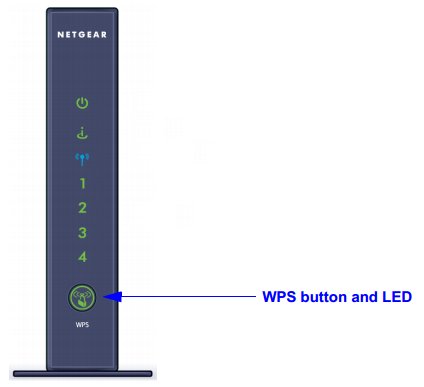
Router makers put the button in different places, but it is always a physical button on the case or a button in the router's web page. NETGEAR notes that its WPS button location varies by model but normally carries the WPS symbol.
- Look at the back panel near the power, reset and Ethernet ports for a button labelled WPS or marked with the WPS symbol.
- Check the front and sides; on many routers the WPS button sits next to the status lights.
- Do not confuse it with the recessed Reset button, which you press with a pin and which erases your settings when held.
- Find the matching WPS light on the front; it shows when WPS is active.
- If there is no physical button, sign in to the router's web page or app and look for a WPS section with an on-screen WPS button.
- Still nothing? Check the router's user manual on the maker's support site for a labelled diagram of your model.
Understanding WPS: What Is It?
WPS is a wireless setup standard built into most home routers. It hands the network's security settings to a new device so you do not type them yourself.
| Question | Answer |
|---|---|
| What WPS stands for | Wi-Fi Protected Setup |
| The core purpose of WPS | Add a Wi-Fi device, such as a printer, TV or range extender, without selecting the network name and typing the password on it |
| Two ways to start it | Push button (on the router and the device) or a PIN entered on one side |
| Security types it works with (ASUS) | Open System, WPA-Personal and WPA2-Personal |
| Security types it does not work with (ASUS) | Shared Key, WPA-Enterprise, WPA2-Enterprise and RADIUS |
| Needs the device to support it | Yes; not every Wi-Fi device has WPS |
How Does WPS Work?
Pressing the router button opens a short pairing window. Any WPS device that asks to join during that window receives the network settings and connects.
| Stage | What happens |
|---|---|
| You press WPS on the router | The router opens a pairing window; NETGEAR keeps it open for two minutes, and ASUS says to allow about three minutes |
| The WPS light blinks | The router is waiting for a device or the connection is in progress |
| You start WPS on the device | The device asks the router to join |
| The router sends the settings | The device receives the network name and security key automatically |
| The WPS light turns solid | The connection succeeded |
How to Use the WPS Button for Connecting Devices
Read the device's own WPS instructions first. Printers, TVs and extenders each start WPS differently, through a button or a menu option.
- Make sure the router is on and its power light is lit.
- Move the device into the same room as the router if you can.
- Press the WPS button on the router once.
- Within two minutes, press the WPS button on the device or pick its WPS option in its network menu.
- Wait for the device to show it is connected and for the router's WPS light to stop blinking.
- Repeat the process for each extra device, one at a time.
Connecting Devices via WPS Using PIN Mode
PIN mode is for devices without a WPS button. The device shows a PIN, and you type it into the router's web page.
- On the device, start its WPS PIN process and note the PIN it shows.
- On a computer connected to the router, open the router's web page and sign in.
- Open the WPS page or wizard; on NETGEAR it is the WPS Wizard, and on ASUS it is the WPS page in the web GUI.
- Select the PIN method and type the device's PIN into the client PIN field.
- Select Next or Start to begin, then wait for the device to connect.
NETGEAR routers also show a router PIN under wireless settings, used when a device asks for the router's PIN instead.
Accessing WPS Settings Through Router’s Web Interface
The WPS controls live in the router's admin page. You can sign in to most routers from a browser on a device already connected to them; see how to log in to an Orbi router or the Verizon router login steps for brand-specific help.
| Router brand | Admin address | Where WPS settings are |
|---|---|---|
| NETGEAR (Nighthawk) | routerlogin.net or routerlogin.com | ADVANCED > Advanced Setup > Wireless Settings for the router PIN; ADVANCED > WPS Wizard to pair |
| ASUS | asusrouter.com or the router's LAN IP | The WPS page in the web GUI; Administration > System > WPS Button behavior for what the physical button does |
| Other brands or ISP routers | The address printed on the router's label | Wireless or Wi-Fi settings, often a WPS sub-page; check the model's manual |
NETGEAR's default sign-in is user name admin and password password, both case-sensitive. Change that password if it is still the default.
Advantages of Using WPS
| Advantage | Where it helps most |
|---|---|
| No password typing | Printers, TVs and smart devices with awkward on-screen keyboards |
| Guests join without learning your password | A visitor's device connects without you sharing the key |
| Fast range extender setup | Extenders pair with the router by pressing WPS on both |
| No app or web page needed for button mode | Devices with a WPS button and no screen |
Limitations and Security Concerns
| Limitation | What it means for you |
|---|---|
| Anyone in range can join during the pairing window | NETGEAR advises using the network name and password instead in apartments and shared offices |
| The PIN method can be brute-forced | A successful attack can give an outsider access to your network |
| Not every device supports WPS | Check the device first; Android removed its WPS API in Android 9 (API level 28) |
| Limited security type support | ASUS lists WPS as unsupported with Enterprise and RADIUS security |
| Needs a visible network name | NETGEAR warns that WPS stops working if you hide the SSID |
| Often 2.4 GHz by default | On ASUS dual-band routers WPS pairs on 2.4 GHz unless you switch the frequency |
Security Considerations and Best Practices
NETGEAR recommends turning off the router PIN, because only the PIN method is open to brute-force attacks. The push button still works with the PIN off.
- Sign in to the router's web page.
- On NETGEAR, open ADVANCED > Advanced Setup > Wireless Settings.
- Select the Disable Router's PIN check box and apply the change.
- Use the push button only when you are next to the router and no stranger is in range.
- Set the Wi-Fi security to WPA3 Personal, or WPA2/WPA3 Transitional for older devices, as Apple recommends for routers.
- Turn on automatic firmware updates if your router offers them.
How to check the WPS connection worked
- Watch the router's WPS light: blinking means pairing is in progress, and solid means the connection succeeded.
- Check the device's network screen for your network name and a connected status.
- Open a web page or app on the device to confirm internet access.
- In the router's web page, look for the device in the list of attached or connected devices.
Troubleshooting Common WPS Issues
The WPS button on the router is blinking
A WPS session is in progress or stuck waiting for a device.
- Give it the two-minute window to finish or time out.
- If it keeps blinking on a NETGEAR router, press and hold the WPS button for 30 seconds or until the light goes steady.
- Restart the router if the light still blinks.
The WPS button is not working
The device does not support WPS, the press came too late, or the button was given another job.
- Confirm the device lists WPS in its manual or network menu.
- Press the device's WPS button within two minutes of pressing the router's.
- On ASUS, check Administration > System > WPS Button behavior; if it is set to turn LEDs on and off, the button no longer starts WPS.
- Make sure the network name is not hidden and the security is WPA2-Personal or a mode the router lists for WPS.
- Update the router firmware, then try again.
The device connects only to 2.4 GHz
Some routers pair WPS devices on the 2.4 GHz band by default.
- On ASUS, turn WPS off on the WPS page.
- Select Switch Frequency in the Current Frequency field.
- Turn WPS on again and repeat the pairing.
My router doesn't have a WPS button
Some routers offer WPS only in the web page or app, and some leave it out.
- Sign in to the router's web page and look for a WPS page with an on-screen button.
- Check the model's manual for WPS support.
- If the router has no WPS, connect with the network name and password instead.
Alternatives to WPS
WPS is one of several ways to put a device on Wi-Fi. Pick by the device you have and how much you trust the people nearby.
| Your situation | Use this | Why |
|---|---|---|
| Phone, tablet or laptop | Select the network and type the password | Works on every device and needs no pairing window |
| Windows 11 PC | Quick settings > Manage Wi-Fi connections > pick the network > Connect | The standard Windows route with your password |
| Device that can scan a code | Scan the network's Wi-Fi QR code | No typing, and only people you show the code can join |
| Printer, TV or extender with a WPS button | WPS push button | Avoids typing a long password on a small screen |
| Shared building or office | Network name and password, not WPS | Nobody nearby can join during a pairing window |
| Device with an Ethernet port | Ethernet cable | No wireless setup at all |
Frequently Asked Questions
What is the WPS button on a router?
It is the Wi-Fi Protected Setup button. Pressing it opens a short pairing window during which a WPS-capable device can join the network without you typing the network name or password. It is usually marked WPS or with the WPS symbol.
Where is the WPS button on a router located?
Most routers put it on the back panel near the ports or on the front next to the status lights. It is a normal push button, not the recessed reset hole. If you cannot see it, check the router's web page or the model's manual.
How does the WPS button work?
Press WPS on the router, then start WPS on the device within the pairing window, which is two minutes on NETGEAR routers. The router sends the device its network settings, the device connects, and the router's WPS light turns solid.
How do I use the WPS button?
Press the WPS button on the router once, then press the WPS button on your printer, TV or extender, or pick its WPS menu option, within two minutes. Wait until the device shows it is connected and the WPS light stops blinking.
Why is the WPS button on my router blinking?
A blinking WPS light means a WPS connection is in progress. It turns solid when a device connects and goes off after that. If it keeps blinking on a NETGEAR router, hold the WPS button for 30 seconds or until the light goes steady.
Why is my WPS button not working?
The device may not support WPS, you may have started it after the window closed, or the network name may be hidden. On ASUS routers the button can be reassigned to switch the LEDs, so check the WPS Button behavior setting under Administration > System.
Why doesn't my router have a WPS button?
Some routers put WPS only in the web page or app as an on-screen button, and some leave the feature out. Sign in to the router's web page to look for a WPS page, or connect with the network name and password instead.
What is the WPS button on a laptop?
Laptops do not normally have a WPS button. WPS is started on the router, and a laptop joins Wi-Fi by selecting the network and typing the password. Some Wi-Fi adapters support WPS, so check your adapter's documentation if you want to use it.
Is it safe to leave WPS turned on?
The push button is safe if you use it only when you are beside the router and no stranger is in range. The PIN method can be brute-forced, so NETGEAR recommends disabling the router PIN in its wireless settings.
What is a WPS connection?
A WPS connection is a Wi-Fi connection set up through Wi-Fi Protected Setup instead of a typed password. The device ends up on the same secured network as any other device, using the router's normal security settings.