To find hidden apps on iPhone, swipe left past your last Home Screen page to open App Library, scroll to the bottom, tap the Hidden folder and unlock it with Face ID, Touch ID or your passcode.
This guide covers the Hidden folder, the list of hidden apps in Settings, other places a missing app can sit, how to unhide an app, and what to do when the app still will not show up.
Step-by-step: find hidden apps on iPhone
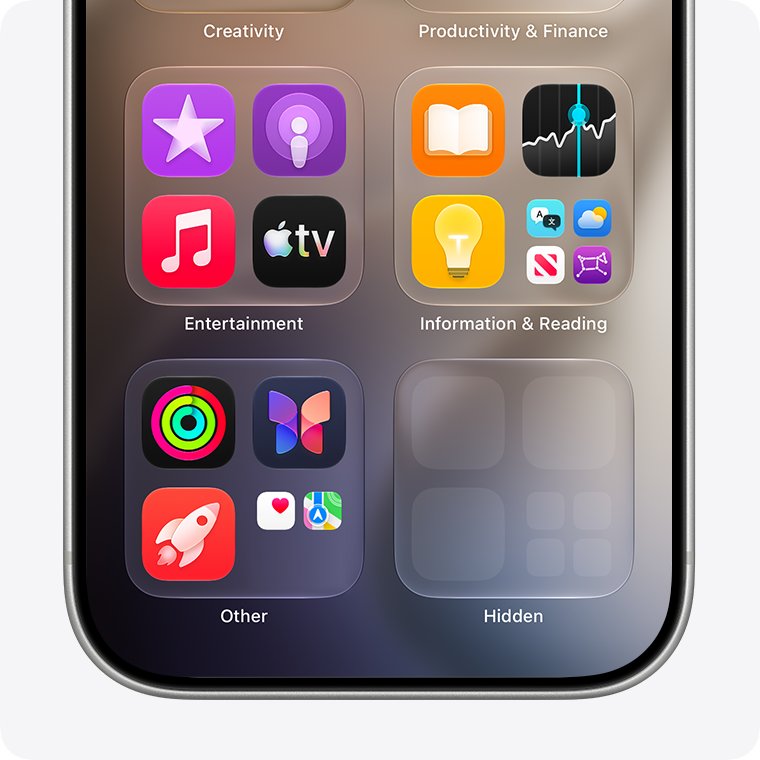
Hidden apps live in one place on iOS 18 and later: a locked Hidden folder at the very bottom of App Library.
- Go to your iPhone Home Screen.
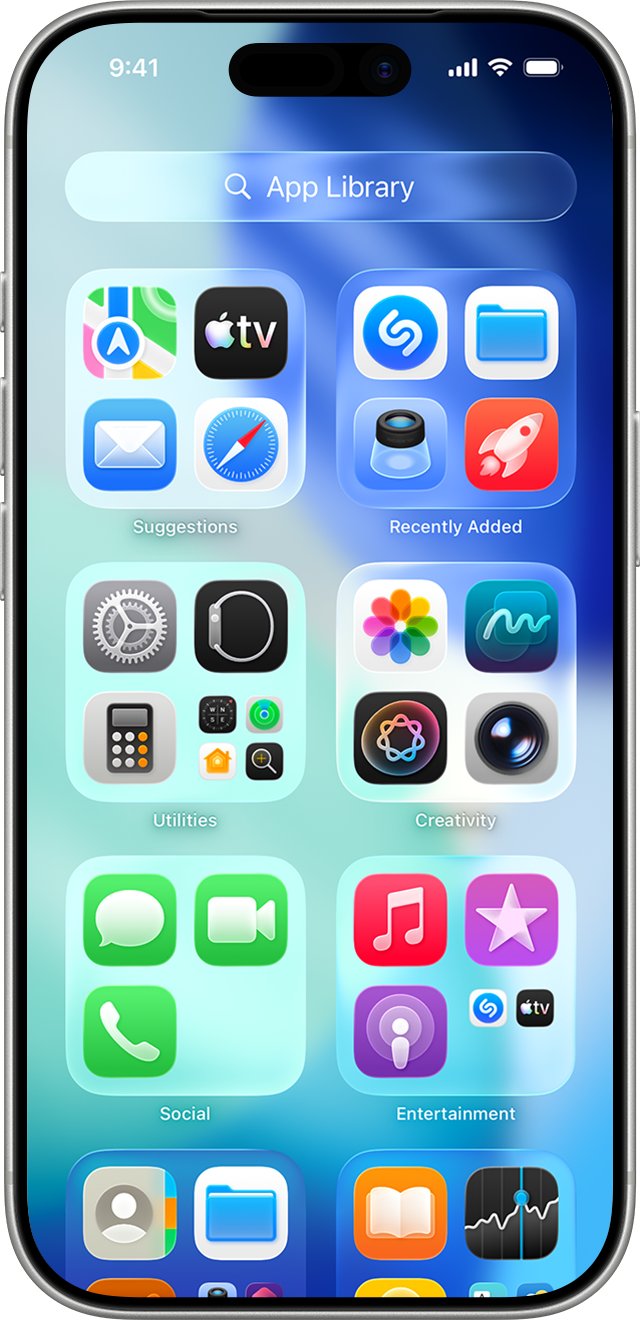
- Swipe left past all your Home Screen pages until App Library opens.
- Scroll down to the bottom of App Library.
- Tap the Hidden folder.
- Authenticate with Face ID, Touch ID or your passcode.
- Tap the app you want, then authenticate again to open it.
The app relocks when you quit it, so you authenticate again each time you open it from the Hidden folder.
Methods to find hidden apps on iPhone
| Your situation | Where to look | What you get |
|---|---|---|
| Someone used Hide and Require Face ID on the app | App Library > Hidden folder | The app itself, after Face ID, Touch ID or passcode |
| You only want a list of what is hidden | Settings > Apps > Hidden Apps | The names of every hidden app on this iPhone |
| The app was removed from the Home Screen, not hidden | App Library search field or Spotlight | The app opens normally, no authentication |
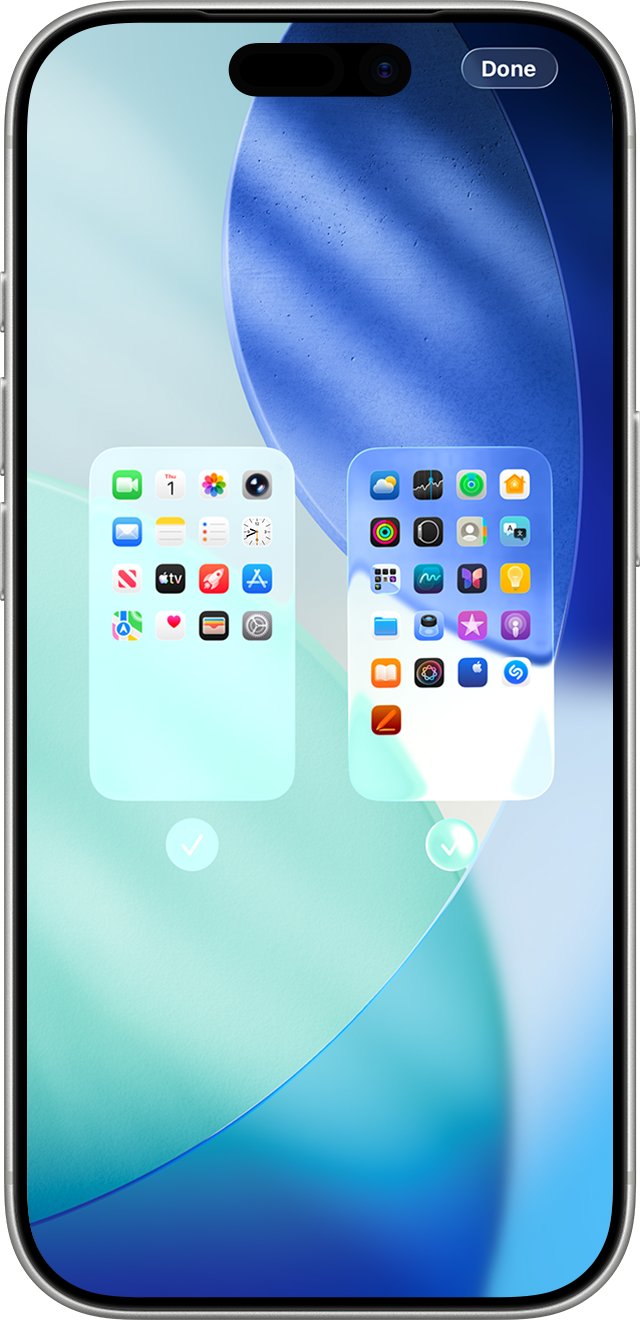
| A whole Home Screen page is missing | Edit Home Screen > page dots > checkmarks | The hidden page and every app on it |
| The app sits inside a folder | Open the folder on the Home Screen | The app, which you can drag back out |
| The app may have been deleted | App Store > Apps & Purchase History > Your Apps | A download button to reinstall it |
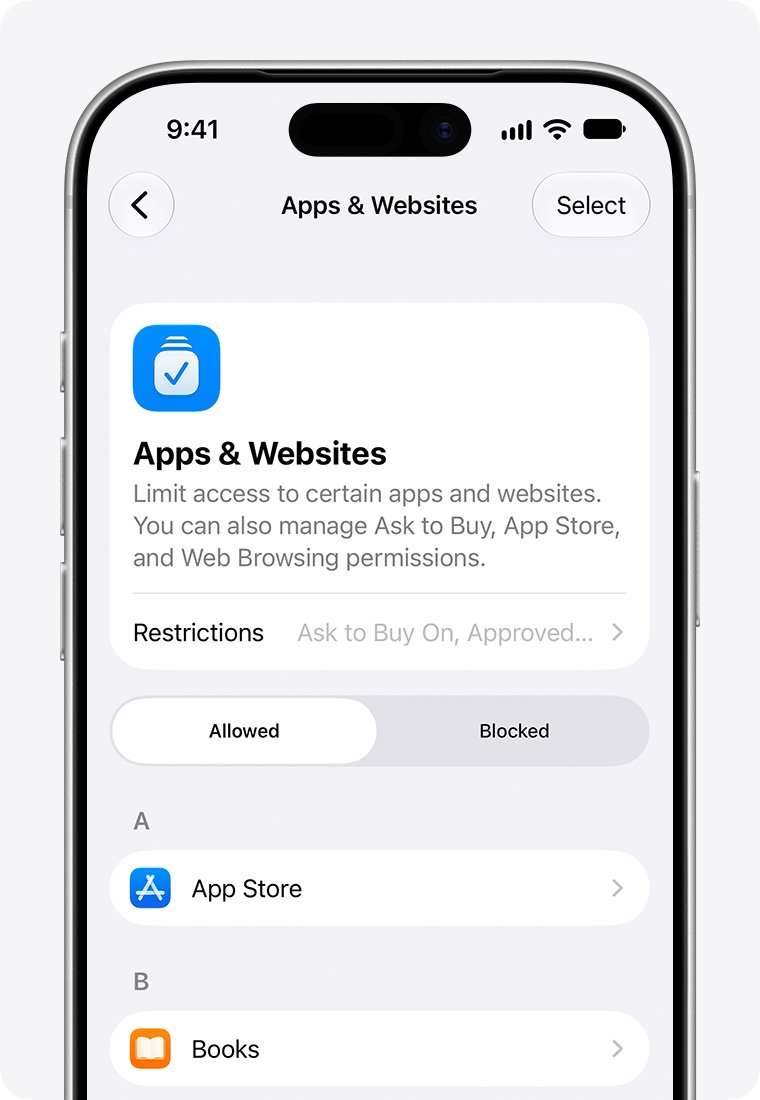
| A parent blocked the app with Screen Time | Settings > Family > child's name > Apps & Websites | The app stops being dimmed once unblocked |
See every hidden app in iPhone Settings
The iPhone Settings app gives you a list of hidden apps without opening App Library, which is the quickest way to check what is hidden on the phone.
- Open the Settings app.
- Tap Apps.
- Tap Hidden Apps.
- Authenticate with Face ID, Touch ID or your passcode.
- Read the list of hidden app names on this iPhone.
Alternative ways to find hidden apps
Many apps people call hidden were only removed from the Home Screen, tucked into a folder, or placed on a hidden page. These routes find those apps, and none of them needs authentication.
Spotlight and the App Library search field cannot show apps hidden with the Hidden feature, because hiding removes an app from search results.
| Route | How to use it | What it finds |
|---|---|---|
| Spotlight search | Swipe down on the Home Screen (or tap the search button on the Home Screen of Face ID models), type the app name, then tap the app | Any installed app that is not hidden and is allowed in Search |
| App Library search | Swipe left to App Library, tap the search field, type the name or scroll the alphabetical list | Apps removed from the Home Screen but still installed |
| Hidden Home Screen pages | Touch and hold the wallpaper, tap the dots at the bottom, then tap a page to add its checkmark and tap Done | Apps on Home Screen pages that were switched off |
| Home Screen folders | Tap each folder, including its extra pages, and look inside | Apps grouped into a folder |
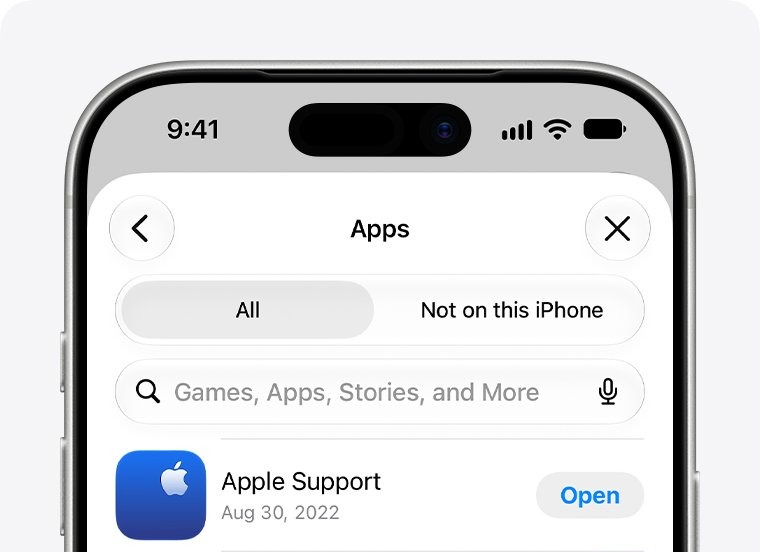
| App Store purchase history | Open the App Store, tap your picture, tap Apps & Purchase History, then Your Apps | Apps on your account, including deleted ones you can download again |
| Screen Time | Check app usage in Screen Time; hidden apps still appear there by name | Evidence that a hidden app exists and is in use |
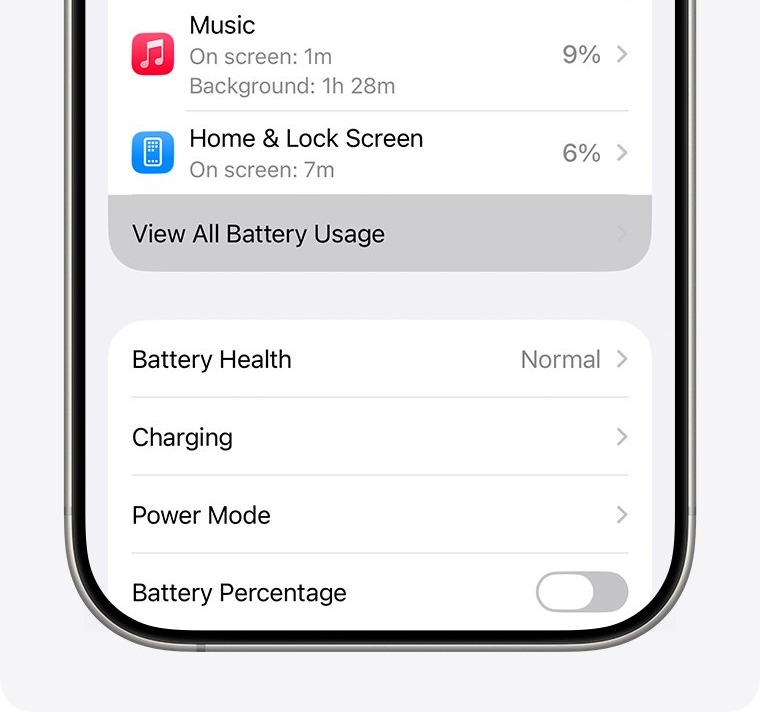
| Battery usage | Open Settings > Battery and read the per-app usage list | Hidden apps still appear in Battery Usage By App |
| iPhone Storage | Open Settings > General > iPhone Storage and read the app list | Installed apps sorted by the space they use |
Apple notes that a hidden app's name still shows in Screen Time, in Battery Usage By App and in App Store purchase history. Those three places are the best check when you suspect an app is hidden.
If you are looking for a document rather than an app, you can find files on iPhone in the Files app instead.
How to tell if an app is hidden or deleted on iPhone
- Swipe down on the Home Screen and type the app's name in Spotlight.
- If the app opens, it was never hidden; drag it back to the Home Screen from App Library.
- If nothing appears, open Settings > Apps > Hidden Apps and authenticate.
- If the app is listed there, it is hidden and lives in the Hidden folder.
- If it is not listed, open the App Store, tap your picture, tap Apps & Purchase History, then Your Apps.
- If the app shows a download button there, it was deleted from this iPhone and can be reinstalled.
Why hidden apps are hard to find on iPhone
Hiding an app does more than move its icon, so the usual search habits stop working.
| What hiding does | Effect when you search |
|---|---|
| Removes the app from the Home Screen | No icon on any Home Screen page or folder |
| Removes the app from App Library categories | Only the Hidden folder at the bottom holds it |
| Removes the app from search results | Spotlight and App Library search return nothing for its name |
| Locks the app behind Face ID, Touch ID or passcode | The Hidden folder will not open without authentication |
| Hides content inside the app elsewhere | Its notification previews, Siri suggestions and call history entries do not appear |
| Applies to this iPhone only | The hidden status does not sync to an iPad or other device through iCloud |
Because a locked app's content is kept out of places such as your recent calls list and notification previews, a hidden messaging or calling app can feel invisible even while you use it.
Tips for managing hidden apps on iPhone
| Tip | Detail |
|---|---|
| Only App Store apps can be hidden | Apps that come installed with iOS cannot be hidden, so a missing Camera or Safari icon was removed from the Home Screen, not hidden |
| Default browser and EU marketplace apps cannot be hidden | An app set as the default web browser, or as an app marketplace in the EU, cannot go into the Hidden folder |
| Lock without hiding when you only need privacy | Require Face ID keeps the icon on the Home Screen while still asking for authentication |
| Hide on every device separately | The hidden status does not sync with iCloud, so hide the app again on an iPad if you need it there |
| Teens can hide apps, children under 13 cannot | In a Family Sharing group, a parent can still see a teen's downloads and app time and restrict apps with Screen Time |
| Keep your passcode private | Anyone who knows your passcode can open the Hidden folder or hide an app |
How to unhide apps on iPhone
Unhiding an app removes both the hiding and the Face ID lock in one step.
- Swipe left past all your Home Screen pages to open App Library.
- Tap the Hidden folder at the bottom and authenticate.
- Touch and hold the app you want to unhide.
- Tap Don't Require Face ID (or Don't Require Touch ID or Don't Require Passcode).
- Authenticate with Face ID, Touch ID or your passcode.
- Find the app near the top of App Library, then touch and hold it until it moves to the Home Screen.
Repeat these steps for each app; there is no single switch that unhides every app at once.
Still can't find a hidden app on your iPhone?
App Library is not showing
App Library sits to the right of the last Home Screen page, and many pages push it further away.
- Keep swiping left from the first Home Screen page until App Library appears.
- To bring it closer, touch and hold the wallpaper and tap the dots at the bottom.
- Tap to remove checkmarks from pages you do not need, then tap Done.
There is no Hidden folder in App Library
The Hidden folder belongs to iOS 18 and later, and Apple's iOS 17 guide has no hide-an-app feature.
- Open Settings > General > About and check which iOS version the iPhone runs.
- On iOS 17 or earlier, look for the app with App Library search or Spotlight instead.
- On iOS 18 or later, open Settings > Apps > Hidden Apps to confirm whether anything is hidden.
The app does not show up in Spotlight search
Either the app is hidden, or Show App in Search is turned off for it.
- Check Settings > Apps > Hidden Apps first.
- If the app is not listed, open Settings > Search and scroll to the app.
- Tap the app and turn on Show App in Search.
The app icon is dimmed and will not open
A parent or guardian blocked the app with Screen Time; blocking dims an app but does not delete it.
- Ask the parent or guardian to open Settings > Family and tap the child's name.
- Tap Apps & Websites and enter the Screen Time passcode.
- Select the app and unblock it.
The app is not hidden and not in App Library
The app was deleted, or iPhone offloaded it to save space.
- Look for an icon with a cloud symbol on the Home Screen and tap it to reinstall an offloaded app.
- Otherwise, open the App Store, tap your picture, then tap Apps & Purchase History.
- Tap Your Apps, find the app and tap the download button.
Hidden apps on iPhone: frequently asked questions
How do I find my hidden apps on iPhone?
Swipe left past your last Home Screen page to open App Library, scroll to the bottom and tap the Hidden folder. Authenticate with Face ID, Touch ID or your passcode, and the hidden apps appear inside it.
How do I check which apps are hidden on my iPhone?
Open Settings, tap Apps, then tap Hidden Apps and authenticate. The screen lists every app hidden on that iPhone. Hidden app names also still appear in Screen Time, Battery Usage By App and your App Store purchase history.
How do I find hidden apps on iPhone 16?
iPhone 16 runs iOS 18 or later, so it uses the same Hidden folder at the bottom of App Library. Swipe left to App Library, scroll down, tap Hidden and authenticate with Face ID to see the apps.
How do I find hidden apps on iPad?
iPad uses the same feature. Swipe left past your Home Screen pages to App Library, tap the Hidden folder at the bottom and authenticate. You can also open Settings, tap Apps, then Hidden Apps for a list.
How do I show hidden apps on iPhone again?
Open the Hidden folder in App Library, touch and hold the app and tap Don't Require Face ID, Touch ID or Passcode. After you authenticate, the app returns near the top of App Library, and you can drag it to the Home Screen.
Can I find hidden apps on iPhone without a passcode?
No. The Hidden folder and the Hidden Apps list in Settings both require Face ID, Touch ID or the iPhone passcode. Without one of them, you can only see a hidden app's name in Screen Time, battery usage or purchase history.
Does iOS 17 have the Hidden folder?
No. The Hidden folder and the hide-an-app option arrived with iOS 18. On iOS 17 you can only remove an app from the Home Screen, and it stays visible in App Library and Spotlight search.
Can someone hide apps on my iPhone without me knowing?
Only someone who can unlock your iPhone, because hiding an app requires Face ID, Touch ID or the passcode. Check Settings > Apps > Hidden Apps to see whether anything is hidden, and change your passcode if others know it.
Why can't I hide some apps on iPhone?
Apps that come installed with iOS cannot be hidden, and neither can an app set as your default web browser or, in the EU, your app marketplace. Only apps downloaded separately from the App Store can go into the Hidden folder.
How do I get to hidden apps quickly?
Swipe left to App Library and tap Hidden at the bottom. To shorten the swipe, hide Home Screen pages you do not need, which brings App Library closer to your first page.
Quick summary
Open App Library, scroll to the bottom and tap the Hidden folder, or check Settings > Apps > Hidden Apps for a list. Hiding removes an app from the Home Screen, App Library categories and search, so the Hidden folder and the Settings list are the only places it still appears; anything not listed there was removed, blocked or deleted instead.