Press Ctrl + O (Command + O on a Mac) in Chrome, Edge or Firefox, select the file and click Open to view it in the browser.
This guide covers the shortcut, drag and drop, typing a file:/// address, and setting a browser to open a file type by default, plus fixes when a local file will not load.
How to open a local file in a browser
All three browsers use the same shortcut. Browsers display HTML, PDF, plain text, images and common audio and video formats; other file types are downloaded or handed to another app.
- Open Chrome, Edge or Firefox.
- Press Ctrl + O on Windows or Linux, or Command + O on a Mac.
- Browse to the file in the Open dialog.
- Select the file and click Open.
- Check the address bar: it now starts with
file:///.
Ways to open local files in a browser compared
| Your situation | Use this | Why |
|---|---|---|
| You know roughly where the file is | Ctrl + O / Command + O | Opens a normal file picker in every browser |
| File Explorer or Finder is already open | Drag the file onto the browser window | No dialog at all |
| You want to browse a folder's contents | Type file:///C:/ in the address bar |
The browser lists files and folders as links |
| You open the same type of file every day | Set the browser as the default app | A double-click opens it in the browser |
| One file, one time | Right-click > Open with | Picks the browser without changing defaults |
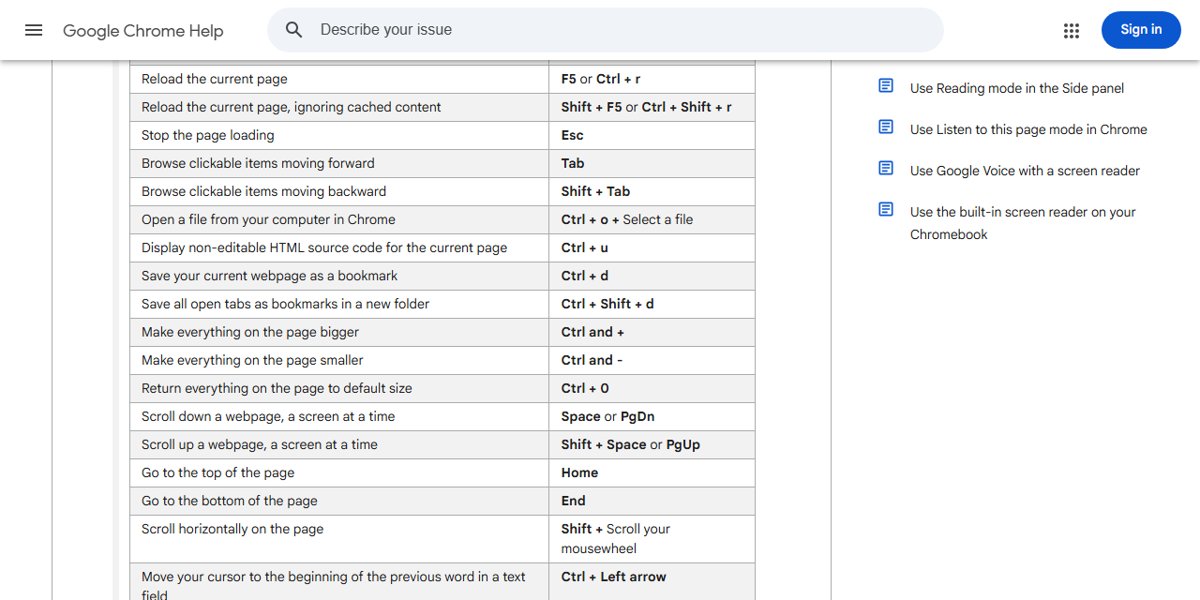
Open local files on Chrome
- Open Google Chrome.
- Press Ctrl + O (Windows) or ⌘ + O (Mac).
- Select the file in the dialog and click Open.
- To browse instead, click the address bar, type
file:///C:/on Windows orfile:///Users/on a Mac and press Enter. - Click folders in the listing until you reach the file, then click it.
On a Mac you can also use File > Open File in the Chrome menu bar.
Open local files on Edge
- Open Microsoft Edge.
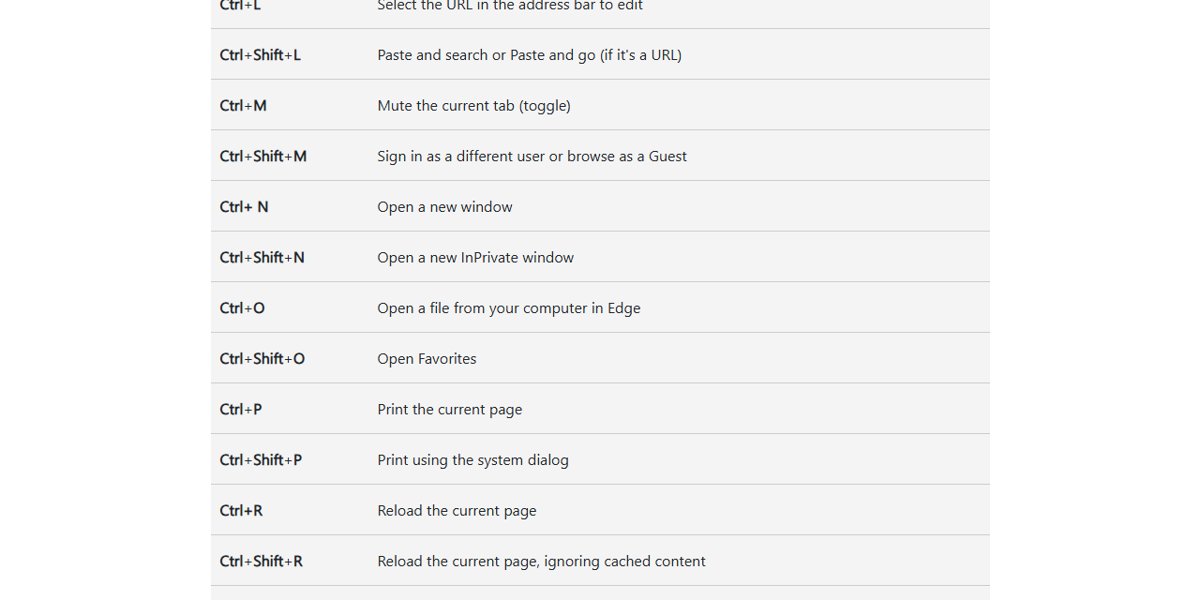
- Press Ctrl + O (Windows) or Command + O (Mac) to open a file from your computer.
- Select the file and click Open.
- Or press Ctrl + L or Alt + D to select the address bar, type the full path such as
file:///C:/Users/and press Enter. - Press Ctrl + J if the file was downloaded and you want to open it from the Downloads list.
Edge also opens PDF files on Windows 11 in its built-in PDF reader.
Open local files on Firefox
- Open Firefox.
- Press Ctrl + O (Windows) or Command + O (Mac).
- If you prefer the menu, press Alt to show the menu bar, then select File > Open File.
- Select the file and click Open.
- To browse a folder, type
file:///C:/in the address bar and press Enter.
Drag and drop a file into Chrome, Edge or Firefox
- Open File Explorer (Windows) or Finder (Mac) next to the browser window.
- Find the file you want to view.
- Drag the file onto an open tab to replace that page, or onto the tab strip to open it in a new tab.
- Release the mouse button and wait for the file to load.
Set a browser to open local files by default on Windows
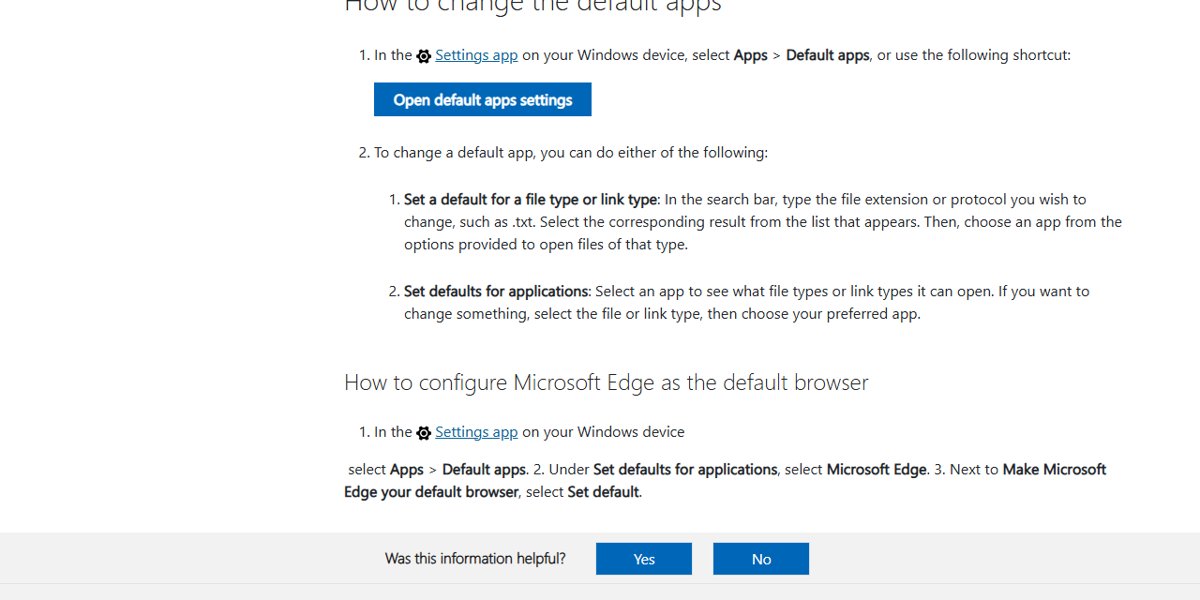
- Right-click the file in File Explorer and select Open with > Choose another app.
- Select Chrome, Edge or Firefox in the list.
- Select Always to make it the default for that file type, or Just once for this file only.
- To change it later, open Settings > Apps > Default apps and pick the browser for that file type.
How to tell a local file opened in the browser
- Look at the address bar: a local file shows
file:///followed by its path on the drive. - Check the tab title, which shows the file name or the HTML page title.
- Refresh with F5 after editing the file to see the saved changes.
Is it secure to open a local file on a browser?
| File | Risk | What to do |
|---|---|---|
| Your own HTML, PDF, text or image | Low | Open it normally |
| HTML file from an email or download | Can run scripts in the browser | Open only if you trust the sender |
| PDF from an unknown source | Can contain links to phishing sites | Do not enter passwords from links inside it |
| Browser extensions reading local files | Extensions can see file contents | Grant file access only to extensions you trust |
Opening a file locally does not upload it anywhere. The browser reads it from your drive.
Local file not opening in Chrome, Edge or Firefox
The file downloads instead of opening
The browser cannot display that file type, such as a Word or ZIP file.
- Open the file in the app built for it, such as Word, or extract the ZIP file in File Explorer.
- Use the browser only for HTML, PDF, text, image and media files.
A `file:///` address shows "This site can't be reached" or "File not found"
The path is wrong or uses backslashes and spaces incorrectly.
- Use forward slashes, for example
file:///C:/Users/. - Open the parent folder first and click through to the file.
- Use Ctrl + O instead so the browser builds the path for you.
A link on a website to a local file does nothing
Browsers block web pages from opening file:/// links for security.
- Copy the link and paste it into the address bar yourself.
- Or open the file with Ctrl + O.
An extension cannot read a local file
Extensions need permission to access file URLs.
- In Chrome open
chrome://extensions, or in Edge openedge://extensions. - Select Details on the extension.
- Turn on Allow access to file URLs.
Local files in Chrome, Edge and Firefox FAQ
How do I open a local file in a browser?
Press Ctrl + O on Windows or Command + O on a Mac in Chrome, Edge or Firefox, select the file and click Open. You can also drag the file onto the browser window.
How do I access local files on a PC from a browser?
Type file:///C:/ in the address bar and press Enter. The browser lists the folders on drive C as links, and you can click through to any file you can view.
How do I go to local files in Chrome?
Press Ctrl + O to pick a file, or type file:///C:/ into the Chrome address bar to browse folders. On a Mac, type file:///Users/ instead.
How do I open a file location from the browser?
Press Ctrl + J in Chrome or Edge to open Downloads, where each file has an option to show it in its folder. For other files, search in File Explorer and right-click the result.
How do I find local files on my PC?
Open File Explorer with Windows + E and type the file name in the search box at the top right. Once found, drag it into the browser or use Ctrl + O.
Which files can a browser open locally?
Chrome, Edge and Firefox display HTML, PDF, plain text, common image formats and common audio and video formats. Office documents and archives are downloaded or opened in another app.
Does opening a local file in the browser upload it?
No. The browser reads the file from your drive and shows it in a tab. Nothing is sent to a server unless the file itself is a web page that loads online content.
Why does Chrome block links to local files?
Chrome and other browsers stop web pages from opening file:/// addresses so a site cannot read files on your computer. Paste the address into the address bar yourself instead.