To add a Home button to Microsoft Edge in Windows, open Settings and more (…) > Settings > Appearance > Customize toolbar and turn on the toggle for the Home button.
This guide also shows how to choose the page the button opens, how to switch it on for every user with Group Policy or the registry, and what to do when the toggle is missing or locked.
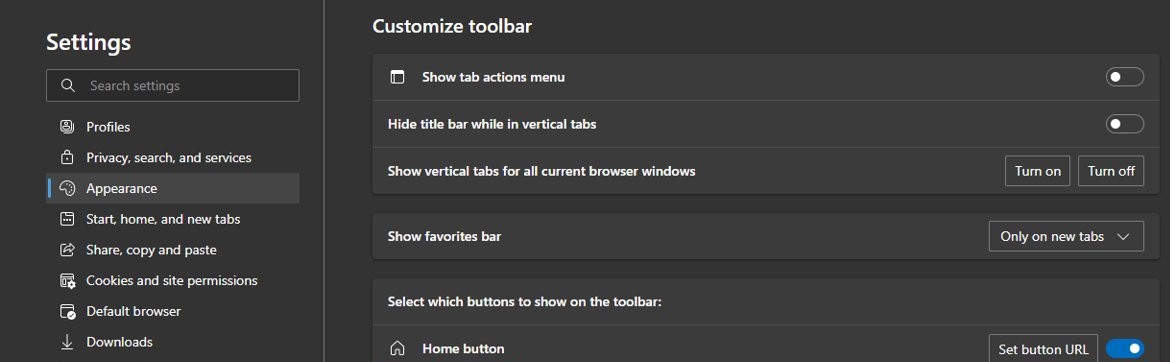
Add Home button to Microsoft Edge
Showing the Home button takes one toggle in Edge's own settings, so the steps are the same on Windows 11 and Windows 10.
- Open Microsoft Edge.
- Select the three dots (…) in the upper-right corner to open Settings and more.
- Select Settings.
- Select Appearance in the left-hand menu.
- Scroll to Customize toolbar.
- Turn on the toggle next to Home button. The house icon appears on the Edge toolbar.
The same list holds the other optional toolbar buttons, such as Favorites, History, Collections and Share, so you can show or hide the Copilot button and the rest while you are there.
How to set the home button URL in Microsoft Edge
By default, the Home button opens the new tab page. You can point it at any website instead, such as a work portal or a search page.
- Select Settings and more (…) > Settings.
- Select Start, home, and new tab page in the left-hand menu.
- Find the home button setting on that page.
- Choose the new tab page, or choose the URL option and type the full address, for example
https://www.bing.com. - Save the address, then select the Home button on the toolbar to test it.
The home page and the startup pages are separate settings. On startup on the same page decides what opens when Edge launches, while the Home button URL only affects the house icon and Alt + Home. If you want MSN back as the page it opens, you can restore MSN as your homepage with the same setting.
What is the home button in Microsoft Edge?
The Home button is a toolbar shortcut to the page you set as your home page. It does not change which pages load when Edge starts.
| Question | Answer |
|---|---|
| What it opens by default | The new tab page |
| What it can open instead | Any single URL you set under Start, home, and new tab page |
| Keyboard shortcut on Windows | Alt + Home opens your home page in the current tab, even with the button hidden |
| Keyboard shortcut on Mac | Command + Shift + H |
| Policy support | The Show Home button on toolbar policy works in Microsoft Edge 77 and later on Windows and macOS |
Show the home button in Edge for all users with Group Policy
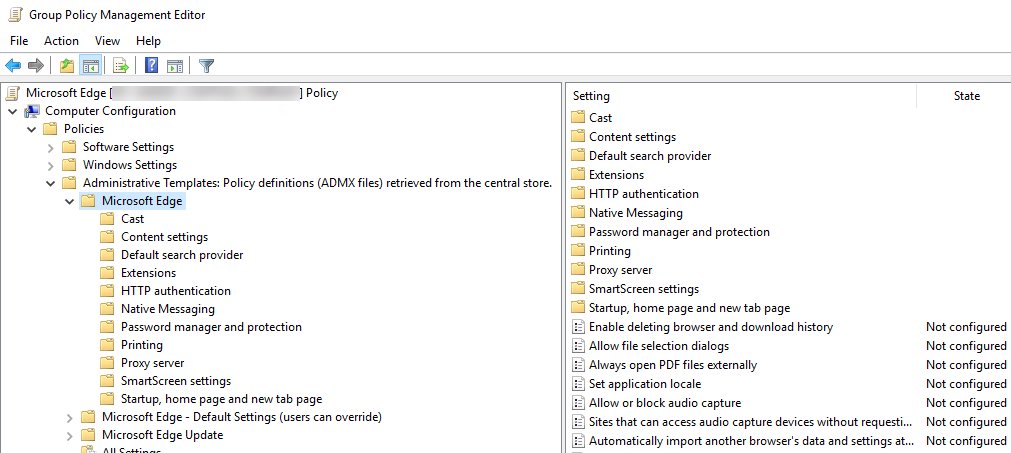
Administrators can force the button on with the Show Home button on toolbar policy, one of many ways to manage Edge with policy settings. On a single PC, add the Microsoft Edge administrative templates first, because Windows does not include them.
- Download the Microsoft Edge policy templates from the Microsoft Edge Enterprise page at
https://aka.ms/EdgeEnterpriseand extract them. - Copy
msedge.admxfrom windows > admx toC:\Windows\PolicyDefinitions, andmsedge.admlfrom the en-US folder toC:\Windows\PolicyDefinitions\en-US. - Press Win + R, type
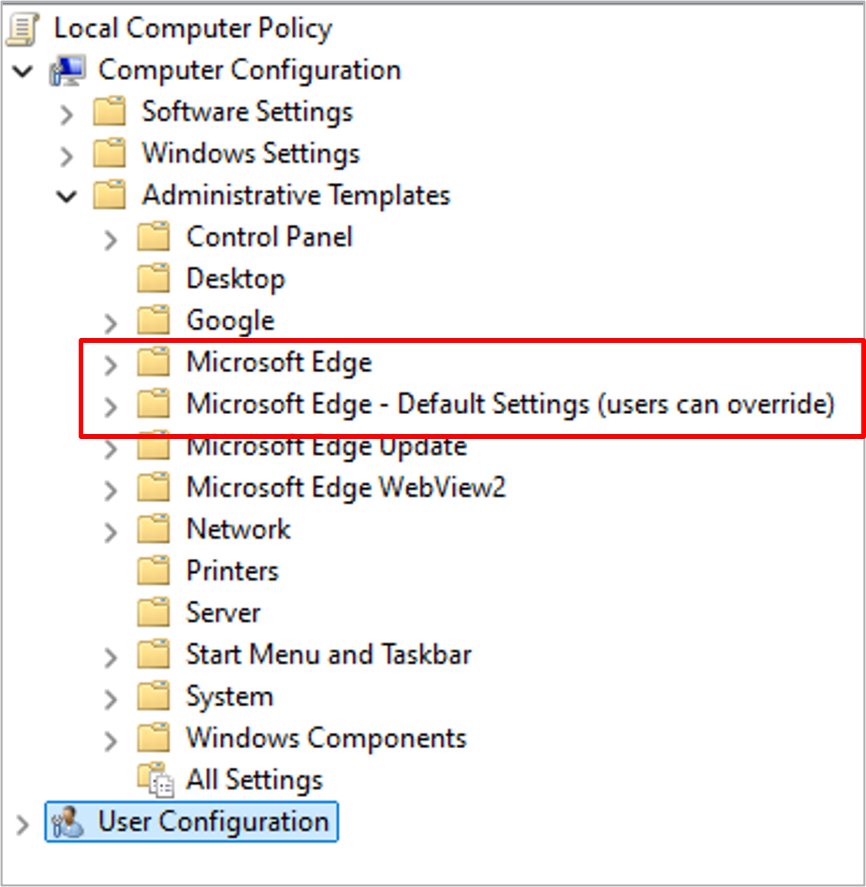
gpedit.msc, and press Enter. - Go to Computer Configuration > Administrative Templates > Microsoft Edge > Startup, home page and new tab page.
- Double-click Show Home button on toolbar, select Enabled, and select OK.
- Close and reopen Microsoft Edge. The Home button now shows for every user and cannot be turned off in Settings.
To set a default that people can still change, use the copy of the policy under Microsoft Edge – Default Settings (users can override) > Startup, home page and new tab page instead. Selecting Disabled in the mandatory policy hides the button for everyone. On Windows 11 Home, you can enable the Group Policy Editor first or use the registry method below.
Add home button to Edge with the ShowHomeButton registry value
The policy is stored as a DWORD value named ShowHomeButton. Run this in an elevated Command Prompt or Windows Terminal to set it without the Group Policy Editor.
reg add "HKLM\SOFTWARE\Policies\Microsoft\Edge" /v ShowHomeButton /t REG_DWORD /d 1 /fCreates the Edge policy key if needed and sets ShowHomeButton to 1, which always shows the Home button. Use /d 0 to always hide it. /f overwrites an existing value without asking.
You should see: The command prints The operation completed successfully. After you restart Edge, the Home button is on the toolbar and edge://policy lists ShowHomeButton with the value true.
Because this is a mandatory policy, the toggle in Settings can no longer change the button. Delete the value to hand the choice back to Settings.
Edge home button policy in edge://policy
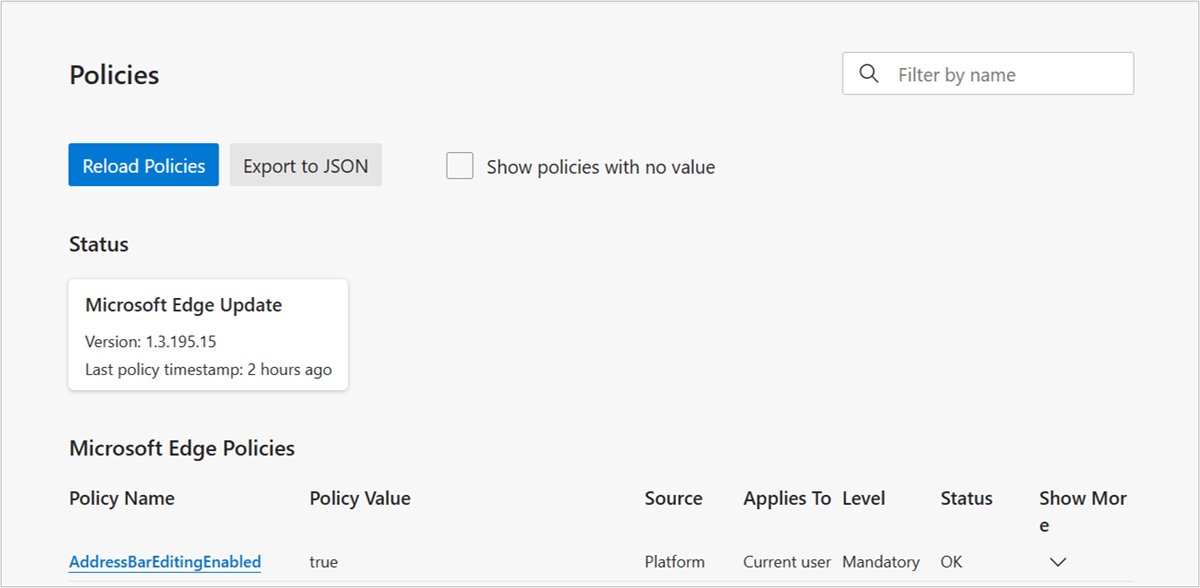
If the toggle behaves oddly, the policy page shows whether an administrator setting controls the button.
- Type
edge://policyin the Edge address bar and press Enter. - Close and reopen Edge first if you changed a policy while it was open.
- Look for ShowHomeButton in the list.
- If it is listed with true, the button is forced on. With false, it is forced off. If it is not listed, the toggle in Settings > Appearance > Customize toolbar is yours to change.
How to remove the home button from the Edge toolbar
- Select Settings and more (…) > Settings > Appearance.
- Under Customize toolbar, turn off the toggle next to Home button.
- If the toggle is locked, open an elevated Command Prompt and run
reg delete "HKLM\SOFTWARE\Policies\Microsoft\Edge" /v ShowHomeButton /f, or set Show Home button on toolbar to Not Configured ingpedit.msc. - Restart Edge and check that the house icon has gone.
How to add home button to Chrome and Firefox
Chrome has the same kind of toggle in a different place. Firefox handles it through its Home settings.
| Browser | Where the setting is | What to choose |
|---|---|---|
| Microsoft Edge | Settings > Appearance > Customize toolbar | Turn on Home button, then set its page under Start, home, and new tab page |
| Google Chrome | Three vertical dots > Settings > Appearance | Turn on Show home button, then pick New Tab page or Enter custom web address |
| Firefox | Three horizontal lines > Options > Home | Under New Windows and Tabs, set Homepage and new windows to Firefox Home, Custom URLs or Blank Page |
Edge home button missing or not working
The Home button toggle is greyed out or turns itself back
A mandatory ShowHomeButton policy overrides the setting in Edge.
- Open
edge://policyand look for ShowHomeButton. - On your own PC, delete the
ShowHomeButtonvalue fromHKLM\SOFTWARE\Policies\Microsoft\Edgeor set the policy to Not Configured. - On a work or school PC, ask your IT administrator, because the policy comes from the organisation.
The whole Edge toolbar is missing, not just the Home button
A glitch, an extension or a bad setting is hiding the toolbar.
- Close Edge completely and reopen it.
- Go to Settings and more > Extensions > Manage extensions and turn extensions off one at a time.
- Go to Settings > Reset settings and select Restore settings to their default values.
- Go to Settings > About Microsoft Edge to install any update, then turn the Home button on again.
The Home button opens the wrong page
The home page is still the new tab page, or a policy sets a fixed home page URL on a managed PC.
- Go to Settings > Start, home, and new tab page.
- Change the home button setting to the URL you want and save it.
- If the URL cannot be edited, check
edge://policyfor HomepageLocation or HomepageIsNewTabPage. Those are set by an organisation.
Microsoft Edge home button FAQ
How do I add a home button to Edge?
Open Settings and more, then Settings, then Appearance. Under Customize toolbar, turn on the toggle for Home button. The house icon appears on the toolbar, and selecting it opens the new tab page until you set a different URL.
How do I add a home button to Edge in Windows 11?
The steps are the same on Windows 11 and Windows 10, because the setting lives inside Edge. Go to Settings > Appearance > Customize toolbar and turn on Home button. Then set its page under Start, home, and new tab page.
What is the home button in a browser?
The home button is a toolbar shortcut that takes you to the page you chose as your home page. In Microsoft Edge it opens the new tab page unless you set a URL. It does not change the pages that open at startup.
How do I change the home button page in Edge?
Go to Settings > Start, home, and new tab page and find the home button setting. Choose the new tab page or enter the address you want, then save. The Home button and Alt + Home both open that page afterwards.
How do I turn on the home button if the toggle is greyed out?
A policy is controlling it. Open edge://policy and look for ShowHomeButton. On your own PC, remove the ShowHomeButton registry value or set the Group Policy to Not Configured. On a managed PC, your IT administrator controls it.
Is there a keyboard shortcut for the Edge home button?
Yes. Press Alt + Home on Windows, or Command + Shift + H on a Mac, to open your home page in the current tab. The shortcut works even when the Home button is hidden from the toolbar.
How do I add a home button to Chrome?
In Chrome, select the three vertical dots, then Settings, and turn on Show home button under Appearance. Choose New Tab page or Enter custom web address to decide where the button goes.
How do I add a home button to Firefox?
In Firefox, open the menu with the three horizontal lines, select Options, then select Home. Under New Windows and Tabs, set Homepage and new windows to Firefox Home, Custom URLs or Blank Page.