Microsoft Edge has no Internet Options menu: Internet Options is a Windows Control Panel applet from Internet Explorer, so you open it from Windows with Win + R and control inetcpl.cpl, while Edge's own options live at edge://settings.
This guide shows every way to open the Internet Properties dialog, which Edge settings replaced each old option, and how to handle proxies, trusted sites, certificates, IE mode and a disabled applet.
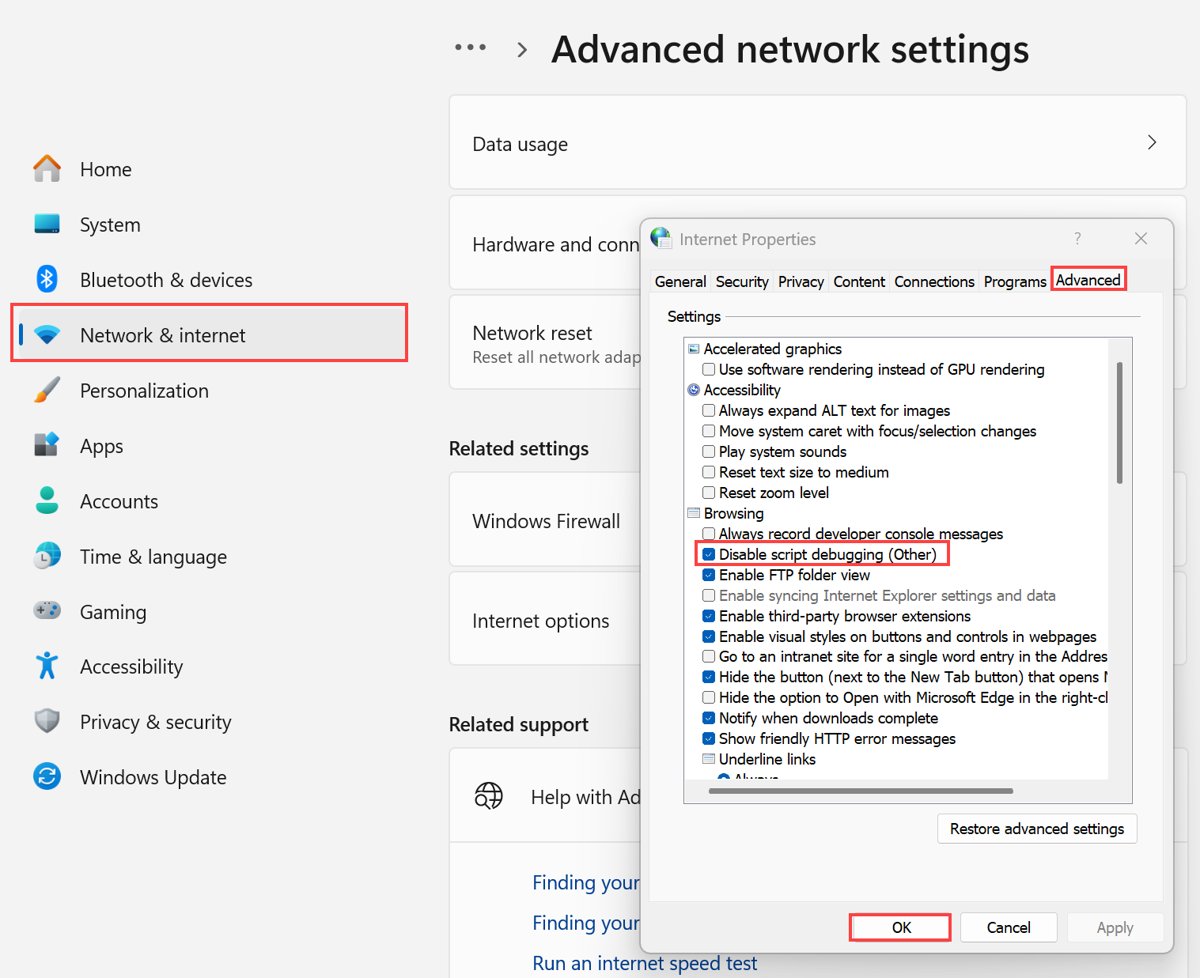
The fastest way to reach Internet Options while you use Edge
Pick the route by what you actually want to change. Browser settings such as cookies, pop-ups and tracking are in Edge; Windows-wide options such as security zones and LAN proxy settings are in Internet Properties.
- To open the classic dialog, press Win + R to open the Run box.
- Type
control inetcpl.cpland press Enter. The Internet Properties dialog opens. - To change Edge's own browser options instead, click the Edge address bar, type
edge://settingsand press Enter. - For privacy and security options, go straight to
edge://settings/privacy.
What “Internet Options” Means In Microsoft Edge
Internet Options is the name of the Control Panel item; the window it opens is titled Internet Properties. Microsoft's own help page for Edge uses the phrase "internet options" loosely to mean Edge's settings, tools and privacy controls, which is where the confusion starts.
| Term | What it actually is | How to open it |
|---|---|---|
| Internet Options (Internet Properties) | Windows Control Panel applet inetcpl.cpl, inherited from Internet Explorer |
control inetcpl.cpl, Windows search, or Control Panel |
| Edge Settings | Edge's own settings pages for privacy, cookies, permissions, downloads and more | Settings and more (…) > Settings, or edge://settings |
| Internet Explorer mode | An Edge feature that renders legacy sites with the IE11 Trident MSHTML engine | edge://settings/defaultBrowser |
| Internet Explorer 11 | The retired standalone browser; support ended on June 15, 2022 | Not used any more; legacy sites open in IE mode |
Method 1: Open Microsoft Edge Settings
Use this route for anything that only affects browsing in Edge. There are two ways in, and both land on the same pages.
- Open Microsoft Edge.
- Select Settings and more (the three dots) in the top-right corner of the window.
- Select Settings. The settings page opens in a new tab.
- Alternatively, type
edge://settingsin the address bar and press Enter. - Use the left pane to open a section, such as Privacy, search, and services.
Method 2: Open Internet Options From Windows Search
- Select Start on the taskbar.
- Type
internet optionsin the search box. - Select Internet Options in the results. The Internet Properties dialog opens.
- If you prefer the file name, type
inetcpl.cplin the same search box and press Enter.
Method 3: Open Internet Options From Control Panel
Control Panel still exists in Windows 11 for settings that have not moved to the Settings app, and Internet Options is one of them.
- Select Start, type
control panel, and press Enter. Pressing Win + R, typingcontroland pressing Enter also works. - Select Network and Internet.
- Select Internet Options. The Internet Properties dialog opens.
- Switch to the tab you need, such as Security, Connections or Advanced.
Method 4: Open Internet Options With A Run Command
Microsoft's list of Control Panel commands names inetcpl.cpl as the Internet Properties tool. The same string works in the Run box and at a command prompt, so it is the one to put in a shortcut or a help-desk note.
control inetcpl.cplPress Win + R, type the command, and press Enter. control is the Control Panel launcher, and inetcpl.cpl is the Internet Properties applet file.
You should see: A window titled Internet Properties opens with tabs including Security, Connections and Advanced.
Which Settings Are In Edge And Which Are In Internet Options?
Edge keeps its own browser settings, but some Windows-level settings still come from Internet Properties or the Settings app. This table shows which place owns each setting.
| Setting | Use Edge settings | Use Windows (Internet Properties or Settings) |
|---|---|---|
| Cookies and site data | Yes: Privacy, search, and services > Cookies | No |
| Pop-ups, camera, microphone | Yes: Site permissions | Windows Privacy & security controls app-level camera and microphone access |
| Tracking prevention and SmartScreen | Yes: edge://settings/privacy |
No |
| Clearing history and cache | Yes: Clear browsing data | No |
| Proxy server | Shows the proxy entry at edge://settings/system |
Yes: Settings > Network & internet > Proxy, or legacy Connections > LAN settings |
| Security zones and Trusted sites | No page in Edge | Yes: Internet Properties > Security; IE mode honours these zone settings |
| Certificates | Admins only: CACertificates and CADistrustedCertificates policies |
Yes: Certificate Manager (certmgr.msc) |
| Default browser | edge://settings/defaultBrowser holds the IE mode options |
Yes: Settings > Apps > Default apps |
| Legacy site compatibility | Yes: IE mode under Default browser | No |
How To Find The Old Internet Explorer Options In Edge
Internet Explorer 11 support ended on June 15, 2022. Sites that still need it open in Internet Explorer mode, which uses the IE11 engine inside an Edge tab. IE mode supports Internet Explorer settings and group policies that affect security zones and Protected Mode, so the zone settings in Internet Properties still matter for those sites. On Windows 10 Home and Pro the IE11 desktop app stays disabled, so Internet Explorer 11 for Windows 10 cannot be downloaded or reinstalled.
- In the Edge address bar, type
edge://settings/defaultBrowserand press Enter. - Under Internet Explorer compatibility, set Allow sites to be reloaded in Internet Explorer mode (IE mode) to Allow.
- Restart Microsoft Edge.
- Open the site that needs Internet Explorer, select Settings and more (…), and select Reload in Internet Explorer mode.
- On Edge 141 or later on a personal device, go to Settings > Default browser instead and select Add in the Internet Explorer mode pages section to list the site.
- To leave IE mode, select Leave on the information bar or open the site in a new tab.
IE mode first arrived with a reload option in Edge 86. On a work device the IE mode setting can be greyed out, because the organization controls it through policy.
How To Change Privacy And Security Settings In Edge
Old Internet Options privacy controls map to one Edge page: Privacy, search, and services. Tracking prevention replaces the cookie-privacy slider, and Microsoft Defender SmartScreen is listed under Security on the same page.
- Type
edge://settings/privacyin the address bar and press Enter. - Select Tracking prevention and make sure Enable tracking prevention is on.
- Choose Basic, Balanced (the default) or Strict.
- Under Security, confirm that Microsoft Defender SmartScreen is turned on.
- To clear stored data, select Clear browsing data > Choose what to clear, pick a Time range, tick the data types, and select Clear now.
How To Manage Cookies, Pop-Ups, Camera, Microphone, And Site Permissions
All of these start at Settings and more > Settings > Privacy, search, and services. Find your task in the left column and follow the path.
| What you want to do | Path in Edge settings | What to select |
|---|---|---|
| See every stored cookie | Cookies | See all cookies and site data |
| Block third-party cookies | Cookies | Turn on Block third-party cookies |
| Allow or block cookies for one site | Cookies | Allowed to save cookies or Not allowed to save and read cookies, then Add site |
| Block all pop-ups | Site permissions > All permissions > Pop-ups and redirects | Turn on Blocked (recommended) |
| Allow pop-ups on one site | Site permissions > All permissions > Pop-ups and redirects | Allowed to send pop-ups and use redirects > Add site, enter the https:// address, then Add |
| Stop a site using your camera or microphone | Site permissions > All sites | Select the site, then choose Block in the Camera or Microphone list |
| Let a site use your camera or microphone | No settings trip needed | Select Allow when the site asks for permission |
If a site still cannot see your camera, check Windows too: Start > Settings > Privacy & security > Camera (or Microphone) must allow desktop apps, because Edge is a desktop app.
How To Access Proxy Settings For Edge
Edge on Windows does not store its own proxy address. Its system page points to the Windows proxy configuration, which Windows applies to your browsing traffic.
- In Edge, go to
edge://settings/systemto see the proxy entry. - Open the Windows Settings app and select Network & internet > Proxy.
- For automatic setup, turn on Automatically detect settings under Automatic proxy setup.
- For a script, select Set up next to Use setup script, turn it on, enter the script address, and select Save.
- For a manual proxy, select Set up next to Use a proxy server, turn on Use a proxy server, enter the Proxy IP address and Port, and select Save.
- For the legacy view, open Internet Properties with
control inetcpl.cpl, select the Connections tab, and select LAN settings.
In the manual dialog, add sites that should skip the proxy to the exception list, separated by semicolons, such as *.contoso.com; *.adatum.com. A VPN connection needs its own proxy settings under Network & internet > VPN > Advanced options.
How To Manage Certificates
On Windows, your personal certificates are managed in the Certificate Manager tool rather than in an Edge page. Organizations can also push trusted and distrusted TLS certificates to Edge with the CACertificates and CADistrustedCertificates policies.
- Press Win + R to open Run.
- Type
certmgr.mscand press Enter. Certificate Manager opens for the current user. - Under Certificates – Current User in the left pane, expand the folder for the certificate type you need.
- View, import, export or delete certificates from each certificate folder.
- For certificates that apply to every user on the PC, run
certlm.mscinstead; this needs administrator rights.
How To Use Trusted Sites And Security Zones
Security zones live only in Internet Properties. Microsoft's Office add-in guidance uses the Trusted sites zone to fix dialog errors in Edge, and IE mode applies zone settings to legacy sites.
- Open Internet Properties with
control inetcpl.cpl. - Select the Security tab.
- Select the Trusted sites zone, then select Sites.
- Enter the site address and select Add.
- Close the dialogs to save the change, then reload the page in Edge.
- To change what a zone allows, select the zone and choose Custom level.
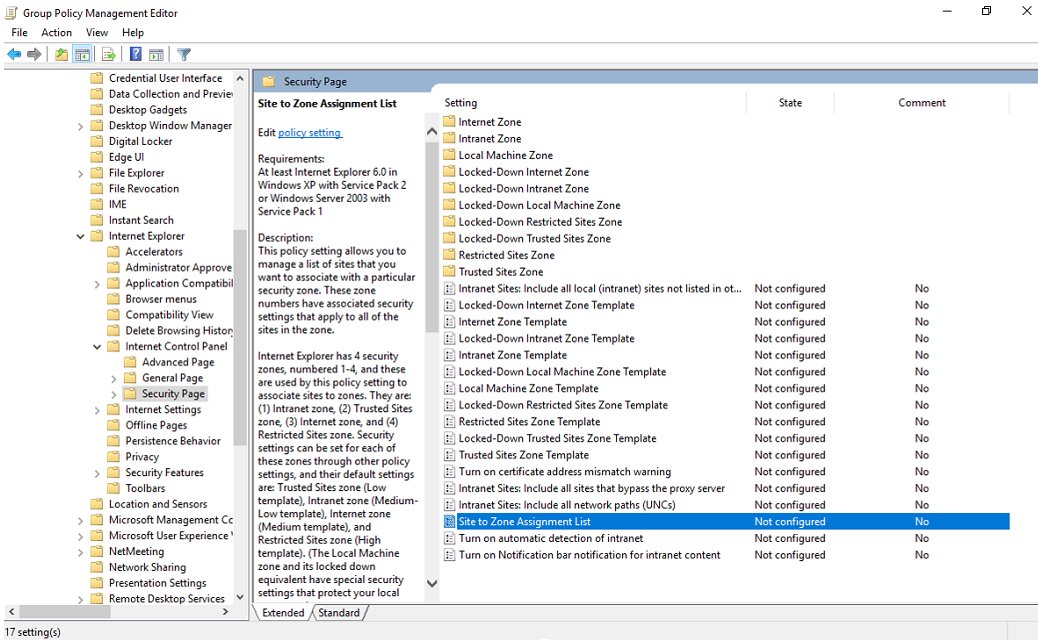
Add only sites you trust, because the Trusted sites zone relaxes restrictions for them. On a managed PC, zone lists are often set by the Site to Zone Assignment List policy and cannot be edited locally.
How To Change The Default Browser To Microsoft Edge
Choosing a default browser now belongs to Windows Default apps, not Internet Options. The steps are the same on Windows 11 and Windows 10.
- Select Start > Settings.
- Select Apps > Default apps.
- Select Microsoft Edge in the list of apps.
- In the Make Microsoft Edge your default browser section, select Set default.
- On a Mac, open the Apple menu > System Settings > Desktop & Dock, and choose Microsoft Edge under Default web browser.
How To Reset Microsoft Edge Settings
A reset is the Edge counterpart of resetting Internet Explorer settings. Bookmarks, history and saved passwords are kept; pinned tabs, the startup page, the search engine and extensions are reset.
- Type
edge://settings/resetin the address bar and press Enter. - Select Restore settings to their default values.
- Confirm the reset in the prompt that appears.
- Turn your extensions back on one at a time at
edge://extensionsif you still need them. - If Edge itself is broken, close it and go to Start > Settings > Apps > Installed apps, select Microsoft Edge > Modify, and select Repair.
How To Access Edge Settings On Mac, iPhone, Android, And Linux
Internet Options exists only on Windows. On every other platform, Edge's own settings are the only place to change browser options.
| Platform | Internet Options? | Where Edge settings are | Supported versions |
|---|---|---|---|
| Windows 11 and 10 | Yes, inetcpl.cpl |
Settings and more > Settings, or edge://settings |
Windows 10 1709 and later, Windows 11 |
| macOS | No | Settings and more > Settings, or edge://settings; default browser is in System Settings > Desktop & Dock |
macOS 13 Ventura or later for Edge 151 and newer |
| Linux | No | edge://settings |
64-bit Ubuntu 18.04+, Debian 10+, openSUSE 15.5+, Fedora 39+ |
| iPhone and iPad | No | Settings inside the Edge app menu | iOS 18.0 or later |
| Android | No | Settings inside the Edge app menu | Android 10.0 or later on ARM |
How to check you opened the right settings
- For Internet Options, check that the window title reads Internet Properties and that it has Security, Connections and Advanced tabs.
- For Edge settings, check that the address bar shows an
edge://settingsaddress and the left pane lists Privacy, search, and services. - For IE mode, open the legacy site and look for the IE logo on the left side of the address bar.
- For a proxy, open
edge://settings/systemagain and confirm the proxy entry reflects the Windows setting you saved. - For a reset, open
edge://settingsand confirm your startup page and search engine have returned to their defaults.
What To Do If Internet Options Is Missing Or Disabled
You can't access Internet Options in Edge
Edge has no Internet Options menu item; the applet belongs to Windows.
- Press Win + R, type
control inetcpl.cpl, and press Enter. - For browser-only options, type
edge://settingsin the Edge address bar instead.
Your device is managed by work or school
Your organization sets Edge or Internet Explorer policies, which lock or hide options.
- Type
edge://policyin the Edge address bar to see which policies are applied. - Note the policy name next to the setting you cannot change.
- Ask your IT administrator to change it; Internet Control Panel restrictions sit under User Configuration > Administrative Templates > Windows Components > Internet Explorer > Internet Control Panel in Group Policy.
You are using Windows Settings instead of Control Panel
Many Control Panel items have moved to the Settings app, and some searches land there first.
- Search the Start menu for
internet optionsand select the Control Panel result, not a Settings page. - Or run
control inetcpl.cplfrom Run. - For proxy changes, stay in Settings: Network & internet > Proxy is the current home.
System files or policies are damaged
Corrupted Windows files can stop the applet from opening.
- Select Start, type
cmd, right-click Command Prompt, and select Run as administrator. - Run
sfc /scannowand wait for the scan to finish. - If problems remain, run
DISM /Online /Cleanup-Image /RestoreHealth. - Restart the PC and open
control inetcpl.cplagain.
Common Internet Options Tasks And Where To Do Them In Edge
Old instructions often say "go to Tools > Internet Options". Match the instruction you were given to the row below.
| Old instruction says | Do this now | Why |
|---|---|---|
| Change your home page | Settings > Start, home, and new tab page in Edge | Edge keeps its own home page setting |
| Delete browsing history | edge://settings/privacy > Clear browsing data |
Edge stores its own history and cache |
| Change privacy level | Tracking prevention: Basic, Balanced or Strict | Replaces the IE privacy slider |
| Security tab > Trusted sites | control inetcpl.cpl > Security |
Zones still live only in Internet Properties |
| Connections > LAN settings | Settings > Network & internet > Proxy | Windows proxy is the current home |
| Reset Internet Explorer settings | edge://settings/reset |
Restores Edge defaults without deleting passwords |
| Open certificates from Internet Options | certmgr.msc |
Opens your personal certificate store directly |
| Open the site in Internet Explorer | Reload in Internet Explorer mode | IE11 is retired; IE mode replaces it |
Frequently Asked Questions
How do I access Internet Options in Edge?
You don't access it inside Edge, because Edge has no Internet Options menu. Press Win + R, type control inetcpl.cpl and press Enter to open Internet Properties. For Edge's own options such as cookies and tracking prevention, type edge://settings in the Edge address bar.
Why can't I access Internet Options in Edge?
Internet Options is a Windows Control Panel applet from Internet Explorer, not an Edge page, so Edge's menu never lists it. Open it from Windows search or with control inetcpl.cpl. If it still will not open, check edge://policy and ask your administrator whether a policy blocks it.
How do I open Internet Options in Windows 11?
Select Start, type internet options, and select Internet Options in the results. You can also open Control Panel and select Network and Internet > Internet Options, or press Win + R and run control inetcpl.cpl. All three routes open the same Internet Properties dialog.
Where do I find Internet Options in Control Panel?
In Control Panel, select Network and Internet, then select Internet Options. The window that opens is titled Internet Properties, with tabs such as Security, Connections and Advanced. Open Control Panel itself by searching for it in Start or by running control from the Run box.
Do Internet Options apply to all users?
Mostly no. Settings such as security zone assignments are stored per user, which is why Group Policy configures them under User Configuration. An administrator who wants the same settings for everyone applies them through Group Policy rather than one person's Internet Properties dialog.
Does Microsoft Edge use the proxy settings from Internet Options?
Edge on Windows uses the Windows proxy configuration rather than a proxy of its own. The current place to set it is Settings > Network & internet > Proxy, and the legacy view is Internet Properties > Connections > LAN settings. Edge shows the proxy entry at edge://settings/system.
Can I still use Internet Explorer settings in Edge?
Yes, for sites opened in Internet Explorer mode. IE mode honours Internet Explorer settings and group policies that affect security zones and Protected Mode. Toolbars and navigation-menu settings from Internet Explorer are not supported in IE mode.
Does resetting Edge delete my saved passwords?
No. Restoring settings at edge://settings/reset keeps bookmarks, history and saved passwords. It resets pinned tabs, the startup page, the search engine and extensions. For extra protection on saved passwords, requiring authentication before autofill helps.
What is the Run command for Internet Options?
The command is control inetcpl.cpl. Press Win + R, type it and press Enter to open Internet Properties. Microsoft's list of Control Panel commands names inetcpl.cpl as the Internet Properties tool, and the same command works at a command prompt.