Press Ctrl + Shift + T on Windows or Command + Shift + T on a Mac to reopen the last tab you closed in Microsoft Edge.
This guide covers the three ways to view recently closed tabs: the keyboard shortcut, the Recently closed list in the History menu, and the full History page, plus fixes when nothing shows up.
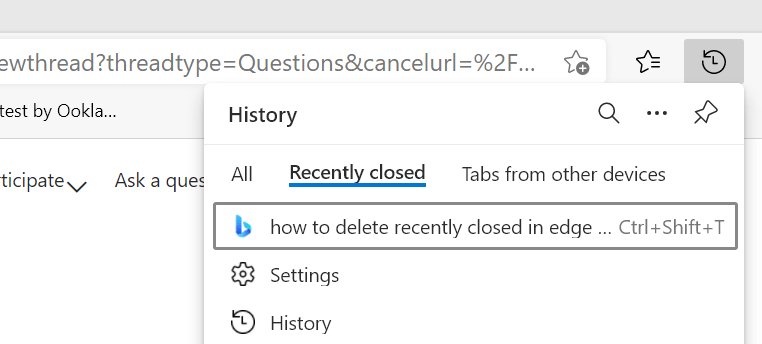
Use the keyboard shortcut to reopen recently closed tabs
The shortcut is the first way and the quickest. Edge reopens the last closed tab and switches to it straight away.
It works in any normal Edge window on Windows 11, Windows 10 and macOS.
- Click anywhere inside an open, normal (not InPrivate) Edge window so it has focus.
- On Windows, press Ctrl + Shift + T.
- On a Mac, press Command + Shift + T.
- Check the tab strip: the closed page opens in a new tab and becomes the active tab.
Closed the tab by mistake a second ago? This is the fix. If the tab you want was closed a while back, use the list in the next method so you can pick it by name.
Which way to view closed tabs in Edge should you use?
| Your situation | Use this | Why |
|---|---|---|
| You just closed one tab by accident | Ctrl + Shift + T (Windows) or Command + Shift + T (Mac) | One key press, and Edge switches to the reopened tab |
| You want a short list of recent tabs and windows to pick from | Settings and more > History > Recently closed | Shows tabs and whole windows by name, so you reopen only the one you need |
| The tab was closed hours or days ago | The full History page (Ctrl + H on Windows, Command + Y on Mac) | Holds every page you visited, with a search box and dates |
| You closed a whole window with many tabs | Recently closed in the History menu | A closed window appears as one entry and reopens with its tabs |
| You were browsing InPrivate | None of the three | InPrivate clears its history when the last InPrivate window closes |
View recently closed tabs from the History menu
The second way shows a list of recently closed tabs and windows, so you can choose one, or restore several closed tabs, instead of reopening them in order.
The tab actions menu at the top-left corner of the window holds Search tabs and the switch for Edge vertical tabs. The recently closed list itself sits under History in the Settings and more menu.
- Select Settings and more (the three dots at the top-right of the Edge window), or press Alt + F on Windows.
- Select History to open the History menu.
- Select the Recently closed tab inside that menu.
- Read the list of recently closed tabs and windows and find the page you want.
- Click the entry to reopen that tab or window.
The same menu works on Edge for Mac, because the Settings and more button sits in the same toolbar position.
Find closed tabs in Microsoft Edge history
The third way is the full Edge History page. Use it when the tab dropped off the recently closed list or you only remember part of the page title.
Every page you open in a normal window is saved here, unless history saving has been turned off or cleared.
- Press Ctrl + H on Windows or Command + Y on a Mac to open History.
- If History opens as a small menu, select Settings and more > History > Open history page to get the full page.
- Type a word from the page title or the site name into the search box at the top.
- Scan the results for the page you closed, using the visit time to tell similar entries apart.
- Click the entry to open the page again.
Search by site name when you cannot remember the page title, because every page from that site matches.
Restore tabs after closing an Edge window
Closing a window with Ctrl + Shift + W, Alt + F4 or Command + Shift + W closes every tab in it at once.
Edge records the whole window as one entry in the recently closed list, so you can bring the set back together.
- Open any normal Edge window. If Edge is fully closed, start it from the Start menu, taskbar or Dock.
- Select Settings and more > History.
- Select Recently closed.
- Find the entry for the window you closed. Window entries sit in the same list as single tabs.
- Click the window entry to reopen it with its tabs.
If you closed every Edge window and the browser was set to clear data on exit, the list starts empty. The troubleshooting section below covers that case.
To avoid closing a window full of tabs by accident, turn on the close all tabs prompt so Edge asks first.
Make Microsoft Edge reopen your last session at startup
Edge can reopen the tabs from your last session every time it starts. This protects you when you close Edge on purpose and want everything back tomorrow.
Edge also restores your tabs on its own after an update relaunches the browser while your device is idle.
- Select Settings and more > Settings.
- Select Start, home, and new tab page in the left pane.
- Under the startup options, choose the option that opens tabs from the previous session.
- Close Edge and open it again to confirm your tabs come back.
On work devices, an administrator can lock this choice with the Action to take on Microsoft Edge startup policy. Its Restore the last session option turns off Clear browsing data on exit and session-only cookies.
How to check the closed Edge tab came back
- Look at the tab strip: the reopened tab is the active tab, with the page title you expected.
- Check the address bar shows the same site and page, not the site's home page.
- Press Ctrl + H on Windows or Command + Y on a Mac and confirm today's list shows the page near the top.
- If you restored a window, check that the tabs you remember from that window are back.
Troubleshooting when recently closed tabs do not appear
An empty Recently closed list or a shortcut that does nothing almost always traces back to one of these causes.
Ctrl + Shift + T does nothing and the recently closed list is empty after InPrivate browsing
InPrivate windows do not let you reopen recently closed tabs or windows, and they clear browsing history when the last InPrivate window closes.
- Check the window title bar or address bar for the InPrivate label.
- Accept that tabs closed in InPrivate cannot be recovered from Edge.
- Open a normal window with Ctrl + N on Windows or Command + N on a Mac for pages you want to find again.
- Use InPrivate only for sessions you do not need to reopen.
History page and recently closed list stay blank
Browsing history is not being saved, either because data is cleared every time Edge closes or because a policy disables history.
- Select Settings and more > Settings > Privacy, search, and services.
- Under Clear browsing data, open the option to choose what to clear every time you close the browser.
- Turn off Browsing history in that list if you want closed tabs to survive a restart.
- On a work or school device, ask IT whether the Disable saving browser history policy is set. When it is on, history is not saved and tab syncing is off.
Recently closed tabs are missing because you are in a different Edge profile
History belongs to each Edge profile, so tabs closed in your work profile do not show up in your personal one.
- Open the profile menu in the Edge toolbar.
- Switch to the profile you were using when you closed the tab.
- Open Settings and more > History > Recently closed in that profile's window.
- To see history from your other devices too, select Settings and more > Settings > Profiles > Sync and turn on history sync.
Closed tabs disappear after an extension or cleanup tool runs
Tab-manager and privacy-cleaning extensions, or a cleanup tool that wipes browser data, can remove history Edge would otherwise keep.
- Open the Extensions page in Edge and turn off tab-manager or history-cleaning extensions one at a time.
- Close a test tab and press Ctrl + Shift + T or Command + Shift + T after each change.
- Check any cleanup utility you run for a browser-history option and exclude Microsoft Edge from it.
- If Edge still behaves oddly, update it from Settings and more > Settings > About Microsoft Edge.
Microsoft Edge recently closed tabs FAQ
What keyboard shortcut reopens a recently closed tab in Microsoft Edge?
Press Ctrl + Shift + T on Windows or Command + Shift + T on a Mac. Edge reopens the last closed tab and switches to it. The shortcut does not work for tabs closed in an InPrivate window.
How do I see recently closed tabs in Edge?
Select Settings and more > History, then choose Recently closed. Edge lists the tabs and windows you closed recently. Click any entry to reopen it.
How do I search for recently closed tabs in Microsoft Edge?
Open the full History page with Ctrl + H on Windows or Command + Y on a Mac. Type part of the page title or site name into the search box. Edge filters every saved visit to matching pages.
Can I see a list of recently closed tabs instead of reopening them one by one?
Yes. The Recently closed list under Settings and more > History shows closed tabs and windows by name. You pick the one you need instead of pressing the shortcut repeatedly and stepping through tabs you do not want.
How do I restore tabs after closing an entire Microsoft Edge window?
Open a new Edge window, select Settings and more > History > Recently closed, and click the entry for the closed window. Edge reopens that window with the tabs it held when you closed it.
Why are my recently closed tabs not showing in Microsoft Edge?
The usual causes are InPrivate browsing, history cleared every time Edge closes, a policy that disables saving history, or a different Edge profile. Check each one in turn; InPrivate tabs cannot be recovered at all.
Does Microsoft Edge keep recently closed tabs after I restart my computer?
Pages you visited stay in the History page after a restart unless Edge clears browsing history on exit. To get the whole session back automatically, set Edge to open tabs from the previous session under Start, home, and new tab page.
How do I open recently closed tabs in Edge on a Mac?
Press Command + Shift + T to reopen the last closed tab, or press Command + Y to open History. The Settings and more > History > Recently closed menu works the same way on Edge for Mac as on Windows.
How do I get recently closed tabs back after Edge crashes or updates?
After an update relaunches Edge while your device is idle, Edge restores your tabs automatically. After a crash, check Settings and more > History > Recently closed, then the full History page if the list is empty.
Bottom line: the best way to view recently closed tabs in Edge
Use Ctrl + Shift + T or Command + Shift + T for the tab you just closed, and Settings and more > History > Recently closed when you need to pick a specific tab or a whole window. The shortcut is instant for a single mistake, the Recently closed list restores whole windows by name, and the full History page is the fallback for anything older, as long as you were not in InPrivate and history is being saved.
When you are done with a crowded session, you can close all tabs in Edge knowing the window can come back from the recently closed list.


![Dual boot Linux Mint and Windows 10 or 11 [beginner’s guide]](https://techdows.com/wp-content/uploads/2026/10/Linux-Mint-live-session-desktop-with-the-application-menu-open.jpg)