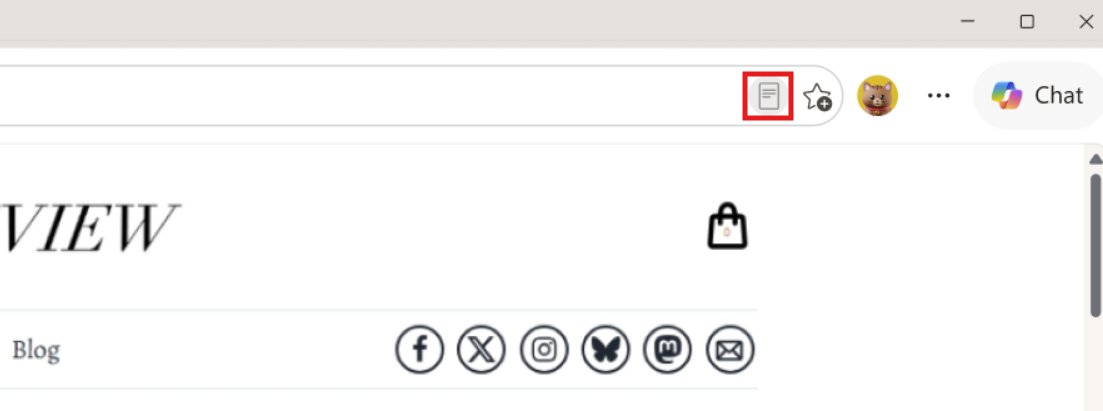
To use Immersive Reader in Microsoft Edge, open an article and press F9, or select the Reading mode icon at the right end of the address bar.
Current Edge versions call the feature Reading mode, and this guide covers turning it on, reading aloud, translating, changing themes and fonts, the Copilot tools, and fixes when the icon is missing.
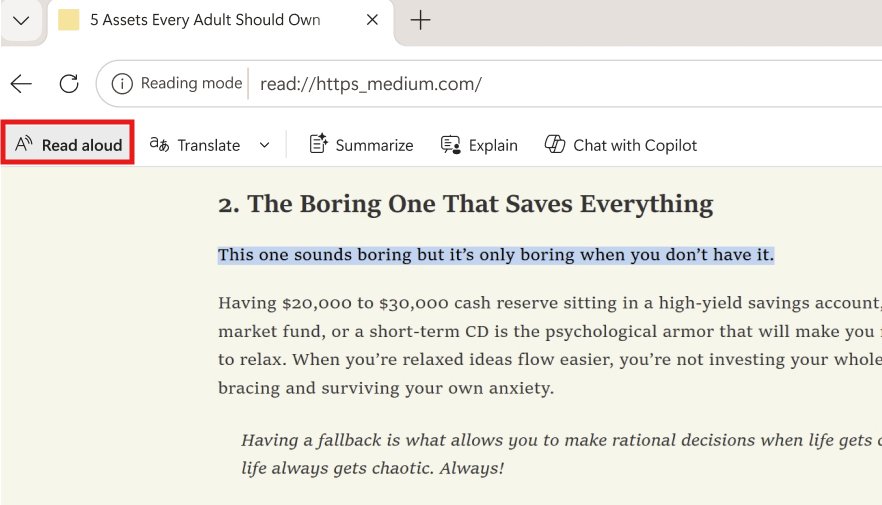
Open Immersive Reader on a webpage
This works in Edge on Windows 11 and Windows 10. The page must be one Edge recognises as an article, such as a news story or blog post.
- Open the article you want to read in Microsoft Edge.
- Press F9, or select the Reading mode icon in the address bar. Older builds label it Enter Immersive Reader.
- Wait for the page to reload as plain text and images, with menus, ads and sidebars removed.
- Use the toolbar at the top of the page for Read aloud, Translate and the appearance settings.
If neither F9 nor the icon does anything, the toolbar button may be switched off, or the page is not supported. Both cases are covered in the troubleshooting section below.
Immersive Reader shortcuts and commands
There are three ways in and two ways out. Pick the row that matches what you can see on the page.
| Your situation | Use this | Why |
|---|---|---|
| Keyboard handy, any supported page | F9 | Toggles Reading mode on and off in one key press |
| Mouse only, icon visible | Reading mode icon in the address bar | Same result as F9, no keyboard needed |
| Icon missing or you want one section only | Select the text, right-click, Open selection in Reading mode | Works on pages Edge does not offer as a whole |
| Already in Reading mode, want the normal page back | F9 again, or the address bar icon | Returns to the original layout |
| You only want audio, not the reading view | Settings and more (…) > More tools > Read aloud | Reads the normal page without simplifying it |
How to enable Immersive Reader in Edge
Immersive Reader is built into Edge, so there is nothing to download or install. You only need the address bar button switched on.
- Select Settings and more (the three dots) in the top-right corner of Edge.
- Select Settings.
- Select Appearance in the left pane, then open the Toolbar settings.
- Turn on the Reading mode toggle.
- Open an article. The Reading mode icon now appears in the address bar on supported pages.
Force a page into Reading mode
Edge only shows the address bar icon on pages it can simplify. On other pages, such as forum threads or app-style sites, you can still push the text you need into the reading view.
- Drag across the text you want to read to select it. Select the whole article if you want all of it.
- Right-click the highlighted text.
- Select Open selection in Reading mode. Older builds show Open in Immersive Reader instead.
- Read or listen to the selection with the same toolbar tools as a full page.
This option has been in Edge since the early Chromium builds, when the feature was still called Reader view in Chromium Edge.
Exit Immersive Reader
- Press F9 while the reading view is open.
- Or select the Reading mode icon in the address bar again. Older builds label it Exit Immersive Reader.
- If Read aloud is still speaking, select Pause or the X on the Read aloud bar to stop it.
Your font, size and theme choices are kept, so the next page you open in Reading mode looks the same.
What Immersive Reader does in Edge
Immersive Reader hides pop-ups, buttons and sidebars, leaving only the text and images of the page. Microsoft built it for readers with dyslexia and dysgraphia, but it suits anyone reading long articles.
| Tool | What it does | Status in current Edge |
|---|---|---|
| Read aloud | Reads the page in natural voices with play, skip and speed controls | Available |
| Translate | Translates the whole page into one of more than 70 languages | Available |
| Appearance settings | Font, font size, column width and page theme | Available |
| Summarize and Explain | Copilot summarises the page or explains hard terms in the side pane | Available in Reading mode |
| Line focus | Highlights one, three or five lines at a time | Listed under Reading preferences in the Immersive Reader toolbar |
| Picture dictionary | Showed an illustration for a selected word | Removed in September 2023 |
| Grammar tools | Split words into syllables and highlighted parts of speech | Removed from Edge |
Change the text and page appearance
Font, size, width and colour all sit behind one menu in the Reading mode toolbar. Changes apply instantly, so you can judge each one on the page.
- Open a page in Reading mode with F9.
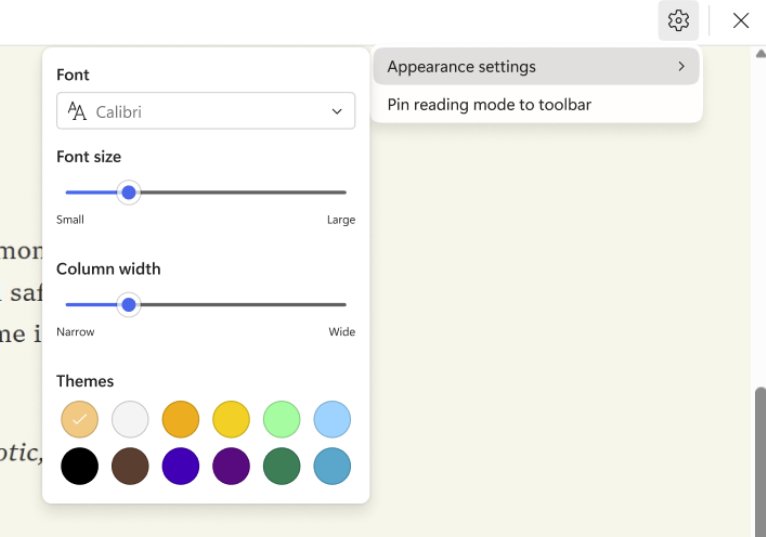
- Select the Settings icon in the Reading mode toolbar, then Appearance settings.
- Choose a Font from the list.
- Move the Font size slider right for larger text or left for smaller text.
- Set Column width between narrow and wide to shorten or lengthen each line.
- Pick a Theme to change the background colour. Some themes are based on Irlen Spectral Filters for people with Irlen Syndrome.
In the older Immersive Reader toolbar, the same controls sit under Text preferences: Text size, Text spacing, Text column style and Page themes, with More themes for the full colour list. The extra fonts added in 2021 also appear there.
Use line focus
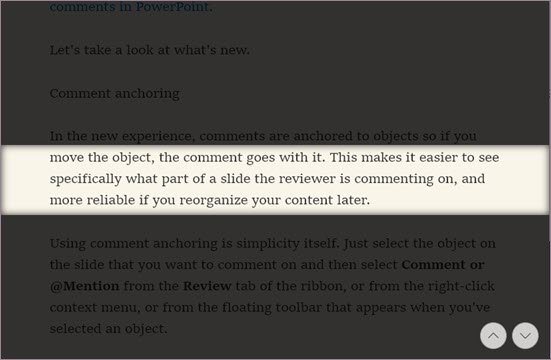
Line focus dims everything except a band of one, three or five lines. It helps when your eyes keep jumping to the wrong line.
- Open the page in Immersive Reader with F9.
- Select Reading preferences on the Immersive Reader toolbar.
- Turn on Line focus.
- Choose one, three or five lines.
- Move the band with the up and down arrows on screen, or with the Up and Down arrow keys.
If your toolbar shows no Reading preferences button, your Edge build has the newer Reading mode toolbar, which Microsoft documents without line focus.
Have Edge read the page aloud
- Open the page in Reading mode with F9 or the address bar icon.
- Select Read aloud on the Reading mode toolbar.
- Use the bar that appears at the top to play, pause, or skip to the previous or next paragraph.
- Select Voice options to change the voice and slow down or speed up the reading pace.
- Select Pause or the X to stop listening.
Read aloud now works with Copilot, so you can ask spoken questions about the page. Turn your microphone on and make sure the volume is up before you try it.
To hear a page without the reading view, select Settings and more > More tools > Read aloud.
Translate content in Immersive Reader
- Open the page in Reading mode.
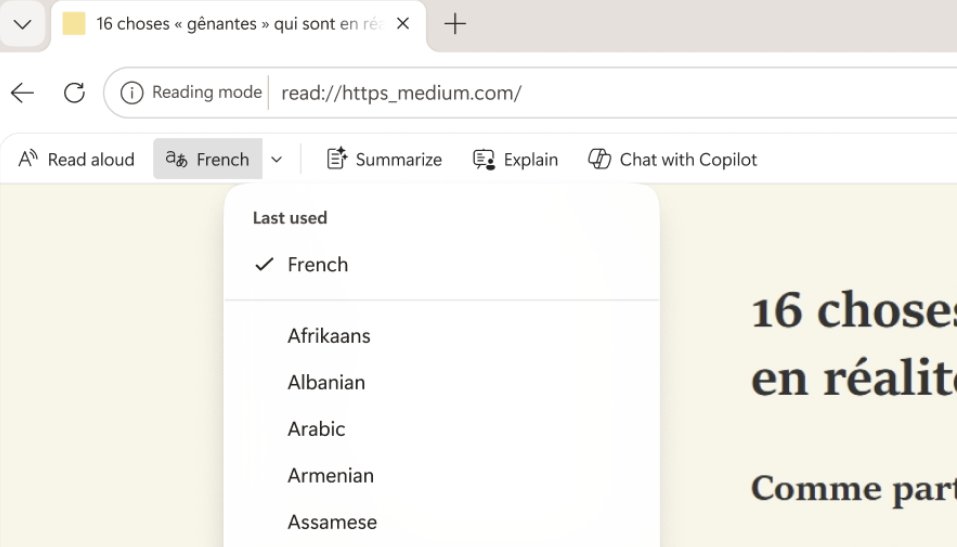
- Select Translate on the Reading mode toolbar.
- Choose the language you want from the list of more than 70.
- In the older Immersive Reader toolbar, open Reading preferences, pick the language and turn on Translate entire page.
- Select Read aloud if you want to hear the translated text.
Translation inside the reading view first arrived in 2020, when Edge added Translate to Immersive Reader.
Use Picture dictionary: is it still in Edge?
No. Microsoft deprecated Picture dictionary in Edge in September 2023, and the policy that controlled it stopped working after Edge version 126. Grammar tools, which split words into syllables, were removed as well.
| What you want | Where to get it now |
|---|---|
| A picture for a hard word | No direct replacement in Edge; Explain is the closest tool |
| A plain-language explanation of a term | Explain in the Edge Reading mode toolbar, which opens Copilot |
| Syllable breaks | Syllables in Immersive Reader in Word |
| A definition read aloud | Select Read aloud in Reading mode |
Older guides that show Picture dictionary in Edge, including the 2020 Picture Dictionary launch, describe a feature current Edge no longer has.
Use Copilot tools in Reading mode
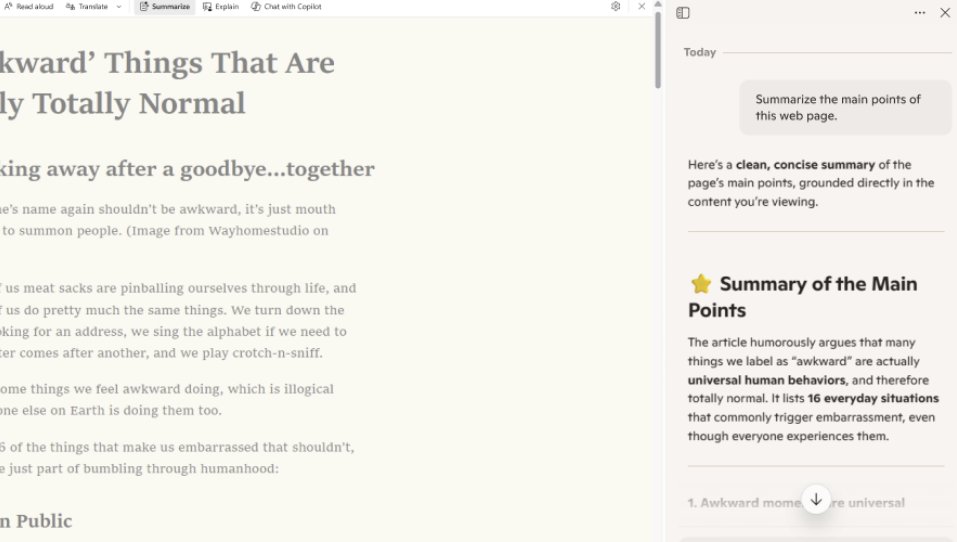
Reading mode has two Copilot buttons and a chat link. Each one opens Copilot in the side pane next to the page.
- Open the page in Reading mode with F9.
- Select Summarize for a short overview of the page or supported document.
- Select Explain to have key ideas and complex terms broken down into simpler language.
- Select Chat with Copilot to ask your own questions about what you are reading.
- Close the side pane when you are done. Reading mode stays open.
How to tell Edge Reading mode is on
- Look at the page: ads, menus and sidebars are gone and the text sits in a single column.
- Look at the toolbar at the top: it shows Read aloud and Translate.
- Look at the address bar: the Reading mode icon is highlighted.
- Press F9 once. The original page layout should return, which confirms the toggle works.
Why Immersive Reader is missing
No Immersive Reader icon in the address bar
The Reading mode button is switched off, or Edge does not offer the reading view on that page.
- Select Settings and more > Settings > Appearance, open Toolbar and turn on Reading mode.
- Open a standard article page and look for the icon again.
- If it still does not appear, the site is not supported. Select the text, right-click and choose Open selection in Reading mode.
F9 does not open Immersive Reader
The page is not supported, or the keyboard sends a media function instead of F9.
- Check whether the Reading mode icon shows in the address bar. If it does not, F9 has nothing to open.
- On a laptop, hold Fn and press F9 if the top row is set to media keys.
- Use the right-click Open selection in Reading mode route as a fallback.
Read aloud is missing in Immersive Reader
Your organisation has turned off the ReadAloudEnabled policy, which removes Read aloud from Reading mode, menus and the PDF toolbar.
- Type
edge://policyin the address bar and press Enter. - Look for ReadAloudEnabled in the list.
- If it is set to false, ask your IT administrator. The setting cannot be changed from the browser.
Immersive Reader keeps coming on
F9 is a toggle, so an accidental key press or a click on the address bar icon switches the reading view on.
- Press F9 to return to the normal page.
- To remove the button entirely, go to Settings > Appearance > Toolbar and turn off Reading mode.
Edge Immersive Reader FAQ
What is Immersive Reader?
Immersive Reader is a Microsoft reading tool that strips a page down to its text and images and adds read aloud, translation and display controls. It was designed for readers with dyslexia and dysgraphia. In Microsoft Edge it is now called Reading mode.
How do I turn on Immersive Reader in Edge?
Press F9 on a supported page, or select the Reading mode icon in the address bar. If the icon is missing, go to Settings > Appearance > Toolbar and turn on Reading mode, then reopen the page.
How do I download Immersive Reader?
You do not need to download it. Immersive Reader is built into Microsoft Edge, Word, OneNote, Teams and Outlook. In Edge, switch on the Reading mode button under Settings > Appearance > Toolbar and press F9 on an article.
Is Immersive Reader available on every Edge webpage?
No. Edge only offers it on pages it can simplify, such as articles and blog posts. On other pages, select the text, right-click and choose Open selection in Reading mode to read just that part.
What is the difference between Reading mode and Immersive Reader in Edge?
They are the same feature. Microsoft renamed Immersive Reader to Reading mode in Edge and added Copilot tools such as Summarize and Explain. Microsoft's own support pages still use both names.
Can Immersive Reader read text aloud?
Yes. Select Read aloud on the Reading mode toolbar to hear the page in natural voices. Use Voice options to change the voice and reading speed, and select Pause or X to stop.
How do I use Immersive Reader in a PDF in Edge?
The Edge PDF viewer has Read aloud on its own toolbar, so you can listen to a PDF without the reading view. Open the PDF in Edge and select Read aloud on the PDF toolbar.
How do I use Immersive Reader in Word?
Open the document in Word, select the View tab, then select Immersive Reader. Word offers Column Width, Page Color, Line Focus, Text Spacing, Syllables and Read Aloud. Select Close Immersive Reader to return to normal editing.
Why does F9 not open Immersive Reader?
F9 only works on pages Edge supports for the reading view. On a laptop, the top row may send media functions, so hold Fn while pressing F9. Otherwise, select the text and use Open selection in Reading mode.
The bottom line on Edge Immersive Reader
Turn on the Reading mode button once, then use F9 as your default way into any long article in Edge. One key removes clutter and gives you read aloud, translation and font control. Picture dictionary and grammar tools are gone from Edge, so use Immersive Reader in Word when you need syllable breaks.

![Outlook: not all emails are showing in inbox [resolved]](https://techdows.com/wp-content/uploads/2026/10/Outlook-on-the-web-inbox-with-Focused-and-Other-tabs-and-the-Filter-menu.jpg)