To make PDF files open in Adobe Acrobat Reader instead of Microsoft Edge, open Settings > Apps > Default apps, search for .pdf, and pick Acrobat Reader as the app for that file type.
This guide covers the Windows 11 and Windows 10 routes, the macOS equivalent, the Edge policy that stops downloaded PDFs opening in the browser, and fixes for PDFs that still land in Edge, Word or nowhere at all.
Make PDF files open in Adobe instead of Edge on Windows 11 and 10
Install Acrobat Reader first, because Windows only lists apps that are already on the PC. The same steps apply to Windows 11 and Windows 10.
- Open Settings and select Apps > Default apps. You can also type
ms-settings:defaultappsinto the Run box (Win + R) to jump straight there. - In the search box at the top, type .pdf.
- Select the app currently shown for .pdf (usually Microsoft Edge).
- Choose Adobe Acrobat Reader from the list. Newer releases may show it simply as Adobe Acrobat.
- Confirm with Set default or OK if Windows asks.
- Double-click any PDF in File Explorer. It now opens in Acrobat Reader.
Why use Adobe Acrobat Reader over Microsoft Edge for PDFs?
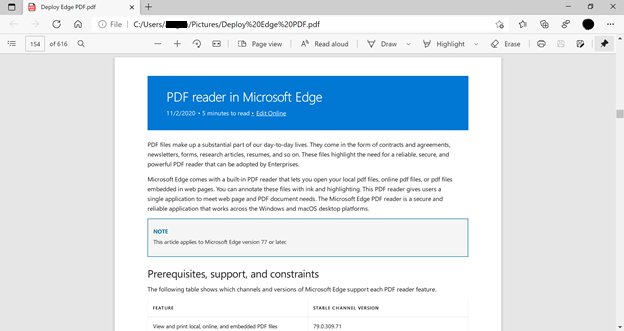
Edge has a capable built-in reader, and PDFs land there because Chromium Edge became the default PDF reader in Windows 10. The gaps show up with forms and heavier document work.
| Task | Microsoft Edge PDF reader | Adobe Acrobat Reader (free) |
|---|---|---|
| View and print PDFs | Yes, local, online and embedded files | Yes |
| Highlight, ink and text notes | Yes | Yes, annotate and comment |
| Fill basic forms | Yes, but JavaScript forms are not supported | Yes |
| XFA (XML Forms Architecture) forms | Not supported | Use Acrobat for these legacy forms |
| Sign a PDF | Not listed among Edge reader features | Yes, free |
| Edit text and images | No | No, needs Acrobat Pro or Acrobat Studio |
| Platforms | Windows and macOS desktop | Windows 10 and 11, macOS 10.15 and later, iOS, Android |
If you mostly read and print, Edge is fine. If you fill government or bank forms, sign documents or receive XFA forms, Acrobat Reader is the safer default. Edge keeps adding features, such as Edge's newer PDF tools for thumbnails and document properties, so check whether your task still needs Acrobat.
Common issues with PDFs opening in Microsoft Edge
| What you see | Why it happens | Where to fix it |
|---|---|---|
| Every PDF you double-click opens in a browser tab | Edge is the Windows default app for .pdf | Default apps in Settings (first section) |
| A form shows blank pages or a message about an unsupported format | The PDF is an XFA form, which Edge cannot render | Open the file in Acrobat Reader |
| Form fields with calculations or buttons do nothing | Edge does not run JavaScript in PDF forms | Open the file in Acrobat Reader |
| PDFs you download from a website open in Edge instead of being saved | Edge's internal viewer handles PDFs by default | The AlwaysOpenPdfExternally policy (Windows tips section) |
| You need to edit text inside the PDF | Neither Edge nor free Reader edits PDF content | Acrobat Pro, or convert the file in Word |
How to make Adobe Acrobat Reader your default PDF viewer: which method to use
| Your situation | Use this method | Why |
|---|---|---|
| Windows 11 or 10, you want every PDF in Reader | Default apps, search .pdf | One file type, one change, applies everywhere |
| Windows, you want to see every type Reader can take | Default apps, set defaults for applications | Shows .pdf and other Acrobat file types together |
| You only want Reader for one file this time | Open with in File Explorer | Leaves the default untouched |
| Edge still opens PDFs you download from websites | AlwaysOpenPdfExternally policy | Turns off Edge's internal viewer so the file goes to the default app |
| Mac | Get Info, Open with, Change All | Applies Reader to every PDF on that Mac |
Setting Adobe Acrobat Reader as default PDF viewer on Windows from the app list
This route starts from Acrobat Reader instead of the file extension. It is useful when the .pdf search returns nothing or you want to review every file type Reader can open. The Settings layout has changed since the older Adobe Reader default handler setup from 2014, so the labels below are the current ones.
- Open Settings and select Apps > Default apps.
- Under Set defaults for applications, select Adobe Acrobat Reader (or Adobe Acrobat).
- Find .pdf in the list of file types and select the app shown under it.
- Choose Adobe Acrobat Reader and confirm.
- Repeat for any other PDF-related types listed there that still point at Microsoft Edge.
Open a PDF with Adobe Acrobat Reader from the File Explorer Open with menu
Use this when you want Reader for a single file, such as an XFA form, without changing what opens every other PDF.
- Open File Explorer and find the PDF.
- Right-click the file and select Open with.
- Select Adobe Acrobat Reader if it appears in the short list.
- If it does not appear, select Choose another app, then Choose an app on your PC, and pick Acrobat Reader.
- The file opens in Reader, and the Windows default for .pdf stays as it was.
Additional tips for Windows users: stop Edge opening downloaded PDFs
Changing the Windows default does not stop Edge from showing a PDF it fetched from a website, because Edge has its own internal viewer. Microsoft's AlwaysOpenPdfExternally policy (Group Policy name Always open PDF files externally) disables that viewer, so Edge treats PDFs as downloads and lets you open them with the default application.
The policy only helps after Acrobat Reader is the Windows default. If Edge is still the default PDF reader, PDF files are not downloaded and keep opening in Edge. It is supported in Edge 77 and later on Windows and macOS. Run the command from an elevated Command Prompt, then restart Edge.
reg add "HKLM\SOFTWARE\Policies\Microsoft\Edge" /v AlwaysOpenPdfExternally /t REG_DWORD /d 1 /fCreates the AlwaysOpenPdfExternally DWORD under the Edge policies key and sets it to 1 (enabled). On Windows Pro with the Edge administrative templates installed, the same setting is Administrative Templates > Microsoft Edge > Always open PDF files externally in the Group Policy Editor. On a Mac, the matching preference key is AlwaysOpenPdfExternally set to true.
You should see: The operation completed successfully. After restarting Edge, clicking a PDF link downloads the file, and opening it from the download list launches Acrobat Reader.
Setting Adobe Acrobat Reader as default PDF viewer on macOS
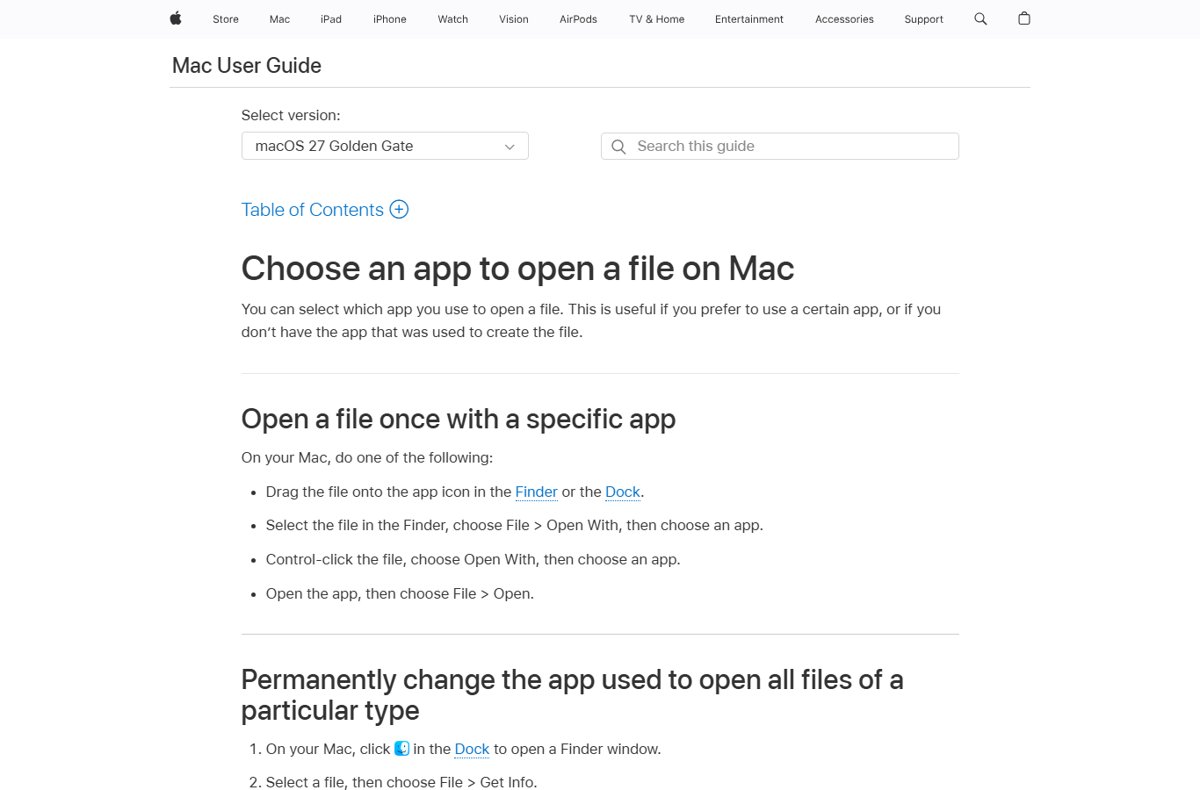
On a Mac, PDFs usually open in Preview until you change it. The change applies to every file of that type, not just the one you selected.
- Click the Finder icon in the Dock to open a Finder window.
- Select any PDF file, then choose File > Get Info.
- In the Info window, expand the Open with section.
- Click the pop-up menu and choose Adobe Acrobat Reader (or Adobe Acrobat).
- Click Change All and confirm. Every PDF on that Mac now opens in Reader.
Check that PDF files now open in Adobe Acrobat Reader
- Go back to Settings > Apps > Default apps and search .pdf again. The app listed under it should read Adobe Acrobat Reader or Adobe Acrobat.
- Double-click a PDF in File Explorer. It should open in a Reader window, not an Edge tab.
- If you set the policy, click a PDF link in Edge. The file should download instead of opening in a tab.
- On a Mac, select a PDF and choose File > Get Info. The Open with menu should show Acrobat Reader.
Additional considerations before you switch the default PDF viewer
| Consideration | What it means for you |
|---|---|
| Free Reader does not edit content | You can view, print, comment, fill and sign, but editing text and images needs Acrobat Pro or Acrobat Studio. |
| The Edge policy depends on the Windows default | AlwaysOpenPdfExternally does nothing useful while Edge is still the default PDF app. |
| Work and school PCs | An administrator can set Edge policies, and a managed PC may reapply its own default apps. |
| Mac Change All is global | Every PDF on that Mac switches to Reader, including ones you used to annotate in Preview. |
| Word converts rather than displays | Opening a PDF in Word creates an editable copy that may not match the original layout; the original file is kept. |
Troubleshooting and additional tips when PDFs still will not open in Acrobat Reader
PDF files still open in the browser
Either Edge (or another browser) is still the .pdf default, or the PDF came from a website and Edge's internal viewer handled it.
- Open Settings > Apps > Default apps, search .pdf, and confirm Acrobat Reader is listed.
- If it is, set the AlwaysOpenPdfExternally policy from the Windows tips section and restart Edge.
- Open the downloaded file from File Explorer rather than from inside the browser tab.
PDF files open in Word
Word is set as the .pdf default, so Windows hands every PDF to Word, which converts it into an editable copy.
- Close Word without saving the converted copy. The original PDF is unchanged.
- Open Settings > Apps > Default apps and search .pdf.
- Change the app from Word to Adobe Acrobat Reader.
Acrobat Reader is missing from the app list
Windows only lists installed apps, and a partial install may not register for .pdf.
- Install or reinstall Acrobat Reader from Adobe's own site at adobe.com.
- Return to Default apps and search .pdf again.
- If Reader still does not appear, right-click a PDF, select Open with > Choose another app > Choose an app on your PC, and browse to Reader.
Can't open any PDF files
The default app was removed, the file is damaged, or it is an XFA form that the current viewer cannot render.
- Right-click the file, select Open with, and try Acrobat Reader and Edge in turn.
- If one opens it and the other does not, set the working app as the .pdf default.
- If neither opens it, download or request the file again, because the copy you have may be incomplete.
PDFs open on their own when you download them
Edge opens PDFs in its internal viewer unless the policy turns that off.
- Set Acrobat Reader as the Windows default for .pdf.
- Enable AlwaysOpenPdfExternally with the command in the Windows tips section.
- Restart Edge and download the PDF again.
How to make PDF files open in Edge again
- Open Settings > Apps > Default apps and search .pdf.
- Select Adobe Acrobat Reader under .pdf and choose Microsoft Edge.
- If you set the policy, run
reg delete "HKLM\SOFTWARE\Policies\Microsoft\Edge" /v AlwaysOpenPdfExternally /ffrom an elevated Command Prompt. - Restart Edge. PDFs now open in an Edge tab again.
Adobe Acrobat Reader default PDF viewer FAQ
How do I make all PDF files open with Adobe?
Open Settings > Apps > Default apps, type .pdf in the search box, select the current app and choose Adobe Acrobat Reader. On a Mac, select a PDF, choose File > Get Info, pick Reader under Open with and click Change All.
How do I make PDF files open in Adobe Acrobat instead of Reader?
Use the same Default apps search for .pdf and choose Adobe Acrobat instead of Reader. If you have a paid Acrobat Pro installation, it appears in the list as its own app, and Windows sends every PDF to whichever one you select.
How do I make all PDF files open with Bluebeam?
The method is the same for any installed PDF app. Open Settings > Apps > Default apps, search .pdf, select the current app and choose Bluebeam Revu from the list. Windows only lists it once it is installed.
Why does my PDF open in the browser?
Your browser, usually Microsoft Edge, is set as the default app for .pdf files, or the PDF came from a website and Edge's built-in viewer displayed it. Change the .pdf default in Settings and enable the AlwaysOpenPdfExternally policy to stop both.
Why do PDF files open in Word?
Word is set as the default app for .pdf files. Word converts the PDF into an editable document that may not match the original layout. Change the .pdf default to Acrobat Reader in Settings > Apps > Default apps to view PDFs without conversion.
Why do my PDF documents open online?
Files opened from a website, email web app or cloud storage page are shown by the browser's PDF viewer. Download the file and open it from File Explorer, or enable the Edge AlwaysOpenPdfExternally policy so Edge saves PDFs instead of displaying them.
How do I make PDF files open in Edge?
Open Settings > Apps > Default apps, search .pdf, select the current app and choose Microsoft Edge. If you previously set the AlwaysOpenPdfExternally policy, delete that registry value and restart Edge so the internal viewer works again.
What do I open a PDF with?
Any PDF reader works. Microsoft Edge is built into Windows and opens PDFs without extra software, Preview does the same on a Mac, and the free Adobe Acrobat Reader adds full form support, signing and commenting on Windows, macOS, iOS and Android.
Why can't I open any PDF files?
The app set as the .pdf default may be uninstalled, the file may be damaged, or it may be an XFA form your viewer cannot render. Try Open with > Acrobat Reader, then Edge, and set whichever works as the default.
Why changing the default PDF viewer matters
Set Acrobat Reader as the .pdf default if you fill forms, sign documents or receive XFA files; keep Edge if you only read and print. Edge's reader cannot render XFA forms or run JavaScript form logic, while the free Reader handles both. One change in Default apps fixes double-clicked files, and the Edge policy closes the gap for PDFs downloaded from websites.





How to open PDF files in Windows 11 - Techdows
[…] Adobe here is the first step to make PDFs open in Acrobat Reader instead of Edge, and Edge needs one extra policy before it stops showing PDFs downloaded from […]