To force dark mode on websites in Edge, install a dark-mode extension such as Dark Reader from Edge Add-ons, which darkens pages that have no dark theme of their own.
This guide also covers Edge's own dark theme, making sites follow Windows dark mode, Windows contrast themes, DevTools emulation and Reading mode, plus how to turn forced dark mode off.
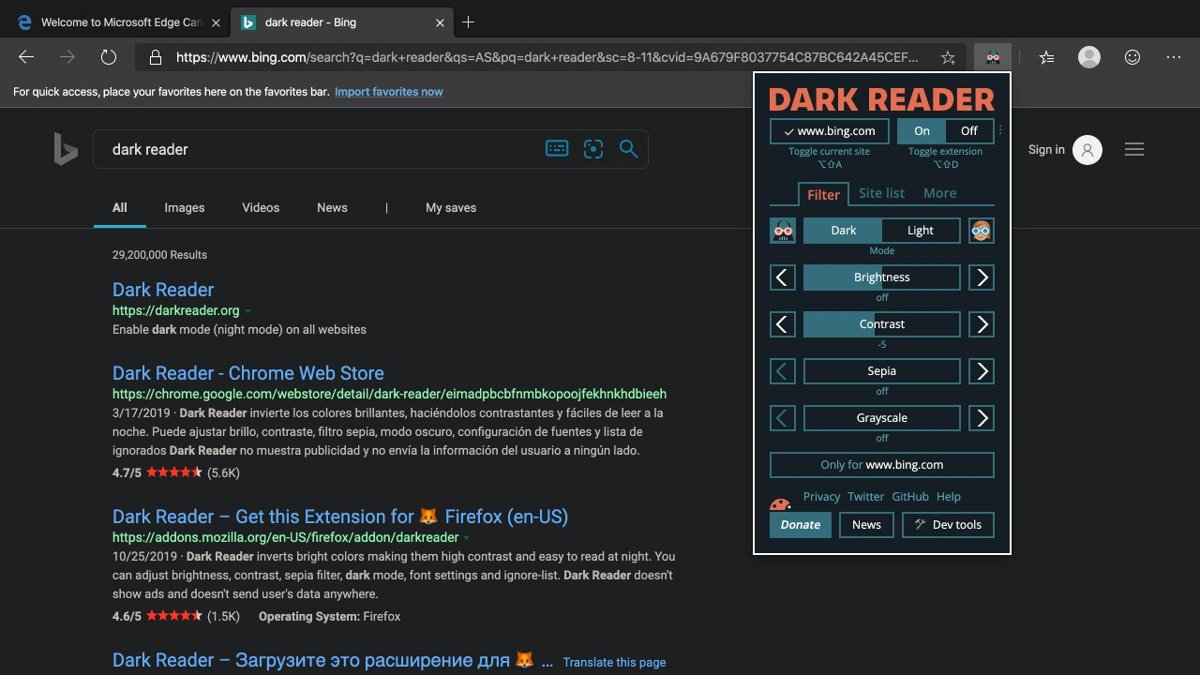
Force Dark Mode on websites using Edge
Edge's Dark appearance setting changes the browser's own background and menus, not the pages you visit. An extension is the route that recolours the websites themselves.
- Select Extensions to the right of the address bar. If it is missing, open Settings and more (the three dots) > Extensions.
- Select Get Extensions for Microsoft Edge to open Edge Add-ons.
- Search for dark mode and open a listing such as Dark Reader.
- Select Get, review the permissions, and select Add extension.
- Open or reload any website. The extension renders it with a dark background and light text.
- Select the extension's icon next to the address bar to adjust it or switch it off for the current site.
Which Edge dark mode method should you use?
| What you want | Use this | What it changes |
|---|---|---|
| Every website dark, including sites with no dark theme | A dark-mode extension from Edge Add-ons | Recolours page content inside Edge only |
| Edge's toolbar, menus and new tab page dark | Settings > Appearance > Dark | Edge's own interface, not the sites |
| Sites that already offer a dark theme to switch automatically | Windows Choose your mode > Dark | Sites built to follow the system colour scheme |
| Dark colours forced on all apps and web pages, no add-ons | A Windows contrast theme | Text and background colours across Windows and web pages |
| Check one site's own dark theme without changing Windows | Edge DevTools Rendering tool | The current tab only, while DevTools is open |
| A dark, distraction-free view of a long article | Edge Reading mode with a dark theme | Supported article pages only |
Turn on dark theme in Edge settings
Start here even if you plan to darken websites, because a bright toolbar around dark pages defeats the point. On Windows, the same switch appears in Edge on Windows 10 and Windows 11.
- In Edge, select Settings and more > Settings.
- Select Appearance in the Settings menu.
- In the Overall appearance section, select Dark.
- Close the Settings tab. The toolbar, menus and Edge's own pages switch to dark at once.
Make websites follow Windows dark mode in Edge
Many sites ship their own dark design and pick it from the prefers-color-scheme setting, which reports your Windows light or dark mode to the page. Switching Windows to dark makes those sites change without an extension.
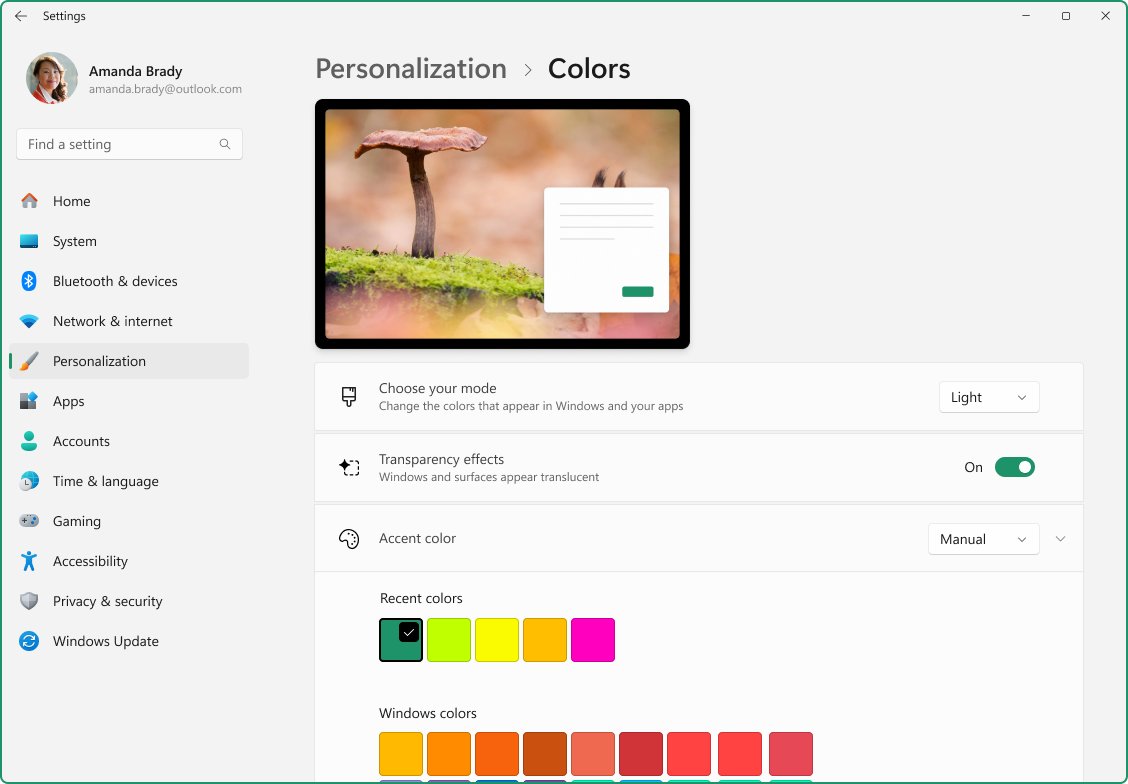
- Select Start > Settings > Personalization > Colors.
- Under Choose your mode, select Dark.
- Reopen or reload the website in Edge.
- If the site still looks light, look for a theme or appearance option in the site's own settings, or use an extension.
The same switch also lets you enable dark mode in Windows 11 for File Explorer and built-in apps.
Force dark colors on every website with a Windows contrast theme
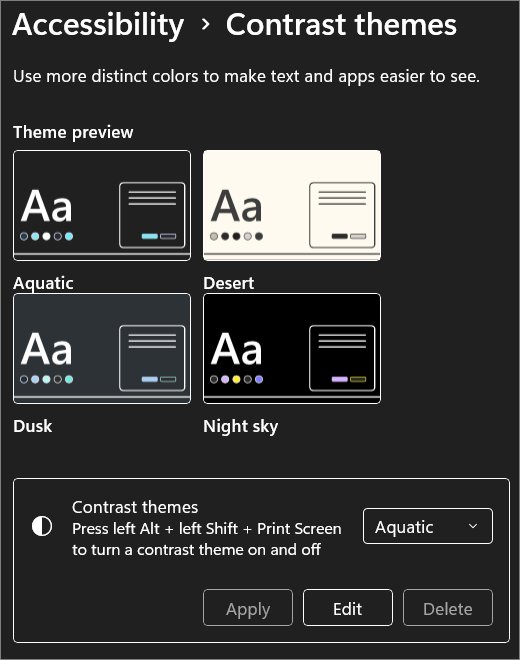
A contrast theme is the one built-in way to force colours onto pages that have no dark design. Edge applies the theme's text and background colours to web content, so a dark theme turns light pages dark.
Expect a flatter look: contrast themes replace most page colours with a small palette, and some images or buttons look different.
- On Windows 11, select Start > Settings > Accessibility > Contrast themes.
- Pick a theme with a dark background from the Contrast themes drop-down menu.
- Select Apply and wait for Windows to redraw the screen.
- On Windows 10, select Start > Settings > Ease of Access > High contrast, turn on Turn on high contrast, and pick a theme under Choose a theme.
- Press left Alt + left Shift + Print Screen to switch the contrast theme on or off at any time.
Emulate dark mode for one website with Edge DevTools
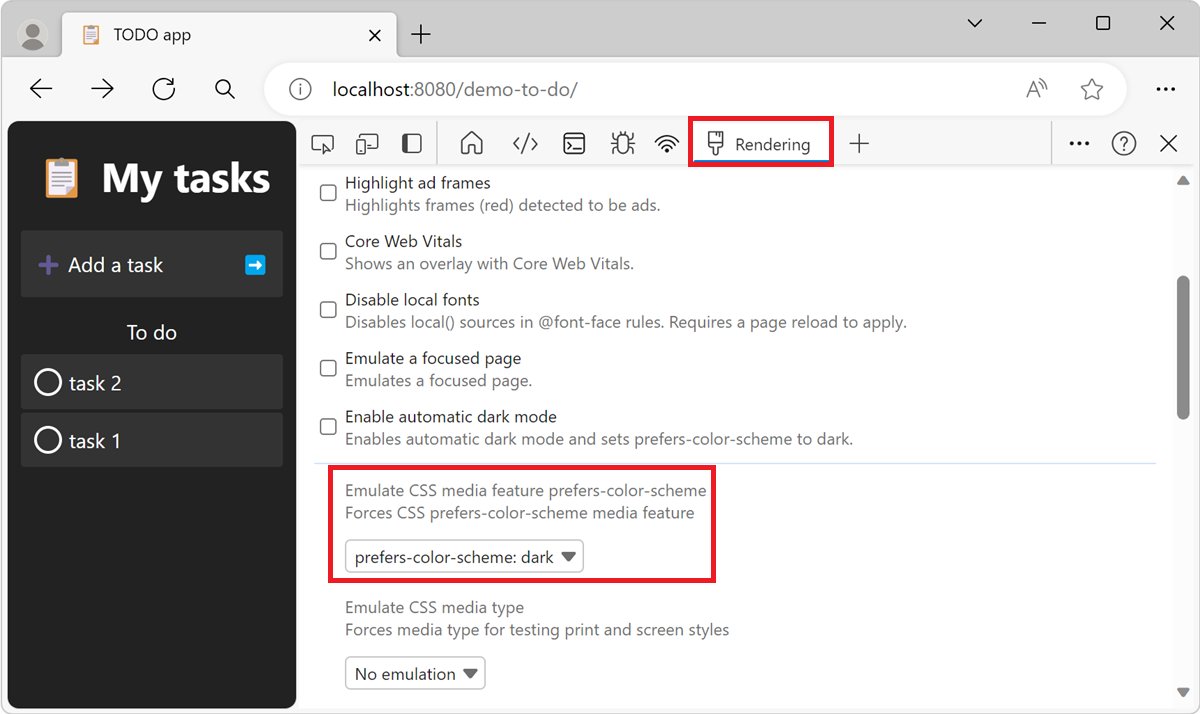
DevTools can tell a single tab that you prefer a dark scheme without touching Windows. It only works on sites that include their own dark stylesheet, and it resets when you close DevTools.
- Open the website, then press Ctrl + Shift + I or right-click the page and select Inspect.
- Select the Rendering tab. If it is not visible, select More tools and choose Rendering.
- In the Emulate CSS media feature prefers-color-scheme list, select prefers-color-scheme: dark.
- Watch the page re-render with the site's dark design.
- Select No emulation in the same list to return to your Windows setting.
With DevTools focused, Ctrl + Shift + P opens the Command Menu, where Emulate CSS prefers-color-scheme: dark does the same thing.
Read websites in dark colors with Edge Reading mode
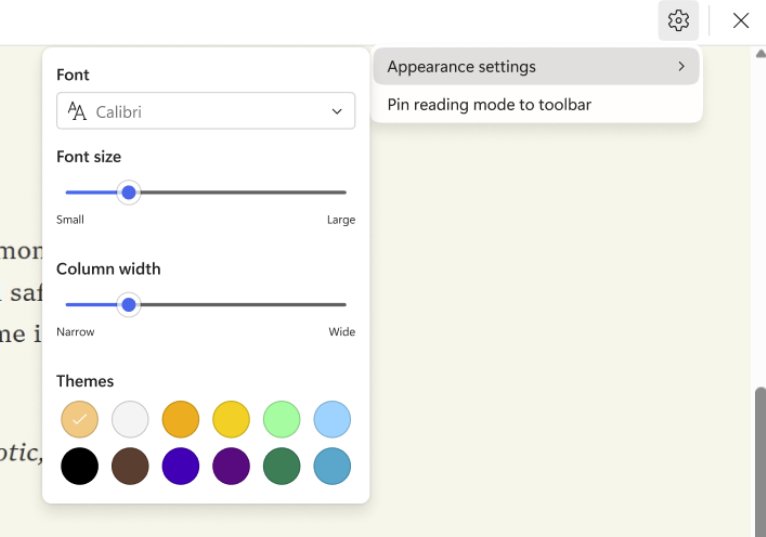
Reading mode strips an article down to text and images and lets you choose a page theme, including dark ones. It appears only on pages Edge supports, typically articles and blog posts.
- Open Settings and more > Settings > Appearance > Toolbar and turn on Reading mode.
- Open an article and select Reading mode in the address bar, or press F9.
- Select the Settings icon in the Reading mode toolbar and choose Appearance settings.
- Pick a dark option under Theme.
- Press F9 again to return to the normal page.
How to check forced dark mode is working in Edge
- Open a site with no dark theme of its own, such as a plain white documentation page, and confirm the background is now dark.
- Open a new tab and confirm Edge's toolbar and new tab page are dark if you chose Dark under Overall appearance.
- Select Extensions and confirm your dark-mode extension's switch is on in Manage extensions.
- Reload a site that has its own dark design and confirm it switched after you set Windows to Dark.
How to turn off forced dark mode in Edge
- To pause an extension, select Extensions > Manage extensions and turn off its switch.
- To remove it, right-click its icon and select Remove from Microsoft Edge > Remove.
- To return Edge's interface to light, select Settings > Appearance and choose Light under Overall appearance.
- To stop sites following dark mode, select Light under Choose your mode in Settings > Personalization > Colors.
- To turn off a contrast theme on Windows 11, choose None from Contrast themes and select Apply, or press left Alt + left Shift + Print Screen.
- To end DevTools emulation, select No emulation in the Rendering tool or close DevTools.
Fix Edge dark mode problems on websites
Websites are dark and you do not know why
A contrast theme, Windows dark mode, or an extension is darkening pages.
- Press left Alt + left Shift + Print Screen to check whether a contrast theme switches off.
- Open Settings > Personalization > Colors and check Choose your mode.
- Select Extensions > Manage extensions and switch off dark-mode or theme extensions one at a time.
Forced dark mode will not turn off
More than one method is active, so undoing one leaves another in place.
- Remove or disable the dark-mode extension.
- Set Overall appearance in Edge to Light.
- Set Choose your mode in Windows to Light and set Contrast themes to None.
- Restart Edge and reload the page.
Some websites stay light with Windows dark mode on
Those sites have no dark design that follows the system colour scheme.
- Look for a dark or theme option in the site's own account or display settings, the way you can turn on YouTube dark mode or enable dark theme for Google Search.
- Install a dark-mode extension from Edge Add-ons to recolour the page.
- Use a Windows contrast theme if you cannot install extensions.
The extension does not darken a site
Its site access is limited to when you click it, or it is switched off for that site.
- Select Extensions, then More actions next to the extension.
- Hover over This can read and change site data and choose On all sites.
- Reload the page and check the extension's own per-site switch.
Edge force dark mode FAQ
How do I force dark mode on Edge?
Install a dark-mode extension such as Dark Reader from Edge Add-ons through Extensions > Get Extensions for Microsoft Edge. It darkens websites that have no dark theme. Set Settings > Appearance > Overall appearance to Dark so Edge's own interface matches.
How do I force dark mode on all websites in Edge?
Use a dark-mode extension with its site access set to On all sites, or turn on a dark Windows contrast theme. The extension recolours every page inside Edge, while a contrast theme forces dark colours on web pages and on Windows apps.
Does Edge's dark theme make websites dark?
No. The Dark option under Overall appearance changes Edge's own background, toolbar and menus. Websites keep their own colours unless they follow Windows dark mode or you use an extension or contrast theme.
How do I force dark mode on Edge in Windows 11?
Install a dark-mode extension in Edge, or go to Settings > Accessibility > Contrast themes, pick a dark theme and select Apply. For sites with their own dark design, set Settings > Personalization > Colors > Choose your mode to Dark.
How do I force dark mode on Windows 10?
Select Start > Settings > Personalization > Colors and choose Dark under Choose your mode. To force dark colours onto every page and app, open Settings > Ease of Access > High contrast and turn on Turn on high contrast.
How do I force dark mode in Chrome?
Chrome uses the same approach: add a dark-mode extension from the Chrome Web Store, or switch Windows to dark mode so sites with their own dark design follow it. A Windows contrast theme also changes page colours system wide.
How do I force dark mode on apps?
Set Settings > Personalization > Colors > Choose your mode to Dark, which switches apps that follow the Windows colour mode. Some apps have their own theme setting, and a contrast theme forces dark colours onto nearly all text in Windows.
How do I turn off forced dark mode?
Disable or remove the dark-mode extension in Edge, set Overall appearance to Light, set Choose your mode to Light, and set Contrast themes to None. Undo every method you enabled, or one of them keeps pages dark.
Why am I in dark mode?
Windows dark mode, a contrast theme, Edge's Dark appearance or an extension can each turn pages dark. Left Alt + left Shift + Print Screen toggles a contrast theme, which is the quickest one to rule out.
Why do people use dark mode?
A dark background is easier on the eyes in low-light rooms and suits people who prefer less bright interfaces. Contrast themes also help with eye strain, migraines and light sensitivity by letting you choose the colours you need.