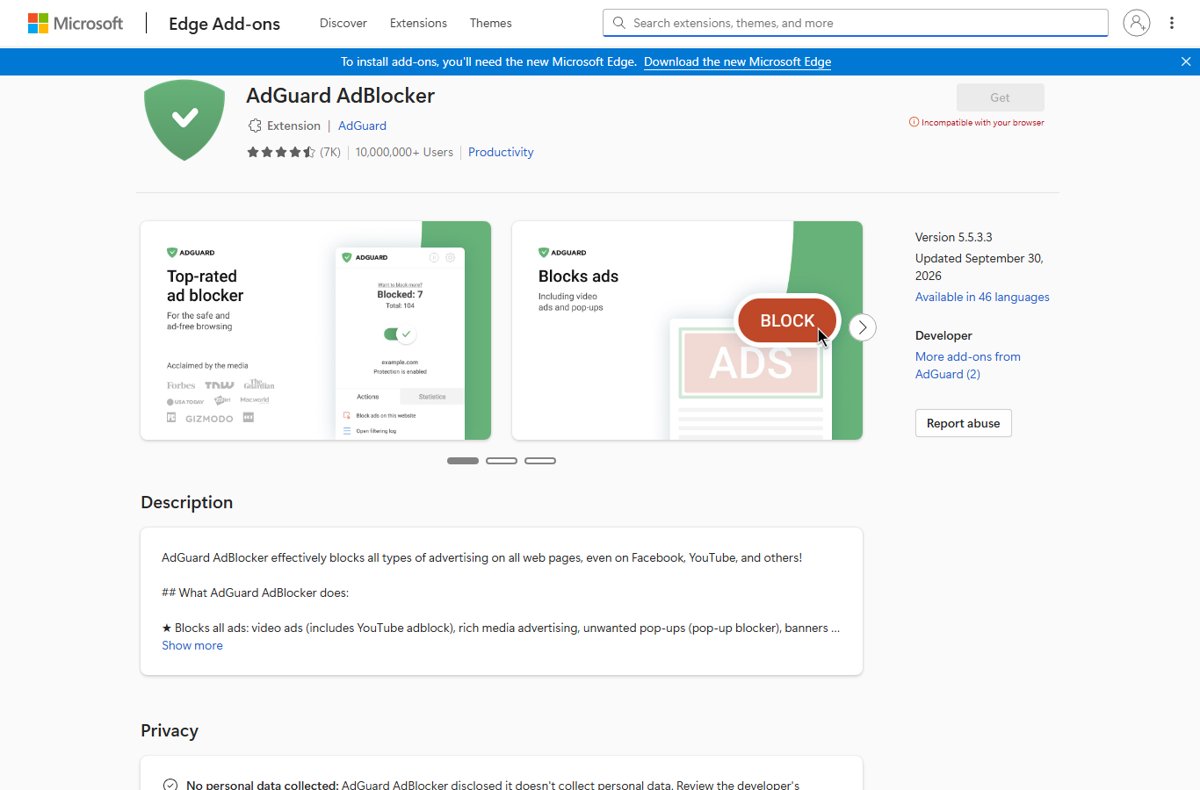
To add AdGuard to Microsoft Edge, open the Microsoft Edge Add-ons store, search for AdGuard AdBlocker, select Get, then select Add extension.
This guide covers each step, the filters worth turning on, how to confirm ads are blocked, and fixes when the extension stops working or is turned off.
Step-by-step guide to add AdGuard to Microsoft Edge
The extension is free in the Edge Add-ons store and installs in under a minute.
- Step 1: Open Microsoft Edge on your PC or Mac.
- Step 2: Select Extensions (the puzzle piece icon) to the right of the address bar, then select Get Extensions for Microsoft Edge to open the Add-ons store. If the puzzle piece is missing, select Settings and more (…) > Extensions.
- Step 3: Type AdGuard in the store search box and open AdGuard AdBlocker by the publisher AdGuard.
- Step 4: Select Get, then Add extension in the prompt. Edge confirms the extension was added.
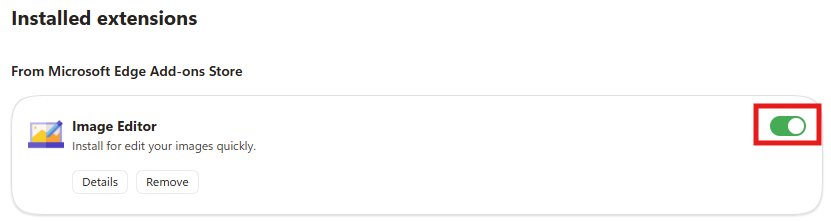
- Step 5: Select Extensions > Manage extensions and check the toggle next to AdGuard AdBlocker is on.
- Step 6: Open a site that normally shows ads and confirm the ad spaces are gone.
Several look-alike ad blockers appear in the same search. Check that the publisher reads AdGuard before you select Get.
Understanding AdGuard and its benefits
AdGuard AdBlocker is a browser extension published by AdGuard in the Microsoft Edge Add-ons store. The listing shows more than 10 million users, version 5.5.3.3 updated on September 30, 2026, and support for 46 languages.
| What it blocks | What the listing says |
|---|---|
| Ads | Video ads, pop-ups, banners and text ads, including on YouTube and Facebook |
| Tracking | Common third-party tracking systems, with a Spyware and tracking filter of more than 5,000 rules |
| Social widgets | Like buttons and similar widgets, through the Social media filter |
| Harmful sites | Domains known to spread malware and phishing |
| Crypto-jacking | Most known in-browser crypto miners |
| Privacy | The developer declares it does not collect personal data |
Prerequisites for installing AdGuard on Microsoft Edge
| Requirement | Why | How to check |
|---|---|---|
| The current Microsoft Edge | The Add-ons store says older Edge versions cannot install add-ons | Open Settings and the About Microsoft Edge page, which checks for updates |
| Permission to add extensions | Work or school PCs can block or force extensions by policy | Look for policies such as ExtensionSettings at edge://policy |
| An internet connection | The extension downloads from the Add-ons store | Open any website |
| No second ad blocker running | Two blockers can conflict and break pages | Check the list under Manage extensions |
Configuring AdGuard settings in Microsoft Edge
After you install the AdGuard extension, its main protection works without any setup. Open AdGuard's settings from its panel when you want stronger privacy or fewer distractions.
- Access AdGuard settings: select Extensions (puzzle piece) > AdGuard AdBlocker to open its panel, then open its settings from there.
- Configure filtering options: turn on the Spyware and tracking filter to block trackers.
- Turn on the Social media filter to remove Like buttons and similar widgets.
- Adjust general settings in Edge: select Extensions > Manage extensions > Details under AdGuard AdBlocker, and under Site access choose where it runs.
- Finalize and test: reload a page you know shows ads and trackers, and check the result.
Leave Site access on all sites for an ad blocker. On specific sites or On click limits it to the sites you name.
How to check AdGuard is blocking ads
- Select Extensions (puzzle piece) and confirm AdGuard AdBlocker appears in the list.
- Open Manage extensions and confirm its toggle is on, with no briefcase icon marking it as managed.
- Load a news or video site that normally shows ads.
- Turn the toggle off, reload, and compare. Turn it back on afterwards.
Troubleshooting common issues when adding AdGuard to Microsoft Edge
The store says the extension is incompatible with your browser
Add-ons need the current Microsoft Edge; compatibility depends on your Edge version.
- Ensure compatibility: open About Microsoft Edge and let Edge update.
- Restart Edge and open the AdGuard AdBlocker listing again.
AdGuard is installed but ads still show
The extension is off, out of date, lacks site access, or another extension conflicts.
- Enable the extension: select Extensions > Manage extensions and turn its toggle on.
- Disable conflicting extensions, such as other ad blockers, one at a time and retest.
- Under Details, make sure Site access is not limited to specific sites or on click.
- Turn the extension off and on again, and make sure Edge is up to date.
Edge keeps turning AdGuard off
Edge disables extensions that try to change your default settings, such as search or new tab page.
- Select Settings and more (…) > Extensions > Manage extension.
- Turn the AdGuard toggle back on.
- If Edge turns it off again, remove and reinstall it from the Add-ons store.
You cannot remove or change AdGuard, or it says managed by your organization
Browser or system restrictions from a policy control the extension.
- Check for browser or system restrictions: open
edge://extensionsand look for a briefcase icon. - Open
edge://policyand look for ExtensionSettings or ExtensionInstallForcelist. - On a work PC, ask your IT department. On a home PC, run a Microsoft Defender full scan, since malware can pose as a managed extension.
AdGuard is missing from the puzzle menu
The extension is turned off or did not finish installing.
- Open Manage extensions and turn its toggle on.
- Clear the browser cache and restart Edge.
- Reinstall the AdGuard extension if it is still not visible.
Reinstall or remove the AdGuard extension
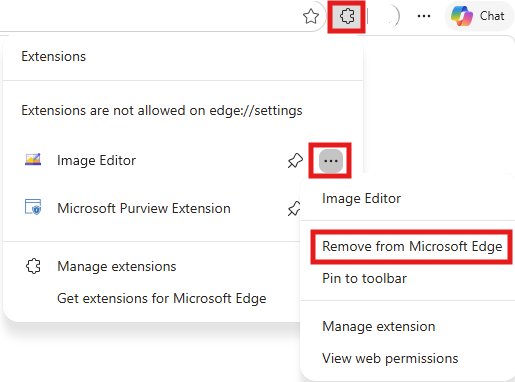
- Select Extensions (puzzle piece) to the right of the address bar.
- Select More actions (…) next to AdGuard AdBlocker.
- Select Remove from Microsoft Edge, then Remove. Edge shows Extension removed.
- To reinstall, open the AdGuard AdBlocker listing in the Edge Add-ons store, select Get, then Add extension.
Best practices for using AdGuard with Microsoft Edge
- Keep AdGuard and Edge updated: check About Microsoft Edge regularly, and compare the version under Details with the store listing.
- Configure AdGuard settings properly: turn on only the filters you need, starting with tracking protection.
- Install the AdGuard browser extension only from the Edge Add-ons store, and check the publisher is AdGuard.
- Manage compatibility with other extensions: run one ad blocker, not two.
- Regularly review filter lists and remove ones that break sites you use.
- Use AdGuard's additional features, such as the social media and tracking filters, where they help.
- If one site will not load, turn the toggle off in Manage extensions to test, then turn it back on.
AdGuard also publishes an AdGuard VPN extension in the same store. A VPN hides your IP address, which is a different job from blocking ads; see how to use a VPN in Microsoft Edge.
Frequently asked questions
How do I add AdGuard to Microsoft Edge?
Select the Extensions puzzle icon next to the address bar, then Get Extensions for Microsoft Edge. Search for AdGuard AdBlocker, check the publisher is AdGuard, select Get, then Add extension. It starts blocking ads straight away.
Is there an AdGuard extension for Microsoft Edge?
Yes. AdGuard AdBlocker is listed in the Microsoft Edge Add-ons store by the publisher AdGuard, with more than 10 million users. AdGuard also lists an AdGuard VPN extension there.
How do I configure AdGuard?
Open AdGuard's panel from the Extensions puzzle icon and go to its settings. Turn on the Spyware and tracking filter for privacy and the Social media filter to remove Like buttons. Use Site access under Details in Manage extensions to control where it runs.
How do I update AdGuard in Edge?
Compare the version under Details in Manage extensions with the version on the AdGuard AdBlocker store listing. If yours is older, remove the extension and add it again from the store. Keep Edge itself updated through About Microsoft Edge.
How do I put AdGuard on a laptop?
On a Windows laptop or MacBook, open Microsoft Edge and add AdGuard AdBlocker from the Edge Add-ons store. The extension works the same way on any computer that runs the current version of Edge.
How do I download AdGuard for Edge?
You do not download a separate file. Open the AdGuard AdBlocker page in the Microsoft Edge Add-ons store and select Get, then Add extension; Edge downloads and installs it for you.
Why did Edge turn off AdGuard?
Microsoft Edge automatically disables extensions that try to change your default settings, such as the search engine or new tab page. Turn it back on under Settings and more > Extensions > Manage extension.