msedge.exe is the program file of Microsoft Edge, Microsoft's own browser, and it is safe when it runs from Edge's installation folder; high CPU or disk use almost always comes from one tab, extension or background feature inside Edge, which you can find with Edge's Browser Task Manager (Shift + Esc).
This guide covers how to confirm the file is genuine, why Task Manager lists so many copies, the CPU and disk fixes Microsoft documents, repair and reset, malware checks, and whether you can turn msedge.exe off.
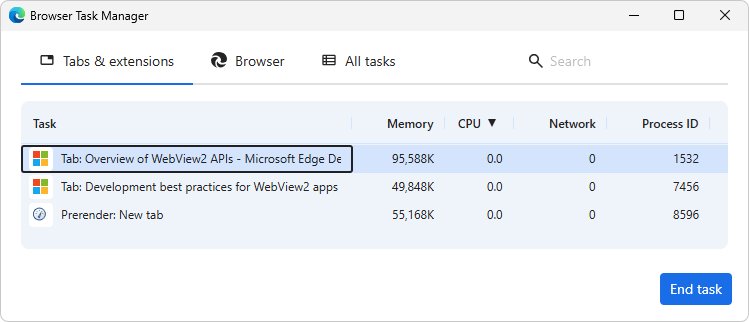
The fastest way to find what msedge.exe is doing
Windows Task Manager only shows a stack of msedge.exe entries. Edge's own Browser Task Manager names each one, so start there.
- Open Microsoft Edge and press Shift + Esc. You can also select Settings and more (…) > More tools > Browser Task Manager.
- Select the CPU column header to sort by processor use, then the Memory column to sort by memory.
- Read the top row. It names the tab, extension, subframe or utility process responsible.
- Select that row and select End process.
- Watch the load in Windows Task Manager (Ctrl + Shift + Esc) for a few minutes and check it has dropped.
- If the culprit was an extension or keeps coming back, work through the fixes below in order.
After each step, give Edge several minutes and check whether the load drops before moving to the next fix.
What is msedge.exe?
msedge.exe is the executable that starts Microsoft Edge, the Chromium-based browser built into Windows 11 and Windows 10. The same file runs every Edge window, tab and helper process.
| Fact | Detail |
|---|---|
| Product | Microsoft Edge browser, published by Microsoft |
| Default location | C:\Program Files (x86)\Microsoft\Edge\Application\msedge.exe |
| Your browsing data | Profiles live in %LOCALAPPDATA%\Microsoft\Edge\User Data, with the main profile in a folder named Default |
| Why it runs with Edge closed | Startup boost, background extensions and apps, or Windows restarting apps at sign-in |
| Related but different | msedgewebview2.exe is the WebView2 Runtime that other apps use to show web content, not the browser |
| Can it be removed | Only in the European Economic Area; elsewhere Microsoft treats Edge as a Windows component |
Why are there multiple msedge.exe processes in Task Manager?
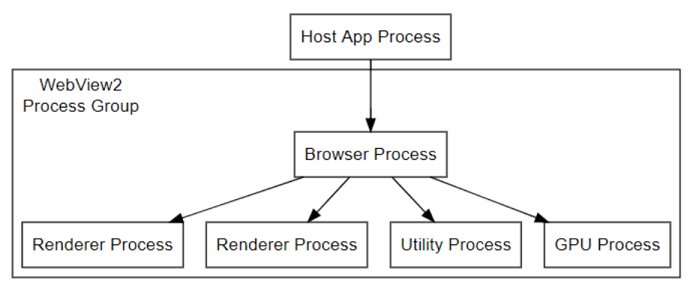
Edge splits its work into separate processes so one crashing page does not take down the whole browser. Microsoft's WebView2 documentation describes the same model: one browser process, one or more renderer processes, and helpers such as the GPU and audio service processes. Windows Task Manager labels every one of them msedge.exe.
| Process type | What it does | How many to expect |
|---|---|---|
| Browser | The main process that owns the window, tabs and your profile | One per running Edge |
| Tab (renderer) | Draws a web page and runs its scripts | Roughly one per open site, more with embedded content from other sites |
| Subframe | Content from another site embedded inside a page, such as an ad or video player | Varies with the pages you open |
| Extension | Runs one installed extension | One per enabled extension that is active |
| GPU process | Handles graphics and video acceleration | Usually one |
| Utility processes | Network, audio, storage and similar services | Several, depending on what the pages use |
A long list of msedge.exe entries with only a few tabs open is expected. If the entries are named msedgewebview2.exe instead, another app owns them; see How to Fix the Microsoft Edge WebView2 Process Consuming Your Windows Memory.
Is msedge.exe safe?
Yes, when the file sits in Edge's installation folder and carries a valid Microsoft signature. Malware sometimes borrows the names of well-known processes, so the name alone proves nothing. Match what you see to a row.
| What you see | What it means | What to do |
|---|---|---|
The file path is C:\Program Files (x86)\Microsoft\Edge\Application\msedge.exe |
The genuine Edge browser | Nothing; fix any high usage with the steps below |
msedge.exe runs from AppData, Temp, Downloads or System32 |
Not where Edge installs; treat it as suspicious | Run the malware checks in the scan section |
| The signature check below returns anything other than Valid | The file is unsigned or altered | Scan with Microsoft Defender and repair Edge |
| Edge opens pages, changes your search engine or shows ads you did not choose | An unwanted extension or changed settings, sometimes called a browser hijacker | Remove unknown extensions, reset Edge settings, and scan |
| High CPU while every Edge window is closed | Usually startup boost or background extensions, not malware | Turn those off as shown in the disk section |
How to check if msedge.exe is genuine
Two built-in PowerShell cmdlets settle it: Get-Process shows where each running msedge.exe was started from, and Get-AuthenticodeSignature reads the file's digital signature.
- Open Windows PowerShell from the Start menu while Edge is running.
- Run
Get-Process -Name msedge -FileVersionInfoto list the file behind every msedge.exe process. - Read the FileName column. Every row should show
C:\Program Files (x86)\Microsoft\Edge\Application\msedge.exe. - Run
Get-AuthenticodeSignature -FilePath "C:\Program Files (x86)\Microsoft\Edge\Application\msedge.exe", replacing the path with any different one the previous step showed. - Read the Status column. Valid means the file is correctly signed; any other status on a file named msedge.exe is a reason to run the malware scan below.
Why does msedge.exe use high CPU or disk?
Microsoft lists the symptoms as msedge.exe processes using a large share of CPU while idle, memory far above what a few tabs need, a sluggish system and slow tab switching. Each has a small set of causes.
| Cause | Typical sign | Fix in this guide |
|---|---|---|
| One heavy page or web app | A single Tab row tops the Browser Task Manager CPU column | End or sleep that tab |
| A faulty or heavy extension | An Extension row with steady CPU use | Turn extensions off one at a time |
| Too many background tabs | Memory climbs as tabs pile up | Sleeping tabs |
| Software rendering | Video, WebGL or canvas pages drive CPU high | Check hardware acceleration and the GPU driver |
| Edge running after you close it | msedge.exe in Task Manager with no Edge window | Startup boost and background apps settings |
| A large or damaged cache | Steady disk activity from msedge.exe while browsing | Clear cached images and files |
| Sync catching up | Disk and network use after sign-in or on a new PC | Pause sync to test |
| Damaged profile or installation | Problems persist after the fixes above | Reset, new profile, then repair |
First: identify what inside Edge is using resources
Microsoft's own troubleshooting order starts here, and after each fix it says to watch Edge for several minutes before moving on. Two built-in tools show where the load comes from.
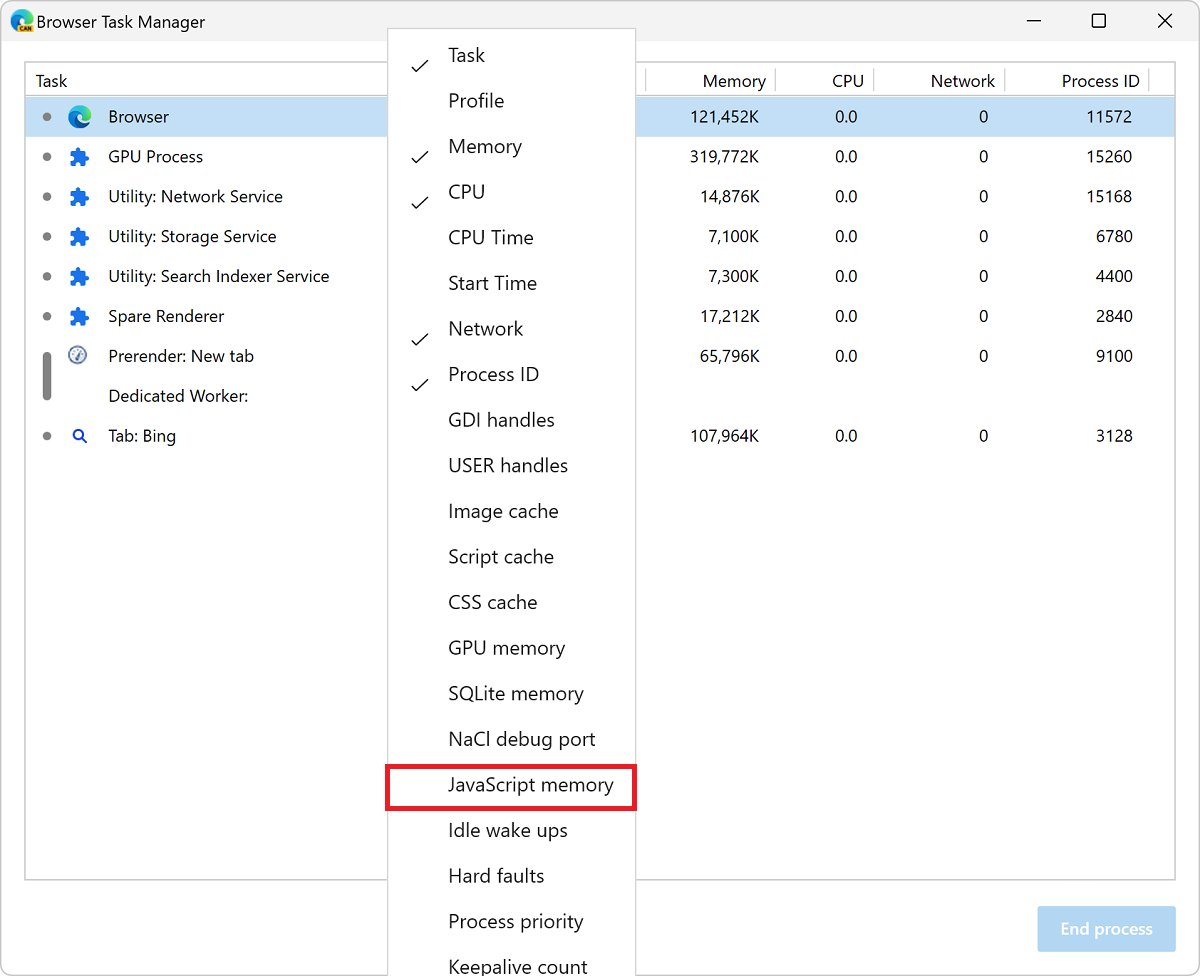
- Press Shift + Esc in Edge to open the Browser Task Manager.
- Sort by CPU, then by Memory, and note the top two or three rows by name.
- Right-click a column header and select JavaScript memory if you want to see whether a page's script memory keeps growing.
- Select Settings and more (…) > More tools > Performance to open the performance detector.
- Check Tabs performance status. Healthy means background tabs are not the problem.
- If tabs are listed, select the three dots next to one and choose Sleep tab or Close tab.
- Match what you found to the cause table above and go to that fix.
Fix high CPU usage from msedge.exe
Work down the list and stop as soon as CPU use stays low. The first steps fix most cases.
- Close the heavy tabs you found, then close every Edge window and reopen Edge.
- Go to
edge://extensions/, turn off every extension, and watch CPU use. If it drops, turn extensions back on one at a time to find the one at fault, and leave that one off or remove it. - Select Settings and more (…) > Settings > System and performance > Performance and make sure Automatically put tabs to sleep is On. Pick a shorter time under Put inactive tabs to sleep after a set time.
- On the same page, turn on Enable energy saver to cut background tab activity. Edge's energy saver was formerly called efficiency mode.
- Go to
edge://gpuand check Graphics Feature Status. If items show software-only rendering, openedge://settings/systemand turn on Use graphics acceleration when available. - Update the graphics driver: select Start > Settings > Windows Update > Advanced options > Optional updates and install any display driver offered.
- Update Edge: select Settings and more (…) > Help and feedback > About Microsoft Edge, let it install any update, then select Restart.
If turning graphics acceleration off fixes a blank or flickering window instead, Microsoft advises updating the GPU driver and then turning it back on. For background detail on how sleeping tabs free CPU, Microsoft says they build on Chromium's freezing, which pauses a tab's script timers.
Fix high disk usage from msedge.exe
Disk activity from msedge.exe usually comes from the cache, sync, or Edge keeping processes alive after you close it. These steps address each.
- Select Settings and more (…) > Settings > Privacy, search, and services, then Clear browsing data > Choose what to clear.
- Under Time range, choose the widest range, tick Cached images and files, leave passwords and history unticked if you want to keep them, and select Clear now.
- Open
edge://settings/system/manageSystemand turn off Startup boost, which keeps core Edge processes running in the background when the browser is closed. - On
edge://settings/system, turn off Continue running background extensions and apps when Microsoft Edge is closed. - To test sync, go to Settings > Profiles > Sync and select Turn off sync. Turn it back on once you know whether it was the cause.
- Close Edge, open Task Manager, and confirm no msedge.exe entries remain.
- If the drive itself is nearly full, select Start > Settings > System > Storage and run Storage Sense.
Clearing the cache makes the next visit to each site slower while Edge downloads its files again. Clearing browsing data with sync on removes synced items on every device, which is why Microsoft suggests turning sync off first if you only want to clear this PC.
Repair or reset Microsoft Edge
Use these when the fixes above do not hold. Resetting keeps bookmarks, history and saved passwords, but resets pinned tabs, the startup page, the search engine and turns off extensions.
- Reset settings: go to
edge://settings/reset, select Restore settings to their default values, and confirm. - Test a fresh profile: select the Profile icon in the upper-right corner > Set up a new profile, choose Personal or Work or school, select Start without your data, then Confirm and start browsing.
- If the new profile runs normally, the old profile is the cause. Keep the new one and sign in to sync your data, or rebuild the old one in the next step.
- Rebuild the main profile: close Edge, open
%LOCALAPPDATA%\Microsoft\Edge\User Datain File Explorer, and rename Default to Default.old. - Start Edge to create a clean Default profile, then copy anything you need, such as the Bookmarks file, from Default.old.
- Repair Edge: select Start > Settings > Apps > Installed apps, find Microsoft Edge, and select Modify > Repair.
- Restart the PC once the repair finishes.
Scan for malware pretending to be msedge.exe
Malware uses CPU and disk too. Scan when the file sits outside Edge's folder, the signature check fails, or Edge behaves in ways you did not set up.
- Run
Get-Process -Name msedge -FileVersionInfoin PowerShell to confirm where each msedge.exe runs from. - Select Start > Settings > Privacy & security > Windows Security > Virus & threat protection.
- Select Quick scan and let it finish. Remove anything it finds and restart if asked.
- Check for hijacker signs: an unfamiliar search engine or startup page, pages you did not open, or extensions you did not add at
edge://extensions/. - Remove unknown extensions, then reset Edge settings as shown in the previous section.
- Select Start > Settings > Apps > Installed apps and uninstall any program you do not recognise.
Use Windows tools to diagnose persistent high usage
If Edge is clean and still slow, look at Windows itself. Microsoft recommends running DISM before System File Checker because DISM provides the files SFC uses for repairs.
- Press Ctrl + Shift + Esc, open the Processes tab, and sort by CPU and then Disk to confirm Microsoft Edge is really the top consumer.
- Open the Details tab to see each msedge.exe entry separately with its own CPU and memory figures.
- Type
cmdin the search box, right-click Command Prompt, and select Run as administrator. - Run
DISM.exe /Online /Cleanup-image /Restorehealthand wait for it to finish. - Run
sfc /scannow. Windows Resource Protection did not find any integrity violations means system files are fine. - Select Start > Settings > Windows Update > Check for updates and install everything offered, including optional driver updates.
- Restart the PC and retest Edge.
Can I disable or uninstall msedge.exe?
You can stop it running, but outside the European Economic Area you cannot uninstall it. Microsoft treats Edge as an essential Windows component there, and apps such as Microsoft 365 still open some web links in it.
Leave msedge.exe installed and stop it running in the background instead: turn off Startup boost, turn off Continue running background extensions and apps when Microsoft Edge is closed, and set another browser as your default if you prefer one. Blocking the file breaks Windows and Microsoft 365 features that still open web content in Edge. With background running turned off, msedge.exe only uses resources while an Edge window is open. In the EEA, Edge can be removed from Installed apps; see How to Uninstall/Remove Microsoft Edge from Your Computer for the full process.
How to check msedge.exe usage has come down
A low reading straight after a restart proves little. Check Edge the way you normally use it.
- Open your usual tabs and browse normally for 10 to 15 minutes.
- Press Shift + Esc and confirm no single row holds a high CPU figure while you are idle.
- Open Settings and more (…) > More tools > Performance and check that Tabs performance status reads Healthy.
- Close every Edge window, open Task Manager, and confirm no msedge.exe entries remain.
- Restart the PC, sign in, and check that msedge.exe does not appear until you open Edge.
Fix msedge.exe problems that keep coming back
msedge.exe starts with Windows even though Edge is closed
Startup boost, background apps, or Windows restarting Edge from the last session.
- Turn off Startup boost at
edge://settings/system/manageSystem. - Turn off Continue running background extensions and apps when Microsoft Edge is closed at
edge://settings/system. - Select Start > Settings > Accounts > Sign-in options and turn off Automatically save my restartable apps and restart them when I sign in.
- Restart and check Task Manager.
msedge.exe crashes, or appears in Task Manager but no window opens
Leftover background processes, a graphics driver problem, a damaged profile or a broken installation.
- In Task Manager, end every msedge.exe task and start Edge again.
- If Edge opens long enough, turn off Use graphics acceleration when available at
edge://settings/system, restart Edge, and update the GPU driver if that helped. - Test a temporary profile by running
"C:\Program Files (x86)\Microsoft\Edge\Application\msedge.exe" --user-data-dir="%TEMP%\edge-test-profile"in Command Prompt. - If Edge works with the test profile, rename the Default profile folder as shown in the repair section; otherwise repair Edge from Installed apps.
High CPU returns a few days after the fix
An extension updated itself, or a site you keep open is heavy.
- Press Shift + Esc and sort by CPU to see which row is back.
- Turn off that extension at
edge://extensions/, or sleep or close that tab. - Add the site to sleeping tabs only if it does not need to stay active; remove it from Always keep these sites active if it is listed there.
Security scan flags a file named msedge.exe
A malicious file is using Edge's name from another folder.
- Let Microsoft Defender quarantine or remove it.
- Run the signature check on the real Edge file to confirm it is still Valid.
- Reset Edge settings and remove extensions you did not add.
- Repair Edge from Installed apps if Edge still misbehaves.
Quick checklist: best fixes for msedge.exe high CPU or disk
Stop when usage stays level. The top rows fix most cases.
| Fix | Where | Solves |
|---|---|---|
| Find the busy process | Shift + Esc in Edge | Tells you which tab or extension to deal with |
| Turn off extensions | edge://extensions/ |
A faulty or heavy extension |
| Sleeping tabs and energy saver | System and performance > Performance | Background tabs eating CPU and memory |
| Hardware acceleration and GPU driver | edge://gpu, Optional updates |
Software rendering driving CPU up |
| Clear the cache | Privacy, search, and services > Clear browsing data | Constant disk activity |
| Startup boost and background apps off | edge://settings/system |
msedge.exe running with Edge closed |
| Reset, new profile, repair | edge://settings/reset, Installed apps > Modify |
Damaged settings, profile or installation |
| Check location, signature, scan | Get-Process, Get-AuthenticodeSignature, Windows Security |
A fake msedge.exe |
Frequently Asked Questions
Is msedge.exe a virus?
No. msedge.exe is the Microsoft Edge browser, made by Microsoft. It is only a concern when a file with that name runs from somewhere other than C:\Program Files (x86)\Microsoft\Edge\Application or fails a signature check, which suggests malware borrowing the name. Run a Quick scan in Windows Security if so.
Where is msedge.exe located?
The default location is C:\Program Files (x86)\Microsoft\Edge\Application\msedge.exe. To check a running copy, run Get-Process -Name msedge -FileVersionInfo in PowerShell and read the FileName column. Your Edge profile data is stored separately, in %LOCALAPPDATA%\Microsoft\Edge\User Data.
Is msedge.exe by Microsoft Corporation?
Yes. msedge.exe is Microsoft's Edge browser. A genuine copy sits in Edge's installation folder and its Authenticode signature status is Valid when checked with PowerShell's Get-AuthenticodeSignature cmdlet. A copy elsewhere or with an invalid signature is not the real browser.
How do I fix msedge.exe high CPU usage?
Press Shift + Esc in Edge, sort by CPU, and end the process at the top. Then turn off extensions at edge://extensions/, keep sleeping tabs on, check hardware acceleration at edge://gpu, and update Edge. Reset or repair Edge if the problem persists.
How do I stop msedge.exe from running?
Close all Edge windows, then stop it relaunching in the background: turn off Startup boost at edge://settings/system/manageSystem and turn off Continue running background extensions and apps when Microsoft Edge is closed. Any remaining msedge.exe tasks can then be ended in Task Manager.
How do I disable msedge.exe?
You cannot disable the file itself without breaking Edge, and outside the EEA Edge cannot be uninstalled. Stop it running in the background with the startup boost and background apps settings, and set another browser as default if you prefer. It then runs only when Edge is open.
Does msedge.exe need to run at startup?
No. It starts at sign-in because of startup boost, background extensions, or Windows restoring apps from your last session. Turn off Startup boost, the background apps setting, and Automatically save my restartable apps and restart them when I sign in under Accounts > Sign-in options.
Why does msedge.exe crash?
Microsoft names four common causes: leftover background processes, graphics driver problems, a corrupted user profile, and a broken installation. End all msedge.exe tasks, turn off graphics acceleration to test, try a new profile, and repair Edge from Settings > Apps > Installed apps.
Why are there so many msedge.exe processes?
Edge runs a separate process for the browser, each site you open, each active extension, graphics, and services such as audio and networking. Windows Task Manager labels all of them msedge.exe. Press Shift + Esc in Edge to see what each one is.


What is Conhost.exe in Windows and is it safe? - Techdows
[…] Windows processes raise the same question, such as the msedge.exe browser process and the mstsc.exe Remote Desktop […]
How to Fix 100% Disk Usage issue on Windows 10 or 11 [18 Ways] - Techdows
[…] For Microsoft Edge specifically, see What is msedge.exe? Is it Safe? How do I fix high Disk or CPU usage?. […]
Why is my RAM usage so high when nothing is running? - Techdows
[…] msedge.exe or other browser […]