To enable dark mode in Microsoft Edge, open Settings and more (…) > Settings > Appearance and select Dark under Overall appearance.
This guide also covers making Edge follow the Windows theme, switching it automatically by time of day, turning it off again, and what to do when websites stay bright.

Enable Dark theme on Microsoft Edge browser
The dark theme swaps the bright default background of the Edge interface for a darker color, which is easier on the eyes in low light. The change applies straight away and needs no restart.
- Open Microsoft Edge on your computer.
- Select Settings and more (the three dots at the top right of the window).
- Select Settings.
- Select Appearance in the Settings menu on the left.
- In the Overall appearance section, select Dark.
The toolbar, tabs, menus, the new tab page and Edge's own settings pages turn dark as soon as you click. The setting stays in place after you close and reopen the browser.
Dark, Light or System default: which Edge theme to pick
The Overall appearance section offers three choices. Pick the one that matches how you want Edge to behave over the day.
| Your situation | Choose this | Why |
|---|---|---|
| You want Edge dark all the time, whatever Windows uses | Dark | Edge stays dark even when the rest of Windows is light |
| You already run Windows in dark mode | System default | Edge matches the Windows mode, so one switch changes both |
| You want Edge to go dark in the evening and light in the day | System default plus a Windows schedule | Edge follows the Windows mode as it changes |
| You prefer a bright interface or need to undo dark mode | Light | Restores the default bright background |
Make Microsoft Edge follow the Windows dark mode setting
With System default selected, Edge takes its mode from Windows. Switch Windows to dark and Edge follows without a separate change. If you want the whole desktop dark too, you can turn on Windows 11 dark mode with the same steps.
- In Edge, open Settings and more > Settings > Appearance.
- Under Overall appearance, select System default.
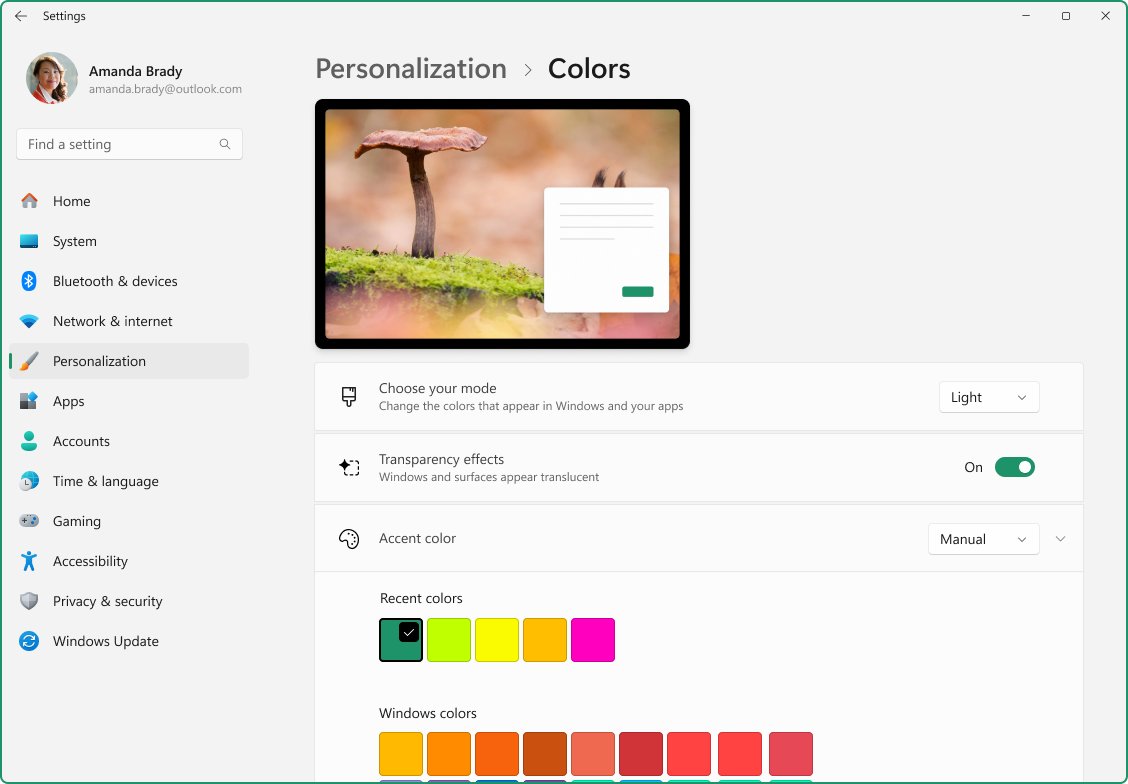
- Open the Windows Settings app.
- Select Personalization > Colors.
- Under Choose your mode, select Dark.
- Switch back to Edge and confirm the interface is now dark.
The Windows Dark mode also darkens the Start menu, taskbar and action center. If you want dark apps but a light taskbar, choose Custom under Choose your mode and set apps to dark. These steps are the same on Windows 11 and Windows 10.
Automatically change Microsoft Edge theme based on time
Edge has no schedule of its own, but it can follow Windows when Windows changes mode. Microsoft's free PowerToys suite includes Light Switch, a utility that switches Windows between light and dark modes by time of day.
Set Edge to System default first, then configure Light Switch.
- In Edge, go to Settings and more > Settings > Appearance and select System default.
- Install Microsoft PowerToys if it is not on your PC, then open PowerToys Settings.
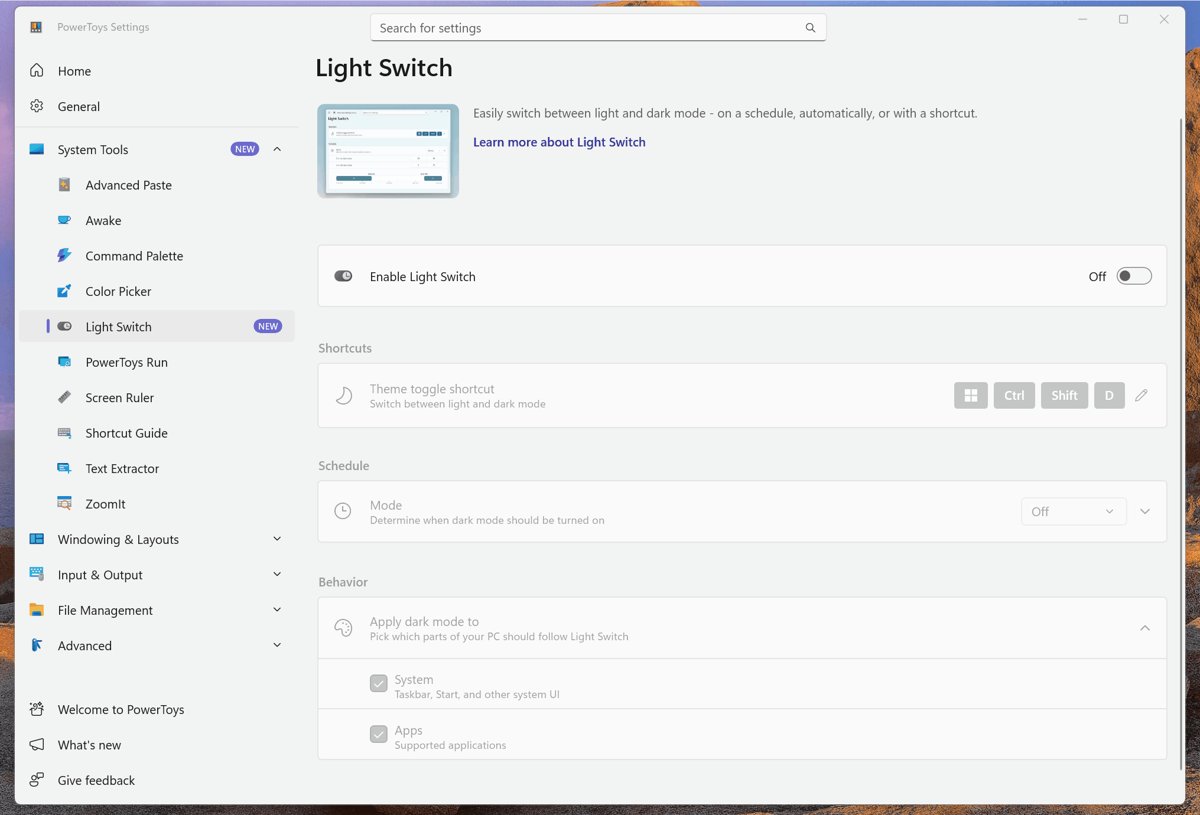
- Select Light Switch and turn on Enable Light Switch.
- Under Schedule Mode, choose Sunset to Sunrise, Fixed hours or Follow Night Light.
- For Fixed hours, set Turn on dark mode and Turn on light mode to the times you want.
- Under Apply dark mode to, make sure Apps is selected so Edge changes with the schedule.
- Optionally set a Theme toggle shortcut to flip modes by hand between scheduled changes.
Sunset to Sunrise needs location services turned on, or coordinates entered in the Location setting. Offset in minutes moves each switch earlier or later than sunrise and sunset.
Check that dark mode is on in Microsoft Edge
- Open a new tab and check that the tab strip and address bar are dark.
- Open Settings and more and check that the menu has a dark background.
- Go to Settings > Appearance and confirm Dark (or System default) is selected under Overall appearance.
- If you chose System default, open Windows Settings > Personalization > Colors and confirm the mode is Dark.
A website that still shows a white page does not mean the setting failed. The browser theme changes Edge itself; each site decides its own colors, as the next section explains.
Does Edge dark mode make websites dark?
Partly. The Edge theme always darkens the browser frame and Edge's own pages. A website turns dark only if its designers built a dark version that reacts to your dark mode setting through the CSS prefers-color-scheme media query.
| What you see | Turns dark with the Edge theme? | Reason |
|---|---|---|
| Tabs, address bar, toolbar and menus | Yes | Part of the browser interface |
| New tab page and Edge settings pages | Yes | Edge's own pages follow the theme |
| Websites with a built-in dark design | Yes, automatically | The site reads your light or dark preference and switches its colors |
| Websites without a dark design | No | The site has only one color scheme, so it stays light |
| Sites with their own theme switch (for example a web app's settings) | Depends on the site's own setting | The site's setting can override your browser preference |
For a site that offers its own dark option, such as YouTube dark mode or the dark theme for Google Search, turn it on in that site's settings. To restyle Edge beyond light and dark, you can also change the Edge background color and theme.
Preview a website in dark mode with Edge DevTools
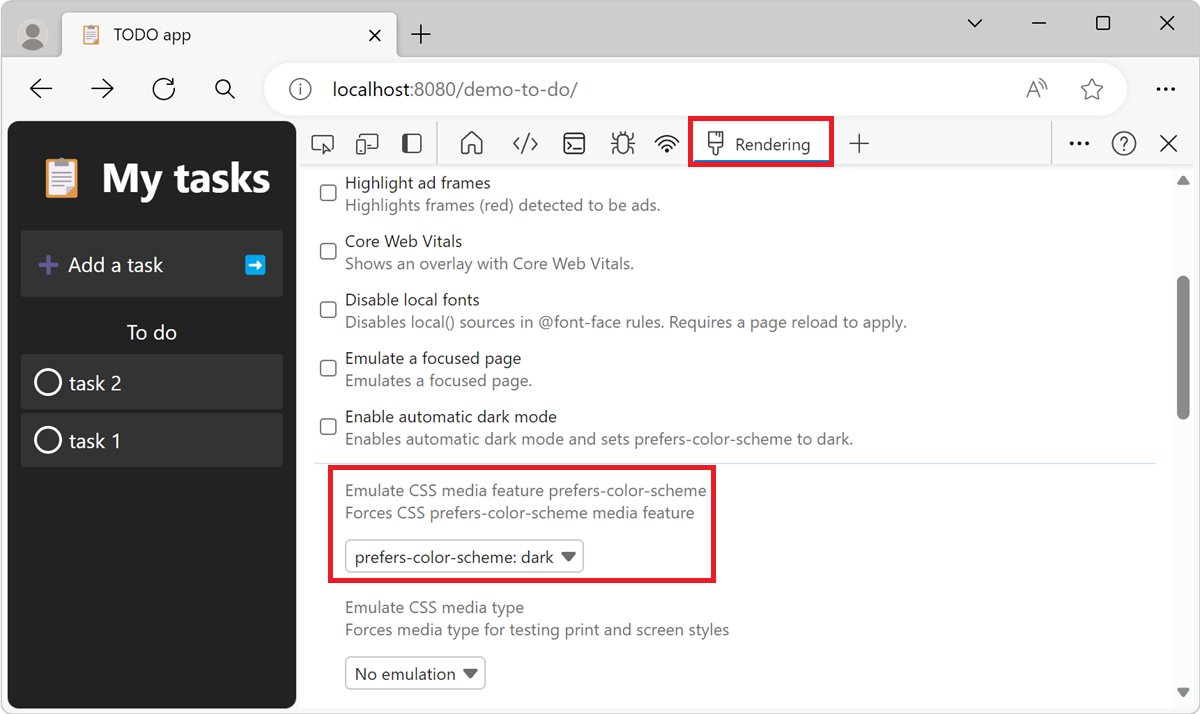
Web developers can check how a page looks in dark mode without changing the Windows or Edge setting. This uses the Rendering tool in Edge DevTools and only affects the tab you are inspecting.
- Right-click the webpage and select Inspect, or press Ctrl + Shift + I.
- In DevTools, select the Rendering tab. If it is not visible, click the More tools button.
- In the Emulate CSS media feature prefers-color-scheme list, select prefers-color-scheme: dark.
- Review the page as it renders for a reader who uses dark mode.
- To go back, select No emulation in the same list.
From the Command Menu (Ctrl + Shift + P while DevTools has focus), typing dark and choosing Emulate CSS prefers-color-scheme: dark does the same thing. Choose a Rendering command, not an Appearance one, since Appearance commands only recolor DevTools itself.
How to disable dark theme in Microsoft Edge
- Open Settings and more > Settings in Edge.
- Select Appearance.
- Under Overall appearance, select Light to keep Edge bright all the time.
- If Edge was on System default and Windows is dark, either pick Light here or change Windows Settings > Personalization > Colors > Choose your mode to Light.
- If PowerToys Light Switch is running, turn off Enable Light Switch or set Schedule Mode to Off so the schedule does not switch Edge back to dark.

Edge dark mode not working: fixes by symptom
The Appearance page looks different or an option is missing
Microsoft rolls out Edge design changes gradually, so labels and options can differ between versions.
- Update Microsoft Edge to the latest version, since the Appearance page changes between releases.
- Restart Edge when the update finishes.
- Return to Settings > Appearance and look for the Overall appearance or theme choices again.
- If an option is still missing, press Shift + Alt + I to send feedback to Microsoft from Edge on Windows.
Edge stays light after selecting System default
System default copies the Windows mode, and Windows is still set to light for apps.
- Open Windows Settings > Personalization > Colors.
- Under Choose your mode, select Dark, or choose Custom and set apps to dark.
- Return to Edge, or select Dark directly under Overall appearance to stop depending on Windows.
Websites stay white with the dark theme on
The site has no dark color scheme, so the browser preference has nothing to switch to.
- Look for a theme or appearance setting on the site itself and choose its dark option.
- Check that Edge or Windows is actually in dark mode, since sites read that preference.
- Accept that sites without a dark design stay light; the Edge theme cannot recolor them.
Microsoft Edge dark mode FAQ
How do I enable dark mode on Microsoft Edge?
Open Edge, select Settings and more (…) > Settings > Appearance, and choose Dark under Overall appearance. The tabs, toolbar, menus and Edge's own pages turn dark immediately, and the choice stays after you restart the browser.
What is dark theme mode?
Dark theme mode replaces the bright default background of an app with a darker color. It is easier on the eyes in low-light rooms and suits people who prefer a less bright screen. On OLED displays, dark themes can also help battery life.
How do I turn on Windows dark theme?
Open the Windows Settings app, select Personalization > Colors, and choose Dark under Choose your mode. Dark mode also applies to the Start menu, taskbar and action center, and Edge follows it when its appearance is set to System default.
How do I set dark theme in Windows for apps only?
Go to Settings > Personalization > Colors and pick Custom under Choose your mode. Custom lets you combine light and dark, so apps such as Edge can be dark while the taskbar and Start menu stay light.
How do I disable dark theme in Edge?
Open Settings and more > Settings > Appearance and select Light under Overall appearance. If Edge is on System default, it will stay dark while Windows is dark, so choose Light in Edge or switch Windows back to light mode.
How do I change the Edge theme to dark mode automatically at night?
Set Edge to System default, then use Microsoft PowerToys Light Switch to change Windows between light and dark by schedule. It can follow sunset and sunrise, fixed hours or the Night Light schedule, and Edge switches along with Windows.
Why is a website still white in Edge dark mode?
The site has no dark color scheme. Edge darkens its own interface, but a webpage only turns dark if its designers built a dark version that responds to your light or dark preference. Check the site's own settings for a dark option.
Does Edge dark mode need a restart?
No. Selecting Dark under Settings > Appearance > Overall appearance changes Edge at once. A Windows mode change also reaches Edge straight away when Edge is set to System default.
Bottom line: should you use Dark or System default in Edge?
Select System default under Overall appearance if Windows already runs in dark mode or on a schedule, and Dark if you want Edge dark regardless of Windows. System default keeps Edge in step with every Windows mode change, including scheduled ones from PowerToys Light Switch, while Dark is a one-click fixed setting that never depends on anything else.