To fix Windows Update error 0x800f0922, disconnect any VPN, free up disk space, restart the PC and run the update again.
If the error returns, enable .NET Framework 3.5, repair system files with DISM and SFC, clear the update cache, or install the update manually from the Microsoft Update Catalog.
How to fix error 0x800f0922 in Windows 11 and Windows 10
Microsoft ties 0x800f0922 to two common causes on home PCs: a blocked connection to the Windows Update servers, and too little free space.
These steps clear both in a few minutes.
- Disconnect from any work network VPN and close the VPN app.
- Select Start > Settings > System > Storage and confirm the system drive has room for the update.
- Remove external drives, docks and other hardware you do not need, then restart the PC.
- Select Start > Settings > Windows Update > Check for updates.
- Select Download & install on the failed update, then restart when Windows asks.
If the update still rolls back, work through the methods below in order. Each one targets a separate cause.
What does error 0x800f0922 mean?
The code is CBS_E_INSTALLERS_FAILED. The servicing stack started installing the update, an installer step failed, and Windows rolled the change back.
| Cause Microsoft documents | Where it shows up | Fix in this article |
|---|---|---|
| No connection to the Windows Update servers, often through a VPN | Feature updates and monthly updates | Turn off VPN to fix 0x800f0922 |
| Not enough free disk space | Any update, mostly feature updates | Free up your disk space |
| System Reserved partition too full | Upgrades and some security updates | 0x800f0922 System Reserved partition fix |
| A .NET Framework or other component problem | Cumulative updates and .NET Framework 3.5 installs | Enable various .NET Frameworks on your PC |
| Corrupt system files or update cache | Any update | Fix corrupt Windows system files, clear your Windows Update cache |
| A corrupted SecureBootEncodeUEFI scheduled task | Windows Server cumulative updates | 0x800f0922 on Windows Server |
| Missing write permission on C:\Windows\System32\spp | Windows Server 2016 cumulative updates | 0x800f0922 on Windows Server |
Microsoft also listed 0x800f0922 as a possible result of KB5012170, the Secure Boot DBX security update released in August 2022.
Restart your Windows 10/11 PC
A pending restart from an earlier update can block the next install. Many updates only finish during a restart, so a full restart clears that queue first.
- Save your work and close all open apps.
- Select Start > Power.
- Select Update and restart if it appears, otherwise select Restart.
- Sign back in and select Start > Settings > Windows Update > Check for updates.
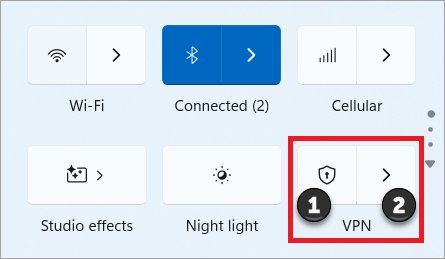
Turn off VPN to fix 0x800f0922
Microsoft says 0x800f0922 can mean the PC could not reach the Windows Update servers. A VPN connection to a work network is the case it names.
- Disconnect from the work network in your VPN app.
- Turn off or close the VPN software.
- Select Start > Settings > Network & Internet and confirm you are connected to Wi-Fi or Ethernet.
- Select Start > Settings > Time & language > Date & time and turn on Set time automatically and Set time zone automatically.
- Run Check for updates again in Settings > Windows Update.
Use Windows Update troubleshooter
The Windows Update troubleshooter runs diagnostics and repairs most Windows Update problems on its own. On Windows 11 it runs inside the Get Help app.
- Select Start > Settings > System.
- Select Troubleshoot, then Other troubleshooters.
- Find Windows Update and select Run.
- Follow the on-screen instructions until the troubleshooter finishes.
- Restart the PC and try the update again.
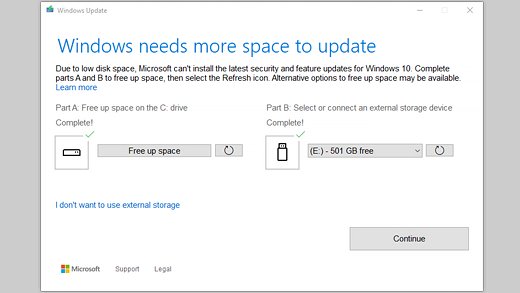
Free up your disk space
Microsoft lists insufficient disk space as the first cause of 0x800f0922. Quality updates typically need 2 GB to 3 GB free, and feature updates 6 GB to 11 GB or more.
An upgrade needs at least 16 GB free on 32-bit Windows and 20 GB on 64-bit Windows.
- Select Start > Settings > System > Storage.
- Turn on Storage Sense to remove temporary files automatically.
- Select Cleanup recommendations.
- Review each file category, select the items you want removed, then select Clean up.
- If space is still short, go to Settings > Windows Update and select Fix issues to install the update with an external drive that has at least 10 GB free.
Back up important files before you use an external drive for an update.
Scan your Windows 11/10 PC for viruses and malware
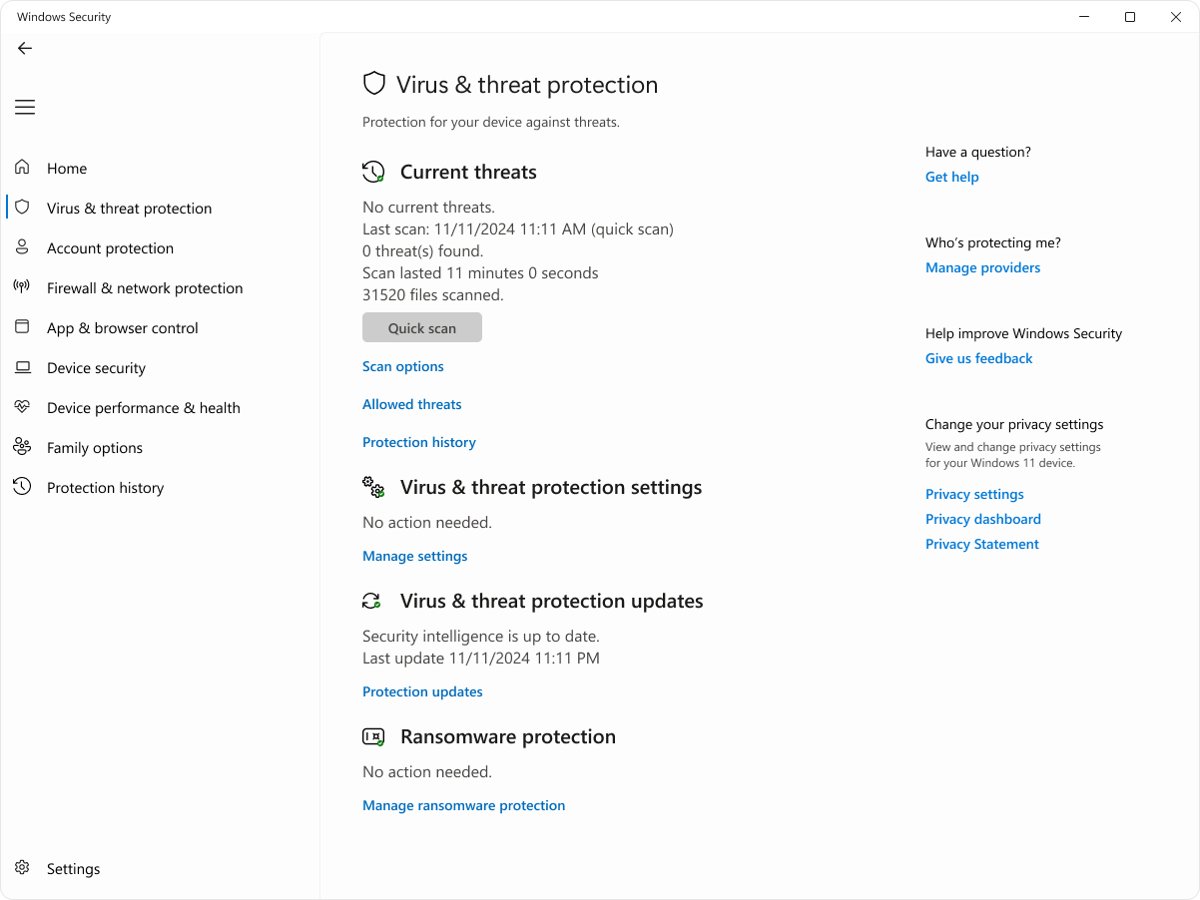
Malware that damages system files can make update installers fail. A full scan checks every file, and the offline scan runs before Windows loads, where persistent malware hides less easily.
- Open Windows Security from the Start menu.
- Select Virus & threat protection, then Scan options.
- Select Full scan and then Scan now.
- If you suspect persistent malware, return to Scan options and run Microsoft Defender Antivirus (offline scan).
- After the PC restarts, open Windows Security and select Protection history to see the results.
Save open files before the offline scan, because it restarts the PC into the Windows Recovery Environment.
Enable various .NET Frameworks on your PC
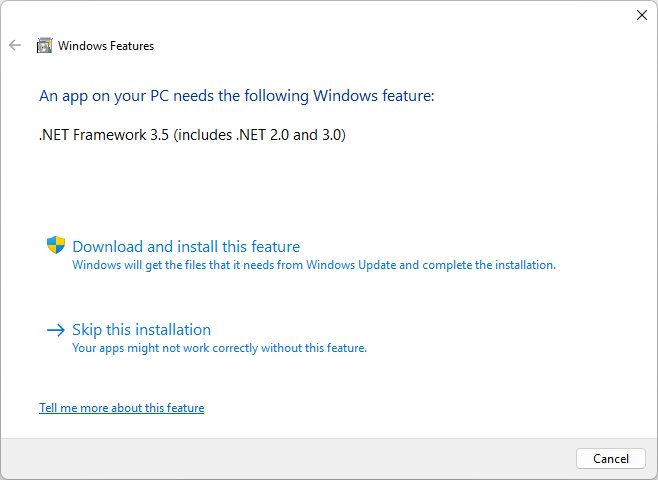
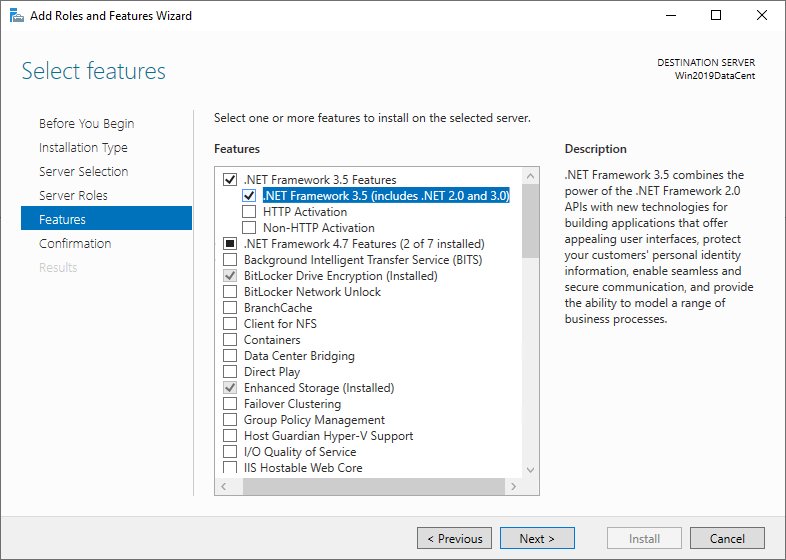
Microsoft links 0x800f0922 to .NET Framework component problems, and lists the code as a .NET Framework 3.5 install error. Turning on .NET Framework 3.5 from Windows Features often lets the update finish.
- Select Start and search for Windows Features.
- Open Turn Windows features on or off.
- Select the .NET Framework 3.5 (includes .NET 2.0 and 3.0) check box.
- Leave the Windows Communication Foundation child items cleared unless you need them.
- Select OK, let Windows download the files, and restart if prompted.
- Run Check for updates again.
On Windows 11 26H1 (build 28000) or later, Microsoft documents a separate .NET Framework 3.5 install route.
If the download fails, run DISM /Online /Enable-Feature /FeatureName:NetFx3 /All in an elevated Command Prompt. With matching installation media in drive D, add /LimitAccess /Source:d:\sources\sxs.
Fix corrupt Windows system files
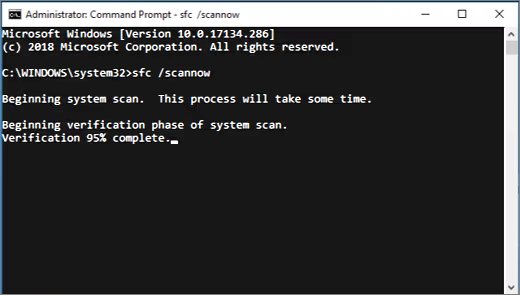
DISM repairs the Windows component store, and SFC then replaces damaged system files from it. Run DISM first, because SFC relies on the files it restores.
- Type cmd in the taskbar search box.
- Right-click Command Prompt and select Run as administrator, then select Yes.
- Run
DISM.exe /Online /Cleanup-image /Restorehealthand wait for it to finish. - Run
sfc /scannowand keep the window open until verification reaches 100%. - Restart the PC and install the update again.
"Windows Resource Protection did not find any integrity violations" means no system files are damaged.
If SFC reports it could not perform the operation, run it again in safe mode.
Clear your Windows Update cache
Corrupt files in the update cache can make the same update fail again and again. Clearing the cache forces Windows to download a fresh copy.
- Press Win + R, type
services.mscand press Enter. - Right-click Windows Update and select Stop.
- Open File Explorer and go to
C:\Windows\SoftwareDistribution. - Delete every file and folder inside that folder.
- Return to Services, right-click Windows Update and select Start.
- Run Check for updates again.
You can also rebuild the SoftwareDistribution cache from Command Prompt with the commands in the next section.
Reset Windows Update components with Command Prompt
This reset stops the update services, renames the cache folders and starts the services again. Run each line in an elevated Command Prompt and press Enter after each one.
net stop bits
net stop wuauserv
net stop cryptsvc
Ren %Systemroot%\SoftwareDistribution\DataStore DataStore.bak
Ren %Systemroot%\SoftwareDistribution\Download Download.bak
Ren %Systemroot%\System32\catroot2 catroot2.bak
net start bits
net start wuauserv
net start cryptsvc
The first three lines stop BITS, Windows Update and the Cryptographic service. The Ren lines rename the update database, the download cache and catroot2 so Windows builds new ones. The last three lines start the services again.
You should see: Each net start line reports that the service started, and Check for updates downloads the update again from scratch.
Manually download and install your Windows update
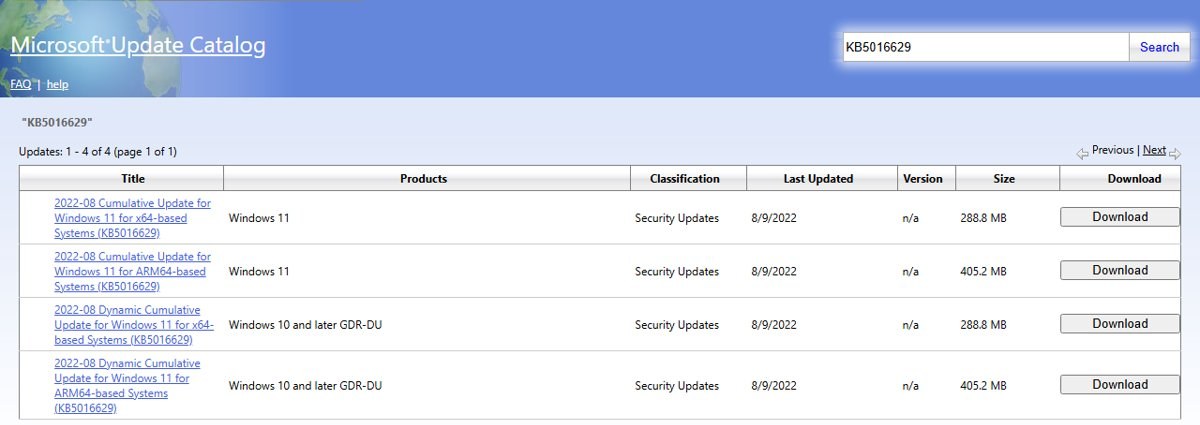
When Windows Update keeps rolling back, install the same update from the Microsoft Update Catalog. Microsoft aims the catalog at advanced users, so match the KB number and system type exactly.
- Select Start > Settings > Windows Update > Update history and note the KB number of the failed update.
- Open the Microsoft Update Catalog at catalog.update.microsoft.com in your browser.
- Type the KB number in the search box and press Enter.
- Pick the entry that matches your Windows version and system type, then select Download.
- Select the file link in the pop-up and save it.
- Double-click the downloaded file and follow the instructions, then restart.
0x800f0922 System Reserved partition fix
Microsoft says 0x800f0922 can mean the System Reserved partition lacks free space, and that third-party software can enlarge it. Windows has no built-in tool for resizing that partition. Try every other fix first, and back up the PC before any partition change, because a failed resize can leave Windows unable to start.
Find error 0x800f0922 in Windows Update history
Update history shows whether the update installed and which KB number failed with which code.
- Select Start > Settings > Windows Update > Update history.
- Expand Quality updates or Feature updates.
- Look for the update name with "Successfully installed" and today's date.
- If the entry still says it failed with 0x800f0922, note its KB number for a manual install.
- Select Windows Update and confirm the page says you're up to date.
0x800f0922 error on Windows Server and .NET Framework 3.5
"We couldn't complete the updates. Undoing changes"
Microsoft calls this a generic failure message that appears whenever an update fails.
- Open Settings > Windows Update > Update history.
- Find the failed update and read its error code.
- If the code is 0x800f0922, start with the VPN and disk space fixes above.
0x800f0922 when installing .NET Framework 3.5
Windows could not get the feature files from Windows Update.
- Confirm the PC is online and can reach Windows Update.
- Insert installation media that matches your Windows version.
- Run
DISM /Online /Enable-Feature /FeatureName:NetFx3 /All /LimitAccess /Source:d:\sources\sxs, replacing d: with the media's drive letter.
0x800f0922 on a Windows Server cumulative update
The SecureBootEncodeUEFI scheduled task is corrupted, and Task Scheduler logs event ID 146.
- Run
Dism /english /online /get-packages /format:table | findstr /i "Staged"to list staged packages. - Remove each staged package with
Dism /online /remove-package /PackageName:<package name>. - Run
reg query "HKLM\SOFTWARE\Microsoft\Windows NT\CurrentVersion\Schedule\TaskCache\Tree\Microsoft\Windows\PI\SecureBootEncodeUEFI" /v IDto get the task GUID. - Delete that GUID under TaskCache\Maintenance, Plain and Tasks, and the SecureBootEncodeUEFI Tree key, with
reg delete ... /f. - Install the update again.
0x800f0922 on a Windows Server 2016 cumulative update
License and product key tokens fail to update, so the update rolls back.
- Open the properties of
C:\Windows\System32\spp. - Give the User and Network Service accounts write permission on the Security tab.
- Install the cumulative update again.
Other rollback codes, such as 0x80073712 and 0x800f0993, have different causes and need their own fixes.
Windows Update error 0x800f0922 FAQ
What is error code 0x800f0922?
Error 0x800f0922 is CBS_E_INSTALLERS_FAILED. Windows started installing an update, one installer step failed, and the update was rolled back. Common causes are a VPN blocking the update servers, low disk space, a full System Reserved partition and .NET Framework problems.
Can a VPN cause error 0x800f0922?
Yes. Microsoft says the error can mean the PC could not connect to the Windows Update servers, and names a VPN connection to a work network. Disconnect from that network, turn off the VPN software and run the update again.
How much free space does a Windows update need?
Quality updates typically need 2 GB to 3 GB free, while feature updates need 6 GB to 11 GB or more. Upgrades need at least 16 GB on 32-bit Windows and 20 GB on 64-bit Windows, according to Microsoft.
Does .NET Framework 3.5 cause 0x800f0922?
It can. Microsoft lists 0x800F0922 among the errors seen when installing .NET Framework 3.5, and links the update error to .NET Framework component problems. Turn on .NET Framework 3.5 in Windows Features, or install it with DISM from matching media.
Is it safe to delete the SoftwareDistribution folder contents?
Yes, when the Windows Update service is stopped first. Microsoft's own reset steps delete or rename the folder, and Windows rebuilds it and downloads fresh update files the next time it checks for updates.
Can I install a failed update manually?
Yes. Note the KB number in Update history, search for it in the Microsoft Update Catalog, download the entry that matches your Windows version and system type, then double-click the file to install it.
Does 0x800f0922 mean my PC has a virus?
Not usually. The common causes are connection, disk space and component problems. Malware that damages system files can still break updates, so a full scan or a Microsoft Defender offline scan in Windows Security rules it out.
Where do I find the error code for a failed update?
Select Start, Settings, Windows Update, then Update history. The failed update is listed with its KB number and error code, which you need for a manual install or a support request.
Resolve the 0x800f0922 error to update Windows
Turn off any VPN and free disk space first, then enable .NET Framework 3.5, run DISM and SFC, and reset the update cache before installing the KB manually. Microsoft's documented causes of 0x800f0922 on home PCs are connection, space and component problems, and those fixes take minutes. Partition resizing carries real risk, so it comes last.
If a different error code appears after these fixes, note it in Update history, because each code points to a different cause.