To fix the “Couldn’t download – Virus scan failed” error in Microsoft Edge, update and repair the antivirus that scans your downloads, check Protection history in Windows Security, restart Windows, and retry the download with protection still switched on.
This guide explains what the message means, how to confirm the file is safe, how to rule out extensions, policies and the download folder, and what to collect when the error will not clear.
Quick fix for the Edge virus scan failed download error
The scan failed, so Edge does not know whether the file is clean. Most cases clear once the scanner itself is healthy again.
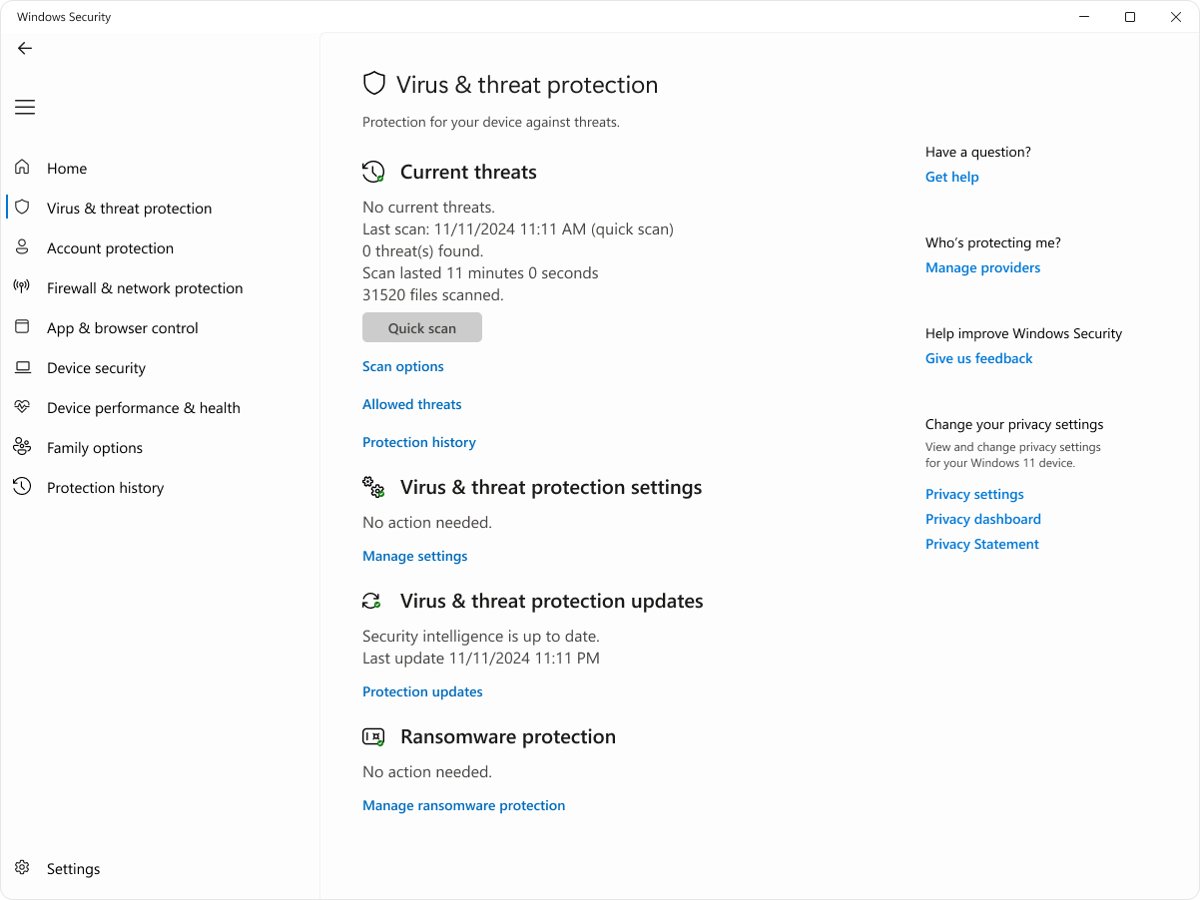
- Open Start, type Windows Security and open the app.
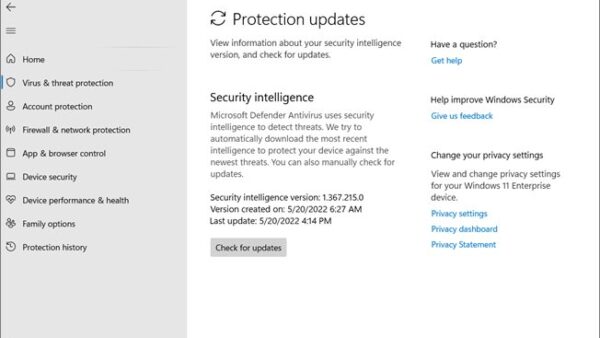
- Select Virus & threat protection > Protection updates > Check for updates and let the update finish.
- If you use a third-party antivirus, open it and run its own update as well.
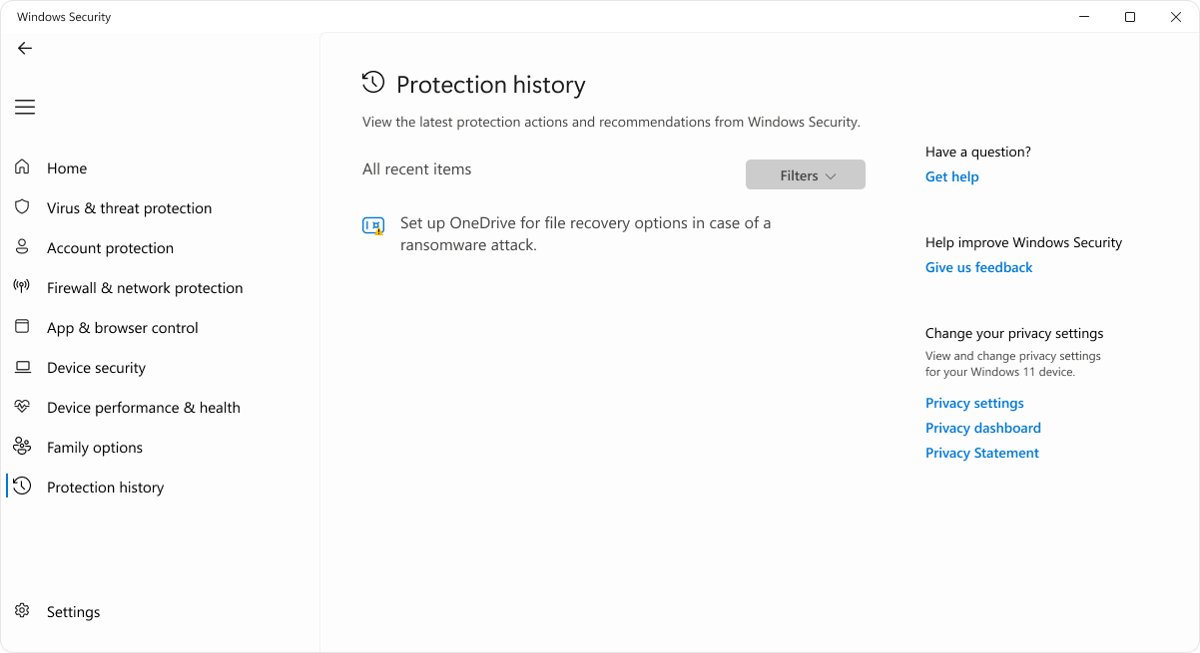
- Select Protection history in Windows Security and look for an entry from the time of the failed download.
- Restart Windows with Start > Power > Restart.
- Open Edge and download the file again from the publisher's official site.
If the download still fails, work through the sections below in order. Each one rules out a single cause.
What does “Couldn’t download: Virus scan failed” mean?
Edge hands each finished download to Windows, which asks the registered antivirus program to scan it. “Virus scan failed” means that scan did not return a clean result, so the file was not kept.
Google's help for the same Chromium engine says the scanning software might have blocked the file, and points to the antivirus, Windows Attachment Manager and Windows security settings. Microsoft's Attachment Manager policy states that if the antivirus program fails, the file is blocked.
| Message in Edge | What it means | Where to look first |
|---|---|---|
| Couldn't download – Virus scan failed | The antivirus scan errored or blocked the file without a clear verdict | Antivirus updates, Protection history, a restart |
| Couldn't download – Virus detected | Microsoft Defender or another antivirus flagged the file as malicious | Protection history or your antivirus quarantine |
| Couldn't download – Blocked | SmartScreen, security settings or Group Policy stopped the file | SmartScreen warning and edge://policy |
| Couldn't download – Insufficient permissions | Edge cannot write to the download folder | edge://settings/downloads > Location |
| Couldn't download – Disk full | The drive holding the download folder is out of space | Free space on that drive |
| Couldn't download – Network error | The connection dropped or timed out | Another network or a wired connection |
Which Edge virus scan failed fix matches your situation?
| What you notice | Start with | Why |
|---|---|---|
| Every download fails, in every browser | Antivirus updates, then a restart | The scanner Windows calls is broken, not Edge |
| Only Edge fails; Chrome or Firefox downloads the same file | InPrivate window, extensions, new profile | Something inside the Edge profile is interfering |
| Only one file or file type fails | Verify the download, then Protection history | The file itself may be flagged |
| Downloads work after a restart, then fail again | Antivirus repair or reinstall from the vendor | The scanning service is stopping or hanging |
| Work or school PC | edge://policy, then your IT team |
Download and Attachment Manager policies are set centrally |
| Arm-based PC with a third-party antivirus | Check the antivirus supports Windows on Arm | Antivirus drivers must be built for Arm |
Before changing security settings, verify the download
A failed scan is not proof the file is clean. Confirm where the file comes from before you change anything.
- Check the address bar shows the publisher's own domain, not a mirror or a file-sharing site.
- Download a different, small file from the same site; if that works, the problem is specific to the first file.
- Download a small file from a different, well-known site; if that also fails, the problem is the scanner, not the file.
- If the publisher lists a checksum or a signed installer, prefer that official copy.
- If you cannot confirm the source, stop and do not try to force the file through.
How do you check Windows Security Protection history?
Protection history keeps Microsoft Defender events for two weeks. Viewing threat details needs administrator rights.
- Open Windows Security from the Start menu.
- Select Protection history.
- Find an entry from the time of the failed download, such as Threat blocked, Threat quarantined or Remediation incomplete.
- Expand the entry to see the file name and the threat name.
- If the entry names a real threat, leave it quarantined or select Remove.
- If Remediation incomplete appears, follow the extra steps shown on the expanded card.
- If an Important service off card appears, select Turn on to restore the protection it names.
Select Allow on device or Restore only when you are sure the file is safe. Microsoft warns that allowing a real threat puts your data and device at risk, and a restored file is detected again.
Does Edge have a usable download folder?
Edge cannot finish a download into a folder that is missing, read-only or full.
- Type
edge://settings/downloadsin the address bar and press Enter. - Note the path under Location.
- Open that folder in File Explorer and confirm it exists.
- Create a test file in the folder to confirm you can write to it.
- Check the drive has free space.
- If the folder is on a network drive, confirm the share is reachable, or set Location back to your local Downloads folder.
Could an Edge extension or profile be causing the failure?
Download managers, security add-ons and damaged profiles can interfere with how Edge saves and hands off files.
- Press Ctrl + Shift + N to open an InPrivate window and retry the download there.
- If it works in InPrivate, type
edge://extensionsin a normal window and turn off one extension. - Retry the download, then repeat with the next extension until you find the one that causes the failure.
- If InPrivate also fails, select the profile icon in the upper-left corner of Edge and select Add profile > Add.
- Retry the download in the new profile.
- If the new profile works, keep using it or rebuild your old one; the fault is in that profile's data.
Is Microsoft Defender SmartScreen causing the error?
SmartScreen checks downloads against lists of reported malicious and rarely downloaded files. Its blocks normally read Blocked or say the file “has been blocked for your safety”, not “Virus scan failed”, but it is worth confirming it is working.
- Type
edge://settings/privacyin the address bar and press Enter. - Under Security, confirm Microsoft Defender SmartScreen is on, and leave it on.
- If a download shows a SmartScreen warning instead, select More actions (…) next to it in the downloads panel.
- Select Keep > Show more > Keep anyway only if you verified the file comes from its official publisher.
- If SmartScreen is managed by your organization, ask your administrator rather than overriding it.
How can you test third-party antivirus interference?
Microsoft recommends not running more than one real-time antivirus at once. Two scanners, or an expired one, are a common reason a scan errors out. Test the antivirus by repairing it, not by switching it off.
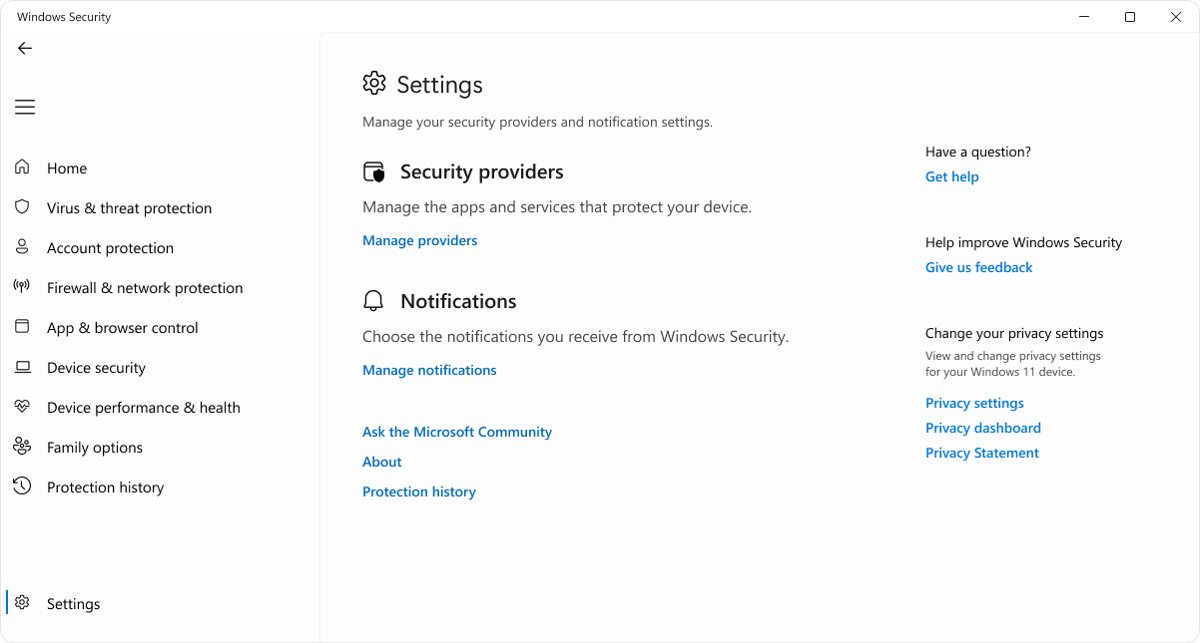
- Open Windows Security > Settings > Manage providers and note which app is listed under Antivirus.
- Open that antivirus and check its quarantine or activity log for the file you tried to download.
- Update the antivirus to its latest version and definitions.
- If two antivirus products are installed, or one is expired, uninstall the one you do not use from Settings > Apps > Installed apps.
- Restart Windows; Microsoft Defender Antivirus turns itself back on automatically when no other security product is active.
- If the third-party product still fails scans, reinstall it from the vendor's own site or contact the vendor's support.
- If the vendor's log shows a false positive, report it to the vendor through its own submission form.
What should you check in Edge policies?
Organizations can control downloads in Edge through policy, and those settings override what you see in Edge's privacy and security settings.
| Policy shown in edge://policy | What it does | What to do |
|---|---|---|
| DownloadRestrictions = 3 | Blocks all downloads | Ask your IT administrator; you cannot change it yourself |
| DownloadRestrictions = 1, 2 or 4 | Blocks malicious, dangerous or potentially unwanted downloads based on SmartScreen results | Use the official file or ask IT for an approved copy |
| DownloadDirectory | Forces the download folder | Ask IT to fix the path if that folder does not exist |
| ExemptFileTypeDownloadWarnings | Exempts listed file types from download warnings | Informational; it does not skip the antivirus scan |
Type edge://policy in the address bar to see every active policy. If the page lists none, policy is not the cause on a home PC.
Should you clear Edge’s cache or reset Edge?
Clearing the cache is harmless and worth one try. Resetting Edge is the last Edge-side step: it restores default settings and turns off extensions, but keeps favorites, history and saved passwords.
- Type
edge://settings/privacyin the address bar and press Enter. - Under Clear browsing data, select Choose what to clear.
- Set the time range to All time, select Cached images and files and select Clear now.
- Retry the download.
- If it still fails, type
edge://settings/resetand select Restore settings to their default values. - Confirm the reset and retry the download.
What does another browser tell you?
Chrome on Windows also relies on your antivirus and Windows Attachment Manager for downloads, so a second browser separates an Edge fault from a Windows fault.
| Result in another browser | What it means | Next step |
|---|---|---|
| Same file downloads fine | The fault is inside Edge | Extensions, profile, cache and reset sections above |
| Same scan or virus error | The antivirus or Windows is failing the scan | Antivirus repair, restart, Attachment Manager check |
| Download stalls or fails with a network error | The network, proxy or site is the cause | Try another network or a wired connection |
If Edge downloads stall before they start rather than failing at the end, the cause is usually different; Edge downloads that take forever to start have their own fixes.
What if downloads work only after restarting Windows?
If a restart clears the error for a while, the scanning service is stopping or hanging during the session. Microsoft's fix for a December 2023 download-scanning fault also needed a restart to reach affected PCs.
- Select Start > Settings > Windows Update > Check for updates and install everything offered.
- Update Microsoft Defender from Virus & threat protection > Protection updates > Check for updates.
- Update or reinstall any third-party antivirus from its vendor.
- Restart Windows from Start > Power > Restart rather than shutting down and starting up.
- Run a Microsoft Defender full scan to rule out malware interfering with security services.
- If the error returns after a few hours, note the time and collect the support details listed below.
Advanced users and IT administrators only: Attachment Manager registry troubleshooting
Windows Attachment Manager decides whether Windows calls the registered antivirus when a downloaded file is saved or opened. Microsoft documents that when this policy is on and the antivirus program fails, the file is blocked.
Use this section to read the setting, not to remove it. Turning the scan off hides a broken antivirus instead of fixing it, so the fix is always the antivirus.
- On Windows Pro, Enterprise or Education, press Windows key + R, type
gpedit.mscand press Enter. - Go to User Configuration > Administrative Templates > Windows Components > Attachment Manager.
- Check the state of Notify antivirus programs when opening attachments.
- To read the same setting in the registry, open
regeditand go toHKEY_CURRENT_USER\Software\Microsoft\Windows\CurrentVersion\Policies\Attachments. - Look for the
ScanWithAntiVirusvalue and note it without changing it. - If the policy is on, repair, update or replace the antivirus it calls, then retry the download.
- On a managed PC, send the value and the antivirus name to your IT team instead of editing anything.
Could this be a Snapdragon or Windows-on-Arm Edge issue?
Microsoft states that some third-party antivirus software cannot be installed on Windows 11 Arm-based PCs, and that drivers only work if they are built for Arm. An antivirus without proper Arm support can fail scans that Edge depends on.
- Open Windows Security > Settings > Manage providers and note the antivirus in use.
- Check the antivirus vendor's site to confirm the product supports Windows on Arm.
- If it does not, uninstall it from Settings > Apps > Installed apps and restart, so Windows Security takes over.
- Update Edge from
edge://settings/helpand install pending updates in Windows Update. - Retry the download.
How to check Edge downloads pass the virus scan again
- Download a small file from a well-known official site.
- Confirm it finishes in the downloads panel without a “Couldn’t download” line.
- Download the file that failed originally and confirm it completes.
- Open Windows Security > Protection history and confirm no new blocked or incomplete entries appeared.
- Confirm Virus & threat protection shows no actions needed and that SmartScreen is still on at
edge://settings/privacy.
Fix other Edge couldn't download errors
Couldn't download – Virus detected
Microsoft Defender or another antivirus identified the file as a threat.
- Open Windows Security > Protection history and read the threat name.
- Leave the file quarantined or select Remove unless you are certain it is a false positive.
- Download a fresh copy only from the publisher's official site.
- Report a suspected false positive to the antivirus vendor rather than allowing the file.
Couldn't download – Disk full
The drive that holds the download folder has run out of space.
- Check free space on that drive in File Explorer.
- Delete or move files you no longer need and empty the Recycle Bin.
- Retry the download.
Couldn't download – Insufficient permissions (no permission)
Edge cannot write to the download folder.
- Open
edge://settings/downloadsand note the Location path. - Try creating a test file in that folder.
- If you cannot, set Location back to your own Downloads folder.
- Retry the download.
Couldn't download – Network error (network issue)
The connection dropped or timed out during the download.
- Retry from a different network, such as a mobile hotspot.
- Use a wired connection for large files.
- Check proxy settings from
edge://settings/systemif your organization uses a proxy. - Try the same file in another browser to confirm it is the network.
Couldn't download – Blocked
SmartScreen, Windows security settings or an Edge policy stopped the file.
- Check
edge://policyfor DownloadRestrictions. - If SmartScreen shows a warning, use Keep anyway only for a file you verified.
- On a managed PC, ask your administrator for an approved copy.
When should you stop troubleshooting?
Stop and leave the file alone when Protection history names a real threat, when the source cannot be verified, or when the only remaining option would be switching protection off. A scanner that fails for one file but passes others is often reacting to that file. Forcing it through risks infecting the PC, and on a managed device it also breaks your organization's rules. Get the file from its official source, or hand the case to IT or the publisher.
What information should you collect for Microsoft or IT support?
| Detail | Where to find it |
|---|---|
| Edge version | edge://settings/help |
| Exact error message | Screenshot of the downloads panel line |
| Download URL | Address of the file, if it is not confidential |
| Active policies | edge://policy, then export the list |
| Network log | edge://net-export/: start logging, repeat the failed download, save the log |
| Windows version | Settings > System > About |
| Antivirus name and version | The antivirus app, or Windows Security > Settings > Manage providers |
| Matching Protection history entry | Windows Security > Protection history |
To send it to Microsoft from Edge, select Settings and more > Help and feedback > Send feedback and attach the details.
Edge virus scan failed error FAQ
How do I fix couldn't download virus scan failed in Edge?
Update Microsoft Defender from Windows Security > Virus & threat protection > Protection updates > Check for updates, update any third-party antivirus, check Protection history, and restart Windows. Then retry from the official site. If it still fails, test InPrivate, extensions and edge://policy.
Does “Virus scan failed” mean the Edge download is infected?
No. It means the antivirus scan did not complete with a clean result, so Edge did not keep the file. The file may be safe, or the scanner may have reacted to it. Check Protection history and your antivirus log before assuming either.
Should I disable Microsoft Defender or SmartScreen to fix the error?
No. Switching protection off lets an unchecked file onto the PC and does not fix the scanner that failed. Update, repair or reinstall the antivirus instead, and keep SmartScreen on. Use Keep anyway only for a SmartScreen warning on a file you verified.
Why does Edge fail every download while another browser works?
The fault is in Edge's profile, not Windows. Test the download in an InPrivate window with Ctrl + Shift + N, turn extensions off one at a time at edge://extensions, then try a new profile. Clearing the cache or resetting Edge at edge://settings/reset comes last.
What should I do if the error occurs on a work or school computer?
Contact your IT team. Work devices often set Edge download policies and Attachment Manager rules centrally, and you should not change them. Send IT the Edge version, the exact error, the file URL and an export of edge://policy.
How do I fix couldn't download virus detected in Edge?
Open Windows Security > Protection history to see which threat was found. Leave the file quarantined or remove it unless you are certain it is a false positive, then download a fresh copy from the publisher's official site and report suspected false positives to the antivirus vendor.
How do I fix couldn't download disk full in Edge?
Free space on the drive that holds your download folder by deleting or moving files and emptying the Recycle Bin. Check which folder Edge uses at edge://settings/downloads under Location, then retry the download.
How do I fix couldn't download no permission in Edge?
Edge cannot write to its download folder. Open edge://settings/downloads, check the Location path, and set it back to your own Downloads folder if you cannot create files there. On a work PC, a DownloadDirectory policy may set the folder.
How do I fix couldn't download network issue in Edge?
Retry on another network, such as a mobile hotspot, or use a wired connection for large files. If your organization uses a proxy, check it under edge://settings/system. If the same file fails in another browser too, the network or site is the cause.
Why does the virus scan failed error come back after a restart?
The antivirus service is hanging or stopping during the session, or two antivirus products are conflicting. Install Windows and antivirus updates, remove any second or expired antivirus, and reinstall the remaining one from its vendor if the error keeps returning.
Bottom line on the Edge virus scan failed error
Fix the scanner, not the download: update and repair your antivirus, check Protection history, restart Windows, and then rule out Edge extensions, profile and policies. “Virus scan failed” means Windows could not get a clean answer from the antivirus. Turning protection off would let the file in without fixing that, while a healthy scanner clears the error and keeps every later download checked.