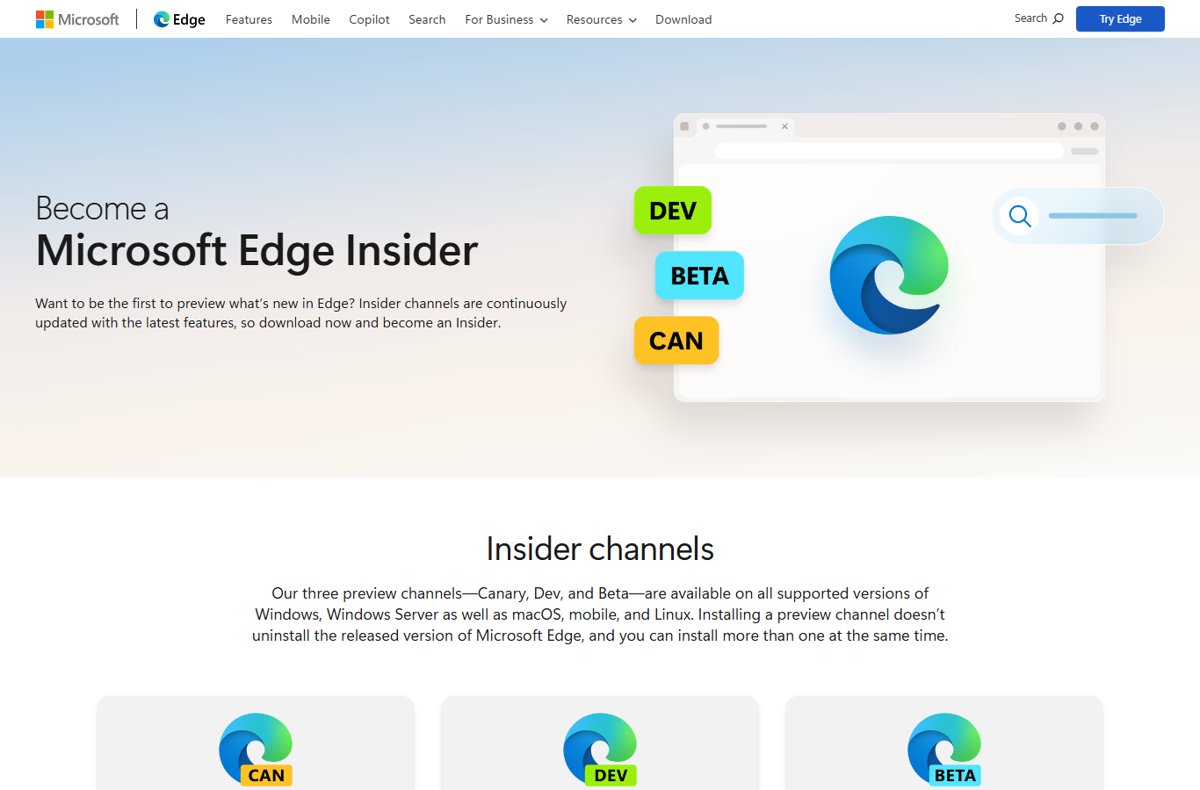
To install Microsoft Edge Canary, download it from the official Become a Microsoft Edge Insider page, then open edge://flags in Canary to turn on the experimental features you want to test.
This guide covers the install, keeping Canary apart from your everyday Edge, where new features show up, how to test and report them, how to undo flag changes, and how to remove Canary.
The fastest way to install Edge Canary and try a new feature
Canary installs next to your normal Edge. Installing a preview channel does not uninstall the released version of Microsoft Edge.
- Open the Become a Microsoft Edge Insider page in any browser.
- Under Canary Channel, select Download and accept the Microsoft Edge Software License Terms.
- Run the downloaded setup file and wait for Microsoft Edge Canary to open.
- In the Canary address bar, type
edge://flagsand press Enter. - Search for the feature you want, open its dropdown and choose Enabled.
- Select the Restart button at the bottom of the page to relaunch Canary with the feature on.
Canary now runs the feature, and your Stable Edge is untouched. The rest of this guide covers testing it properly and reporting what breaks.
What Microsoft Edge Canary Is—and What It Is Not
Canary is the most bleeding-edge of the Edge channels and ships daily. New features appear here first, and Microsoft states that problems will arise over time because of that pace.
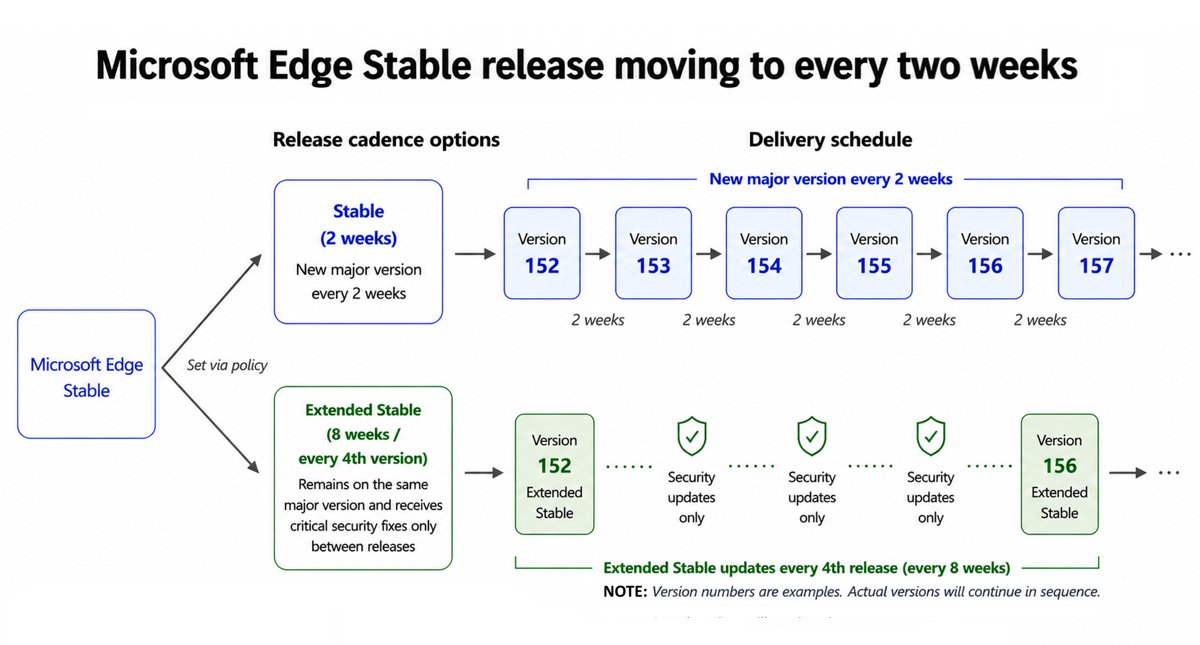
| Channel | Updated | Supported by Microsoft | Best for |
|---|---|---|---|
| Canary | Daily | No | Seeing the newest features first; least stable channel |
| Dev | Weekly | No | An early look at what comes next, with higher quality than Canary |
| Beta | About every two weeks | Yes | The most stable preview; validating sites and apps before Stable |
| Stable | About every two weeks | Yes | Everyday browsing; the channel most users should be on |
| Extended Stable | About every eight weeks | Yes | Organizations; it is an update option for Stable, not a separate app |
Canary is a separate browser application, not a mode of Stable Edge. It is not a supported release, so it is a test bench, not a replacement for your main browser. Microsoft itself suggests keeping another channel installed side by side if you use Canary.
Canary, Dev or Beta: which channel should you test on?
| Your situation | Install this | Why |
|---|---|---|
| You want a feature the day it lands | Canary | It ships daily and gets new investments first |
| You want new features with fewer breakages | Dev | Weekly builds that Microsoft rates more stable than Canary |
| You check your own site or business app before Stable ships | Beta | Supported, and each release is the next Stable in waiting |
| You test a WebView2 app against upcoming changes | Canary first, then Dev | Microsoft recommends automated tests against Canary to catch issues earliest |
| You only have an Android phone | Beta for Android | The Insider page lists Beta as the only Android preview channel |
You can install more than one preview channel at once, so Canary and Beta can sit beside Stable on the same PC. Get the weekly channel from the Edge Dev build offline installer.
Before You Install: What You Need
| Requirement | Details |
|---|---|
| Windows | Windows 10 or Windows 11; Edge support for Windows 7 and 8.1 ended with version 109 |
| Windows Server | Windows Server 2016, 2019, 2022 or 2025 |
| macOS | macOS 13 Ventura or later for Edge version 151 and newer |
| Linux | 64-bit Ubuntu 18.04+, Debian 10+, openSUSE 15.5+ or Fedora 39+ are officially supported for Edge |
| iPhone and iPad | Beta and Dev only, through Apple's TestFlight; there is no Canary for iOS |
| Android | Beta only; there is no Canary listed for Android |
| Chromebook | Not supported |
| Work PC | Your organization can block edge://flags with the FeatureFlagOverridesControl policy |
Canary also needs a steady internet connection, because it updates itself almost every day.
How to Install Microsoft Edge Canary
Use only Microsoft's own Insider page. It is the page Microsoft Learn points to for every preview channel download.
- Go to microsoft.com/edge/download/insider.
- Find Canary Channel, labelled Updated daily and Least stable channel.
- Select Download Edge Canary for your platform.
- Read the Microsoft Edge Software License Terms and accept them to start the download.
- Open the downloaded file; setup fetches and installs the current Canary build.
- Wait for Microsoft Edge Canary to open, then pin it to the taskbar so you can tell it apart from Stable Edge.
Your Stable Edge stays installed. On iPhone and iPad, use the Go to TestFlight link on the same page for the Beta or Dev channel instead, and on Android use Beta Channel for Android.
First-Run Setup: Keep Canary Separate From Your Daily Browser
Canary gets daily code. Give it as little of your real browsing life as you can, so a bad build costs you nothing.
- On the first-run screens, skip importing data from Stable Edge unless the feature you test needs it.
- Sign in with a test Microsoft account, or stay signed out, instead of your main account.
- Install only the extensions the test needs from
edge://extensions. - Keep Stable Edge as your default browser, so links from mail and apps never open in Canary.
This keeps a Canary-only bug from ever touching the bookmarks, passwords and history you rely on.
How to Check and Update Edge Canary
Canary is evergreen: once installed, it installs the newest Canary version on its own, almost daily.
- In Canary, type
edge://settings/helpin the address bar and press Enter. - Read the version number and confirm the page names the Canary channel.
- If Canary reports a pending update, restart the browser to apply it.
- For the full version string to quote in a bug report, open
edge://version.
Canary runs several major versions ahead of Stable. Microsoft's DevTools documentation, for example, listed Canary 153 while Stable was on 151.
Where Beta and Experimental Features Appear in Edge Canary
A new feature in Canary can arrive through four different routes. Knowing which one you need saves a long hunt through the flags list.
| Where | What you find there | How to reach it |
|---|---|---|
| 1. Regular Settings | Features that are already switched on for your build, as normal options | edge://settings |
| 2. edge://flags | Experimental features that are off by default; you switch them on yourself | Type edge://flags in the address bar |
| 3. Feature rollouts | Features Microsoft turns on gradually; availability varies by device, market and browser version | Nothing to do; they appear after an update |
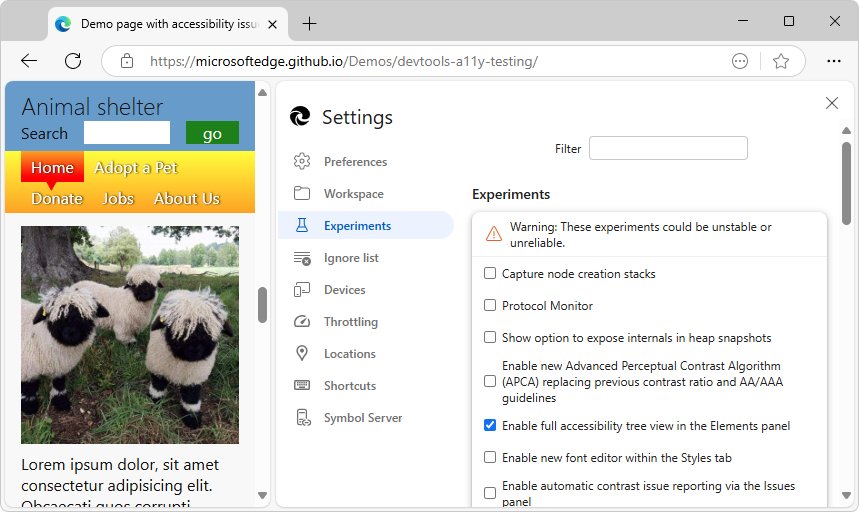
| 4. Command-line switches and developer options | Feature flags set at launch, and DevTools experiments | Launch arguments, or DevTools Settings > Experiments |
Because of feature rollouts, a feature someone else sees in Canary may not appear on your PC yet, even on the same version. Web developers can also use origin trials, which switch on an experimental API for a site without any edge://flags change.
How to Enable Experimental Flags in Edge Canary
Every flag has its own anchor, so edge://flags#flag-name jumps straight to it. Microsoft used this format when it first put Collections in Canary, with edge://flags#edge-collections.
- Type
edge://flagsin the Canary address bar and press Enter. - Type part of the feature's name in the search box at the top of the page.
- Read the flag's description and note which platforms it lists.
- Before you change it, write down the value its dropdown currently shows.
- Open the dropdown next to the flag and choose Enabled.
- Repeat for any related flags the feature needs.
- Select Restart at the bottom of the page; Canary closes every window and reopens.
To turn on a DevTools experiment instead, open DevTools with Ctrl + Shift + I (Command + Option + I on macOS), select Settings or press Shift + ?, choose Experiments, tick the checkbox, close Settings and select Reload DevTools.
Examples of Features You May Be Able to Test
Flags come and go with every build, so treat these as the kinds of features that have gone through Canary, not a list that stays current.
| Area | Example that went through preview builds | Where it was switched on |
|---|---|---|
| AI and Copilot features | AI Explain Console Error and Enable CSS Copilot, listed in Canary 153 | DevTools Settings > Experiments |
| Tab and window management | Collections, first tested in Canary in 2019 | edge://flags#edge-collections |
| Privacy, security and identity features | Tracking prevention, first offered in preview builds in 2019 | edge://flags#edge-tracking-prevention, then edge://settings/privacy |
| Developer and web platform features | Storage Access API; localized Developer Tools | edge://flags |
| Productivity tools | Full-page screenshot in Web Capture, rolled out to Canary first | Feature rollout |
| Performance and memory tools | The DevTools Durable Messages experiment for the Network tool | DevTools Settings > Experiments |
To see web platform changes Microsoft plans to ship, check Microsoft Learn's list of site compatibility-impacting changes, which notes the Canary version each change lands in.
How to Test a Canary Feature Properly
A useful test tells you whether the feature, not the rest of a daily build, caused what you saw.
- Start with a baseline: note the Canary version from
edge://versionand try your task once with the flag untouched. - Change one thing at a time: enable a single flag, restart, and repeat the same task.
- Test with and without extensions: turn them all off in
edge://extensionsand repeat the task. - Use a clean profile for quick checks, so settings and cached data from other tests do not interfere.
- Compare with Stable Edge: run the same task in Stable to see whether the behaviour is new.
- Write down the steps, the result you expected and the result you got before you file feedback.
Web and WebView2 developers should run automated tests against Canary and compare the results with the latest Stable baseline, which is the process Microsoft Learn recommends.
How to check the feature is really on
- Open
edge://flagsagain and search for the flag; its dropdown should still read Enabled. - Open
edge://versionand confirm you are in Canary, not Stable Edge. - Use the feature itself: the new button, menu item or setting it adds should now appear.
- If nothing changed, restart Canary once more; flags only apply after a full relaunch.
How to Reset Flags and Undo Changes
- Reset one flag: open
edge://flags, find the flag, set its dropdown back to the value you noted before enabling it, and select Restart. - Reset all flags: repeat that for every flag on the list you wrote down while testing, then restart once.
- Reset a DevTools experiment: in DevTools Settings > Preferences, select Restore defaults and refresh.
- Reset Edge Canary settings: go to
edge://settings/resetin Canary and confirm the reset. - If Canary will not open long enough to reach any of these pages, see the troubleshooting section below.
None of these steps touches Stable Edge, because Canary is a separate app with its own settings.
How to Report Bugs and Send Feedback to Microsoft
Feedback from preview channels is what lets Microsoft fix a bug before it reaches the Stable release, so file it while the build is fresh.
- Reproduce the problem once more in Canary.
- Press Alt + Shift + I to open Edge's built-in Send feedback window (Option + Shift + I on macOS).
- Describe what you did, what you expected and what happened, and name the flag you changed.
- Attach a screenshot if it shows the problem, and add your email address if you want a follow-up.
- Select Send.
- For a crash, add the full version from
edge://versionand the latest crash ID fromedge://crashes.
DevTools bugs can also go to the Microsoft Edge DevTools repo on GitHub, and WebView2 bugs to the WebView2Feedback repo, marked as found on a preview channel. The Insider page also links a Discord community for broader feedback.
How to Use Canary Without Risking Your Main Browser Data
| Rule | Why it matters |
|---|---|
| Keep Stable Edge installed | Canary is unsupported and can break on any day; Stable is your fallback |
| Use test accounts for sensitive workflows | Banking, work mail and admin portals should not depend on a daily build |
| Be careful with sync | A signed-in Canary syncs with your other devices, so a bad build can reach data you care about |
| Keep Stable as the default browser | Links from other apps then never open in an experimental build |
| Do not use Canary for a work device without asking IT | Organizations can restrict flags by policy and may support only Stable or Beta |
The safest pattern is a signed-out Canary used only for the feature you are testing.
Troubleshooting Common Edge Canary Problems
These symptoms come from Microsoft's own Edge troubleshooting articles. They apply to Canary exactly as to Stable Edge.
Canary does not start, or shows a blank window after a flag change
Leftover background processes, a graphics driver problem, or a flag that breaks startup in the current build.
- Press Ctrl + Shift + Esc to open Task Manager and end every
msedge.exetask that belongs to Canary. - Start Canary again.
- If it opens, go to
edge://settings/systemand turn off Use graphics acceleration when available, then restart. - If it still fails, set the flags you changed back to their original values, or reset Canary settings at
edge://settings/reset.
edge://flags cannot be changed on a work PC
The FeatureFlagOverridesControl policy is set to prevent overrides, or to allow command-line overrides only.
- Ask your IT admin; the policy is under Administrative Templates > Microsoft Edge > Experimentation and is named Configure users ability to override feature flags.
- Test the feature on a personal device instead of trying to work around the policy.
A feature someone else has does not appear in your Canary
The feature is in a gradual rollout, or your Canary is on an older build.
- Open
edge://settings/helpand install any waiting update. - Search
edge://flagsfor a flag with the feature's name. - If there is no flag, wait for later builds; rollouts vary by device, market and version.
Canary uses high CPU or memory
An experimental feature, an extension or a background tab is busy.
- Press Shift + Esc in Canary to open the Browser Task Manager and sort by CPU or Memory.
- Select the busy process and choose End process.
- Turn off all extensions in
edge://extensions, then turn them back on one at a time. - Undo the last flag you enabled and compare.
How to Uninstall Edge Canary
Removing Canary leaves Stable Edge and its data in place, because they are separate apps.
- Close every Microsoft Edge Canary window.
- Open Settings on Windows and go to Apps > Installed apps.
- Find Microsoft Edge Canary in the list.
- Select the … menu next to it and choose Uninstall.
- Confirm, then check that Stable Edge still opens normally.
To return to testing later, install Canary again from the Insider page; it always installs the newest daily build.
Bottom line
Install Canary beside Stable Edge, keep it signed out or on a test account, and change one flag at a time. Canary ships daily and is unsupported, so the only safe way to try features first is to make sure a bad build can cost you nothing but a restart.
Frequently Asked Questions
How do I install the Edge beta?
Go to Microsoft's Become a Microsoft Edge Insider page and download the channel you want: Beta, Dev or Canary. Each installs as its own app beside Stable Edge, and you can install more than one preview channel at the same time.
How do I beta test new Edge features?
Install Edge Canary or Dev from the Insider page, turn on the feature in edge://flags or in DevTools Experiments, restart, and test one change at a time. Report problems with Alt + Shift + I so Microsoft can fix them before Stable.
How do I become a Microsoft Edge Insider?
You become an Edge Insider by installing a preview channel. There is no sign-up form: download Canary, Dev or Beta from the Insider page, use it, and send feedback from inside the browser with Alt + Shift + I.
Can Edge Canary and Stable Edge be installed at the same time?
Yes. Installing a preview channel does not uninstall the released version of Microsoft Edge, and each channel is a separate app. Microsoft recommends keeping another channel installed side by side when you use Canary.
Is Microsoft Edge Canary safe for everyday use?
Canary comes from Microsoft, but it is the least stable channel, ships daily and is not supported. Use it for testing and keep Stable Edge for banking, work and anything you cannot afford to lose.
How do I download Edge Canary on Android or iPhone?
You cannot. Microsoft's Insider page offers only the Beta channel on Android, and Beta and Dev on iPhone and iPad through Apple's TestFlight. Canary is a desktop channel.
What is beta testing?
Beta testing means using software before its final release to find bugs and give feedback. In Edge, the Beta, Dev and Canary preview channels play that role, with Canary receiving new code first and Beta closest to the next Stable release.
Why is beta testing important?
Beta testing catches problems before they reach everyone. Microsoft uses feedback from Edge preview channels to fix issues before a release is published to the Stable channel, and asks developers to flag bugs found on a preview channel so the fix is prioritized.
Does Microsoft have a beta testing program for Edge?
Yes. The Microsoft Edge Insider program covers the Canary, Dev and Beta channels. It is free, it needs only a download, and feedback goes to Microsoft from inside the browser.
What is the difference between Edge Canary and Edge Dev?
Canary updates daily and is the least stable channel. Dev updates weekly, is more stable than Canary, and Microsoft describes it as the best representation of improvements from the past week. Neither channel is supported.

Microsoft talks about Controlled Feature Roll-outs in Edge browser - Techdows
[…] you’re already an Insider and running Canary version of Edge that on bleeding edge you may still not get the new features which Edge team makes them available […]