Microsoft removed the classic Collections interface from Edge 149, but some builds still contain the underlying feature code. You can temporarily restore Collections by starting Edge with the --disable-features=msEdgeCollectionsUnship command-line switch.
You must also disable Startup Boost and stop Edge from running in the background. Otherwise, Windows may reuse an existing Edge process that started without the command-line switch.
Important: This is an unofficial and temporary workaround. Microsoft retired Collections and can remove the remaining code in any Edge update. After restoring the feature, move important pages to Favorites or create another backup immediately.
How to Restore Collections in Microsoft Edge 149 and Later Versions
The method works by changing the shortcut used to open Microsoft Edge. It does not reinstall an older version of Edge or restore deleted data.
Step 1: Check Your Microsoft Edge Version
- Open Microsoft Edge.
- Select the three-dot menu in the upper-right corner.
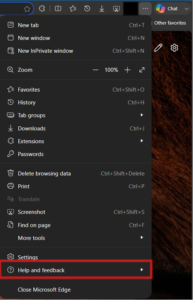
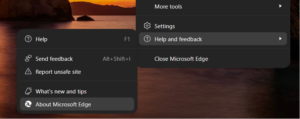
- Go to Help and feedback > About Microsoft Edge.
- Check the version number shown near the top of the page.
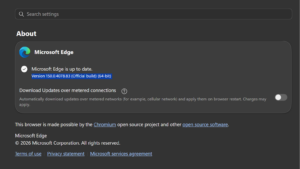
Microsoft began retiring Collections in earlier Edge releases and removed the interface in Edge 149. If you use Edge 149 or a later version, continue with the shortcut method below.
Step 2: Open the Microsoft Edge Shortcut Properties
Follow the instructions for the shortcut you normally use to launch Edge.
For a Desktop Shortcut
- Right-click the Microsoft Edge shortcut on the desktop.
- Select Properties.
- Open the Shortcut tab if it is not already selected.
For a Taskbar Shortcut
- Right-click the Microsoft Edge icon on the taskbar.
- In the menu that opens, right-click Microsoft Edge again.
- Select Properties.
On some Windows 11 systems, hold Shift while right-clicking the taskbar icon if the Properties option does not appear.
For the Start Menu Shortcut
- Press Windows + R to open Run.
- Enter the following path:
%ProgramData%\Microsoft\Windows\Start Menu\Programs- Press Enter.
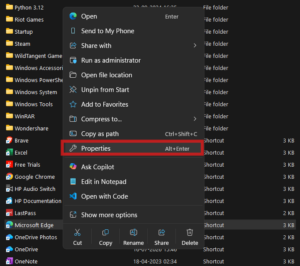
- Find the Microsoft Edge shortcut.
- Right-click it and select Properties.
Step 3: Add the Collections Command-Line Parameter
In the shortcut Properties window, locate the Target field. Place the cursor at the end of the existing path, add one blank space, and then paste this command:
--disable-features=msEdgeCollectionsUnshipThe complete Target field will look similar to this:
"C:\Program Files (x86)\Microsoft\Edge\Application\msedge.exe" --disable-features=msEdgeCollectionsUnshipThe Edge installation path can be different on your computer. Do not replace the existing path. Add the parameter after the closing quotation mark.
- Select Apply.
- Select Continue if Windows requests administrator permission.
- Select OK.
Step 4: Disable Startup Boost and Background Apps
Startup Boost keeps Microsoft Edge processes running after you close the browser. A background process can cause Edge to ignore the parameter added to the shortcut.
- Open Microsoft Edge.
- Enter the following address in the address bar:
edge://settings/system- Press Enter.
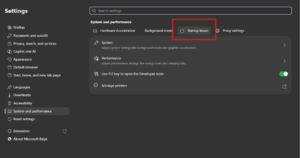
- Turn off Startup boost.
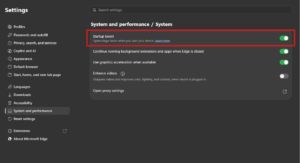
- Turn off Continue running background extensions and apps when Microsoft Edge is closed.
- Close every Edge window.
Step 5: Stop Remaining Microsoft Edge Processes
Closing the browser window does not always stop every Edge process immediately.
- Press Ctrl + Shift + Esc to open Task Manager.
- Find any running Microsoft Edge processes.
- Select Microsoft Edge and click End task.
- Repeat this until no Edge process remains.
Do not end Edge processes while downloading a file, editing an online document, or submitting a form because unsaved browser activity can be lost.
Step 6: Launch Edge from the Modified Shortcut
- Open Microsoft Edge using the shortcut you changed.
- Select the three-dot menu.
- Look under More tools for Collections.
You can also try the former Collections keyboard shortcut:
Ctrl + Shift + YIf the Collections pane appears, the command-line switch is working on your current Edge build.
Launch Edge with Collections from the Run Dialog
You can test the workaround without permanently changing a shortcut.
- Close every Edge window.
- Use Task Manager to stop any remaining Edge processes.
- Press Windows + R.
- Enter this command:
msedge.exe --disable-features=msEdgeCollectionsUnship- Press Enter.
This command affects only the Edge process launched from that Run command. Opening Edge normally later will start it without the Collections workaround.
How to Use the Flag with Other Edge Parameters
If the Target field already contains a --disable-features parameter, add the Collections feature name to the existing list and separate the entries with a comma.
For example, change this:
--disable-features=ExampleFeatureTo this:
--disable-features=ExampleFeature,msEdgeCollectionsUnshipKeep the feature names inside one --disable-features parameter. Do not remove another parameter unless you know why it was added.
What to Do After Collections Returns
Treat the restored interface as a chance to recover your saved links. The workaround can stop working after an Edge update.
Move Collection Pages to Favorites
If your restored Collections pane provides a move or export option, use it immediately. You can also open important saved pages and add them to Favorites manually with Ctrl + D.
Create a separate Favorites folder for each Collection to preserve the original organization:
- Open the Favorites menu.
- Select the three-dot menu inside Favorites.
- Choose Add new folder.
- Name the folder after the Collection.
- Save or move the related pages into that folder.
Notes, images and other non-page content may not transfer to Favorites. Copy important notes into OneNote, Word, Notepad or another notes app.
Export Your Edge Favorites
After moving the saved pages, export the Favorites as an HTML backup:
- Enter
edge://favoritesin the address bar. - Select the three-dot menu on the Favorites page.
- Select Export favorites.
- Choose a safe location and save the HTML file.
You can import this file into Edge, Chrome, Firefox and many other browsers.
Check Bing Saves for Missing Collections
If you used Collections with a personal Microsoft account, sign in to Bing Saves with the same account used for Edge sync. Microsoft directs personal-account users there to access previously synced Collections after the browser feature’s retirement.
If nothing appears, check that Edge is signed in with the correct Microsoft account:
- Open
edge://settings/profiles. - Check the email address displayed in the current profile.
- Use that account when signing in to Bing Saves.
Work and school accounts do not necessarily store Collections in Bing Saves. Those users had separate export options before the feature was removed.
Collections Still Not Showing After Adding the Flag
Restart Edge Completely
Enter the following command in the address bar:
edge://restartEdge will close and reopen while preserving the current tabs. If it restarts without Collections, close it again, end all Edge processes in Task Manager, and launch it from the modified shortcut.
Confirm You Opened the Correct Shortcut
The command works only when Edge starts from the shortcut containing the parameter. A different desktop shortcut, Start menu entry, pinned website or external link can launch Edge normally.
For a reliable test, unpin the existing taskbar icon, launch Edge from the modified desktop shortcut, and pin that running instance again.
Check the Target Field
The Target field must contain a blank space before the parameter:
"...\msedge.exe" --disable-features=msEdgeCollectionsUnshipThis format is incorrect:
"...\msedge.exe"--disable-features=msEdgeCollectionsUnshipThe Flag No Longer Works
Microsoft can remove the remaining Collections code in a newer Edge build. Once that happens, the command-line switch cannot restore the feature because there is no feature code left to enable.
Check Bing Saves, Edge Favorites and any earlier exports. Avoid downgrading Edge for regular browsing because old browser versions miss current security fixes and normally update again automatically.
How to Remove the Collections Workaround
- Right-click the modified Microsoft Edge shortcut.
- Select Properties.
- Remove this text from the Target field:
--disable-features=msEdgeCollectionsUnship- Remove the extra blank space left after the Edge executable path.
- Select Apply and then OK.
- Close all Edge processes and launch the browser again.
You can turn Startup Boost and background apps back on afterward, although leaving background apps disabled can reduce unnecessary Edge activity when the browser is closed.
FAQs
Why did Collections disappear from Microsoft Edge?
Microsoft retired Collections and removed the interface from Edge 149. The missing button is an intentional product change rather than a damaged browser installation.
Does the command-line flag permanently restore Collections?
No. It enables remaining Collections code in Edge builds where that code still exists. A future update can remove the code and make the flag ineffective.
Will this method recover deleted Collections?
No. The flag restores the interface but does not recreate deleted local or synced data. Existing Collections appear only when their data remains in the Edge profile or connected Microsoft account.
Why does the flag work only after disabling Startup Boost?
Startup Boost keeps Edge running in the background. Opening a modified shortcut can then reuse the existing process, which started without the Collections parameter.
Can I restore Collections on macOS or Linux?
The same Chromium command-line feature switch can be tested from Terminal, but shortcut paths and launch commands differ by operating system. Microsoft does not support the workaround on any platform, and availability depends on whether that Edge build still contains Collections.
Can an Edge flag page restore Collections?
No public option for this workaround appears on edge://flags. You must pass the feature name through the Edge command line.
Where are my old Collections now?
Personal Microsoft account users should check Bing Saves and Edge Favorites. Work or school users should check Favorites and any files exported before Edge 149 removed the feature.
Is it safe to downgrade Microsoft Edge to recover Collections?
Running an outdated browser exposes the computer to security problems fixed in newer releases. Use the temporary command-line workaround or Bing Saves first, recover the important links, and store them in a supported format.


![How to remove Yahoo from your Chrome, Firefox, or Edge browser? [Easy steps]](https://techdows.com/wp-content/uploads/2026/10/How-to-remove-Yahoo-from-your-Chrome-Firefox-or-Edge-browser-Easy-steps-600x338.jpg)



How to Manage Your Microsoft Edge Favorites and Favorites Bar - Techdows
[…] retired Collections, and they are unavailable from Edge 149, released June 4, 2026. The Move to Favorites option converts each collection into a folder in the […]
Microsoft brings Collections feature to Edge Canary - Techdows
[…] demoed several features that are coming to the Chromium Edge browser at Build 2019 event, Collections is one of them. The feature is now available behind a flag in latest Edge Canary 78.0.250.1 for […]
Microsoft Edge Canary lets you Send Collections to OneNote - Techdows
[…] can now able to export Collections in Microsoft Edge to Microsoft OneNote in the latest Canary […]