To start a private browsing session in Microsoft Edge, press Ctrl + Shift + N on Windows (Command + Shift + N on a Mac) or select Settings and more (…) > New InPrivate window.
Edge calls private browsing InPrivate, and this guide covers every way to open it on Windows, Mac, iPhone, iPad and Android, what it does and does not hide, and how to fix it when the option is missing.
Start an InPrivate browsing session on Windows
The keyboard shortcut is the quickest route, and the menu route works when you prefer the mouse. Both open a separate window, and your normal Edge windows stay as they are.
- Open Microsoft Edge.
- Press Ctrl + Shift + N. A new InPrivate window opens.
- If you prefer the mouse, select Settings and more (…) in the top-right corner instead.
- Select New InPrivate window.
- Type a search or web address in the InPrivate window and browse as usual.
Edge deletes the session's history, cookies and site data, along with passwords, addresses and form data entered in it, once you close every InPrivate window.
Ways to open InPrivate in Microsoft Edge compared
| Your situation | Use this | Why |
|---|---|---|
| Edge is already open on Windows | Ctrl + Shift + N | One key combination, no menus |
| Edge is closed and pinned to the taskbar | Right-click the Edge icon > New InPrivate window | Starts private without opening a normal window first |
| You want one link kept out of your history | Right-click the link > Open link in InPrivate window | Only that page goes into the private window |
| You are on a Mac | Command + Shift + N | The Mac equivalent of the Windows shortcut |
| You are on an iPhone, iPad or Android phone | Menu (…) > New InPrivate tab | The mobile app uses InPrivate tabs, not windows |
| You want Edge to always start private | The InPrivate mode availability policy set to Forced | Every window Edge opens is InPrivate |
What InPrivate browsing does in Microsoft Edge
InPrivate keeps the session off your device once you close it. Other people who use the same PC will not see what you did in it.
| Data or feature | During the InPrivate session | After you close all InPrivate windows |
|---|---|---|
| Browsing and download history | Kept for the session only | Deleted |
| Cookies and other site data | Kept, so sites can still recognise you | Deleted |
| Cached images and files | Kept for the session only | Deleted |
| Site permissions and hosted app data | Kept for the session only | Deleted |
| New passwords, addresses and form entries | Not saved | Nothing to delete |
| Favorites you add | Saved | Kept, and synced to your signed-in Edge |
| Files you download | Saved to your device | Kept on your device |
| Saved passwords and form fill from your profile | Available to use | Unchanged |
| Searches with Microsoft Bing | Run as InPrivate search | Not linked to your Microsoft account |
Edge also turns off address bar suggestions from your search engine and does not send information about sites you visit to Microsoft while you browse InPrivate.
Open InPrivate in Edge from the taskbar or a link
These two routes are useful when Edge is closed, or when only one link needs to stay private.
- To start from the taskbar, right-click the Microsoft Edge icon on the Windows taskbar.
- Select New InPrivate window in the menu that appears.
- To open a single link privately, open Edge and find the link on any page.
- Right-click the link.
- Select Open link in InPrivate window. The page loads in a new InPrivate window, and your current tab stays where it is.
Start an InPrivate browsing session on Mac
Edge for Mac uses the same InPrivate window, with the Command key in place of Ctrl.
- Open Microsoft Edge on your Mac.
- Press Command + Shift + N to open a new InPrivate window.
- To use the menu instead, select Settings and more (…) > New InPrivate window.
- To open one link privately, Control-click (or right-click) the link and select Open link in InPrivate window.
- Press Command + Shift + W to close the InPrivate window when you finish.
Start InPrivate browsing on iPhone and iPad
The Edge app for iOS and iPadOS opens private browsing as InPrivate tabs. Edge does not save history or form data for an InPrivate tab, and deletes its cookies when you close the tab.
- Open the Microsoft Edge app.
- Tap the menu ….
- Tap New InPrivate tab.
- To use the tab switcher instead, tap the square tabs icon that shows a number.
- Tap the InPrivate tab at the top, then tap the plus icon +.
Start InPrivate browsing on Android
Edge for Android works the same way. After you close all InPrivate tabs, Edge deletes the temporary profile those tabs used.
- Open the Microsoft Edge app on your Android phone or tablet.
- Tap the menu ….
- Tap New InPrivate tab.
- To use the tab switcher instead, tap the square tabs icon that shows a number.
- Tap the InPrivate tab, then tap the plus icon + to open a new private tab.
If a family group manages the account on the phone, InPrivate mode is blocked and the option will not work.
Using extensions in InPrivate windows
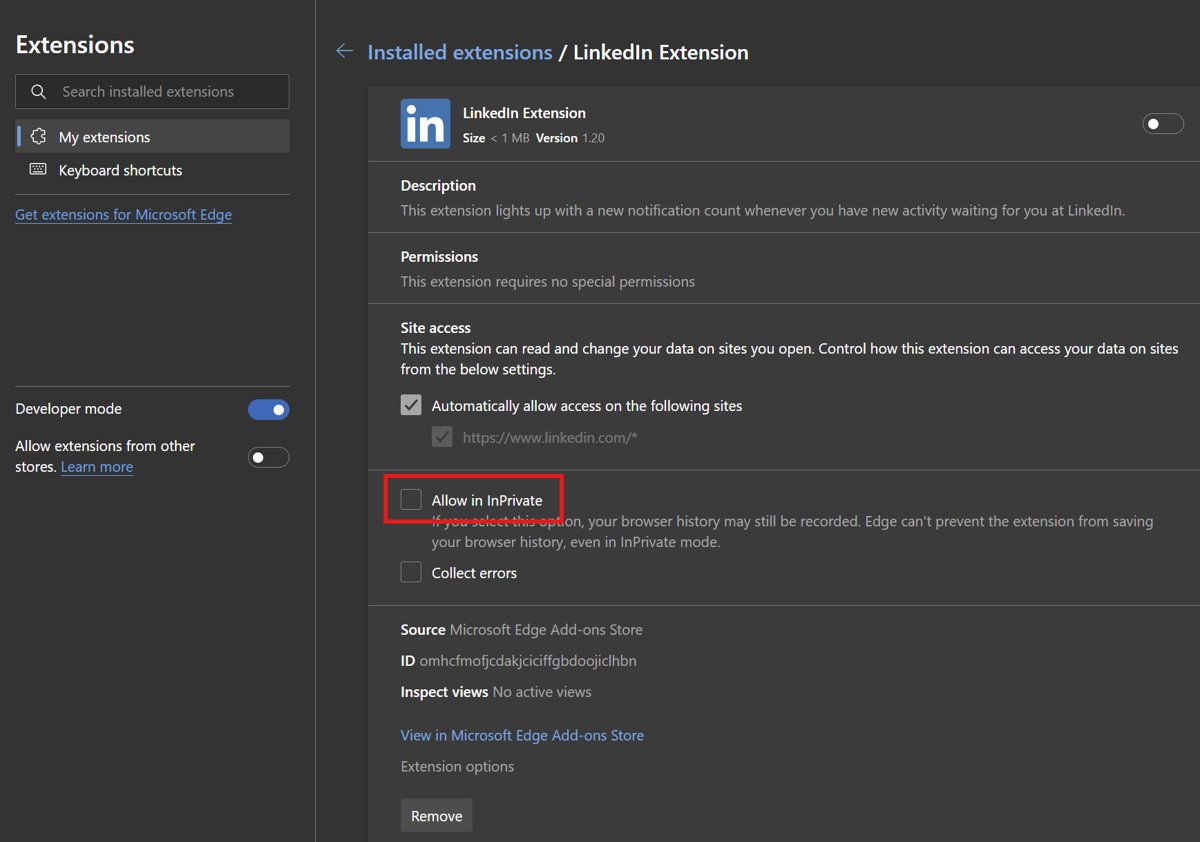
Edge runs only the extensions you have allowed in InPrivate. Edge cannot stop an allowed extension from saving your browsing history, so allow only extensions you trust.
- Open Edge in a normal window and type
edge://extensionsin the address bar, then press Enter. - Find the extension you want to use while browsing privately.
- Select Details under that extension.
- Select the Allow in InPrivate checkbox.
- Open a new InPrivate window with Ctrl + Shift + N. The extension's icon is now available there.
On a work or school PC, an administrator cannot turn this on for you through Group Policy. Microsoft blocks that by design, so you have to tick the box yourself. If an extension stops working in normal windows too, you can turn Edge extensions on or off from the same page.
How to open Edge directly in InPrivate mode
Two options exist. The taskbar menu starts a private window without a normal one, and the InPrivate mode availability policy makes every Edge window InPrivate.
The policy is the stronger option. Set to Forced, it removes normal browsing until you delete the value, and Edge reports that it is managed by your organization.
- For a one-off private start, right-click the Microsoft Edge icon on the taskbar and select New InPrivate window.
- To make it permanent, sign in to Windows with an administrator account, press Win + R, type
regeditand press Enter. - Go to
HKEY_LOCAL_MACHINE\SOFTWARE\Policies\Microsoft\Edge. If the Edge key does not exist, right-click Microsoft, select New > Key and name itEdge. - Right-click the Edge key, select New > DWORD (32-bit) Value and name it
InPrivateModeAvailability. - Double-click the value, set Value data to
2and select OK. Value2means Forced,1disables InPrivate and0makes it available. - Close and reopen Edge, then go to
edge://policyto confirm InPrivateModeAvailability is listed. Every window now opens InPrivate.
To return to normal browsing, delete the InPrivateModeAvailability value and restart Edge.
How to tell whether you are browsing InPrivate
An InPrivate window opens on its own InPrivate start page, separate from your normal new tab page. These checks confirm the session is private.
- Look at the new tab page. An InPrivate window shows the InPrivate landing page with its own search box, not your usual start page.
- Type
edge://historyin the address bar and press Enter. Edge opens it in a normal window, because settings, favorites and history pages cannot be viewed InPrivate. - Try to sign in to Edge from the profile picture. Signing in to the browser is not possible in an InPrivate window.
- Close every InPrivate window, open a normal window and press Ctrl + H. The sites from the private session are not in your history.
What InPrivate does not hide
InPrivate stops other people on your device from seeing your activity. It does not make you invisible on the network or to the sites you visit.
| Who or what | Can still see or keep | Why |
|---|---|---|
| Websites you visit | Your visit, and anything you do while signed in | Cookies stay active until you close all InPrivate windows |
| Your employer or school | Browsing activity on their network or managed device | Monitoring happens outside the browser |
| Your internet provider | Network activity | Traffic still passes through their network |
| Your device | Downloaded files and new favorites | Edge keeps both after the session |
| Allowed extensions | Your browsing history | Edge cannot stop extensions from saving it |
| Websites asking for location | Your precise location, if you allow it | InPrivate uses the location settings of the profile that opened it |
InPrivate also does not protect you from malicious websites and adds no extra ad blocking.
InPrivate vs. clearing browsing data
| Point | InPrivate window | Clear browsing data |
|---|---|---|
| When data is removed | Automatically when the last InPrivate window closes | Only when you run it, or on close if you set that up |
| What is removed | Only the private session's data | Whatever you tick, for the time range you choose |
| Effect on your normal history and sign-ins | None | Removes them if you include them |
| Shortcut | Ctrl + Shift + N | Ctrl + Shift + Delete |
| Best for | Planning a private session in advance | Cleaning up after you already browsed normally |
If you already browsed in a normal window, InPrivate cannot help afterwards. Press Ctrl + Shift + Delete to open the clear browsing data options instead.
InPrivate vs. Guest mode
Guest mode is a temporary, fresh profile. To open it, select your profile icon and then Browse as guest, or press Ctrl + Shift + M.
| Point | InPrivate | Guest mode |
|---|---|---|
| Starts from | Your current profile | A blank profile |
| Saved passwords and form fill | Available | Not available |
| Favorites | Your favorites are available and new ones are kept | None, and nothing is kept |
| Search suggestions in the address bar | Local suggestions only | None |
| Data after closing | Session data deleted | All browsing data deleted |
| Best for | Private browsing on your own PC | Letting someone else use your PC |
When you should use more than InPrivate
| Your goal | InPrivate alone enough? | Add this |
|---|---|---|
| Keep a gift search hidden from family on a shared PC | Yes | Nothing extra |
| Stop sites personalising ads during the session | No | Block third-party cookies or Strict tracking prevention |
| Hide activity from your employer, school or internet provider | No | InPrivate cannot do this on their network or device |
| Avoid malicious sites and downloads | No | Keep Microsoft Defender SmartScreen on, which also works InPrivate |
| Let a visitor browse without seeing your data | No | Use Guest mode instead |
Your wider protection comes from Edge's own privacy and security settings, which apply to normal and InPrivate windows alike.
Quick reference: Edge InPrivate shortcuts
| Action | Windows | Mac |
|---|---|---|
| Open a new InPrivate window | Ctrl + Shift + N | Command + Shift + N |
| Open a new tab in the InPrivate window | Ctrl + T | Command + T |
| Close the current tab | Ctrl + W | Command + W |
| Close the current window | Ctrl + Shift + W | Command + Shift + W |
| Browse as a guest | Ctrl + Shift + M | Command + Shift + M |
| Open clear browsing data options | Ctrl + Shift + Delete | Command + Shift + Delete |
Using tracking prevention with InPrivate
By default, InPrivate windows use the same tracking prevention level as your normal windows. You can make them always use Strict, which blocks more trackers but can break some sites.
- Open Edge in a normal window. Settings pages do not open inside InPrivate.
- Type
edge://settings/privacyin the address bar and press Enter. - Make sure Enable Tracking prevention is turned on.
- Turn on Always use "Strict" tracking prevention when browsing InPrivate.
- To also stop third-party cookies, go to Settings > Privacy, search, and services > Cookies and turn on Block third-party cookies.
- Open a new InPrivate window to apply the change.
How to close an InPrivate session properly
Edge deletes the session only when every InPrivate window is closed. One forgotten private window keeps its cookies and sign-ins alive.
- Switch to each InPrivate window you opened.
- Press Ctrl + Shift + W (Command + Shift + W on a Mac), or select the X in the window's top-right corner.
- Check the taskbar or Dock for any other InPrivate windows and close them too.
- On iPhone, iPad or Android, open the tab switcher, tap the InPrivate tab, then tap X on each tab or swipe it left or right.
- Do not expect to reopen these tabs. Closed InPrivate tabs do not appear in History > Recently closed.
Common problems and fixes with Edge InPrivate
The New InPrivate window option is missing or disabled
A family group has activity reporting or web filtering on, or an organization has set the InPrivate mode availability policy to Disabled.
- Look for a briefcase icon in Edge, or type
edge://policyin the address bar, to see whether an organization manages your browser. - On a work or school device, ask your administrator. The block is deliberate.
- On a child account, a family organizer must turn off web filtering and activity reporting in the family group before InPrivate returns.
- On your own PC, open Registry Editor and check
HKEY_LOCAL_MACHINE\SOFTWARE\Policies\Microsoft\Edgefor anInPrivateModeAvailabilityvalue of1. Delete it and restart Edge.
InPrivate opens, but websites still remember me
Another InPrivate window is still open, so the session's cookies were never deleted, or your profile's saved passwords filled in the sign-in.
- Close every InPrivate window, including any on other desktops.
- Open a fresh InPrivate window with Ctrl + Shift + N.
- Do not accept the saved password when the site asks you to sign in.
- If you need a clean profile with no saved passwords at all, use Browse as guest instead.
A website does not work correctly in InPrivate
Strict tracking prevention or blocked third-party cookies stop parts of the page, or an extension the site needs is not allowed InPrivate.
- Select the page info icon on the left side of the address bar to see which trackers were blocked.
- Turn off tracking prevention for that site from the same flyout, then reload the page.
- In a normal window, set Always use "Strict" tracking prevention when browsing InPrivate back to off if many sites break.
- Allow the extension the site depends on with Allow in InPrivate on
edge://extensions.
Edge crashes or will not open an InPrivate window at all
The Edge installation itself is damaged, which affects normal and InPrivate windows.
- Restart your PC and try Ctrl + Shift + N again.
- If Edge still fails, repair or reset Microsoft Edge from Settings > Apps > Installed apps.
Best practices for private browsing in Edge
| Practice | Why it matters |
|---|---|
| Close every InPrivate window when you finish | Data is deleted only after the last one closes |
| Sign out of sites before closing | Being signed in lets the site link the visit to your account |
| Delete downloaded files you do not want kept | Edge keeps downloads on your device after the session |
| Allow only trusted extensions InPrivate | Edge cannot stop them saving your history |
| Turn on Strict tracking prevention for InPrivate | Fewer trackers follow you during the session |
| Use Guest mode for other people on your PC | InPrivate still exposes your saved passwords and favorites |
| Do not treat InPrivate as security | It does not block malicious sites or extra ads |
Microsoft Edge InPrivate browsing FAQ
How do I start a private browser in Edge?
Press Ctrl + Shift + N in Microsoft Edge on Windows, or Command + Shift + N on a Mac. You can also select Settings and more (…) and then New InPrivate window. The private session runs in its own window beside your normal ones.
How does private browsing work in Edge?
Edge keeps the InPrivate session's history, cookies, cache and form data only while the window is open. When you close all InPrivate windows, it deletes that data. Favorites you add and files you download are kept, and new passwords are never saved.
Why do people use private browsing?
People use private browsing to keep activity off a shared device, such as gift shopping, a one-off sign-in or searches they do not want in suggestions later. It hides activity from other people on the same device, not from websites, employers or internet providers.
How do I open a link in private browsing?
Right-click the link in Microsoft Edge and select Open link in InPrivate window. Edge opens that page in a new InPrivate window and leaves your current tab untouched. On a Mac, Control-click the link to see the same option.
How do you go to private browsing on a phone?
In the Microsoft Edge app for iPhone, iPad or Android, tap the menu (…) and then New InPrivate tab. You can also open the tab switcher, tap the InPrivate tab and tap the plus icon to start a private tab.
How do I set up Edge to always use private browsing?
Set the InPrivateModeAvailability policy to 2 (Forced) under HKEY_LOCAL_MACHINE\SOFTWARE\Policies\Microsoft\Edge and restart Edge. Every window then opens InPrivate. Delete the value to go back to normal browsing, because the policy removes normal windows entirely.
How do I make my browsing more private than InPrivate alone?
Turn on Always use Strict tracking prevention when browsing InPrivate at edge://settings/privacy, and turn on Block third-party cookies. These limit how sites personalise content during the session. Your employer, school and internet provider can still see network activity.
Why can't I enter private browsing in Edge?
InPrivate is unavailable when a family group has web filtering or activity reporting turned on for the account, or when an organization disables it with Group Policy. Check edge://policy to see whether your browser is managed, then ask the person who manages it.


![How to remove Yahoo from your Chrome, Firefox, or Edge browser? [Easy steps]](https://techdows.com/wp-content/uploads/2026/10/How-to-remove-Yahoo-from-your-Chrome-Firefox-or-Edge-browser-Easy-steps-600x338.jpg)