You can uninstall Microsoft Edge on Windows 11 or Windows 10 only if your PC is set to a region in the European Economic Area (EEA); everywhere else, Microsoft treats Edge as part of Windows and gives no uninstall option.
This guide covers the EEA uninstall in Settings, the supported ways to sideline Edge on every other Windows PC, and how to delete Edge from a Mac, iPhone or Android phone.
Can you uninstall Microsoft Edge? The answer by device
Find your device in the first column. The second column tells you whether a real uninstall exists, and the third names the route.
| Your device | Can Edge be uninstalled? | What to do |
|---|---|---|
| Windows 11 or Windows 10 PC, region outside the EEA | No. Microsoft calls Edge an essential component of Windows | Change the default browser, unpin Edge and turn off startup boost (Methods 2-5) |
| Windows 11 (version 23H2 or later) or Windows 10 (version 22H2) PC set up with an EEA region | Yes | Settings > Apps > Installed apps > Microsoft Edge > Uninstall (Method 1) |
| Mac | Yes. Edge is an ordinary app on macOS | Quit Edge, drag it from Applications to the Trash, then empty the Trash |
| iPhone | Yes | Touch and hold the Edge icon, tap Remove App, then Delete App |
| Android phone where you installed Edge | Yes | Play Store > profile icon > Manage apps & devices > Edge > Uninstall |
| Work or school PC | Your IT department decides | Ask the administrator; Edge settings may be locked by policy |
Understanding Microsoft Edge and Its Role in Windows
Microsoft's own support article is blunt: Edge is the default web browser for Windows, and because Windows supports applications that rely on the web platform, it is "an essential component of our operating system and can't be uninstalled."
The only documented exception is the EEA, where Microsoft changed Windows to comply with the EU Digital Markets Act.
| Fact | What it means for you |
|---|---|
| Edge is the Windows default browser out of the box | Links open in Edge until you pick another browser in Default apps |
| Windows apps rely on the web platform Edge provides | Removing Edge outside the EEA is not a supported configuration |
| Edge updates through its own installer or through Windows Update | Edge keeps receiving updates even if you never open it |
| Windows can use other browsers | You can install any browser and make it the default at any time |
| In the EEA, Settings > Apps > Installed apps lists Edge with an uninstall option | An EEA PC can remove Edge the same way it removes any app |
| Some Microsoft apps open web content in Edge | A few links can still open in Edge after you change the default browser |
Why You Might Want to Remove or Uninstall Microsoft Edge
Most reasons to remove Edge have a supported fix that works on any Windows PC. Match your reason to a row before you go looking for an uninstaller.
| Your reason | Supported fix | Where it is covered |
|---|---|---|
| Links and files keep opening in Edge | Make another browser the default | Method 2 |
| You do not want to see Edge on the taskbar or Start | Unpin it from both | Method 3 |
| Edge processes run after you close it or start at sign-in | Turn off startup boost and background mode | Method 4 |
| Edge reopens every time you sign in to Windows | Turn off restartable apps in Sign-in options | Method 5 |
| You manage several PCs and want Edge kept quiet | Set Microsoft's Edge Group Policies | Method 6 |
| You live in the EEA and want Edge gone | Uninstall it in Settings | Method 1 |
Methods for Uninstalling or Removing Microsoft Edge
| Your situation | Use this method | Result |
|---|---|---|
| Windows PC set up with an EEA region | Method 1: Uninstall in Settings | Edge is removed from the PC |
| Any Windows PC, you use another browser | Method 2: Change the default browser | Web links and HTML files open in your browser |
| Any Windows PC, Edge icons annoy you | Method 3: Unpin from taskbar and Start | Edge is out of sight but still installed |
| Any Windows PC, Edge runs in the background | Method 4: Turn off startup boost and background apps | No Edge processes after you close it |
| Edge windows reopen after sign-in | Method 5: Turn off restartable apps | Windows stops relaunching Edge |
| Admin managing PCs | Method 6: Group Policy | The settings are enforced and users cannot flip them back |
| Mac, iPhone or Android | The Mac and mobile sections below | Edge is deleted like any other app |
Important Considerations Before Uninstalling Microsoft Edge
| Check | Why it matters |
|---|---|
| Your Windows region | Windows uses the region you chose during device setup to decide whether the PC is in the EEA. Microsoft says that region can only be changed by resetting the PC |
| Your Windows version | Microsoft shipped the EEA changes to Windows 10, version 22H2 and Windows 11, version 23H2. Install pending updates first in Settings > Windows Update |
| A second browser is installed | Install and set up another browser before removing Edge, so you still have a way to download one |
| Your favorites, passwords and history | Sign in to Edge with a Microsoft account and let sync finish, or import the data into your new browser, before you remove it |
| Apps installed from Edge | Sites you installed as apps through Edge belong to Edge. See how to uninstall PWAs from Chrome and Microsoft Edge to clear them first |
| A work or school device | Organisation policies can lock Edge settings; ask your IT team before changing anything |
Method 1: Uninstalling Microsoft Edge Using Settings (EEA Only)
This is the only Microsoft-documented way to uninstall Edge from Windows. It appears only on PCs set up with an EEA region; outside the EEA the option is not there.
- Close every Edge window.
- Select Start > Settings > Apps > Installed apps.
- Scroll to Microsoft Edge in the list.
- Select More (the three dots) next to it, then select Uninstall.
- Confirm with Uninstall and follow any on-screen prompts.
- Restart the PC when the uninstall finishes.
If the Microsoft Edge entry has no Uninstall option, the PC is not treated as an EEA device. Skip to Method 2.
Method 2: Replacing Microsoft Edge with an Alternative Browser
This is the route Microsoft points everyone outside the EEA to: install another browser and make it the default. Edge stays installed but stops opening your links.
- Install the browser you want to use from its maker's official website or the Microsoft Store.
- Select Start > Settings > Apps > Default apps.
- Under Set defaults for applications, select your new browser.
- Select Set default next to the prompt to make it your default browser.
- Review the file types and link types listed for that browser, and switch any still assigned to Edge.
Method 3: Unpin Microsoft Edge from the Taskbar and Start
- Right-click the Edge icon on the taskbar.
- Select Unpin from taskbar.
- Open Start and find the Edge icon in the pinned apps.
- Right-click it and select Unpin from Start.
- Right-click any Edge shortcut on the desktop and select Delete (the shortcut only, not the browser).
On a touch screen, press and hold the icon instead of right-clicking.
Method 4: Turn Off Startup Boost and Background Apps
Startup boost lets Edge processes start when you sign in to Windows and restart in the background after you close the last window. Background mode keeps Edge running after the last window closes, with an icon in the system tray.
- Open Edge.
- Type
edge://settings/system/manageSystemin the address bar and press Enter. - Turn off the Startup boost toggle.
- On the same page, turn off the toggle that continues running background extensions and apps after Microsoft Edge is closed.
- Close Edge.
- If an Edge icon still sits in the system tray, right-click it and close it from there.
Method 5: Stop Microsoft Edge from Starting Automatically
If Edge windows reopen each time you sign in, Windows is restoring them. Microsoft's fix is a Windows setting, not an Edge one.
- Select Start > Settings.
- Go to Accounts > Sign-in options.
- Turn off Automatically save my restartable apps and restart them when I sign in.
- Close Edge, then sign out and back in to confirm it no longer opens.
Method 6: Turning Off Microsoft Edge Features Through Group Policy
Microsoft documents no policy that disables or removes Edge itself. What it does document are policies that stop Edge from starting at sign-in and running in the background, which is what most admins want.
Both policies need the Microsoft Edge administrative template (MSEdge.admx) loaded in Group Policy.
| Goal | Policy name | Group Policy path | Registry value (under SOFTWARE\Policies\Microsoft\Edge) | Set to |
|---|---|---|---|---|
| Stop Edge starting at sign-in and restarting in the background | Enable startup boost | Administrative Templates > Microsoft Edge > Performance | StartupBoostEnabled (REG_DWORD) | Disabled (value 0) |
| Stop Edge running after its last window closes | Continue running background apps after Microsoft Edge closes | Administrative Templates > Microsoft Edge | BackgroundModeEnabled (REG_DWORD) | Disabled (value 0) |
Both policies apply to Windows only, and Microsoft marks both as supporting dynamic policy refresh, so Edge picks up the change without a reinstall.
Uninstall Microsoft Edge on a Mac
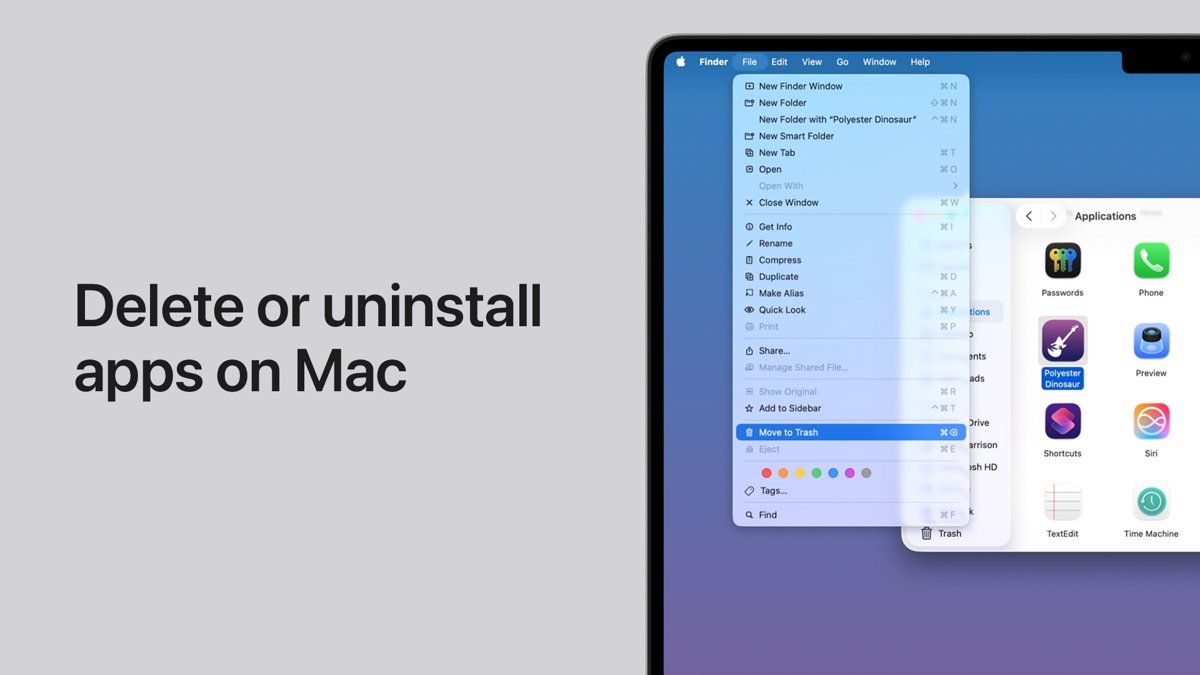
On macOS, Edge is a normal app and deletes the way Apple documents for any app in the Applications folder.
- Quit Edge.
- Open Finder and select Applications in the sidebar.
- Drag Microsoft Edge to the Trash, or select it and choose File > Move to Trash.
- Enter your administrator name and password if macOS asks.
- Choose Finder > Empty Trash to delete it permanently.
Uninstall Microsoft Edge on iPhone or Android
| Phone | Steps | Note |
|---|---|---|
| iPhone | Touch and hold the Edge icon on the Home Screen or in App Library, tap Remove App, tap Delete App, then tap Delete | Remove from Home Screen only hides the icon in App Library; it does not delete Edge |
| Android | Open the Google Play Store, tap your profile icon, tap Manage apps & devices > Manage, select Microsoft Edge, then tap Uninstall | Some of these steps work only on Android 13 and later, according to Google |
Deleting the app on a phone does not delete data synced to your Microsoft account. Sign in again on any device and your favorites return.
Potential Risks and Drawbacks of Removing Microsoft Edge
Guides that promise a full uninstall on any Windows PC lean on PowerShell commands, Command Prompt installer switches, registry edits or third-party removal scripts. Microsoft documents none of them for removing Edge outside the EEA.
| Approach | Documented by Microsoft? | Risk |
|---|---|---|
| Settings > Installed apps uninstall on an EEA PC | Yes | None beyond losing local Edge data you did not sync |
| Using PowerShell to uninstall Microsoft Edge | No | Unsupported state; Windows features and apps that rely on the web platform can misbehave |
| Using Command Prompt to remove Microsoft Edge (installer switches) | No | Edge can return with the next Edge or Windows update |
| Using third-party tools or scripts | No | You run code from an unknown source with administrator rights |
| Registry edits to block Edge | Only the policy values in Method 6 | Undocumented keys can break updates and are hard to reverse |
When Edge moved to Chromium, Microsoft confirmed Edge had no uninstall option for the version installed through Windows Update.
How to check it worked
- EEA uninstall: open Settings > Apps > Installed apps and search for Edge. Microsoft Edge no longer appears in the list.
- Default browser: press Win + R, type a web address such as
https://www.microsoft.comand press Enter. The page opens in your new browser. - Startup boost and background mode: close Edge, open Task Manager with Ctrl + Shift + Esc, and confirm no Microsoft Edge entry sits under Processes.
- Sign-in behaviour: sign out of Windows and sign back in. No Edge window opens on its own.
- Mac: open Applications in Finder. Microsoft Edge is gone, and the Trash is empty.
How to Reinstall Microsoft Edge After Removal
Microsoft notes that removed Windows apps can always be installed again from the Microsoft Store or the internet. Edge's official download page is the direct route.
- Open any working browser.
- Go to
www.microsoft.com/edge. - Download the installer for your operating system and run it.
- Sign in to Edge with your Microsoft account to bring back synced favorites and passwords.
- On a phone, reinstall Edge from the App Store or Google Play.
Fix problems when Microsoft Edge will not go away
These symptoms come from the reader searches behind this guide ("how to completely remove Microsoft Edge", "how to fully uninstall Microsoft Edge") and the limits Microsoft documents.
There is no Uninstall option for Microsoft Edge in Installed apps
The PC's region, chosen during setup, is outside the EEA, or Windows is missing the update that added the option.
- Open Settings > Windows Update and select Check for updates; install everything offered.
- Check Installed apps again for the Uninstall option next to Microsoft Edge.
- If it is still missing, the PC is not treated as an EEA device. Use Methods 2-5 instead; Microsoft says the region can only be changed by resetting the PC.
Links still open in Edge after changing the default browser
Some Microsoft apps choose to open web content in Edge, or a file or link type is still assigned to Edge.
- Open Settings > Apps > Default apps and select your browser.
- Review the file types and link types listed for it; change any still showing Microsoft Edge.
- Retest a link from a non-Microsoft app. Links from some Microsoft apps may still open in Edge by design.
Edge keeps running or opens by itself after you close it
Startup boost, background mode or Windows restartable apps are still on.
- Go to
edge://settings/system/manageSystemand turn off Startup boost and the background apps toggle. - Turn off Automatically save my restartable apps and restart them when I sign in in Settings > Accounts > Sign-in options.
- Close the Edge icon in the system tray, then restart the PC.
Final Thoughts: Best Practices and Recommendations
If your PC is in the EEA, uninstall Edge in Settings. Everywhere else, make another browser the default, unpin Edge, and turn off startup boost and background mode; that removes Edge from your daily use without an unsupported hack. Microsoft documents a Windows uninstall only for the EEA and calls Edge an essential Windows component elsewhere. Forced removal scripts leave Windows in a state Microsoft does not support, and Edge can come back with the next update.
The change came with the Chromium version of Edge: Chromium-based Microsoft Edge Stable can't be uninstalled from Windows 10.
Frequently Asked Questions
The first five questions come from Bing autocomplete; the last three are drawn from the topics readers compare against, because autocomplete returned only near-duplicate queries.
How do I completely remove Microsoft Edge?
On a Windows PC set up with an EEA region, go to Settings > Apps > Installed apps, select More next to Microsoft Edge, then Uninstall. Outside the EEA, Microsoft offers no uninstall because Edge is part of Windows; change the default browser and turn off startup boost instead.
How do I uninstall Microsoft Edge from Windows?
You can uninstall it only if Windows was set up with a region in the European Economic Area. Open Settings > Apps > Installed apps, find Microsoft Edge, and select More > Uninstall. On other PCs the Uninstall option does not exist for Edge.
How do I fully uninstall Microsoft Edge?
A full, supported uninstall is available on Windows only in the EEA, and on Mac, iPhone and Android everywhere. On a Mac, drag Microsoft Edge from Applications to the Trash and empty it. On phones, delete the app like any other.
How do I remove Microsoft Edge from Windows 11?
Outside the EEA you cannot remove it, but you can hide it. Make another browser the default in Settings > Apps > Default apps, unpin Edge from the taskbar and Start, and turn off Startup boost at edge://settings/system/manageSystem.
I want to remove Microsoft Edge. Why can't I?
Microsoft says Edge is an essential component of Windows because Windows supports applications that rely on the web platform. For that reason it cannot be uninstalled outside the EEA. You can still install another browser and make it your default at any time.
Can I change my region to the EEA to uninstall Edge?
Not through the normal region setting. Microsoft says Windows uses the region chosen during device setup to decide whether a PC is in the EEA, and that choice can only be changed by resetting the PC.
Is it safe to remove Edge with PowerShell or a third-party script?
Microsoft does not document any PowerShell, Command Prompt or third-party method for removing Edge outside the EEA. Such methods leave Windows in an unsupported state, and Edge can return with a later update. Changing the default browser is the supported alternative.
Can I reinstall Microsoft Edge after uninstalling it?
Yes. Open any browser, go to www.microsoft.com/edge, download the installer and run it. Sign in with your Microsoft account afterwards to restore synced favorites and passwords. On phones, reinstall Edge from the App Store or Google Play.




How to uninstall Windows 11 completely - Techdows
[…] app, then select More > Uninstall. Some built-in apps need extra steps, covered in the guides to removing Microsoft Edge and removing […]