iCloud.com sign-in can stall on Firefox for Linux because Apple supports Firefox 128 or later only on Mac and Windows, and presenting a Windows User-Agent for the iCloud tab is the workaround that gets you signed in.
This guide covers how to spoof the User-Agent for one tab with Firefox's built-in tools, which strings to use, how to confirm the change, and what to do when sign-in still fails.
Sign in to iCloud.com on Firefox for Linux with a Windows User-Agent
Firefox's Responsive Design Mode can send a custom User-Agent string for one tab without an add-on. The change ends when you close Responsive Design Mode.
- Open a new tab in Firefox and go to icloud.com.
- Press Ctrl + Shift + M to open Responsive Design Mode.
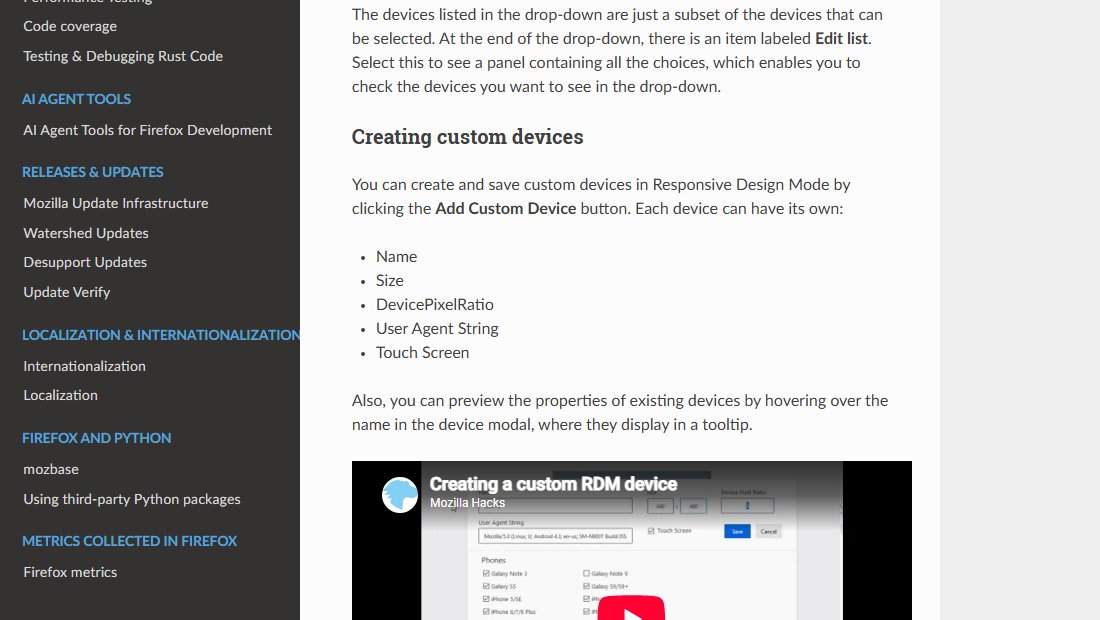
- Click the device label above the page, which reads no device selected, then choose Edit list.
- Click Add Custom Device, enter a name such as Windows desktop, and set a desktop size such as 1280 x 800.
- Paste a Windows User-Agent string into User Agent String and save the device.
- Select the new device from the device list, then reload the page.
- Sign in with your Apple Account email or phone number and password, and enter the verification code if prompted.
Keep Responsive Design Mode open while you use iCloud.com in that tab.
iCloud.com supported browsers and Firefox on Linux
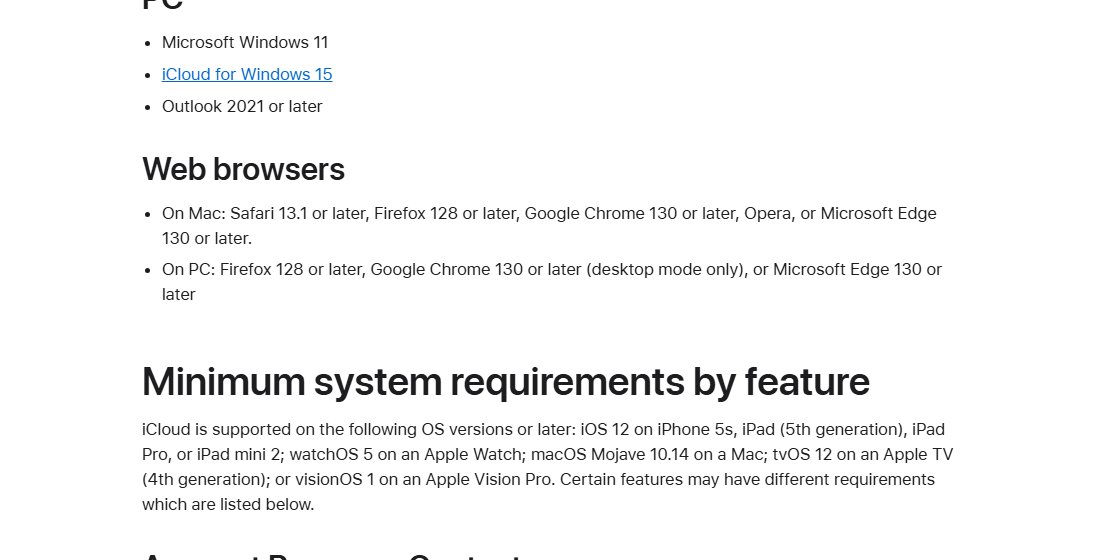
Apple's iCloud system requirements list browsers per platform, and Linux is not one of the platforms. Apple also notes that iCloud.com works best on supported browsers on macOS, iOS, iPadOS and Windows.
| Platform | Browsers Apple lists for iCloud.com | Firefox status |
|---|---|---|
| Mac | Safari 13.1 or later, Firefox 128 or later, Google Chrome 130 or later, Opera, Microsoft Edge 130 or later | Supported |
| Windows PC | Firefox 128 or later, Google Chrome 130 or later (desktop mode only), Microsoft Edge 130 or later | Supported |
| Linux | Not listed | Not on Apple's list, even though the browser engine is the same |
| Android | Not listed; some devices can use iCloud.com | Not on Apple's list |
Because Linux is unlisted, Apple does not promise that iCloud.com sign-in works there, and a failure on Linux is not treated as a supported-browser bug.
Windows User-Agent strings for iCloud.com in Firefox
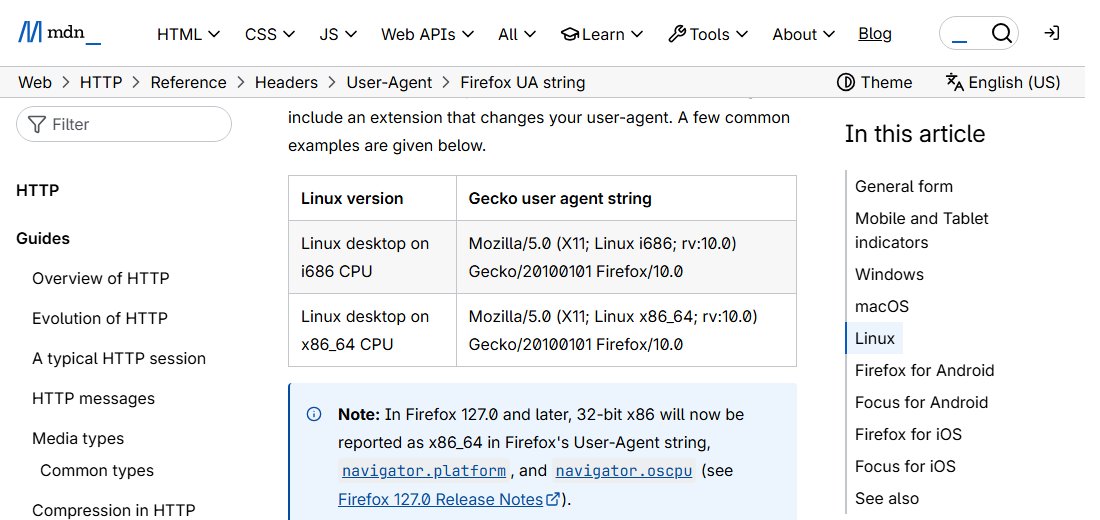
A browser User-Agent string tells a site which browser and operating system you use. Firefox on Linux sends a string with X11; Linux x86_64 in it, and the strings below replace that token with Windows.
| Identify as | User-Agent string | When to use it |
|---|---|---|
| Firefox on Windows | Mozilla/5.0 (Windows NT 10.0; Win64; x64; rv:128.0) Gecko/20100101 Firefox/128.0 |
First choice, because Apple lists Firefox 128 or later on PC |
| Chrome on Windows | Mozilla/5.0 (Windows NT 10.0; Win64; x64) AppleWebKit/537.36 (KHTML, like Gecko) Chrome/130.0.0.0 Safari/537.36 |
If the Firefox on Windows string still stalls |
| Firefox on Linux (default) | Mozilla/5.0 (X11; Linux x86_64; rv:128.0) Gecko/20100101 Firefox/128.0 |
The string that triggers the problem; shown for comparison |
Replace 128.0 or 130.0.0.0 with your current Firefox or Chrome version if you prefer an exact match. Keep the rest of the string unchanged.
Spoof the User-Agent in Firefox with a user agent switcher add-on
An add-on applies the spoofed string automatically, so you skip Responsive Design Mode every time. Install add-ons only from addons.mozilla.org.
- Go to addons.mozilla.org in Firefox and search for a user agent switcher.
- Check the add-on's permissions and reviews, then click Add to Firefox.
- Open the add-on's options and paste the Firefox on Windows User-Agent string.
- Limit the rule to icloud.com, apple.com and appleid.apple.com if the add-on supports per-site rules.
- Reload icloud.com and sign in.
Per-site rules matter. A global Windows string makes other sites offer you Windows downloads and instructions.
iCloud.com on Linux: User-Agent spoof or another browser
| Your situation | Use this | Why |
|---|---|---|
| You sign in to iCloud.com now and then | Responsive Design Mode with a custom device | Built into Firefox, no add-on, ends when you close it |
| You use iCloud.com in Firefox every day | A user agent switcher add-on with a per-site rule | Applies automatically to Apple's domains only |
| You do not want to spoof anything | Another browser on the same Linux machine | It sends its own User-Agent, so no spoofing is needed to test it |
| You need a supported setup for work | A Mac or Windows PC with a listed browser | Only these platforms appear on Apple's requirements list |
Check which User-Agent Firefox sends to iCloud.com
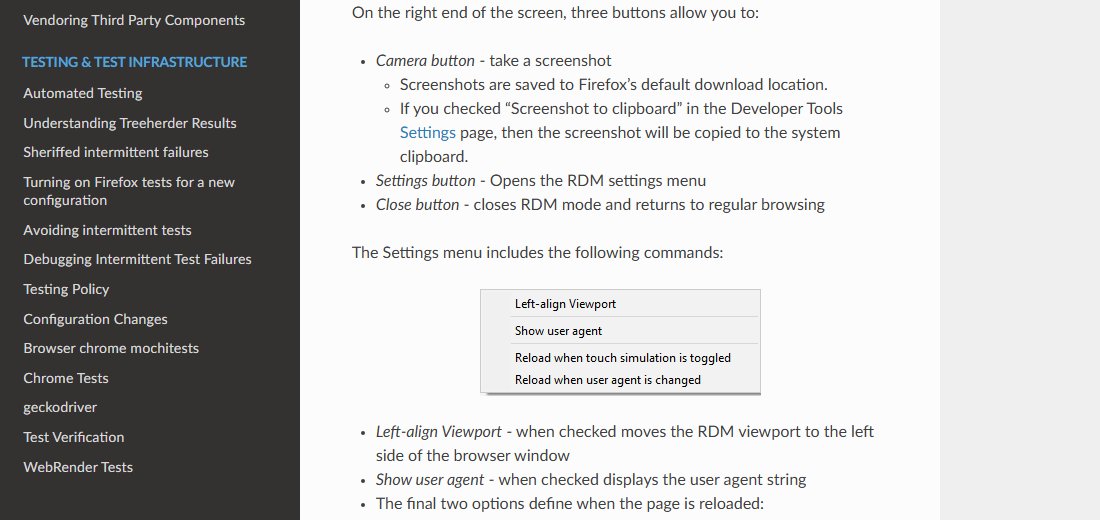
- With Responsive Design Mode open, click the settings button at the right end of its toolbar.
- Check Show user agent to display the string in the toolbar.
- Confirm the string contains Windows NT 10.0 and not X11; Linux.
- Reload icloud.com and confirm the sign-in form accepts your email and password.
- After sign-in, confirm the iCloud.com homepage tiles for Mail, Drive, Photos and Notes load.
Turn on Reload when user agent is changed in the same menu so every User-Agent change reloads the page automatically.
Fix iCloud.com sign-in problems on Firefox for Linux
Sign-in spins forever and the console shows 503 errors from idmsa.apple.com or appleid.apple.com
The sign-in requests fail while Firefox identifies itself as running on Linux, an unsupported platform.
- Apply a Windows User-Agent string with Responsive Design Mode or an add-on.
- Reload icloud.com so the new string is sent from the first request.
- If it still fails, switch from the Firefox on Windows string to the Chrome on Windows string.
Sign-in works in Chromium but not Firefox on the same Linux machine
The network and Apple Account work, so the browser's identity is the likely difference.
- Confirm Firefox is version 128 or later.
- Spoof a Windows User-Agent in Firefox.
- Use the Chromium-based browser for iCloud.com if you prefer not to spoof.
The spoofed string is set but sign-in still fails
Cached site data from failed attempts or another add-on can interfere with the sign-in page.
- Clear cookies and site data for icloud.com and apple.com in Firefox.
- Check Apple's System Status page at apple.com/support/systemstatus for an outage.
- Sign in at account.apple.com to confirm your Apple Account password works.
You are signed in but see only Find Devices and iCloud Settings
Advanced Data Protection turns off web access to iCloud data.
- On your Mac, choose Apple menu > System Settings, click your name, then click iCloud.
- Click Data Access on iCloud.com and turn on Allow Data Access.
- On iPhone or iPad, go to Settings > your name > iCloud > iCloud.com and turn on Allow Data Access.
Sign-in asks for a code but no trusted device is nearby
Two-factor authentication needs a code from a trusted device or phone number.
- Choose to receive the code at your trusted phone number.
- If you only need to locate a device, select the Find Devices button on the iCloud.com sign-in page.
To report the problem to Apple, use the iCloud page on apple.com/feedback and name your Firefox version and Linux distribution.
iCloud.com on Firefox for Linux FAQ
Answers to common questions about using iCloud.com from a Linux PC.
Does iCloud.com support Firefox on Linux?
No. Apple's iCloud system requirements list Firefox 128 or later on Mac and on Windows PCs only. Linux is not listed, so iCloud.com sign-in on Firefox for Linux can fail without warning.
Why does iCloud.com sign-in work after spoofing the User-Agent?
The User-Agent string tells Apple which browser and operating system you use. When Firefox reports Windows instead of Linux, the request matches a platform Apple supports, which is why the login can then complete.
Is it safe to spoof the User-Agent for iCloud.com?
Changing the User-Agent changes only how Firefox identifies itself to sites. Your password, two-factor authentication and HTTPS connection to Apple stay the same. Limit the spoof to Apple's domains so other sites still see Linux.
Which Firefox version does iCloud.com need?
Apple lists Firefox 128 or later for iCloud.com on Mac and Windows PCs. Update Firefox through your Linux distribution's package manager or from mozilla.org before you try any other fix.
Can I use iCloud on Linux without a browser?
No. Apple makes iCloud apps for Apple devices and iCloud for Windows, and Linux has no official iCloud app. On Linux, iCloud.com in a web browser is the only route.
How do I report the iCloud.com Firefox on Linux problem to Apple?
Open apple.com/feedback and choose iCloud. Describe the browser version, Linux distribution and the 503 errors from appleid.apple.com or idmsa.apple.com, and say that a Windows User-Agent fixes it.