Yes, an iPhone device backup to iCloud or to a computer through iTunes, Finder or Apple Devices can include WhatsApp's app data, but WhatsApp restores chats only from its own Chat Backup in iCloud or WhatsApp cloud storage.
This guide explains what each backup holds, how to back up and restore WhatsApp chat history, how to move it to a new iPhone or export it, and how to fix a backup or restore that fails.
Is WhatsApp chat history included in iCloud backup?
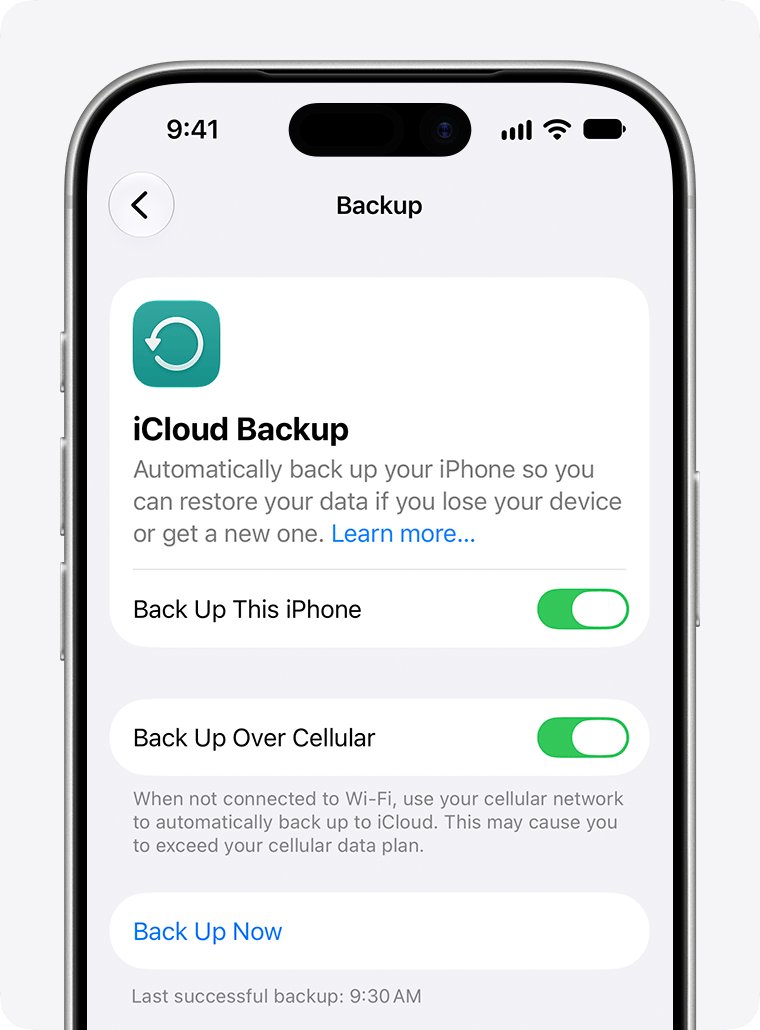
Two different backups end up in iCloud, and they are easy to confuse. The iPhone's own iCloud Backup copies app data, while WhatsApp's Chat Backup is a separate file WhatsApp creates and reads back itself.
| Backup | Holds WhatsApp chats? | What to know |
|---|---|---|
| iPhone iCloud Backup (Settings > iCloud > iCloud Backup) | It can | Apple includes app data for third-party messaging apps; WhatsApp says these copies are not protected by its end-to-end encryption |
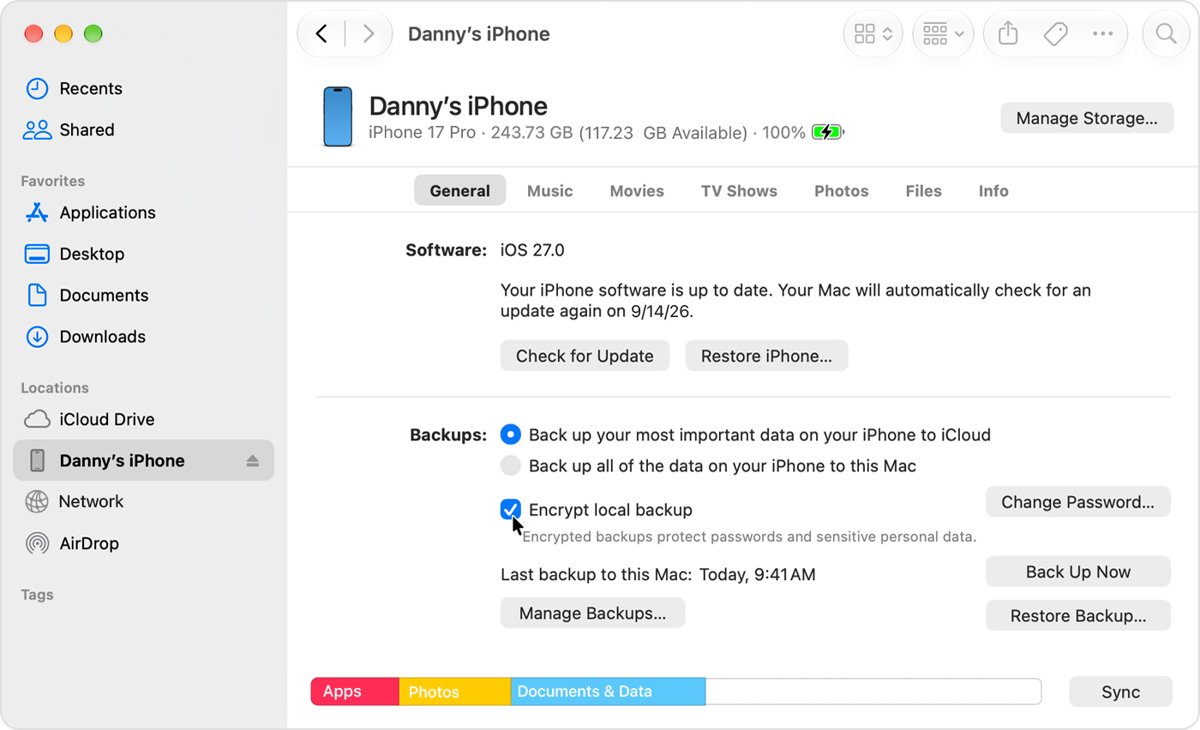
| Computer backup in iTunes, Finder or Apple Devices | It can | Apple says a computer backup holds almost all device data and settings; it is not encrypted unless you turn on Encrypt local backup |
| WhatsApp Chat Backup to iCloud | Yes | Created from WhatsApp Settings > Chats > Chat backup; this is what WhatsApp restores from |
| WhatsApp cloud storage | Yes | Always end-to-end encrypted; you cannot use it and an iCloud chat backup at the same time |
| Export chat | One chat as a ZIP file | A text copy for reading or sharing; it cannot be imported back into WhatsApp |
WhatsApp states that the only way to recover a WhatsApp backup or move it to another iPhone is with iCloud or WhatsApp cloud storage. Keep a recent WhatsApp Chat Backup even if your iPhone is backed up every night.
How to back up WhatsApp chat history to iCloud
Check first that you are signed in to the same iCloud account and phone number you will restore with, that iOS is up to date, and that both iCloud and the iPhone have free space for the backup.
- Open WhatsApp and tap Settings or your profile picture.
- Tap Chats > Chat backup.
- Tap Cloud backup, select iCloud, then tap Turn on backups.
- Choose how often WhatsApp backs up: daily, weekly or monthly.
- Turn Include videos in chats or Include status archive on if you want those saved too.
- Tap Back up now to create the first backup straight away.
To protect the backup with WhatsApp's own encryption, go to Chats > Chat backup > End-to-end encrypted backup, tap End-to-end encryption, choose a passkey, password or 64-digit key, and tap Create. Keep that password or key, because it is the only way into the backup later.
How to back up iPhone with iTunes or Finder
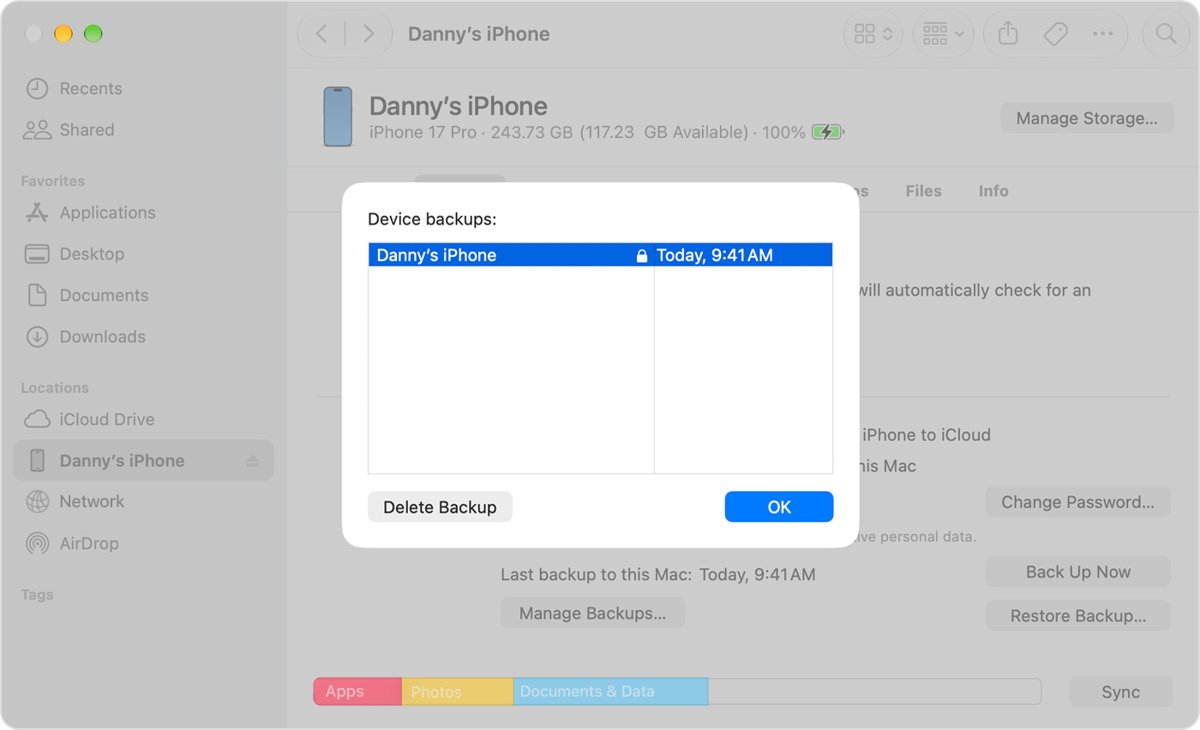
A computer backup copies the whole iPhone, including app data, to your Mac or PC. On macOS Catalina or later use Finder; on macOS Mojave or earlier use iTunes; on Windows use the Apple Devices app on Windows.
- Connect the iPhone to the computer with a cable and click Allow if asked.
- Open Finder and select the iPhone in the sidebar, or open iTunes and select the device in the upper-right corner.
- Click Trust on the computer and on the iPhone, and enter the iPhone passcode if asked.
- Select Encrypt local backup and create a password if you want the backup locked; you cannot recover the backup without it.
- Click Back Up Now.
- Wait until the date and time of the latest backup appear.
An encrypted computer backup also keeps saved passwords, Wi-Fi settings, website history, Health data and call history, which an unencrypted backup leaves out.
How to restore WhatsApp chat history from iCloud backup
You cannot restore chats from inside WhatsApp's settings. The restore runs when you reinstall WhatsApp and verify the same phone number.
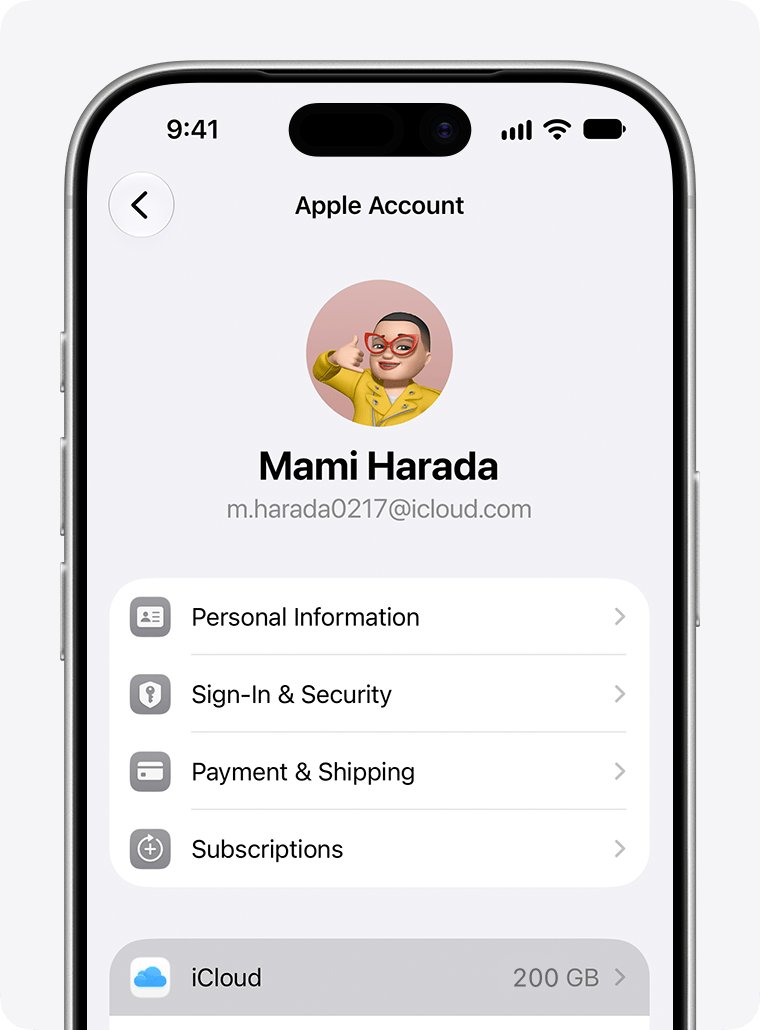
- Open iPhone Settings, tap your name, then iCloud > iCloud Drive.
- Turn on Sync this iPhone and make sure WhatsApp is on under Apps Syncing to iCloud Drive.
- Uninstall WhatsApp, then install it again from the App Store.
- Verify your phone number and Apple Account.
- Tap Restore Chat History.
- Keep WhatsApp open until your chats appear; photos and videos then restore in the background.
- Leave the iPhone on Wi-Fi and power until the media restore finishes, and avoid Skip media restore if you want to keep your media.
Messages sent or received after the last backup cannot be restored. If your most recent backup is more than 120 days old, restoring it may not be possible.
How to restore iPhone from an iCloud or iTunes backup
Restoring the whole iPhone brings back settings, apps and app data from a device backup. Erase the iPhone first if it is already set up.
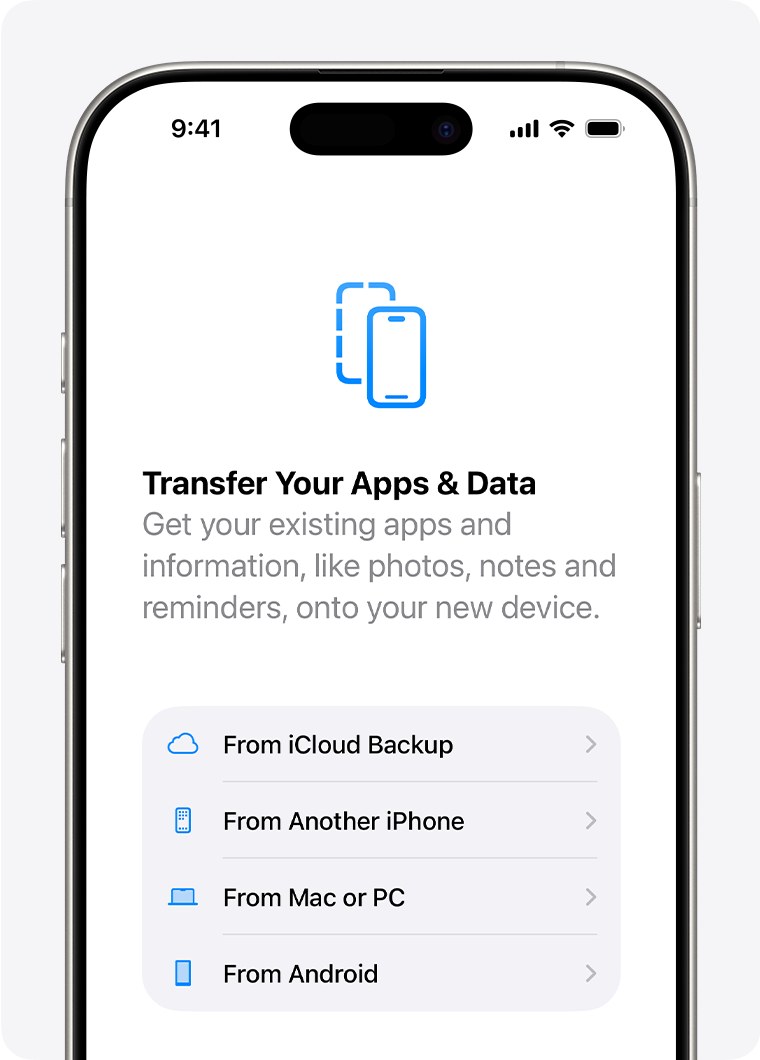
- Turn on the iPhone and follow the setup steps until the Transfer Your Apps & Data screen.
- Tap From iCloud Backup and sign in to your Apple Account, or choose to restore from a Mac or PC.
- For a computer backup, open Finder on a Mac or the Apple Devices app on a PC, select the iPhone and click Restore Backup.
- Pick the most recent backup by date and size, and enter the password if it is encrypted.
- Keep the iPhone on Wi-Fi and power, or connected to the computer, until the restore finishes.
- Open WhatsApp and check that your chats are there; if they are not, reinstall WhatsApp and restore from its Chat Backup.
How to transfer WhatsApp chat history to a new iPhone
Chat Transfer moves your full history straight from the old iPhone to the new one over a local connection, with no backup needed. It moves messages, photos, videos and documents, but not call history, peer-to-peer payment messages or media received in Channels.
| Your situation | Use this | Why |
|---|---|---|
| Both iPhones are with you | Chat Transfer: profile picture > Chats > Transfer Chats to iPhone > Start | Moves everything directly; scan the QR code on the new phone with the old one |
| The old iPhone is lost or broken | Restore from your WhatsApp Chat Backup | The backup is the only remaining copy |
| You are restoring the whole phone anyway | iCloud or computer device backup, then WhatsApp Chat Backup if chats are missing | The device backup brings apps and settings back |
| You are moving to Android | WhatsApp's iPhone to Android move | Backups made on an iPhone cannot be restored on Android |
| You use WhatsApp Business | WhatsApp Chat Backup | Chat Transfer is not available in the WhatsApp Business app |
Both phones need the latest iOS and WhatsApp, the same phone number, Wi-Fi, power and local network permission. Do not delete WhatsApp from the old iPhone until the transfer shows Transfer completed on the new one.
How to export WhatsApp chat history
Exporting saves one conversation as a ZIP file you can keep, email or store in Files. Use it to save or share a chat, not to move it, because WhatsApp cannot import it again.
- Open the individual or group chat in WhatsApp on the iPhone.
- Tap the contact's name or the group name at the top.
- Tap Export chat.
- Choose With all media, With selected media or Without media if the chat contains media.
- Pick where to send it, such as Message, Save to Files or Notes.
View once messages are not exported. On WhatsApp for Web, Windows or Mac, open the chat, select the menu, then Export chat, and pick All messages or a Custom date range; media is not included from the desktop.
How to check if WhatsApp chat history is backed up
- Open WhatsApp and tap Settings.
- Tap Chats > Chat Backup.
- Look for the time and size of your last backup on that screen.
- If no backup is listed, tap Back up now and wait for it to complete before you reset or replace the iPhone.
- For the device backup, open iPhone Settings, tap your name, then iCloud > iCloud Backup, and check the time shown under Back Up Now.
If chats are already missing, do not create a new WhatsApp backup first. iCloud keeps only one WhatsApp backup per account, and a new one replaces the copy that still holds your missing chats.
How to turn off WhatsApp in iCloud device backup
WhatsApp suggests this once you use its end-to-end encrypted backup, so an unencrypted copy of your chats does not also sit in the iPhone's device backup.
- Open iPhone Settings and tap your name.
- Tap iCloud > iCloud Backup.
- Tap your iPhone under All device backups.
- Turn WhatsApp off.
- Tap Turn Off if iOS asks you to confirm.
Turning WhatsApp off here removes its data from that iCloud device backup but does not turn on WhatsApp's end-to-end encrypted backup. Set that up separately in Chats > Chat backup.
WhatsApp backup vs iPhone backup
| Question | WhatsApp Chat Backup | iPhone device backup (iCloud or computer) |
|---|---|---|
| Where it is stored | iCloud Drive or WhatsApp cloud storage | iCloud Backup, or a Mac or PC |
| Encryption | Optional end-to-end encryption in iCloud; always end-to-end in WhatsApp cloud storage | iCloud backups are encrypted by Apple; computer backups only with Encrypt local backup |
| How many copies | One backup per account or phone number; each new one replaces the last | Depends on iCloud storage or computer disk space |
| How you restore | Reinstall WhatsApp and tap Restore Chat History | Restore the whole iPhone during setup |
| Works across Android and iPhone | No | No |
| Storage used | Counts toward iCloud storage; both options together need extra space | Counts toward iCloud storage, or the computer's free space |
Keep WhatsApp's Chat Backup as your main copy of chats. Treat the device backup as a full-phone safety net rather than a WhatsApp-specific one.
WhatsApp chat history not restoring from iCloud
Restore Chat History does not appear
WhatsApp cannot see a backup for this phone number and iCloud account.
- Check that you verified the same phone number used for the backup.
- Check that the iPhone is signed in to the same iCloud account.
- Turn on Sync this iPhone and WhatsApp under Apps Syncing to iCloud Drive, then reinstall WhatsApp.
"Couldn't restore your chat history"
Not enough space on the iPhone, an old backup, a wrong encryption key, or a corrupted backup.
- Go to Settings > General > iPhone Storage and free up space.
- Update iOS and WhatsApp, then restart the iPhone.
- Enter the correct password or 64-digit key if the backup is end-to-end encrypted.
- Sign out of iCloud, restart, sign back in and try again only after the other steps fail.
WhatsApp backup stuck or "Backup failed"
Unstable Wi-Fi, low iCloud or iPhone storage, or low battery.
- Restart the iPhone and plug it into power.
- Turn Wi-Fi off and on, or try another network or mobile data.
- Free up iCloud storage or reduce the backup size by turning off Include videos in chats.
- Turn Sync this iPhone off, wait 5 to 10 minutes, turn it on, wait again, restart and back up.
"Free up space on your device to restore your media"
Media needs temporary space on the iPhone to download and unpack; more iCloud storage does not help.
- Open Settings > General > iPhone Storage.
- Remove apps, photos or videos you no longer need until you have at least the space WhatsApp shows.
- Leave WhatsApp to finish the restore without tapping Skip media restore.
Old WhatsApp chats missing after restore
Only the latest backup can be restored, and messages after it are not in it.
- Check the date of the last backup in Chats > Chat Backup.
- If the old iPhone still has the chats, use Chat Transfer instead of the backup.
- Do not create a new backup until you have recovered what you need.
WhatsApp chat history backup FAQ
How do I get WhatsApp chat history on a new iPhone?
Use Chat Transfer if you still have the old iPhone: on the old phone tap your profile picture, then Chats, Transfer Chats to iPhone and Start, and scan the QR code on the new phone. Without the old phone, reinstall WhatsApp and tap Restore Chat History.
Can I retrieve WhatsApp chat history without a backup?
Only if the chats are still on another phone, which you can move with Chat Transfer. WhatsApp does not keep your chat history on its servers, so it cannot restore chats for you, and there is nothing to retrieve once the phone and every backup are gone.
How do I get old WhatsApp chat history back?
You can restore only your most recent backup, because iCloud and WhatsApp cloud storage keep one backup per account and each new one replaces the last. Check the backup date in Chats > Chat Backup before restoring, and do not create a new backup while trying to recover older chats.
How do I download WhatsApp chat history?
Open the chat, tap the contact or group name, then Export chat, and choose whether to include media. WhatsApp creates a ZIP file you can save to Files or send in a message. On WhatsApp for Windows, Mac or Web, Export chat saves text only, without media.
How do I save chat history in WhatsApp?
Turn on WhatsApp Chat Backup in Settings > Chats > Chat backup and pick a daily, weekly or monthly schedule. That saves every chat to iCloud or WhatsApp cloud storage. To keep a single conversation as a file, use Export chat instead.
Can you share chat history on WhatsApp?
Yes, by exporting it. Open the chat, tap the contact or group name, choose Export chat, and send the ZIP file through Messages, Mail or another app. The person receives a text copy they can read, but it cannot be loaded into their WhatsApp.
Can I import chat history into WhatsApp?
No, not from an export. An exported chat is a text file rather than a backup file, so WhatsApp cannot import it again. To bring chats into WhatsApp on a new phone, restore a WhatsApp Chat Backup or use Chat Transfer from the old phone.
Does an iTunes backup include WhatsApp messages?
A computer backup made with iTunes, Finder or Apple Devices includes almost all of the iPhone's data and settings, which covers app data. WhatsApp itself restores only from its own iCloud or WhatsApp cloud storage backup, so keep that backup current as well.
Can I restore an iPhone WhatsApp backup on Android?
No. WhatsApp backups made on an iPhone cannot be restored on Android, and Android backups cannot be restored on an iPhone. Use WhatsApp's own move between iPhone and Android to take your chats across instead.