To install VMware Tools on a Windows 11 or 10 virtual machine in Workstation Pro, start the VM, choose VM > Install VMware Tools, run setup64.exe from the virtual CD drive, follow the wizard and restart the VM.
This guide covers the menu route in every VMware product, the manual ISO and silent command methods, how to check and update VMware Tools, and fixes for failed installs.
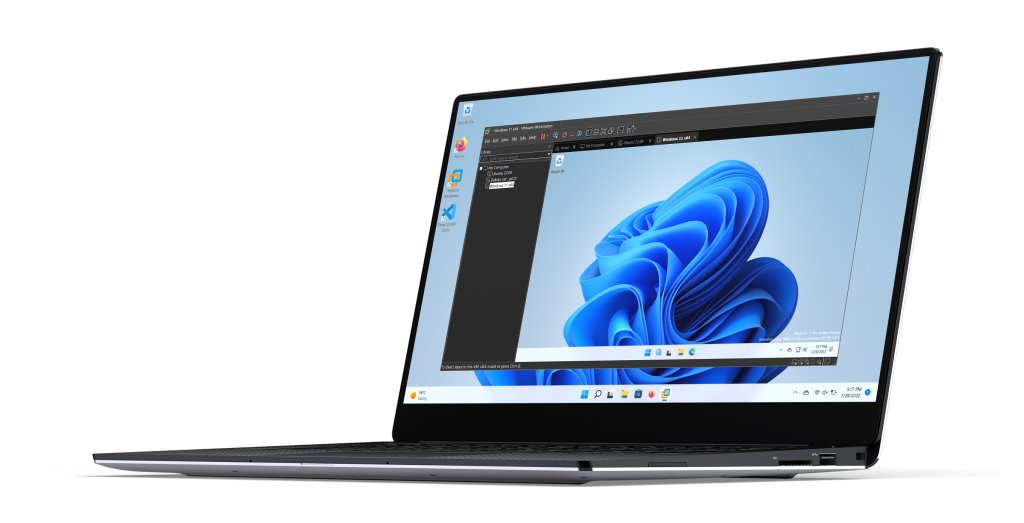
VMware Tools installation on Windows 11 or 10 VM
These steps are for VMware Workstation Pro, the most common desktop host. The other products use the same installer with a different menu, listed in method 1.
- Power on the Windows 11 or 10 virtual machine and log in with an administrator account.
- In Workstation Pro, choose VM > Install VMware Tools.
- Click OK if an information page appears.
- If the setup wizard does not open on its own, press Win + R, type
D:\setup64.exeand press Enter. ReplaceD:with the VM's first CD drive letter. - Follow the on-screen prompts and keep the default setup type.
- Restart the virtual machine when the installer asks.
What is the use of VMware Tools?
VMware Tools is a set of services and drivers that lets VMware products manage a guest operating system and improves how you work with it. A guest runs without it, but Broadcom recommends always running the latest version.
| Component | What it gives the Windows VM |
|---|---|
| SVGA driver | Better virtual video performance and full display options; without it, display capabilities are limited |
| VMXNet3 driver | A faster virtual network card with multiqueue and IPv6 offloads |
| Mouse and MouseUsb drivers | Smoother PS/2 and USB mouse input |
| Hgfs (Shared Folders) | Folders shared between the VM and the host in Workstation, Player or Fusion |
| Audio driver | Sound from the virtual sound card |
| VSS driver | Consistent automatic backups of the guest |
| Time sync and messaging services | Guest clock synchronised with the host, host-to-guest messages and power-state scripts |
VMware Tools requirements for Windows 11 and 10 guests
Check these five points before you begin, because most failed installs trace back to one of them.
| Requirement | Detail |
|---|---|
| VM powered on with Windows running | The installer runs inside the guest, not on the host |
| Administrator account in the guest | Every Windows version after Windows ME needs an administrator to install VMware Tools |
| 64-bit Windows | VMware Tools 12.5.0 and later ISOs support only 64-bit Windows |
| CD/DVD drive set to autodetect | If the drive still points at the Windows install ISO, set it to autodetect a physical drive so the VMware Tools ISO can mount |
| Microsoft Visual C++ 2015-2022 Redistributable | Required for VMware Tools 13; it ships in the package and installs automatically if the guest has an older one |
If you are still choosing a host, Workstation Pro is one of several virtual machine options on Windows 11, and VMware Tools only applies to VMware products.
Method 1: Install VMware Tools using the VMware menu
Every VMware product mounts the VMware Tools ISO from a menu command. The menu reads Install the first time and Upgrade once an older version is present.
| VMware product | Menu command | Then |
|---|---|---|
| Workstation Pro | VM > Install VMware Tools | Click OK, then run the wizard in the guest |
| Workstation Player | Player > Manage > Install VMware Tools | Click OK, then run the wizard in the guest |
| Fusion (Mac host) | Virtual Machine > Install VMware Tools | Run the wizard in the Windows guest |
| vSphere Client (ESXi) | Right-click the VM > Guest OS > Install VMware Tools | Run the wizard; the Summary tab shows OK when done |
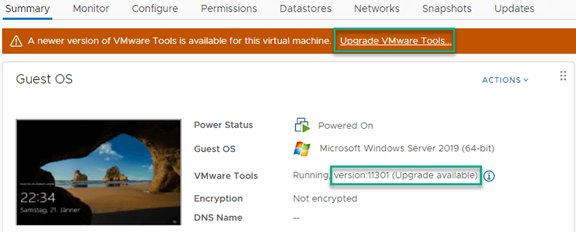
On ESXi hosts, select the VM in the vSphere Client inventory and check the Summary tab first to see whether the installed version is current. The same menu works on a host running the free VMware ESXi hypervisor.
Method 2: Install VMware Tools manually from the ISO
Use this method when the menu command does nothing, or autorun is off in the guest. In Workstation Pro and Player, the windows.iso file sits on the host in the folder where you installed the product.
- Shut down the VM, open its settings, and select the CD/DVD drive.
- Set the drive to use an ISO image file and browse to
windows.isoin the Workstation Pro or Player install folder on the host. - Make sure the drive is set to connect when the VM powers on, then save the settings.
- Start the VM and log in as an administrator.
- Open File Explorer, open the CD drive, and double-click
setup64.exe. - Follow the prompts, then restart when asked.
When the host product does not include the ISO you need, Broadcom publishes all VMware Tools ISO images on the Broadcom Support Portal.
Method 3: Install VMware Tools with a silent command
A silent install suits scripts and several VMs. Mount the VMware Tools ISO first, then open Command Prompt as administrator in the guest.
D:\setup64.exe /S /v "/qn /l*v ""%TEMP%\vmmsi.log"" REBOOT=R"/S hides the setup window, /v passes the quoted options to the Windows Installer, /qn means no user interface, REBOOT=R stops an automatic restart, and /l*v writes a full log to %TEMP%\vmmsi.log. Replace D: with the CD drive letter.
You should see: The command returns with no window. After you restart the VM, VMware Tools appears in Programs and Features.
To skip a component, add ADDLOCAL=ALL REMOVE= and its feature name inside the quotes. For example, ADDLOCAL=ALL REMOVE=Hgfs installs everything except Shared Folders. Feature names are case-sensitive and comma-separated.
How to check whether VMware Tools is installed
- In the guest, open Control Panel > Programs and Features and look for VMware Tools in the list.
- Look for the VMware Tools icon in the Windows taskbar notification area.
- Open Command Prompt and run
cd "C:\Program Files\VMware\VMware Tools". - Run
VMwareToolboxCmd.exe timesync status. A status reply means the VMware Tools service is installed and answering. - On ESXi, select the VM in the vSphere Client and check that the VMware Tools label on the Summary tab reads OK.
How to update VMware Tools
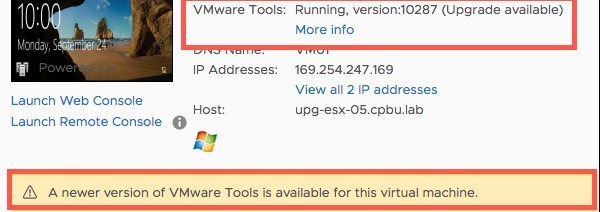
The guest checks its VMware Tools version at power on. If upgrade notifications are on, the taskbar icon shows a yellow caution symbol when a newer version is available.
- Power on the VM and log in as an administrator.
- In Workstation Pro, choose VM > Upgrade VMware Tools. In Player, choose Player > Manage > Upgrade VMware Tools.
- Run
setup64.exefrom the CD drive if the wizard does not start. - Let the installer upgrade the existing copy. Do not uninstall the old version first.
- Restart the VM when asked.
An in-place upgrade keeps drivers such as VMXNET3, so the guest keeps its network settings.
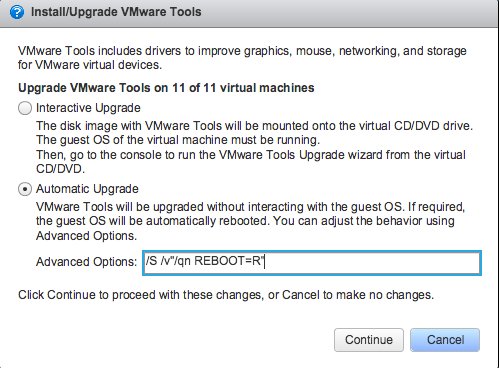
How to update VMware Tools automatically in vSphere
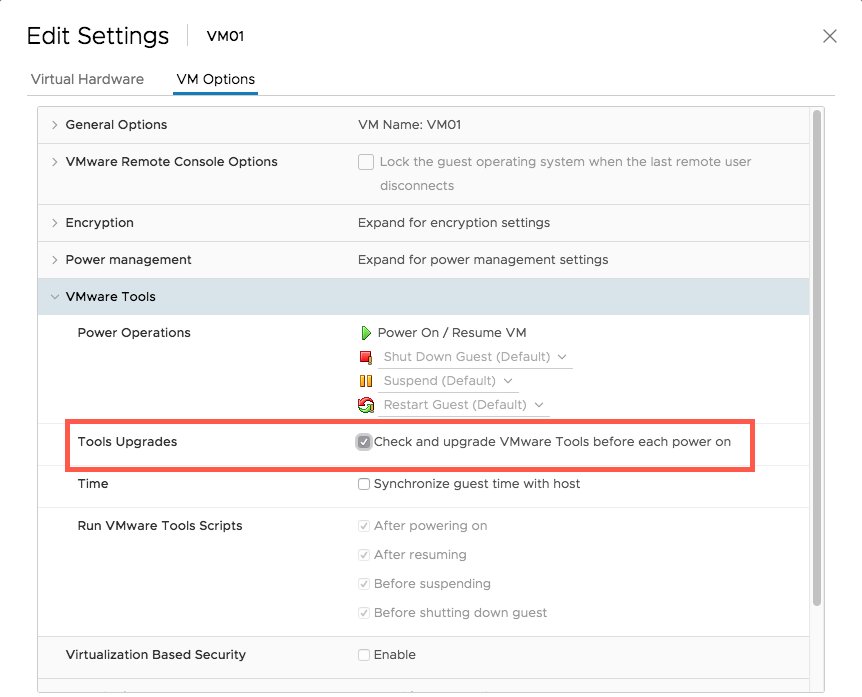
On ESXi, a VM can check for and install newer VMware Tools each time it powers on. On Windows guests, the upgrade itself runs when the VM powers off or restarts.
- In the vSphere Client, right-click the VM and click Edit Settings.
- Click the VM Options tab and select VMware Tools.
- Select Check and upgrade VMware Tools before each power on.
- Click OK to save.
This needs VMware Tools shipped with ESX 6.5 or later already in the VM, and vCenter Server 6.5 or later.
Installing VMware Tools on Windows 11
Windows 11 is on the supported list for current VMware Tools, and the install steps are the same as on Windows 10.
| Windows 11 guest | What to know |
|---|---|
| Windows 11 x64 | Supported by windows.iso; run setup64.exe |
| Windows 11 Arm | Supported by the Windows Arm package; Broadcom also provides Arm installer .exe files |
| Visual C++ runtime | The x86 and x64 Visual C++ 2015-2022 Redistributable install with VMware Tools if the guest lacks them |
| After install | Restart the VM so the SVGA, mouse and network drivers load |
A Windows 11 Arm guest needs the Arm64 Visual C++ 2015-2022 Redistributable; without the required version, VMware Tools 13 does not install.
Installing VMware Tools on Windows 10
| Windows 10 guest | What to know |
|---|---|
| Windows 10 64-bit | Supported; use any method above and run setup64.exe |
| Windows 10 32-bit | VMware Tools 13 and 12.5 ISOs support only 64-bit Windows; use an older VMware Tools release listed for 32-bit guests |
| Uninstall path | Control Panel > Programs and Features > VMware Tools > Uninstall |
How to install VMware Tools on Windows Server, Windows 8 and Windows 7
The same windows.iso covers Windows Server and older desktop versions, with extra update requirements on the older ones.
| Guest OS | Supported by current VMware Tools? | Requirement |
|---|---|---|
| Windows Server 2025, 2022, 2019, 2016 | Yes | None beyond the standard prerequisites |
| Windows Server 2012 R2, Windows 8.1 | Yes | Microsoft update KB2919355 |
| Windows Server 2012, Windows 8 | Yes | None listed |
| Windows 7 SP1, Server 2008 R2 SP1 (64-bit) | Yes, with limits | Microsoft update KB4474419 for SHA-2 signing; no new drivers since VMware Tools 12.4.0 |
| Windows 7 32-bit | No, not in VMware Tools 13 | Use an older 12.x release |
| Windows XP, 2000 and other pre-Vista | Separate ISO | The pre-Vista ISO is a download only, not packaged with ESX |
Troubleshooting common VMware Tools installation problems
Install VMware Tools does nothing or the setup never starts
Autorun is off in the guest, or the CD/DVD drive is still connected to the Windows install ISO.
- Press Win + R, type
D:\setup64.exeand press Enter, using the VM's first CD drive letter. - If the drive shows the Windows installer instead, shut down the VM and set the CD/DVD drive to autodetect a physical drive.
- Start the VM and choose Install VMware Tools again.
Cannot install VMware Tools on Windows 11
The account is not an administrator, or the guest does not meet the Visual C++ prerequisite.
- Sign in to the guest with an administrator account.
- Run
setup64.exeagain and let it install the Visual C++ Redistributable. - On a Windows 11 Arm guest, use the Arm package, not
setup64.exefrom the x64 ISO.
Can't install VMware Tools on Windows 7
The guest lacks SHA-2 code signing support, so driver signature checks fail, or it is 32-bit.
- Install Service Pack 1 and Microsoft update KB4474419 in the guest.
- Restart the VM and run the VMware Tools installer again.
- For 32-bit Windows 7, install an older VMware Tools 12.x release instead of version 13.
VMware Tools upgrade failed with error code 1072
The old VMware Tools service was not fully removed, so the new service cannot be created.
- Wait; the installer retries for up to two and a half minutes.
- If it still fails, restart Windows in the guest.
- Run the VMware Tools installer again.
No network after reinstalling VMware Tools
Uninstalling VMware Tools removes the VMXNET3 driver, which can wipe the guest's network configuration.
- Finish the reinstall so the VMXNET3 driver returns.
- Re-enter any static IP settings in the guest's network adapter.
- Next time, upgrade in place by running the new installer over the old version.
How to repair or reinstall VMware Tools
Try an in-place run first: when an install or upgrade is incomplete, Broadcom's fix is to run the installer again over the existing copy. Uninstall only if that fails.
- Mount the VMware Tools ISO with the VM menu's VMware Tools command and run
setup64.exeover the current version. - If problems remain, open Control Panel > Programs and Features in the guest.
- Select VMware Tools and click Uninstall.
- Restart the guest operating system.
- Install VMware Tools again with method 1 or 2, then restart.
Note any static IP address before you uninstall, because removing VMware Tools also removes the VMXNET3 network driver.
Best practices after installation
| Task | Why |
|---|---|
| Keep VMware Tools current | New versions add drivers, fixes and guest OS support |
| Upgrade in place, never uninstall first | Uninstalling drops the VMXNET3 driver and can wipe network settings |
| Use one time sync method | If Windows Time is on, turn off VMware Tools periodic sync with VMwareToolboxCmd.exe timesync disable |
| Leave out Shared Folders if unused | Remove the Hgfs feature on VMs that never share folders with the host |
| Turn on auto-upgrade on ESXi | Check and upgrade VMware Tools before each power on removes the manual step |
If the guest is running short of space after setup, you can increase the VMware virtual disk size from the VM's settings.
VMware Tools installation FAQ
What is the use of VMware Tools?
VMware Tools adds drivers and services that improve a VM's video, mouse, network and sound, sync the guest clock with the host, and enable shared folders. A guest runs without it, but with poorer display and input.
How do I install VMware Tools manually?
Connect the VM's CD/DVD drive to windows.iso, start the VM, and run setup64.exe from the CD drive as an administrator. Workstation Pro and Player keep windows.iso in their install folder on the host.
How do I run VMware Tools after installing it?
VMware Tools runs as a background service, so there is nothing to launch. For settings, use VMwareToolboxCmd.exe in C:\Program Files\VMware\VMware Tools; run it with help to list its commands.
How do I install VMware Tools on Windows Server?
Use the same steps as on Windows 10. In the vSphere Client, right-click the VM, choose Guest OS > Install VMware Tools, and run the wizard in the guest. Windows Server 2016 through 2025 are supported.
Can I install VMware Tools on Windows XP or Windows 2000?
Yes, but not from the current ISO. Broadcom provides a separate pre-Vista VMware Tools ISO as a download from the Broadcom Support Portal, and it is no longer packaged with ESX.
Do I need to uninstall VMware Tools before updating it?
No. Run the new installer over the existing version. The upgrade keeps drivers such as VMXNET3, while uninstalling first can remove the network driver and its settings.
Can Windows run in a VM without VMware Tools?
Yes. A guest operating system runs without VMware Tools, but Broadcom recommends the latest version for current features and fixes. Without the SVGA driver, display capabilities are limited.
How do I install VMware Tools on Linux?
Most current Linux distributions include open-vm-tools, the open-source version of VMware Tools, in their own package repositories. Install it with the distribution's package manager instead of the VMware Tools ISO.
Is VMware Tools the same as VirtualBox Guest Additions?
They do the same job for different hypervisors. VMware Tools only works in VMware products; in VirtualBox you install Guest Additions on Windows 11 instead.