To allow Microsoft Edge through the firewall in Windows 11 or Windows 10, open Windows Security > Firewall & network protection > Allow an app through firewall, select Change settings and tick Microsoft Edge.
This guide covers that route, the firewall.cpl and wf.msc rule methods, a PowerShell command, how to prove the rule works and what to do when Edge is still blocked.
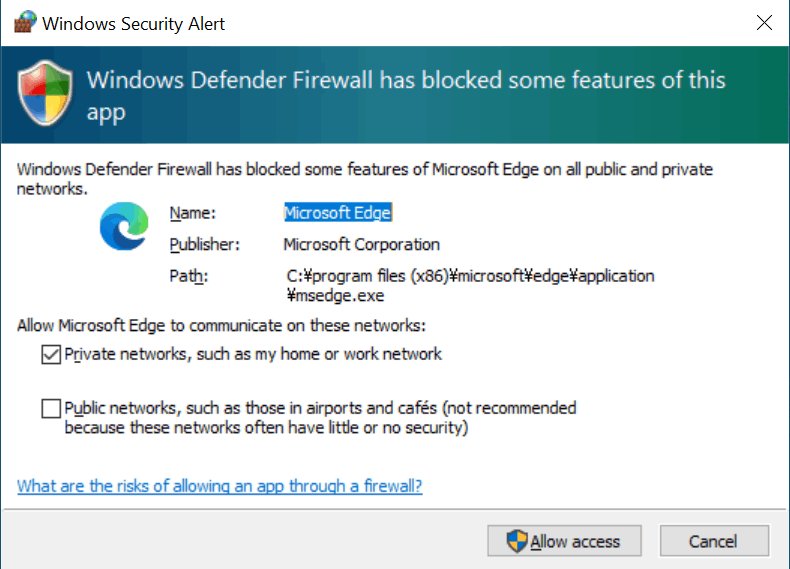
Quick answer: the fastest way to allow Edge
Use Windows Security > Firewall & network protection > Allow an app through firewall, then tick Microsoft Edge for the network types you use. It adds an allowed-app entry, which Microsoft rates as less risky than opening a port, and it works the same way on Windows 11 and Windows 10.
Windows Firewall allows all outgoing traffic by default. If Edge cannot load pages at all, an explicit block rule, a third-party firewall or an organisation policy is the usual cause, so check those too.
Why Microsoft Edge gets blocked by firewall
Understanding Windows Firewall's defaults explains most blocks: it stops unsolicited incoming traffic and allows outgoing traffic unless a rule matches. Browsing starts outbound, so a blocked Edge almost always means a rule or another product is in the way. This is why managing firewall rules matters for browser security as much as for servers.
| Cause | How it affects browser operation | Where to fix it |
|---|---|---|
| A block rule for msedge.exe | Explicit block rules beat any allow rule, so Edge stays offline | wf.msc, or remove the rule with PowerShell |
| A dismissed firewall prompt | Cancelling the prompt, or answering it without admin rights, creates block rules | Delete the block rules, then allow Edge |
| Network set to Public | An exception ticked only for Private does not apply on public Wi-Fi | Tick Public too, or change the network type |
| Third-party security suite | Its own firewall filters Edge separately from Windows | That product's application or firewall settings |
| Organisation policy (GPO or Intune) | Local changes are overridden or ignored | Your IT administrator |
Prerequisites and requirements
| Check | Why it matters | How |
|---|---|---|
| 1. Verify your firewall settings | Rules only apply while the firewall is turned on for that profile | Windows Security > Firewall & network protection shows each profile's state |
| 2. Identify Microsoft Edge path | Program rules need the full path; wildcards are not supported | C:\Program Files (x86)\Microsoft\Edge\Application\msedge.exe |
| 3. Backup firewall settings | A reset later wipes custom rules | Record existing Edge rules with Get-NetFirewallRule before you change anything |
| 4. Check for existing rules | An old block rule overrides a new allow rule | Run the diagnostic command in the next section |
| 5. Ensure administrator rights | Changing firewall configuration requires an administrator | You are asked to confirm or enter an admin password |
Edge is not always in the same place on every PC; check where Microsoft Edge is installed before you type a path into a rule.
Pre-flight diagnostics: how to confirm the firewall is blocking Edge
Run this before you add anything. It lists every Windows Firewall rule tied to the Edge executable, including hidden block rules.
Get-NetFirewallApplicationFilter -Program "*msedge*" | Get-NetFirewallRule | Format-Table DisplayName, Direction, Action, Enabled, ProfileGet-NetFirewallApplicationFilter finds rules whose program path contains msedge, and Get-NetFirewallRule shows each rule's direction, action, state and profile.
You should see: No rows, or only Allow rows, means Windows Firewall is not blocking Edge. Any enabled row with Action Block is the cause.
If nothing is listed and Edge still fails while other browsers work, look at third-party security software or a proxy before changing Windows Firewall.
Method 1: Allow Microsoft Edge via Windows Security (recommended)
This is the same list that older guides call allowing Edge through Windows Defender Firewall settings. Use it on any home or work PC you administer.
- Select Start, type Windows Security and press Enter.
- Select Firewall & network protection.
- Select Allow an app through firewall.
- Select Change settings and confirm the administrator prompt.
- Check whether Microsoft Edge is in the list and tick its box.
- Tick the Private and, if you need it, Public column for Edge.
- Select OK to save.
Method 2: Use the classic Control Panel shortcut (firewall.cpl)
The Windows Defender Firewall Control Panel applet opens the same allowed-apps list. It only changes the profile you are connected to right now.
- Select Start, type
firewall.cpland press Enter to access Windows Firewall settings. - Select Allow an app or feature through Windows Defender Firewall in the left pane.
- Select Change settings to modify app permissions.
- Find Microsoft Edge in the allowed apps list and tick it.
- Choose Private, Public or both, then select OK to finalize the changes.
Add Microsoft Edge manually if it is missing
Edge is sometimes not listed, for example after a reinstall. Add it by its program path.
- In the allowed apps list, select Change settings.
- Select Allow another app.
- Enter or browse to
C:\Program Files (x86)\Microsoft\Edge\Application\msedge.exe. - Add the app, then tick the Private or Public box next to the new entry.
- Select OK to save the settings.
Method 3: Configure advanced inbound and outbound rules (wf.msc)
Windows Defender Firewall with Advanced Security lets you create a custom firewall rule for Microsoft Edge with a set program, profile and, if you want, port. Use it when the simple list is not enough or when you need an outbound rule.
- Step 1: Select Start, type
wf.mscand press Enter to open the firewall console. - Step 2: In the left pane, select Inbound Rules for incoming traffic or Outbound Rules to create a new outbound rule.
- Step 3: Select Action > New rule, choose Program as the Rule Type and select Next.
- Step 4: Select This program path, browse to
msedge.exeand select Next. Choose Custom instead of Program if you also want to set a port on the Protocol and Ports page. - Step 5: On Action, select Allow the connection and select Next.
- Step 6: On Profile, finish configuring profiles for the rule by ticking Domain, Private or Public, then select Next.
- Step 7: On Name, type a clear name such as Microsoft Edge allow and select Finish.
The rule is saved and enabled as soon as you select Finish. A browser only needs ports for traffic it receives, so allowing by program is simpler and safer than setting a port.
Method 4: Automate the rule via PowerShell or Command Prompt
Open PowerShell with administrative privileges first: select Start, type PowerShell, right-click it, select Run as administrator and accept the prompt.
New-NetFirewallRule -DisplayName "Microsoft Edge outbound" -Direction Outbound -Program "C:\Program Files (x86)\Microsoft\Edge\Application\msedge.exe" -Action AllowCreates an outbound allow rule for msedge.exe in every profile. Change -Direction to Inbound for an inbound rule. The Command Prompt equivalent is netsh advfirewall firewall add rule name="Microsoft Edge outbound" dir=out action=allow program="C:\Program Files (x86)\Microsoft\Edge\Application\msedge.exe" enable=yes.
You should see: PowerShell prints the new rule with Enabled: True and Action: Allow. netsh prints Ok.
An access-denied error means the window is not elevated. Close it and reopen it as administrator.
Private vs. public networks: which box should you check?
Each allowed app has a Private and a Public box, and Windows applies the profile that matches your current network. Public is the default for networks Windows does not recognise.
| Your situation | Tick | Why |
|---|---|---|
| Home PC that never leaves the house | Private | Your home network should be set to Private |
| Laptop used on cafe, hotel or airport Wi-Fi | Private and Public | Those networks use the Public profile |
| Work PC joined to a domain | Leave to IT | The Domain profile is set by policy |
| Home network wrongly marked Public | Change the network to Private | Run Set-NetConnectionProfile -InterfaceAlias "Wi-Fi" -NetworkCategory Private as admin |
Run Get-NetConnectionProfile to see the network category Windows is using before you adjust firewall profile settings.
Microsoft Edge WebView2: unblocking embedded browser components (Teams, Outlook)
Apps such as the new Teams and Outlook render content with the WebView2 Runtime, not the Edge browser. An allow rule for msedge.exe does not cover them.
| Item | Edge browser | WebView2 Runtime |
|---|---|---|
| Process name | msedge.exe | msedgewebview2.exe |
| Updates | Edge update policy | Separate update policy |
| Firewall rule target | The msedge.exe path | The msedgewebview2.exe path |
| Find the path | Task Manager > right-click msedge.exe > Open file location | Task Manager > right-click msedgewebview2.exe > Open file location |
Advanced enterprise environments: Application Guard (WDAG) & GPO rules
| Topic | Current status | What to do |
|---|---|---|
| Microsoft Defender Application Guard for Edge | Deprecated, and not available from Windows 11 version 24H2 | Do not build firewall rules around it on new builds |
| Group Policy firewall rules | Set under Computer Configuration > Policies > Windows Settings > Security Settings > Windows Firewall with Advanced Security | Add the Edge program rule to the GPO, then run gpupdate /force |
| Local policy merge disabled | Local rules, including ones you add, are ignored | Ask IT to deploy the Edge rule centrally |
| Intune-managed PCs | Rules come from Endpoint security > Firewall policies | Request the rule through your Intune admin |
Edge Secure Network (built-in VPN) & IPv6 “Happy Eyeballs” firewall nuances
Edge Secure Network sends browser traffic through an encrypted tunnel, but the traffic still leaves through msedge.exe. A firewall block on Edge blocks the tunnel as well, so using the VPN in Microsoft Edge is not a way around a block rule.
| Nuance | Effect | Fix |
|---|---|---|
| Rule limited to an IPv4 address range | Connections Edge makes over IPv6 do not match it | Allow by program, or add the IPv6 range |
| Happy Eyeballs fallback | The browser races IPv6 and IPv4, so a site can work on one and fail on the other | Test with both and check the rule scope |
| VPN adapter on a different profile | The tunnel interface can fall under Public | Tick Public for Edge or adjust the profile |
How to verify active Edge firewall rules via PowerShell & browser diagnostics
Verify and test straight after the change, so you know which method fixed it.
- Rerun the pre-flight command and confirm the rule is active: Enabled True, Action Allow.
- In wf.msc, select Inbound Rules or Outbound Rules and confirm your Edge rule shows Yes under Enabled and Allow under Action.
- Open Edge and load a site you have not visited today to test basic connectivity.
- Open
edge://versionto confirm Edge itself runs and is current. - If pages still fail, test network settings with the Network and Internet troubleshooter in Firewall & network protection.
- Check proxy settings: a wrong system proxy breaks Edge even when the firewall allows it.
Forensic diagnostics: inspecting WFP Event Viewer logs (Event ID 5157)
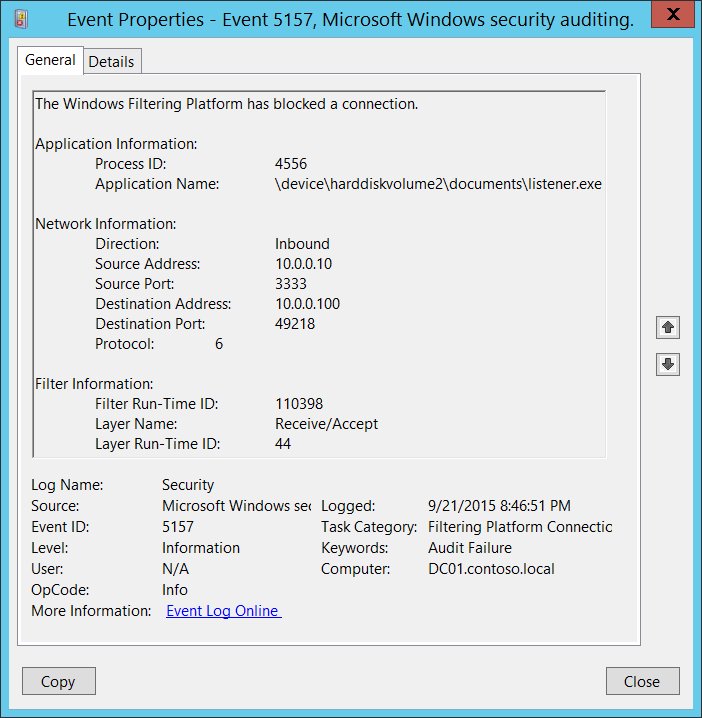
Event 5157 means the Windows Filtering Platform blocked a connection. It is only logged when the Audit Filtering Platform Connection subcategory is turned on for failures.
- Turn on failure auditing for Audit Filtering Platform Connection in your audit policy.
- Reproduce the problem by loading the failing site in Edge.
- Open Event Viewer > Windows Logs > Security and filter for event ID 5157.
- Check Application Name for msedge.exe and note Direction and Filter Run-Time ID.
- Run
netsh wfp show filtersin an elevated window and search the generated filters.xml for that filter ID to find the blocking rule.
How to revoke or remove Microsoft Edge from firewall exceptions
Remove exceptions you no longer need. Regularly reviewing firewall rules keeps old allow and block entries from piling up.
- Open Windows Security > Firewall & network protection > Allow an app through firewall.
- Select Change settings, clear the box next to Microsoft Edge and select OK.
- For a wf.msc rule, select the rule and choose Disable Rule, or delete it.
- In elevated PowerShell, run
Remove-NetFirewallRule -DisplayName "Microsoft Edge outbound"to delete a rule you created by command.
What if Microsoft Edge is still blocked?
These troubleshooting tips cover the common issues when allowing Microsoft Edge through firewall. Rather than temporarily disabling the firewall for testing, which Microsoft advises against, use the diagnostics above to find the exact rule.
One additional tip: change one thing at a time and retest Edge after each change, so you know which fix worked.
Edge is blocked but other browsers work
An explicit block rule for msedge.exe overrides your allow rule.
- Run the pre-flight command and note any rule with Action Block.
- Delete it with
Remove-NetFirewallRule -DisplayNamefollowed by its name. - Also check specific port rules that block outbound web traffic in wf.msc Outbound Rules.
Edge only fails on public Wi-Fi
The exception is ticked for Private only.
- Open Allow an app through firewall and select Change settings.
- Tick Public for Microsoft Edge and select OK.
Edge is blocked after installing an antivirus suite
The suite runs its own firewall alongside or instead of Windows Firewall.
- Review the antivirus and security software's firewall or application rules.
- Set Microsoft Edge to allowed there instead of turning protection off.
Firewall rules are a mess or settings will not stick
Old or corrupted rules, or an organisation policy reapplying settings.
- Open Firewall & network protection and select Restore firewalls to default to reset firewall settings to default.
- Or run
netsh advfirewall resetas administrator. - Allow Edge again; a reset removes every custom rule, and any organisation policy is reapplied.
Edge still fails with the firewall allowing it
The browser or Windows needs updating or repairing.
- Update Microsoft Edge and Windows through Windows Update.
- Open Settings > Apps > Installed apps, select Microsoft Edge > Modify > Repair.
Microsoft Edge firewall FAQs
Frequently asked questions about Edge and Windows Firewall.
Is it safe to allow Microsoft Edge through firewall?
Yes. Microsoft Edge is a Microsoft-signed app, and adding it to the allowed apps list is safer than opening a port because an allowed app only opens connections while it runs. Never allow an app you do not recognise.
Should I allow Edge on public networks?
Tick Public only if you use Edge on networks Windows treats as public, such as cafe or hotel Wi-Fi. Windows applies the Public profile to unidentified networks, so a laptop usually needs it.
Does Windows Firewall block Edge by default?
No. Windows Firewall allows all outgoing traffic by default unless a rule blocks it. A blocked Edge points to an explicit block rule, a third-party firewall or an organisation policy.
Will resetting the firewall remove viruses?
No. Restore firewalls to default only resets firewall rules and settings. Run a Microsoft Defender scan to check for malware, then allow Edge again because the reset deletes custom rules.
Where is msedge.exe for a firewall rule?
On a standard install, Edge runs from C:\Program Files (x86)\Microsoft\Edge\Application\msedge.exe. Use the full path in the rule, because Windows Firewall application rules do not accept wildcards.
Do I need an inbound rule for Edge?
Usually not. Replies to pages Edge requests count as solicited traffic and pass automatically. An inbound rule only matters for features that listen for incoming connections.
Does allowing Edge also allow Teams and Outlook?
No. The new Teams and Outlook use the WebView2 Runtime, which runs as msedgewebview2.exe. It needs its own rule if a block affects it.
How do I open Windows Firewall settings quickly?
Type firewall.cpl in Start for the Control Panel applet, wf.msc for the advanced console, or open Windows Security and select Firewall & network protection.
Do these steps work on Windows 10?
Yes. Windows Security, firewall.cpl, wf.msc and the PowerShell firewall cmdlets work the same way on Windows 10 and Windows 11.
Security considerations and final recommendations
Allow Edge through the Windows Security allowed-apps list, tick only the network types you use, and check for block rules before adding anything else. The allowed-apps entry is the least risky exception, block rules are the usual real cause, and keeping the firewall on preserves protection that turning it off removes.