Find saved passwords on a Windows 11 or Windows 10 computer in your browser's password manager for websites, in Credential Manager for Windows and network sign-ins, and in Wi-Fi settings for network keys.
This guide gives the exact steps for each place, a command for Wi-Fi keys, the reasons a password may not appear, and how to keep the saved list safe.
![How Do I Find Saved Passwords on My Computer [Windows 11/10]](https://techdows.com/wp-content/uploads/2026/10/How-Do-I-Find-Saved-Passwords-on-My-Computer-Windows-1110.jpg)
Find saved passwords on Windows 11/10 computer
Windows has no single list of every password. Match the password you need to the place that stores it.
| Password you need | Where to look | How to open it |
|---|---|---|
| Website password saved in Microsoft Edge | Microsoft Password Manager | Edge Settings > Passwords and autofill > Microsoft Password Manager |
| Website password saved in Google Chrome | Google Password Manager | Chrome menu > Passwords and autofill > Google Password Manager |
| Network share, app or Windows sign-in credential | Credential Manager | Search for credential manager on the taskbar |
| Wi-Fi password for the network you are on | Wi-Fi properties in Settings | Settings > Network & internet > Properties > Show |
| Wi-Fi password for a network used earlier | Manage known networks | Settings > Network & internet > Wi-Fi > Manage known networks |
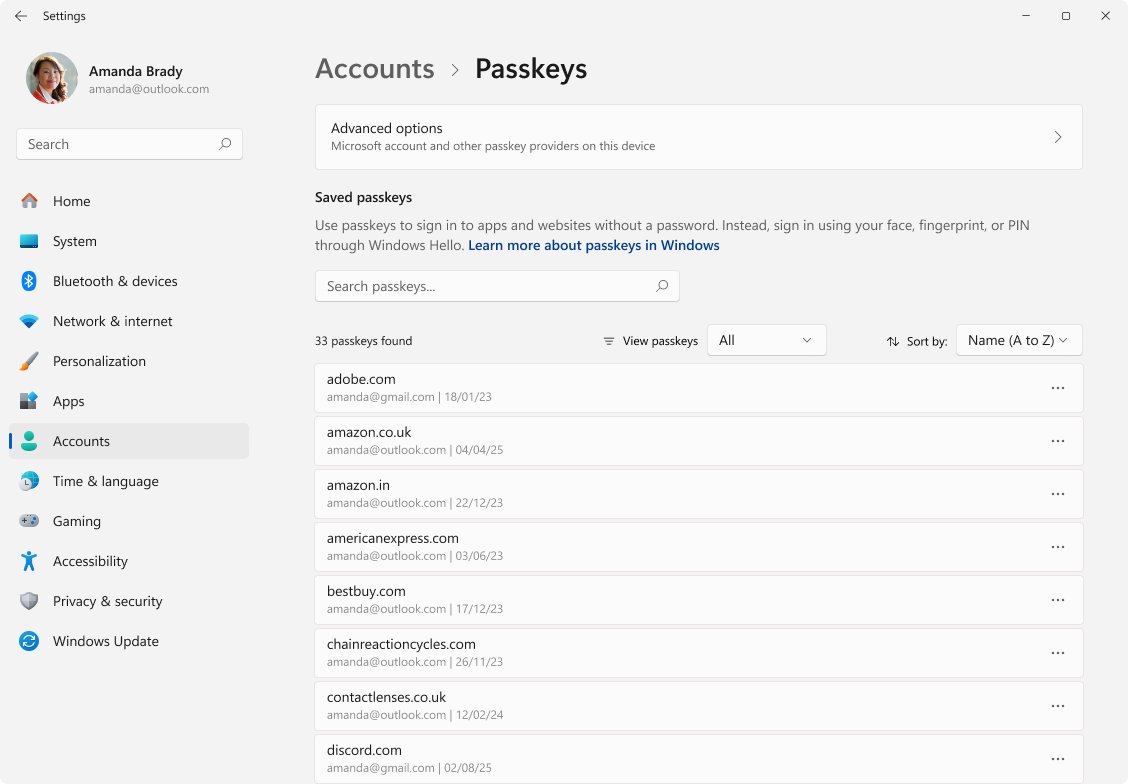
| Passkey for a website or app | Passkeys page in Settings | Settings > Accounts > Passkeys |
Where are saved passwords stored in Windows 11?
Each store keeps its own list and asks for its own confirmation before showing a password. This also answers where Windows stores passwords on Windows 10, because the stores are the same.
| Store | What it holds | What it asks before showing a password |
|---|---|---|
| Microsoft Password Manager (Edge) | Website passwords and passkeys saved in Edge, synced with your Microsoft account | Device PIN or password |
| Google Password Manager (Chrome) | Website passwords saved in Chrome, synced with your Google account | Biometric check only if you turned it on |
| Credential Manager | Web Credentials and Windows Credentials used by Windows, apps and network resources | Varies by entry |
| Wi-Fi profiles | Security keys for networks the PC has joined | Nothing extra on the Settings page |
| Passkeys | Sign-in keys tied to your device instead of a typed password | Managed by your passkey provider |
How to find saved credentials in Windows 11
Credential Manager lets you view and delete credentials that Windows and apps have saved. It works the same way on Windows 10.
- Type credential manager in the search box on the taskbar.
- Select Credential Manager Control panel in the results.
- Select Web Credentials for website sign-ins or Windows Credentials for network, app and Windows sign-ins.
- Select an entry to view its details, or delete entries you no longer need.
How to find passwords saved in Microsoft Edge
Edge stores website passwords in Microsoft Password Manager. If you sign in with a work or school account, your IT admin may restrict access to it.
- Open Microsoft Edge.
- Select the menu icon at the top right, next to your profile picture, and choose Settings.
- Select Passwords and autofill, then Microsoft Password Manager.
- Select the arrow next to the site you want.
- Enter your device PIN or password if Windows asks.
- Select the eye icon to reveal the password.
You can also edit saved passwords in Microsoft Edge from the same page when a site password has changed.
How to find passwords saved in Google Chrome
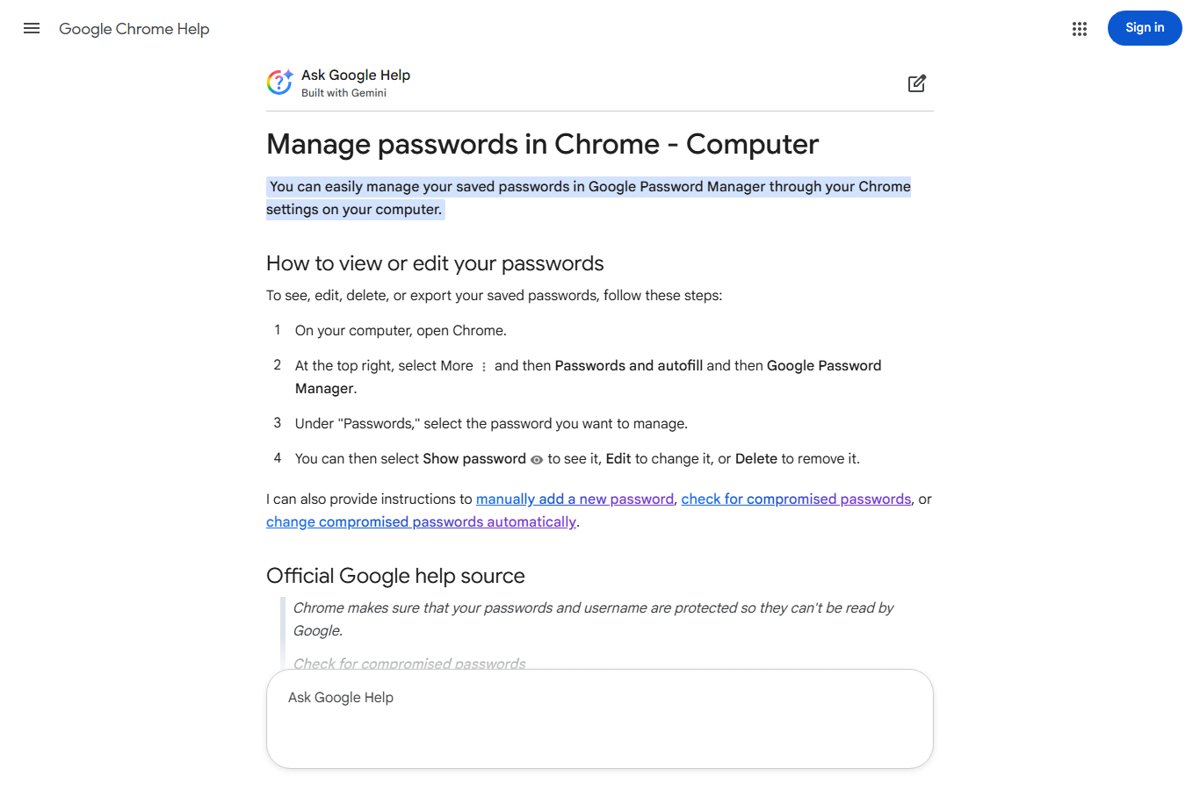
- Open Chrome and select the More menu at the top right.
- Select Passwords and autofill, then Google Password Manager.
- Under Passwords, select the site you want.
- Select Show password (the eye icon) on the right of the password.
Chrome does not ask for biometric verification by default. Turn on biometric authentication for Chrome passwords in Google Password Manager if you want a check before passwords are revealed, copied or edited.
How to find a saved Wi-Fi password in Windows 11
These steps work only for networks the PC has already joined. Windows 10 uses a different route, shown in the second half of the steps.
- Windows 11: open Settings and select Network & internet.
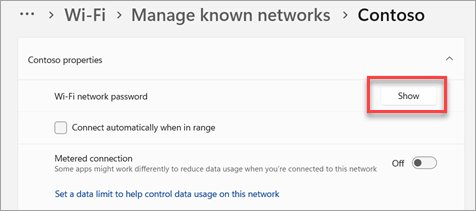
- Select Properties for your Wi-Fi connection, then select Show next to Wi-Fi network password.
- For a network you used earlier, open Wi-Fi > Manage known networks, select the network and select Show next to Wi-Fi network password.
- Windows 10: open Settings > Network & Internet > Status > Network and Sharing Center.
- Next to Connections, select your Wi-Fi network name, then select Wireless Properties.
- Open the Security tab and tick Show characters to see the key in Network security key.
Find all saved Wi-Fi passwords with Command Prompt
Use this route to read keys for many networks at once. Open Command Prompt with Run as administrator, because the key is only written in plain text for a local administrator. Run the first command to list profile names, then the second for the profile you need.
netsh wlan show profiles
netsh wlan export profile name="HomeWiFi" folder="%USERPROFILE%\Desktop" key=clear
The first command lists every saved Wi-Fi profile. The second saves the named profile as an XML file on your desktop, with key=clear writing the security key in plain text. Replace HomeWiFi with a name from the list, or leave out name= to export every profile.
You should see: An XML file named after the interface and profile appears on the desktop. Open it in Notepad and read the value inside the keyMaterial tags.
Delete the exported XML files when you finish, because they contain the key in readable form.
What about passkeys?
Microsoft describes passkeys as designed to replace passwords. The private key stays on your device and proves who you are at sign-in, so there is no typed secret to look up. You can still view your saved passkeys in Settings.
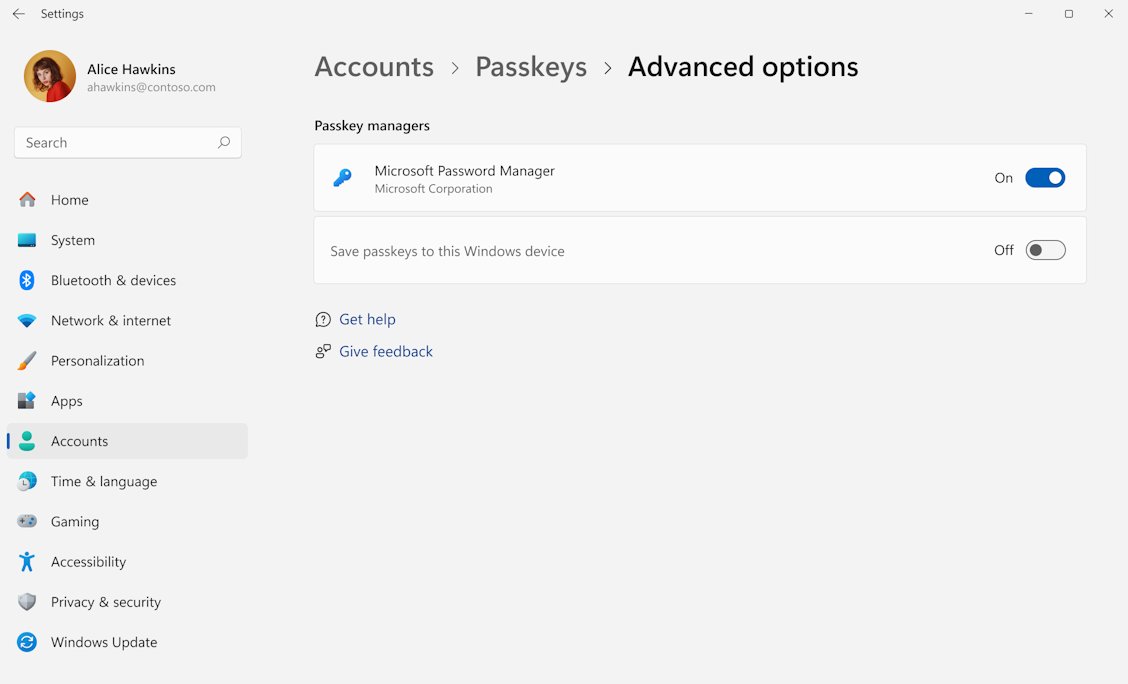
- Open Settings and select Accounts.
- Select Passkeys to see the passkeys saved on the PC.
- Select Advanced options for more passkey settings.
Press Win + R and enter ms-settings:savedpasskeys to open the same page directly. Passkeys saved in Edge also appear in Microsoft Password Manager.
Can you see your Windows 11 login password?
No. Windows does not display your account sign-in password on any settings page, and Credential Manager is not a way to read it back. If you have forgotten it, reset your Windows password instead. A Microsoft account password is reset online, and a PIN is changed under Settings > Accounts > Sign-in options.
Why can’t I find the password I’m looking for?
These are the common reasons you cannot view saved passwords on Windows 11 or Windows 10.
The site is missing from the browser's password list
The password was saved in a different browser, browser profile or account.
- Check the other browsers installed on the PC.
- Switch to each browser profile and open its password manager.
- Sign in to the browser with the account you used when saving, so synced passwords download.
Edge asks for a PIN or password before showing anything
Edge can require device sign-in before viewing or filling a password.
- Enter your Windows Hello PIN, fingerprint or device sign-in password.
- Change the behaviour in Microsoft Password Manager > More settings with Prompt for the device sign-in options before viewing or filling website password.
The password page is blocked on a work or school PC
Your IT admin may restrict password features on managed accounts.
- Sign in to Edge with a personal Microsoft account to see personal passwords.
- Ask your IT admin for access to work credentials.
The account signs in with a passkey and no password appears
Passkeys replace the password, so there is nothing to reveal.
- Open Settings > Accounts > Passkeys to confirm the passkey exists.
- Use the site's own account settings if you need to add a password back.
Wi-Fi Show button is missing or the netsh key is unreadable
The PC never joined that network, or Command Prompt is not running as administrator.
- Confirm the network is listed in Manage known networks.
- Reopen Command Prompt with Run as administrator and export the profile again.
Tips for managing saved passwords safely
These tips to keep saved passwords secure apply to every store above.
| Tip | Why it matters |
|---|---|
| Turn on device sign-in before Edge shows or fills passwords | Someone using your unlocked PC cannot read the list without your PIN |
| Use Windows Hello or a strong PIN on the PC | Every password store relies on your Windows sign-in |
| Run your browser's password check for weak or leaked passwords | Chrome and Edge flag reused and exposed passwords |
| Delete exported CSV and XML files with Shift + Delete | Exported files are not protected and anyone can read them |
| Remove old entries in Credential Manager | Stale credentials keep access to resources you no longer use |
| Switch to passkeys where sites offer them | There is no password to steal or reuse |
Chrome's Safety check for weak passwords runs from the same password page.
Saved passwords on Windows: frequently asked questions (FAQs)
Can I see all saved passwords on Windows 11 or Windows 10?
Not in one place. Website passwords sit in each browser's password manager, Windows and network credentials sit in Credential Manager, and Wi-Fi keys sit in network settings. Check each store for the password you need.
Does Windows store website passwords automatically?
Your browser offers to save a password when you sign in to a site, and keeps it in its own password manager. Edge uses Microsoft Password Manager and Chrome uses Google Password Manager, each tied to your signed-in account.
Why does Windows ask for my PIN before showing passwords?
Edge can require your device sign-in before it shows or fills a saved password. The prompt accepts Windows Hello or your device sign-in password, and stops anyone using your unlocked PC from reading the list.
Are saved passwords safe on my computer?
They are as safe as your Windows sign-in. Protect the PC with Windows Hello or a strong PIN, turn on Edge's device sign-in prompt, and delete any exported password files, which are stored unprotected.
Which is better, browser password saving or a password manager?
A browser's built-in manager suits you if you use one browser and sync it with your account. Microsoft Password Manager also saves passkeys, so passwords and passkeys stay in one list across your Windows devices.
Can I export saved passwords from browsers?
Yes. Edge exports passwords to a CSV file from Passwords > Export passwords, and Chrome exports from Google Password Manager > Settings > Export passwords. The file is unprotected, so delete it with Shift + Delete after use.
How do I see a Wi-Fi password on Windows 11?
Open Settings > Network & internet > Properties and select Show next to Wi-Fi network password. For a network used earlier, open Wi-Fi > Manage known networks, select it and select Show.
Bottom line: where to find saved passwords on a Windows PC
Start with the browser you used to sign in to the site, then check Credential Manager for Windows and network sign-ins and Wi-Fi settings for network keys. Windows keeps no master list, so the fastest route is the store that saved the password in the first place.