Chrome, Edge and Opera control redirects with one site permission called Pop-ups and redirects, and Safari and Firefox use a pop-up blocker instead.
This guide gives the exact path in each browser, how to allow a single site, how to confirm the change, and what to do about redirect loops and unwanted redirects.
The fastest way to enable redirects
Chrome and Edge mark the address bar Pop-up blocked when they stop a site from opening a window or sending a redirect.
Allowing the site from that marker is faster than opening Settings and changes nothing for other sites.
- Open the page that refused to move on.
- Select Pop-up blocked in the address bar.
- Choose the option that always allows pop-ups and redirects from that site.
- Reload the page and repeat the action that should have redirected you.
The marker only appears on the visit where something was blocked. If it never appears, the browser is not the thing stopping the redirect.
Understanding Redirects
A redirect sends the browser from one address to another. Most redirects are sent by the server and no browser setting touches them.
The setting named Pop-ups and redirects covers redirects a page triggers on its own, usually by opening a new window or tab.
| Redirect type | How it is sent | Does the browser setting affect it? |
|---|---|---|
| 301 Moved Permanently, 308 Permanent Redirect | A server response carrying a Location header |
No. The browser follows it every time. |
| 302 Found, 303 See Other, 307 Temporary Redirect | A server response carrying a Location header |
No. The browser follows it every time. |
| Meta refresh | A meta element with http-equiv set to Refresh in the page head |
No. The browser goes to the address once the page displays. |
| JavaScript redirect | A script that changes the page location | No. It runs with the page, before any meta refresh. |
| Pop-up or new-tab redirect | A script opening a second window or tab | Yes. This is what Pop-ups and redirects stops. |
That split explains the usual outcome: a page that will not move is either a blocked pop-up or a server fault, and only the first has a switch.
Enabling Redirects on Different Browsers
Match the browser you use to its row, then follow the full steps for that browser further down.
| Your browser | Where the control lives | What to set |
|---|---|---|
| Chrome on a computer | Settings > Privacy and security > Site Settings > Pop-ups and redirects | Pick the option that allows pop-ups and redirects |
| Chrome on Android | Settings > Site settings > Pop-ups and redirects | Turn Pop-ups and redirects on |
| Microsoft Edge | Settings > Privacy, search, and services > Site permissions > All permissions > Pop-ups and redirects | Turn the Blocked (recommended) toggle off |
| Opera | Settings, then the Pop-ups and redirects site permission | Allow sites to send pop-ups and use redirects |
| Safari on Mac | Safari > Settings > Websites > Pop-up Windows | Set When visiting other websites to Allow |
| Safari on iPhone or iPad | Settings > Apps > Safari | Turn Block Pop-ups off |
| Firefox | Privacy & Security in Firefox settings | Clear the pop-up blocker, or add the site under Exceptions… |
Safari and Firefox have no separate redirect permission. Their pop-up blocker is the only control of this kind they ship.
Enable redirects in Google Chrome
Chrome blocks pop-ups by default and treats a script-driven redirect the same way.
- Open Chrome and select More at the top right, then Settings.
- Select Privacy and security, then Site Settings.
- Select Pop-ups and redirects.
- Choose the option that lets sites send pop-ups and use redirects.
- To keep the block for everything else, leave the default alone and select Add next to Allowed to send pop-ups and use redirects, then enter the site address.
On Android, tap More to the right of the address bar, then Settings > Site settings > Pop-ups and redirects.
On a page where pop-ups were blocked, tapping Always show at the bottom allows that one site without opening Settings.
Enable redirects in Microsoft Edge
Edge ships the blocker turned on, and the per-site list accepts a full URL rather than a bare domain.
- Select Settings and more at the top of Edge, then Settings.
- Select Privacy, search, and services.
- Select Site permissions, then All permissions.
- Select Pop-ups and redirects.
- Turn the Blocked (recommended) toggle off to allow pop-ups and redirects everywhere.
- To allow one site instead, leave the toggle on, select Add site next to Allowed to send pop-ups and use redirects, type the URL starting with
https://, then select Add.
Edge does not block a pop-up that opens because you selected a link or a button, so a window you asked for was never the blocker's doing.
Enable redirects in Safari on Mac, iPhone and iPad
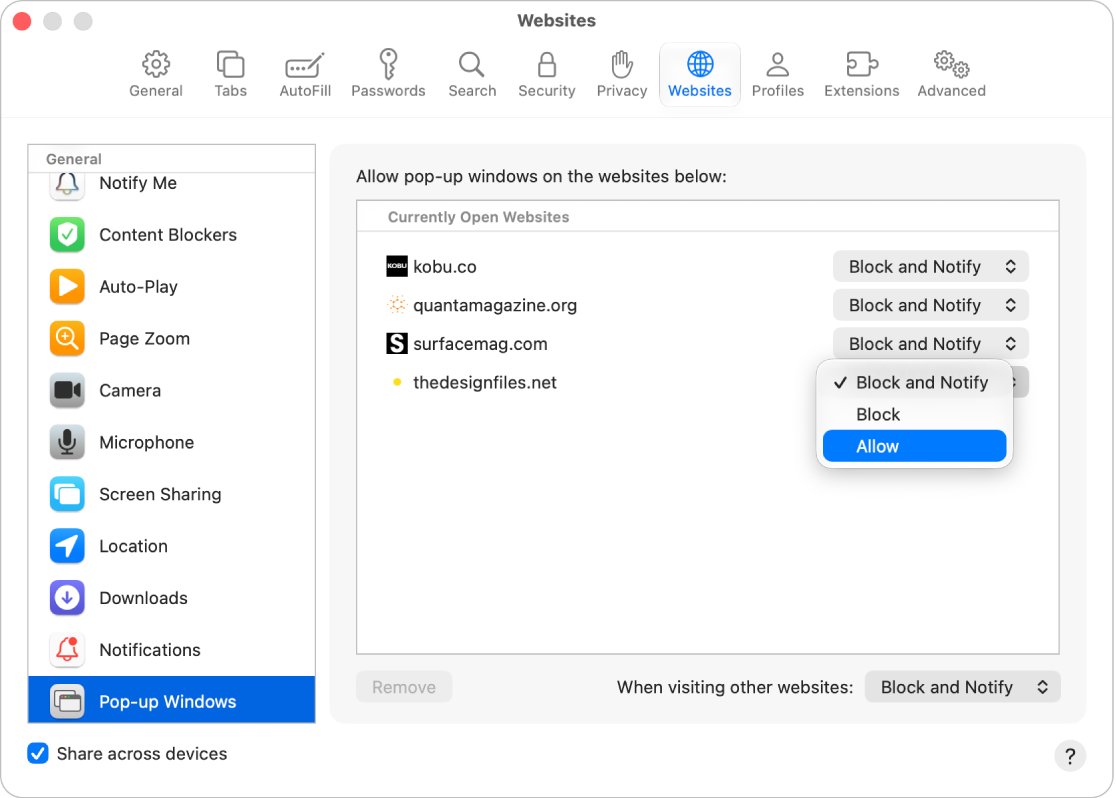
Safari has no redirect permission. Pop-up Windows is the setting that stops a site opening a second window.
On the Mac it can be set per site or for every site, and the per-site value always wins.
- Open Safari on the Mac and go to the website.
- Choose Safari > Settings, then click Websites.
- Click Pop-up Windows on the left, scrolling to the bottom of the list if it is not visible.
- In the pop-up menu for the website, choose Allow.
- To allow every site, click the When visiting other websites pop-up menu and choose Allow.
- On iPhone or iPad, open Settings, tap Apps, tap Safari, then turn Block Pop-ups off.
Sites already listed under Configured Websites keep their own setting. Select one and click Remove to send it back to the default.
Block and Notify is the middle option: the pop-up is held, and you can still show it from the Smart Search field.
Enable redirects in Opera
Opera is built on Chromium, so it carries the same Pop-ups and redirects site permission that Chrome and Edge document.
- Open Opera and open Settings from the main menu.
- Type
pop-upsin the settings search box. - Open the Pop-ups and redirects site permission from the results.
- Choose the option that lets sites send pop-ups and use redirects.
- To allow one site only, add its address to the Allowed to send pop-ups and use redirects list.
Opera's built-in ad blocker is separate from this permission. A page that still will not move may be losing its script to the ad blocker instead.
Enable redirects in Mozilla Firefox
Firefox has no redirect permission either, so the pop-up blocker and its exception list do the same job.
The exception list is the safer route, because it leaves the blocker working on every other site.
- Type
about:preferences#privacyin the address bar and press Enter. - Find the pop-up blocker setting in the permissions list on that page.
- Clear its checkbox to allow pop-ups and redirects on every site, or select Exceptions… to allow one.
- In the Allowed Websites – Pop-ups dialog, type the site into Address of website.
- Select Allow, then select Save Changes.
The dialog wants the exact address of the site, so copy it from the address bar rather than typing a guess.
How to check it worked
A saved setting is not proof. The proof is the address bar marker disappearing and the site appearing in the allow list.
- Reload the page and repeat the click that should have redirected you.
- Watch the address bar: no Pop-up blocked marker means nothing was stopped this time.
- In Chrome, reopen Settings > Privacy and security > Site Settings > Pop-ups and redirects and check the site sits under Allowed to send pop-ups and use redirects.
- In Edge, check the same Allowed to send pop-ups and use redirects list under Site permissions > All permissions.
- In Safari on Mac, check the site reads Allow beside its name under Configured Websites.
- In Firefox, reopen Exceptions… and confirm the site is listed with the status Allow.
How to block redirects again
Reverse the change per browser. Removing the site from the allow list is cleaner than turning the blocker off and on.
- In Chrome, reopen Pop-ups and redirects and choose the blocking option, or remove the site from Allowed to send pop-ups and use redirects.
- In Edge, turn the Blocked (recommended) toggle back on.
- In Safari on Mac, set the When visiting other websites pop-up menu to Block or Block and Notify.
- In Safari on iPhone or iPad, turn Block Pop-ups back on.
- In Firefox, open Exceptions…, select the site, select Remove Website, then select Save Changes.
Use Remove All Websites in the Firefox dialog only when you want a clean list; it drops every allowed site at once.
Troubleshooting Redirect Issues
Work from the symptom on screen. Most of these have nothing to do with the permission you just changed.
The setting is greyed out on a work or school device
On a managed Chrome device the pop-up blocker is set centrally and cannot be changed locally.
- Look for the managed-device notice at the top of Settings.
- Ask the network administrator to allow pop-ups and redirects for the site you need.
- Open the site in a personal profile or on a personal device while you wait.
"Too many redirects" or a redirect loop error
The server keeps sending the browser back and forth. Chrome reports a redirect loop and Firefox says the request will never terminate.
- Clear the cookies for that one site, then reload it.
- Open the same address in a private or incognito window to rule out a stale cookie.
- Sign out of the site and sign in again if it uses a login.
- Report it to the site owner if the error survives all three; the loop is then a server configuration fault.
Chrome keeps redirecting you to sites you did not ask for
An extension or unwanted software on the device is rewriting the destination, not the redirect permission.
- Turn off every extension, then turn them back on one at a time until the redirects return.
- Run Safety Check from Privacy and security in Settings.
- Scan the device with Windows Security on Windows.
- Check the site's notification permission, because a subscribed site can push messages that look like redirects.
Redirects still do not work after allowing them
An out-of-date browser, an extension, or a cached copy of the page is overriding the new permission.
- Update the browser. In Edge, open Settings and more > Settings > About Microsoft Edge and apply any update offered.
- Turn extensions off one at a time to find one that interferes.
- Clear the browser cache, then load the page again.
- Check the address you allowed matches the site exactly, including the
https://prefix in Edge.
A security suite, firewall or network filter blocks the destination
The destination is refused before the browser sees it, so the browser permission has no effect at all.
- Paste the destination address straight into a new tab to see which layer refuses it.
- Read the block page: a security product or a network filter names itself on it.
- Add the destination domain to that product's own allow list, using the product's settings.
- On a work or campus network, ask the administrator to allow the destination domain.
What to know before you allow redirects
The permission that lets a banking site open a statement also lets an ad page open tabs you never asked for.
Allow pop-ups and redirects site by site, and leave the blocker on for everything else. Browsers block these because the same behaviour drives abusive ad pages, and a per-site allow list keeps the exposure to the one site that needs it.
Turning the blocker off site-wide also costs some protection on Safari, where Apple notes that blocking pop-ups can hide content you actually want.
Frequently asked questions
How do you allow redirects?
Open the browser's site permissions and allow pop-ups and redirects for the site. In Chrome, Edge and Opera the permission is named Pop-ups and redirects. In Safari and Firefox, allow the site in the pop-up blocker instead, because neither has a redirect setting.
How do you enable redirects in Edge?
Go to Settings > Privacy, search, and services > Site permissions > All permissions > Pop-ups and redirects. Turn the Blocked (recommended) toggle off for every site, or select Add site under Allowed to send pop-ups and use redirects and enter one URL starting with https://.
How do you stop redirects in Chrome?
Open Settings > Privacy and security > Site Settings > Pop-ups and redirects and choose the blocking option. This is Chrome's default, so a device that redirects anyway usually has an allowed site in the list or an extension causing it.
Can you block redirects in Chrome for one site only?
Yes. On the Pop-ups and redirects page, remove the site from Allowed to send pop-ups and use redirects, or add it to the blocked list. Per-site entries override the default for that site alone and survive a browser restart.
How do you fix too many redirects in Chrome?
Clear the cookies for that one site and reload it. The error means the server is bouncing the browser between two addresses, so no browser permission fixes it. If a private window shows the same error, the fault is on the website.
Why is Google Chrome redirecting me?
Usually an extension or unwanted software on the device is rewriting where links go. Turn extensions off one at a time, run Safety Check from Privacy and security in Chrome settings, and scan the device with Windows Security.
Why won't Chrome stop redirecting after you block pop-ups?
Some of what looks like a pop-up is an advert drawn inside the page, which a pop-up blocker cannot touch. A site you subscribed to for notifications can also push messages that feel like redirects. Block that site's notifications separately.
How do you disable the HTTPS redirect in Chrome?
Chrome's Always use secure connections setting upgrades addresses to HTTPS and warns before a site that does not support it. Open Settings, search for secure connections, and turn the setting off to stop the upgrade.