You can download WhatsApp for PC free from the official WhatsApp website, Microsoft Store, or Apple App Store. On Windows 11 and Windows 10, install the WhatsApp Desktop app and link it to your phone by scanning a QR code. Mac users can install WhatsApp from the App Store or the official download page.
Official download page: Download WhatsApp for Windows or Mac
Download safety: Use WhatsApp’s website, Microsoft Store, or Apple App Store. Avoid websites offering modified installers, portable versions, WhatsApp Plus, or unofficial APK files for PC.
| Option | Supported device | Installation required |
|---|---|---|
| WhatsApp Desktop | Windows 11 and supported Windows 10 PCs | Yes |
| WhatsApp for Mac | Mac running macOS 12.1 or later | Yes |
| WhatsApp Web | Windows, Mac, Linux, and Chromebooks | No |
Download WhatsApp for PC
WhatsApp Desktop lets you send messages, make supported voice and video calls, share files, play voice messages, and receive desktop notifications from a Windows PC or Mac. Your chats sync with the WhatsApp account used on your phone after you link the computer.
You need an active WhatsApp account before linking the desktop app. Install and register WhatsApp on your phone first if you have never used the service.
How to Download WhatsApp on Windows 11
The Microsoft Store provides the simplest installation method on Windows 11 because it downloads the official app and handles future updates.
Method 1: Install WhatsApp from Microsoft Store
- Open the Start menu.
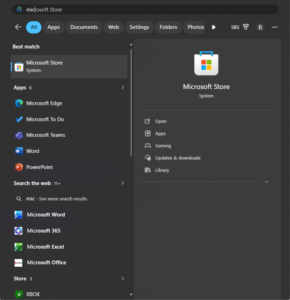
- Search for Microsoft Store and open it.
- Enter WhatsApp in the Store search box.
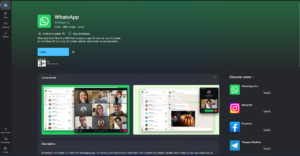
- Select the app published by WhatsApp Inc.
- Click Install or Get.
- Wait for Windows to complete the installation.
- Select Open, or launch WhatsApp from the Start menu.
You can also open the official WhatsApp Microsoft Store page in a browser and select View in Store.
Method 2: Download WhatsApp from the Official Website
Use the WhatsApp website when you prefer to start the download from a browser.
- Open WhatsApp’s official download page.
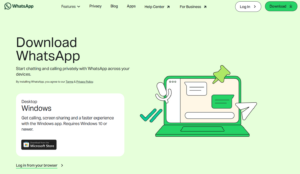
- Select the download option for Windows.
- Allow the page to open Microsoft Store if prompted.
- Select Install.
- Open WhatsApp after the installation finishes.
The Windows download option can redirect to Microsoft Store rather than supplying a traditional EXE file. This is normal and ensures that Windows installs the current official release.
How to Download WhatsApp on Windows 10
WhatsApp Desktop also works on supported Windows 10 computers. The Microsoft Store checks whether your installed Windows version meets the app’s current requirements.
- Open Microsoft Store from the Start menu.
- Search for WhatsApp.
- Confirm that WhatsApp Inc. is listed as the publisher.
- Select Get or Install.
- Launch the app after installation.
If Microsoft Store says the app is incompatible, open Settings > Update & Security > Windows Update and install available Windows updates. Restart the computer and check the Store again.
Windows 10 reached the end of regular Microsoft support on October 14, 2025. App compatibility can change as developers focus on newer supported operating systems. WhatsApp Web remains available when the desktop app cannot run on an older PC.
How to Download WhatsApp for Mac
WhatsApp for Mac is available free from Apple’s App Store. The current listing requires macOS 12.1 or later.
Method 1: Install WhatsApp from the Mac App Store
- Open the App Store on your Mac.
- Search for WhatsApp Messenger.
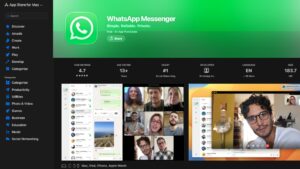
- Check that WhatsApp Inc. is the developer.
- Select Get.
- Select Install and authenticate with your Apple Account, Touch ID, or Mac password if requested.
- Open WhatsApp from the Applications folder or Launchpad.
You can open the official WhatsApp Mac App Store listing directly.
Method 2: Download WhatsApp from Its Website
- Visit the WhatsApp download page.
- Select the Mac download option.
- Open the downloaded installation file or follow the App Store link shown.
- Move WhatsApp to the Applications folder if the installer asks you to do so.
- Open WhatsApp and approve any macOS security prompts.
If the app does not open, select the Apple menu, open About This Mac, and check the macOS version. Install available updates from System Settings > General > Software Update.
How to Install and Set Up WhatsApp on PC or Mac
After installing WhatsApp Desktop, link the computer to the WhatsApp account on your phone.
Link WhatsApp Desktop with an Android Phone
- Open WhatsApp on the computer. A QR code will appear.
- Open WhatsApp on your Android phone.
- Tap the three-dot menu in the upper-right corner.
- Select Linked devices.
- Tap Link a device.
- Unlock the phone if requested.
- Scan the QR code shown on the computer.
- Wait while WhatsApp loads and synchronizes your chats.
Link WhatsApp Desktop with an iPhone
- Open WhatsApp Desktop and leave the QR code visible.
- Open WhatsApp on your iPhone.
- Tap Settings in the lower-right corner.
- Select Linked Devices.
- Tap Link a Device.
- Complete Face ID, Touch ID, or passcode verification.
- Scan the QR code displayed on the PC or Mac.
The first synchronization can take longer when the account contains many chats or media files. Keep both devices connected to the internet until the initial setup completes.
Use WhatsApp Web Without Downloading the App
WhatsApp Web lets you access your chats from a browser without downloading WhatsApp Desktop. It works on Windows, macOS, Linux, Chromebooks, and other computers with a supported browser.
- Open WhatsApp Web in Chrome, Edge, Firefox, Safari, or another current browser.
- Open WhatsApp on your phone.
- Go to Linked devices.
- Select Link a device.
- Scan the QR code in the browser.
You can leave the browser tab open or install the website as an app through a supported browser. Desktop notifications require permission from both the browser and the operating system.
WhatsApp Desktop vs WhatsApp Web
| Feature | WhatsApp Desktop | WhatsApp Web |
|---|---|---|
| Installation | Required | Not required |
| Messages and file sharing | Yes | Yes |
| Desktop notifications | Yes | Yes, with browser permission |
| Voice and video calling | Supported on compatible systems | Availability depends on the browser and current WhatsApp features |
| Automatic updates | Microsoft Store or App Store | Updates automatically with the website |
| Best use | Regular daily use | Quick access or unsupported computers |
Can You Download WhatsApp for PC Without Microsoft Store?
WhatsApp’s official Windows download page can direct users to Microsoft Store, depending on the current distribution method and Windows version. Do not use an unofficial EXE or MSI installer simply because Microsoft Store is unavailable.
Try these options when Microsoft Store does not work:
- Open the official WhatsApp download page in another browser.
- Install pending Windows updates and restart the PC.
- Repair Microsoft Store from Settings > Apps > Installed apps > Microsoft Store > Advanced options.
- Use WhatsApp Web until the Store problem is fixed.
Older WhatsApp installers found on download websites can be outdated, unsupported, modified, or unsafe.
How to Update WhatsApp Desktop
Update WhatsApp on Windows
- Open Microsoft Store.
- Select Library.
- Click Get updates or Check for updates.
- Install the WhatsApp update if one appears.
Update WhatsApp on Mac
- Open the App Store.
- Select Updates in the sidebar.
- Find WhatsApp.
- Select Update.
Store installations normally update automatically unless automatic app updates have been disabled.
Fix WhatsApp Desktop Download or Installation Problems
WhatsApp Will Not Install from Microsoft Store
- Restart the PC.
- Check that Windows has the correct date, time, and region.
- Open Settings > Windows Update and install available updates.
- Press Windows + R, enter
wsreset.exe, and press Enter. - Open Microsoft Store and try the installation again.
The WhatsApp QR Code Will Not Scan
Increase the computer screen brightness, clean the phone camera lens, and make sure the full QR code fits inside the phone’s scanner. Refresh the desktop app when the code has expired, then scan the newly generated code.
WhatsApp Desktop Is Stuck on Loading
- Check the internet connection on both the computer and phone.
- Close and reopen WhatsApp Desktop.
- Restart the computer.
- Install available app and operating-system updates.
- Unlink the computer and link it again.
Notifications Do Not Appear
Open WhatsApp settings and confirm that notifications are enabled. Then check the system settings:
- Windows 11: Settings > System > Notifications > WhatsApp
- Windows 10: Settings > System > Notifications & actions
- Mac: System Settings > Notifications > WhatsApp
Disable Focus, Do Not Disturb, or Battery Saver temporarily when notifications remain blocked.
WhatsApp Desktop Does Not Open
On Windows, open Settings > Apps > Installed apps > WhatsApp > Advanced options and select Repair. Use Reset if repairing does not solve the problem. Resetting the app requires you to link the PC again.
On Mac, quit WhatsApp, restart macOS, and install the latest update from the App Store. Reinstall the app when it still fails to open.
How to Unlink WhatsApp from a Computer
Unlink computers you no longer use, especially shared, lost, sold, or repaired devices.
- Open WhatsApp on your phone.
- Open Linked devices.
- Select the Windows PC, Mac, or browser session.
- Tap Log out.
You can also log out from the WhatsApp Desktop menu on the computer.
FAQs
Is WhatsApp free to download on PC?
Yes. WhatsApp Desktop and WhatsApp Web are free to use. Your internet provider can still charge for data usage.
What is the official WhatsApp download link for PC?
The official download page is WhatsApp.com/download. Windows users can also install the official app through Microsoft Store.
Can I install WhatsApp on Windows 11?
Yes. Open Microsoft Store, search for WhatsApp, confirm that WhatsApp Inc. is the publisher, and select Install.
Can I install WhatsApp on Windows 10?
Yes, on supported Windows 10 versions. Microsoft Store checks compatibility before installation. Use WhatsApp Web when the app is unavailable for your Windows build.
Can I use WhatsApp on a Mac?
Yes. Download WhatsApp from the Mac App Store or WhatsApp’s official website. The current Mac App Store listing requires macOS 12.1 or later.
Can I use WhatsApp on PC without my phone?
You need a phone with an active WhatsApp account to link the computer initially. After linking, the desktop app can continue receiving and sending messages without keeping the phone constantly connected.
Can I create a new WhatsApp account from a PC?
Desktop setup normally links an existing WhatsApp account. Register the phone number through the WhatsApp mobile app before linking the computer.
Can I use WhatsApp on PC without downloading it?
Yes. Open WhatsApp Web in a supported browser and scan the displayed QR code through the Linked devices section on your phone.
Can I use the same WhatsApp account on my phone and PC?
Yes. Linked devices synchronize messages with the same account, allowing you to use WhatsApp on your phone and computer.
Can I make WhatsApp calls from a PC?
The WhatsApp Desktop app supports voice and video calling on compatible Windows and Mac systems. Allow microphone and camera access when Windows or macOS requests permission.
Is there a 32-bit WhatsApp download for Windows?
Do not download unofficial packages claiming to provide a current 32-bit version. Open the official Microsoft Store listing to check whether WhatsApp supports your computer’s Windows version and architecture.
Where are WhatsApp Desktop files saved?
Files save to the folder selected in WhatsApp or your system’s normal Downloads folder. You can choose another location when the app displays a Save As window.
Does uninstalling WhatsApp Desktop delete chats from my phone?
No. Uninstalling the desktop app removes it from the computer. Your account and chats remain on the phone, although you will need to link the computer again after reinstalling.
Is WhatsApp Web safer than downloading an unofficial desktop installer?
Yes. WhatsApp Web runs from the official WhatsApp domain and avoids unverified installers. Check that the browser address is web.whatsapp.com before scanning a QR code.



Download TikTok for PC, Windows 11/10 & Mac (Free) - Techdows
[…] covers another Store-only social app in download WhatsApp for PC, and the console side in download the Xbox app for […]
What is WhatsApp Web, how does it work, and everything you can do with it? - Techdows
[…] WhatsApp Web is the browser version of WhatsApp at web.whatsapp.com: you link it once to the WhatsApp account on your phone, and it then runs as one of up to four linked devices that keep working even when your phone is off. […]