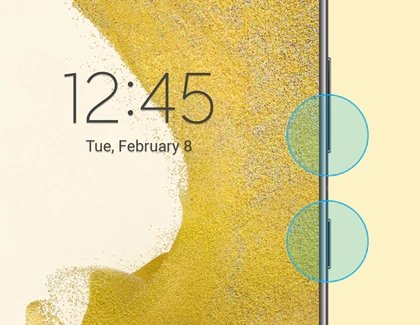
Press the Side button and the Volume Down button at the same time to take a screenshot on a Samsung Galaxy S25, S25+ or S25 Ultra.
This guide covers every other capture route on the S25 series, including palm swipe, the Edge panel, voice commands, the S Pen and scroll capture, plus where the images are saved.
Method 1: Using volume buttons
The button combination works on every Galaxy S25 model, including the Galaxy S25 Plus and S25 Ultra, on any screen, with no setup. It is the quickest way to take a screen capture.
- Open the screen you want to capture.
- Press the Side button and the Volume Down button together.
- Release both after a brief moment, as soon as the screen flashes.
- Use the toolbar that appears at the bottom to edit, share or extend the capture, or ignore it to keep the image as it is.
If a quick press does nothing, hold both buttons slightly longer until the flash appears. Holding them too long can open the power menu instead, so release as soon as the screen flashes.
Additional options appear in the toolbar right after the capture: tap the Draw pencil to draw on or crop the screenshot before it is saved.
Which Galaxy S25 screenshot method should you use?
| Your situation | Use this | Why |
|---|---|---|
| Any screen, fastest result | Side + Volume Down | No setup, works everywhere |
| One hand free, buttons awkward to reach | Palm swipe to capture | A hand swipe across the screen, no buttons |
| You want an on-screen button | Tasks Edge panel shortcut | One tap from the edge handle |
| Hands busy or phone on a stand | Bixby or Google voice command | Captures without touching the phone |
| Galaxy S25 Ultra, want to annotate | S Pen Screen write | Capture and draw in one step |
| Long web page or chat | Scroll capture after any screenshot | Stitches the whole page into one image |
Method 2: Using swipe gesture
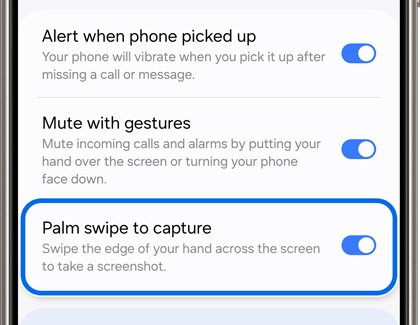
Palm swipe to capture takes a screenshot when you sweep the edge of your hand across the display. Samsung notes it can take a few tries the first time, so practise on a home screen.
- Swipe down from the top-right corner of the screen with two fingers to open the Quick panel.
- Tap the gear icon to open Settings.
- Tap Advanced features, then tap Motions and gestures.
- Turn on Palm swipe to capture.
- Open the screen you want, then swipe the edge of your hand across the display from one side to the other.
- Watch for the screen flash that confirms the capture.
Keep your hand in contact with the screen as it moves. A swipe that lifts off halfway is read as a normal touch.
Method 3: Using Edge panel
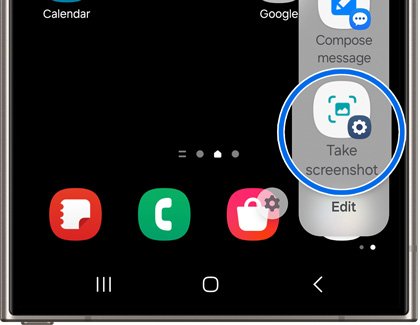
The Tasks Edge panel can hold a Take screenshot shortcut, which gives you an on-screen capture button behind the Edge panel handle. The panel holds up to twelve shortcuts.
- Swipe the Edge panel handle toward the center of the screen to open the Edge panel.
- Tap Settings at the bottom of the panel.
- Select the Tasks panel, then tap Edit.
- Add Take screenshot from the list of tasks.
- Go to the screen you want, open the Tasks panel from the handle and tap Take screenshot.
Method 4: Using Bixby
Bixby, Samsung's own assistant, can capture the screen by voice and can chain a follow-up action, such as sharing the image to an app.
- Open the screen you want to capture.
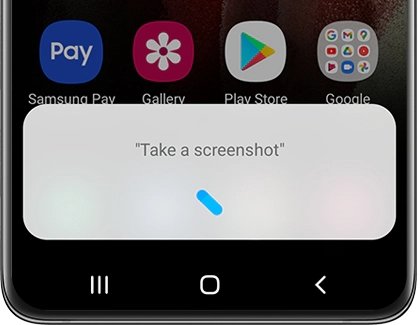
- Say "Hey Bixby, take a screenshot".
- Wait for the screen flash and the screenshot toolbar.
- To capture and share in one go, add the app to the request, for example "Hey Bixby, take a screenshot and share it to" followed by the app name.
Voice wake-up must be set up in Bixby before the wake phrase works.
Method 5: Using the Google assistant
Google's assistant takes a screenshot by voice in the same way, which suits a phone propped up on a stand or in a car mount.
- Open the screen you want to capture.
- Say "Hey Google, take a screenshot".
- Wait for the capture to finish, then open it from the preview or from Gallery.
Take a screenshot on Galaxy S25 Ultra with the S Pen
Among the S25 devices, only the Galaxy S25 Ultra has a built-in S Pen. Its Screen write tool captures the screen and opens it for drawing straight away.
- Remove the S Pen from its slot.
- Go to the screen you want to capture.
- Tap the Air command icon with the S Pen.
- Tap Screen write.
- Draw or write on the capture.
- Tap Save to store it in Gallery.
Smart select in the same S Pen menu captures just a chosen area of the screen instead of the whole display.
How to take a scrolling screenshot on Galaxy S25
Scroll capture extends a normal screenshot downward into a full page screenshot, so a long article, chat or receipt ends up in one tall image.
- Take a screenshot with any method above.
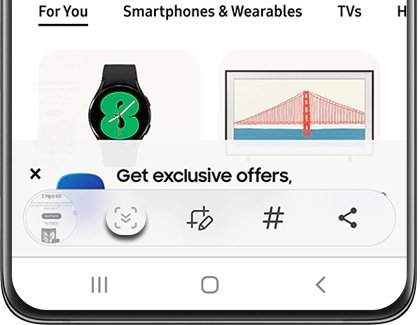
- Tap the Scroll capture icon, the two downward arrows in the toolbar.
- Keep tapping it until the part of the page you need is included.
- Tap the Draw pencil icon if you want to crop or mark up the result before saving.
Where do screenshots go on Samsung Galaxy S25?
A successful capture flashes the screen and shows a thumbnail toolbar at the bottom. The image is saved automatically even if you dismiss the toolbar.
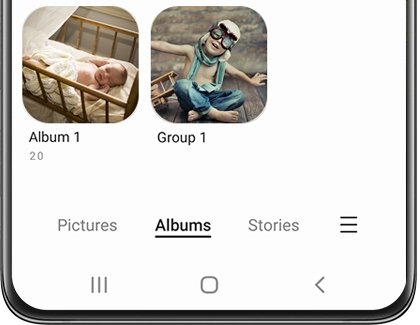
- Open the Gallery app.
- Tap Albums.
- Tap Screenshots to see every capture, newest first.
- Alternatively, open My Files and tap Images to find the same files.
- To share one, select the screenshot, tap the Share icon at the bottom of the screen and pick how to send it.
Viewing and sharing screenshots works the same way from Gallery or My Files, so use whichever app you already have open.
Galaxy S25 screenshot not working: fixes
"Can't take screenshot due to security measure"
The app on screen, often a banking or streaming app, blocks screen capture on purpose.
- Close the message and try the same method on the home screen.
- If the home screen captures normally, the block comes from the app and cannot be bypassed from the phone.
Palm swipe does not take a screenshot
The gesture is off, or the swipe is too fast or lifts off the screen.
- Open Settings > Advanced features > Motions and gestures and confirm Palm swipe to capture is on.
- Swipe slowly with the side of your hand touching the glass the whole way across.
- Try three or four times, since the first attempts often fail.
Buttons open the power menu or change the volume instead
The two buttons are not pressed at the same moment, or they are held too long.
- Press Side and Volume Down at exactly the same time.
- Release as soon as the screen flashes.
- If captures still fail on every screen, open Settings > General management > Reset > Reset all settings and tap Reset settings. This resets settings only, not your files.
About Samsung Galaxy S25
Samsung announced the Galaxy S25 series on January 22, 2025. All screenshot methods above apply across the lineup; only the S Pen route is limited to the Ultra.
What is different on the Galaxy S25 compared with older Galaxy phones is the hardware: there is no physical home key or Bixby button, so the capture shortcut is always the Side key plus Volume Down rather than Power plus Home.
| Spec | Galaxy S25 | Galaxy S25 Ultra |
|---|---|---|
| Display size | 6.2 inches | 6.9 inches |
| Resolution | 1080 x 2340 pixels | 1440 x 3120 pixels |
| Chipset | Snapdragon 8 Elite | Snapdragon 8 Elite |
| Launch software | Android 15 | Android 15 |
| Built-in S Pen | No | Yes |
| Battery | 4,000 mAh | 5,000 mAh |
Galaxy S25 screenshot FAQ
How do I screenshot on a Samsung S25 Ultra?
Press the Side and Volume Down buttons together, or use the built-in S Pen: tap Air command, then Screen write, and save the annotated capture. Palm swipe, the Edge panel and voice commands also work on the Ultra.
How do I screenshot on a Samsung S25+?
Press the Side and Volume Down buttons at the same time until the screen flashes. The S25+ also supports palm swipe, the Tasks Edge panel shortcut, Bixby and Google voice commands, and scroll capture.
How do I screenshot on a Samsung S25 FE?
Use the same Side and Volume Down combination as the rest of the S25 series. Galaxy phones without a home key all use this pair of buttons, and palm swipe can be switched on in Advanced features.
How do I screenshot on a Samsung S25 Edge?
Press the Side and Volume Down buttons together and release when the screen flashes. The capture appears in Gallery under Albums > Screenshots, like on every other S25 model.
How do I take a screenshot on Samsung S24 or S24 FE?
The method is the same as on the S25: press the Side and Volume Down buttons together. Palm swipe to capture, Edge panel shortcuts and voice commands are available on the S24 series too.
How do I screenshot on a Samsung S22 or S20?
Press the Side and Volume Down buttons at the same time. Older Galaxy phones with a physical home key use Power and Home instead, but the S20 and S22 have no home key.
Where are screenshots saved on Galaxy S25?
Screenshots are saved to the Screenshots album in the Gallery app. Open Gallery, tap Albums, then tap Screenshots. They also appear under Images in the My Files app.
Why can't I take a screenshot in some apps on my S25?
Some apps, such as banking apps, block screen capture for security. The phone shows "Can't take screenshot due to security measure", and no screenshot method can capture that app.
Best way to screenshot on Samsung Galaxy S25
Use Side + Volume Down for everyday captures and switch on palm swipe if you prefer a no-button gesture. The button pair works on every S25 model and every screen with no setup, while scroll capture and the S Pen add long-page and annotation options when you need them.