To cast a phone to a TV, connect both to the same Wi-Fi network, then use Screen Mirroring in Control Center on an iPhone or Cast my screen in the Google Home app on Android.
This guide covers iPhone, Android and Samsung phones, casting a single video versus mirroring the whole screen, wired HDMI options, and fixes when the TV does not appear.
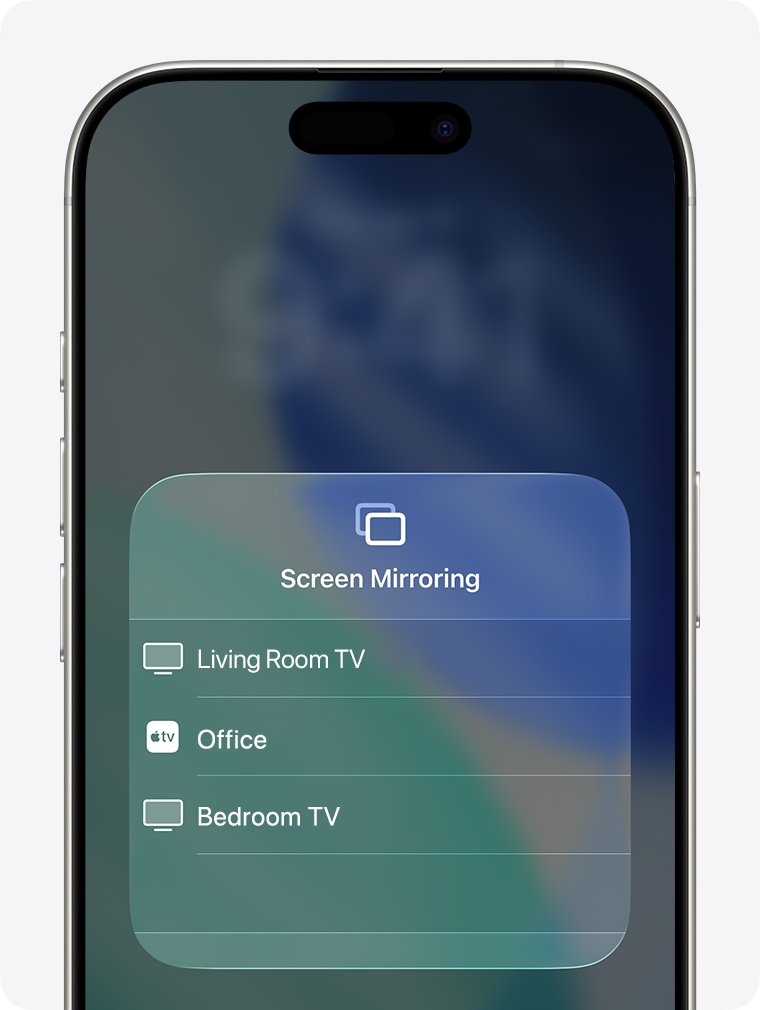
Cast your phone to a TV in four steps
The fastest route for any phone is the Cast or AirPlay button inside the video app itself.
- Connect the phone to the same Wi-Fi network as the TV or streaming device.
- Open the video in an app such as YouTube or Netflix.
- Tap the Cast button on Android or the AirPlay button on iPhone.
- Pick your TV from the list and the video starts on the big screen.
Which casting method should you use?
| Your phone and TV | Use this | Why |
|---|---|---|
| iPhone and Apple TV or an AirPlay-compatible smart TV | AirPlay or Screen Mirroring | Built into iOS, no app needed |
| Android and Chromecast, Google TV or a TV with Google Cast | Google Home Cast my screen or an app's Cast button | Built into Android 8.0 and later |
| Samsung Galaxy and a Samsung TV | Smart View from Quick Settings | Samsung's own mirroring feature |
| Any phone and a TV with no casting built in | A Chromecast or other streaming stick | Adds casting to any TV with HDMI |
| No Wi-Fi, or you need zero lag | A wired HDMI adapter | Works without a network |
Casting vs screen mirroring: what is actually happening
Casting hands the video's address to the TV, which then streams it from the internet itself. Mirroring sends a live copy of your whole phone screen across Wi-Fi.
| Casting a video | Screen mirroring | |
|---|---|---|
| What the TV shows | Only the video or music | Everything on your phone screen |
| Phone during playback | Free to use, lock or leave | Must stay on the same screen |
| Battery and data use | Low, the TV does the streaming | Higher, the phone encodes the screen |
| Quality | Full resolution from the service | Depends on Wi-Fi strength |
| Best for | Netflix, YouTube, music | Photos, games, apps without a Cast button |
How to cast your phone to a TV (step by step) from an iPhone
AirPlay works with Apple TV and AirPlay-compatible smart TVs. On some smart TVs, AirPlay must be switched on in the TV's own settings first.
- Connect your iPhone to the same Wi-Fi network as the TV.
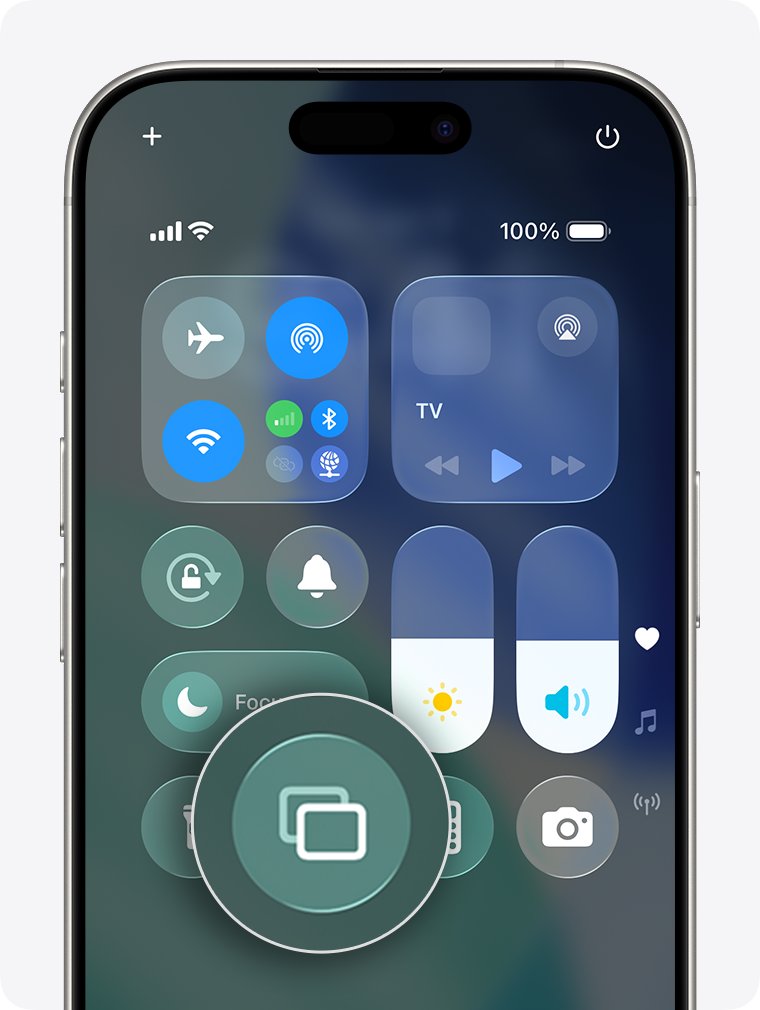
- Open Control Center: swipe down from the top-right corner on iPhone X or later, or up from the bottom edge on iPhone 8 or earlier.
- Tap Screen Mirroring.
- Select your TV from the list.
- Enter the AirPlay passcode on your iPhone if one appears on the TV.
- To finish, open Control Center, tap Screen Mirroring, then tap Stop Mirroring.
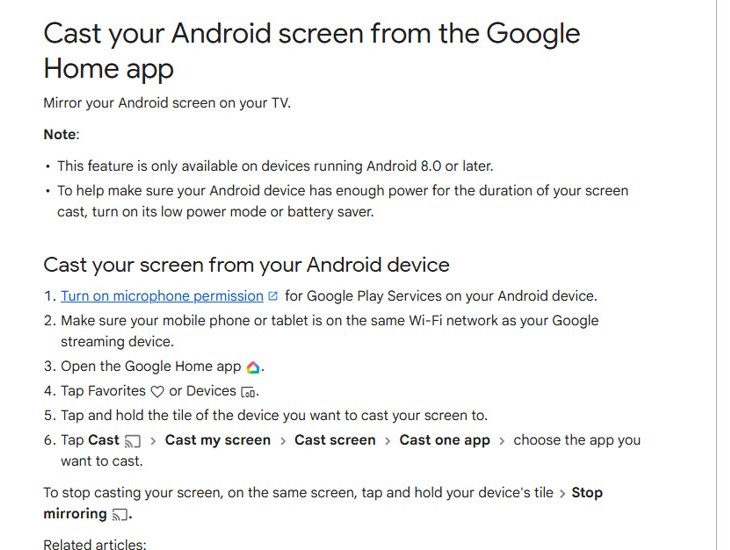
Cast an Android phone screen to a TV
Android needs version 8.0 or later and a Chromecast, Google TV device or TV with Google Cast built in. Google Play Services also needs microphone permission.
- Connect the phone to the same Wi-Fi network as the TV or Chromecast.
- Open the Google Home app.
- Tap Favorites or Devices.
- Touch and hold the tile of the TV you want to use.
- Tap Cast, then Cast my screen, Cast screen or Cast one app, depending on your version.
- To stop, touch and hold the same tile and tap Stop mirroring.
Many Android phones also offer a Cast or Screen cast tile in Quick Settings; on Samsung Galaxy phones the tile is called Smart View. Tap it, then select your TV from the list.
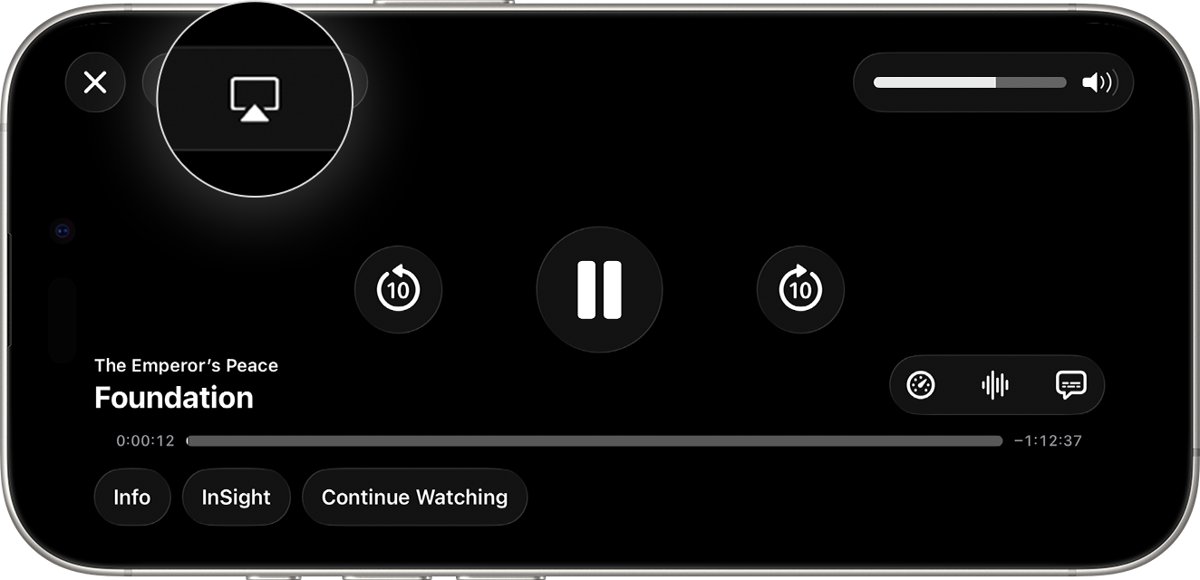
Stream one video to the TV with AirPlay or the Cast button
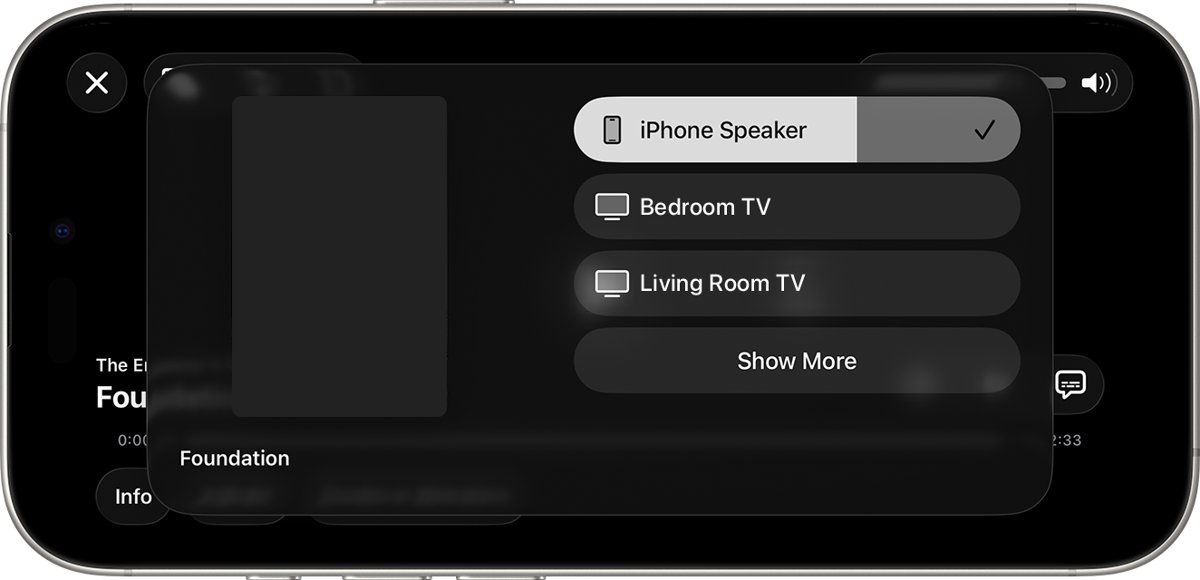
- Open the video in its app.
- Tap the AirPlay button on iPhone or the Cast button on Android. Some apps show it only after you tap another button first.
- Choose your TV from the list.
- To stop on iPhone, tap the AirPlay button again and select your iPhone.
Alternative ways to get your phone on the TV
| Option | What you need | Good to know |
|---|---|---|
| Wired HDMI for Android phones | A USB-C to HDMI adapter or cable | Only phones whose USB-C port outputs video work; check your phone's specifications |
| Wired HDMI for iPhones | An Apple USB-C or Lightning to HDMI adapter that matches your iPhone's port | Some streaming apps block video output over a cable |
| Streaming sticks and consoles | A Chromecast, Google TV device or Apple TV plugged into HDMI | Adds casting or AirPlay to a TV that lacks it |
| Chromecast for a TV with no casting built in | A free HDMI port and Wi-Fi | Set it up in the Google Home app, then cast as normal |
Tips for a better casting experience
| Tip | Why it helps |
|---|---|
| Use the app's Cast or AirPlay button instead of mirroring for video | The TV streams directly, so the picture is sharper and your phone stays free |
| Keep the phone and TV close to the router | Mirroring depends on a strong Wi-Fi signal |
| Turn off battery saver or low power mode while mirroring | Google notes power-saving modes can cut a cast short |
| Turn on Do Not Disturb before mirroring | Notifications on the phone appear on the TV too |
| Update the TV, streaming device and phone | New firmware often fixes discovery and lag problems |
Confirm your phone is casting to the TV
- Look at the TV: it shows the video or a live copy of your phone screen.
- On iPhone, the Screen Mirroring button in Control Center shows your TV's name.
- On Android, a casting notification appears in the notification shade with a stop option.
- Change the volume on the phone and confirm the TV volume follows.
Still not working?
These are the most common reasons a phone will not cast to a TV.
The TV does not appear in the list
The phone and TV are on different networks, or the TV's casting feature is off.
- Confirm both are on the same Wi-Fi network, not a guest network or mobile data.
- Turn on AirPlay or Google Cast in the TV's settings if it has the option.
- Restart the TV, the phone and the router, then try again.
Netflix or another app shows a black screen when mirroring
Protected video is blocked from screen mirroring.
- Stop mirroring.
- Open the video and use the app's own Cast or AirPlay button instead.
Casting is laggy or stutters
Weak Wi-Fi or a phone working hard to encode the screen.
- Move the phone, TV and router closer together.
- Close other apps and pause large downloads on the network.
- Use the Cast button for video, or a wired HDMI adapter for games.
Android Cast my screen option is missing
The phone runs Android older than 8.0, or Google Play Services lacks permission.
- Update the phone to the latest Android version it supports.
- Grant microphone permission to Google Play Services.
- Update the Google Home app.
Frequently asked questions
Can I cast my phone to a TV?
Yes. An iPhone casts to Apple TV and AirPlay-compatible smart TVs, and an Android phone casts to Chromecast, Google TV and TVs with Google Cast. Any phone can also connect to a TV with an HDMI adapter if the phone supports video output.
How do I cast my iPhone to a TV?
Connect the iPhone and TV to the same Wi-Fi network, open Control Center, tap Screen Mirroring and select the TV. Enter the AirPlay passcode if the TV shows one.
How do I cast an Android phone to a TV?
Open the Google Home app, touch and hold your TV's tile, tap Cast, then Cast my screen. The phone needs Android 8.0 or later and must be on the same Wi-Fi network as the TV.
How do I cast a Samsung phone to a TV?
Open Quick Settings on the Galaxy phone, tap Smart View and choose the TV. Samsung phones can also use the Google Home app or an app's Cast button with a Chromecast or Google TV device.
Why won't my phone cast to my TV?
The usual cause is the phone and TV sitting on different Wi-Fi networks. Put both on the same network, switch on AirPlay or Google Cast in the TV settings, and restart the phone, TV and router.
Can I cast an iPhone to a non-Apple TV?
Yes, if the TV is AirPlay-compatible. Many recent smart TVs include AirPlay. For other TVs, use an Apple TV box or a wired HDMI adapter that matches your iPhone's port.
Can I cast my phone to a TV without Wi-Fi?
Wireless casting and AirPlay mirroring need both devices on the same network. Without Wi-Fi, use a wired HDMI adapter from the phone to the TV instead.
Does casting use my mobile data?
Casting a video from an app such as YouTube makes the TV stream it over Wi-Fi, so it does not use your phone's mobile data. Mirroring also runs over the local Wi-Fi network.
How do I cast a video from my phone to a TV?
Open the video, tap the Cast button on Android or the AirPlay button on iPhone, and pick your TV. The video plays on the TV while the phone works as a remote.
Quick summary
Use the app's Cast or AirPlay button for video, Screen Mirroring or Cast my screen for everything else, and an HDMI adapter when there is no Wi-Fi. Casting from the app gives the best picture and frees your phone, while mirroring and cables cover the cases casting cannot.