Download Google Play Games from play.google.com/googleplaygames, run the installer, restart if it asks to turn on Windows Hypervisor Platform, then sign in with your Google Account.
Google has dropped the Beta label, so the app is now simply Google Play Games on PC. This guide covers the requirements, each install step, controls, sync, error codes and how to remove it.
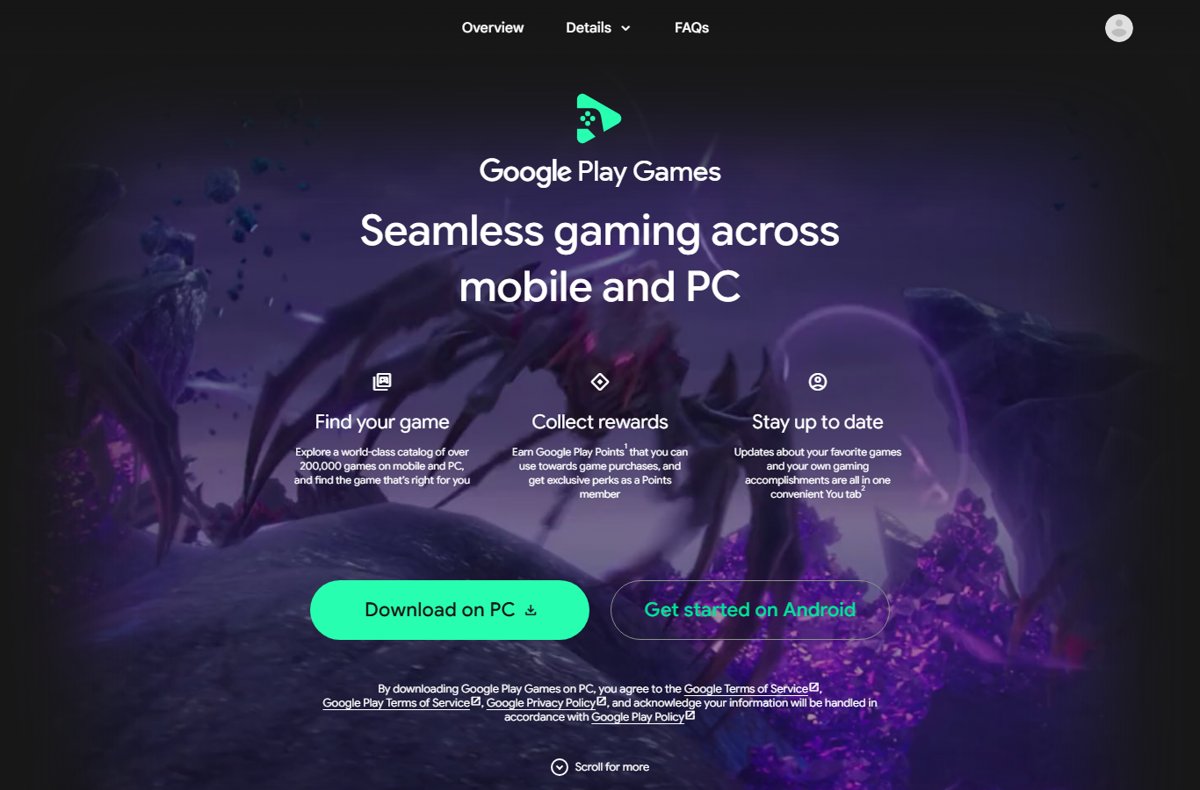
The fastest way to install Google Play Games on PC
These steps work on Windows 10 (version 2004 or later) and Windows 11 with an administrator account.
- Open play.google.com/googleplaygames in any browser on your Windows PC.
- Click Download on PC and save the installer.
- Open the downloaded file and follow the on-screen instructions. The install takes a few minutes.
- If you are asked to turn on Windows Hypervisor Platform, accept and restart your PC.
- Open Google Play Games and sign in with the same personal Google Account you use on your phone.
- Search for a game and click Install.
If your PC misses a requirement, the installer names it and stops. The sections below show how to fix each one.
What Is Google Play Games Beta for Windows?
Google Play Games on PC is Google's own Windows app for playing Android games from the Play catalog with a keyboard, mouse or controller. It launched as a beta; Google's download page and help articles now call it Google Play Games on PC, and only a few older help links still say Beta. It is also the official way to play Brawl Stars on PC, because Supercell releases the game only for phones and tablets.
| Question | Answer from Google's pages |
|---|---|
| Is it still in beta? | No Beta label appears on the download page or the current help articles |
| What does it cost? | The app is free; some games and in-game items are paid |
| What can you play? | Games Google lists for PC, badged Optimized, Playable, Untested, Unsupported or Not available |
| Does progress carry over? | Yes for games with the Syncs across devices label, when you use the same Google Account |
| Do you earn Play Points? | Yes, on PC as well as on your phone |
| Is it the Play Store for Windows? | No. It installs games only, not general Android apps |
What You Need Before Installing
Google checks these requirements during installation. The recommended column gives better performance in demanding games.
| Item | Minimum | Recommended |
|---|---|---|
| Operating system | Windows 10 (v2004) | Windows 10 (v2004) or later |
| Storage | SSD with 10 GB free | SSD with 10 GB free |
| Memory | 8 GB RAM | 8 GB RAM |
| Graphics | Intel UHD Graphics 630 or comparable | Gaming-class GPU, such as Nvidia GeForce MX450 |
| Processor | 4 physical CPU cores | 8 logical cores |
| Account on the PC | Windows administrator account | Windows administrator account |
| Virtualization | Hardware virtualization turned on | Hardware virtualization turned on |
| Google Account | A personal Google Account (some regions check your age) | Same account as your phone, so progress syncs |
| Region | Play country set to a supported country or region | Check Google's list on the requirements page |
Supported regions include the United States, Canada, the United Kingdom, most of Europe, India, Japan, Korea, Australia and Brazil. Google keeps the full list on its PC requirements page.
Step 1: Check Your Windows Version
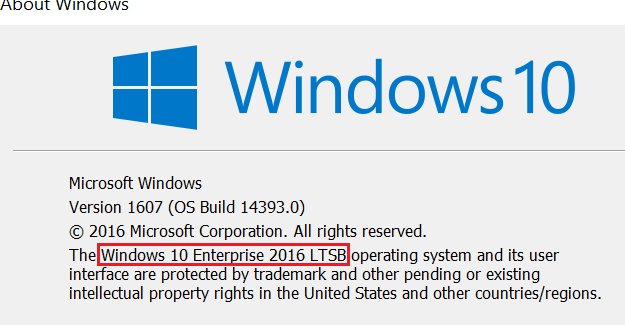
Google Play Games needs Windows 10 version 2004 or later. Every Windows 11 release qualifies.
- Select Start > Settings > System.
- Select About.
- Read the Edition, Version and OS Build lines under Windows specifications.
- Alternatively, type
winverin the search box and press Enter to open the About Windows box. - If the version is older than 2004, install the pending feature update from Windows Update before you continue.
Step 2: Check Storage, RAM, CPU, and Graphics
The installer runs its own check, but a quick look first saves a failed download.
- Press Ctrl + Shift + Esc to open Task Manager.
- Select Performance to see your processor, memory, disks and GPU.
- Select GPU at the bottom of the list and note the model name shown at the top right. A PC can have more than one GPU.
- Open File Explorer > This PC and confirm the C: drive has at least 10 GB free.
- Compare what you found with the table above. Google also advises that the SSD be your main drive.
If your PC falls short, some games may still run in a limited experience. The catalog can filter out games that may not run well, and game pages show performance warnings.
Step 3: Enable Hardware Virtualization
Google Play Games needs CPU virtualization (Intel VT or AMD-V) turned on in firmware, and many games in the catalog will not run without it. Check before you change anything.
- Open Command Prompt, type
systeminfoand press Enter. - Scroll to Hyper-V Requirements. If every item reads Yes, or the section says A hypervisor has been detected, virtualization is already on; skip to Step 4.
- If it says No, open Settings > System > Recovery.
- Next to Advanced startup, select Restart now.
- Select Troubleshoot > Advanced options > UEFI Firmware Settings > Restart.
- In the firmware menu, turn on the Intel VT or AMD-V option, usually found under CPU or advanced settings.
- Save and exit. Change nothing else in the firmware, because other settings can stop Windows from starting.
Menu names differ by PC maker, so check your manufacturer's support page if you cannot find the option. Microsoft's Enable virtualization on Windows page links to Dell, HP, Lenovo, Asus and Acer instructions.
Step 4: Download Google Play Games Beta
There is no separate beta build any more. The only official source is Google's own page.
- Go to play.google.com/googleplaygames.
- Click Download on PC.
- Save the installer to your Downloads folder.
- Skip copies offered on download portals or file-sharing sites. Google's page is the only source you need.
Step 5: Install Google Play Games Beta
- Open the installer you downloaded.
- Wait while it checks your PC. If a requirement is missing, the installer names it and stops.
- If you are prompted to turn on Windows Hypervisor Platform, accept it.
- Restart your PC when asked so the setting takes effect.
- Open Google Play Games from the Start menu after the restart.
If Windows Hypervisor Platform is already on, you will not see that prompt. That is normal.
Step 6: Sign In to Your Google Account
- Open Google Play Games.
- Sign in with a personal Google Account, which Google requires.
- Use the same account you play with on your Android phone, so your library and progress sync.
- Complete any age check your country requires.
- Sign in on the Windows user account that installed the app. Only the first Windows user who installed Google Play Games can open it.
Step 7: Browse and Install Android Games
- In Google Play Games, browse the catalog or type a title into search.
- Check the badge on the game details page. Optimized and Playable games are tested on Windows.
- Click Install.
- Wait for the download to finish, then open the game from Google Play Games.
- Press Shift + Tab in any game to open game options such as full screen, volume and controls.
Untested games appear only when you search for them by name. They might run, but Google has not tested them on PC.
How to check the install worked
- Look for the Google Play Games icon in the taskbar notification area.
- Open the app and confirm your Gamer name appears at the top right.
- Install a game marked Playable or Optimized and launch it.
- Right-click the tray icon and select Check for updates to confirm you run a current version. Versions older than 22.5.464.0 stopped working in June 2025.
How Controls Work on PC
Optimized games ship with PC controls. For other games, the Controls Editor maps keyboard keys to on-screen touch buttons.
- In windowed mode, click Game controls on the left side of the game window. In full screen, press Shift + Tab and select Remap Controls.
- Click Edit and pick a control type, such as Joystick or Tap.
- Press the key you want, such as Space, and give it a label, such as Jump. A joystick starts on WASD if those keys are free.
- Drag the control over the matching on-screen button and resize it from a corner.
- Repeat for other buttons, then click the green checkmark to save.
- Press F12 to show or hide the control labels while you play.
Controllers work with compatible games: Xbox Series X|S, Xbox One, PS5 DualSense and PS4 DualShock. Newer controls include Aim and shoot for shooters and Zoom on the mouse wheel. You can export a control scheme and import ones other players share.
How Game Progress, Purchases, and Achievements Sync
Sync depends on signing in with the same Google Account on your phone and PC.
| What | How it syncs | Limit |
|---|---|---|
| Game library | Your library follows your Google Account | Only games available on PC can be installed there |
| Game progress | Saved and synced across phone, tablet and PC | Only games labelled Syncs across devices |
| Purchases | Select paid games unlock on phone, tablet and PC with one purchase | Applies to select titles, not every game |
| In-app items and Play Points | Purchases use your Google Play account; Play Points are earned on PC too | Depends on the game |
| Achievements and stats | Tracked in one Gamer Profile across mobile and PC | Game must support Play Games achievements |
| Play Pass | Subscribers get select Play Pass games on PC | Select titles only |

How to Improve Performance
- Update the driver for every GPU in your PC from Intel, NVIDIA or AMD. Outdated graphics drivers can make a game unplayable.
- Keep Google Play Games and your games on the SSD that serves as your main drive.
- Close heavy background apps before you play.
- In a game, press Shift + Tab, open Visual settings and lower the resolution or frame rate.
- Right-click the tray icon to change the maximum FPS for all games.
- Use each game's own graphics settings where it offers them.
Google's GPU guide lists the recommended GPU series, from NVIDIA GeForce GTX 600 and later to Intel Arc and AMD Radeon RX 5000 and 6000. Every GeForce GTX series from the GTX 600 cards onward meets that bar, up to the GTX 16 Series.
Common Installation Problems and Fixes
The installer shows an error code. Match it to the group below.
Can't install Google Play Games on PC: "Upgrade Windows" (NU8001008, NU80040811, NUFFFFFFFF)
Your Windows build is too old.
- Open Settings > Windows Update and install every pending update.
- Install the latest feature update, for example Windows 11 24H2 in place of 23H2.
- Run the installer again.
"You must have full Windows administrator privileges" (NU80070005, NU80070542)
You are signed in to a standard Windows account.
- Sign in to an administrator account, or ask the PC's administrator to change your account type.
- Search the Start menu for administrator rights settings to find the option.
- Run the installer again.
"There isn't enough storage space to continue" (NU80070070)
The installer needs at least 10 GB free on the C: drive.
- Free up at least 10 GB on C:.
- If you install to another drive, make sure it also has enough space.
- Run the installer again.
"Play Games isn't available in this region" (NU80040806)
Your Google Play country is not on the supported list.
- Check the country list on Google's requirements page.
- Make sure your Play country matches where you live.
Network or "Download the installer again" errors (NU80040801, NU80072F8F, NU80040804, NU80072F7D and similar)
The download or the connection to Google's site was interrupted.
- Download a fresh installer from play.google.com/googleplaygames.
- Try again on a different network if the error repeats.
- Wait and try later; Google notes some of these are temporary.
"An unexpected error occurred on our side" (10901, 99999, NC99999)
A general installer failure.
- Run the installer again.
- Restart your PC and try once more.
Why can't I install Google Play Games when no code appears?
A requirement is missing or a previous install is damaged.
- Fix any requirement the installer lists.
- Accept the Windows Hypervisor Platform prompt if it appears.
- Uninstall Google Play Games from Apps & features or Installed apps, then reinstall.
- Restart your PC.
- If it still fails, click Send feedback in the installer, tick Send system information and add
#gpginstallto your message.
Google keeps the full code list on its installation errors page.
How to make Google Play Games work after it installs
A game says it isn't playable on your PC
Some games run only on PCs with Intel processors, or your graphics driver is out of date.
- Update every GPU driver in your PC.
- Check the game's badge; Not available means it cannot run on your computer.
Games lag or lose connection
A stuck session or an old app version.
- Right-click the Google Play Games icon in the taskbar notification area and click Exit.
- Reopen Google Play Games.
- Right-click the tray icon, click Check for updates and finish the update.
Other Android emulators stopped working
Some emulators do not run while Windows Hypervisor Platform is on.
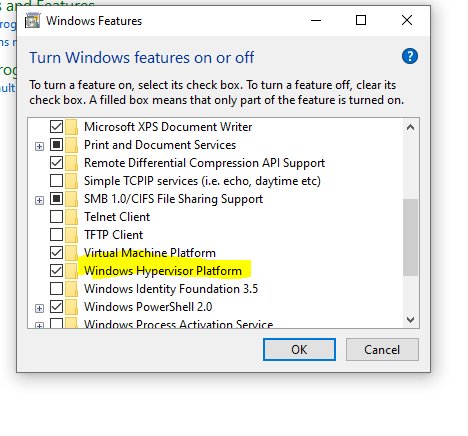
- Open Control Panel > Programs > Programs and Features.
- Select Turn Windows features on or off.
- Clear Windows Hypervisor Platform (and Hyper-V Hypervisor where it is listed), then restart.
- Turn it back on before you play in Google Play Games again.
How to Uninstall Google Play Games Beta
- Right-click the tray icon and click Exit to close Google Play Games.
- Select Start > Settings > Apps > Installed apps (on Windows 10, Apps & features).
- Find Google Play Games, select More (the three dots) > Uninstall.
- Confirm, then restart your PC.
- If you no longer need it for other software, turn off Windows Hypervisor Platform in Turn Windows features on or off.
Progress in games labelled Syncs across devices stays on your Google Account and returns when you reinstall.
Privacy and Safety Tips
| Tip | Why it matters |
|---|---|
| Download only from play.google.com/googleplaygames | Repackaged installers on other sites can carry malware |
| Install games from inside the app | Google runs over 10,000 safety checks on every game it offers |
| Use your personal Google Account | Google requires a personal account, and purchases are charged to it |
| Leave Advanced Settings alone unless you need them | Google warns that changing them may disrupt the app |
| Keep the app updated | Old versions stop working and miss security fixes |
| Keep antivirus and firmware security on | Only virtualization needs turning on; nothing else has to be lowered |
Google Play Games Beta vs. Android Emulators
Google Play Games is the official route, but it runs games only. Third-party emulators run broader Android software with their own trade-offs.
| Your situation | Use this | Why |
|---|---|---|
| You want popular Play games with synced progress | Google Play Games on PC | Official app, same account and purchases as your phone |
| You want a non-game Android app on Windows | Not Google Play Games | It installs games only; see the Google Play Store for PC guide |
| You already run another emulator | Test both after install | Some emulators stop working while Windows Hypervisor Platform is on |
| Your PC is below the minimum | Google Play Games in its limited experience | Filter the catalog to games that run well on your PC |
Tips for a Better First Session
| Tip | How |
|---|---|
| Start with a tested game | Pick one badged Optimized or Playable |
| Learn the game menu | Press Shift + Tab for full screen, volume, resolution and controls |
| Go full screen quickly | Press F11 or Alt + Enter |
| Exit a game fast | Press Alt + F4, or Shift + Tab > Exit game |
| Launch favourites faster | Create desktop or Start menu shortcuts for installed games |
| Play more than one game | Supported PCs can run multiple games at once |
Frequently Asked Questions
Can I install Google Play Games on my PC?
Yes, if it runs Windows 10 version 2004 or later with an SSD, 10 GB free, 8 GB of RAM, four physical CPU cores, an administrator account and hardware virtualization on. Your Google Play country must also be supported.
Is Google Play Games on PC still in beta?
No. Google's download page and current help articles call it Google Play Games on PC with no Beta label. Only a few older help links still use the Beta name.
How do I install Google Play Games on a laptop?
The same way as on a desktop. Download it from play.google.com/googleplaygames, run the installer and sign in. Laptops must meet the same requirements, including an SSD and virtualization turned on in firmware.
How do I install Google Play Games on Windows 11?
Download the installer from Google's page, run it, accept the Windows Hypervisor Platform prompt, restart and sign in. Every Windows 11 release meets the Windows 10 version 2004 minimum.
Can I install Google Play Games on the D drive?
Google's help pages do not describe choosing an install drive. The installer needs at least 10 GB free on the C: drive, and Google advises that the SSD be your main drive.
Why can't I install Google Play Games on my PC?
Usually a missing requirement: an old Windows build, a standard user account, less than 10 GB free, virtualization off or an unsupported region. The installer's error code names the cause; match it to the fixes above.
How do I install games from Google Play on my computer?
Open Google Play Games, search for the game and click Install, then Play. Only games offered for PC appear, and Untested ones show up only when you search by name.
Why can't I install the Google Play Store on my PC?
Google offers no Play Store app for Windows. Google Play Games on PC is Google's official way to play Play games on a computer, and it installs games only.
Can I uninstall Google Play Games?
Yes. Go to Settings > Apps > Installed apps, select More next to Google Play Games and choose Uninstall. Synced progress stays on your Google Account.
Is Google Play Games on PC free?
Yes. The app costs nothing, though some games and in-game items are paid. Select paid games bought once unlock on your phone, tablet and PC.

Download Google Play Store for PC, Windows 11/10 & Mac - Techdows
[…] Install Google Play Games on PC for Android games on Windows. Use the website for every other job. […]
Here’s list of all apps and games from Google’s Play Pass subscription [constantly updated] - Techdows
[…] to Google Play Games with the same Google Account, at no extra cost. If the PC client is missing, install Google Play Games on Windows […]