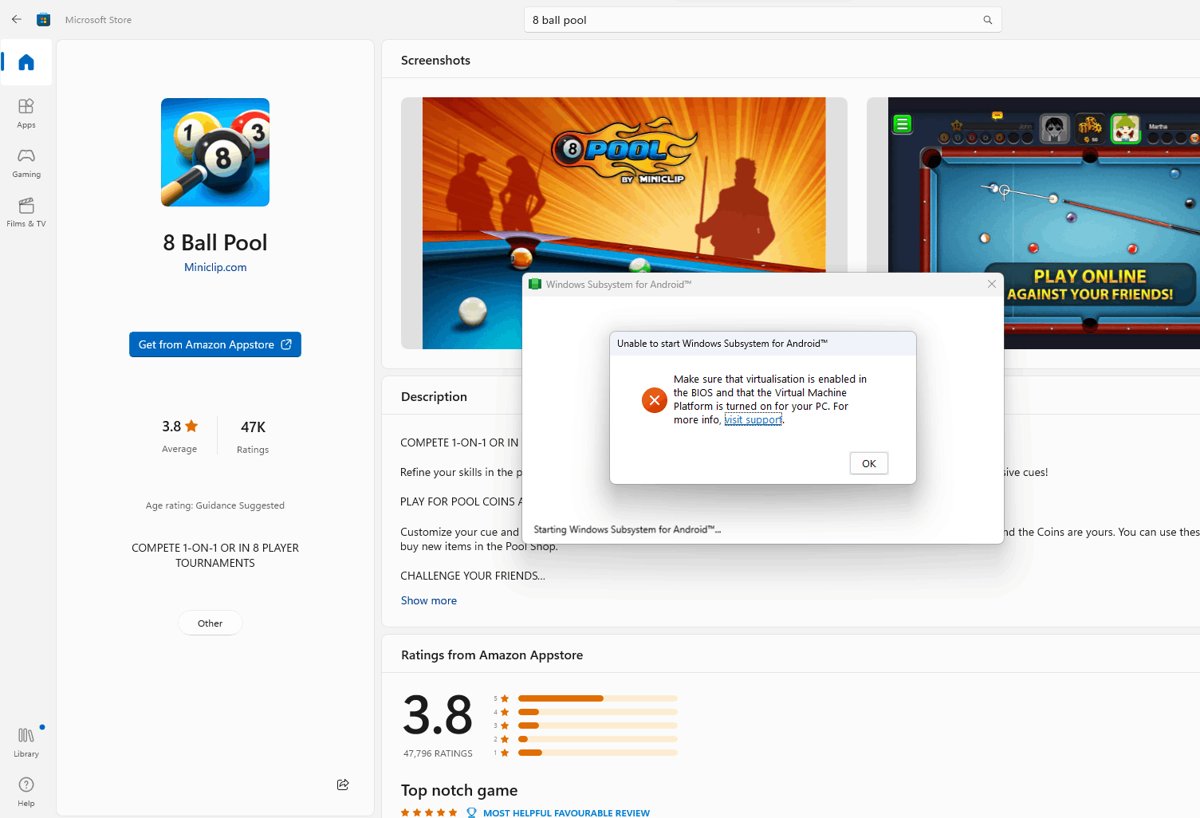
You can no longer install Windows Subsystem for Android (WSA) on Windows 11: starting March 5, 2025, Microsoft removed WSA and the Amazon Appstore from the Microsoft Store, and both are no longer supported.
This guide shows how the official install worked, how to check whether WSA is still on your PC, how to manage and reset an existing copy, and which supported options replace it for Android apps and games.
Install WSA on Windows 11 after the March 2025 removal
There is no supported way to get WSA onto a PC that does not already have it. Use these steps to find out where you stand.
- Select Start > All apps and look for Windows Subsystem for Android.
- If it is listed, keep it installed and manage it from that app; uninstalling it cannot be reversed from the Microsoft Store.
- If it is not listed, do not search the web for WSA packages; Microsoft no longer offers the app.
- For Android games, install Google Play Games on PC from play.google.com.
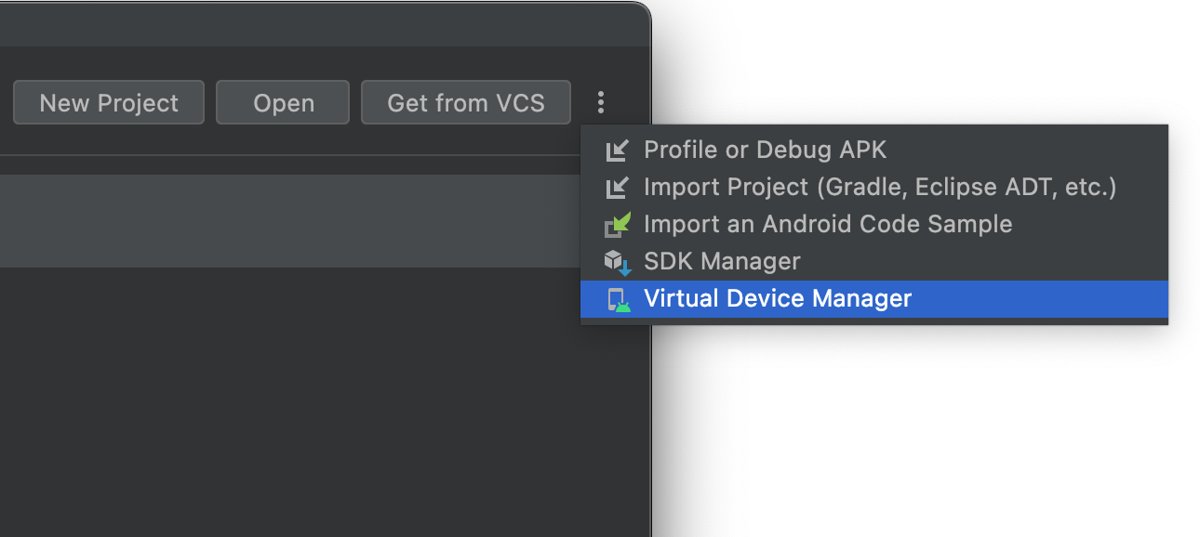
- For Android app testing, use the Android Emulator in Android Studio.
- For everyday Android apps, keep using them on an Android phone or tablet.
The current status of WSA in 2026
| Date | What changed | Source |
|---|---|---|
| March 5, 2024 | Developers could no longer submit new apps for Amazon Appstore on Windows 11 | Amazon Developer |
| March 6, 2024 | Customers could no longer search for or install Amazon Appstore and its apps from the Microsoft Store | Amazon Developer |
| March 5, 2025 | WSA and the Amazon Appstore were no longer available in the Microsoft Store | Microsoft Learn and Microsoft Support |
| After March 5, 2025 | Apps installed from Amazon Appstore on Windows 11 are no longer supported | Amazon Developer |
| 2026 | Microsoft's WSA documentation is archived under Previous Versions and is no longer updated | Microsoft Learn |
Amazon Appstore itself continues on Fire TV, Fire tablets and Android devices. Only the Windows 11 version ended.
How to install Windows Subsystem for Android (WSA) on Windows 11
This was Microsoft's official route while WSA was offered. The first two steps still work and also help other virtualization features such as Windows Subsystem for Linux, but the Store listing in step 4 is gone.
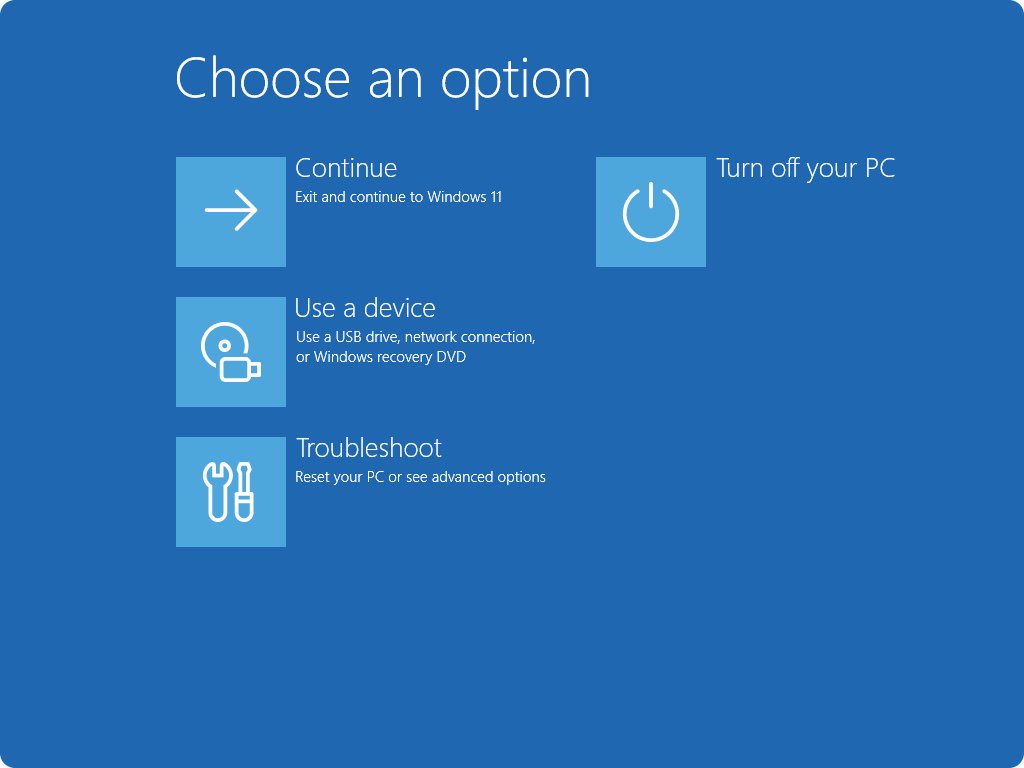
- Turn on virtualization in the UEFI: open Settings > System > Recovery, select Restart now next to Advanced startup, then choose Troubleshoot > Advanced options > UEFI Settings > Restart.
- Select Start, type Windows features and open Turn Windows features on or off.
- Select Virtual Machine Platform, select OK and restart if asked.
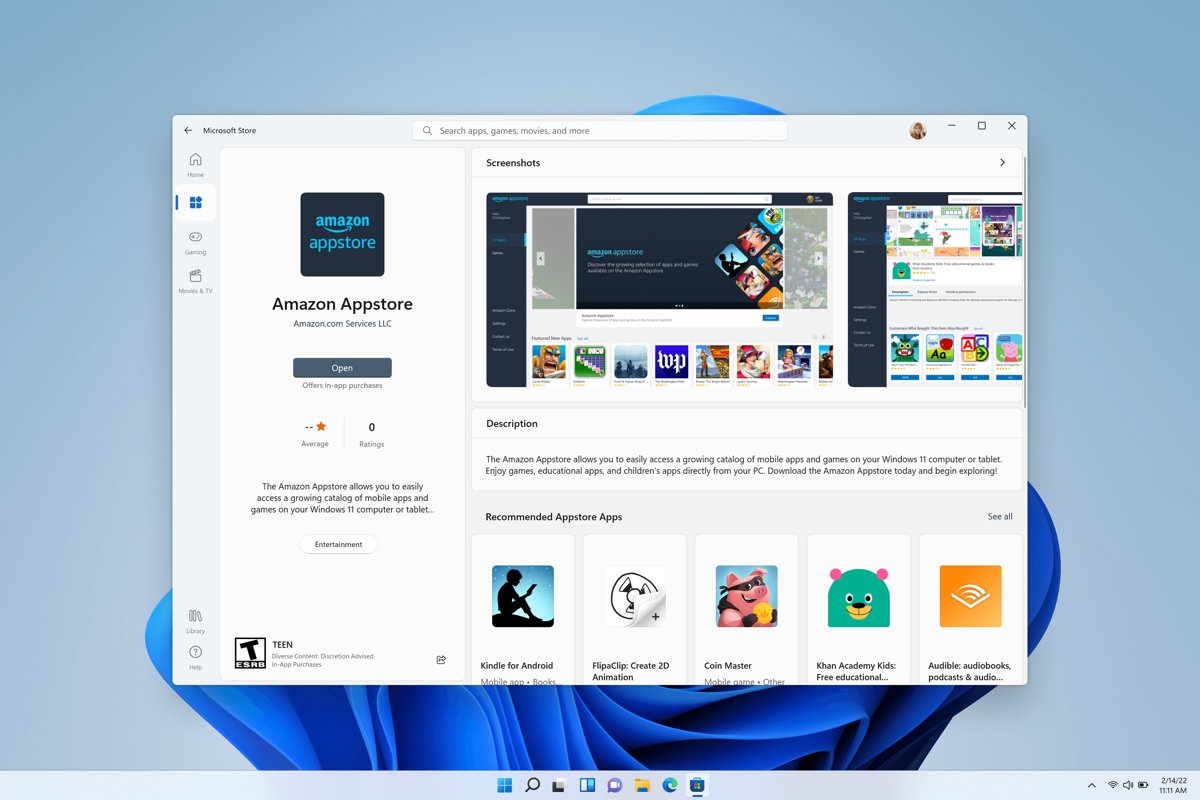
- Open the Microsoft Store, find the Amazon Appstore and select Get; the Store installed WSA silently in the background.
- Sign in to the Amazon Appstore with an Amazon account from a supported country or region.
Installing an Android app from the Microsoft Store for the first time also pulled in the Amazon Appstore and WSA. The Amazon Appstore on Windows was only offered in select countries and regions.
How to check whether WSA is already installed
- Select Start > All apps.
- Look for Windows Subsystem for Android and Amazon Appstore in the list.
- Open the Windows Subsystem for Android app and select the Apps tab to see which Android apps are still installed.
If neither entry appears, WSA is not installed and the Microsoft Store will not offer it.
How to use an existing WSA installation
Apps installed before the cutoff can still open, but they no longer receive support. Treat the setup as unmaintained.
- Open a previously installed Android app from Start, just like a Windows app; WSA starts automatically.
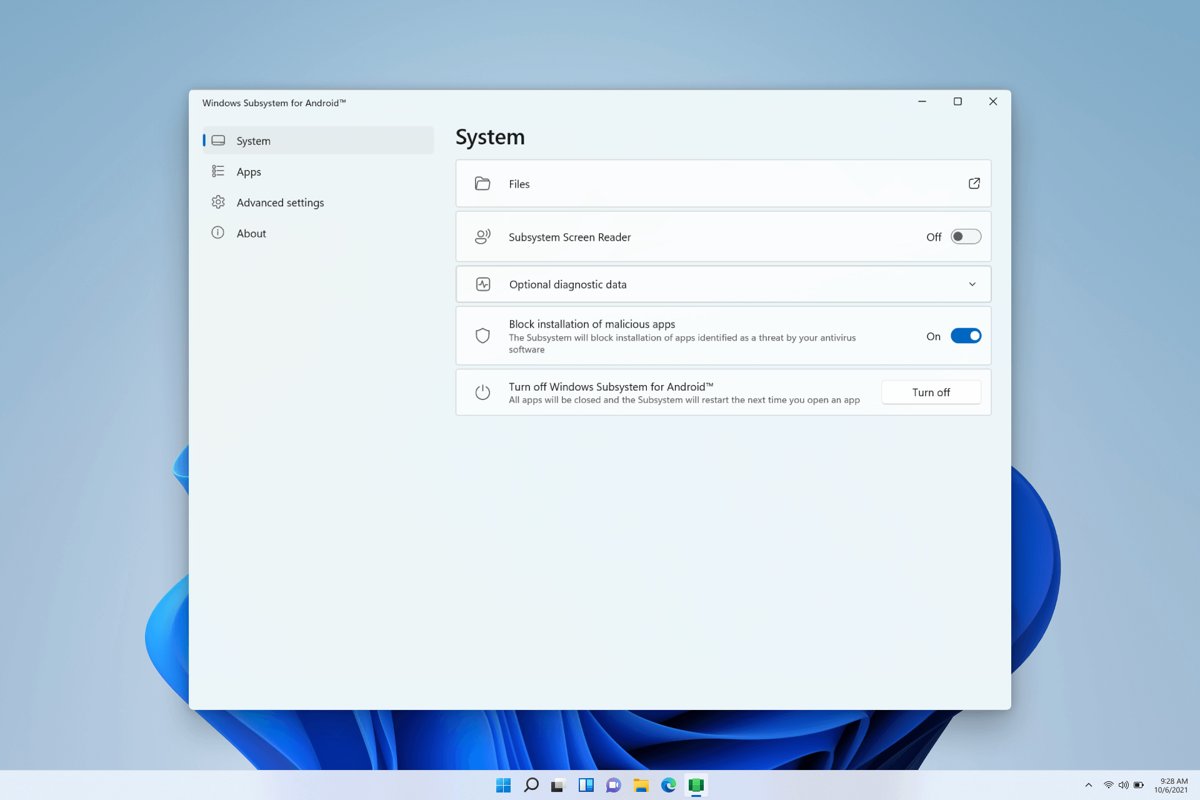
- Open Start > All apps > Windows Subsystem for Android to manage settings.
- Use the Apps tab to start or stop Android apps and change their settings.
- Use Files on the System tab to browse subsystem files; copied files land in the Windows Downloads folder.
- Under Advanced settings, turn on Share user folders to make Documents, Pictures and other profile folders available to Android apps.
How to always run WSA in background on Windows 11
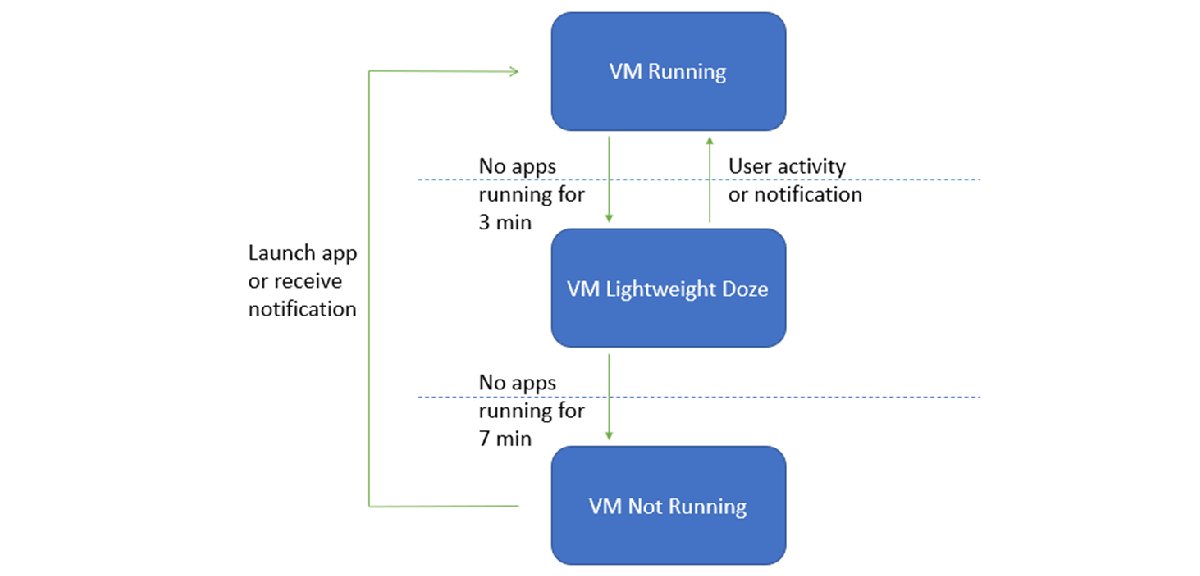
By default the subsystem uses resources only while apps run. It enters a light doze after 3 minutes without app activity and stops after 7 minutes, so the next launch is slower.
- Open Start > All apps > Windows Subsystem for Android.
- Select Advanced settings.
- Under Memory and performance, choose Continuous to keep WSA running at all times for the fastest launches.
- Choose Partially running instead to keep minimal resources in use and still launch apps faster than As needed.
- Set the memory allocation if Android apps need more RAM.
Continuous keeps memory and CPU in use even when no Android app is open. Switch back to As needed on a laptop running on battery.
How to reset Windows Subsystem for Android (WSA) on Windows 11
Microsoft's first fix for most WSA problems is a subsystem restart. Clearing the Amazon Appstore's data is the next level down.
- Select Start, search for Windows Subsystem for Android Settings and open it.
- Select Shutdown Subsystem; WSA and all open Android apps close.
- Open any Android app to restart the subsystem.
- To reset the Amazon Appstore, search for Amazon Appstore, right-click it and select App Settings.
- Select Storage and Cache, then select Clear Storage and Clear cache.
- Go back, select Force Stop, close the window and relaunch the Amazon Appstore.
Do not uninstall WSA as a reset. Removing WSA also removes the Amazon Appstore and every Android app, and none of them can be installed again from the Microsoft Store.
How WSA worked on Windows 11
| Part | How it worked |
|---|---|
| Virtual machine | Android ran in a VM compatible with the Android Open Source Project, with keyboard, mouse, touch and pen support |
| Android version | The VM reported SDK level 33, which is Android 13, in its last builds |
| App source | Apps came from the Amazon Appstore; APK installs over adb were meant for developers testing apps |
| Arm apps on Intel and AMD PCs | Intel Bridge Technology translated Arm apps on x86 processors; Arm PCs ran them natively |
| VM states | Running, Lightweight Doze after 3 minutes idle, Not Running after 7 minutes idle |
| Windows integration | Links, mail and files opened in the Windows default app; Android apps could be resized and snapped |
| Last release | Build 2304.40000.3.0, June 1, 2023, with antivirus scanning of apps and configurable memory |
What WSA could not do well
| Limitation | Effect |
|---|---|
| Amazon Appstore only | No Google Play Store, so many popular apps and Google services were missing |
| Select regions | The Amazon Appstore on Windows worked only in supported countries with a local Amazon account |
| Hardware demands | Needed virtualization and Virtual Machine Platform, plus a 720p screen larger than 9 inches |
| Emulation overhead | Arm-only apps ran slower on Intel and AMD PCs through translation |
| Input differences | Apps built for touch phones often handled Enter, Tab, right-click and scroll wheel poorly |
| No anti-cheat detection | Microsoft had no plans to detect cheats, macros or bots, so some games blocked it |
Best alternatives to WSA in 2026 and WSA vs. Android emulators
WSA ran Android apps as windows on the desktop; an emulator runs a full virtual phone in one window. Pick by what you actually need.
| Your situation | Use this | Why |
|---|---|---|
| Play Android games on a PC | Google Play Games on PC | Google's own client, with library and progress sync across phone and PC |
| Test or debug your own Android app | Android Emulator in Android Studio | Official Google tool; needs 64-bit Windows 10 or later, 16 GB RAM and 16 GB disk space |
| Use everyday Android apps | An Android phone or tablet | Fully supported, with the Google Play Store and current updates |
| Already have WSA and apps installed | Existing WSA, unmaintained | Keeps working for now but receives no support or fixes |
| Amazon Appstore apps | A Fire tablet or Fire TV | Amazon still supports its Appstore on those devices |
If you want the games route, install Google Play Games on Windows and sign in with your Google account. To move an app file onto a phone instead, you can install an APK from your PC.
Troubleshooting existing WSA problems
Error 0x800700B7 when downloading Windows Subsystem for Android
WSA is no longer offered in the Microsoft Store, so a new download or reinstall cannot complete.
- Stop retrying the Store download; there is no listing left to install from.
- Check Start > All apps to see whether WSA is in fact already installed.
- Move to Google Play Games on PC or the Android Emulator if it is not.
Android apps will not open
Control flow guard is off, which WSA apps need.
- Open Settings > Privacy & security > Windows Security.
- Select App & browser control > Exploit protection settings.
- Under System settings, set Control flow guard (CFG) to Use default (On).
Android apps keep crashing
The subsystem or the app is in a bad state.
- Select Shutdown Subsystem in the WSA Settings app, then open the app again.
- Select Start > Settings > Apps & features, find the app and select More > Advanced options > Terminate.
- Open the app again.
Android apps have no network access
Windows Firewall blocks incoming connections while Advanced networking is off.
- Open the WSA app and check Advanced networking; if it is on, firewall changes do not affect it.
- If it is off, open Windows Security > Firewall & network protection and select the network marked (active).
- Under Incoming connections, clear Block all incoming connections.
Android apps and games run slowly
WSA is starting from cold or using the low-power GPU.
- In WSA Advanced settings, change Memory and performance from As needed to Continuous.
- Under Graphics and performance, pick the high-performance GPU on a PC with two GPUs.
Touch input does not work in Android apps
The Subsystem Screen Reader is on.
- Open the WSA app and turn off Subsystem Screen Reader on the System tab.
- Or press Windows logo key + Ctrl + T to toggle it.
Security and privacy considerations for WSA
| Concern | What to know |
|---|---|
| No more support | WSA receives no further fixes, so new Android security issues stay unpatched |
| Memory inspection | Windows kernel-mode drivers and medium-integrity Windows apps can inspect Android containers and app memory |
| App scanning | Malicious app blocking checks apps against your installed antivirus before install; keep it on |
| Unofficial WSA packages | Copies on third-party sites are not from Microsoft and can carry malware; avoid them |
| Shared folders | Share user folders exposes your Documents and Pictures to Android apps; turn it off if you do not need it |
Windows Subsystem for Android install FAQ
Can you still install WSA in 2026?
No. Since March 5, 2025, Windows Subsystem for Android and the Amazon Appstore are not available in the Microsoft Store. A PC that already has WSA can keep it, but new installs are not offered.
Do Android apps I already installed still work?
Previously installed Amazon Appstore apps can still open, but Amazon states they are no longer supported after March 5, 2025. Expect apps to break over time without fixes.
What happens if I uninstall WSA?
Uninstalling WSA also removes the Amazon Appstore and every Android app. Because the Microsoft Store no longer offers WSA, you cannot reinstall it afterwards.
Does Windows 11 still need Virtual Machine Platform for Android apps?
WSA needed virtualization and Virtual Machine Platform. Turn on Virtual Machine Platform from Turn Windows features on or off; it is also used by other Windows virtualization features.
Did WSA include the Google Play Store?
No. WSA ran Android apps from the Amazon Appstore. For Google Play games on Windows, Google offers Google Play Games on PC.
What Android version did WSA run?
The final WSA builds reported SDK level 33, which is Android 13. The last release listed by Microsoft is build 2304.40000.3.0 from June 1, 2023.
Should you use WSA in 2026?
Only if it is already installed and an app you rely on still works. For anything new, use Google Play Games on PC, the Android Emulator or an Android device, which are all supported.
Who should still care about WSA?
Only people who already have WSA installed should keep it, and they should leave it in place rather than uninstall or reset it by removal. WSA cannot be installed again from the Microsoft Store, and it no longer receives support. Everyone else gets a better result from Google Play Games on PC, the Android Studio emulator or an Android device.