Open Control Center on an iPhone or Quick Settings on an Android phone, then tap the Flashlight button once to turn it on and again to turn it off.
This guide covers every built-in route on both platforms, including Siri, the Lock Screen button, the Action button, Gemini and the Samsung Side button, plus brightness and fixes.
The fastest way to turn your phone’s flashlight on and off
Find your phone in the left column. The same button that turns the light on also turns it off.
| Your phone | Turn it on | Turn it off |
|---|---|---|
| iPhone with Face ID (no Home button) | Swipe down from the upper-right corner, then tap Flashlight | Swipe down from the upper-right corner and tap Flashlight again |
| iPhone with a Home button | Swipe up from the bottom edge, then tap Flashlight | Swipe up from the bottom edge and tap Flashlight again |
| Samsung Galaxy | Swipe down from the top of the screen, then tap Flashlight (called Torch on UK models) | Open the same panel and tap the icon again |
| Google Pixel and other Android phones | Swipe down from the top of the screen, swipe down again if needed, then tap the flashlight tile | Open Quick Settings and tap the tile again |
If the flashlight tile is not on the first screen of Android Quick Settings, swipe sideways through the panel. Samsung notes the icon can sit on a second page.
Quick reference: best flashlight method by phone
Every method below is built into the phone. Pick the row that matches what your hands are doing, including when you need the fastest way to turn the light back off.
| Your situation | Use this | Why |
|---|---|---|
| iPhone is locked and in your hand | Press and hold the Flashlight button in the bottom-left corner of the Lock Screen | No unlock and no swipe needed |
| iPhone 15 Pro or later, including iPhone 16e and 17e | Press and hold the Action button after assigning it to Flashlight | Works by feel, and the same press turns the light off |
| Your hands are busy on iPhone | Say "Hey Siri, turn on my flashlight" or "Hey Siri, turn off my flashlight" | Hands-free on and off |
| Samsung Galaxy with the screen off | Double press the Side button after setting it to Flashlight | Works even with the screen off |
| Android with Gemini as assistant | Say "Turn on flashlight" or "Turn off flashlight" | Hands-free, and works while locked if Gemini on lock screen is on |
| Pixel with Google Assistant | Say "Turn on the flashlight" | Google lists it as a Pixel 4 and later command |
| Samsung Galaxy XCover6 Pro | Press the XCover key or Top key after setting it up | A dedicated physical key |
| Any phone, light already on | Tap the flashlight button in Control Center or Quick Settings | The fastest off switch that needs no setup |
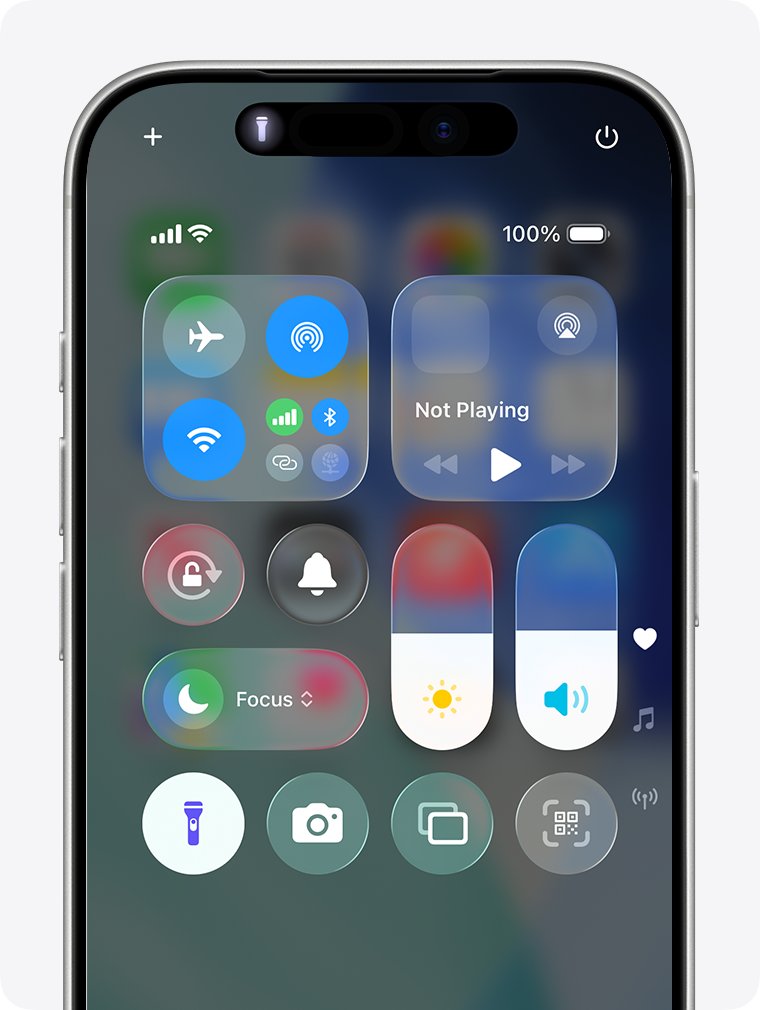
How to turn the flashlight on and off on iPhone with Control Center
Control Center works on every iPhone and on iPad Pro. It is also where you change the flashlight brightness.
- On an iPhone with Face ID, swipe down from the upper-right corner of the screen. On an iPhone with a Home button, swipe up from the bottom edge.
- Tap the Flashlight button to turn the light on.
- To change brightness, press and hold the Flashlight button.
- Drag the slider up for a brighter beam or down for a dimmer one.
- Tap the Flashlight button again to turn the light off.
On models with the Dynamic Island, which Apple lists as iPhone 14 Pro and later Pro models, you can also resize the beam. With the flashlight on, touch and hold the light icon in the Dynamic Island, then drag it to change the beam's width and length.
How to use the Lock Screen button or Siri on iPhone
These two routes skip Control Center. The Lock Screen button needs no unlock, and Siri needs no hands.
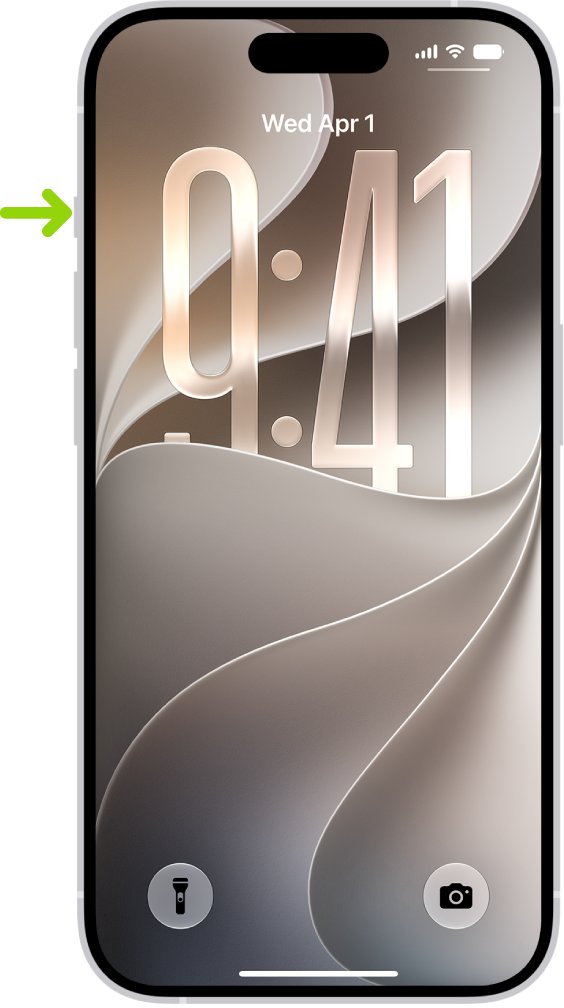
- Wake the iPhone so the Lock Screen appears.
- Press and hold the Flashlight button in the bottom-left corner until the light comes on.
- To use Siri instead, say "Hey Siri, turn on my flashlight."
- To turn the light off by voice, say "Hey Siri, turn off my flashlight."
- If you prefer not to speak, turn it off by tapping Flashlight in Control Center.
How to set the iPhone Action button to turn the flashlight on and off
The Action button replaces the Ring/Silent switch on the left side of these iPhones: iPhone 15 Pro and iPhone 15 Pro Max, every iPhone 16 model including iPhone 16e, and the iPhone 17 lineup including iPhone 17e, iPhone 17 Pro, iPhone 17 Pro Max and iPhone Air.
iPhone 15, iPhone 15 Plus and every earlier model have the Ring/Silent switch instead, so this method does not exist on them. Use the Lock Screen button or Siri.
- Open the Settings app.
- Tap Action Button.
- Swipe through the actions until Flashlight is shown.
- Press and hold the Action button to turn the flashlight on.
- Press and hold it again to turn the flashlight off.
By default the Action button turns Silent mode on or off. Assigning Flashlight replaces that default action.
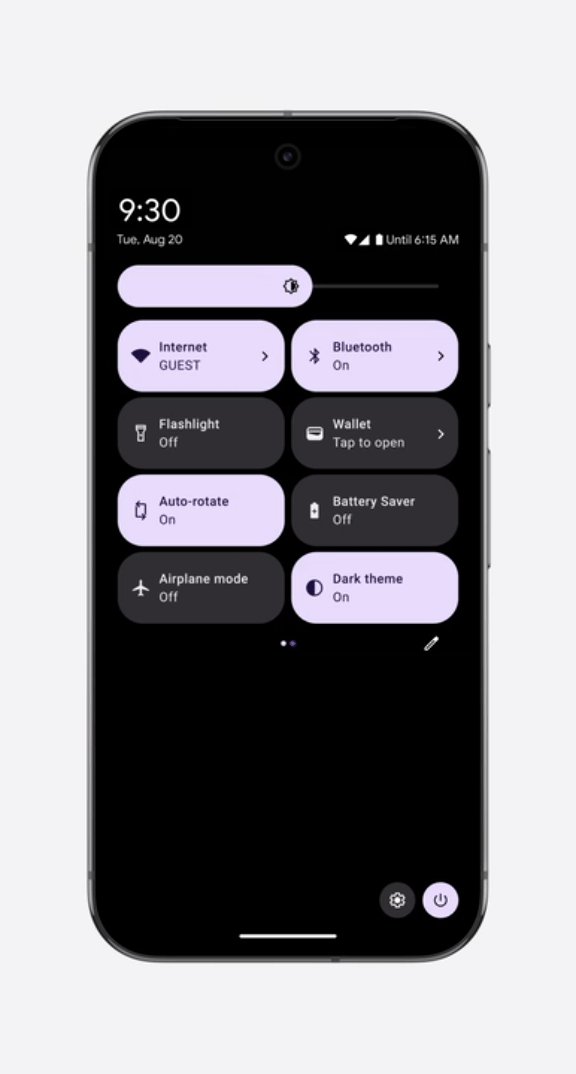
How to turn the flashlight on and off on Android with Quick Settings
Quick Settings is the panel that drops down from the top of every Android phone. The tile's name and position vary by manufacturer, so look for a flashlight icon.
- Swipe down from the top of the screen to see your first few Quick Settings. On current Samsung phones, Samsung's US guide says to swipe down from the top right.
- Swipe down again to see all Quick Settings if the flashlight tile is not showing.
- Swipe sideways through the panel if there is more than one page.
- Tap the Flashlight tile (labeled Torch on some Samsung models) to turn the light on.
- Tap the same tile again to turn the light off.
How to turn the flashlight on and off with Gemini or Google Assistant
Gemini controls the flashlight through its Utilities feature. Google lists flashlight among the device settings it can turn on or off.
- Set the Google app as your phone's default digital assistant if it is not already.
- Start Gemini with your usual assistant gesture or button.
- Say "Turn on flashlight."
- Say "Turn off flashlight" when you are done.
- To use it while the phone is locked, turn on the Gemini on lock screen setting.
- On a Pixel 4 or later that still uses Google Assistant, say "Turn on the flashlight."
On Samsung Galaxy phones, long-press the Side button to start your default voice assistant, then say "Turn on the flashlight."
How to check the flashlight is really on or off
- Point the back of the phone at a nearby surface. A lit patch next to the rear camera confirms the light is on.
- On iPhone, open Control Center and check that the Flashlight button is highlighted.
- On Android, open Quick Settings and check that the flashlight tile is highlighted.
- After turning it off, cover the rear camera area with your hand. No glow on your palm means the light is fully off.
How your phone’s flashlight works, and whether it drains the battery
The phone flashlight is the rear camera's LED flash kept on continuously. That single fact answers most questions about it.
| Question | Answer |
|---|---|
| What produces the light? | The LED flash beside the rear camera lenses. A case, film or lens accessory over that area blocks it, which is why Apple lists removing them as a first fix. |
| Does the flashlight drain your battery? | Yes. The LED draws power for as long as it is lit. Apple, Google and Samsung publish no drain figure on their flashlight pages, so turn it off when you finish. |
| How do you reduce the drain? | Lower the brightness. iPhone and Samsung Galaxy phones both offer a brightness slider on the flashlight control. |
| Is it safe to leave the phone flashlight on? | It keeps drawing battery for as long as it is lit, and none of the three vendors' flashlight pages set a time limit. Turn it off with the same button, Siri, Gemini or the Action button when the job is done. |
| Does the camera flash setting affect the flashlight? | The camera app has its own flash setting. Apple's advice when the flash works only sometimes is to change that setting in the Camera app. |
| Do you need a flashlight app? | No. iPhone and Android both include a flashlight control, brightness on iPhone and Samsung, and voice control. A separate app adds nothing the built-in controls lack. |
How to put the flashlight shortcut somewhere easier to reach
If you use the light often, move it to a spot you can hit without looking. Match your phone to a row.
| What you want | Where to change it | Details |
|---|---|---|
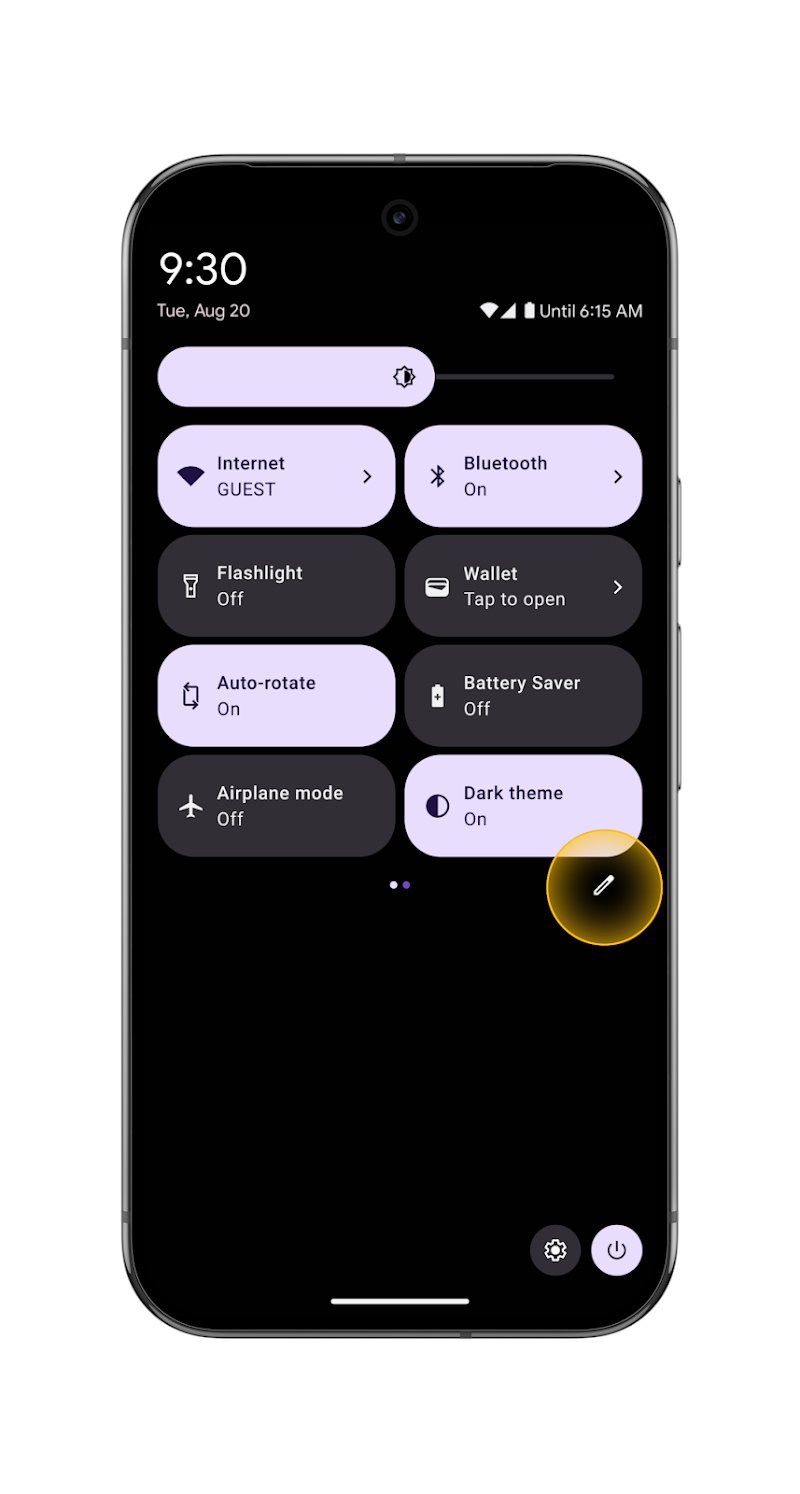
| Flashlight tile on the first Quick Settings screen (Android) | Swipe down twice, then tap Edit | Touch and hold the flashlight tile and drag it to the top positions. On Pixel, drag it up from Hold and drag to add tiles if it is missing |
| A physical shortcut on Samsung Galaxy | Settings > Advanced features > Side button > Double press | Tap Flashlight in the list. Then double press the Side button at any time, even with the screen off |
| A dedicated key on Galaxy XCover6 Pro | Settings > Advanced features | Assign the XCover key or Top key to the flashlight |
| A physical shortcut on iPhone | Settings > Action Button | Swipe to Flashlight. Available on iPhone 15 Pro and later models with an Action button |
| A brightness level on Samsung Galaxy | Quick Settings: tap and hold the Flashlight icon | Turn on the switch first, then drag the slider. The slider is grayed out until the light is on |
| A brightness level on iPhone | Control Center: press and hold Flashlight | Drag the slider up or down |
Fix the flashlight when it is not working or grayed out
Match the symptom, then run the steps under it in order.
The iPhone flashlight does not light up
Something covers the flash, or a software glitch is holding the LED.
- Remove any case, film or lens accessory that could block the camera or flash.
- Open Control Center and tap Flashlight to test it.
- Restart the iPhone.
- Update the iPhone to the latest version of iOS.
- If the light still stays dark, contact Apple Support for a hardware check.
The flash works only sometimes
The Camera app's flash setting is controlling when the flash fires.
- Open the Camera app.
- Tap the flash button.
- Choose a different flash setting and test again.
The flashlight brightness slider is grayed out on Samsung
The slider stays inactive until the flashlight itself is switched on.
- Swipe down to open Quick Settings.
- Tap and hold the Flashlight icon.
- Tap the switch to turn the light on.
- Drag the slider to set the brightness.
The flashlight icon is missing from Android Quick Settings
The tile was removed or sits on a later page of the panel.
- Swipe down twice from the top of the screen.
- Swipe sideways to check every page of tiles.
- Tap Edit.
- Add the flashlight tile and drag it to the first row.
Gemini will not turn on the flashlight while the phone is locked
Device controls from the lock screen need a separate setting.
- Unlock the phone.
- Turn on Gemini on lock screen.
- Confirm the Google app is set as the default digital assistant.
- Lock the phone and say "Turn on flashlight" to test.
The Action button does not turn on the flashlight
The button is still set to another action, such as its default Silent mode.
- Open Settings > Action Button.
- Swipe until Flashlight is selected.
- Press and hold the Action button, rather than tapping it.
Frequently asked questions
How do I turn off the flashlight on my iPhone?
Open Control Center and tap the Flashlight button again. Swipe down from the upper-right corner on a Face ID iPhone, or up from the bottom on a model with a Home button. You can also say "Hey Siri, turn off my flashlight" or press and hold an assigned Action button.
How do I turn on the flashlight on an Android phone?
Swipe down from the top of the screen to open Quick Settings, then tap the flashlight tile. Swipe down again or sideways if the tile is not visible. On Samsung Galaxy phones the tile is called Flashlight, or Torch on some UK models.
Which iPhones have the Action button?
iPhone 15 Pro and iPhone 15 Pro Max, all iPhone 16 models including iPhone 16e, and the iPhone 17 lineup including iPhone 17e and iPhone Air. iPhone 15, iPhone 15 Plus and earlier models have the Ring/Silent switch and cannot use the Action button flashlight shortcut.
How do I make the iPhone flashlight brighter or dimmer?
Open Control Center, press and hold the Flashlight button, then drag the slider up or down. On iPhone 14 Pro and later Pro models, touch and hold the light icon in the Dynamic Island to change the beam's width and length.
How do I adjust flashlight brightness on a Samsung Galaxy?
Open Quick Settings and tap and hold the Flashlight icon. Tap the switch to turn the light on, then drag the slider. The slider stays grayed out until the flashlight is on, which is the usual reason it seems not to work.
Can I turn on the flashlight by double pressing the side button?
Yes on Samsung Galaxy phones. Go to Settings > Advanced features > Side button > Double press and tap Flashlight. Double press works even with the screen off. On iPhone, the equivalent hardware shortcut is the Action button on supported models.
Can I use voice commands to turn the flashlight on and off?
Yes. On iPhone, say "Hey Siri, turn on my flashlight." On Android with Gemini, say "Turn on flashlight" or "Turn off flashlight." Pixel 4 and later phones with Google Assistant accept "Turn on the flashlight." Samsung phones use the assistant set on the Side button.
Can I turn on the flashlight without unlocking my phone?
Yes. On iPhone, press and hold the Flashlight button in the bottom-left corner of the Lock Screen. On Samsung, set Double press on the Side button to Flashlight. With Gemini, turn on Gemini on lock screen to use voice while locked.
Do I need to download a flashlight app?
No. iPhone and Android phones include a flashlight control in Control Center or Quick Settings, plus voice control. iPhone and Samsung Galaxy phones also have a built-in brightness slider, so a separate app adds nothing essential.


How to Turn On Text Message Forwarding on an iPhone - Techdows
[…] Another iPhone control worth knowing sits nearby: how to turn your phone's flashlight on and off. […]