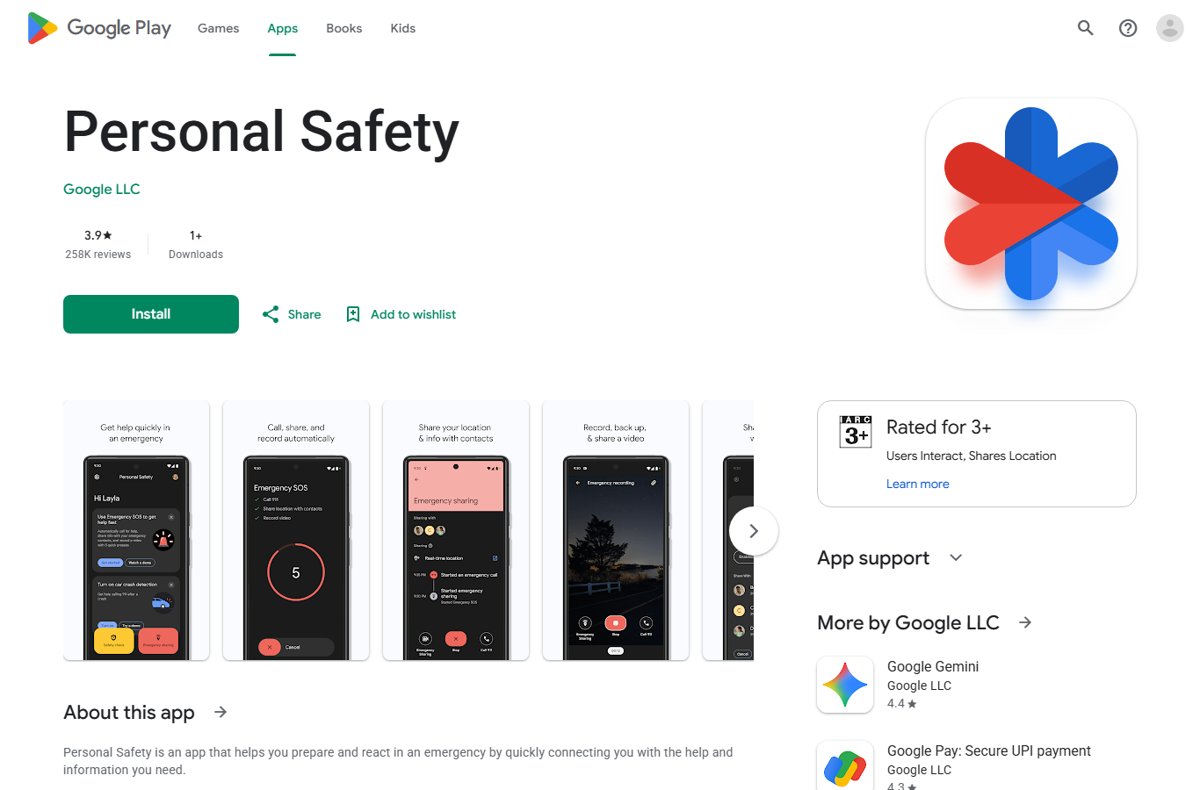
To add an emergency contact on Android, open the Personal Safety app, tap Your info > Emergency contacts > Add contact, and pick someone from your contacts.
This guide also covers adding contacts during Emergency SOS setup, entering medical details, showing them on the lock screen, Samsung phones, and fixes when a contact will not appear.
Step-by-step guide to add emergency contact on Android
Google's Personal Safety app (called Safety on some phones) holds your emergency contacts and medical information on Pixel and many other Android phones.
The route below accesses the Safety app, navigates to your emergency information and adds the contact in one pass.
- Open the Personal Safety app. On some phones the app is simply named Safety.
- Sign in to your Google Account if the app asks you to.
- Tap Your info to navigate to your emergency information.
- Tap Emergency contacts.
- Tap Add contact.
- Choose the person from your existing contacts list.
- To let first responders see the contact while the phone is locked, tap Emergency info access > Show when locked.
The contact must already be saved in your phone's contacts. Save the person first if they do not show up in the picker.
Why adding emergency contacts is important
An emergency contact on Android is more than a name on the lock screen. Several safety features send that person live information when you trigger them.
| Feature | What your emergency contact receives |
|---|---|
| Emergency info on the lock screen | Nothing is sent; a first responder can see who to call by tapping Emergency > View emergency info |
| Emergency SOS | A text with your name, a Google Maps link to your real-time location and your remaining battery percentage |
| Emergency sharing | Your name, a live location link, battery level and an optional message; sharing ends automatically after 24 hours |
| Safety Check | A text with your name, the check's duration and reason; if you do not mark yourself safe, your real-time location and battery level follow |
| Car Crash Detection (Pixel) | Used alongside a call to emergency services after a detected crash; needs an active SIM card |
Emergency SOS, Emergency sharing and Safety Check all need at least one saved emergency contact before they can alert anyone.
Prerequisites for adding emergency contacts on Android
| Requirement | Why it matters | How to check |
|---|---|---|
| Android 12 or later (Android 13 or later on Pixel for some steps) | Several Personal Safety and Emergency SOS steps only exist on these versions | Open Settings > About phone > Android version |
| Google Account | The Personal Safety app asks you to sign in before it saves your info | Sign in when the app prompts you |
| Contact saved in your phone | Add contact only picks from existing contacts | Search for the person in your Contacts app |
| Active SIM card | Texting emergency contacts and Car Crash Detection need one | Make a normal call or send a text |
| Location turned on | Emergency sharing and SOS location links need Location Services and an internet connection | Open Settings > Location |
| Regular or age-eligible account | Supervised accounts get emergency contacts and SOS, but Emergency sharing and Safety Check need the minimum age | Check whether the account is managed by Family Link |
Which Android emergency contact method should you use?
| Your situation | Use this | Why |
|---|---|---|
| You only want a contact saved for first responders | Personal Safety app > Your info > Emergency contacts | Fastest route, and it shows on the lock screen with Show when locked |
| You want contacts texted with your location when you call for help | Settings > Safety & emergency > Emergency SOS > Start setup | Adds contacts and switches on SOS alerts in one flow |
| You also want blood type, allergies or medication listed | Personal Safety app > Your info > Medical information | Keeps medical details next to your contacts |
| You have a Samsung Galaxy phone | Search Settings for "emergency" | Samsung ships its own safety settings, and menu names differ from Pixel |
| Your phone has no Personal Safety app | Add a lock screen message with an emergency number | Works on any phone with Add text on lock screen |
How to add emergency contacts on Android
Emergency SOS setup is the second route. It adds emergency contacts and enables emergency call features at the same time, so pressing the power button 5 times alerts those contacts.
- Open the Settings app.
- Tap Safety & emergency > Emergency SOS.
- Tap Start setup at the bottom of the screen.
- Confirm the emergency services number, or change it if you need a different one.
- Add your emergency contacts and choose what information to share with them.
- Grant location permission and select While using the app.
- Turn on emergency video recording if you want it.
- Choose how SOS starts: Use touch & hold or start actions automatically after a countdown.
- Tap Done.
Emergency SOS does not work in airplane mode or while Battery Saver is on.
Input additional medical details on Android
Setting up emergency information on Android means pairing your contacts with medical details a paramedic can read from the lock screen.
These steps access the emergency information settings and let you enter your emergency details item by item.
- Open the Personal Safety app.
- Tap Your info.
- Tap Medical information.
- Tap an item, such as blood type, allergies or medications, and enter your details.
- Repeat for each item you want listed.
- Go back to Your info and confirm Emergency info access is set to Show when locked.
Adding multiple emergency contacts on Android
Add a second or third contact so an alert still reaches someone when your first contact is unreachable.
- Open the Personal Safety app and tap Your info.
- Tap Emergency contacts.
- Tap Add contact and choose the next person.
- Repeat Add contact for each extra person.
- When you start Emergency sharing, select which of these contacts receive your location before you tap Share.
Add emergency contacts on a Samsung Galaxy phone
Samsung Galaxy phones keep emergency features in Samsung's own settings rather than Google's Personal Safety app, and menu names change between One UI versions.
Settings search finds the current location on any Galaxy model, so start by opening the phone's Settings app.
- Open Settings on your Samsung phone.
- Tap the search icon at the top of the screen.
- Type emergency contacts and open the matching result.
- Add a person from your existing contacts.
- Lock the phone, swipe up and tap Emergency to confirm the contact is reachable from the lock screen.
Activate Android emergency features
Once a contact is saved, these features put it to work. Car Crash Detection is available on Pixel 3 and later.
| Feature | How to turn it on | Requirement |
|---|---|---|
| Emergency SOS | Settings > Safety & emergency > Emergency SOS > Start setup | Android 12 or later; not in airplane mode or Battery Saver |
| Emergency sharing | Personal Safety app > Emergency sharing > choose contacts > Share | At least one emergency contact, internet and Location Services |
| Safety Check | Schedule it in the Personal Safety app, then pick a Reason and Duration (15 minutes to 8 hours) | Emergency contacts saved; minimum age for supervised users |
| Car Crash Detection | Personal Safety app > Features > Car Crash Detection > Set up | Pixel phone, active SIM, location, microphone and physical activity permissions |
| Emergency Location Service | Settings > Location > Location services > Emergency Location Service | Available only in some countries and with some carriers |
Testing your emergency contact setup
Test your setup from the lock screen, exactly where a stranger or paramedic would look. Never dial an emergency number just to test it.
- Lock your phone.
- Swipe up on the lock screen.
- Tap Emergency.
- Tap View emergency info.
- Check that each emergency contact and your medical information appear.
- If you call emergency services by mistake, stay on the line and tell the operator the call was accidental.
Customizing emergency contact settings on Android
| What to change | Where | Effect |
|---|---|---|
| Show or hide info on the lock screen | Personal Safety app > Your info > Emergency info access | Show when locked lets anyone holding the phone read your contacts and medical info |
| SOS start behaviour | Settings > Safety & emergency > Emergency SOS | Switch between touch & hold and an automatic countdown |
| Emergency services number | Emergency SOS setup | Change the number SOS dials |
| Lock screen message | Settings > Display > Lock screen > Add text on lock screen > Save | Shows text such as an ICE phone number on the lock screen |
| Turn off Emergency SOS | Settings > Safety & emergency > Emergency SOS > Settings icon > Turn off Emergency SOS | Stops the power-button trigger and contact alerts |
Troubleshooting common issues when adding emergency contacts on Android
Issue 1: Contacts not appearing in emergency settings
Add contact only lists people already saved in your phone's contacts.
- Open your Contacts app and save the person with a phone number.
- Return to the Personal Safety app and tap Your info > Emergency contacts.
- Tap Add contact and search for the person again.
Issue 2: Emergency contact not saving properly
The Personal Safety app saves your info to your Google Account, and some features are limited on supervised accounts.
- Open the Personal Safety app and sign in to your Google Account when prompted.
- Check your Android version under Settings > About phone > Android version; some steps need Android 12 or later.
- If a Family Link account manages the phone, ask the parent to check which Personal Safety features the account allows.
- Add the contact again from Your info > Emergency contacts.
Issue 3: Emergency contacts not visible during an emergency
Lock screen access is off, or Emergency SOS cannot send texts.
- In the Personal Safety app, tap Your info > Emergency info access > Show when locked.
- Turn off airplane mode and Battery Saver; Emergency SOS does not work with either on.
- Insert an active SIM card, which is needed to text emergency contacts.
- Turn on Location Services so contacts receive your location link.
- Lock the phone and check Emergency > View emergency info again.
Additional tips for emergency preparedness
| Tip | Why it helps |
|---|---|
| Tell each person you listed them | A contact who expects an SOS text is more likely to act on it quickly |
| Add a lock screen message | Gives a fallback number even on phones without the Personal Safety app |
| Keep Emergency Location Service on | Sends your location to first responders when you call or text an emergency number, where supported |
| Schedule a Safety Check before a risky trip | Your contacts get your location if you do not respond in time |
| Review your medical information after any change | Out-of-date allergies or medications can mislead responders |
| Keep earthquake alerts on | Pixel phones in supported regions warn you about nearby quakes of magnitude 4.5 and above |
Android emergency contact: frequently asked questions
How do I add an emergency contact on Android?
Open the Personal Safety app, tap Your info > Emergency contacts > Add contact, and choose a saved contact. Turn on Show when locked under Emergency info access so first responders can see the contact from the lock screen.
How do I add an emergency contact on a Samsung phone?
Open Settings, tap the search icon and search for emergency contacts, then add a person from your contacts. Samsung Galaxy phones use Samsung's own safety settings, so the menu name depends on your One UI version.
How do I make someone an emergency contact?
Save the person in your Contacts app first, then add them in the Personal Safety app under Your info > Emergency contacts. You can also add them during Emergency SOS setup in Settings > Safety & emergency > Emergency SOS.
What does an emergency contact do?
An emergency contact is who first responders can call from your lock screen. On Android, the same person also receives an SOS text with your name, a live Google Maps location link and your battery level when you trigger Emergency SOS.
How do I add an emergency contact on iPhone?
iPhone does not use Google's Personal Safety app, so the Android steps above do not apply, and iPhone emergency contacts are set up through Apple's own settings instead.
How do I add an emergency contact to the lock screen?
Turn on Show when locked in the Personal Safety app under Your info > Emergency info access. Anyone can then swipe up, tap Emergency and tap View emergency info. For a visible note, add text under Settings > Display > Lock screen.
Can anyone see my emergency contacts when my phone is locked?
Yes, if Show when locked is on. Anyone who picks up the phone can view your lock screen message and emergency information without unlocking it. Turn the setting off in the Personal Safety app if you do not want that.
How do I trigger Emergency SOS on Android?
Press the power button 5 times or more. Depending on your settings, touch and hold inside the red circle for 3 seconds or wait for the countdown, and the phone calls emergency services and alerts your emergency contacts.
How do I change the emergency contact number setting on Android?
Open Settings > Safety & emergency > Emergency SOS and run the setup again. The setup screen lets you change the emergency services number and the contacts that get notified.
Android emergency contacts: bottom line
Add at least two emergency contacts in the Personal Safety app, turn on Show when locked, then finish Emergency SOS setup. The lock screen entry helps a stranger call someone for you, while Emergency SOS texts those same contacts your live location when you cannot speak.

![How to appear offline on Steam [easy & quick guide]](https://techdows.com/wp-content/uploads/2026/10/Steam-Friends-List-in-a-browser-with-the-status-line-under-the-profile-name-600x338.jpg)