To factory reset a Kindle Fire, swipe down twice from the top of the screen, tap Settings, then tap Device Options and Reset to Factory Defaults.
This guide covers the Settings reset, the hardware-button reset through Recovery Mode for a frozen or locked tablet, what the wipe removes, and fixes when a reset does not go as planned.
How to factory reset a Kindle Fire from the Settings menu
Amazon now sells the Kindle Fire line as Fire tablets, and every current model uses this same route. Use it whenever the tablet turns on and you can get past the lock screen.
- Back up anything that exists only on the tablet, such as photos, contacts and calendar entries.
- Safely eject the microSD card if one is inserted.
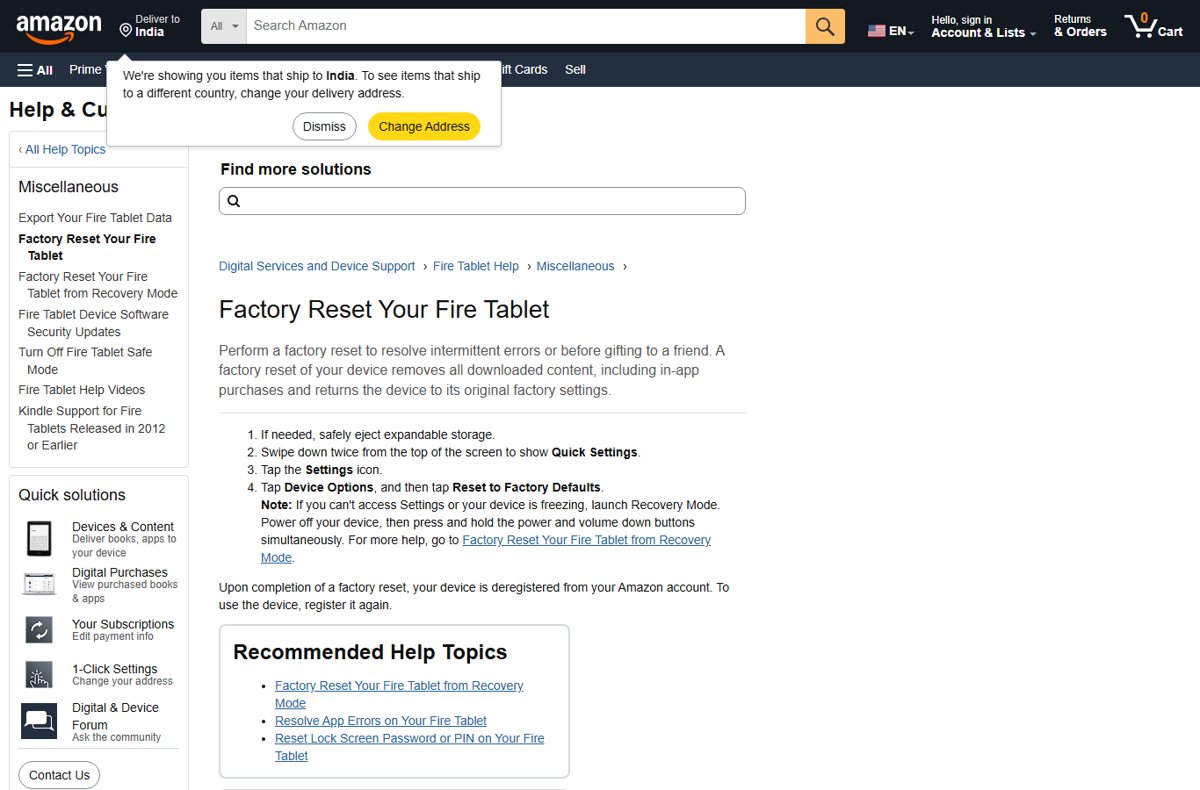
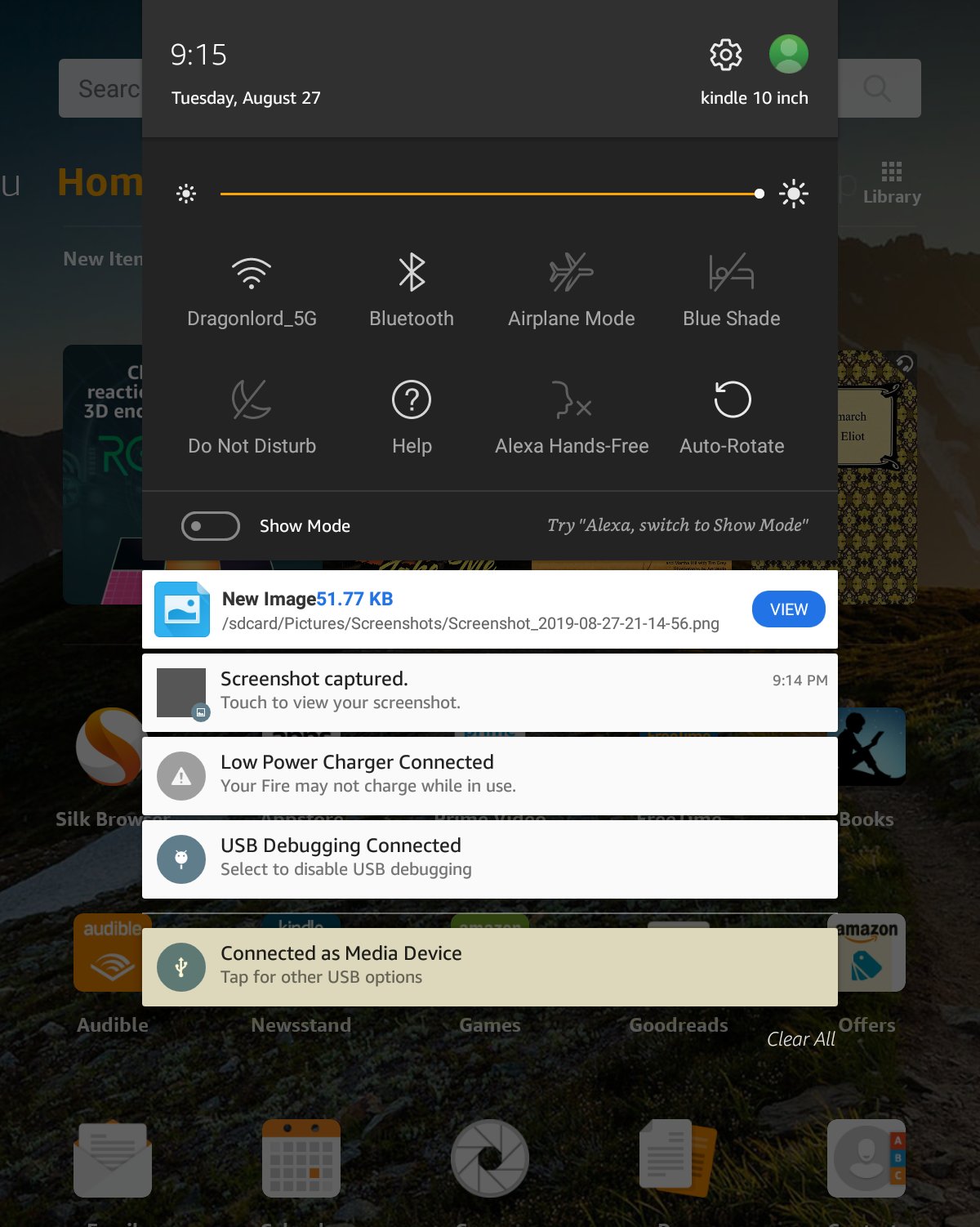
- Swipe down twice from the top of the screen to open Quick Settings.
- Tap the Settings icon.
- Tap Device Options.
- Tap Reset to Factory Defaults and confirm the reset.
- Leave the tablet alone until it restarts on the setup screen.
When the reset finishes, the tablet is removed from your Amazon account. Register it again during setup if you plan to keep using it.
Which reset method should you use?
| Your situation | Use this | Why |
|---|---|---|
| Tablet works and you can unlock it | Settings > Device Options > Reset to Factory Defaults | No buttons to hold and nothing to navigate in a menu |
| Tablet freezes, loops on startup or Settings will not open | Recovery Mode with the power and volume down buttons | Amazon's fallback when Settings cannot be reached |
| Forgot the lock screen PIN or password | Reset the PIN from the lock screen first | Five wrong entries offer a PIN reset that keeps your data |
| Forgot the parental controls password | Full factory reset | Amazon states a reset is the only way to restore full access |
| Tablet is lost, sold or already gone | Deregister it from Manage Your Content and Devices | Removes it from your account without touching the device |
| One app misbehaves | Restart the tablet or clear that app's cache | Fixes the problem without wiping everything |
How to factory reset a Kindle Fire with the hardware buttons
Recovery Mode resets the tablet without opening Settings or entering the lock screen PIN. Use it when the screen is frozen, stuck in a startup loop or locked.
- Safely eject the microSD card if one is inserted.
- Power off the tablet. If it is frozen, hold the power button for 40 seconds until it shuts off.
- Press and hold the power button and the volume down button at the same time.
- Release the buttons when the Recovery Mode options appear.
- Use the volume up and volume down buttons to highlight Wipe data/factory reset.
- Press the power button to select it.
- Confirm the reset when prompted, using the volume buttons to move and the power button to select.
- Wait for the wipe to finish and let the tablet restart on the setup screen.
Amazon lists power plus volume down for most devices. If that combination does not open Recovery Mode on your model, Amazon Device Support can confirm the right buttons.
Things to check before and after a Kindle Fire reset
| When | Check | Why it matters |
|---|---|---|
| Before | Export contacts as a .vcf file from the Contacts app (Import/export) | Contacts stored only on the tablet are erased |
| Before | Export calendars as .ics files from the Calendar app (Export Calendar) | Local calendar events are erased |
| Before | Copy photos and videos off the tablet or to Amazon Photos | Downloaded and locally saved files are removed |
| Before | Eject the microSD card | Amazon recommends ejecting expandable storage first |
| Before | Know your Amazon account email and password | The tablet is deregistered and needs them to sign in again |
| Before | Charge the tablet for at least 30 minutes | Amazon advises 30 minutes of charge before restarting a stuck tablet |
| After | Connect to Wi-Fi and confirm the clock shows the right time | Wrong time and no connection are common registration blockers |
| After | Run Device Options > System Updates | Outdated software can stop registration and app downloads |
| After | Open Library > All in Books and reinstall apps | Purchases stay in the cloud and download again |
Apps from the Amazon Appstore come back from your library. Apps you added another way need to be installed again, the same way you installed Android apps on the Kindle Fire the first time.
How to check the Kindle Fire reset worked
- Confirm the tablet starts on the language and Wi-Fi setup screens instead of your home screen.
- Sign in to Manage Your Content and Devices on amazon.com in a browser.
- Open Devices and check that the tablet is no longer listed under your account.
- If you are keeping the tablet, finish setup and confirm your books appear under Library > All.
What a factory reset actually does to a Kindle Fire
| Item | After a factory reset |
|---|---|
| Downloaded books, apps, videos and music | Removed from the tablet; purchases stay in your Amazon library |
| In-app purchases | Removed from the tablet, as Amazon's reset page states |
| Settings, Wi-Fi networks and profiles | Returned to original factory settings |
| Lock screen PIN and parental controls password | Cleared along with the rest of the device data |
| Amazon account registration | Removed; the tablet must be registered again |
| Kindle Store purchases | Kept in the cloud and available to download again |
| microSD card contents | Eject the card first so the reset does not touch it |
Other ways to wipe or release a Kindle Fire
A full wipe is not always the right tool. These routes release the tablet from your account or fix a narrow problem without erasing everything.
- To release a tablet you no longer have, open Manage Your Content and Devices on amazon.com, select Devices, choose the tablet and select Deregister.
- To fix a forgotten lock screen PIN, enter the wrong PIN five times, tap Reset Your PIN, enter your Amazon password, tap Continue, set a new PIN and tap Finish.
- To clear a temporary glitch, hold the power button for up to three seconds, select OK to shut down, then press the power button for two to three seconds to turn it back on.
- To fix a frozen startup loop, charge for 30 minutes, hold the power button for 40 seconds until it shuts off, then press it for two seconds to restart.
- If none of these work and Recovery Mode will not open, contact Amazon Device Support from the Help pages on amazon.com.
The PIN reset needs an internet connection. Without one, Recovery Mode is the remaining route.
Kindle Fire factory reset still not working?
Kindle Fire is locked and you do not know the PIN
The lock screen blocks Settings, so the Settings reset is out of reach.
- Connect the tablet to Wi-Fi if it is not already connected.
- Enter the wrong PIN five times and tap Reset Your PIN.
- If the reset prompt does not appear or you have no connection, power off and use Recovery Mode with power and volume down.
Settings will not open or the tablet keeps freezing
Software is hung, so the menu route cannot complete.
- Charge the tablet for at least 30 minutes with an Amazon power adapter.
- Hold the power button for 40 seconds until the tablet turns off.
- Hold power and volume down together to open Recovery Mode and select Wipe data/factory reset.
Kindle Fire factory reset button combination does nothing
The tablet was not fully off, or the buttons were released too early.
- Hold the power button for 40 seconds to make sure the tablet is completely off.
- Press and hold power and volume down at the same moment and keep holding until the menu appears.
- If Recovery Mode still does not appear, contact Amazon Device Support for your model.
Tablet will not register after the reset
Wrong device time, outdated software, no Wi-Fi or the wrong Amazon account.
- Check that the time at the top of the screen is correct.
- Connect to Wi-Fi and open Device Options > System Updates, then tap UPDATE if one is offered.
- Sign in with the Amazon account that owns your content; use Forgot Your Password on amazon.com if needed.
Books are missing after restoring the Kindle Fire
Purchases stay in the cloud and are not downloaded automatically.
- Open Books or the Kindle app on the home screen.
- Select Library, then All.
- Tap a book cover to download it again.
Kindle Fire factory reset FAQ
How do I factory reset a Kindle Fire without the PIN?
Use Recovery Mode. Power off the tablet, hold the power and volume down buttons together, then select Wipe data/factory reset with the volume keys and confirm with the power button. If you only want a new PIN, enter the wrong one five times and choose Reset Your PIN.
How do I factory reset a Kindle Fire when it is locked?
Turn the locked tablet off, then hold power and volume down to open Recovery Mode. Choose Wipe data/factory reset and confirm. Recovery Mode does not ask for the lock screen PIN, so it works when you cannot get past the lock screen.
How do I factory reset a Kindle Fire with buttons?
Power off the tablet, then press and hold the power and volume down buttons at the same time. When Recovery Mode appears, move with the volume buttons, select Wipe data/factory reset with the power button, and confirm.
How do I factory reset a Kindle Fire Kids tablet?
Use the same Settings route or Recovery Mode described above. If you forgot the parental controls password, Amazon states that a factory reset is the only way to restore full access, and afterwards you set the tablet up again from the start.
How do I factory reset a Kindle Fire 7, Fire HD 8 or Fire HD 10?
These models use the same steps: swipe down twice, tap Settings, tap Device Options, then tap Reset to Factory Defaults. If the tablet is frozen or locked, use Recovery Mode with the power and volume down buttons instead.
How do I factory reset a Fire Max 11?
Open Settings from Quick Settings, tap Device Options and tap Reset to Factory Defaults. A fingerprint or PIN you cannot use does not block Recovery Mode, which opens by holding power and volume down while the tablet is off.
What happens when you factory reset a Kindle Fire?
The reset removes all downloaded content, including in-app purchases, returns settings to factory defaults and deregisters the tablet from your Amazon account. Kindle Store purchases remain in your Amazon library and can be downloaded again after setup.
How do I restore a Kindle Fire after a factory reset?
Connect to Wi-Fi, sign in with your Amazon account to register the tablet, and install any system update. Then open Books, select Library and All to download your books, and reinstall apps from your Appstore library.
Does a factory reset delete my Kindle books permanently?
No. A factory reset deletes the downloaded copies on the tablet, but Kindle Store purchases are saved in the cloud. Sign in with the same Amazon account and download them again from Library, then All.
Quick summary: which Kindle Fire reset to use
Reset from Settings > Device Options > Reset to Factory Defaults when the tablet works, and use Recovery Mode with power and volume down when it is frozen or locked. Both routes erase the tablet and deregister it, so back up local photos, contacts and calendars first; your Kindle purchases come back from the cloud after you sign in again.