To make the power button end calls on Android, open Settings, tap Accessibility and turn on Power button ends call; turn the same switch off to stop it.
This guide covers the Samsung Galaxy version of the setting, what the iPhone side button does during a call, the lock-screen trade-off, and fixes for calls that keep ending on their own.
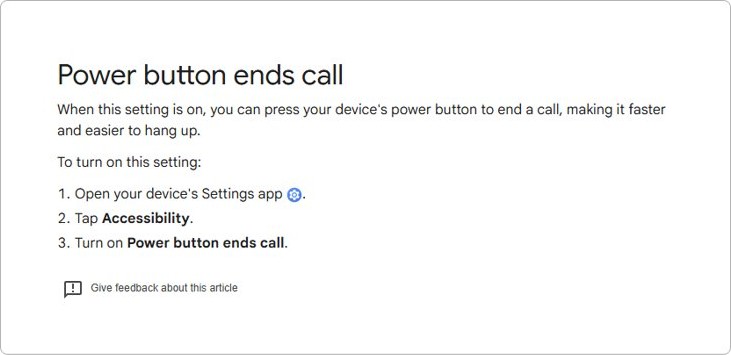
Turn on Power button ends call on Android
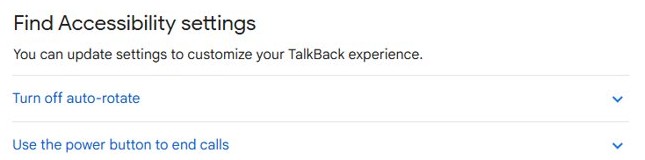
Google lists this switch in the Accessibility settings of Android phones, including Pixel phones.
Once it is on, one press of the power button hangs up the active call.
- Open the Settings app on your phone.
- Tap Accessibility.
- Turn on Power button ends call.
- Make a short test call and press the power button to confirm it hangs up.
If the switch is not on that screen, use the search bar at the top of your phone's Settings app and type the setting name. Phone makers sometimes move accessibility options into sub-menus.
Power button end call setting on Pixel, Samsung and iPhone
The setting has a different name and location on each platform. Match your phone to a row.
| Your phone | Setting name | Where it lives |
|---|---|---|
| Pixel and most Android phones | Power button ends call | Settings > Accessibility |
| Samsung Galaxy with a Side key | Press Side key to end calls | Phone app > More options > Settings > Answering and ending calls |
| iPhone | No switch listed in Apple's call or side button settings | Use the on-screen controls to end a call; the side button silences or declines incoming calls |
Press Side key to end calls on Samsung Galaxy
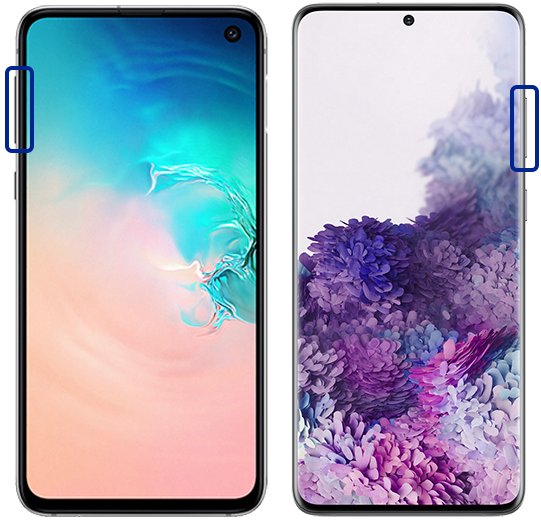
On recent Galaxy phones the Power and Bixby assistant buttons are merged into one Side key. Samsung puts its end-call option inside the Phone app rather than the main Settings app.
- Open the Phone app.
- Tap the More options icon (three vertical dots).
- Tap Settings.
- Tap Answering and ending calls.
- Turn on Press Side key to end calls.
Samsung notes the option exists on some devices only, and menu names vary by model and One UI version.
Stop the power button from ending calls
Turn the switch off when the phone keeps hanging up in a pocket or when you press the button by habit to turn the screen off.
- On Pixel and most Android phones, open Settings and tap Accessibility.
- Turn off Power button ends call.
- On a Samsung Galaxy, open the Phone app, tap More options, then tap Settings.
- Tap Answering and ending calls and turn off Press Side key to end calls.
- Press the button during a test call to confirm the screen turns off and the call continues.
What the iPhone side button does during a call
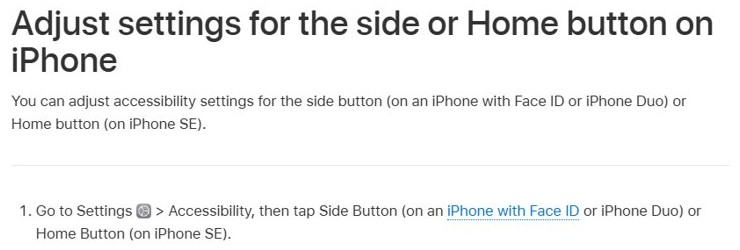
Apple's call settings and its side button accessibility page list no switch that controls hanging up with the button. What Apple does document is how the side button treats an incoming call.
| Action on iPhone | Result |
|---|---|
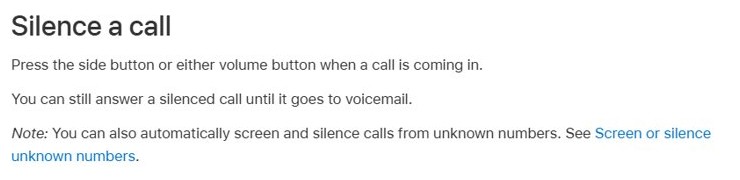
| Press the side button or either volume button while a call rings | The ringer goes silent; you can still answer until the call goes to voicemail |
| Press the side button twice quickly while a call rings | The call is declined and sent to voicemail |
| Swipe up on the call banner | The call is declined |
| Settings > Accessibility > Side Button | Changes click speed, Press and Hold to Speak and Side Button Confirmation only |
In some countries or regions, Apple says declined calls are disconnected without going to voicemail.
Can you lock your phone when power button ends call is on?
Google warns that you might be unable to lock the device with the power button while this setting is on, for example when the phone is in your pocket during a call.
The button press goes to the call instead of the screen, so the display can stay awake against your face or in a pocket.
Turn on Power button ends call if hanging up quickly matters more than locking the screen mid-call, and leave it off if you often pocket the phone during calls. One button cannot do both jobs during a call, so the setting trades screen locking for a faster hang-up.
Test that the power button ends calls
- Call your voicemail or another phone you own.
- Wait until the call connects and the call timer starts.
- Press the power or Side key once.
- Check that the call screen closes and the call appears in your recent calls.
- If the screen only turns off and the call continues, the setting is still off; repeat the steps above.
Why does my phone keep ending calls? Fixes by symptom
Calls end when you put the phone in your pocket
The end-call switch is on and the power or Side key is pressed by accident.
- On Android, open Settings > Accessibility and turn off Power button ends call.
- On a Samsung Galaxy, open the Phone app > More options > Settings > Answering and ending calls and turn off Press Side key to end calls.
- Make a test call and press the button to confirm the call stays connected.
Pressing the Side key does not end calls on Samsung
The option is off, or your model does not offer it.
- Open the Phone app and tap More options.
- Tap Settings, then Answering and ending calls.
- Turn on Press Side key to end calls.
- If the switch is missing, end calls with the on-screen button; Samsung says the option exists on some devices only.
iPhone call ends immediately or says Call Failed
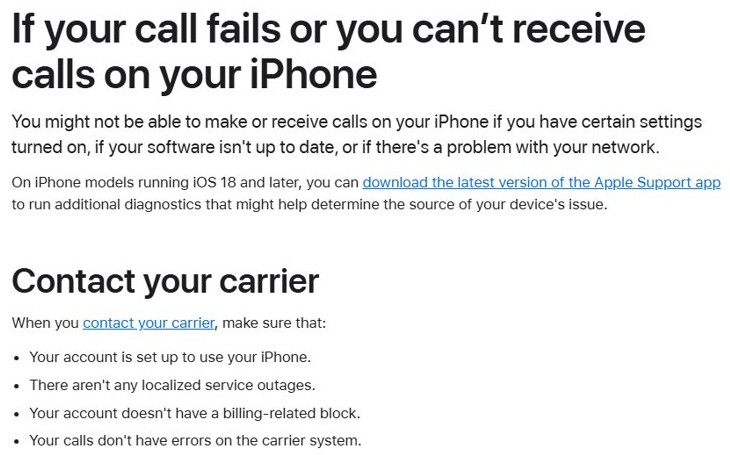
Apple lists carrier problems, out-of-date software and certain settings as the usual causes.
- Contact your carrier to rule out an outage, a billing block or an account set-up problem.
- Check for a carrier settings update and an iOS update.
- Open Settings, turn Airplane Mode on, wait five seconds and turn it off.
- Open Settings > Apps > Phone and make sure Call Forwarding is off.
- Go to Settings > General > Transfer or Reset iPhone > Reset > Reset Network Settings; this erases saved Wi-Fi passwords and VPN and APN settings.
- Try a call from another location.
Incoming calls are declined when you press the side button on iPhone
Two quick presses of the side button decline a ringing call by design.
- Press the side button only once to silence a ringing call.
- Answer by tapping the answer button, or drag the slider if the iPhone is locked.
Power button ends calls FAQ
How do I end a call on an Android phone?
Tap the red end-call button on the call screen. To hang up with the power button instead, open Settings, tap Accessibility and turn on Power button ends call.
How do I end a call on a Samsung phone?
Tap the end-call button on screen, or enable the Side key option. Open the Phone app, tap More options, then Settings, then Answering and ending calls, and turn on Press Side key to end calls.
Why is my call getting ended automatically?
On Android, a pocket or grip press of the power button ends the call when Power button ends call is on. Turn it off in Settings > Accessibility. Calls that drop without any press point to the carrier or network instead.
Why does my phone say call ended immediately?
A call that ends as soon as you dial usually has a carrier, network or software cause. Apple advises checking with your carrier, installing carrier and iOS updates, toggling Airplane Mode and resetting network settings.
Where is the power button located on a Samsung phone?
On most recent Galaxy phones the power button is the Side key, which merges the old Power and Bixby buttons. A short press switches the screen on or off, and a press and hold turns the phone on.
What happens when I press the power button during a call?
With Power button ends call on, the press hangs up the call. With it off, the press turns the screen off and the call continues. Google notes the setting can stop the button locking the phone mid-call.
Can I stop incoming calls with the side button on iPhone?
Yes. Press the side button or a volume button once to silence a ringing call, or press the side button twice quickly to decline it and send it to voicemail.
Can I turn off end call with the power button on Android?
Yes. Open Settings, tap Accessibility and turn off Power button ends call. The power button then only locks and wakes the screen during a call.