To factory reset a Samsung phone without the password, power it off, open Recovery Mode with the button combination for your model, and choose Wipe data/factory reset.
This guide covers Recovery Mode, a remote wipe through Samsung Find, Google Find Hub, and the Google account check that appears after any reset.
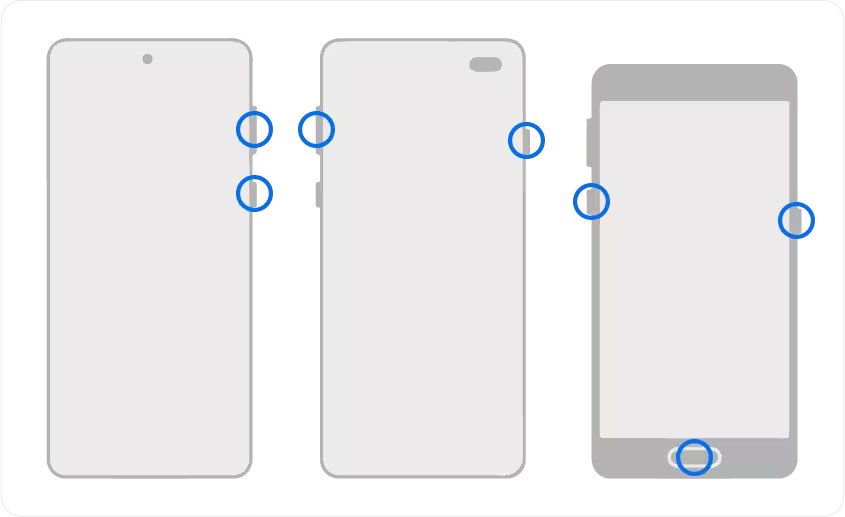
How to factory reset a Samsung phone without a password using Recovery Mode
Before you start, check three things worth knowing: the reset deletes everything on the phone, you will need the Google account email and password that was signed in, and the battery should be well charged.
Samsung's support page says recent Galaxy phones need to be connected to a computer with a USB cable before the recovery menu opens.
- Power the phone off completely. If the lock screen blocks the power menu, Samsung suggests letting the battery run out.
- Connect the phone to a computer with a USB cable if you have a recent model.
- Hold the button combination for your model: Volume Up and Side on phones with no Home button (S20 and newer, Note 10 and newer, Fold, Z Flip); Volume Up, Bixby and Power on the S8, S9 and S10; Volume Up, Home and Power on phones with a physical Home button such as the S6 and S7.
- Release the buttons when the phone vibrates and the Samsung logo appears, and wait for the recovery menu.
- Press Volume Down to highlight Wipe data/factory reset (or Delete all user data), then press Power to select it.
- Highlight Factory data reset (or Yes – delete all user data) and press Power to confirm the wipe.
- When Data wipe complete appears, press Power to select Reboot system now.
- Wait a few minutes while the phone restarts into the setup screens, then sign in with the Google account that was on the phone.
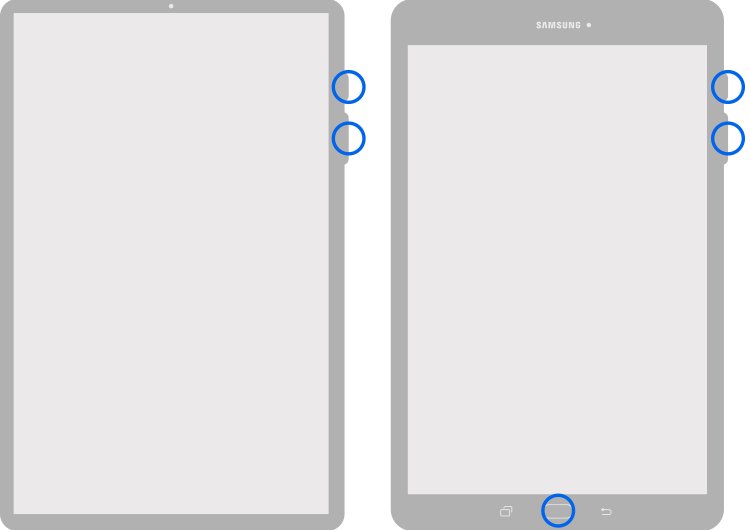
Which reset method should you use?
| Your situation | Use this | Why |
|---|---|---|
| You have the phone in your hand | Recovery Mode | Works offline and needs no account sign-in to start |
| The phone is lost or out of reach | Samsung Find (Find My Mobile) | Erases the phone remotely through your Samsung account |
| No Samsung account on the phone | Google Find Hub | Uses the Google account signed in on the phone |
| You changed the PIN in the last 72 hours | Reset with previous screen lock | Unlocks the phone without erasing it on One UI 6.1 or newer |
| Recovery Mode will not open and you do not know the Google account | Samsung service centre | Staff can reset the phone with proof of purchase |
Method 2: Reset remotely with Samsung Find My Mobile
Find My Mobile is now the Samsung Find service. It only works if Allow this phone to be found was switched on under Settings > Find My Mobile before the phone was locked, and the phone is registered to your Samsung account.
- Open a browser on a computer or another phone and go to
samsungfind.samsung.com. - Sign in with the Samsung account that is registered on the locked phone.
- Select the locked phone in the device list.
- Select Erase data and confirm with your Samsung account password.
- Keep the locked phone powered on and connected to Wi-Fi or mobile data so it receives the command.
- Wait for the phone to restart into the setup screens.
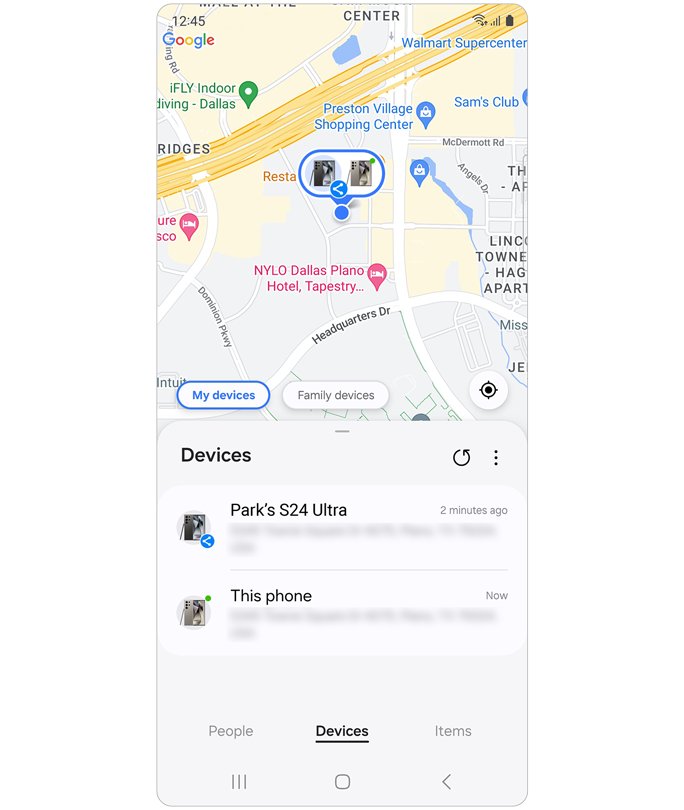
Method 3: Use the SmartThings Find app on another Galaxy
Samsung now describes the SmartThings Find service as a locator, so the erase command lives in Samsung Find. Another Galaxy phone still works as the device you send it from.
- Pick up a second Galaxy phone, or borrow one from a family member.
- Open the browser on that phone and go to
samsungfind.samsung.com. - Sign in with the Samsung account from the locked phone, not the owner's account of the second phone.
- Select the locked phone and tap Erase data.
- Sign out of your Samsung account on the borrowed phone when the erase starts.
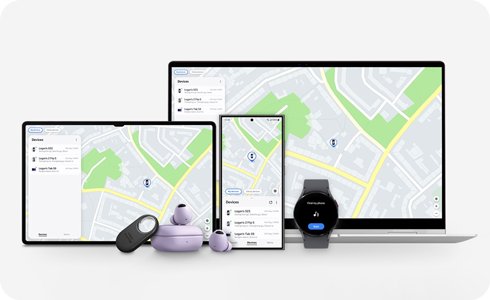
Alternative solutions worth trying
These routes cover a phone that was never linked to a Samsung account, or a lock you set very recently.
| Option | What it does | What it needs |
|---|---|---|
| Google Find Hub (formerly Find My Device) | Open google.com/android/find, select the phone, select Settings, then Factory reset |
Phone powered on, online, signed in to Google, Find Hub on and visible on Google Play |
| Reset with previous screen lock | After five wrong tries, tap Forgot PIN/password/pattern? and enter the old lock | One UI 6.1 or newer, new lock set less than 72 hours ago, Delete previous PIN now not ticked |
| Samsung Smart Switch on a computer | Backs up and restores phone data before or after a reset | An unlocked phone; it does not remove a screen lock |
| A Samsung service centre | Staff factory reset the phone and can help with a Google account lock | The phone and its proof of purchase |
How to know if a Samsung factory reset worked
- Look for the language selection screen after the restart; that is the first setup screen of a wiped phone.
- Connect to Wi-Fi when setup asks.
- Sign in with the Google account that was on the phone if setup shows a verification screen.
- Open Settings after setup and confirm your old apps, photos and accounts are gone.
- Open Find Hub on the web and confirm the phone no longer appears there after a remote reset.
Why you can reset a Samsung phone without the password at all
| Lock | What a reset does to it |
|---|---|
| Screen PIN, pattern or password | Removed. Recovery Mode and remote erase do not ask for it |
| Google account (Factory Reset Protection) | Stays. Setup asks for the last Google account after the reset |
| Samsung account | Used to send a remote erase from Samsung Find |
| Data on the phone | Deleted, including messages, contacts, photos and downloaded apps |
A reset protects the owner's data by erasing it, which is why it skips the screen lock. The Google account check then stops a stranger from using the wiped phone.
Understanding Factory Reset Protection before you wipe
Factory Reset Protection is a Google feature that stops a phone from being reset and reused without the owner's permission. After any reset that does not start from Settings, the phone asks for the Google account that was signed in.
| Situation | What to do |
|---|---|
| You know the Google email and password | Sign in on the setup screen and continue |
| You forgot the Google password | Use Google's account recovery page; Samsung says the change can take 24 hours or more to reach the phone |
| You are giving the phone away | Open Settings > Accounts and backup > Manage accounts, tap the Google account and tap Remove account before the reset |
| You bought the phone second-hand | Ask the seller to remove their account, or visit a service centre with proof of purchase |
Still not working?
Recovery Mode will not open on an S21, S22, S23 or S25
Recent Galaxy phones only enter the recovery menu while connected to a computer.
- Power the phone off fully.
- Connect it to a computer with a USB cable.
- Hold Volume Up and Side until the Samsung logo appears, then release.
Can't factory reset Samsung phone remotely
The phone is offline, or Allow this phone to be found was off.
- Turn the phone on and leave it near a known Wi-Fi network or with mobile data on.
- Try Google Find Hub instead of Samsung Find.
- Use Recovery Mode if you have the phone.
Why will my Samsung phone not factory reset past the Google sign-in
Factory Reset Protection is asking for the last Google account.
- Enter the Google email and password that was on the phone.
- Reset the Google password through Google account recovery, then wait 24 hours before trying again.
- Take the phone and proof of purchase to a Samsung service centre.
Samsung phone factory reset without password FAQ
How do I factory reset a locked Samsung phone?
Power the locked phone off, connect it to a computer with a USB cable, and hold Volume Up and Side to open Recovery Mode. Choose Wipe data/factory reset, confirm with Factory data reset, then select Reboot system now.
How do I factory reset a Samsung phone with no PIN?
Use Recovery Mode with the hardware buttons, or erase the phone from samsungfind.samsung.com. Neither route asks for the screen PIN, but setup asks for the Google account afterwards.
How do I factory reset a Samsung phone from a PC?
Sign in at samsungfind.samsung.com or google.com/android/find in a PC browser and choose the erase or factory reset option. The phone must be on and connected to the internet for the command to arrive.
How do I factory reset a Samsung S22, S23 or S25?
These models have no Home button, so connect the powered-off phone to a computer by USB and hold Volume Up and Side. Then choose Wipe data/factory reset in the recovery menu.
How do I factory reset a locked Samsung A13, A14 or A16?
Galaxy A phones without a Home button use the same Volume Up and Side combination with the phone off and connected by USB. Select Wipe data/factory reset and confirm.
Will a factory reset remove the Google account lock?
No. Factory Reset Protection survives a reset started from Recovery Mode or a remote erase. Setup asks for the Google account that was last signed in before you can use the phone.
How long does a Samsung factory reset take?
Samsung says the reset takes a few minutes. The phone then restarts and shows the setup screens as if it were new.
Does resetting without a password erase my SD card?
Google warns that a remote reset may not delete SD cards. Remove the card before a reset if you want to keep its files safe, or wipe it separately before selling the phone.
Can I reset a Samsung phone without a password if it is offline?
Yes, with Recovery Mode, because it runs on the phone itself. Samsung Find and Google Find Hub need the phone online to receive an erase command.
Why can't I factory reset my Samsung phone?
The usual causes are a missing USB connection for Recovery Mode on newer models, an offline phone for remote erase, or a Google account check after the wipe. Each has a fix in the troubleshooting section above.
Quick summary
Use Recovery Mode with the phone connected by USB; use Samsung Find or Google Find Hub only when the phone is out of reach. Recovery Mode works offline and on every model, while remote erase needs the phone online and an account set up beforehand. Have the Google account password ready either way.