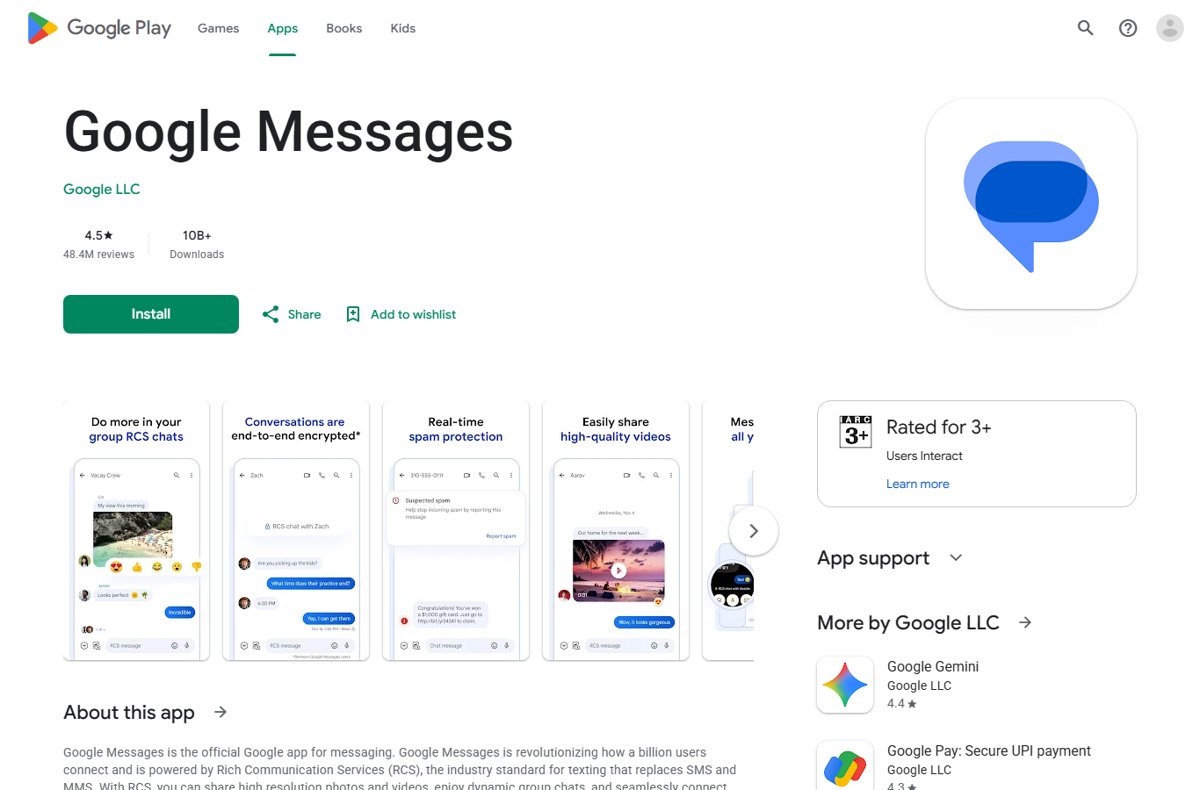
To use Google Messages, install or open the app on your Android phone, accept the prompt to make it your default messaging app, then tap Start chat to send your first text.
This guide covers RCS chats, Messages for web on a computer, group chats, reactions, scheduled texts, spam blocking, backups, switching phones and the fixes for the problems beginners hit most.
How To Install or Open Google Messages
Google Messages is preloaded on many Android phones, including select Samsung models. If your phone does not have it, Google Play is the official source.
- Open the Google Play Store on your Android phone and search for Google Messages.
- Tap Install, or Open if the app is already on the phone.
- When Messages asks to become your default messaging app, follow the on-screen prompt and confirm.
- Wait while it imports your existing text history. Battery use rises briefly during this first import.
- Tap Start chat, pick a contact and send a message to confirm everything works.
The default-app steps need Android 6.0 or later. Google Messages for web needs Android 5.0 or later on the phone.
What Is Google Messages?
Google Messages is Google's texting app for Android. It sends ordinary SMS and MMS through your carrier and upgrades to RCS chats over Wi-Fi or mobile data when both sides support it.
| Question | Answer |
|---|---|
| Which devices run it? | Android phones and tablets, plus Galaxy watches running Wear OS Powered by Samsung. A computer uses Messages for web, which mirrors your phone. |
| Is it on Samsung phones? | It is preloaded, and set as the default messaging app, on select Samsung devices. |
| Does it need a Google Account? | No for texting. Without one you lose profile sharing, Device Pairing for the web, Magic Compose and Gemini. |
| What does it cost? | The app is free. SMS and MMS use your carrier plan; RCS uses Wi-Fi or mobile data. |
| Is it encrypted? | RCS chats between Google Messages users are end-to-end encrypted automatically. SMS and MMS are not. |
How To Make Google Messages Your Default Texting App
Only the default messaging app can send and receive new texts. Once Messages is the default, your old text history shows up in it too.
If you skipped the prompt when you first opened the app, set it from Android settings instead.
- Open the Settings app on your phone.
- Tap Apps.
- In the list of apps, tap Google Messages.
- Tap SMS, then select Google Messages.
- Open Messages and check that your existing conversations appear on the Home screen.
Menu names differ by manufacturer; on many phones the same choice sits under Apps > Default apps > SMS app. To stop using Messages, pick another app there or uninstall Messages. Your texts live in the phone's SMS database, which other apps with permission can read.
Understanding the Google Messages Home Screen
The Home screen is your conversation list. Most controls hide behind three places: the top bar, your profile picture, and a touch-and-hold on any conversation.
| What you see | What it does |
|---|---|
| Start chat button | Opens a new conversation. Enter a name, phone number or email address in To. |
| Search | Searches messages, photos, places and more, with filters to narrow results. |
| Profile picture or initials (top right) | Opens Messages settings, Device pairing, Mark all as read and account options. |
| Touch and hold a conversation | Shows Pin, Archive, Delete, Block, Snooze and Mark as unread at the top. |
| More > Archived | Shows conversations you archived. |
| Spam & blocked | Holds blocked senders and messages reported as spam. |
How To Send Your First Message
- Open Google Messages and tap Start chat.
- In To, type a contact name, phone number or email address, or pick from your top contacts.
- Tap the message box and type your text.
- Tap Send.
- To keep an unfinished message as a draft, tap Back instead of Send.
To read a text that just arrived, swipe down from the top of the screen and tap the new message notification.
SMS, MMS, and RCS: What’s the Difference?
Google Messages picks the type for you. The send button tells you which one each message will use.
| Type | Travels over | Good for | Limits |
|---|---|---|---|
| SMS | Carrier text network | Plain text to any phone | No typing indicators, read receipts or encryption |
| MMS | Carrier network | Photos, video and group texts to phones without RCS | Carriers compress MMS media, so images lose quality |
| RCS | Wi-Fi or mobile data | High-resolution media, typing indicators, read receipts, editable groups | Every person in the chat needs RCS turned on; falls back to SMS or MMS when not available |
RCS now works between Android phones and iPhones. End-to-end encryption applies only when every participant uses Google Messages with RCS chats on.
How To Turn On RCS Chats
Many carriers turn RCS on automatically. Check it once, because RCS unlocks most of the features in this guide.
- Open Google Messages.
- At the top right, tap your Profile picture or Initial.
- Tap Messages settings > RCS chats.
- Turn RCS chats on.
- Wait for the status line to change to Connected.
In the same menu, Send read receipts and Show typing indicators control what others see, and Resend messages sets what happens when a chat fails to send. Avoid switching RCS off and on again: it removes you from group chats.
How To Know Whether You’re Sending RCS or SMS
- Open a conversation and type a message without sending it.
- Look at the Send icon: a data symbol means Send by Wi-Fi or mobile data (RCS); an SMS or MMS label means it will go through your carrier.
- Check the top of the chat for a banner that reads RCS chat with the contact's name.
- Look for a lock on the Send button, which confirms the chat is end-to-end encrypted.
- When starting a new chat, look for the RCS tag next to contacts; people without it get SMS or MMS.
Your own status sits in Messages settings > RCS chats: Connected is working, Connecting means your number is still being verified, and Not supported means RCS is unavailable on your device or network.
How To React, Reply, Copy, Forward, and Delete Messages
Touch and hold any message, including photos, links, files, locations and contact cards. A row of emoji reactions appears above it and a menu appears below. To reply to one specific message, you can also swipe it from left to right.
| You want to | Do this | Note |
|---|---|---|
| React with an emoji | Touch and hold the message, then tap an emoji | Tap your highlighted reaction to remove it. SMS/MMS reactions work in the US, Canada, France and Australia |
| Reply to one message | Swipe the message left to right, type, then tap Send | The original is quoted. Needs RCS; the web app shows replies but cannot send them |
| Copy text or a code | Touch and hold > Copy, or tap Copy on a verification code | You can also select part of a message, such as a one-time password |
| Forward a message | Touch and hold > Forward, choose a contact, tap Send | Works for text and media |
| Fix a typo | Touch and hold > Edit | Shows only within 15 minutes of sending |
| Delete a message | Touch and hold > Delete > Delete for everyone or Delete for me | Deleting a whole conversation is permanent and cannot be recovered |
| Save it for later | Touch and hold > Star | Find it via Search > Starred |
How To Send Photos, Videos, GIFs, and Files
Grant Messages permission to your photos and files first, or the gallery stays empty.
- Open Google Messages and open or start a conversation.
- Tap Gallery.
- Select a photo, video, GIF or file, or take a new picture.
- Optional: tap HD or HD+ to change media quality.
- Tap Send.
HD (optimized for chat) sends faster and uses less data; HD+ sends the original resolution. Your choice is remembered for next time. Photos taken inside Messages are not saved to your phone, and on Pixel 6 or later and Galaxy S20 or later, Image capture > Camera effects adds filters before sending.
How To Send Voice Messages
- Open Google Messages and open or start a conversation.
- Press and hold Mic (the Voice notes button at the right of the message box).
- Record your message, then release.
- Listen to the saved draft if you want to check it.
- Tap Send. To cancel instead, swipe left on the recording or close the message.
To read a received voice message, tap View transcript above the recording. If that option is missing, turn on Show transcripts of voice messages under Messages settings > Voice message transcription.
How To Create a Group Chat
- Open Google Messages and tap Start chat.
- Tap Create group.
- Choose the people to add. Contacts with the RCS tag keep the group on RCS; adding one without it makes an MMS group.
- Tap Next. Optionally tap Edit to name the group or set a group icon.
- Type your first message and tap Send.
In an RCS group, tap More > Group details to rename it, Add people, or remove someone with More > Remove from group; you cannot remove people from SMS or MMS groups. To quiet a busy group, touch and hold it and tap Snooze for 1 hour, 8 hours, 24 hours or Always. The group name you set is visible only to you.
How To Search Your Messages
- Open Google Messages.
- Tap Search at the top of the Home screen.
- Enter a word, name or number.
- Tap a filter to narrow results, such as Starred for messages you starred.
- To search inside one chat, open it and tap Search conversation at the top.
How To Pin, Archive, and Mark Conversations
All four actions start the same way: touch and hold a conversation on the Home screen, then choose from the bar at the top.
| Goal | Tap | What happens |
|---|---|---|
| Keep a chat at the top | Pin | Up to 20 pinned chats; pin from the phone, view on phone and web. Not available in India |
| Hide a chat without deleting it | Archive | It leaves the Home screen. Reopen via More > Archived and tap Unarchive |
| Flag a chat to come back to | More > Mark as unread | The chat shows as unread again |
| Clear every unread badge | Profile picture > Mark all as read | Applies to all conversations |
A new message sent to an archived conversation moves it back to the Home screen automatically.
How To Use Google Messages on a Computer
Google Messages for web shows your phone's conversations in Chrome, Firefox, Safari or Edge on Windows, Mac or a laptop. Texts still go out through your phone, so carrier fees apply and the phone needs Wi-Fi or data. Pairing uses your Google Account; QR code pairing is no longer available in the US. If you do not have an account yet, create a Google Account first.
- On your phone, open Google Messages.
- At the top right, tap your account menu > Device Pairing, and sign in with your Google Account if asked.
- On your computer, open messages.google.com/web in a supported browser.
- Sign in with the same Google Account.
- On your phone, tap the emoji that matches the one shown on the computer screen.
- Wait for the phone to vibrate; your conversations then load on the computer.
Only one computer can be active at a time, and an unused pairing is removed automatically after a few weeks. To unpair, click Menu > Unpair on the computer, or on the phone go to Device Pairing and tap Delete next to it or Unpair all computers. On the web, More > Enable Dark theme switches to a dark look.
How To Block Spam and Unwanted Texts
- Open Google Messages.
- Touch and hold the conversation you want to stop.
- Tap Block, tick Report spam if it is spam, then tap OK.
- To turn on automatic filtering, tap your profile picture > Messages settings > Protection & Safety > Spam protection.
- Turn on Enable spam protection.
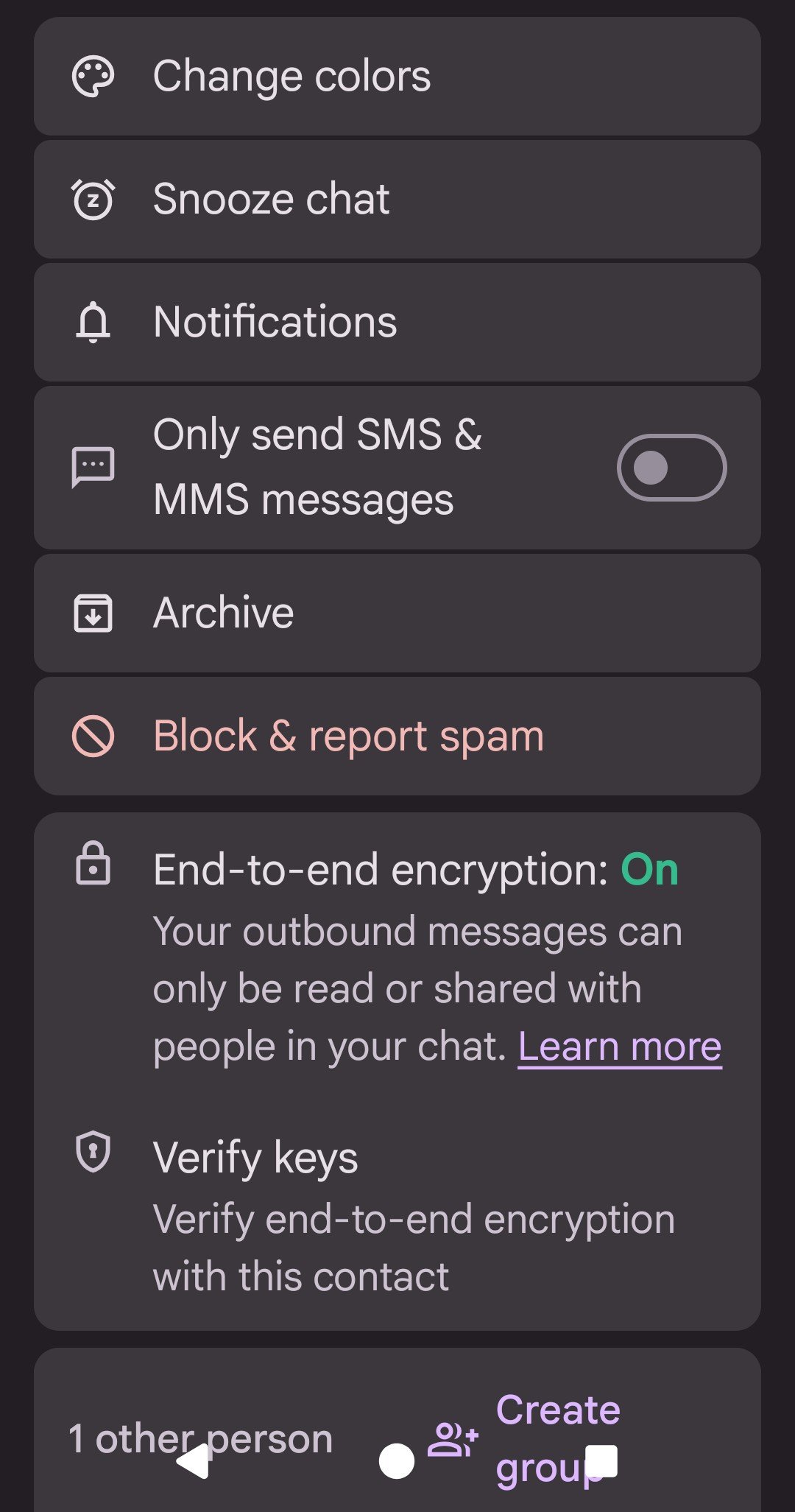
Blocked and reported chats move to Spam & blocked, where Unblock reverses the choice. A report sends the sender's number and their last 10 incoming messages to Google, without linking your name or number to them. Inside a chat, More options > Details > Block & report spam does the same thing.
How To Customize Notifications
Set app-wide alerts first, then override them for the people who matter. Bubbles live in the same menu: a bubble keeps a conversation floating over other apps.
- Open Google Messages and tap your profile picture > Messages settings.
- Tap Notifications and turn Incoming messages on or off; turn off Hear outgoing message sounds to silence the send sound.
- For bubbles, go back and tap Bubbles, then choose All conversations can bubble, Selected conversations can bubble or Nothing can bubble.
- For one person or group, open the chat and tap More > Details (or Group details) > Notifications.
- Choose Priority to make that chat stand out, or Silent to stop its alerts.
How To Schedule a Message
- Open Google Messages and open a conversation.
- Type your message.
- Touch and hold Send.
- Pick a suggested time, or choose your own date and time and tap Next.
- Tap Send to confirm the schedule.
To change it later, tap Schedule next to the waiting message, then update it, send it now or delete it.
How To Use Suggested Actions and Smart Suggestions
Suggested actions are on by default. While you chat, Messages offers one-tap chips to create a calendar invite, attach recent photos, start a Google Meet video call, share your location or search GIFs. Tap a chip to use it, or ignore it.
- To turn the chips off, open Google Messages.
- At the top right, tap More options > Suggestions in chat.
- Turn off Suggested actions.
How To Use Gemini or AI Features in Google Messages
Gemini in Messages drafts replies, brainstorms and plans. You need a personal Google Account (not Family Link or Workspace), to be 18 or over, RCS chats turned on and a supported language and country. Chats with Gemini are not end-to-end encrypted.
- Open Google Messages.
- Tap the chat with Gemini, or tap Start chat > Gemini.
- Follow the first-run prompts.
- Type a question or request, and optionally tap Show attach media screen to add a photo.
- Tap Send message.
To remove the Gemini button, go to Messages settings > Gemini in Messages and turn off Show Gemini button.
How To Change Google Messages Settings
Almost every setting sits under your profile picture > Messages settings. Dark mode is the exception on phones: Messages follows your phone's system theme.
| You want to | Go to | Choose |
|---|---|---|
| Turn dark mode on or off | Phone Settings > display settings (Android 10 and later) | Dark theme on or off |
| Group replies as one thread or separately | Messages settings > Advanced > Group messaging | Group MMS or mass text |
| Stop large MMS downloads on data | Messages settings > Advanced | Auto-download MMS and Auto-download MMS when roaming |
| Fix garbled accented characters | Messages settings > Advanced | Use simple characters |
| Turn off full-screen animations | Messages settings | Show expressive animations off |
| Make one message easier to read | Open the chat | Pinch to zoom the message |
| Text from Galaxy tablets and watches | Messages settings > Advanced > Text on Galaxy devices | Allow text on Galaxy devices |
How To Send Your Location
You can send a one-off pin or share your live location for a set time. Live sharing needs you to be signed in to a Google Account.
- Open Google Messages and open the chat you want to share with.
- Tap Attach > Location > Send for a one-off location.
- For live location, tap Attachment > Real-time location and tap I accept the first time.
- Pick For 1 hour, Today only, Until you turn this off or a Custom duration of up to 24 hours.
- Tap Send. To stop, tap your location message and tap Stop > Stop sharing.
Contact cards are a supported message type, and you can forward one like any other message. The Messages help center sends you to the Google Contacts app to share a new contact card.
How To Back Up and Restore Google Messages
Messages has no separate backup button. Your texts are part of Android's device backup to your Google Account, which also covers switching phones. Backup is not available on work profiles or company-owned phones.
- On the old phone, set a PIN, pattern or password screen lock so the backup can be encrypted.
- Open Settings > Google > All services.
- Under Backup and restore, tap Backup and make sure it is on.
- Tap Back up now and wait for it to finish; a full backup can take up to 24 hours.
- On the new phone, sign in to the same Google Account during setup and follow the on-screen steps to restore.
- Open Messages on the new phone and set it as the default messaging app.
- If you used Messages for web, unpair the old phone from the computer and pair again from the new one.
The new phone must run the same or a later Android version than the old one, or the transfer may be incomplete. The first 15 GB of Google Account storage costs nothing.
How To Switch From iPhone to Google Messages
Turn off iMessage before you take the SIM out of the iPhone. Otherwise your texts can keep going to the old iPhone instead of the new Android phone.
- On the iPhone, open Settings.
- Tap Messages.
- Set iMessage to off.
- Move the SIM to your Android phone and make Google Messages the default messaging app.
- Start new group chats with iPhone friends so you keep receiving their group messages.
If you no longer have the iPhone or already removed the SIM, ask Apple to deregister your phone number from iMessage.
How To Fix Common Google Messages Problems
RCS chats will not turn on, or stay on Connecting
Messages is not the default app, the phone has no data connection, or an app is out of date.
- Make sure Google Messages is the default SMS app.
- Check the phone has a working internet connection and can receive SMS.
- Update Google Messages and Google Play services from the Play Store.
- If the status says Trouble connecting. Awaiting retry for more than 30 minutes, tap Details > Submit feedback.
- If it says RCS chats are disabled by your carrier, contact your carrier, then tap Retry.
Messages for web will not connect or pair on a PC
The phone lost its connection, a browser extension or VPN is blocking it, or battery optimization stops the app in the background.
- On the phone, confirm you are signed in to the same Google Account used on the computer, then open Device pairing.
- Turn the phone's Wi-Fi off and back on, and restart the phone if the signal is weak.
- Turn on Background data for Google Messages in the phone's data usage settings.
- Turn off any VPN, and disable Chrome extensions one at a time.
- Turn off battery optimization for Google Messages, then pair again.
Not getting texts after switching from iPhone or another app
iMessage still holds your number, or RCS is still registered to your old device.
- Turn off iMessage on the iPhone, or ask Apple to deregister your number.
- If you changed apps or phones and still miss messages, turn RCS chats off on the old device.
- If the old phone is lost, use the Google Messages deactivation web portal to turn off RCS temporarily.
Messages arrive unreadable or encrypted
Your contact recently changed apps or phones and the chat is no longer eligible for end-to-end encryption.
- Update Google Messages to the latest version.
- Update the Carrier Services app if your phone came with it.
- Ask your contact to resend the message.
Warning that messages may not send until space is freed
Phone storage is full.
- Delete large photos, videos or unused apps from the phone.
- Delete old conversations with large attachments in Messages; deleted conversations cannot be recovered.
- Reopen Messages and resend the failed message.
Google Messages Privacy and Security Tips
| Tip | Why it matters |
|---|---|
| Check for the lock on Send before sharing anything private | Only RCS chats between Google Messages users are end-to-end encrypted; SMS and MMS are not |
| Verify encryption with More > Details > Verify encryption | Matching codes confirm you are talking to the right person |
| Keep private details out of Gemini chats | Chats with Gemini are not end-to-end encrypted |
| Avoid SMS with a link under Resend messages for private media | Media sent that way can be reached through a public link Google does not control |
| Review which apps can read SMS | Texts sit in the phone's SMS database, which other permitted apps can access |
| Unpair computers you no longer use | Unpairing stops others seeing your chats and verification codes on that browser |
Beginner Tips for Using Google Messages Better
Set Google Messages as your default app, confirm RCS chats show Connected, and turn on spam protection before you do anything else. Those three steps decide whether your texts send at all, whether you get high-quality media, read receipts and encryption, and whether scam texts are filtered. After that, pin your most-used chats, pair Messages for web if you text from a computer, and touch and hold any message to find reactions, replies and edits.
Frequently Asked Questions
What is Google Messages and how does it work?
Google Messages is Google's texting app for Android. It sends SMS and MMS through your carrier and switches to RCS chats over Wi-Fi or mobile data when everyone in the conversation has RCS turned on, adding typing indicators, read receipts and encryption.
Can I use Google Messages on iPhone?
No. Google Messages is an Android app distributed through Google Play, and Messages for web needs an Android phone to pair with. RCS does work between Android phones and iPhones, so iPhone users can still chat with you over RCS.
Can I use Google Messages on my PC, laptop or Windows computer?
Yes. Open messages.google.com/web in Chrome, Firefox, Safari or Edge and pair it with your Android phone through your Google Account. Your phone still sends the texts, so it needs Wi-Fi or data and carrier fees apply.
How does Google Messages for web work?
Messages for web mirrors the Google Messages app on your phone. Your phone sends and receives the texts, while recent conversations and contacts are encrypted and cached in your browser. Only one computer can be active at a time, and idle pairings expire after a few weeks.
Can I use Google Messages without my phone?
Mostly no. Messages for web relays texts through your phone, so the phone must be on and connected. Some tablets with their own SIM can send texts directly, and some LTE Galaxy watches can message when the phone is offline if the carrier supports it.
Can I use Google Messages without a Google Account?
Yes. Texting, RCS chats and group messages work without signing in. Without a Google Account you cannot share your profile, pair Messages for web through Device Pairing, or use Magic Compose and Gemini.
Does Google Messages use data?
RCS chats use Wi-Fi or mobile data, and on paid mobile data the cost follows your plan. SMS and MMS use your carrier's text and MMS service instead. When no data is available, Messages can resend a chat as SMS or MMS.
Does Google Messages use your phone number?
Yes. Your texts go out from your mobile number, and RCS verifies that number when you turn chats on. Google uses your phone number, device identifiers and SIM number to deliver RCS messages and keep the service connected.
Why does Samsung use Google Messages?
Google Messages is preloaded and set as the default messaging app on select Samsung devices. It brings RCS chats to Galaxy phones and keeps conversations in sync across Galaxy tablets and watches running Wear OS Powered by Samsung.
How do I use Google Messages on a Samsung phone?
Open Google Messages and accept the default messaging app prompt, or set it under Settings > Apps. Everything else in this guide works the same. To text from a Galaxy tablet or watch, turn on Allow text on Galaxy devices under Messages settings > Advanced.
Why am I being forced to use Google Messages?
On many phones Google Messages is the preinstalled default messaging app, and only the default app can send and receive new texts. You can switch to another messaging app in your phone's default apps settings; turn off RCS chats first so new chats reach the new app.


How to get Google Messages for web: a step-by-step guide - Techdows
[…] you are new to the phone app itself, start with the basics of using the Google Messages app before you pair a […]