To speed up an old Android phone, restart it, keep at least 10% of its storage free, clear the cache of slow apps, remove apps you no longer use and install app and Android updates.
This guide walks through each fix in order of effort, from a restart to developer-option tweaks and a factory reset, and shows when an old phone is worth fixing and when replacing it makes more sense. Menu names vary by manufacturer, so Pixel and Samsung paths are given where they differ.
Quick summary: how to speed up an old Android phone
Do these in order and restart the phone after each one to see whether it fixed the slowdown.
- Hold the Power button and tap Restart.
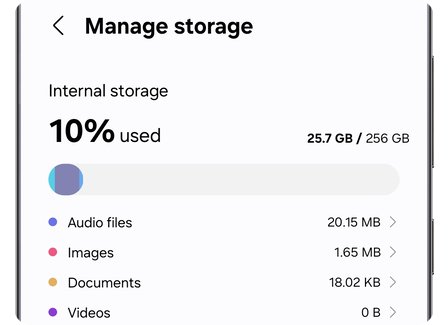
- Open Settings > Storage and free space until more than 10% of storage is empty.
- Open Play Store, tap your profile icon > Manage apps & device and tap Update all.
- Open Settings > System > Software updates and install any Android update offered.
- Uninstall apps you have not used in months from Play Store > profile icon > Manage apps & device > Manage.
- If one app is slow, long-press its icon, tap App info > Storage & cache > Clear cache.
Why old Android phones become slow
| Cause | What happens | Fix in this guide |
|---|---|---|
| Storage nearly full | Google says a phone can start having problems once less than 10% of storage is free | Step 2 |
| Apps piling up | More apps run background tasks, sync and send notifications | Step 4 |
| Outdated apps | Old versions miss performance, security and stability fixes | Step 7 |
| Long uptime | Apps and services build up in memory until the phone restarts | Step 1 |
| A misbehaving app | One app can slow the whole phone; safe mode exposes it | Troubleshooting |
| Worn battery | An aged battery drains faster and can make the phone feel sluggish under load | Step 6 |
| Newer apps on older hardware | Apps grow heavier while the processor and RAM stay the same | Step 8 and the upgrade section |
Step 1: Restart your Android phone
Yes, a restart matters: it clears apps and services stuck in memory, and Google lists it first for a slow phone. Restart again after every later step to test the result.
- Hold the Power button until the power menu appears.
- Tap Restart.
- If the phone does not respond, hold the Power button for about 30 seconds until it restarts.
- If the screen is frozen on, hold the Power button for about 60 seconds.
- Make a habit of restarting at least once a week.
Step 2: Free up storage space on Android
Storage holds your photos and apps; memory runs them. When storage drops below about 10% free, the phone has little room for temporary files and slows down. Some of these options need Android 14 or later.
- Open Settings and tap Storage to see which category uses the most space.
- Tap Free up space, scroll to a category and tap Select files.
- Select old videos, downloads and apps you no longer need, then tap Move files to Trash.
- To clear backed-up photos automatically, tap Free up space > Menu > Settings and turn on Smart Storage.
- Install Files by Google if your phone lacks these options; it finds junk files, duplicates and old chat-app photos to delete.
- Back up photos and videos to the cloud, then delete the copies on the phone.
On Android 15 and later, archive apps you rarely use from Settings > Apps > the app > Archive. The app's software goes, but its icon and data stay, so it reinstalls with one tap.
Step 3: Clear app cache, not data
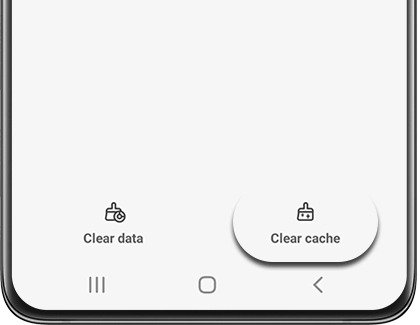
Cache is temporary files an app can rebuild. Data, shown as Clear storage, holds the app's settings and sign-ins, so clearing it resets the app.
- Touch and hold the slow app's icon on the home screen or app drawer.
- Tap App info.
- Tap Storage & cache.
- Tap Clear cache.
- Leave Clear storage alone unless the app still misbehaves; it deletes the app's settings and you will need to sign in again.
- To clear cache for many apps at once, use the junk-files cleaner in Files by Google.
Step 4: Remove or disable unused apps
Each installed app can run in the background, sync and notify. Paid apps you remove can be reinstalled later without paying again.
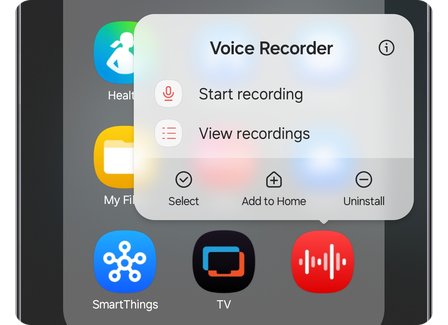
- Open the Google Play Store app and tap your profile icon at the top right.
- Tap Manage apps & device > Manage.
- Select an app you no longer use and tap Uninstall.
- For pre-installed apps that cannot be removed, turn them off from the app's App info page if your phone allows it; your manufacturer's support site explains how.
- Open Settings > Apps > Unused apps to review apps Android has already paused for inactivity.
Android automatically removes temporary files, revokes permissions and stops background activity for apps you have not opened in a long time. Stubborn system apps take a few extra steps to fully uninstall from Android.
Step 5: Reduce animations on Android
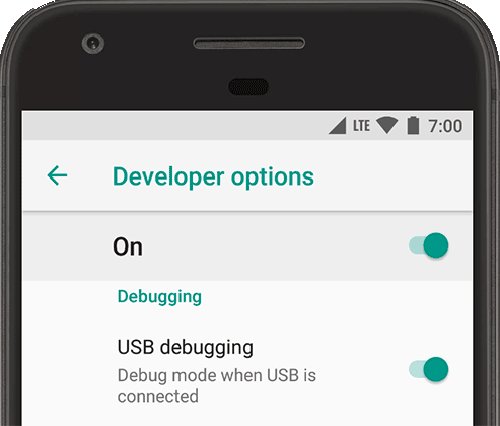
Animations do not change processing speed, but shorter ones make menus and app switches feel quicker. The settings live in the hidden Developer options screen.
- Open Settings > About phone and find Build number. On Samsung Galaxy phones it is under About phone > Software information > Build number.
- Tap Build number seven times until you see You are now a developer!
- Go back and open Developer options, found under Settings > System on recent Android versions.
- Set Window animation scale to a lower value than the current one.
- Set Transition animation scale to the same value.
- Leave every other developer option at its default.
A lower scale means faster animations. To undo this, set both scales back to the values they had before.
Step 6: Check your battery health
A worn battery drains faster and is a common reason an old phone feels unreliable. Battery screens differ by maker, so check your manufacturer's support site for a battery health readout on your model.
- Open Settings > Battery and look for apps with high battery use.
- Restrict apps with high battery use and turn on Adaptive battery if your phone offers it.
- Turn on dark theme, lower screen brightness and let the screen turn off sooner.
- Use the power adapter that came with the phone and keep the phone cool while charging.
- If the battery still drains fast after updates and a restart, ask the manufacturer or an authorised service centre about a replacement.
Step 7: Update apps and check Android updates
App updates bring security and stability fixes. Android updates usually help too, but older phones cannot always run newer Android versions, and big updates need space and time.
- Open the Google Play Store, tap your profile icon and tap Manage apps & device.
- Under Updates available, tap Update all.
- To keep apps current, tap your profile picture > Settings > Network preferences > Auto-update apps and choose Update over Wi-Fi only.
- Connect to Wi-Fi and charge the phone to at least 75% before a system update.
- Open Settings > System > Software updates and follow the on-screen steps.
- Free storage first if the update reports Not enough space available.
Step 8: Use lite and lightweight apps
Lite apps are smaller versions built for slow phones and weak connections. Facebook Lite, for example, takes less space and works on 2G connections while keeping the core features.
| Heavy option | Lighter replacement | Why it helps |
|---|---|---|
| Facebook Lite (Meta) | Small app that saves space and works on 2G connections | |
| Several cleaner and file apps | Files by Google | One app for clearing junk, duplicates and cache; needs Android 8.0 or later |
| Apps you open once a month | The service's website in Chrome | No background sync or notifications when you are not using it |
| Live wallpapers and widgets | A static wallpaper and fewer widgets | Less work for the home screen |
Step 9: Change your launcher
The launcher is the home screen app. Its impact on speed is real but rarely massive: a different launcher does not make the processor faster, though a simpler home screen with fewer widgets and feeds can reduce lag when you press Home.
- First, remove widgets and live wallpapers from your current home screen and test the phone for a day.
- If the home screen still lags, install a launcher from the Google Play Store, such as Microsoft Launcher.
- Open the new launcher and accept the prompt to set it as your home screen.
- Turn off the launcher's news feed or extras if it offers them.
- If it is not faster, switch back to the original home app from the same prompt or your phone's default apps settings.
Advanced performance tweaks for power users
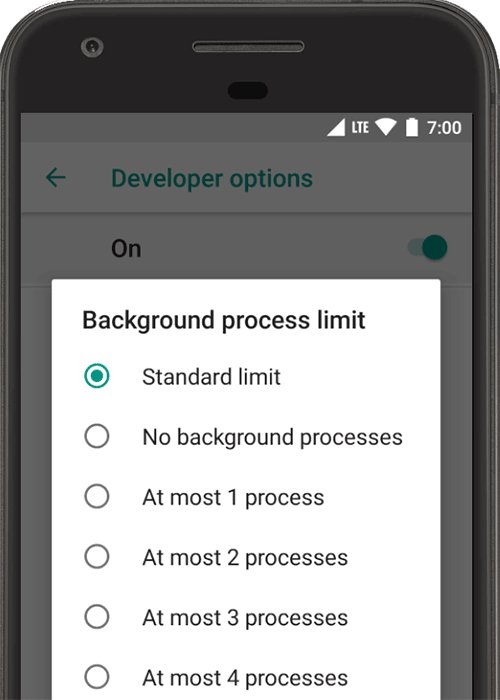
These live in Developer options and are meant for app testing, so change one at a time and revert if apps misbehave.
- Turn on Developer options as in Step 5.
- Tap Background process limit and choose a lower number of background processes. Apps you switch away from will reload more often.
- Leave Don't keep activities off; it destroys every app screen as soon as you leave it, which forces apps to reload.
- In each app's settings, turn off sync for accounts you do not need, such as an old email account.
- Remove accounts you no longer use from the Settings app.
- Revert any change that causes missed notifications or apps closing unexpectedly.
Factory reset: last resort for a slow Android phone
A factory reset erases everything on the phone and returns it to its original state. Try every other step first, because Google recommends a reset only after other fixes.
- Back up your data to your Google Account and copy photos and files somewhere safe.
- Confirm you know your Google Account username and password; you need them after the reset. If you have lost access, recover your Google account first.
- Charge the phone and connect it to Wi-Fi.
- Start the reset from the Settings app; the exact menu varies, so follow your manufacturer's support site for your model.
- Confirm the reset and wait for the phone to restart.
- Set the phone up again and reinstall only the apps you actually use.
If Settings will not open, most phones can start a factory reset with the power and volume buttons; the combination varies by manufacturer.
How to check your old Android phone is faster
- Open Settings > Storage and confirm more than 10% of storage is free.
- Open Play Store > profile icon > Manage apps & device and confirm no updates are waiting.
- Open Settings > About phone > Android version and check the Android security update date is recent.
- Open the apps that were slow before and compare how long they take to load.
- Use the phone normally for a day; if lag returns, note which app was open and use the troubleshooting section.
Comparison: fix vs upgrade an old Android phone
| Your situation | Do this | Why |
|---|---|---|
| Slow, storage over 90% full | Fix: free space and archive apps | The 10% free-space threshold is the most common cause |
| Slow in one or two apps only | Fix: update the app, clear its cache, or reinstall it | The phone itself is fine |
| Slow after many years of installs | Fix: factory reset | Removes years of leftover apps and settings |
| Battery drains fast and the phone shuts off early | Fix: battery replacement through the manufacturer | Cheaper than a new phone if the rest still works |
| No more Android or security updates | Upgrade | Apps and banking services increasingly need a supported version |
| Slow even after a factory reset | Upgrade | The hardware cannot keep up with current apps |
When should you consider upgrading your Android phone?
| Sign | How to check | What it means |
|---|---|---|
| Security updates stopped | Settings > About phone > Android version > Android security update date | Update schedules vary by maker and carrier; an old date means the phone has left support |
| Android update refused | Settings > System > Software updates shows no new version | Older devices cannot always run newer Android versions |
| Storage always full | You keep hitting the 10% limit right after cleaning | Built-in storage is too small for current apps |
| Lag survives a factory reset | The phone is slow with only a few apps installed | Hardware, not software, is the limit |
| Apps stop installing | Play Store no longer offers an app you need for your phone | Developers have dropped support for that Android version |
An old phone still has uses after you replace it: a music player, a dedicated camera or a home remote. Erase it with a factory reset before giving it away or trading it in.
Real-world use cases: which fix to try first
| Example | Likely cause | First fix |
|---|---|---|
| Three-year-old Samsung Galaxy, 64 GB nearly full of WhatsApp media | Low storage | Step 2, then Files by Google to delete chat-app photos and videos |
| Older budget phone lagging on the home screen | Heavy launcher, widgets and animations | Steps 5 and 9 |
| Phone fine in safe mode but slow normally | A downloaded app | Uninstall recent apps one at a time |
| Old Android tablet used for video only | Years of unused apps and accounts | Step 4, remove old accounts, then a factory reset |
| Phone slow on mobile data but fine on Wi-Fi | Connection, not the phone | Check network settings or contact the carrier |
Buying guide: accessories that help Android phone performance
| Accessory or service | When it helps | What to check |
|---|---|---|
| microSD card | Phones with a card slot and full storage; move photos, videos and music to it | Your phone's maximum supported card size on the manufacturer's spec page |
| Replacement battery (fitted by the manufacturer or an authorised centre) | Battery drains fast or the phone shuts down early | Price against the value of the phone |
| Original charger | Slow or unreliable charging | Google recommends the adapter that came with the phone |
| Cloud storage plan | You keep deleting photos to make room | Back up first, then remove on-device copies |
Skip "RAM booster" and cleaner apps that promise speed; Android manages memory itself, and Google says you do not usually need to close apps.
Old Android phone still slow: fixes by symptom
Android phone slow even with free storage
A downloaded app is usually the cause.
- Restart the phone in safe mode; your manufacturer's support site lists the button combination.
- If the phone is fast in safe mode, restart normally.
- Uninstall recently downloaded apps one at a time, restarting after each, until the slowdown stops.
- Reinstall the other apps you removed.
Phone freezes or stops responding
An app or service has hung.
- Hold the Power button for about 60 seconds to restart.
- Check for Android and app updates.
- Free storage until more than 10% is empty.
One app keeps lagging
Corrupt cache or an outdated version.
- Update the app from Manage apps & device.
- Long-press the app, tap App info > Storage & cache > Clear cache.
- Force stop the app from App info and reopen it.
- Uninstall and reinstall it if the lag continues.
Web pages and downloads are slow
The network connection rather than the phone.
- Switch between Wi-Fi and mobile data to see which is slow.
- Turn airplane mode on and off.
- Contact your internet provider or mobile carrier if one connection stays slow.
Old Android phone speed FAQs people ask
How do I make my old Android phone faster?
Restart it, free storage until more than 10% is empty, update all apps, uninstall apps you no longer use and clear the cache of slow apps. If it is still slow, shorten animations in Developer options, then try a factory reset as the last step.
Why do smartphones slow down over time?
Storage fills up, more apps run background tasks, and newer app versions ask more of the same processor and memory. A worn battery and an Android version that no longer gets updates add to the slowdown.
How do I speed up a Samsung Galaxy phone?
The same steps apply: restart, free storage, update apps and Android, and remove unused apps. Samsung keeps Build number under About phone > Software information, which is where you unlock Developer options to shorten animations.
How do I speed up an old Android tablet?
Treat it like a phone: restart, free storage, update apps, remove unused apps and accounts, and shorten animations. Tablets used by a whole family collect apps quickly, so a factory reset and a fresh setup often helps most.
Does a factory reset really speed up Android?
It often helps when years of apps, leftover files and settings are the cause, because it returns the phone to its original state. It does not help if the hardware is too slow for current apps, and it erases all data, so back up first.
Are cleaner and RAM booster apps safe?
Most are unnecessary. Android manages memory itself, and Google says you do not usually need to close apps. Use the phone's own Storage settings or Google's Files by Google app to clear junk instead of third-party boosters.
Will replacing the battery improve speed?
A new battery fixes fast draining and early shutdowns, which makes an old phone usable again. It does not make the processor faster, so pair it with the storage and app steps if the phone also lags.
What can I do with an old smartphone?
Use it as a music player, a spare camera, a smart-home remote or a backup phone. Before selling, recycling or trading it in, back up your data and run a factory reset so nothing personal is left on it.
Final verdict: is it worth fixing an old Android phone?
Fix it if it still receives security updates: free storage, update apps, remove unused apps and, if needed, factory reset. Upgrade if updates have stopped or it is still slow after a reset. Low storage and app clutter cause most slowdowns and cost nothing to fix, while a phone without security updates or one slow on a clean install has hit a limit no setting can remove.