To completely delete an app on Android, touch and hold its icon, tap App info, tap Uninstall, then cancel any subscription and remove its Google Account access separately.
This guide covers uninstalling from Settings and the Play Store, clearing data first, leftover files, preinstalled apps, work profiles, web apps, safe mode and the problems that stop an app from leaving.
The Fastest Way to Uninstall an App
This route starts from the app icon on your home screen or in the app drawer. Menu labels can differ slightly by phone maker.
- Touch and hold the app's icon.
- Tap App info.
- Tap Uninstall.
- Confirm when your phone asks.
Uninstalling does not cancel a paid subscription. Google states this on its subscription help page, so finish the job in the subscription section below.
What Happens When You Uninstall an Android App?
Uninstalling removes the app and the private data it kept for itself. Files it saved to shared folders, and anything tied to your accounts, stay behind.
| Item | Removed on uninstall? | What to do about it |
|---|---|---|
| The app itself | Yes | Nothing; reinstall from Play later without paying again if you bought it |
| App-specific files, settings and databases | Yes | Nothing; Android deletes the app's private storage |
| Photos, videos and audio the app saved to shared storage | No | Delete them in Files or Photos, or through Settings > Storage |
| Downloads and documents the app created | No | Delete them from your Downloads or file manager |
| Google Play subscription | No | Cancel it in Google Play |
| Google Account access or Sign in with Google link | No | Remove it at myaccount.google.com/linkedapps |
| Your account on the developer's servers | No | Delete the account inside the app before you uninstall |
The app-specific versus shared storage split comes from Android's developer documentation, which lists which file types are removed on uninstall.
Uninstall, archive, disable or clear: which one do you need?
| Your situation | Use this | Why |
|---|---|---|
| You never want the app again | Uninstall | Removes the app and its private data |
| You want space back but may use the app later | Archive (Android 15 and up) | Removes the app software and temporary files, keeps the icon and your data |
| The app came with the phone and has no Uninstall button | Uninstall updates, then turn it off if your phone allows it | System apps cannot be deleted on most phones |
| The app misbehaves but you want to keep it | Clear cache, then clear storage | Resets the app without removing it |
| The phone freezes or restarts because of an app | Safe mode, then uninstall | Safe mode runs without downloaded apps so you can remove them |
| You are selling or giving away the phone | Factory reset | Uninstalls every app and erases all data |
Uninstall Apps from Android Settings
Settings lists every installed app, including ones without a home screen icon. Use it when you cannot find the icon.
- Open the Settings app.
- Tap Apps.
- Tap See all apps if the app is not in the recent list.
- Tap the app's name.
- Tap Uninstall, then confirm.
On Android 15 and up, the same page may show Archive instead of or next to Uninstall. Archive keeps your data, so pick Uninstall for a complete removal.
Uninstall Apps from the Google Play Store
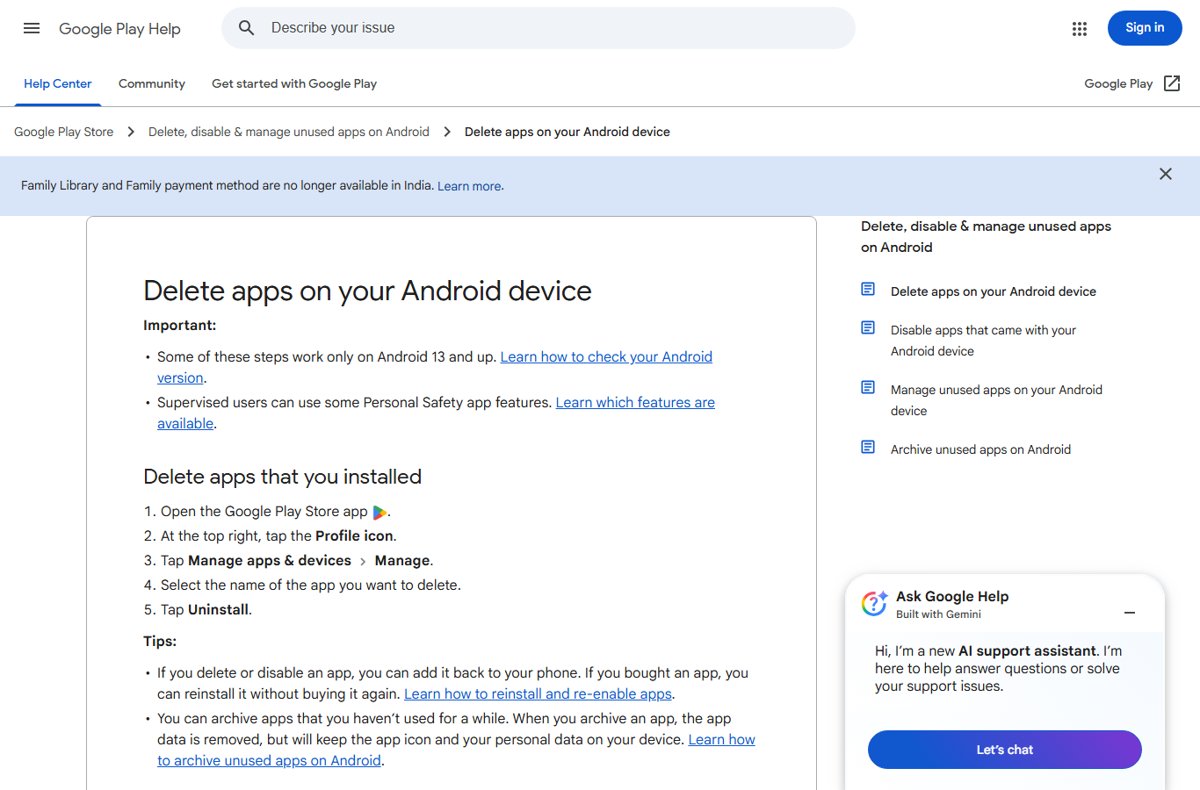
Google's own steps use the Play Store's app manager. Some of these steps work only on Android 13 and up.
- Open the Google Play Store app.
- Tap your Profile icon at the top right.
- Tap Manage apps & devices, then the Manage tab.
- Tap the name of the app you want to delete.
- Tap Uninstall.
Deleting an app does not remove the purchase. You can reinstall a paid app on any device signed in to the same Google Account without buying it again.
How to Completely Remove App Data Before Uninstalling
Uninstalling already deletes the app's private storage, so the step that matters most is deleting your account inside the app. Clearing storage first is still useful to wipe local data if the uninstall later fails or you decide to keep the app.
Google warns that Clear storage permanently deletes all app data, so back up anything the app holds that is not stored elsewhere.
- Delete your account or saved data inside the app, if it offers that option.
- Touch and hold the app's icon and tap App info.
- Tap Storage & cache.
- Tap Clear cache to delete temporary files.
- Tap Clear storage, then Delete to erase the app's data.
- Go back and tap Uninstall.
Remove Leftover Files and Folders
Media and documents an app saved to shared storage are not removed on uninstall. Android's storage tool lists them by category so you can delete them.
- Open the Settings app.
- Tap Storage, then Free up space.
- Scroll to the category you want, such as downloads or media.
- Tap Select files. If the category is not listed, tap Browse.
- Select the files the removed app left behind.
- Tap Move files to Trash.
Some of these steps work only on Android 14 and up. On older phones, open your file manager and delete the app's folders from Downloads, Pictures or Movies.
Cancel Subscriptions Before or After Uninstalling
A Google Play subscription keeps billing after the app is gone. Sign in with the Google Account that holds the subscription, then cancel it.
- On your phone, go to your subscriptions in Google Play.
- Select the subscription you want to cancel.
- Tap Cancel subscription.
- Follow the on-screen instructions to confirm.
From a computer, go to your Google Play subscriptions, click Manage, click Cancel subscription, pick a reason and click Continue. Subscriptions paid directly to the developer must be cancelled with that developer.
Remove App Permissions and Connected Accounts
Uninstalling ends the app's permissions on the phone, but a link to your Google Account survives. Remove that link so the developer loses access to your account data.
- On any device, go to myaccount.google.com/linkedapps.
- Select Access to your Google Account, then the app, then See details.
- Select Remove access, then Confirm.
- For apps you signed in to with Google, select Sign in with Google, the app, See details, then Stop using Sign in with Google and Confirm.
- For a linked account, select Linked account, the app, See details, then Delete link and Confirm.
Removing a Sign in with Google link does not delete your data on the developer's side. Delete that account inside the app or on the developer's website.
For an app you are keeping, review what it can reach in Settings > Apps > the app > Permissions, and choose Don't allow for anything it should not use.
Disable or Hide Preinstalled Apps You Cannot Uninstall
Google states that you cannot delete some system apps that came preinstalled. On some phones you can turn them off so they no longer show in your app list; the option and its label depend on the manufacturer.
- Touch and hold the preinstalled app's icon and tap App info.
- Tap More at the top right, then Uninstall updates, and tap OK. This returns the app to its factory version and frees the space its updates used.
- If your phone offers an option to turn the app off, tap it and confirm.
- If neither option appears, the app is required by the phone and must stay.
A disabled app can be turned back on later: open its Google Play page and select Enable.
Remove Apps from a Work Profile, Secure Folder, or Second Space
A work profile separates work apps from personal ones, and your organization manages the work side. You can delete the whole profile only on a phone you own, or on a company phone your organization has handed over to you.
Secure Folder and Second Space are phone-maker features. Uninstall apps from inside that space, and check your manufacturer's help for its exact menus.
- Open Settings, then Passwords and accounts.
- Tap the Work tab. If there is no work tab, the phone has no work profile.
- Tap Remove Work Profile and confirm.
- Uninstall the Device Policy app afterwards if it is still installed.
Removing the work profile deletes every work app and its data at once. Ask your IT admin before doing this on a phone your organization manages.
How to Delete Web Apps and Shortcuts
Web apps installed from Chrome appear in your app list like normal apps. Remove them from Settings.
- Open Settings, tap Apps, then See all apps.
- Tap the web app's icon or name.
- Tap Uninstall.
- If Chrome shows a name-change prompt for a web app you do not trust, tap Uninstall app, Uninstall, then OK.
Google advises uninstalling a web app whose name suddenly changes to resemble a different app, because that can be a malicious change by the developer.
Use Safe Mode to Remove Problem Apps
Safe mode starts the phone without the apps you downloaded. Use it when an app makes the phone restart, freeze, crash or run slowly. Safe mode removes some home screen widgets, so take a screenshot first if you use them.
- With the phone off, press the Power button.
- When the start-up animation begins, press and hold Volume down until it ends.
- Check that Safe mode shows at the bottom of the screen.
- Uninstall the most recently downloaded app from Settings > Apps.
- Restart the phone normally and check whether the problem is gone.
- Repeat one app at a time until the problem stops.
On Pixel 6 and later, you can also press and hold Power and Volume up, touch and hold Power off or Restart, then tap OK. Other phones differ, so check the manufacturer's help if these buttons do not work. Airplane mode turns on in safe mode on Pixel phones.
Advanced: Uninstall or Remove Apps with ADB
Skip ADB and root methods; use Uninstall updates and the phone's own option to turn the app off instead. Google's help documents only the Settings, Play Store and disable routes for regular users. Command-line removal of system apps can break features the phone depends on, and a factory reset is the supported way back if something goes wrong.
Check That the App Is Really Gone
- Open Settings > Apps > See all apps and confirm the app is no longer listed.
- In the Play Store, open Manage apps & devices > Manage and confirm the app no longer appears among installed apps.
- Check that the app's icon is gone and not dimmed. A dimmed icon with an archive badge means the app was archived, not uninstalled.
- Open your Google Play subscriptions and confirm the subscription shows as cancelled.
- Visit myaccount.google.com/linkedapps and confirm the app is not listed.
What to Do Before Selling, Giving Away, or Recycling Your Phone
A factory reset uninstalls every app and erases all data on the phone. Data stored in your Google Account can be restored on your next phone.
- Cancel app subscriptions you no longer need.
- Back up your data to your Google Account and confirm the backup is current.
- Confirm you know the Google Account username and password on the phone. Wait 24 hours after a recent password reset.
- Charge the phone and connect it to Wi-Fi.
- Factory reset the phone from the Settings app, following your manufacturer's steps.
How to Remove Apps That Will Not Uninstall
There is no Uninstall button (why can't I uninstall something?)
The app is a preinstalled system app, which most phones do not let you delete.
- Open App info for the app.
- Tap More > Uninstall updates > OK to remove its updates.
- Use your phone's option to turn the app off if it has one.
A work app will not delete
Your organization manages the work profile and its apps.
- Open Settings > Passwords and accounts and check for a Work tab.
- Ask your IT admin to remove the app, or remove the work profile if you own the phone.
The phone freezes or restarts before you can uninstall the app
A downloaded app is crashing the system.
- Restart in safe mode as shown above.
- Uninstall recently downloaded apps one at a time from Settings > Apps.
- Restart normally after each removal.
Play Protect flagged the app as harmful
Google Play Protect found potentially harmful behavior and may have disabled the app.
- Tap the Play Protect notification.
- Tap Uninstall.
Common Problems When Uninstalling Android Apps
Storage did not go up after uninstalling
Media and downloads the app saved to shared storage stay on the phone.
- Open Settings > Storage > Free up space.
- Select the leftover files and tap Move files to Trash.
You are still charged after deleting the app
Uninstalling an app does not cancel its Google Play subscription.
- Go to your subscriptions in Google Play.
- Select the subscription, tap Cancel subscription and follow the instructions.
The icon is back, dimmed, with an archive badge
The app was archived rather than uninstalled, or the Play Store archived it automatically.
- Open Settings > Apps and tap the app.
- Tap Uninstall to remove it completely.
- To stop automatic archiving, open the Play Store, tap your profile picture, then Settings > General, and turn off Automatically archive apps.
The app is not in the Apps list
Only recently opened apps show at first.
- Tap See all apps under Settings > Apps.
- Check the work tab if the phone has a work profile.
Frequently Asked Questions
Is deleting an app the same as uninstalling it on Android?
Yes. Google's help uses delete and uninstall for the same action: removing the app and its private data. Archiving is different, because it keeps the app icon and your personal data on the phone.
Does deleting an app icon uninstall it?
Not always. Removing an icon from the home screen can leave the app installed. Check Settings > Apps > See all apps; if the app is still listed, open it and tap Uninstall.
How do I completely uninstall an app so nothing is left?
Delete your account inside the app, clear its storage, uninstall it, then delete leftover media and downloads. Finish by cancelling any Google Play subscription and removing the app at myaccount.google.com/linkedapps.
Why can I not uninstall some apps?
Preinstalled system apps cannot be deleted on most phones, and work apps are controlled by your organization. For system apps, uninstall their updates and turn them off if your phone allows it.
How do I delete an app that won't delete?
Restart in safe mode, which runs the phone without downloaded apps, then uninstall the app from Settings > Apps. If it is a system app, use Uninstall updates instead.
Where do I go to uninstall an app on Android?
Go to Settings > Apps > See all apps, tap the app, then tap Uninstall. The Play Store also works: Profile > Manage apps & devices > Manage, then the app and Uninstall. On a Mac the process is different; see how to uninstall apps on Mac completely.
Should I delete an app or archive it?
Delete it if you are done with it. Archive it on Android 15 and up if you only need space back, because archiving keeps your data and the icon so you can restore the app later.
Can I get a paid app back after uninstalling it?
Yes. Apps bought on Google Play can be reinstalled on any Android device signed in to the same Google Account without paying again.

![How to change your user account picture in Windows 11? [Easy steps]](https://techdows.com/wp-content/uploads/2026/10/How-to-Change-Your-User-Account-Picture-in-Windows-11-Easy-Steps-600x338.jpg)

How to recover deleted text messages on Android: a step-by-step guide - Techdows
[…] you are done, uninstall the recovery app completely so it no longer has access to your […]