To download apps on an Amazon Fire tablet, open the Amazon Appstore, search for the app, select Get or the app’s price, and select Open when the download finishes. Apps you already own are in your Library under Games & Apps, where you can install them again without paying twice.
This guide covers the Appstore, the Home screen Library, child profiles, installing from your PC or Mac, microSD storage, updates, removal and fixes for downloads that fail. It also explains why the Google Play Store is not a supported option and what installing an APK file really involves.
Method 1: Download apps from the Amazon Appstore
The Amazon Appstore is the built-in app store on Fire tablets. Amazon’s help pages list Fire TV and Fire Tablet as the devices it runs on, and free apps install with one tap.
- Open the Amazon Appstore on your Fire tablet.
- Search for the app you want, then select it.
- To check whether your tablet supports the app, select View compatible devices.
- Select Get, or the app’s price for a paid app.
- Review the permissions the app requests while it downloads.
- When the download is complete, select Open to launch the app.
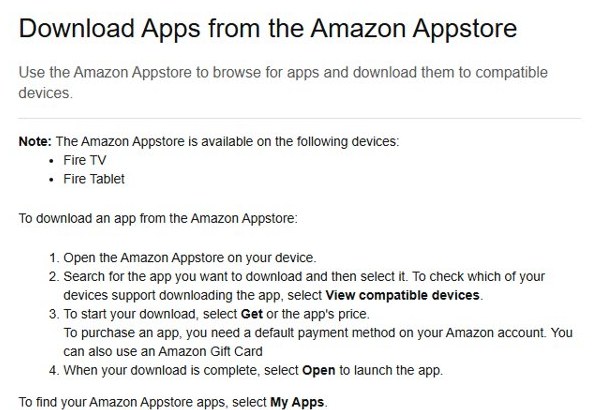
Streaming apps work the same way; for example, you can watch FuboTV on an Amazon Fire after installing its app from the Appstore. To find your Appstore apps later, select My Apps. Some apps can be pre-ordered from their details page; Amazon delivers a pre-ordered app to the tablet automatically when it is released.
Amazon Fire tablet app download requirements
Most failed installs come down to one of these. Check them before you start, especially on a tablet a child uses.
| Requirement | Why it matters | Where to check |
|---|---|---|
| Wi-Fi connection | Apps download over the internet | Swipe down from the top of the screen |
| Signed-in Amazon account | Apps are added to your account and its cloud library | Settings on the tablet |
| Default payment method or Amazon Gift Card | Amazon needs one to buy paid apps | Your Amazon account payment settings |
| Free storage space | Apps cannot install on a full tablet | Settings > Storage |
| Current Fire OS | Newer apps may need recent software | Fire tablets download updates automatically when online |
| Parental Controls password, if set | Downloads can require it | Ask the account owner |
Method 2: Install apps from the Fire tablet home screen
Apps you have bought or downloaded before stay in your Library, even after you delete them from the tablet. Reinstall them from the Home screen without paying again.
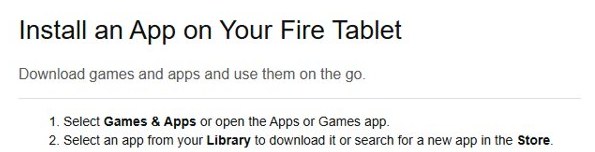
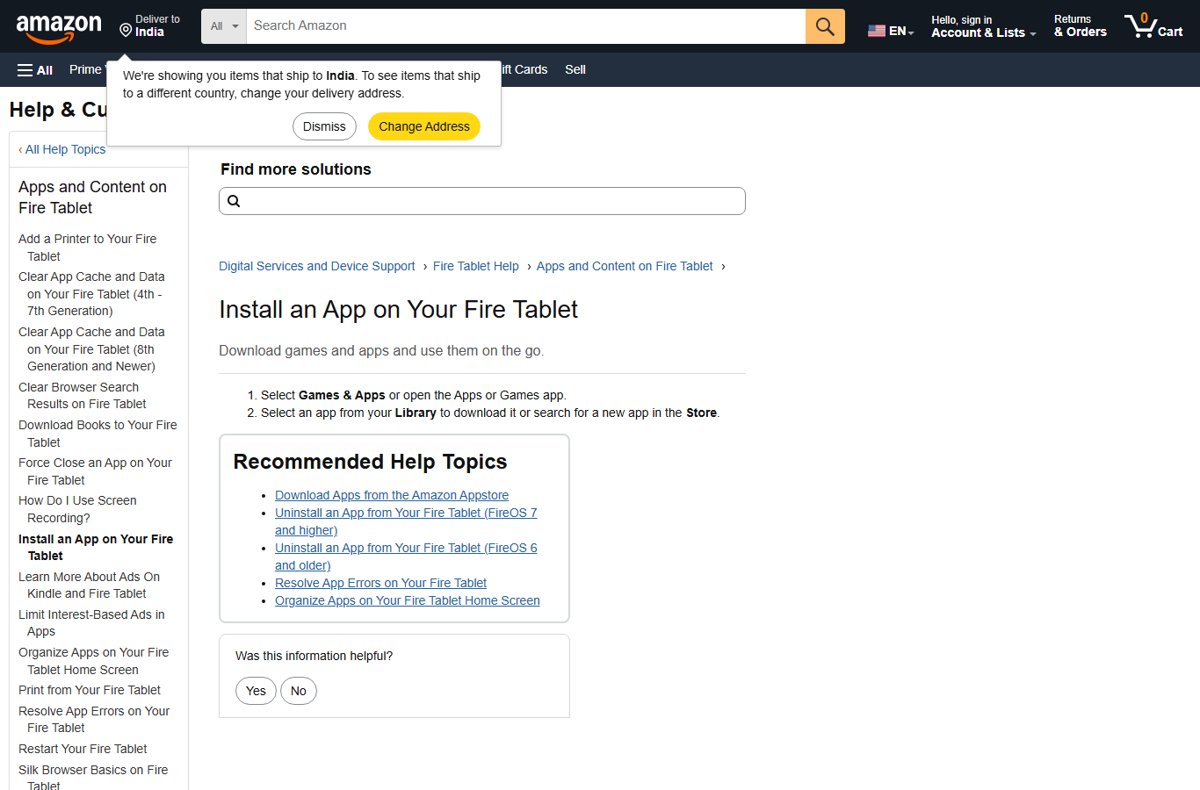
- On the Home screen, select Games & Apps, or open the Apps or Games app.
- Open Library to see the apps linked to your Amazon account.
- Select an app that is not on the tablet to download it.
- Or switch to the Store and search for a new app.
- When the download ends, find the app on the Home screen app grid.
Install apps on a Fire tablet from your PC or Mac
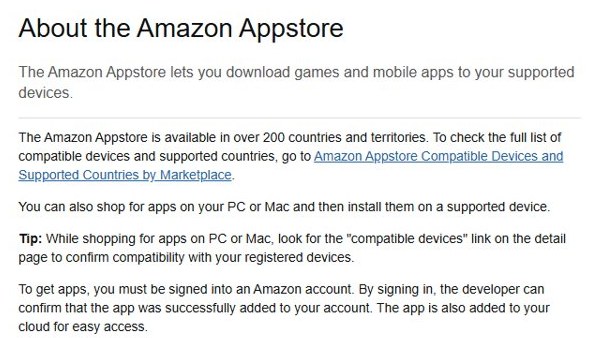
Amazon lets you shop for apps on a PC or Mac and then install them on a supported device. This is handy when the tablet is charging in another room or a child is using it.
- On your computer, open the Amazon Appstore section of amazon.com and sign in with the same Amazon account the tablet uses.
- Open the app’s detail page and check the compatible devices link to confirm it supports your tablet.
- Choose your Fire tablet as the device and select Get or the price.
- Connect the tablet to Wi-Fi. The app appears in its Library and installs when the tablet is online.
If the app does not arrive, the tablet is probably registered to a different Amazon account. Check which account it uses under Settings on the tablet.
Method 3: Install apps for a child profile
Child profiles cannot browse the full Appstore. Install the app on the adult profile first, then share it into the child’s profile.
- Sign in to the main adult profile and install the app from the Appstore.
- Open the Amazon Kids app from the Home tab.
- Tap the gear icon to open the child’s Profile Settings.
- Tap Manage Content, then select Amazon Content.
- Open the apps tab and select each app you want to share.
- Select Done, then use the back arrow to return. The app can take a few minutes to appear.
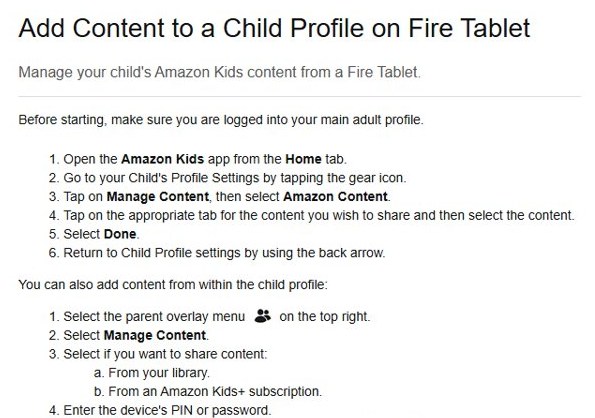
From inside a child profile, select the parent overlay menu, then Manage Content, and enter the device PIN or password to do the same thing. With Parent Purchase Approvals, a child can request a title and you approve it. Amazon warns that some apps not designed for children include ads, external links, in-app purchases or requests for personal information.
Method 4: Install apps from a microSD card or downloaded APK file
A microSD card does not install apps on its own. It only stores apps once you set it up as internal storage, which the microSD section below covers.
Installing a downloaded APK file is called sideloading. Security warning: an APK from outside the Amazon Appstore skips Amazon’s review, and files from download sites can carry malware or ask for permissions they do not need. Amazon’s own documentation covers APK installs only as a developer task, through Android Debug Bridge (ADB) from a computer. Use it only for an app you built, or one the developer supplies directly.
How to install APK on Amazon tablet with ADB
- On the tablet, open Settings > Device Options > About Fire Tablet and tap Serial Number seven times.
- Go back to Device Options, open Developer Options and turn on USB debugging.
- Install the Android SDK platform tools on your computer to get the
adbcommand. - Connect the tablet by USB and choose File Transfer or Media device (MTP) as the USB mode.
- Tap OK on the Allow USB debugging? prompt.
- Run
adb installfollowed by the path to the APK on the computer. The same ADB install from a PC works on other Android devices. - Turn USB debugging off when you finish.
An app that relies on Google services may install and still fail to work, because Amazon’s developer documentation states that Google Mobile Services do not work on Fire tablets. Never turn on installs from unknown sources just to follow a download link from an ad or a pop-up. If you still plan to install an Android app on a Kindle Fire this way, read the risks first.
Can you install the Google Play Store on a Fire tablet?
Not as a supported option. Fire tablets ship with the Amazon Appstore, and the Play Store depends on Google Mobile Services, which Amazon says do not work on Fire tablets.
| Question | Answer |
|---|---|
| Does a Fire tablet come with Google Play? | No. It uses the Amazon Appstore. |
| Do Google sign-in and in-app billing work? | No. Amazon offers its own in-app purchasing instead. |
| Can I still use Google services? | Yes, open Gmail, YouTube or Google Docs in the Silk browser. |
| Is the Amazon Appstore still supported on Fire tablets? | Yes. Amazon says it remains available on Fire TV and Fire Tablet. |
Guides that add the Play Store do it by sideloading several Google APK files. That is the riskiest kind of sideloading, because those files come from third-party mirrors rather than from Google or Amazon, and a Fire OS update can break the setup. We do not recommend it on a tablet that holds your Amazon payment details.
How to update apps on an Amazon Fire tablet
Fire tablets download Fire OS updates automatically when they are online. Amazon also lists updating an app among its fixes for app errors.
- Connect the tablet to Wi-Fi and plug it in to charge.
- Open the Amazon Appstore and search for the app.
- Open the app’s page and install the newer version if one is offered.
- Restart the tablet so any pending Fire OS update can finish.
- Open the app and check it runs normally.
How to uninstall apps you no longer need
These are Amazon’s steps for Fire OS 7 and higher.
- Open the Games or Apps app and select the Menu icon.
- Tap Library, then select Downloaded.
- Find the app and select its options menu.
- Select Delete from Device.
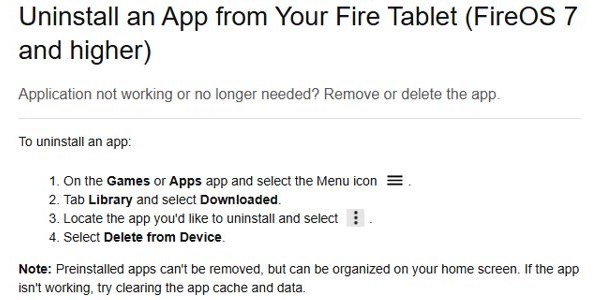
Preinstalled apps cannot be removed, but you can organize them on the Home screen. Apps you deleted stay in your Library, so you can reinstall them later without paying again. Fire OS 6 and older use a different menu, which Amazon documents on a separate help page.
How to move apps to a microSD card
Compatible Fire tablets, 5th generation and newer, take a microSD card. Only a card set up as internal storage holds apps and games, and some apps do not support card storage.
- Insert a microSD card. Fire tablets support only the FAT32 file system.
- When the tablet asks how to use the card, choose internal storage.
- Let the tablet format the card.
- When asked, choose to move files to the card now. If you skip this, content stays on the tablet.
- Change the setup later from Settings on the tablet.
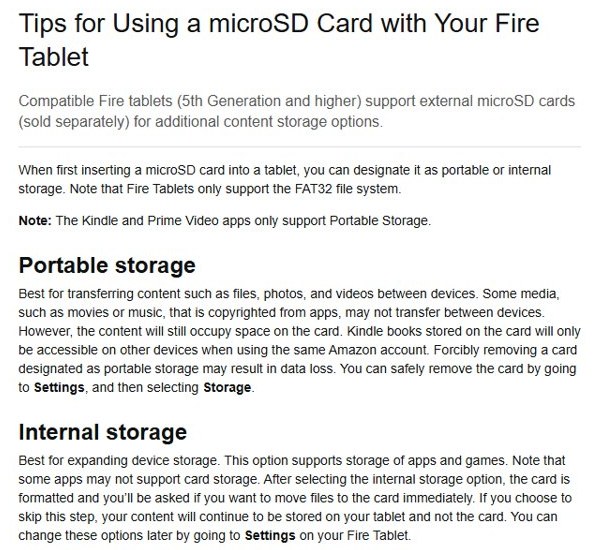
The Kindle and Prime Video apps support only portable storage. A card set up as internal storage should stay in the tablet: choosing Forget microSD card after removing it permanently loses the apps and data on it, and the card has to be reformatted before another device can use it.
Where to find installed apps on a Fire tablet
- Open the Amazon Appstore and select My Apps. The app should be listed as installed.
- Find its icon on the Home screen app grid.
- Open Games & Apps > Library > Downloaded to see everything on the device.
- On a child profile, open the profile and check the app appears in its content.
Fixes for common app download and installation problems
Fire tablet apps not downloading
A weak connection or a temporary fault on the tablet.
- Check the Wi-Fi connection.
- Restart the tablet.
- Start the download again from the Appstore or your Library.
Not enough storage on the Fire tablet
- Open Settings > Storage and use Archive Now or Free Up Space.
- Turn on Auto Archive to archive non-Amazon apps you have not used for 60 days.
- Set up a microSD card as internal storage.
The app does not appear in Appstore search
Amazon hides apps that are not compatible with your model.
- Check View compatible devices on the app’s page from a computer.
- Use the service’s website in Silk instead.
Download asks for a password or is blocked
- Enter the Parental Controls password.
- On a child profile, ask a parent to add the app through Manage Content.
Paid app will not buy
- Add a default payment method, or redeem an Amazon gift card on your account.
- Try the purchase again.
App installs but crashes or will not open
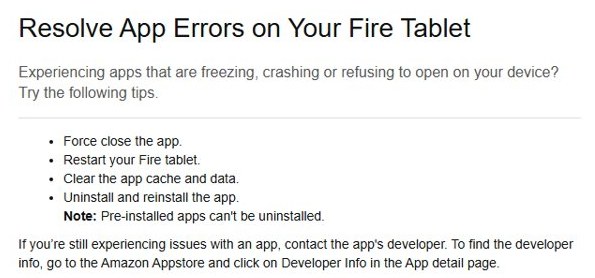
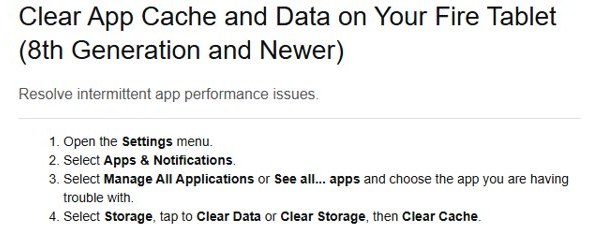
Amazon’s fixes, in order: force close the app, restart the tablet, clear the app cache and data, then uninstall and reinstall the app.
- Open Settings > Apps & Notifications.
- Select Manage All Applications or See all apps, then select the app.
- Select Storage, tap Clear Data or Clear Storage, then Clear Cache.
- If the app still fails, contact the developer through Developer Info on its Appstore page.
“App not installed” for an APK file
The APK is not compatible with Fire OS or depends on Google services. Look for the same app in the Amazon Appstore, or ask the developer for a version that does not need Google Play services.
Tips for safer app downloads
| Do this | Why |
|---|---|
| Prefer the Amazon Appstore | Amazon reviews published apps for Fire tablet compatibility |
| Read the permissions before installing | Apps list access such as location, contacts or storage |
| Check the developer name and Developer Info | Confirms who made the app |
| Avoid APKs from download sites | Unknown APK files can contain malware |
| Use Parental Controls on shared tablets | Stops unapproved downloads and purchases |
Best places to look for Fire tablet apps
| Source | Best for | Notes |
|---|---|---|
| Amazon Appstore on the tablet | Most apps and games | The supported, built-in store |
| Amazon Appstore on a PC or Mac | Browsing on a bigger screen | Install on your registered tablet |
| Your Library | Reinstalling apps you already own | No repeat purchase needed |
| Amazon Kids+ | Child-friendly apps on kids’ profiles | Subscription service |
| The service’s website in Silk | Services with no Appstore app | Nothing to install |
When to use the web instead of an app
| Situation | Use the web because |
|---|---|
| The app is not in the Amazon Appstore | Many services work fully in Silk |
| The app needs Google Play services | Those services do not run on Fire tablets |
| Storage is almost full | A browser tab uses no install space |
| You use the service only occasionally | No install, update or permissions to manage |
Amazon Fire tablet apps FAQ
How do I download apps on my Amazon Fire tablet?
Open the Amazon Appstore, search for the app, select it and tap Get or the price. When the download finishes, tap Open. The app also appears under My Apps and on the Home screen.
How do I find newly installed apps?
Look on the Home screen app grid, or open the Amazon Appstore and select My Apps. Apps you own but deleted from the tablet are listed in your Library.
How do I download previously purchased apps?
Select Games & Apps or open the Apps or Games app, go to Library and select the app. Purchased apps stay linked to your Amazon account, so you do not pay again.
Why can’t I download apps on my Fire tablet?
Common causes are no Wi-Fi, a full tablet, Parental Controls asking for a password, no default payment method for a paid app, or an app that is not compatible with your model. Restart the tablet and try again after fixing the cause.
Can I get Google Play apps on a Fire tablet?
Not through a supported route. Google Mobile Services do not work on Fire tablets, so apps that need them may fail. Use the Amazon Appstore, or open the service’s website in Silk.
How do I install a downloaded app file on a Fire tablet?
Amazon documents APK installs only for developers, through ADB from a computer with USB debugging turned on. Sideloaded files skip Amazon’s review, so install only APKs you built or that the developer supplies directly.
Can I put apps on a microSD card?
Yes, on 5th generation and newer tablets, if you set the card up as internal storage. Some apps do not support card storage, and the Kindle and Prime Video apps need portable storage.
Can I install Fire tablet apps from my computer?
Yes. Amazon lets you shop for apps on a PC or Mac and install them on a supported device signed in to the same Amazon account. Check the compatible devices link on the app page first.
How do I download and install apps on a laptop?
On a Windows laptop, apps come from the Microsoft Store or the developer’s installer rather than the Amazon Appstore. Follow the steps to install apps on a Windows PC.

![Java JRE latest version: Download & Install [32-bit, 64-bit]](https://techdows.com/wp-content/uploads/2026/10/Java-JRE-latest-version-Download-Install-32-bit-64-bit-1-600x338.jpg)


The Amazon Fire tablet web browser: A full user guide - Techdows
[…] Search the Appstore for the browser by name, then install it like other Fire tablet apps […]