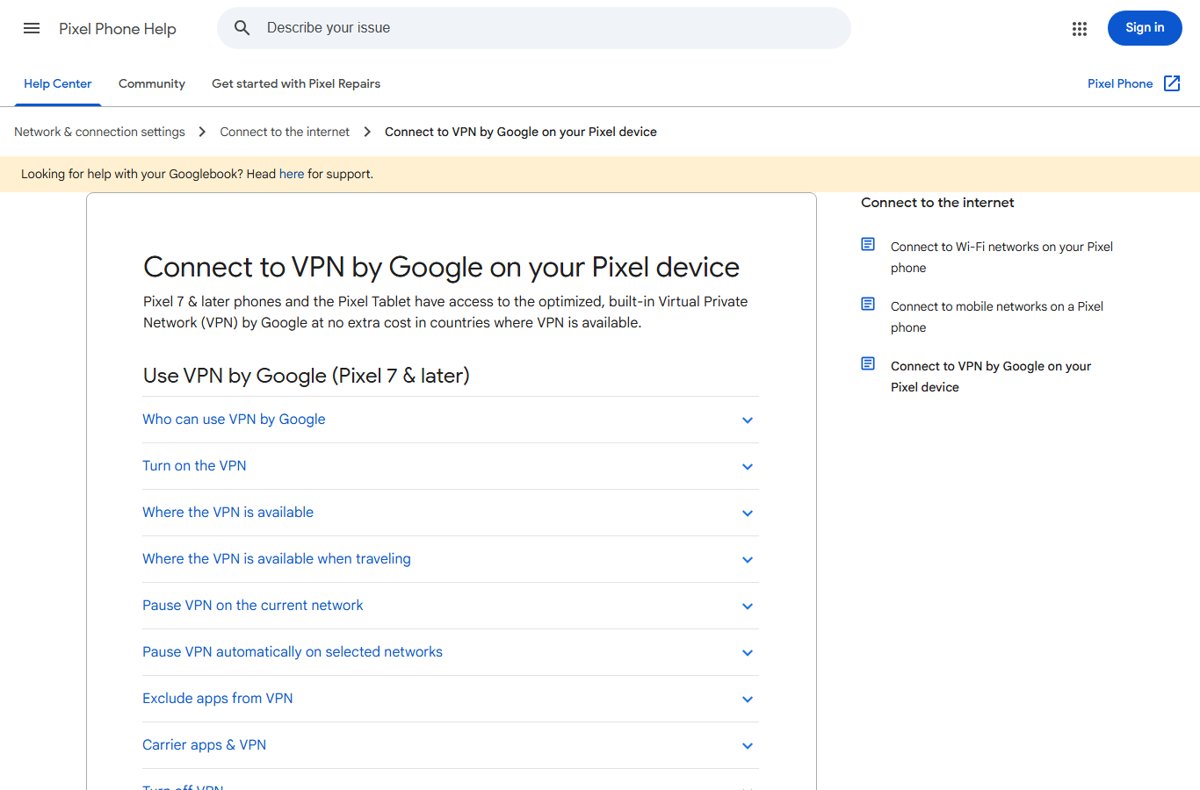
No, you can no longer install Google's VPN as an app; as of October 2026 it exists only as VPN by Google, built into Pixel 7 and later phones, the Pixel Tablet and phones on Google Fi.
This guide shows what works on each platform, how to turn the Pixel VPN on, the countries it covers, and what to use on Samsung phones, Windows, Mac and Chromebook instead.
Google VPN availability at a glance: the current answer by device
There is no download for Google's VPN on any platform today. Find your device in the table and follow the action in the last column.
| Your device | Google's VPN available? | What to do |
|---|---|---|
| Pixel 7 or later phone, or Pixel Tablet | Yes, built in at no extra cost in supported countries | Open Settings > Network & internet > VPN > VPN by Google and tap Use VPN |
| Any phone on a Google Fi plan | Yes, VPN by Google is included with every Fi plan | Use the VPN that comes with your Fi service |
| Pixel 6, Pixel 6a or older Pixel | No | Add a VPN from Google Play or a work VPN profile |
| Samsung, OnePlus, Motorola, Xiaomi and other Android phones | No, unless the phone is on Google Fi | Add a VPN app or a manual VPN profile in Android settings |
| Windows PC or Mac | No | Pick a third-party VPN client; Google One has no desktop VPN |
| Chromebook | No Google-branded VPN | Use ChromeOS's built-in VPN types, a Chrome VPN app or an Android VPN app |
Which Google VPN option should you choose?
Match what you want to protect with the route that delivers it. VPN by Google cannot change your apparent country, so it is not a choice for reaching content from another region.
| If you want to | Choose | Why |
|---|---|---|
| Encrypt public Wi-Fi traffic on a Pixel 7 or later | VPN by Google | Free, built in, and connects automatically on every network |
| A VPN on a non-Pixel phone without paying a VPN subscription | Google Fi, if you are switching carriers anyway | VPN by Google is listed under every Fi plan |
| Protect a Windows PC, Mac or iPad | A third-party VPN client | Google does not offer a desktop or tablet VPN outside Pixel Tablet |
| Reach your office or school network | The work VPN your administrator supplies | VPN by Google only routes to the public internet |
| Appear to be in another country | A third-party VPN that offers server locations | VPN by Google does not let you change your IP location |
| Cover devices on your phone's hotspot | A VPN installed on each connected device | Tethered and hotspot traffic skips VPN by Google |
What happened to VPN by Google One?
VPN by Google One used to be a Google One membership benefit with its own app. The benefit is gone: the old one.google.com/about/vpn address now opens the general Google One plans page, and no current plan lists a VPN.
The VPN itself lives on in two places. Google's help for it has moved to the Pixel Help Center and the Google Fi Help Center.
| Where the VPN appeared | Status in October 2026 | What it means for you |
|---|---|---|
| Google One plans (storage and Google AI plans) | No VPN in any plan or benefit list | Paying for Google One does not get you a VPN |
| Google One Help Center | No VPN article among its benefit guides | Old VPN instructions that start in Google One no longer apply |
| Pixel 7 and later, Pixel Tablet | Built in as VPN by Google | No app to install; it sits in Settings |
| Google Fi | Included with every plan | Works on phones with Fi service, not only Pixel |
Install VPN by Google on a Pixel phone or Pixel Tablet
There is nothing to download. The VPN ships with Pixel 7 and later phones and the Pixel Tablet, and you only switch it on.
You need a personal Google Account or a Workspace account, an internet connection, current security updates, a locked bootloader and the official Android release. Workspace administrators can block access, and supervised child accounts are not eligible.
- Install any pending Pixel security update so the device is current.
- Open Settings and tap Network & internet.
- Tap VPN, then tap VPN by Google.
- Read the disclosures and permissions on the screen.
- Tap Use VPN.
- If the phone suggests excluding carrier-associated apps, review the list and accept the apps you want left out.
From then on, the VPN connects automatically whenever the device joins a network.
How to check VPN by Google is connected on Pixel
- Look at the status bar at the top of the screen for the key icon, which appears while the VPN is connected.
- Open Settings > Network & internet > VPN > VPN by Google and confirm Use VPN is on.
- Open Quick Settings and check that the VPN by Google tile, if you added it, shows as on.
No key icon after you join Wi-Fi usually means the VPN is paused for that network or the device fails one of the eligibility checks in the troubleshooting section below.
VPN by Google supported countries and travel restrictions
Eligibility depends on your Google Account's country, not on where you bought the phone. Check the Country version shown on Google's Terms of Service page at policies.google.com/terms while signed in.
| Situation | Countries | Does the VPN work? |
|---|---|---|
| Home country (Europe) | Austria, Belgium, Czechia, Denmark, Estonia, Finland, France, Germany, Hungary, Iceland, Ireland, Italy, Latvia, Lithuania, Netherlands, Norway, Poland, Romania, Slovakia, Slovenia, Spain, Sweden, Switzerland, United Kingdom | Yes |
| Home country (Americas) | Canada, Mexico, United States | Yes |
| Home country (Asia-Pacific) | Australia, Japan, Singapore, South Korea, Taiwan | Yes |
| Travelling from a supported home country | A longer travel list, including Portugal, Greece, Croatia, Bulgaria, Luxembourg, Malta, Cyprus, New Zealand, Puerto Rico, Costa Rica, Colombia, Ecuador, Panama, Israel, Jordan, Saudi Arabia, Turkey, Morocco, Kazakhstan and many island territories | Yes, while you are in a listed location |
| Any other location | Places on neither list | No; the VPN does not connect there |
That makes 32 home countries in total. Wherever it works, VPN by Google keeps your region: you cannot change your IP location to reach content that is not available where you are.
Useful VPN by Google controls on Pixel
All the controls sit on one screen: Settings > Network & internet > VPN > VPN by Google. Use them when a network, app or carrier plan misbehaves with the VPN on.
| Control | Where to tap | What it does |
|---|---|---|
| Add VPN by Google to Quick Settings | Open Quick Settings, edit the tiles and add the VPN by Google tile | Lets you switch or pause the VPN without opening Settings |
| Pause on the current network | Pause VPN | Stays paused until the device connects to a different network |
| Pause automatically on selected Wi-Fi networks | Pause VPN on selected networks, then Add next to a network | Skips the VPN on trusted networks such as home Wi-Fi; needs location permission |
| Exclude an individual app | Exclude selected apps, then Add next to the app | That app's traffic bypasses the VPN |
| Exclude carrier apps | Turn on Exclude carrier apps and choose the apps | Carrier apps use your carrier-assigned IP address; you are notified about carrier apps installed later |
| Usage data sent to Google | Settings > Security & privacy > More security & privacy > Usage & diagnostics | Controls the anonymous VPN usage and battery data the phone shares |
Turn the Pixel VPN off
- Open Settings and tap Network & internet.
- Tap VPN, then VPN by Google.
- Turn off Use VPN.
- Check that the key icon has gone from the status bar.
To stop it for one network only, tap Pause VPN instead; it comes back on when you join another network.
Google Fi is a separate exception for VPN by Google
Google Fi includes VPN by Google with every plan, and Google states it is available on all phones with Fi service. That is the only official way to get Google's VPN on a phone that is not a Pixel 7 or later.
| Detail | Google Fi VPN by Google |
|---|---|
| Which plans | Listed under every plan: Unlimited Premium, Unlimited Standard, Unlimited Essentials and Flexible |
| Which phones | All phones with Google Fi service |
| Data use | Increases your data usage, which counts against Flexible and capped high-speed data |
| Always exempt | Local network and smart home traffic, tethered devices, actions in Airplane mode, some system notifications, and secondary Android profiles |
| DNS | Custom DNS is not supported |
| Identity | Each session uses a one-time token that is not linked to your Google Account or phone number |
| Countries | Not available in all countries |
VPN on other Android phones: Samsung, OnePlus, Motorola, Xiaomi, and more
VPN by Google is built into Pixel 7 and later only, so other Android phones need a VPN app from Google Play or a profile your employer or VPN provider gives you.
Google's steps follow. If your phone's Settings app has no Network & internet > VPN path, search Settings for VPN, or ask the phone's maker where it lives.
- Get the server details from your administrator or VPN provider, or install their VPN app from Google Play.
- Open Settings and tap Network & internet > VPN.
- Tap Add (+) at the top right.
- Enter the server information you were given and tap Save.
- Tap the new VPN, enter your username and password, and tap Connect.
- To keep it on, tap the gear icon next to the VPN and turn on Always-on VPN.
Some of these steps need Android 14 or later. Always-on VPN is not offered for VPNs set up through an app; use the app's own setting instead.
Google VPN on Windows and Mac: there is no current Google One desktop client
Google does not offer a VPN client for Windows or macOS. Google One's plans list no VPN, so installing the Google One app on a PC gets you storage management, not a VPN.
Use a third-party VPN client instead. Check each one against this list before you pay.
| Check | What to look for | Why it matters |
|---|---|---|
| Native apps | A client for each platform you use: Windows, macOS, Android, iPhone, ChromeOS | One account can then cover every device |
| Logging policy | A published no-logs or minimal-logging policy, ideally audited | VPN by Google publishes its logging approach; hold others to the same standard |
| Server locations | Countries you actually need | Needed if you want a different region, which VPN by Google never offers |
| Kill switch | Blocks traffic when the tunnel drops | Prevents leaks on unreliable Wi-Fi |
| Split tunneling | Per-app or per-site exclusions | Keeps banking, streaming or printers working |
| Price and refunds | Monthly cost and a trial or refund window | Lets you test speed on your own connection |
VPN options on a Chromebook
ChromeOS has no Google-branded VPN. It does have built-in support for IKEv2, L2TP/IPsec and OpenVPN, WireGuard on some models, Chrome VPN apps from the Chrome Web Store, and Android VPN apps on Chromebooks with Google Play.
For a consumer VPN service, the Android app route is the simplest:
- Open the Launcher, select Play Store, search for your VPN provider's app and select Install.
- Select the time at the bottom right, then select Settings.
- In the Network section, select Add connection.
- Select Add next to your VPN app and follow the on-screen steps.
- To connect, select the connection name in the Network section of Settings.
- Optional: go to Settings > Apps > Manage Google Play preferences > Android Settings > Network & internet > VPN, select the gear icon next to the app and turn on Always-on VPN and Block connections without VPN.
For a work or school VPN, select Add next to Add built-in VPN or OpenVPN / L2TP instead and enter the server details your administrator provides. On a managed Chromebook, ask your administrator first.
What to do when VPN by Google is missing on Pixel
No VPN by Google entry under Settings > Network & internet > VPN
The device is not a Pixel 7 or later phone or a Pixel Tablet.
- Check the model name on the box or in your phone's settings.
- If it is a Pixel 6, Pixel 6a or older, add a VPN app from Google Play or a manual profile instead.
VPN by Google is listed but will not turn on
The account, country or software state fails Google's eligibility checks.
- Confirm your Google Account's country is on the supported list at policies.google.com/terms.
- Sign in with a personal or Workspace account; supervised child accounts are not eligible.
- Ask your Workspace administrator whether VPN access is restricted for your organisation.
- Install the latest Pixel security update.
- If the phone runs a beta, is rooted or has an unlocked bootloader, return it to the official Android release with a locked bootloader.
VPN stopped working after you travelled
You are in a location that is on neither the home-country nor the travel list.
- Check your current location against the travel list in Pixel Help.
- Use a work or third-party VPN until you return to a covered location.
When VPN by Google connects but something does not work
An app or website fails to load with the VPN on
Some sites and apps reject VPN traffic.
- Open Settings > Network & internet > VPN > VPN by Google.
- Tap Exclude selected apps and tap Add next to the app.
- For a one-off website, tap Pause VPN and resume after you finish.
Streaming now uses up your mobile data allowance
The VPN hides traffic your carrier would otherwise zero-rate for certain streaming apps.
- Open VPN by Google settings and tap Exclude selected apps.
- Add the streaming apps your plan exempts from data limits.
Carrier app or Wi-Fi calling misbehaves
Carrier services expect your carrier-assigned IP address.
- Turn on Exclude carrier apps and select the carrier apps.
- Restart the app and test again.
No internet on your home or office Wi-Fi with the VPN on
Local printers, smart home devices or captive networks can clash with the tunnel.
- Tap Pause VPN on selected networks and tap Add next to that network.
- Grant location permission when asked, which the VPN needs to recognise Wi-Fi networks.
Battery drains faster or pages load slower
Encrypting all traffic adds latency and battery use.
- Pause the VPN on trusted home Wi-Fi.
- Exclude heavy apps that do not need protection, such as video streaming.
VPN by Google privacy, coverage, and performance limitations
Google states it does not use the VPN connection to track, collect or sell your online activity, and that your traffic and IP address are not linked to your account. It keeps minimal aggregate logs for quality of service.
| Limitation | Detail | What to do |
|---|---|---|
| Hotspot and tethering traffic not protected | USB tethering and Wi-Fi hotspot clients skip the VPN | Run a VPN on each connected laptop or tablet |
| Other traffic outside the tunnel | Push notifications, Wi-Fi calling and other IMS services, work profile apps, and apps that route directly over Wi-Fi or cellular | Treat those as unprotected |
| Other Google data collection | The VPN does not change data Google collects from its products, such as Chrome history tied to your account | Review settings in your Google Account separately |
| Speed, battery and data trade-offs | Higher mobile data costs, slower speeds, more latency, shorter battery life | Pause it on trusted networks |
| No region switching | You cannot change your IP location | Use a third-party VPN with server choice |
| Country coverage | 32 home countries plus a travel list | Check before a trip |
Google VPN frequently asked questions
Is Google One VPN still available?
No. Google One no longer includes a VPN, and none of its current storage or Google AI plans list one. Google's VPN continues only as VPN by Google, built into Pixel 7 and later phones and the Pixel Tablet, and included with Google Fi phone plans.
Can I install Google's VPN on Windows or Mac?
No. Google offers no VPN client for Windows or macOS, and Google One no longer includes a VPN on any plan. Choose a third-party VPN for Windows and Mac with native apps, a clear logging policy and a kill switch.
Can I use Google's VPN on a Samsung or OnePlus phone?
Only through Google Fi. VPN by Google is built into Pixel 7 and later phones, and Google Fi includes it on all phones with Fi service. On any other carrier, use a VPN app from Google Play or a manual profile under Network & internet > VPN.
Does a Pixel 6 have VPN by Google?
No. Google lists Pixel 7 and later phones and the Pixel Tablet as the devices with the built-in VPN by Google. A Pixel 6 or Pixel 6a can still use a third-party VPN app or a work VPN profile from Settings.
Does Google Fi include a VPN?
Yes. Google Fi lists VPN by Google for online privacy under every plan, from Flexible to Unlimited Premium, and says it works on all phones with Fi service. The VPN increases data usage and is not available in all countries.
Does VPN by Google let me appear to be in another country?
No. VPN by Google encrypts your connection and hides your real IP address, but Google states you cannot change your IP location to reach content that is not available in your region. A VPN with selectable server locations is needed for that.
Does VPN by Google protect hotspot traffic?
No. On Pixel, traffic from USB tethering and Wi-Fi hotspot clients is not protected by VPN by Google, and Google Fi also exempts tethered devices. Run a VPN on each laptop or tablet that connects to your phone's hotspot.
Why is VPN by Google missing from my Pixel?
VPN by Google is missing when the phone is older than Pixel 7, the account's country is unsupported, the account is a supervised child account, or the phone is rooted, out of date on security updates, bootloader-unlocked or running a beta build. Fix the cause, then check Settings > Network & internet > VPN.
Is VPN by Google free?
Yes, on Pixel. Pixel 7 and later phones and the Pixel Tablet get VPN by Google at no extra cost in supported countries. On Google Fi it is included with the plan you already pay for, though it raises your data usage.
Bottom line: can you still install Google's VPN?
Turn on VPN by Google if you own a Pixel 7 or later or a Pixel Tablet in a supported country. On every other phone, Windows PC, Mac or Chromebook, use a reputable third-party VPN; switch to Google Fi only if you want a new carrier anyway. Google One no longer offers a VPN or a desktop client, so the built-in Pixel feature and the Fi plan benefit are the only official routes left to Google's VPN.