To factory reset an Amazon Fire tablet, open Settings, tap Device Options, then tap Reset to Factory Defaults and confirm.
This guide covers the Settings reset, the Recovery Mode reset for a frozen or locked tablet, what to do before and after, and lighter fixes that may make a full wipe unnecessary.
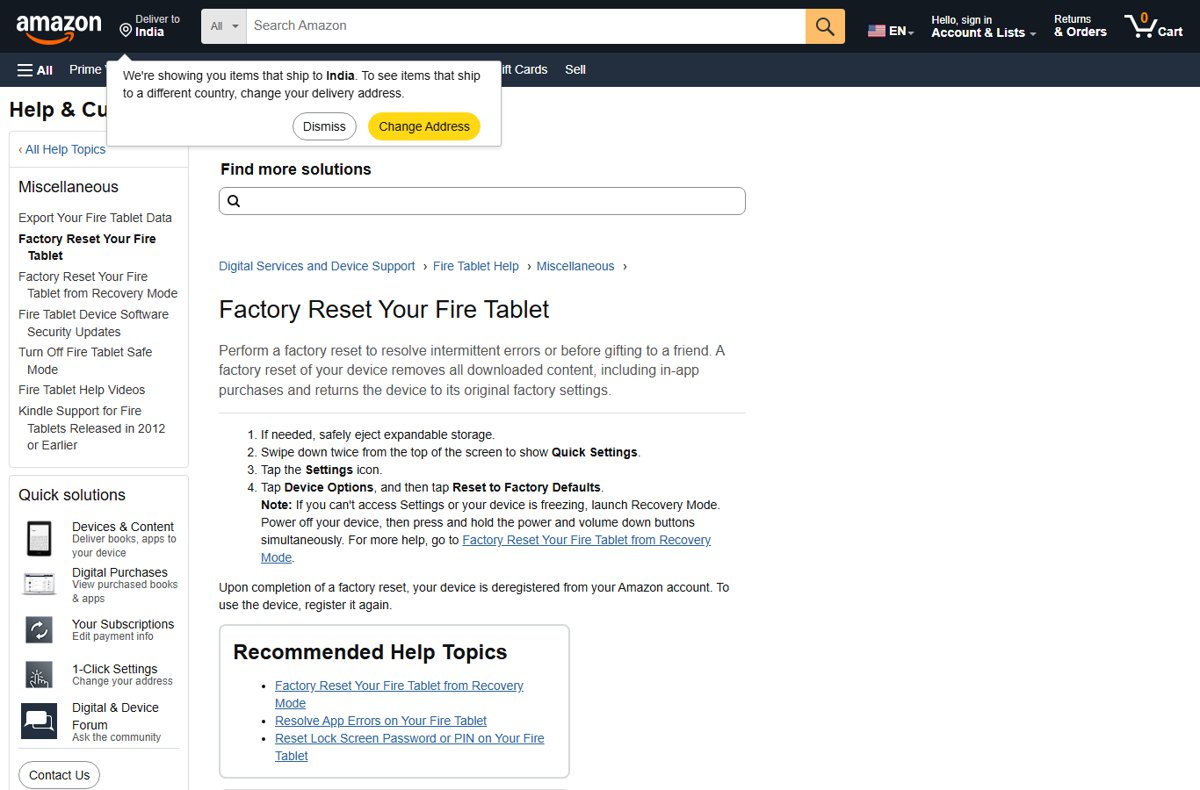
How to factory reset an Amazon Fire tablet from Settings
Use this route when the tablet turns on and you can reach Settings. It works on Fire 7, Fire HD 8, Fire HD 10, Fire Max 11 and Fire Kids tablets.
- Safely eject the microSD card if one is inserted.
- Swipe down twice from the top of the screen to open Quick Settings.
- Tap the Settings icon.
- Tap Device Options.
- Tap Reset to Factory Defaults.
- Confirm the reset and leave the tablet alone until it restarts on the setup screen.
Amazon says the reset removes all downloaded content, including in-app purchases, and returns the tablet to its original factory settings. It also deregisters the tablet from your Amazon account.
Which reset method should you use?
| Your situation | Use this | Why |
|---|---|---|
| Tablet works and you are selling or gifting it | Settings > Device Options > Reset to Factory Defaults | Full wipe plus automatic deregistration |
| Tablet is frozen or Settings will not open | Recovery Mode with the power and volume down buttons | Works without the touch screen menus |
| Forgot the lock screen PIN or password | Reset the PIN from the lock screen first | Keeps your data if the tablet is online |
| Forgot the parental controls password | Factory reset | Amazon offers no other way to restore full access |
| Apps crash or one app misbehaves | Restart, or clear that app's cache and data | Fixes intermittent errors without erasing anything |
| Only the microSD card needs wiping | Settings > Storage > Erase SD Card | Clears the card and leaves the tablet as it is |
Why factory resetting a Fire tablet actually helps
Amazon recommends a factory reset to resolve intermittent errors or before you give the tablet to someone else. The table shows what changes and what stays.
| Item | After a factory reset |
|---|---|
| Downloaded apps, books and videos | Removed from the tablet |
| In-app purchases stored on the tablet | Removed |
| Settings, Wi-Fi networks and profiles | Returned to factory defaults |
| Amazon account registration | Removed, so the tablet must be registered again |
| Kindle Store purchases | Kept in the cloud and downloadable again from your library |
| Lock screen PIN and parental controls password | Cleared along with everything else |
Before you start: five things to do first
| Step | What to do | Why it matters |
|---|---|---|
| 1. Back up your data | Export contacts as a .vcf file and calendars as .ics files, then email them to yourself | The reset erases personal data stored only on the tablet |
| 2. Understand what gets deleted | Check the table above: downloads, in-app purchases and settings go | Cloud purchases come back; local files do not |
| 3. Deregister if you are selling | Let the reset deregister it, or remove it in Manage Your Content and Devices if the tablet is already gone | The next owner cannot use your account |
| 4. Try a soft reset first | Hold the power button, select OK, then turn it back on | A restart solves many intermittent problems |
| 5. Charge the tablet | Charge for at least 30 minutes with an Amazon-branded power adapter | Amazon asks for this before restarting a frozen tablet |
To export contacts on Fire OS 6 or later, open Contacts, tap the three-dot menu, tap Import/export, then Export to Storage. In Calendar, tap the three-line menu and choose Export Calendar.
How to factory reset a frozen Fire tablet with the hardware buttons
Recovery Mode resets the tablet when the screen is frozen, Settings will not open, or a forgotten password blocks you. It uses the physical buttons only.
- Remove the microSD card if one is inserted.
- Power off the tablet. If it is frozen, hold the power button for 40 seconds until it shuts off.
- Press and hold the power button and the volume down button at the same time.
- Release them when the Recovery Mode options appear.
- Use the volume up and down buttons to highlight Wipe data/factory reset.
- Press the power button to select it, then confirm.
- Choose the reboot option once the wipe finishes, and wait for the setup screen.
Amazon says this button combination applies to most devices. A reset from Recovery Mode also deregisters the tablet from your Amazon account.
Reset a forgotten Fire tablet PIN without a factory reset
A forgotten lock screen PIN does not always need a full wipe. The tablet must be connected to the internet for this to work.
- Enter the wrong PIN or password five times on the lock screen.
- Choose Reset Your PIN from the on-screen notification.
- Enter your Amazon account password and tap Continue.
- Enter a new PIN or password and tap Finish.
If the tablet is offline or the reset prompt never appears, use the Recovery Mode reset above.
Alternative ways to reset or wipe your Fire tablet
A full reset is the last resort for performance problems. These lighter options fix one problem at a time and keep your data.
| Option | How to do it | What it keeps |
|---|---|---|
| Soft restart | Hold the power button up to three seconds, select OK, then press power for two to three seconds | Everything |
| Forced restart for a frozen or looping screen | Hold the power button for 40 seconds until the tablet shuts off, then press it for two seconds | Everything |
| Clear one app's cache and data | Settings > Apps & Notifications > Manage All Applications > the app > Storage > Clear Cache | All other apps and files |
| Erase only the microSD card | Settings > Storage > Erase SD Card | Everything on the tablet itself |
| Remove the tablet from your account remotely | Open Manage Your Content and Devices on the Amazon website and deregister it under Devices | Nothing on the device changes until someone resets it |
Older Fire tablets (4th to 7th generation) use a different path for clearing app cache. Amazon keeps a separate help page for those models.
What to do after the reset
- Connect to Wi-Fi: tap the network name, enter its password and tap Connect.
- Sign in with your Amazon account to register the tablet again.
- Check that the clock at the top of the screen shows the correct time, because a wrong time can block registration.
- Open Settings > Device Options > System Updates and install any update offered.
- Open Books or the Kindle app, select Library, then All to download your purchases again.
A tablet that shows the first-time setup screen and accepts your Amazon sign-in has reset correctly. You can then install apps on the Fire tablet again from the Appstore.
Fire tablet still not working after a factory reset
Fire tablet is frozen and will not respond to the reset buttons
The tablet has not fully powered off, or the battery is too low.
- Charge the tablet for at least 30 minutes with an Amazon-branded power adapter.
- Hold the power button for 40 seconds, even if a restart pop-up appears.
- Press and hold power and volume down together to open Recovery Mode.
Fire tablet will not register after the reset
Incorrect device time, outdated software or the wrong Amazon password.
- Confirm the time at the top of the screen is correct.
- Make sure the tablet is connected to Wi-Fi.
- Install any update under Device Options > System Updates.
- Sign in to the Amazon website on another device to confirm the account and password.
- Use the Forgot Your Password link on Amazon if the password fails.
microSD card not working after the reset
The card is unsupported, inserted wrongly or faulty.
- Check the size limit: up to 1 TB on 10th generation and newer, 512 GB on 8th and 9th generation, 256 GB on 7th generation.
- Use a UHS card, or Class 4 or higher for non-UHS cards.
- Unmount the card, reinsert it, and test it in another device.
Fire tablet factory reset FAQ
How do I factory reset an Amazon Fire Kids tablet?
Use the same steps as any Fire tablet: Settings, Device Options, Reset to Factory Defaults. If a forgotten parental controls password blocks Settings, Amazon says a factory reset is required, so use Recovery Mode with the power and volume down buttons.
How do I factory reset an Amazon Fire HD 8, Fire 7 or Fire HD 10?
Open Settings, tap Device Options, then Reset to Factory Defaults. The steps are the same across Fire 7, Fire HD 8, Fire HD 10 and Fire Max 11. A frozen model resets through Recovery Mode instead.
How do I factory reset my Amazon Fire if I forgot the PIN?
First try the lock screen reset: enter the wrong PIN five times, choose Reset Your PIN and sign in with your Amazon password. If the tablet is offline, power it off and use Recovery Mode to select Wipe data/factory reset.
Will a factory reset delete my Kindle books and purchased apps?
It removes them from the tablet, but Kindle Store purchases stay in the cloud. After you sign in again, open your library, select All and download them again. Amazon notes that in-app purchases stored on the device are removed.
Does a factory reset erase my microSD card?
Amazon tells you to safely eject expandable storage before the reset, so remove the card first. To wipe the card on purpose, open Settings, select Storage, then select Erase SD Card.
Will resetting fix a Fire tablet that keeps freezing?
It can, because Amazon recommends a factory reset to resolve intermittent errors. Try a forced restart first: charge for 30 minutes, then hold the power button for 40 seconds until the tablet shuts off.
How do I fully reset an Amazon Fire tablet before selling it?
Use Reset to Factory Defaults under Settings, Device Options. The reset erases downloaded content and settings and deregisters the tablet from your Amazon account, so the next owner can register it to their own account.
Is a Fire TV or Fire Stick reset the same as a Fire tablet reset?
No. Fire TV devices and Fire TV Stick 4K use a different reset procedure with their own Settings menu and remote. To clear a forgotten Fire TV PIN instead, you can reset the Fire Stick PIN without wiping the device.
Does a factory reset deregister the Fire tablet?
Yes. Amazon states that completing a factory reset, from Settings or from Recovery Mode, deregisters the tablet from your Amazon account. Sign in again during setup to use it.
Quick summary: factory resetting a Fire tablet
Use Settings > Device Options > Reset to Factory Defaults when the tablet works, and Recovery Mode (power + volume down) when it is frozen or locked. Both routes erase downloads and settings and deregister the tablet, so export contacts and calendars first. For crashes or a forgotten PIN, a restart, an app cache clear or the lock screen PIN reset usually fixes the problem without losing anything.