To install an APK on Android from a PC, turn on USB debugging on the phone, connect it by USB, and run adb install path_to_apk from the Android SDK Platform Tools; without adb, copy the APK over File Transfer and tap it on the phone.
This guide covers both routes plus wireless sideloading, what to set up first, how to confirm the app installed, and fixes for the errors people hit most.
The fastest way to install an APK from your PC
Once USB debugging is on and the PC is authorised, one command installs the app with no taps on the phone.
adb install C:\Users\you\Downloads\app.apkRun it from the platform-tools folder in Command Prompt or PowerShell (in PowerShell, type .\adb). Replace the path with your APK. Add -r to reinstall an app you already have while keeping its data.
You should see: adb prints Performing Streamed Install and then Success, and the app appears in the phone's app drawer.
Understanding APK Files and the Need to Install from PC
An APK is the Android package file that holds an app. Installing from a PC suits developers testing builds, people moving an app they own to a phone without a browser, and phones with no Play Store.
| Term | What it means |
|---|---|
| APK | A single Android app package file |
| Split APKs | One app delivered as several APK files; they must be installed together |
| Unknown apps | Android's name for apps from anywhere other than Google Play |
| ADB (Android Debug Bridge) | A command-line tool in the Android SDK Platform Tools that talks to a phone over USB or Wi-Fi |
| USB debugging | The phone setting, under Developer options, that lets ADB connect |
Methodologies for Installing APKs from PC
| Your situation | Use this | Why |
|---|---|---|
| You install APKs often or test your own builds | ADB over USB | One command, no taps on the phone, works for split APKs |
| You need one app installed and do not want developer tools | File Transfer over USB | Copy and tap; no software on the PC |
| Your cable is charge-only or the port is broken | Wireless sideloading with ADB | Same command over Wi-Fi |
| The app is on Google Play | Install it from Google Play instead | Updates and Play Protect checks happen automatically |
Prerequisites for Installing APKs from PC
| You need | Where to get or set it | Needed for |
|---|---|---|
| A compatible Android device and PC | Any Android phone; Windows, macOS or Linux | All methods |
| A USB data cable | A cable that carries data, not charge-only | ADB over USB and File Transfer |
| Developer options and USB debugging | Tap Build number seven times in Settings > About phone, then turn on USB debugging in Developer options | ADB |
| Android SDK Platform Tools | The standalone package from developer.android.com | ADB |
| A USB driver on Windows | Google USB Driver for Pixel and Nexus, or your phone maker's OEM driver; not needed on macOS or Linux | ADB on Windows |
| A trusted APK source | The developer's own site or your own build | All methods |
| Free storage on the phone | Settings > Storage | All methods |
| Install unknown apps permission | Granted per app on Android 8.0 and later; Unknown sources under Settings > Security on 7.1.1 and earlier | File Transfer method |
Step-by-Step: Installing APKs on Android from PC Using ADB
- Download Android SDK Platform Tools from developer.android.com and extract the folder.
- On the phone, open Settings > About phone and tap Build number seven times to show Developer options.
- Open Developer options and turn on USB debugging.
- Connect the phone to the PC by USB and unlock it.
- Open Command Prompt in the platform-tools folder and run
adb devices -l. - On the phone, accept the dialog asking to allow USB debugging from this computer's RSA key.
- Run
adb devices -lagain and confirm the phone shows as device. - Run
adb install path_to_apkand wait for Success.
For an app split into several files, use adb install-multiple followed by every APK in the set. Use -r to reinstall over an existing copy and keep its data.
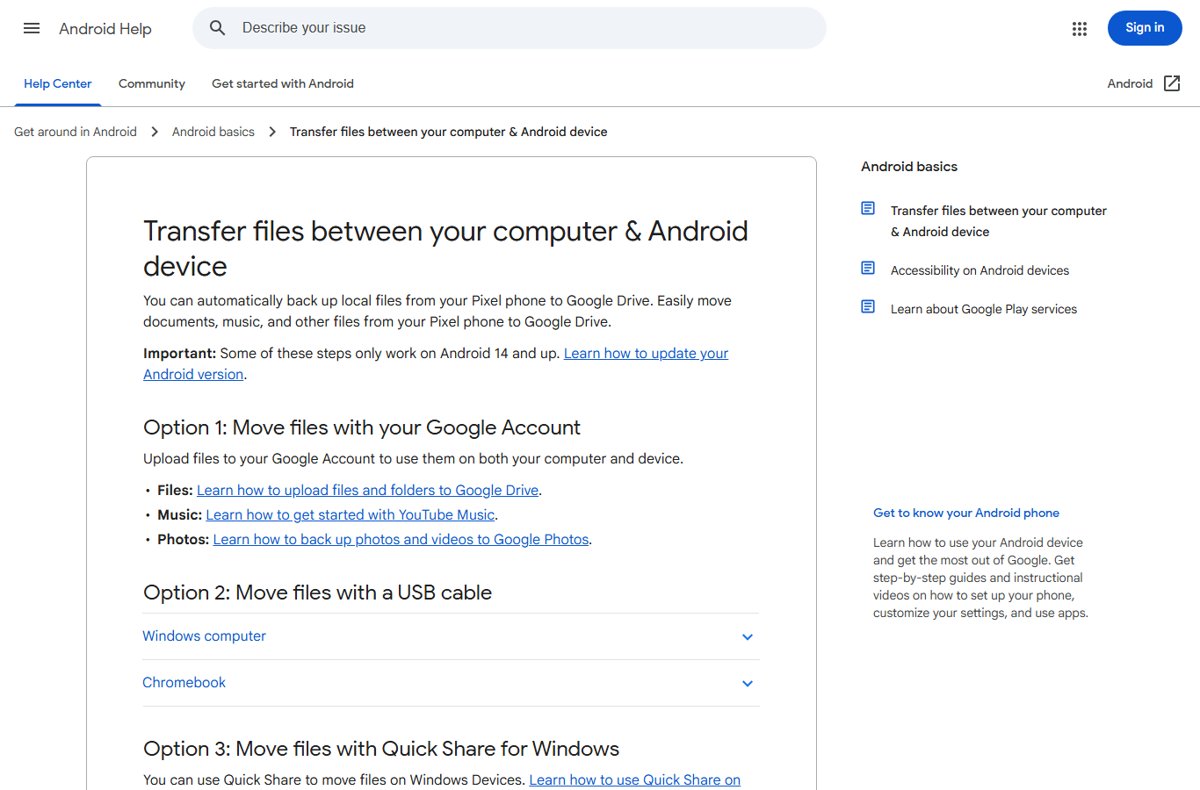
Method 2: Installing APKs from PC via File Transfer Using USB
This needs no developer tools. The PC only copies the file; the install happens on the phone.
- Unlock the phone and connect it to the PC with a USB cable.
- On the phone, tap the Charging this device via USB notification.
- Under Use USB for, select File Transfer.
- In the window that opens on the PC, drag the APK into the phone's Download folder.
- Eject the phone from Windows and unplug the cable.
- On the phone, open your file manager app, go to Download and tap the APK.
- When Android asks, allow that file manager to install unknown apps, then go back and tap Install.
Android grants the unknown-apps permission per app on 8.0 and later, so only the file manager you used gets it. Turn it off again after the install. The same copy-and-tap approach works on Fire tablets; see installing Android apps on a Kindle Fire.
Alternative Methods: Wireless Sideloading
Android 11 and later pair with ADB over Wi-Fi without a cable. Android 10 and earlier need a cable once to switch ADB to network mode.
| Android version | Steps | Then install with |
|---|---|---|
| Android 11 and later | Turn on Developer options > tap Wireless debugging > allow it on your network > Pair using pairing code; on the PC run adb pair ipaddr:port and enter the code |
adb install path_to_apk |
| Android 10 and earlier | Put phone and PC on the same Wi-Fi, connect by USB, run adb tcpip 5555, unplug, find the IP in Settings > About phone > Status, then run adb connect device_ip_address:5555 |
adb install path_to_apk |
Run adb devices after connecting; the phone should be listed with its IP address and the state device.
How to check the APK installed correctly
- Look for Success at the end of the
adb installoutput. - Open the phone's app drawer and find the new app icon.
- Open Settings > Apps, select the app and check its version number.
- Launch the app once and confirm it opens without closing.
- Open the Play Store app, tap your profile icon > Play Protect, and check no warning was raised.
Potential Challenges and Troubleshooting
adb devices shows nothing, or the phone shows as unauthorized
USB debugging is off, the RSA prompt was not accepted, the cable is charge-only, or Windows lacks the USB driver.
- Unlock the phone and check USB debugging is on.
- Unplug and reconnect, then accept the Allow USB debugging dialog.
- Try a different cable and USB port.
- On Windows, install the Google USB Driver for Pixel phones or your phone maker's OEM driver.
Tapping the APK does nothing or shows a blocked message
The file manager has not been allowed to install unknown apps.
- Tap the APK again and choose Settings when Android prompts.
- Turn on the permission for that app on the Install unknown apps screen.
- Go back and tap Install.
Play Protect warns or blocks the app
Play Protect checks apps from other sources and flags potentially harmful ones.
- Cancel the install.
- Check the APK came from the developer's own site.
- Get the app from Google Play instead if it is listed there.
The app installs but is missing parts or will not open
The app is a set of split APKs and only one file was installed.
- Get every APK in the set.
- Run
adb install-multiplefollowed by all the files.
Wireless debugging will not connect
Phone and PC are on different networks, or the pairing code expired.
- Put both on the same Wi-Fi network.
- Open Wireless debugging and select Pair using pairing code again.
- Run
adb pair ipaddr:portwith the new values.
Best Practices and Tips for Safe APK Installation
- Download APKs only from the app developer's own site, or use your own builds.
- Leave Scan apps with Play Protect on in the Play Store app under Play Protect settings.
- Turn off the install unknown apps permission for your file manager once the app is installed.
- Turn off USB debugging when you are not using ADB.
- Only accept the RSA debugging prompt on your own computer.
- Prefer Google Play when the app is listed there, so it updates automatically.
Legal and Ethical Considerations
Sideload only apps you have the right to install: your own builds, free apps the developer distributes directly, or apps you have paid for through their official channel. Installing an APK is legal on Android, but a modified or redistributed copy of a paid app is piracy, and such copies are a common way malware reaches phones. Some network providers also block installs from unknown sources on their devices.
Frequently asked questions
How do I install an APK on Android from a PC?
Turn on USB debugging in Developer options, connect the phone by USB, accept the debugging prompt, and run adb install path_to_apk from Platform Tools. Without adb, copy the APK over File Transfer and tap it on the phone.
How do I install an APK file on an Android phone?
Open the APK in your file manager, allow that app to install unknown apps when Android asks, then tap Install. On Android 7.1.1 and earlier, turn on Unknown sources under Settings > Security first.
How do I install .apks or split APK files on Android?
Split apps come as several APK files that must go in together. With adb, run adb install-multiple followed by every file in the set. Installing only the base APK leaves the app incomplete.
Does an APK work on a PC?
Not on its own. Windows cannot open APK files, and Windows Subsystem for Android and the Amazon Appstore were removed from the Microsoft Store on March 5, 2025. To play Android games on Windows, use Google Play Games on PC.
Can you install an APK on Windows?
Not directly. Windows Subsystem for Android, which ran Android apps on Windows 11, left the Microsoft Store on March 5, 2025. Windows itself has no built-in way to install or open APK files.
How do I run an APK on Android after installing it?
Open the app drawer and tap the new app icon, or run it from Settings > Apps. If adb installed it, the app appears just like a Play Store app and can be uninstalled the same way.
Do I need a USB driver to use ADB?
On Windows, yes: install the Google USB Driver for Pixel and Nexus phones, or the driver from your phone's manufacturer. macOS and Linux need no USB driver.
Conclusion
Use ADB over USB if you install APKs more than once, and the File Transfer method for a one-off install. ADB installs with one command and handles split APKs, while File Transfer needs nothing on the PC but grants a file manager the unknown-apps permission you should turn off afterwards.





How to Install Any Android App on Your Kindle Fire - Techdows
[…] so apps that rely on Google Play services will not work. Apps in the Amazon Appstore work, and a developer-supplied APK can be installed with ADB if it supports Fire […]
How to open APK files: a step-by-step guide - Techdows
[…] you have never connected the phone to ADB, set up USB debugging and the driver first, then install the APK on Android from your PC over USB or […]