You cannot install any Android app on a Kindle Fire: Fire tablets run Amazon's Fire OS, get apps from the Amazon Appstore, and cannot use Google services, so apps that depend on Google Play will not work.
This guide covers the Appstore route, the ADB route Amazon documents for installing an APK from a computer, what "any app" really means on Fire OS 7 and Fire OS 8, and fixes for apps that will not install or open.
The fastest way to install an Android app on a Fire tablet
The Amazon Appstore is built into every current Fire tablet, and it is the route Amazon supports for normal use.
- Open Games & Apps, or open the Apps or Games app on the home screen.
- Search the Store for the app you want and select it.
- Select Get, or the app's price if it is a paid app.
- Wait for the download to finish, then select Open.
If the app does not appear in search, Amazon hides it because it is not compatible with your tablet. The rest of this guide explains why.
First: Know What Kind of Fire Tablet You Have
Amazon dropped the "Kindle" name from its tablets after the early models, so a "Kindle Fire" and a "Fire tablet" are the same product line. Your model decides your Fire OS version, and the Fire OS version decides which apps can run.
To check, open Settings, select Device Options, and read Device Model or About Fire Tablet. You can also see the model on the Manage Your Devices page of your Amazon account.
| Fire tablet model | Fire OS version | Android base |
|---|---|---|
| Fire HD 10 (13th Gen), Fire Max 11 (13th Gen), Fire HD 8 (12th Gen), Fire 7 (12th Gen) | Fire OS 8 (8.3.3.8) | Android 10 and 11 updates (API 30) |
| Fire HD 10 and HD 10 Plus (11th Gen), Fire HD 8 and HD 8 Plus (10th Gen), Fire HD 10 (9th Gen), Fire 7 (9th Gen), Fire HD 8 (8th Gen) | Fire OS 7 (7.3.3.1) | Android 9 Pie (API 28) |
| Fire HD 10, Fire HD 8 and Fire (5th to 7th Gen), Fire HDX 8.9, Fire HD 7 and HD 6 (4th Gen) | Fire OS 5 | Older than the Android 9 base of Fire OS 7 |
| Kindle Fire, Kindle Fire HD and Kindle Fire HDX (1st to 3rd Gen) | Fire OS 1 to 4 | Older still; the original Kindle Fire models |
Amazon promises software security updates for each tablet until a set date. For example, the Fire HD 10 (13th Gen) is covered until at least 31 December 2029 and the Fire Max 11 until at least 31 July 2030.
The Main Ways to Install Android Apps
There are two routes Amazon documents. A third route that circulates online, adding Google Play, is not one Amazon supports, and it is covered in its own section below.
| Your situation | Use this | Why |
|---|---|---|
| The app is listed in the Amazon Appstore | Method 1: Amazon Appstore | Checked for your device, added to your Amazon account and cloud, and reinstallable later |
| You built the app yourself, or its developer gives you an APK file for Fire tablets | Method 2: ADB install from a computer | The installation route Amazon documents for developers |
| The app needs Google Play services, Google sign-in or Google billing | Neither; look for an Appstore alternative | Google Mobile Services do not work on Fire tablets |
| The app is not in the Appstore and you have no APK from its developer | Use the app's website in the Silk browser, or a different device | There is no supported way to fetch it from Google Play |
Method 1: Install Apps from the Amazon Appstore
The Amazon Appstore runs on Fire tablets and Fire TV. You need to be signed in to an Amazon account, and a paid app needs a default payment method or an Amazon Gift Card balance.
- Open the Amazon Appstore (Games & Apps, or the Apps app) on your Fire tablet.
- Search for the app and select it from the results.
- Select View compatible devices on the app page if you want to confirm it supports your tablet.
- Select Get, or the app's price, to start the download.
- Select Open when the download completes.
- Find the app later under My Apps, or in your Library.
You can also shop for apps from a PC or Mac on Amazon.com and send them to a registered Fire tablet. Look for the compatible devices link on the app's detail page before you buy.
Before an app installs, the Appstore shows the permissions it needs, such as Your Location, Personal Info or Storage. Read that list and cancel if an app asks for more than it should.
Method 2: Sideload an Android APK File
Amazon's Fire tablet help library does not publish a consumer walkthrough for opening APK files from unknown sources on the tablet itself. The installation route Amazon documents outside the Appstore is ADB, the Android Debug Bridge, run from a computer.
Use it only for an APK you built or one the app's developer gives you directly. You need a USB cable and ADB on the computer, which comes with Android Studio or Google's Android SDK Platform Tools. On Windows, Amazon also points you to its Fire tablet ADB driver.
- On the tablet, open Settings > Device Options > About Fire Tablet and tap Serial Number seven times.
- Go back to Device Options, open the new Developer Options menu, and set Developer options and USB debugging to On.
- Connect the tablet to the computer with a USB cable.
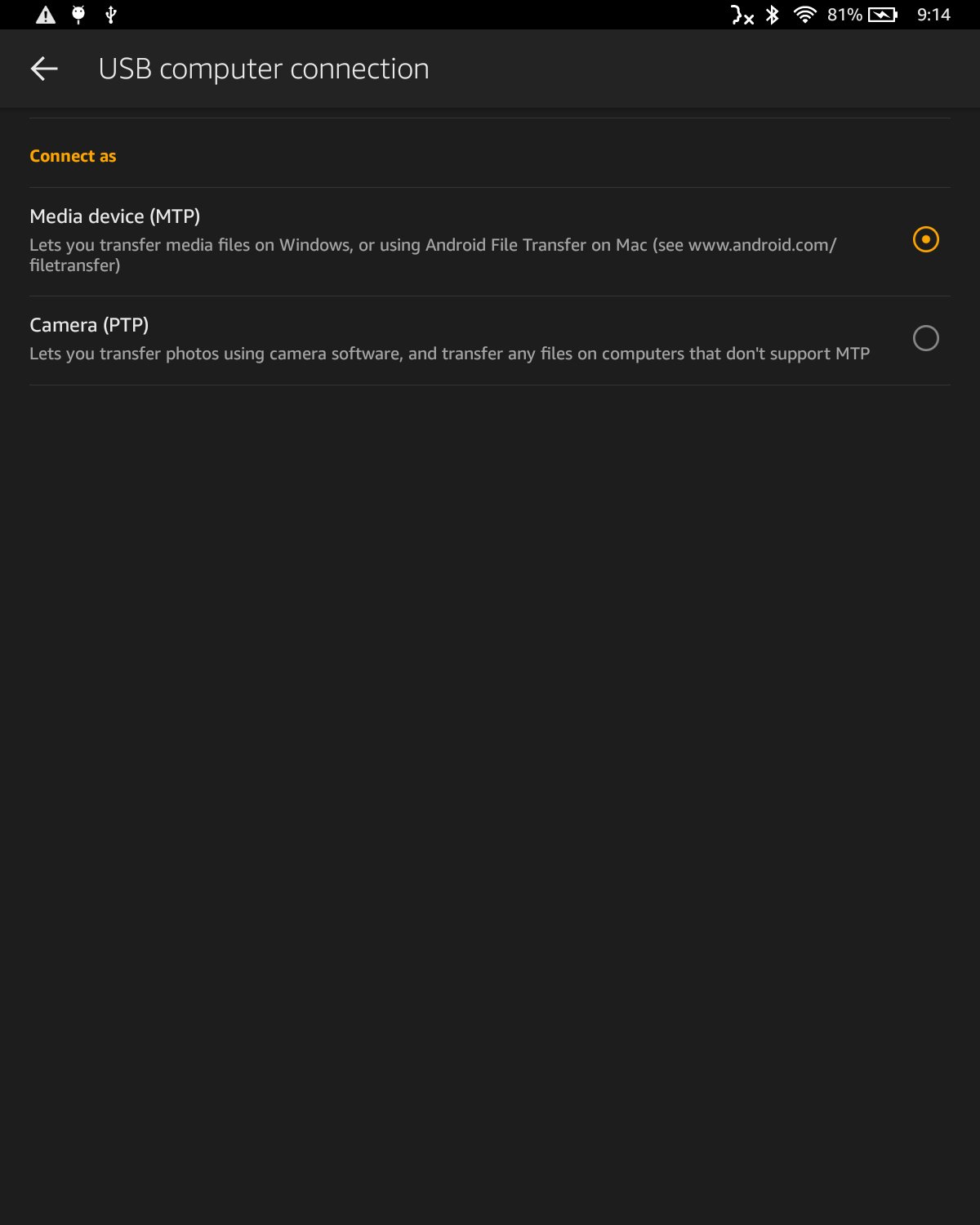
- Swipe down on the tablet and choose File Transfer (Fire OS 7) or Media device (MTP) as the USB mode.
- Tap OK when the Allow USB debugging? prompt appears.
- On the computer, run
adb devicesand confirm the tablet's serial number appears followed bydevice. - Run
adb install <APK_path>, replacing<APK_path>with the full path to the APK file. - Open the app from the tablet's home screen or app grid.
If adb devices lists the tablet as unknown, you have not approved the Allow USB debugging? prompt yet. A Camera (PTP) USB mode also stops the computer from recognising the tablet.
Turn USB debugging back to Off when you finish, so no computer can install apps on the tablet without you.
Can You Install the Google Play Store on a Fire Tablet?
No supported method exists. Amazon's developer documentation states that Google services cannot be used on Amazon Fire devices, and that Google Mobile Services do not work on Fire tablets. For that reason this guide gives no recipe for adding Google Play.
| What depends on Google services | What happens on a Fire tablet | Amazon's alternative |
|---|---|---|
| The Google Play Store app | Not included and not supported | Amazon Appstore |
| Apps that call Google Play services | Fail to start or lose features | Developers use Amazon's Apps & Games Services SDKs |
| Google in-app billing | Does not work | Amazon In-App Purchasing API |
| Apps sold only on Google Play | No supported install route | Ask the developer for an Appstore release |
Installing Apps That Come as APK Bundles
Many apps now ship as bundles split into several files rather than a single APK. Amazon's Fire tablet documentation covers installing one APK with adb install <APK_path>, and nothing more.
Do not try to reassemble a bundle from files found online. Get the app from the Amazon Appstore, or ask the developer for a single APK built for Fire tablets. A bundle pulled from a third-party site is also the riskiest kind of file to install.
How to Move APK Files from a Computer to a Fire Tablet
With ADB you do not need to copy the file first: adb install sends the APK from the computer and installs it in one step. The USB mode still matters, because the wrong mode stops the tablet being recognised.
| Your tablet | USB mode to pick | Then |
|---|---|---|
| Fire OS 7 or later | File Transfer | Run adb install <APK_path> on the computer |
| Older Fire OS | Media device (MTP) | Run adb install <APK_path> on the computer |
| Tablet set to Camera (PTP) | Change it to one of the modes above | Reconnect and run adb devices again |
| Kindle Fire (1st Gen) | Any | ADB is enabled by default on this model |
What “Any Android App” Really Means
Fire tablets support Android apps, HTML5 web apps and React Native apps, but only apps that fit Fire OS. These are the limits Amazon documents.
| Limit | What it means for you |
|---|---|
| No Google Mobile Services | Apps built around Google Play services, Google sign-in or Google billing will not work |
| Fire OS 8 targets API level 30 | Apps that require a newer Android version than Fire OS supports will not install |
| Fire OS 7 is based on Android 9 Pie | Older tablets are shut out of apps that have dropped Android 9 |
| Some devices no longer support 32-bit apps | An old 32-bit-only APK can fail on a newer tablet |
| Hardware features in the app's manifest | An app that requires a camera, GPS or other hardware your tablet lacks is incompatible |
| Incompatible apps are hidden | The Appstore removes them from search and category browsing on your device |
In practice, apps published in the Amazon Appstore work, and apps that exist only on Google Play usually do not.
How to Update Sideloaded Apps
Appstore apps update through the Appstore. An app installed with ADB is outside the Appstore, so you install the newer APK over the old one.
- Get the newer APK from the app's developer.
- Connect the tablet with USB debugging on and confirm it with
adb devices. - Run
adb install -r <APK_path>; the-rswitch reinstalls the app over the existing copy. - Open the app and check its version in its own settings or about screen.
Amazon's help also lists updating to the latest version as a first fix when an app has errors, so keep sideloaded apps current.
How to Uninstall Apps
These steps are for Fire OS 7 and newer. Pre-installed apps cannot be removed, but you can move them around the home screen.
- Open the Games or Apps app and select the Menu icon.
- Tap Library, then select Downloaded.
- Find the app and select its options icon.
- Select Delete from Device.
On Fire OS 6 and older, go to the Games & Apps tab, select Library, open the app's options, select Manage All Applications, pick the app, and select Delete from Device.
For an app installed with ADB, adb uninstall <package name> also removes it; adb shell pm list packages -f lists the package names. To clear every app and setting at once, factory reset the Kindle Fire instead.
How to check the app installed
- For an Appstore app, open the Appstore and look under My Apps; the app shows there and in your Library.
- For an ADB install, check that the command finished without an error message on the computer.
- Run
adb shell pm list packages -fand find the app's package name in the list. - Open the app from the tablet's app grid and confirm it loads past its first screen.
Troubleshooting Common Problems
The app opens and immediately closes
Corrupt cached data, a stuck process, or an app that needs Google services.
- Force close the app: open Settings, select Apps & Notifications (or Apps & Games), select Manage All Applications, choose the app, and select Force Stop.
- Restart the Fire tablet.
- Clear the cache: in the same app page select Storage, then Clear Cache; use Clear Data or Clear Storage if that fails.
- Uninstall and reinstall the app.
- Contact the developer; in the Appstore, open the app page and select Developer Info. If the app depends on Google Play services, no setting will fix it.
The app is not installing, or the Appstore does not list it
The app is incompatible with your tablet, so the Appstore hides it or the install fails.
- Check your model and Fire OS version in Settings > Device Options.
- On another device, open the app's Appstore page and select View compatible devices.
- Install any pending Fire OS update, because Fire tablets download updates automatically when online.
- For an APK, ask the developer whether it supports Fire tablets and 64-bit devices.
- Look for an Appstore alternative if the app needs Google services.
There is not enough storage
Internal storage is full of apps and downloaded content.
- Open Settings and select Storage.
- On Fire OS 8, select Internal Storage, then Archive Now or Free Up Space.
- On Fire OS 7, select Archive Now under Free Up Space.
- Retry the install; archived Amazon content stays in your Amazon cloud.
A sideloaded app disappeared from the home screen
Auto Archive archives non-Amazon apps you have not used in the past 60 days.
- Open Settings, select Storage, then Auto Archive.
- Select Reinstall next to the archived app.
- Turn the Auto Archive switch off if you want it to stop archiving apps.
Security Tips for Installing Android Apps on a Fire Tablet
An APK from outside the Appstore skips the compatibility review Amazon runs on published apps, and an unknown source can hide anything inside the file.
| Do this | Why |
|---|---|
| Prefer the Amazon Appstore version of any app | Amazon reviews Appstore apps for Fire tablet compatibility |
| Only install an APK that comes straight from the app's developer | APK mirror and download sites are an unknown source |
| Read the permissions list before you install | Permissions such as Personal Info, Messages or Phone Calls grant access to private data |
| Turn USB debugging off after an ADB install | It lets any trusted computer install apps |
| Keep Fire OS updated | Security fixes arrive through Fire tablet software updates |
| Check your tablet's security update end date | After that date, updates are no longer guaranteed |
| Turn on Parental Controls for shared adult profiles | A password is then required to download apps |
Can You Install Apps in a Child Profile?
A child cannot install apps freely. You add apps from an adult profile, and Parent Purchase Approvals let a child request titles from the store.
- Sign in to your main adult profile.
- Open the Amazon Kids app from the Home tab.
- Tap the gear icon to open the child's Profile Settings.
- Tap Manage Content, then select Amazon Content.
- Tap the tab for the content type you want to share, select the apps, and select Done.
Amazon warns that some apps are not designed for children and may include ads, external links, in-app purchases, or requests for personal information.
Should You Sideload or Install Google Play?
Use the Amazon Appstore first, use ADB only for an APK that comes from its developer, and do not install Google Play. Google Mobile Services do not work on Fire tablets, so a Google Play hack is unsupported and fragile. If an app you need exists only on Google Play, a Fire tablet is the wrong device for it.
Frequently Asked Questions
Can you install any Android app on a Kindle Fire?
No. Fire tablets run Fire OS and cannot use Google Mobile Services, so apps that rely on Google Play services will not work. Apps in the Amazon Appstore work, and a developer-supplied APK can be installed with ADB if it supports Fire OS.
How do I install apps on a Fire tablet?
Open Games & Apps or the Apps app, search the Store, select the app, and select Get or its price. When the download finishes, select Open. The app then appears under My Apps and in your Library.
Does a Fire tablet have the Google Play Store?
No. Fire tablets use the Amazon Appstore, and Amazon states that Google services cannot be used on Amazon Fire devices. Developers use Amazon's own SDKs, such as the In-App Purchasing API, in place of Google's services.
Can I install an Android app on my Fire tablet from my PC?
Yes, in two ways. Buy the app on Amazon.com from your PC and send it to your registered tablet, or connect the tablet by USB with USB debugging on and run adb install with the path to a developer-supplied APK.
What Android version does my Fire tablet run?
Fire OS 8 incorporates updates from Android 10 and Android 11 (API 30), and Fire OS 7 is based on Android 9 Pie (API 28). Check your version in Settings > Device Options to know which applies.
Why is an app not installing on my Fire tablet?
The app is usually incompatible. It may need Google services, a newer Android version, hardware your tablet lacks, or 32-bit support your tablet has dropped. Amazon hides incompatible apps from Appstore search, so ask the developer or choose an alternative.
Is a Kindle Fire the same as a Fire tablet?
Yes. Amazon sold its early tablets as the Kindle Fire, Kindle Fire HD and Kindle Fire HDX, then renamed the line Fire. Early models run Fire OS 1 to 4, far older than the Android 9 base of Fire OS 7.
How do I get to installed apps on a Fire tablet?
Open the Games or Apps app, tap the Menu icon, then Library and Downloaded. Installed apps also appear on the home screen and app grid, and the Appstore lists them under My Apps.

Installing APK on Android from PC: a step-by-step guide - Techdows
[…] Android grants the unknown-apps permission per app on 8.0 and later, so only the file manager you used gets it. Turn it off again after the install. The same copy-and-tap approach works on Fire tablets; see installing Android apps on a Kindle Fire. […]